You can now manage multiple phone numbers under the same WhatsApp Business Account (WABA) from a single InOne panel. Each number can be selected using a dropdown or filter within the panel, making it easier to:
Create and send campaigns from the desired number
View analytics and delivery reports per number
Monitor quota usage and rate limits individually
This guide aims to answer these questions:
Scope and limitations
This feature applies only to the WhatsApp channel and supports both:
The following limitations apply:
It does not support other products or messaging channels.
This feature does not support any synchronization with campaigns or journeys created in other product panels. Existing content in those panels will remain completely separate.
To add a new number from another WhatsApp Business Solution Provider (BSP) to Insider One, you must provide the WABA ID of that number to migrate existing templates.
Use Cases
Here are some example scenarios where managing multiple numbers from a single panel can simplify operations, improve coordination, and enhance campaign visibility.
Regional Marketing Teams: A global cosmetics brand has a WABA with phone numbers for Turkey, Brazil, and Indonesia. Regional marketing managers can select their local number to create campaigns without accessing or interfering with data from other countries.
Customer Support vs. Marketing Separation: A bank uses one number for transactional messages and another for marketing campaigns. With this feature, the marketing team can manage outreach from the marketing line, while the support team operates from the transactional line within the same panel.
Franchise Management: A food delivery platform uses separate numbers for each city branch. Headquarters can monitor performance across all numbers, while local branches run their campaigns independently.
Parent Brand with Sub-brands: A retail company manages several sub-brands (e.g., clothing, food, electronics), each using a different number under the same WABA. With multi-number support, the parent brand can manage all communication from a single panel while keeping campaigns and reports separated per number.
Benefits of Multi-Number support
Here’s how multi-number support helps streamline operations and scale communication across teams and regions:
Single-panel efficiency: All numbers accessible in one view.
Time savings: No more switching between multiple panels.
Reduced template duplication: Eliminates the need to recreate the same templates across different panels.
Unified visibility: Campaigns across all numbers can be viewed in one place with number-level filtering.
Improved analytics: You can easily access and compare analytics per number without needing to navigate across panels.
Better segmentation and targeting: You can segment campaigns more precisely by number context.
Scalable architecture: Enables future growth for large businesses with an expanding number of needs.
How to use Multi-Number support in InOne
To set up Multi-Number support in InOne,
Navigate to Campaigns > Messaging > WhatsApp > Settings.
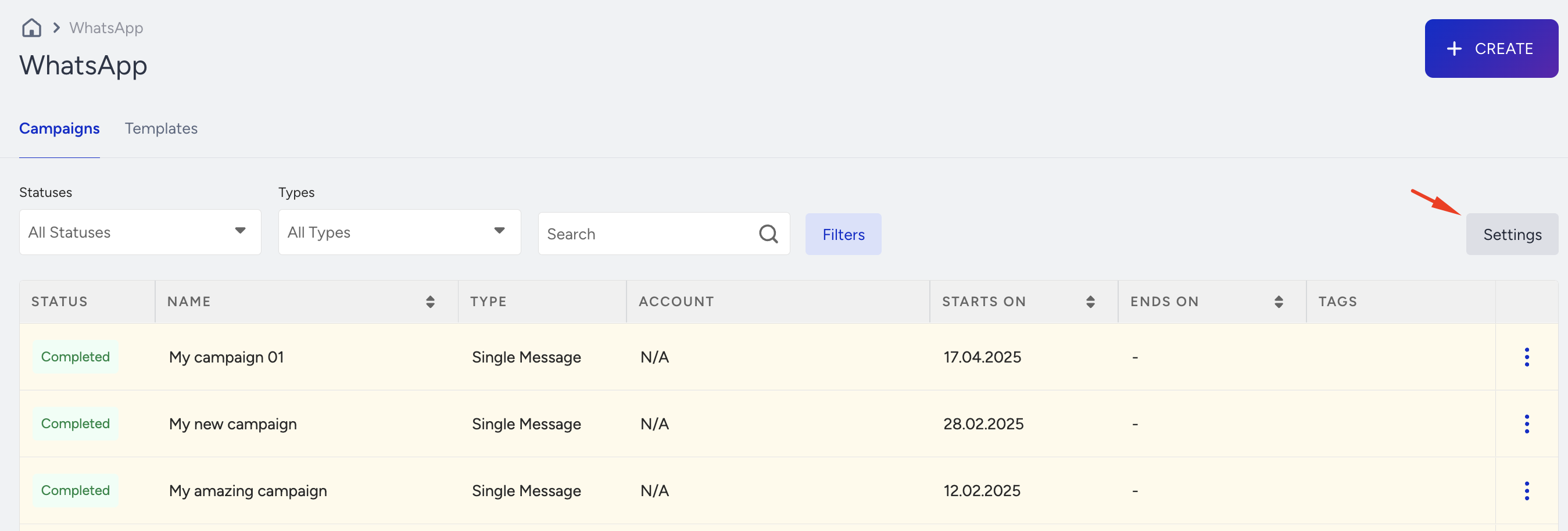
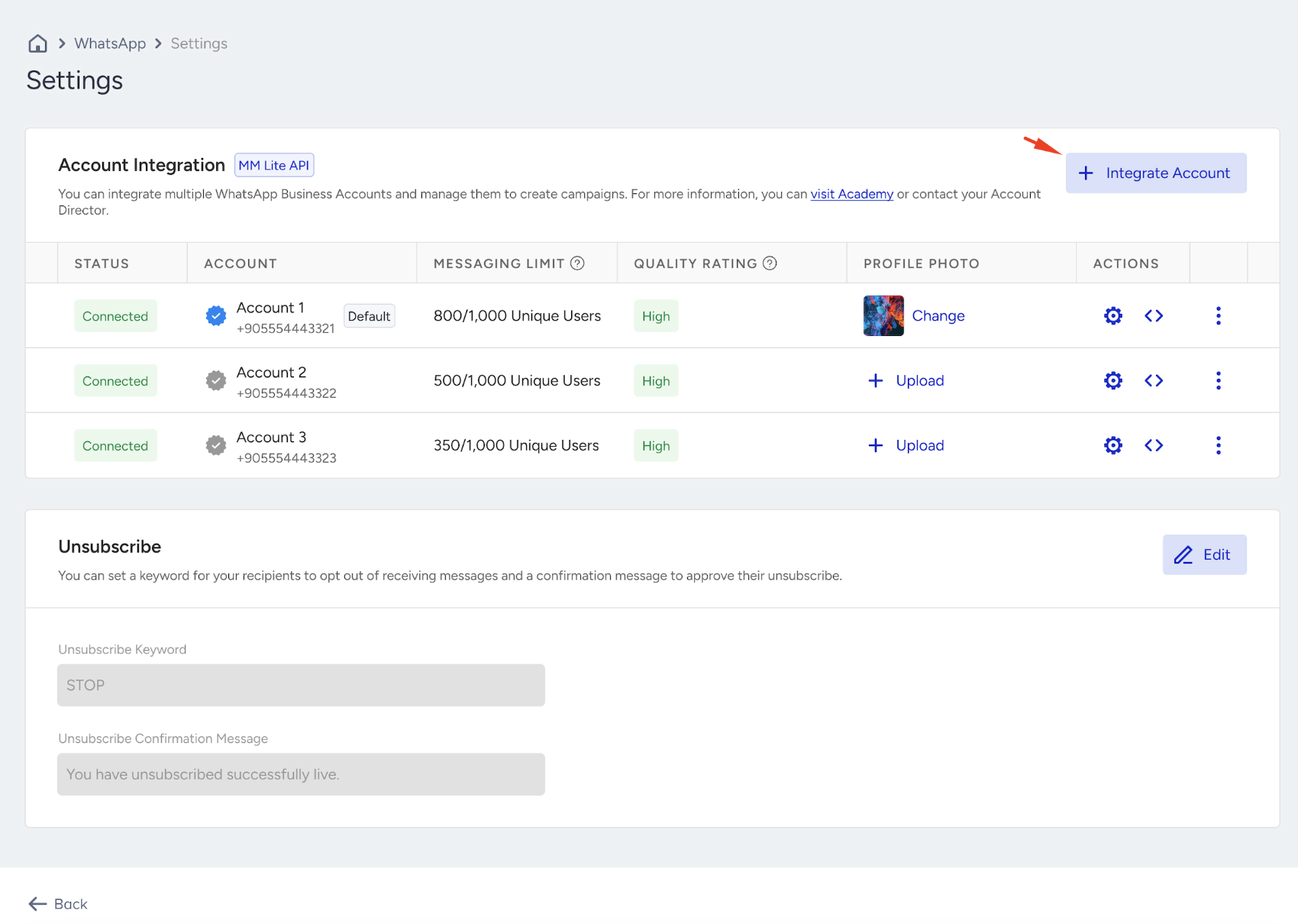
To add multiple phone numbers, click the +Integrate Account button. You’ll need to complete the integration process individually for each number.
After you complete the embedded sign-up, a dropdown appears listing the numbers you can add. From this dropdown, select the number you want to add under the same WABA to complete the integration.
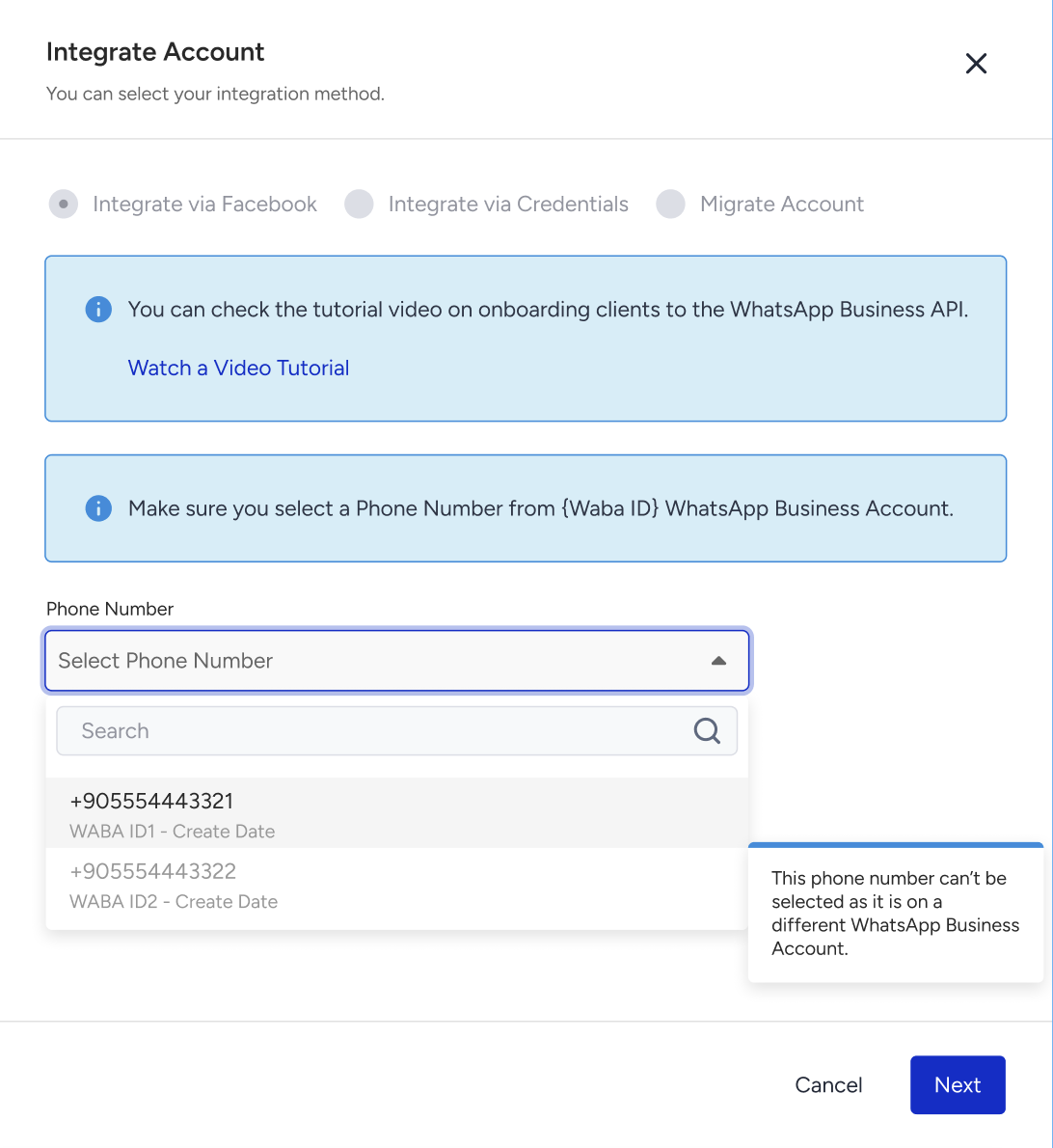
Adding the number under the same WABA is required. Selecting a different/new WABA causes the integration to fail.
You can view each number’s Status, Display Name, Message Limit, and Quality Rating in the table.
When adding a new number, make sure to follow the integration or migration steps. To use the multi-number support feature, all added numbers must be under the same WhatsApp Business Account (WABA).
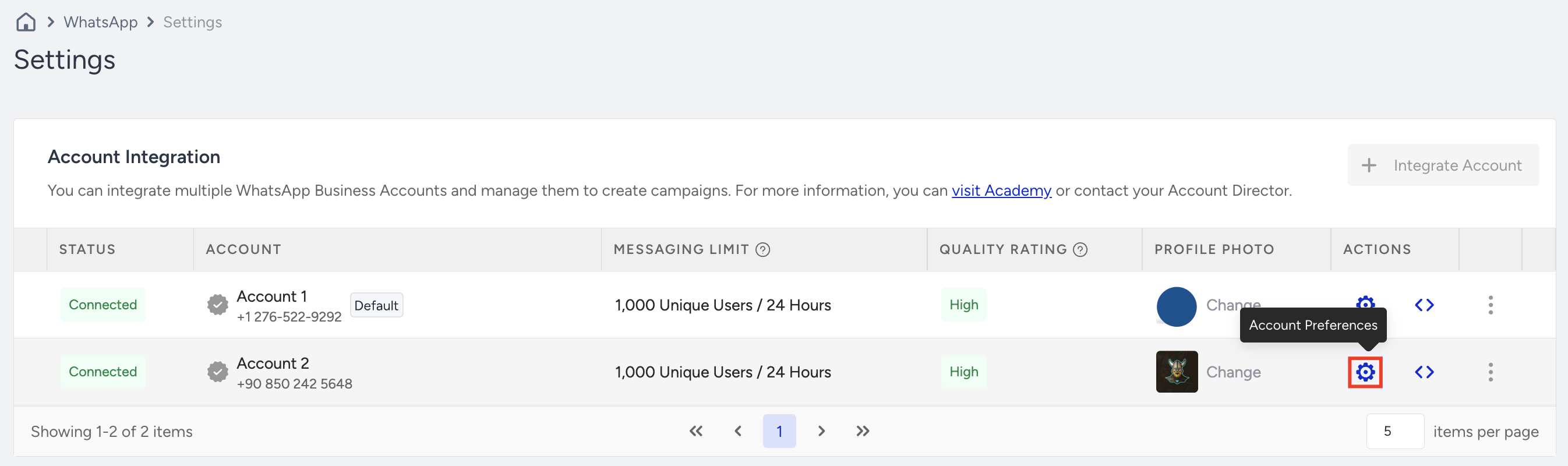
Account Preferences
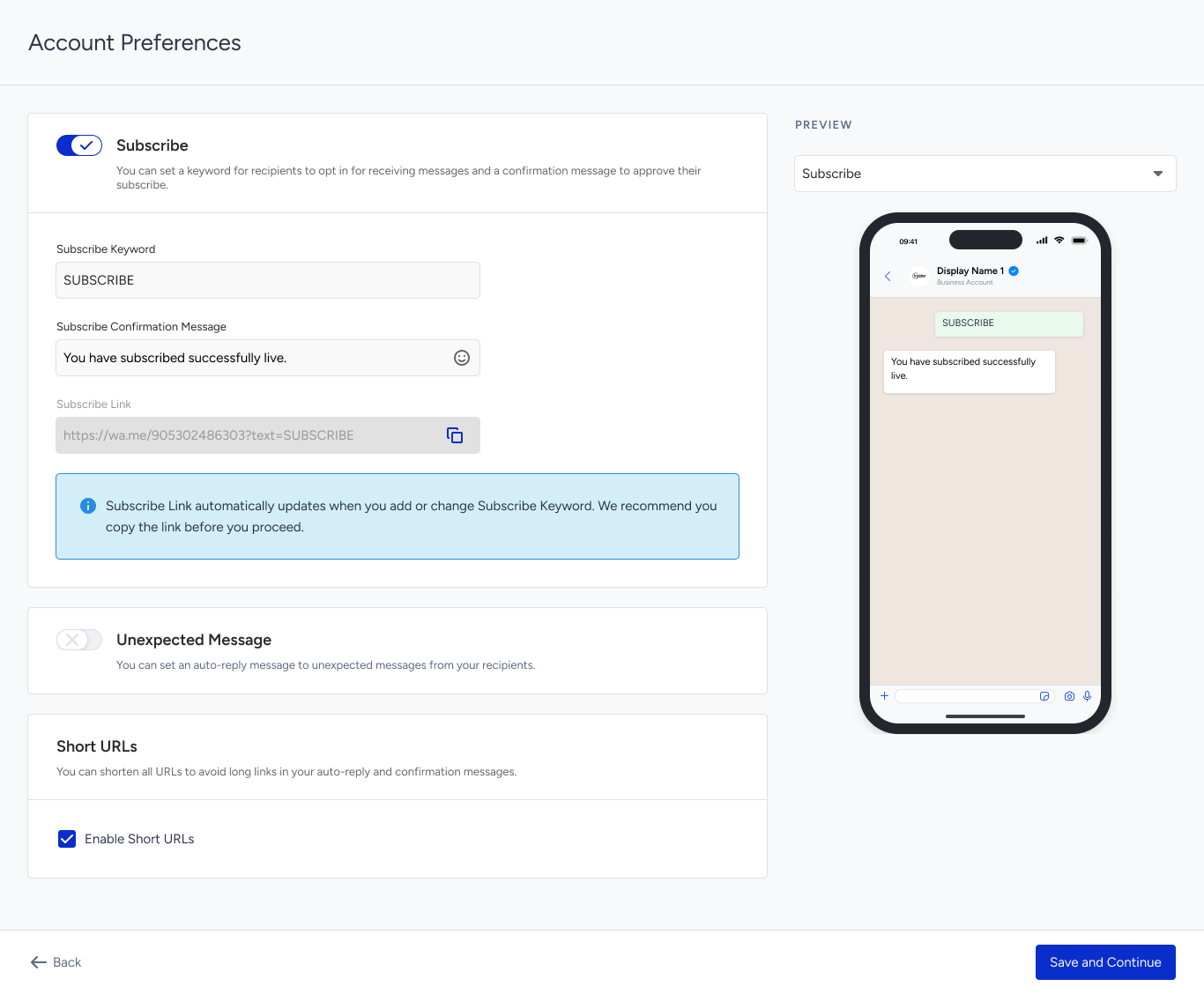
The Unsubscribe Keyword applies globally across all numbers, but you can set a unique Subscribe Keyword for each number from the Account Preferences in the Actions column.
After setting your Subscribe Keyword, you can preview it.
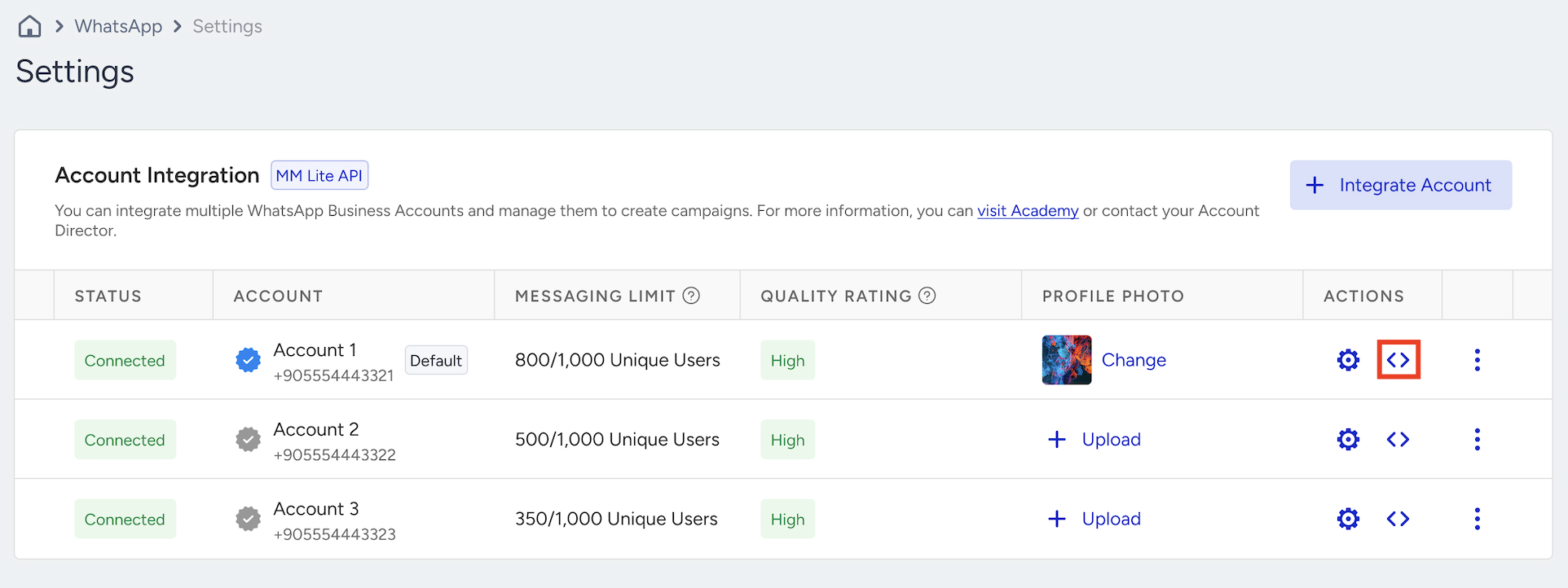
Account APIs
To configure your API Management, navigate to the Account APIs under the Actions column.
Set up a webhook
To integrate a new webhook, click the + Integrate Account API button.
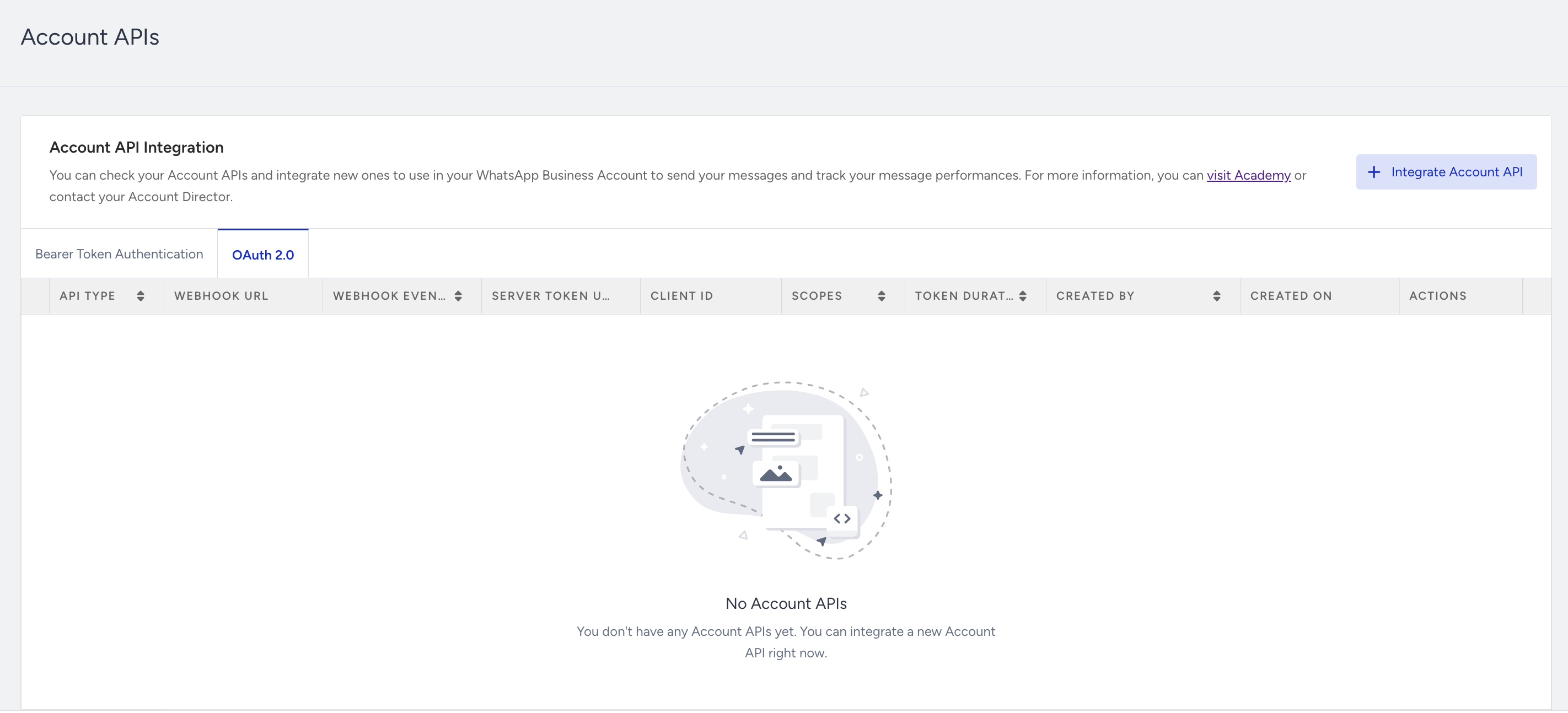
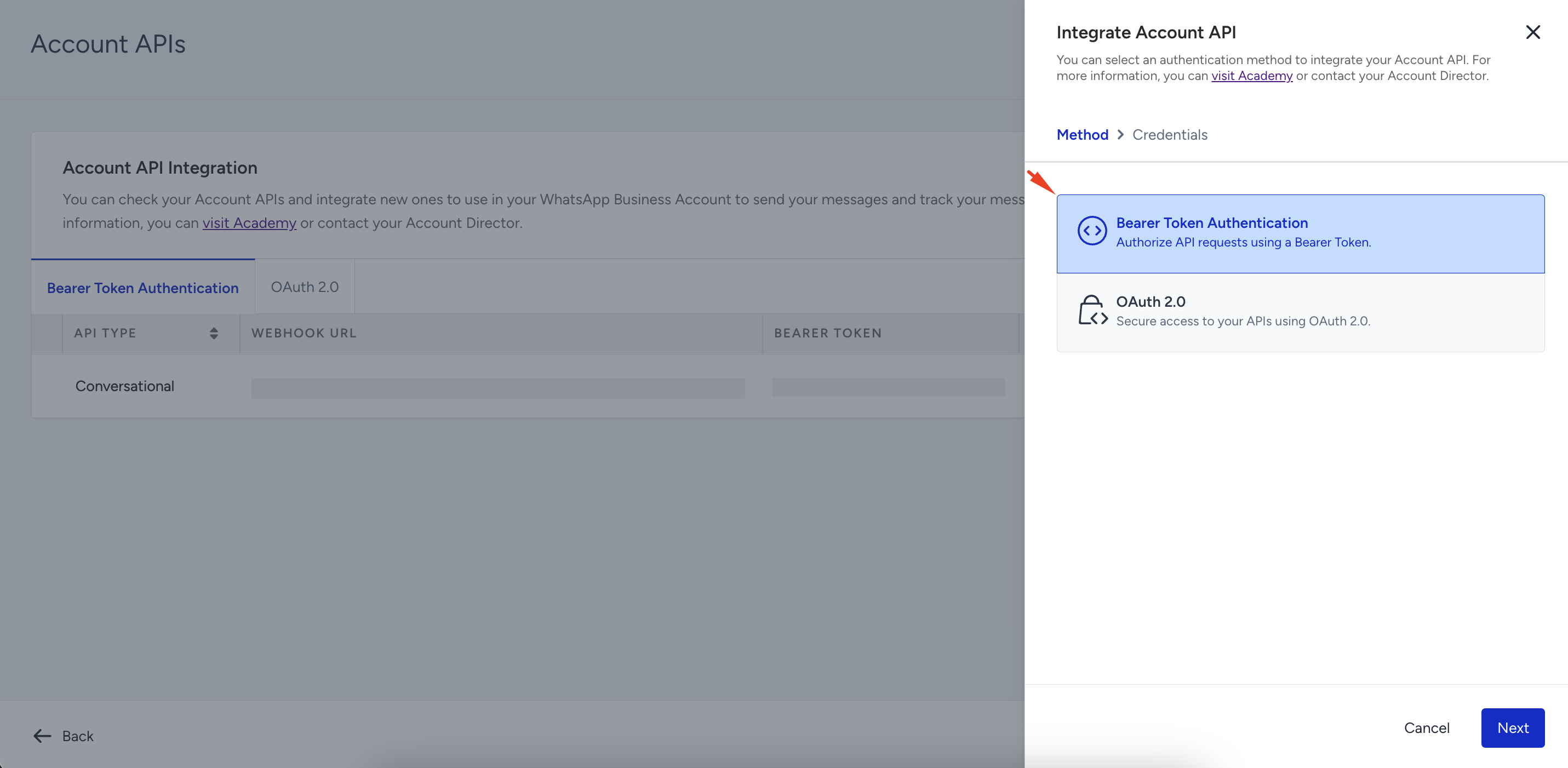
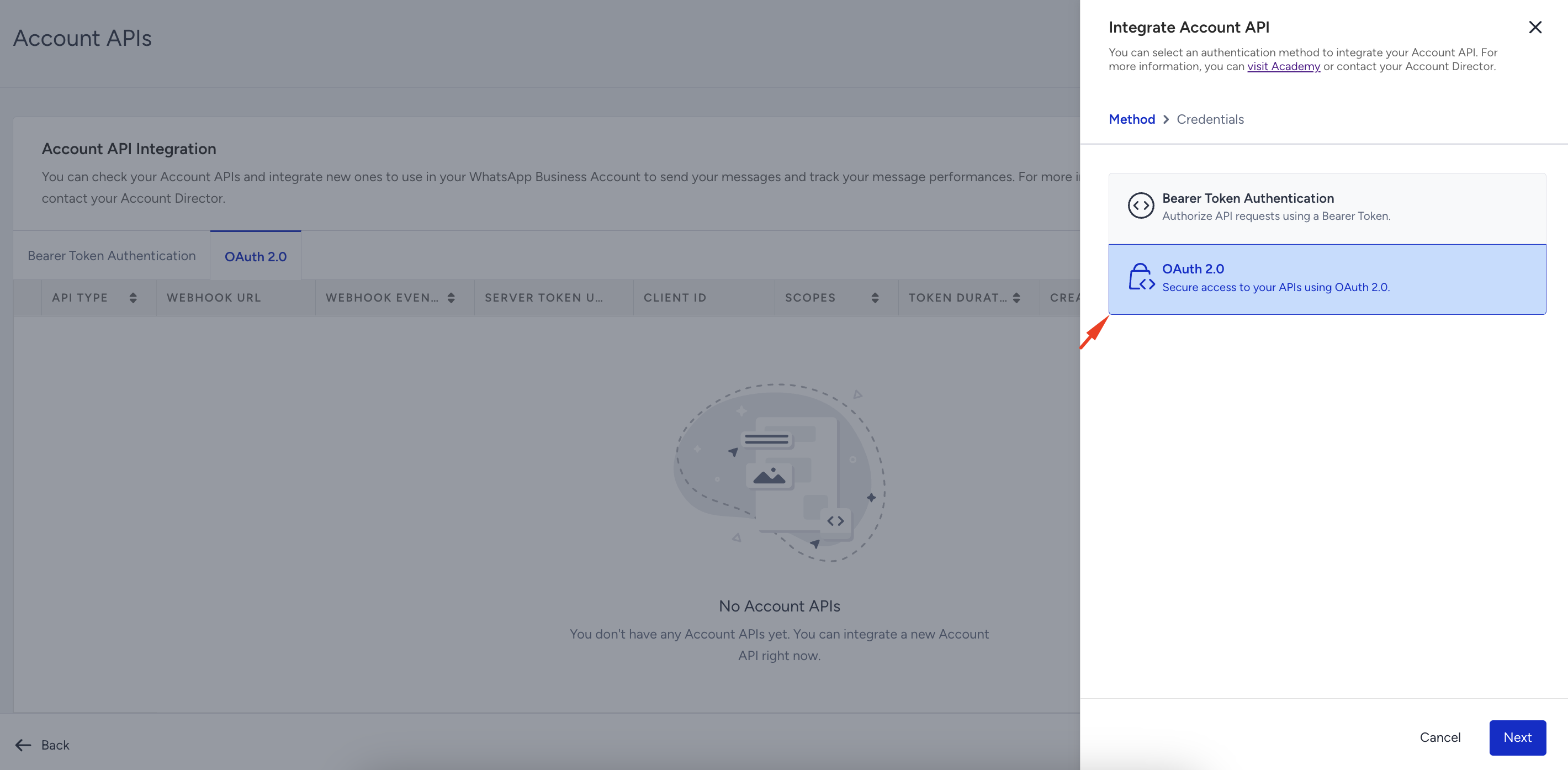
Choose an authentication method:
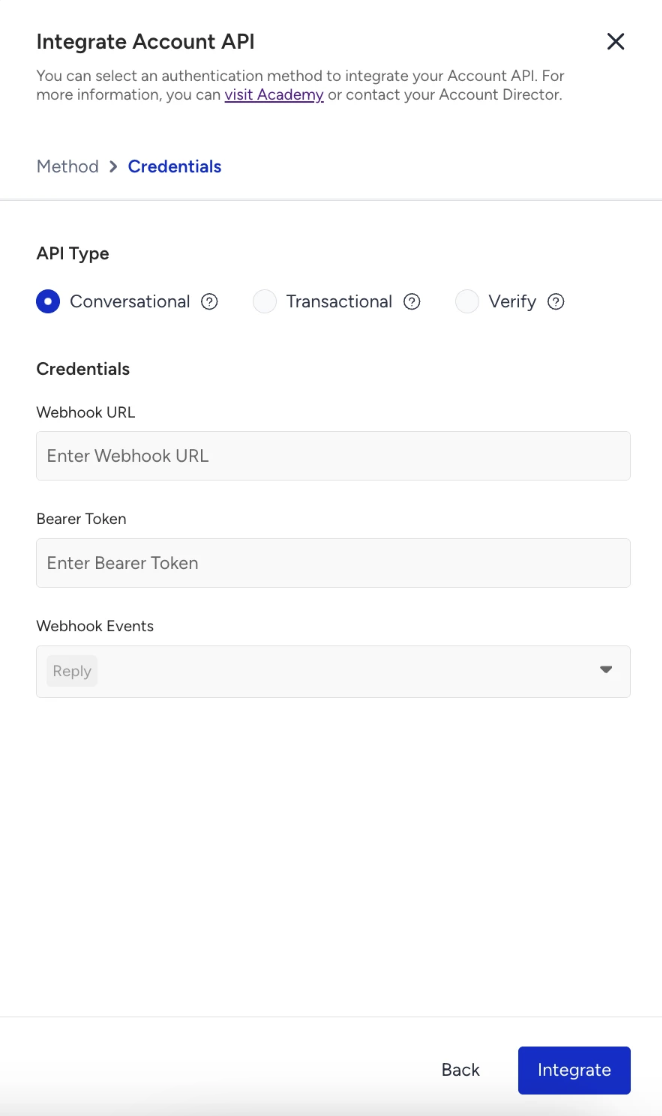
Bearer Token Authentication: Authorize API requests using a Bearer Token. Enter your Webhook URL and Bearer Token, then select the Webhook Events you want to receive (Sent, Delivered, Read, Reply, Failed). You can add up to 10 Bearer Token webhooks per account.
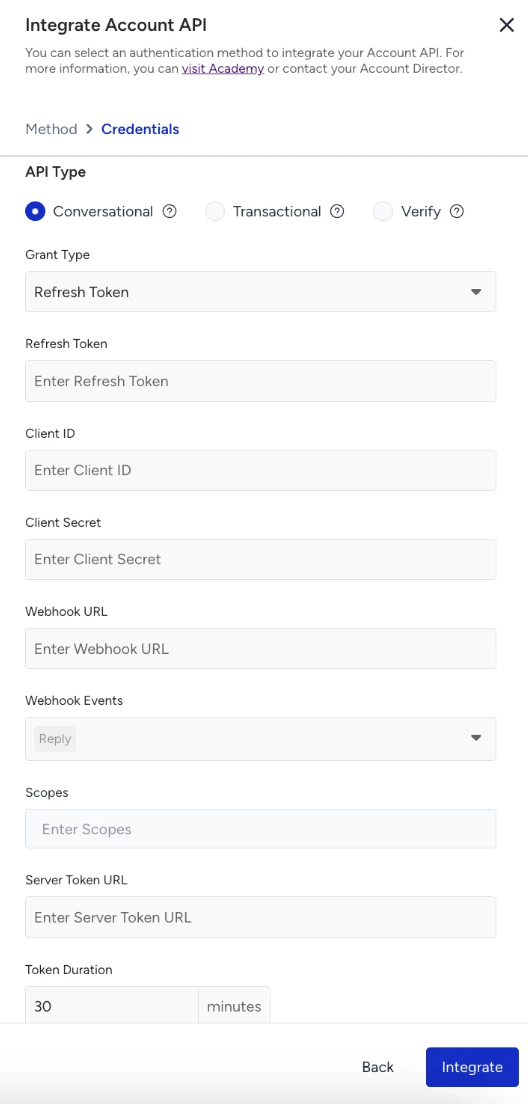
OAuth 2.0: Secure access to your APIs using OAuth 2.0. Enter your Webhook URL, Server Token URL, Client ID, Client Secret, and configure your Webhook Events. You can add up to 10 OAuth 2.0 webhooks per account.
To authorize API requests using a Bearer Token,
Select Bearer Token Authentication.
Select your API Type: Conversational, Transactional, or Verify. Fill in the required fields and click the Integrate button.
To secure access to your APIs using OAuth 2.0,
Select OAuth 2.0 as your method and click Next.
Select your API Type: Conversational, Transactional, or Verify. Fill in the required fields and click the Integrate button.
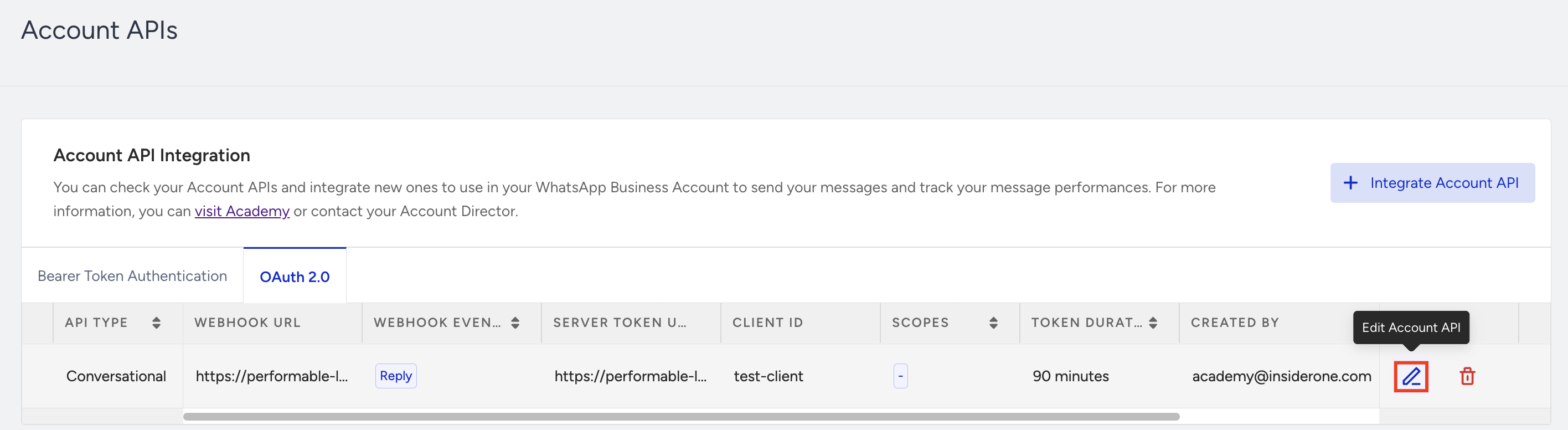
To edit your integration, click the pencil icon.
The API Type cannot be changed after a webhook is created.
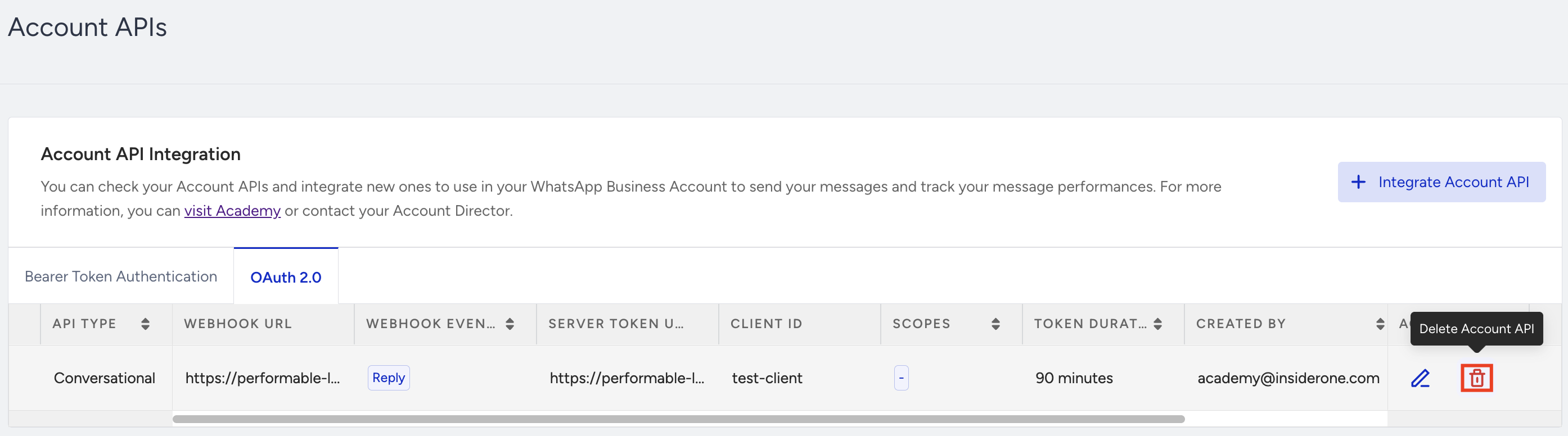
To delete your integration, click the trash icon.
Manage webhooks
You can edit or delete each webhook entry independently without affecting others.
For Conversational webhooks, the Reply event is mandatory and cannot be removed.
For Verify webhooks, the available webhook events are Sent, Delivered, Read, and Failed. The Reply event is unsupported for the Verify API type.
A maximum of 20 webhook URLs can be added in total; up to 10 for Bearer Token and up to 10 for OAuth 2.0.
Duplicate webhook URLs are not allowed.
Important:
When you change your webhook URL, any existing chatbot or automation flows connected to the previous webhook will immediately stop working.
Changing the webhook effectively disconnects your previous bot logic. Before switching, ensure that the new webhook is fully configured and includes all required handlers to process incoming requests correctly. This prevents message delivery issues or automation failures caused by missing event handlers.
Campaign creation
Templates you create can be used across all phone numbers.
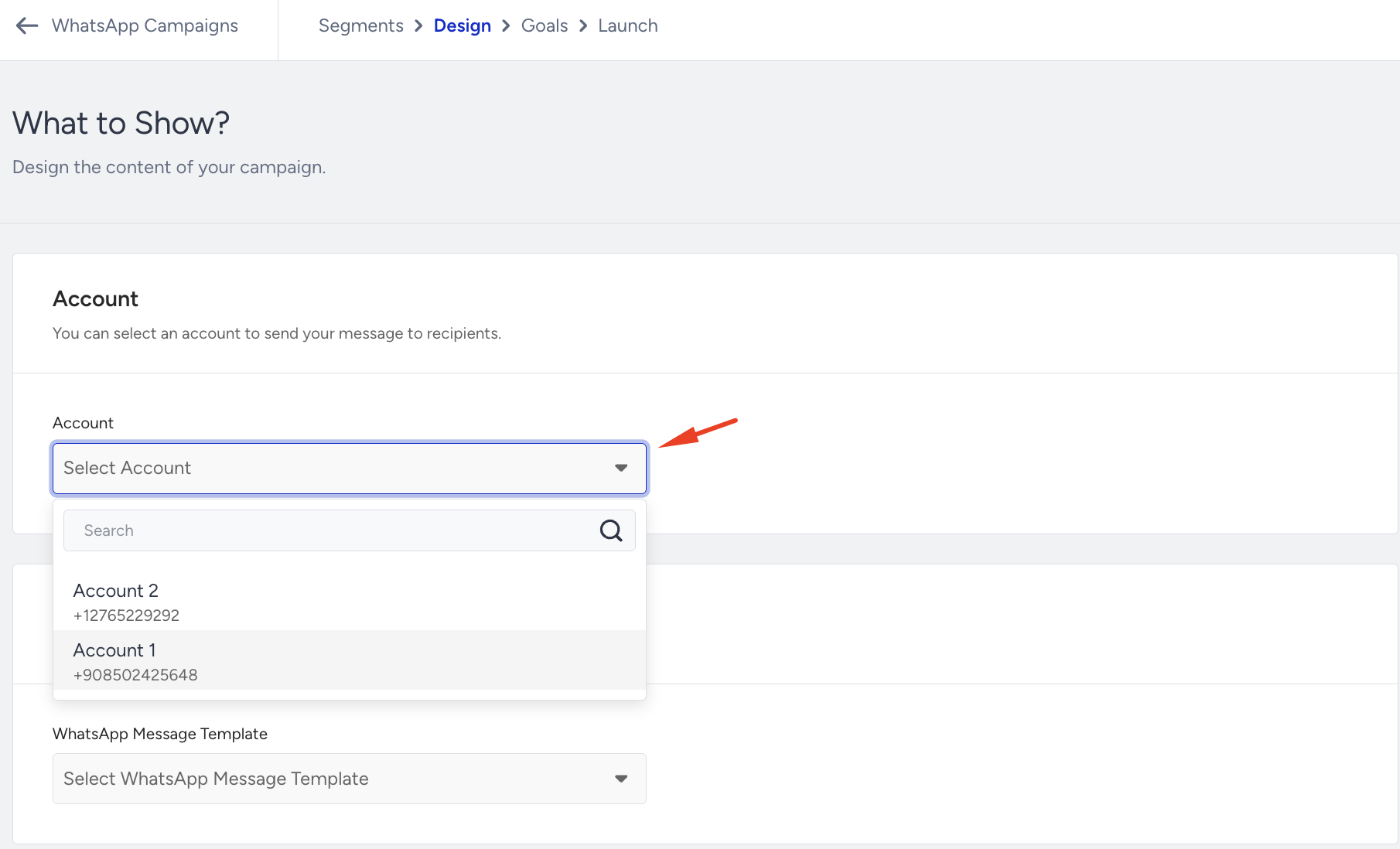
While creating a campaign, you can choose the sending number in the Design step. This allows the campaign to be scheduled and sent from the desired number.
Campaign Listing
On the WhatsApp Campaign Listing page, the Account column displays the number used for each campaign.
To view all campaigns related to a specific number, you can also filter campaigns by phone number.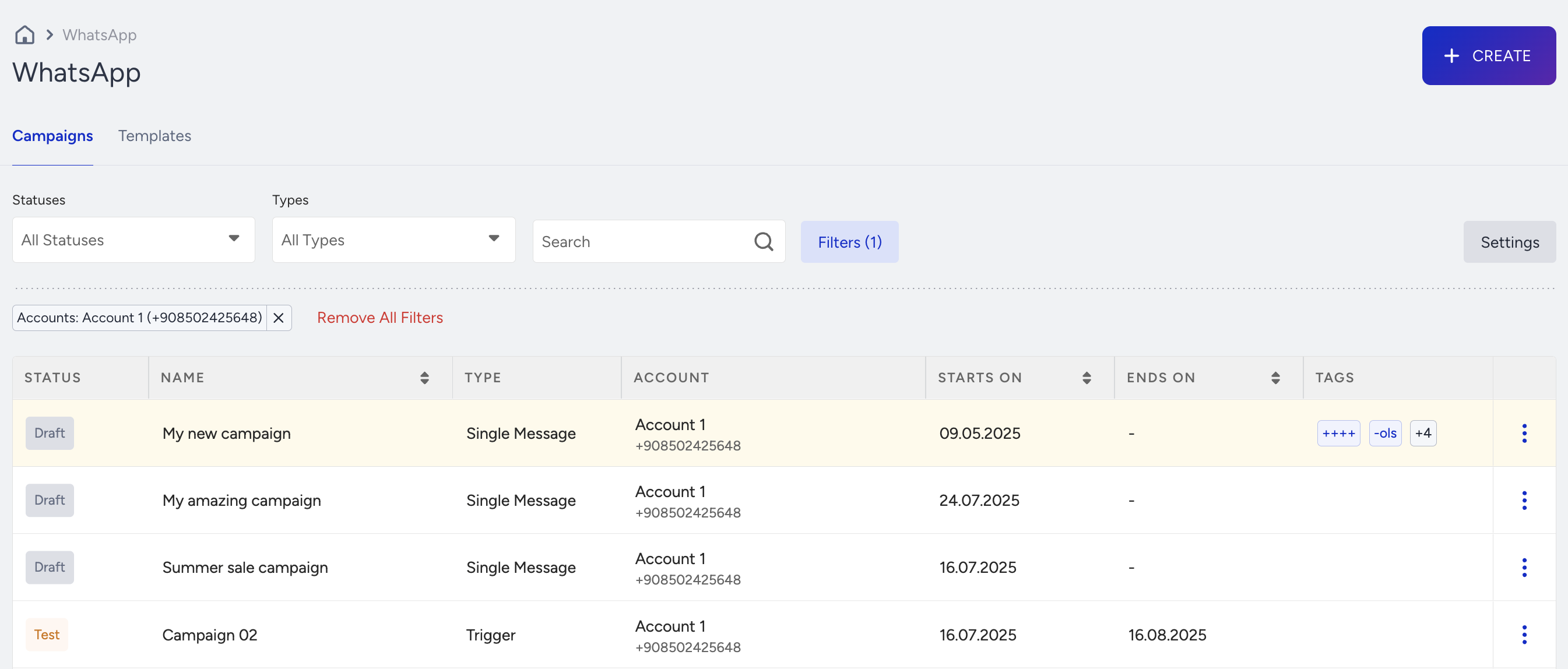
Overall WhatsApp Analytics
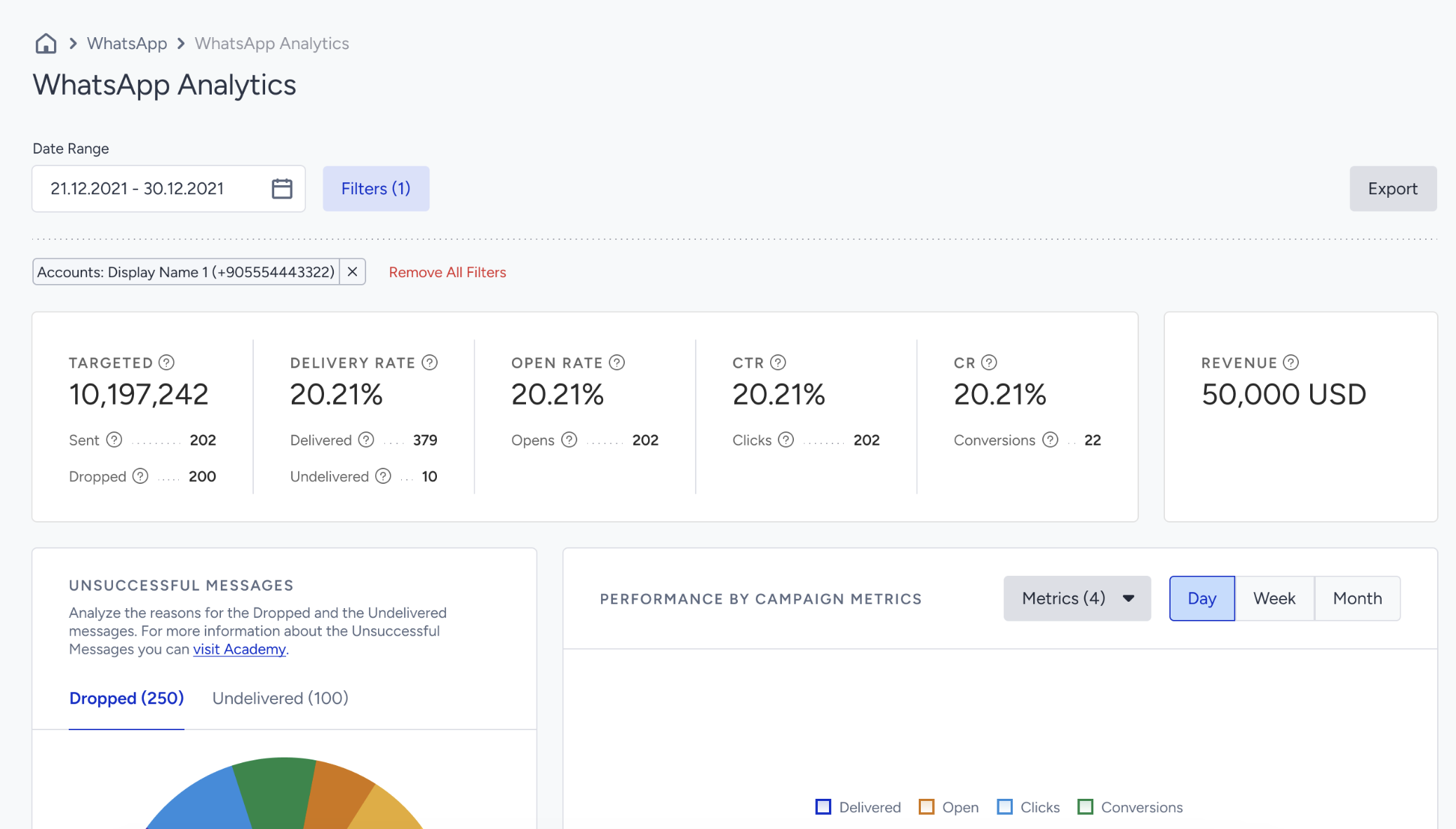
In the Overall WhatsApp Analytics page, you can check delivery and performance reports. In this page, you can filter the data by phone number, making it easier to track performance per number without having to switch panels.
WhatsApp Usage Analytics
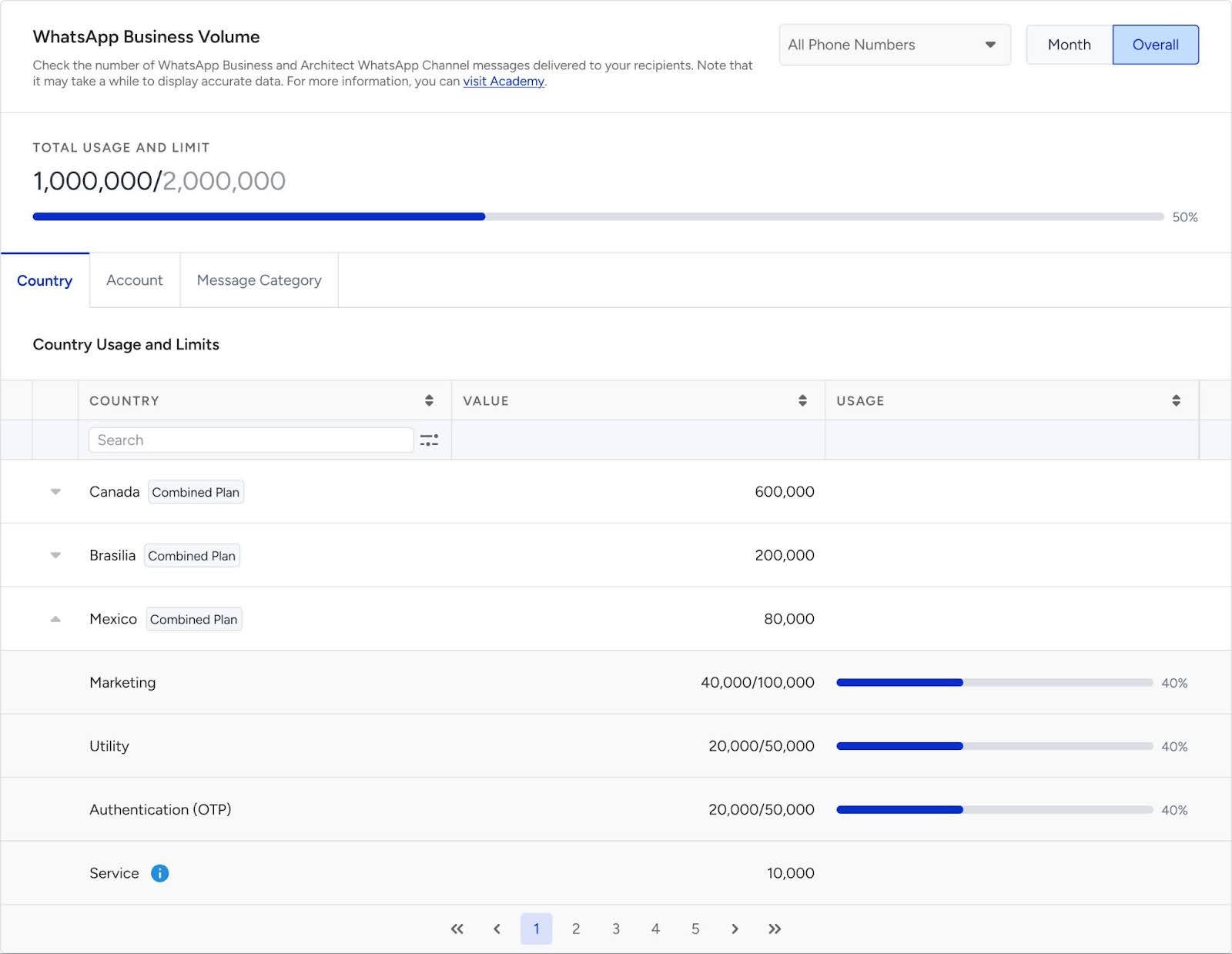
You can track both number-specific and total usage on the WhatsApp Usage Analytics page.
Use the All Phone Numbers dropdown to filter by a specific number, and switch between Month and Overall views to analyze usage over time.
The page also breaks down usage by Country, Account, and Message Category (Marketing, Utility, Authentication, and Service), allowing you to monitor limits and consumption at a granular level.