Suggested reading: Create your WhatsApp Business Account
WhatsApp uses strict business verification and authentication to protect end users from spam and fake accounts. Therefore, three types of business accounts are available:
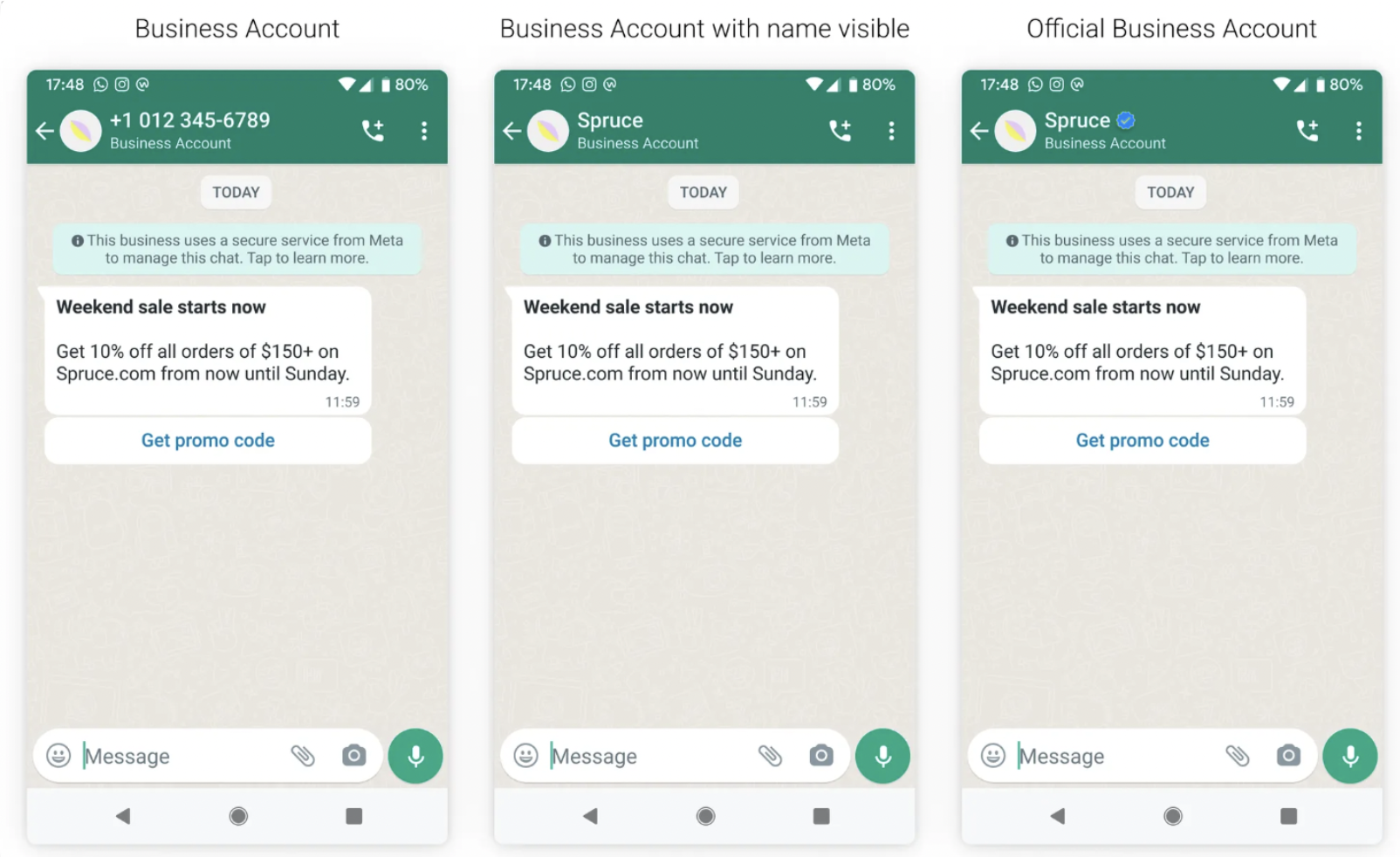
Business Account
By default, any account using the WhatsApp Business Platform or WhatsApp Business App is a business account.
If your WhatsApp account is a business account, the display name is only shown in the contacts view in smaller text; in all other views, the phone number is displayed. You can fill out your business info, including your business website, address, and hours, and help customers learn more about your company.
Beginning October 18, 2022, for selected regions, all existing and new businesses that have completed business verification and display name review will have the name of the business visible in the chat thread headers, chat list, and profile.
If a user has already saved the business number in their address book, the name from their address book is always displayed.
Verified Business Account
WhatsApp verifies the authenticity of a brand for every account on the WhatsApp Business Platform. If the account has completed Business Verification, the business name is visible even if the user hasn't added the business to their address book.
That’s to make it clear to end users that they’re communicating with a business, not a personal account. That’s also why you can’t use WhatsApp for business with a phone number currently used for personal use on WhatsApp.
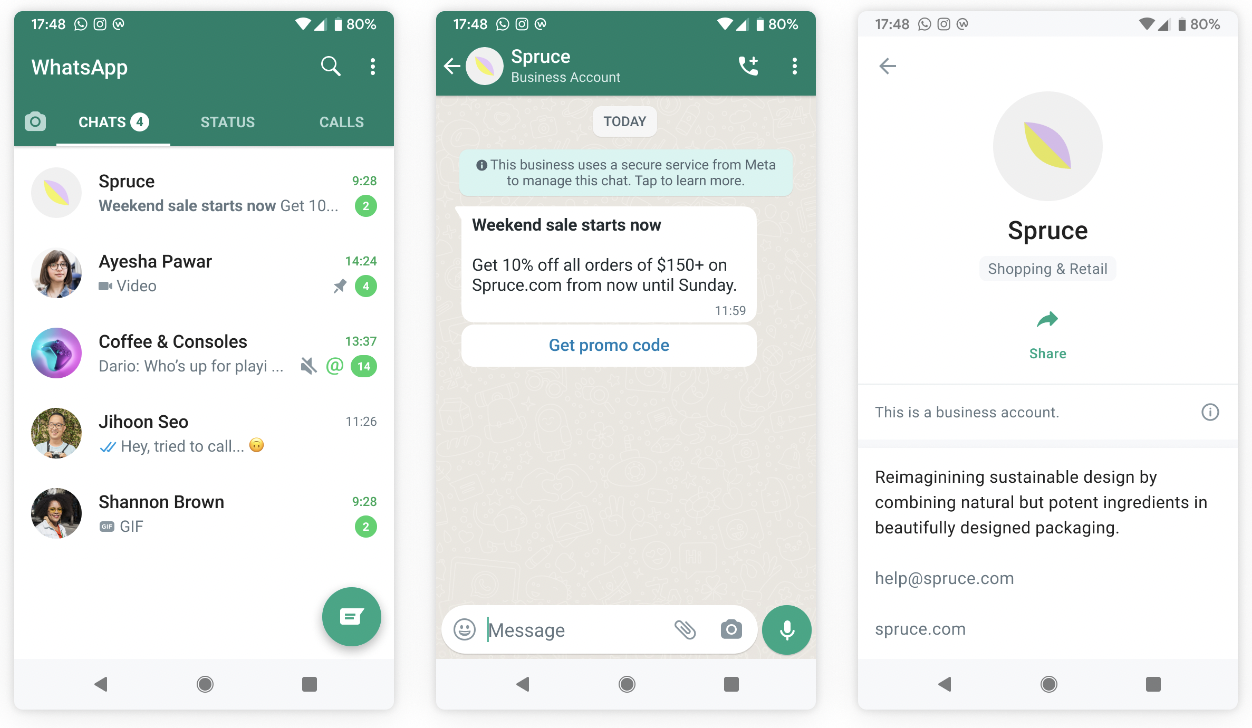
Business verification is different from the Blue Checkmark registration. You won't receive a verified badge for business verification.
Apply for Facebook Business Manager Verification
To apply for Facebook Business Manager Verification:
Go to Facebook Business Manager’s Security Center and click Start verification.
Provide your business’s details, including the legal business name, address, phone number, and website. Make sure the details you submit exactly match the details of your legal business entity. Also, make sure your business’s website loads and is HTTPS compliant.
Confirm your business’s details. If no matching record is found, upload supporting documents, such as a business license or articles of incorporation, to confirm the details you entered.
Choose a method to confirm your connection. A confirmation code will be sent if you choose email, phone, text message, or WhatsApp. To confirm via domain verification, follow these steps.
Email (The domain of your business email address must match the domain of your website.)
Phone
Text message
WhatsApp message
Domain verification (You must have admin access to your site's web host or DNS provider.)
When you finish the steps, click Done.
Tips & Tricks
The uploaded documents must match the legal company name and address on your website.
Meta is controlling and trying to match all field names and addresses to approve the uploaded documents with web pages and FBM information; if they do not match, the verification will not be approved.
Verification usually takes 3-14 days and is communicated via email to your admin email account.
If verification is not approved, then you need to apply again, read the rejection message carefully to understand why it is not approved, understand Meta's requests, and change accordingly before applying again.
Official Business Account
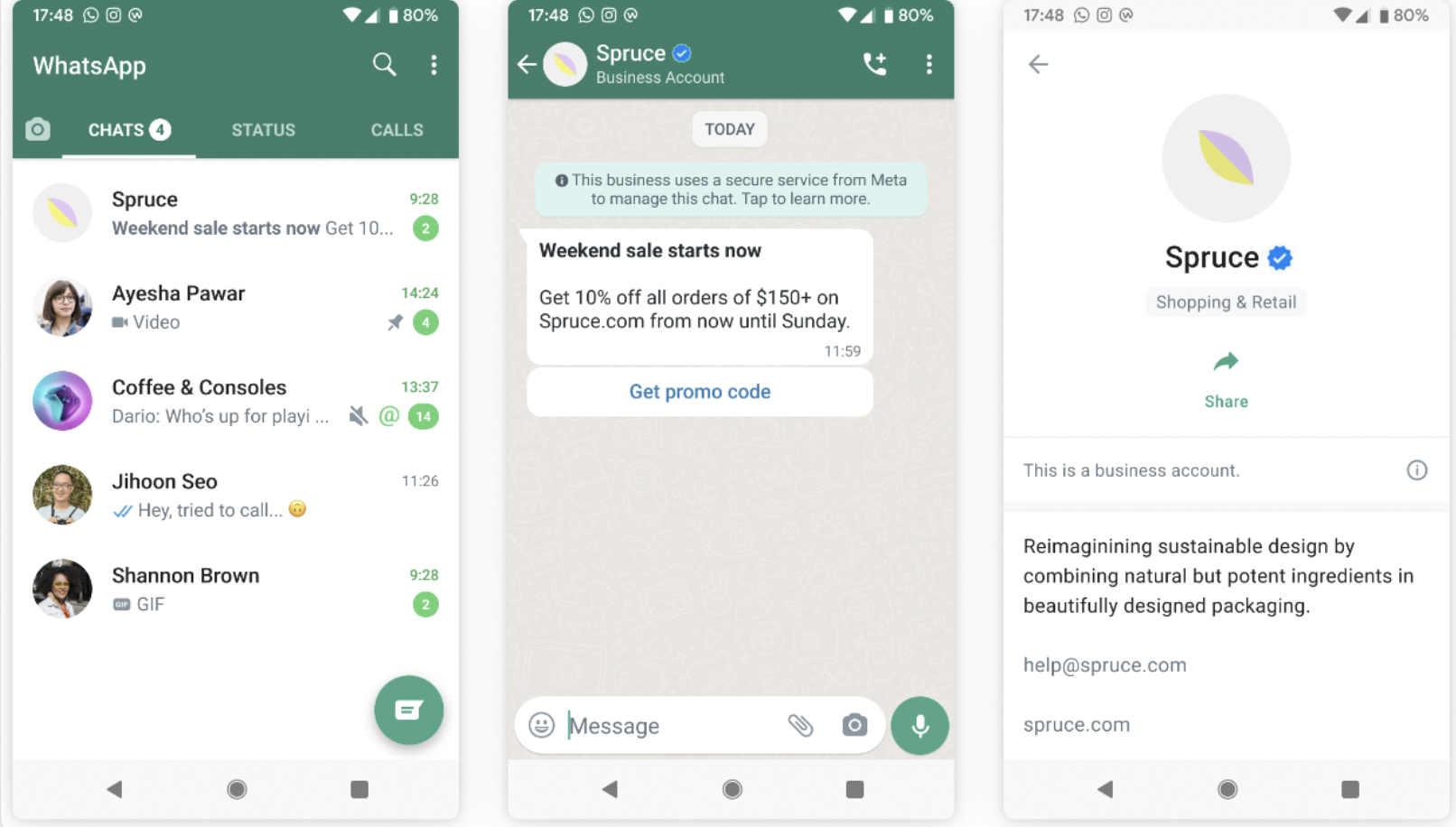
If your WhatsApp account is an official business account, you will have a blue checkmark (blue tick) beside the displayed name in the contacts view.
An official business account does not indicate that WhatsApp endorses this business. It only means that the business represents a well-known, often searched person, brand, or entity on the internet.
It shows users the account is authentic and perfectly safe to interact with, so you get more engagement and fewer negative reactions like blocks.
Eligibility for a blue tick on WhatsApp
The WhatsApp Official Business Accounts (OBA) criteria are based on several factors and differ from those of other platforms. To be eligible for an Official Business Account (OBA) (blue tick) on WhatsApp, your business must meet the following criteria:
Your business complies with the WhatsApp Business Messaging Policy.
Your business has been registered on the WhatsApp Business Platform for at least 30 days.
Your business represents a notable, well-known, and frequently searched brand, business, or entity.
The business portfolio that owns the number has completed Business Verification.
The business phone number has two-step verification enabled.
The business phone number’s display name has been approved.
If a business phone number is not an Official Business Account (OBA), it won’t appear in WhatsApp search results when users search for it. However, if a user adds the number to their contacts, the approved display name can appear in their search results. For improved discoverability, Meta recommends applying for OBA status.
Refer to Meta’s guide for further information on Official Bussines Accounts and blue tick elibility.
Apply for a blue tick
To apply for a blue tick for your WhatsApp Business Account from Insider One's InOne panel,
Navigate to WhatsApp > Settings.
Click the grey checkmark icon next to your account name, then click + Request Blue Checkmark.

Check the Official Business Account field and click Submit Request.

Fill in the information carefully.
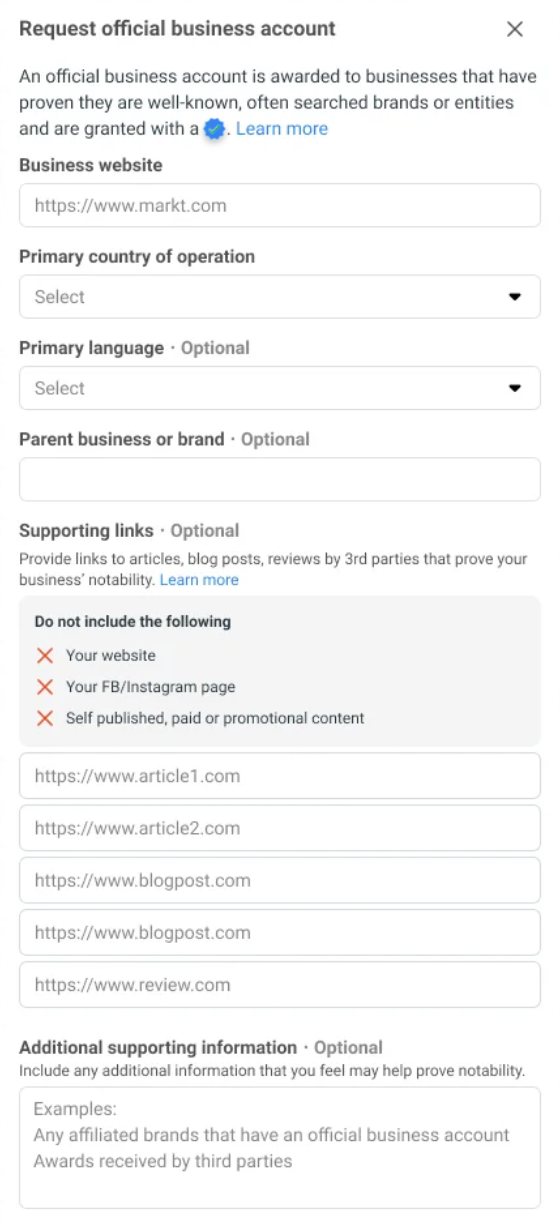
Once Meta reviews the request, you will receive a notification letting you know if the account has been granted OBA or not. If the request is rejected, you can submit a new request after 30 days.
Meta does not grant Official Business Accounts to business employees, test accounts, or Business App accounts. Official Business Accounts are only available to WhatsApp Business Platform users at this time, since accounts on the Business App do not go through Business Verification.
Denied requests
Very few businesses are granted the coveted blue checkmark badge. WhatsApp reserves it for popular brands, so don’t be discouraged if you get rejected. It doesn’t mean your account has been canceled or that you are not adhering to guidelines.
Businesses can continue to grow their presence and wait 30 days before submitting another Official Business Account request. Building the business's presence in news articles may take time.
In the meantime, this decision does not limit your ability to share your business details. Each phone number also has a business profile, including the profile picture, email, website, and business description. These fields can be edited at any time.
WhatsApp makes the final decision on your request. Insider One cannot influence your business account type.
Tips & Tricks
It is crucial to fill in all the fields. Supporting links are critical fields reviewed to show that your business is reputable to other parties. Do not put any links here, including:
Your web page link
Any social media link
Self-published, paid, or promotional links