Migrating WhatsApp Business phone numbers involves associating them with a WhatsApp Business Account (WABA) under a BSP's Business Manager ID. You can have multiple WABAs, but to link them to a Business Solution Provider (BSP), you must transfer the phone numbers to the BSP's WABA accounts.
Because Insider One is one of the official Business Service Providers, when you migrate WhatsApp phone numbers to Insider One's WhatsApp Account, you can have the following benefits that might differ according to your package:
Template creation in InOne,
WhatsApp Conversational Commerce,
WhatsApp Live and AI conversation.
This guide covers the following concepts:
How to migrate a WhatsApp phone number
The Embedded Signup itself is not enough to migrate a WhatsApp Phone Number. You also need to follow a few steps to migrate your phone number easily.
Before migrating a phone number, ensure that:
You have a WhatsApp phone number that is currently active and reachable.
Your phone number can receive an SMS or a call.
You have your Meta Business Manager ID.
You remove 2FA (Two-Factor Authentication) from your WhatsApp phone number if you have enabled it.
If your current BSP has data localization (local storage) enabled for the phone number, you must request the provider to de-register this setting via Meta before starting the migration. Insider does not support local storage. If this setting remains enabled, the migration will fail. Refer to Meta’s guide for further information on de-registering.
If you are migrating from another BSP (Business Solution Provider), make sure that connection is removed before starting the migration.
Your WhatsApp display name must be approved before you can migrate. A number with a pending display-name change cannot be migrated.
For more migration details, please refer to Meta’s documentation.
When a business is migrated from another BSP, migration is possible if your existing WABA and the new WABA to be created under Insider One are both under the same Business Portfolio on your side. Template migration requires additional action; in this case, Insider One recommends creating a task for the Insider One team.
Refer to Meta’s guide for further details on template migration.
Important: Insider One doesn’t recommend migrating old templates. Insider One's proprietary advanced click tracking (CTA-based) structure will not be present in previously created templates. If migrated templates are used, click tracking will not function correctly for those templates. For this reason, we advise you to create new templates on the Insider One platform instead of migrating existing ones.
After you meet the prerequisites, your Facebook Business Manager Admin needs to complete the steps below:
Navigate to InOne > Campaigns > Messaging > WhatsApp > Settings.
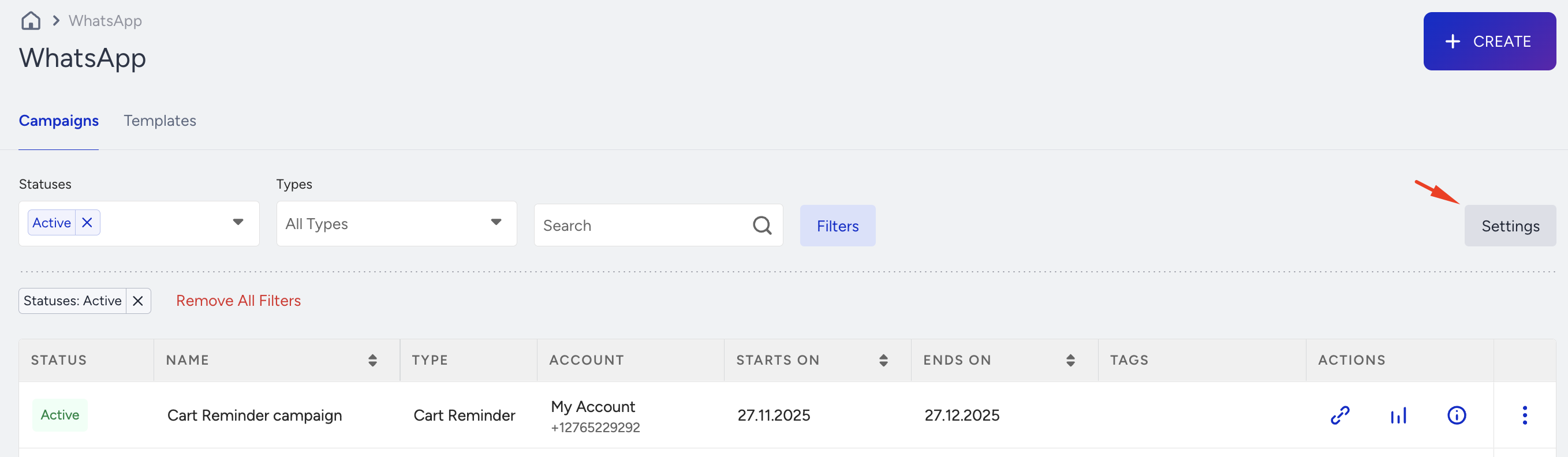
Click the +Integrate Account button.
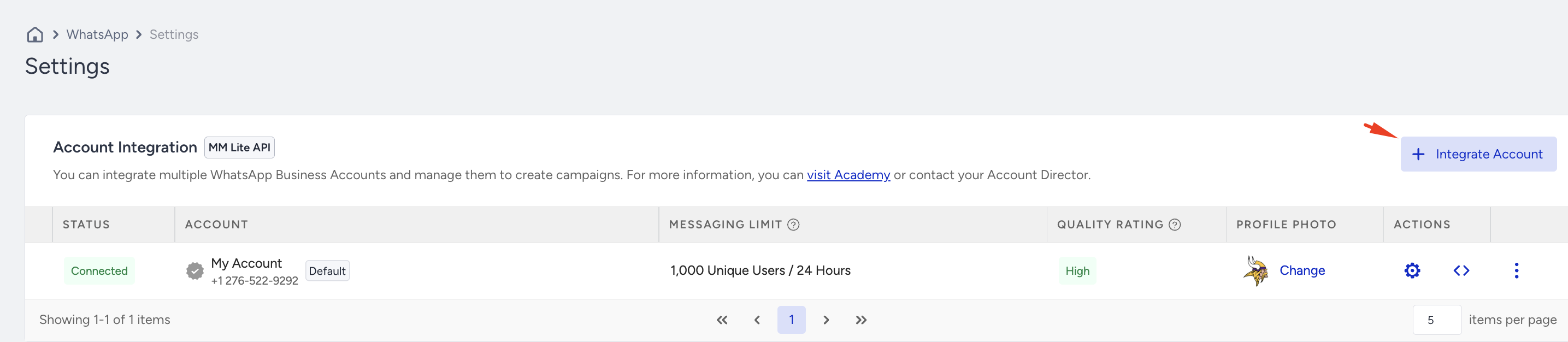
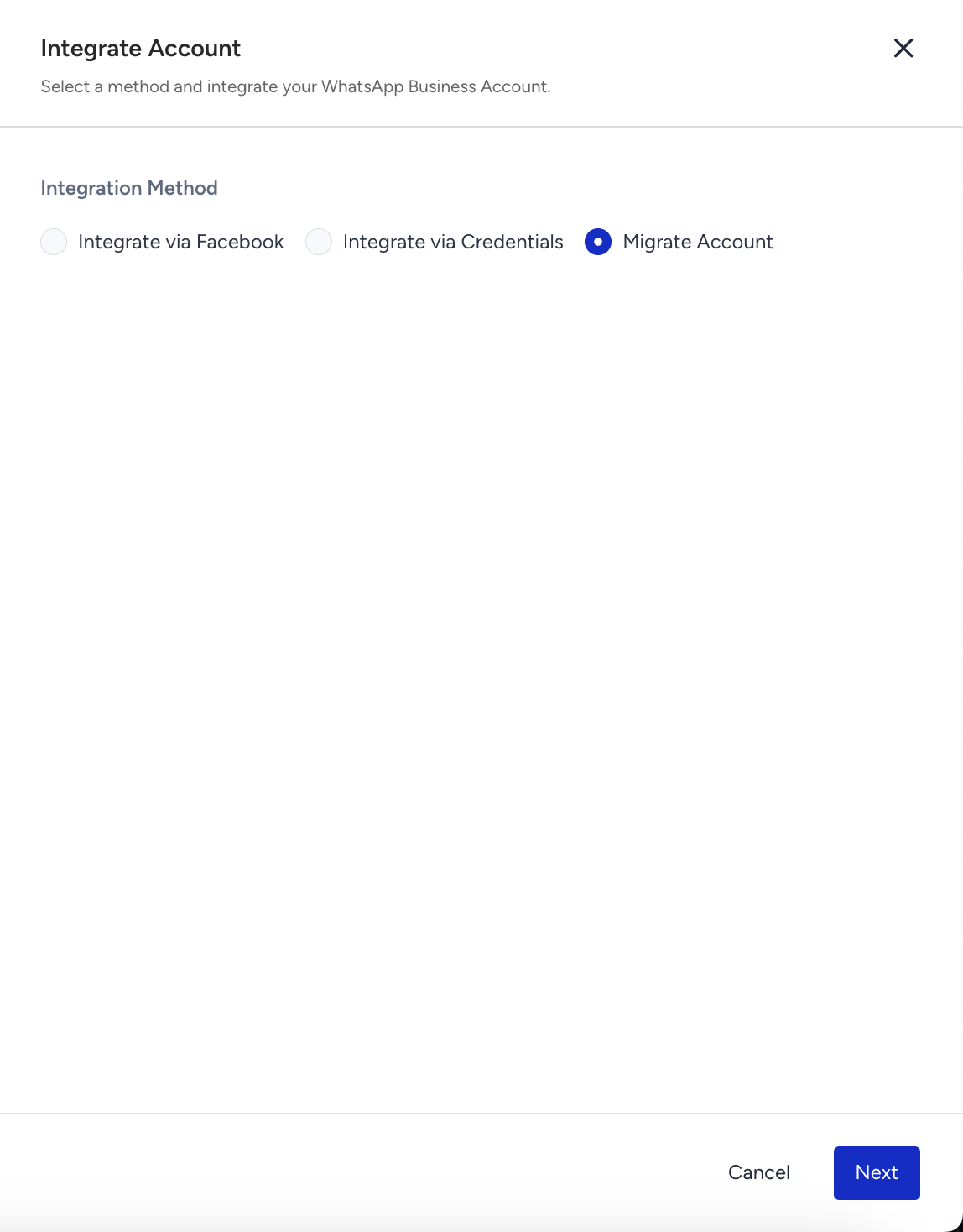
Select the Migrate Account option as your integration method and click Next to proceed.
A pop-up will appear to continue with your Meta Business account. Click Continue to move on to the next steps.

Add your WhatsApp phone number. Choose Enter a new phone number, select the country code, type the number, and choose how to verify it: Text message or Phone call.
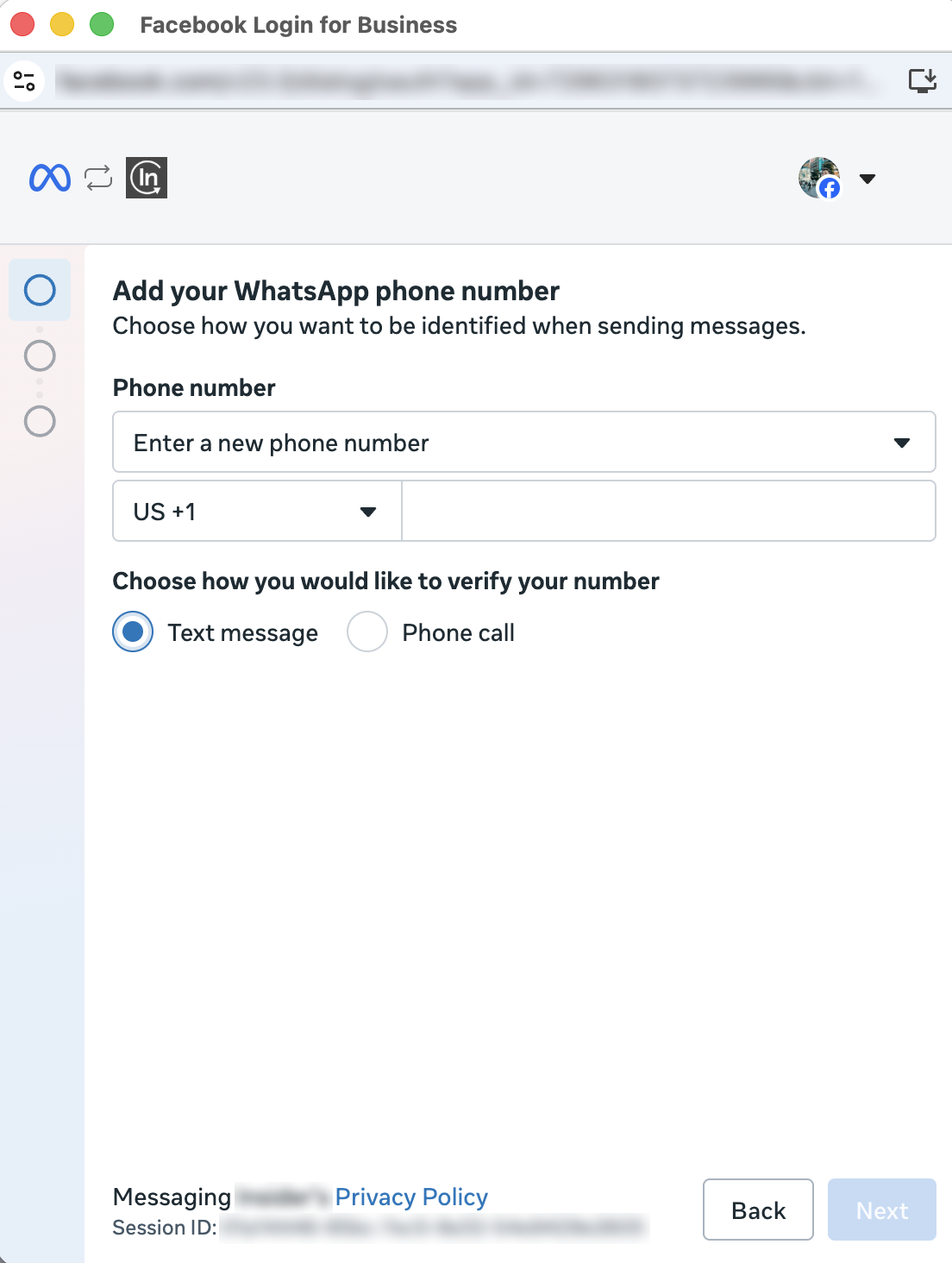
Verify your phone number. Enter the 6-digit code sent to the number and click Next. If you don’t receive the code, you can request a new one or change the verification method once the countdown ends.
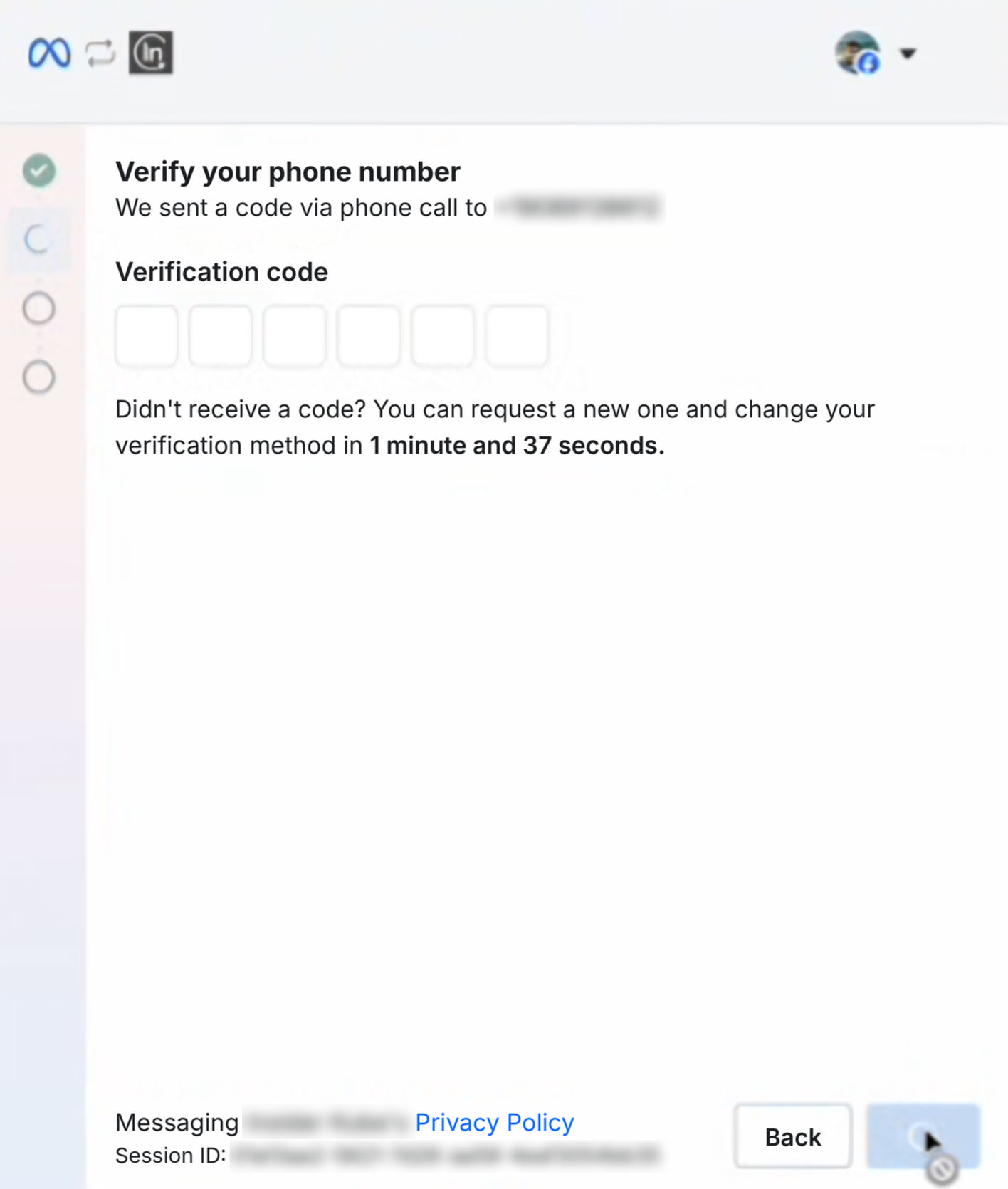
To add a second phone number to the same panel, make sure you select the same WhatsApp Business Account (WABA) as your existing number. Refer to the Multi-Number Support on a Single Panel for WhatsApp for further information.
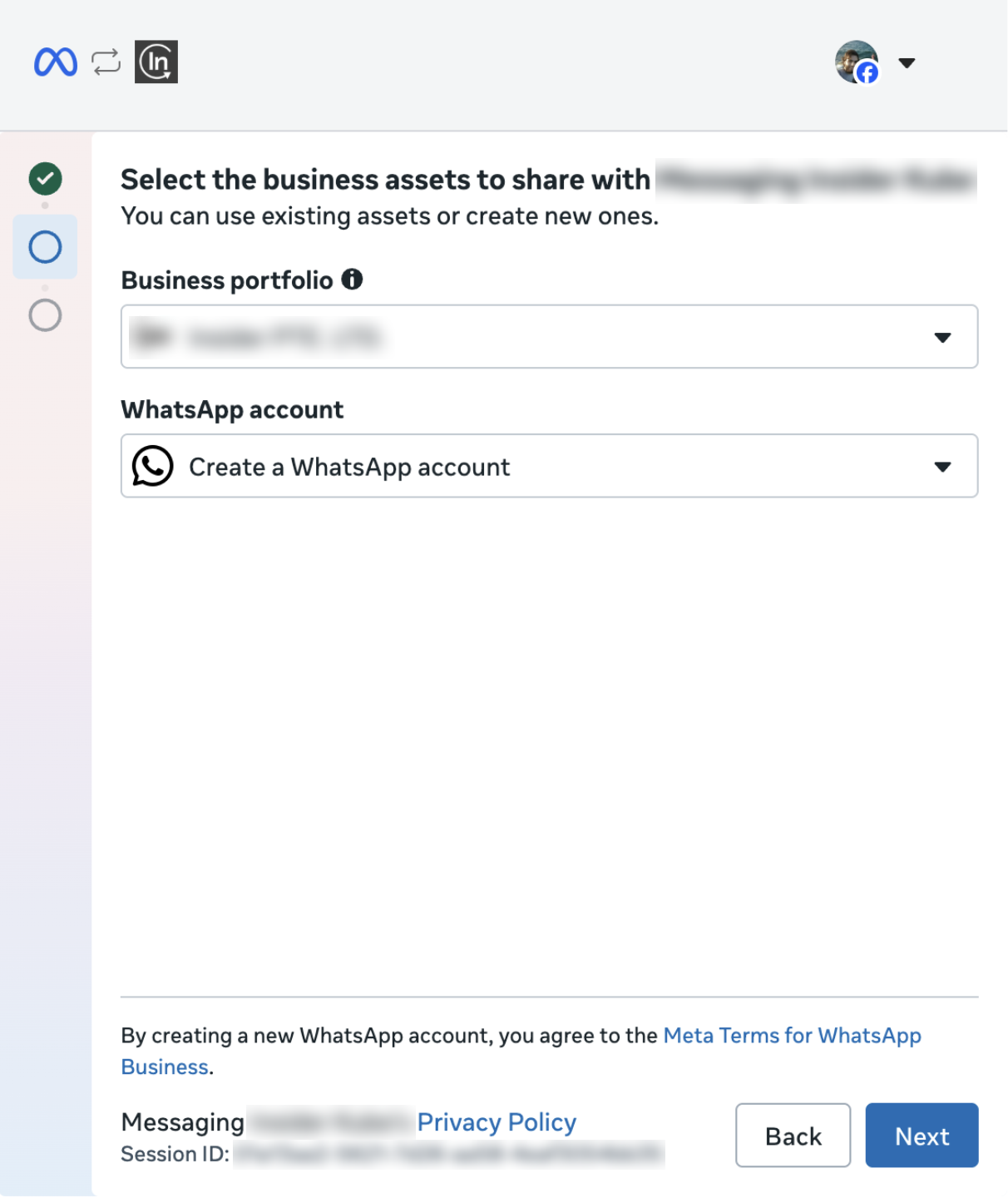
7. Select the business assets to share. Choose your Business portfolio and select an Create a WhatsApp account under WhatsApp account. Click Next.
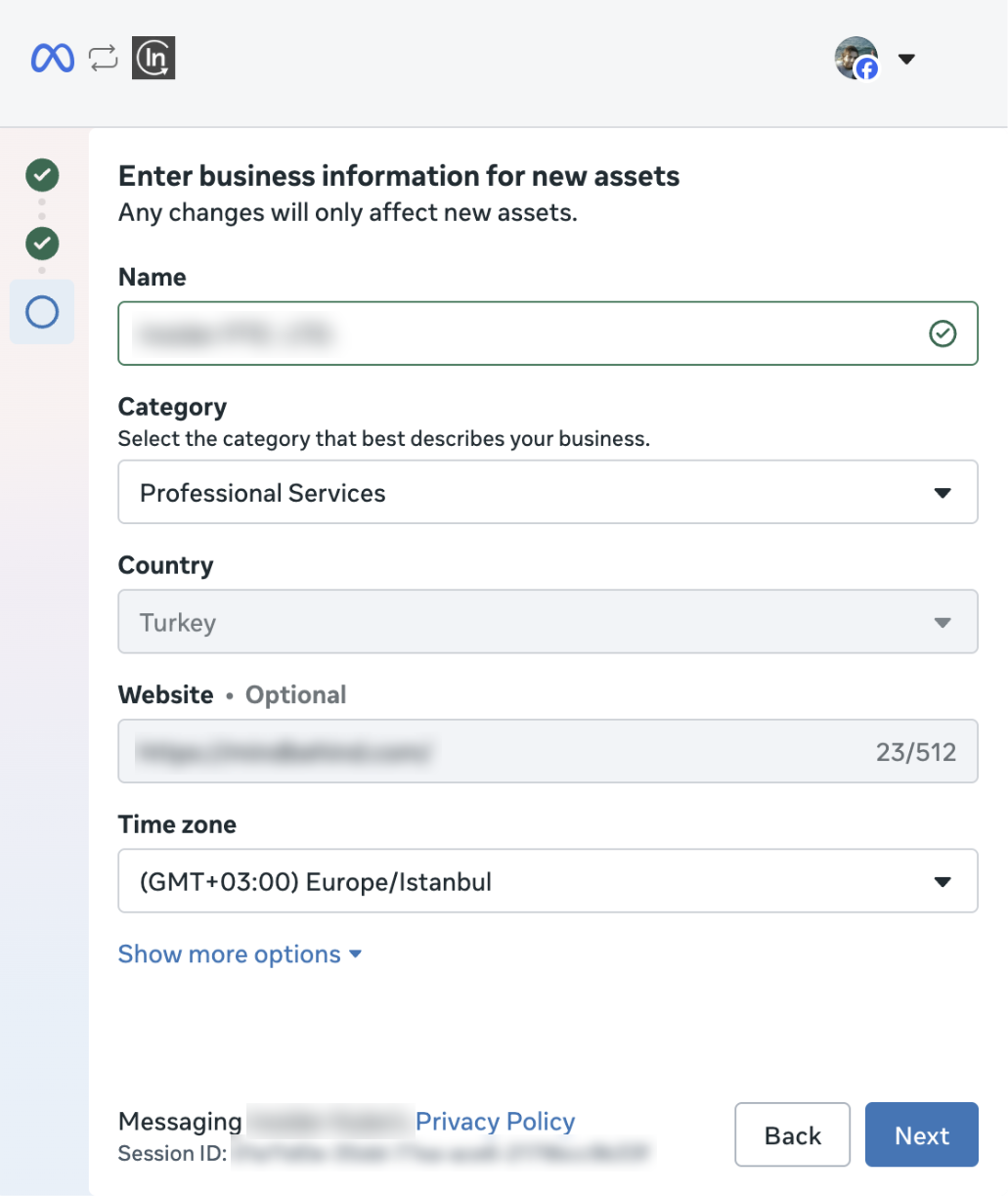
Enter business information for new assets. Fill in Name (this becomes your WhatsApp profile name), Category, Country, Website (optional) and Time zone. Click Next.
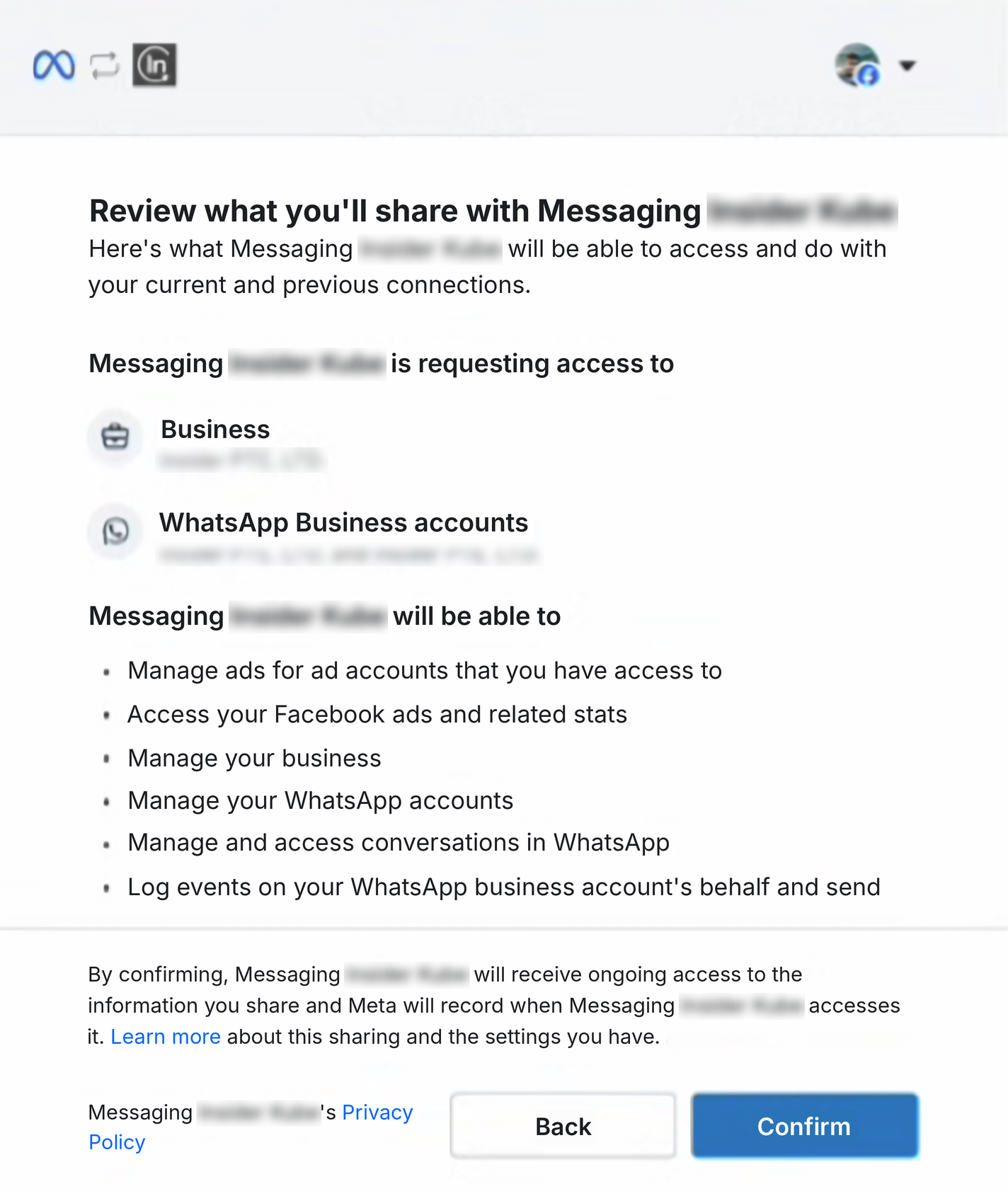
Review what you'll share. Check the business and WhatsApp Business accounts Insider One will access and click Confirm.
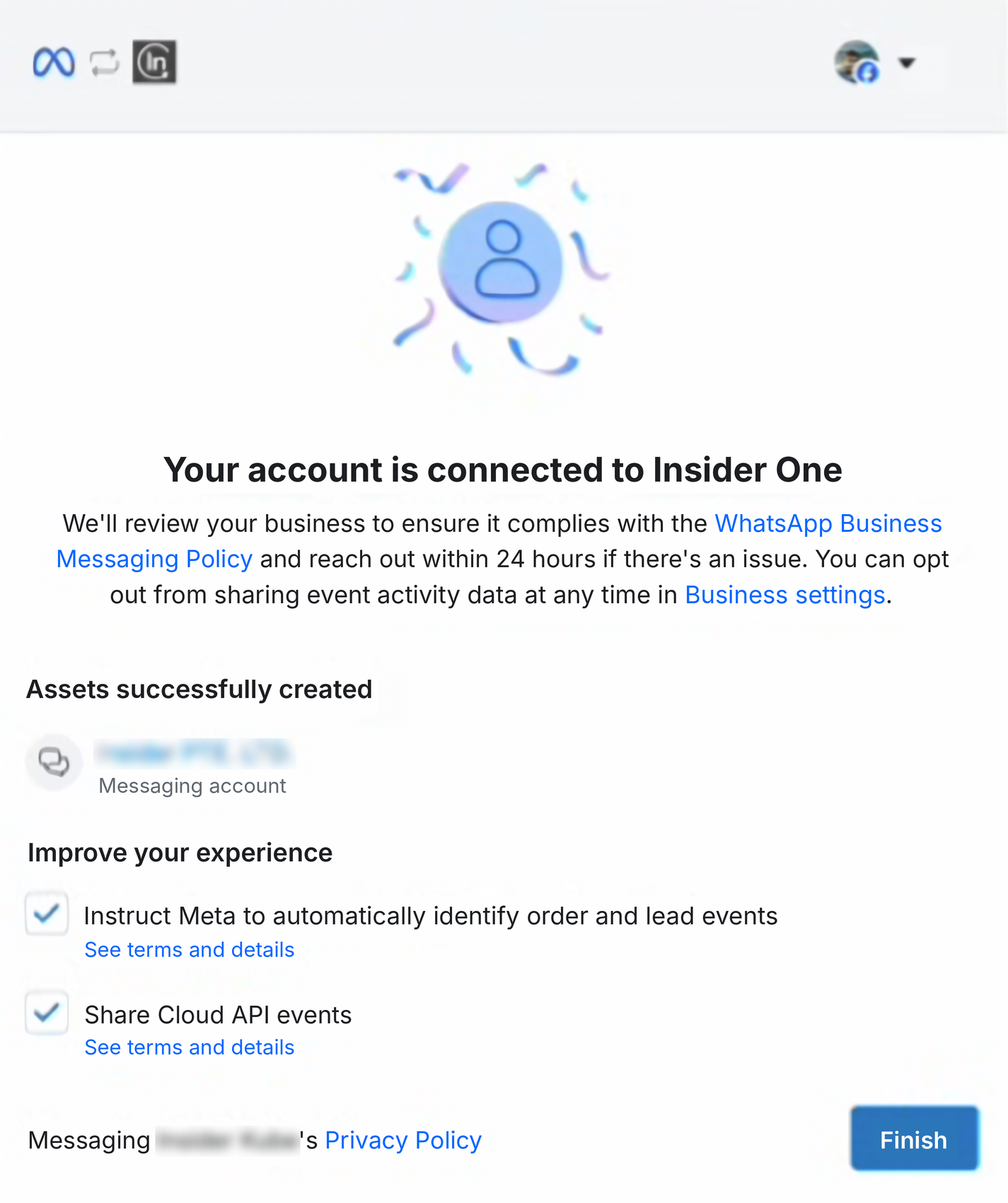
Your account is connected to Insider One. Meta reviews the business against the WhatsApp Business Messaging Policy and reaches out within 24 hours if there is an issue. The “Instruct Meta to automatically identify order and lead events” option is selected by default; you can opt out of sharing event activity data later in Business settings. Click Finish.
Once you complete the migration, you will be automatically redirected to InOne > WhatsApp Settings > Account Integration. You can now start messaging your customers on WhatsApp.
Marketing Messages API (MM Lite)
MM Lite registration is completed as part of the Embedded Signup flow described above. No separate registration step is required in the panel. Once the connection is established, the MM API status appears next to your phone number under WhatsApp > Settings > Account Hub.
Integration vs Migration: Key differences for WhatsApp registration
The table below outlines the key differences between Integration and Migration methods for registering WhatsApp, helping you choose the right approach based on your setup.
Integration | Migration | |
|---|---|---|
Purpose | To create a new WhatsApp Business Account from scratch. | To migrate an existing WhatsApp phone number to Insider One. |
Use Case | Ideal for new businesses or adding numbers to a current account. | Suitable for businesses transitioning from another BSP to Insider One. |
Initial Requirements | You do not need an existing WhatsApp Business Account. Purchase the phone number before starting the integration. The integration option is enabled by default, and no additional requirements apply. | An existing WhatsApp phone number that is already in use. The phone number must be reachable for OTP. You must have Admin access to the Facebook Business Account. Please contact the Insider One team to enable the migration option. |
Steps Involved | If you don’t have a Business Account, you can create one during the process or select an existing Business Account to add a new number. | The current Business Account must be selected, but creating a new WhatsApp Business Account is still required. |