Synonyms help refine your customer's search by replacing commonly used keywords with similar terms. The semantic relationship information between synonym words or phrases is crucial for obtaining accurate results. Eureka Synonyms enable you to define and manage that synonym information for your domain and languages. Using Synonyms effectively creates a better shopping experience for your customers by allowing them to focus less on the search terms they use and more on the products they are interested in.
The synonyms feature allows you to define search terms that should be considered equivalent. For example, when you define a synonym for "sneakers" as "shoes," searching for "sneakers" returns all records with the word "shoes" in them, in addition to records with the word "sneakers." This can help your users find the products they are looking for more easily, even if they do not know the exact search terms.
This article covers the answers to the questions below:
One-way synonyms
One-way synonyms enable you to associate a primary search term with one or more synonymous terms. When a user searches for the primary term, the system automatically expands the search to include the synonymous terms, broadening the search results. However, the system doesn't expand the search to include the primary term if a user searches for a synonymous term. For instance, if you configure a one-way synonym as the primary term, word/phrase A, and a synonymous term, word/phrase B, when your customers search for A, they will get results matching B, but the reverse is not true.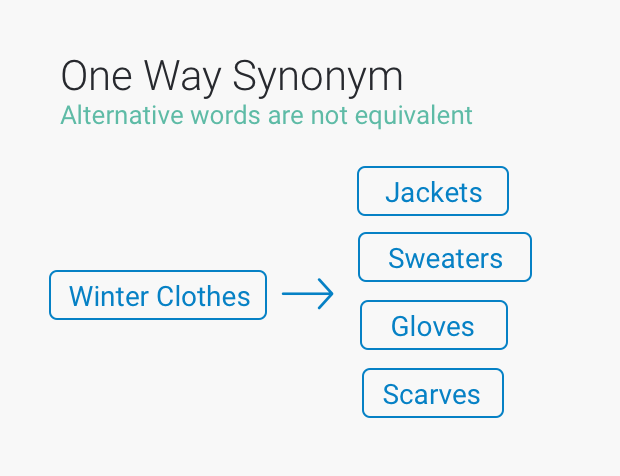
A store sells products by a brand called "Marathon". Recently this brand has changed their name to "Snickers". Although the store has updated the brand name for all their products, people still might search for "Marathon". In this case, setting up a One-Way Synonym for "Marathon" to "Snickers" would be helpful and direct shoppers to relevant results.
Use one-way synonyms
On Eureka's listing page, click Settings to navigate to Synonyms.
Click Add Synonym to create synonyms.
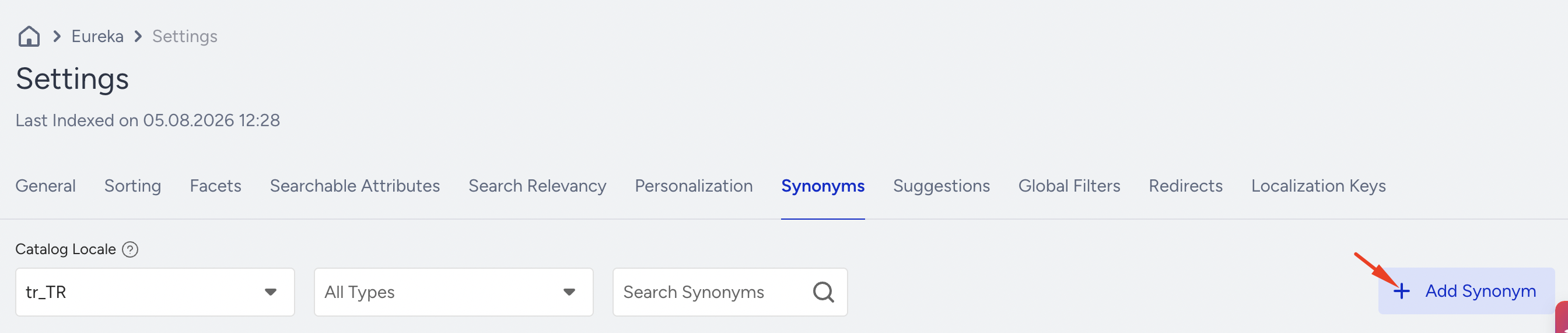
Select One-Way synonyms.
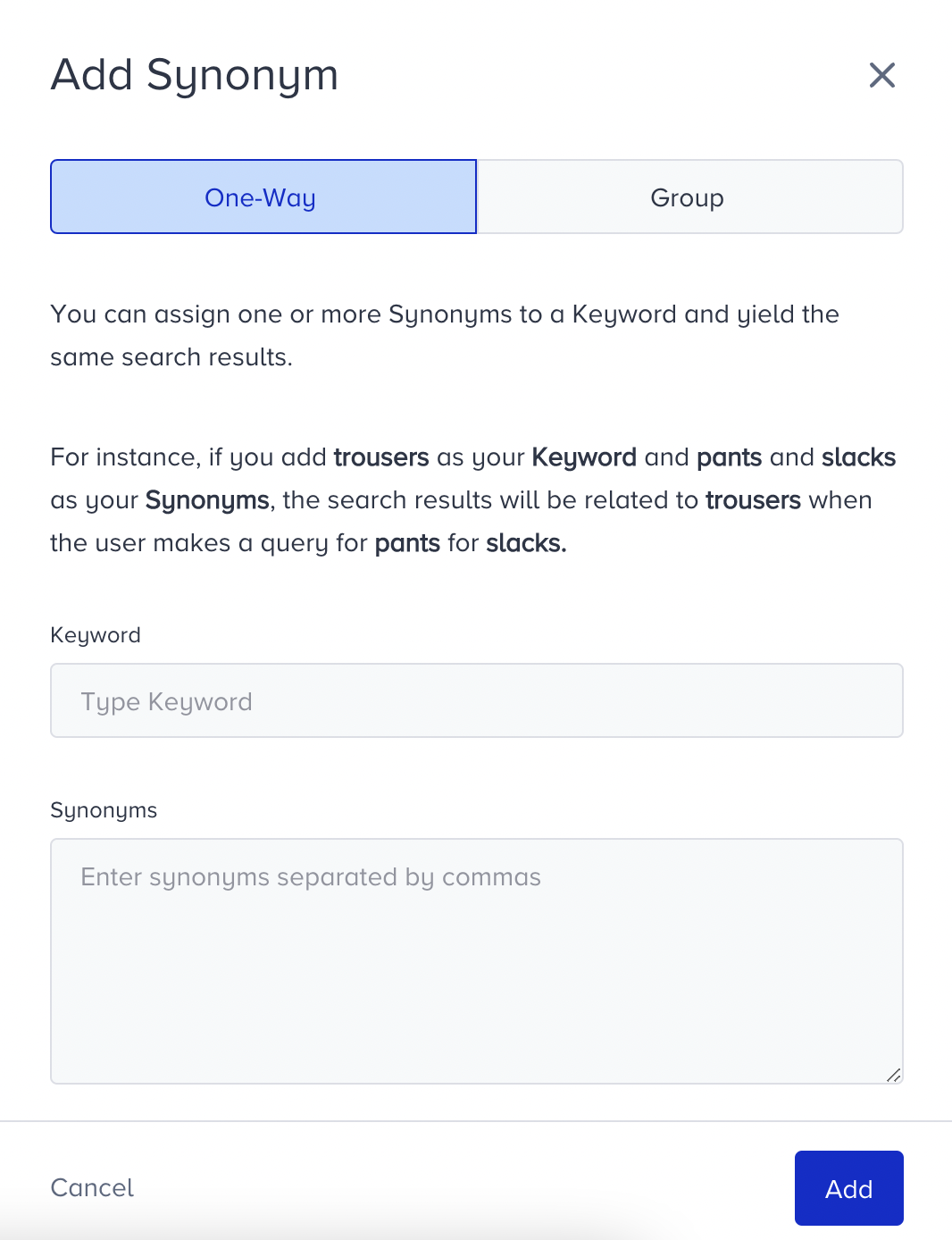
Add a primary term (e.g., "laptop") and associate it with synonymous terms by separating it with a comma (e.g., "notebook," "computer"). Click the Add button.
In this example, when users search for "laptop," the results will also include products related to "notebook" and "computer."
Grouped synonyms
Group synonyms allow you to create bidirectional associations between multiple terms. When a user searches for any term within a group, the system expands the search to include all other terms within that group.
Imagine you have a group of related search terms or phrases, such as "smartphone," "mobile phone," and "cell phone." These terms are essentially synonyms in the context of your ecommerce platform. Instead of creating one-way synonym relationships between these terms, you can create a synonym group.
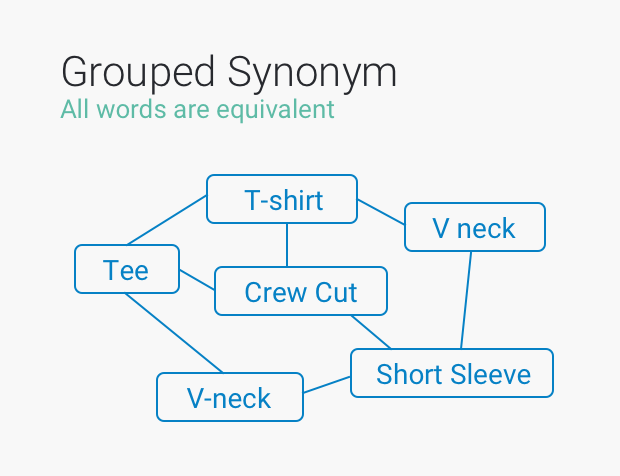
A clothing store is having sale on "t-shirts", but they use a lot of different words in their product names besides "t-shirt", like "Yellow T Shirt", "Red Tee Shirt", and "Blue Short Sleeve". In order to make the most out of their featured sale, the store sets up synonym logic for the word "t-shirt" and lets Eureka know that the words "t shirt", "tee", "short sleeve", "v-neck", "v neck", and "crew cut" should have equal weight when searching.
Each grouped synonym must contain at least two comma-separated terms, with a maximum of 10. Single-character terms might not be supported depending on the selected locale. If you need more than 10 related terms, split them into multiple synonym groups based on closest semantic match.
Use grouped synonyms
On Eureka's listing page, click Settings to navigate to Synonyms.
Click Add Synonym to create synonyms.
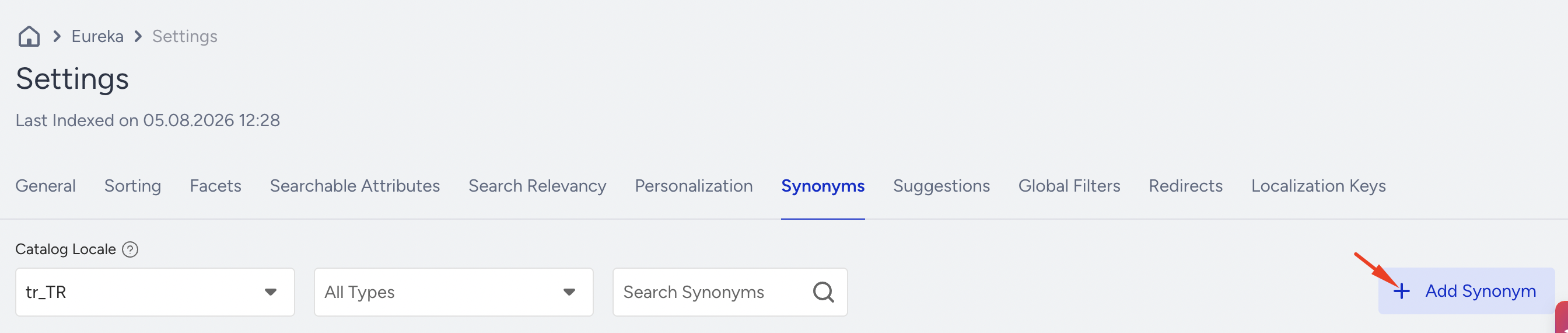
Select Grouped synonyms.
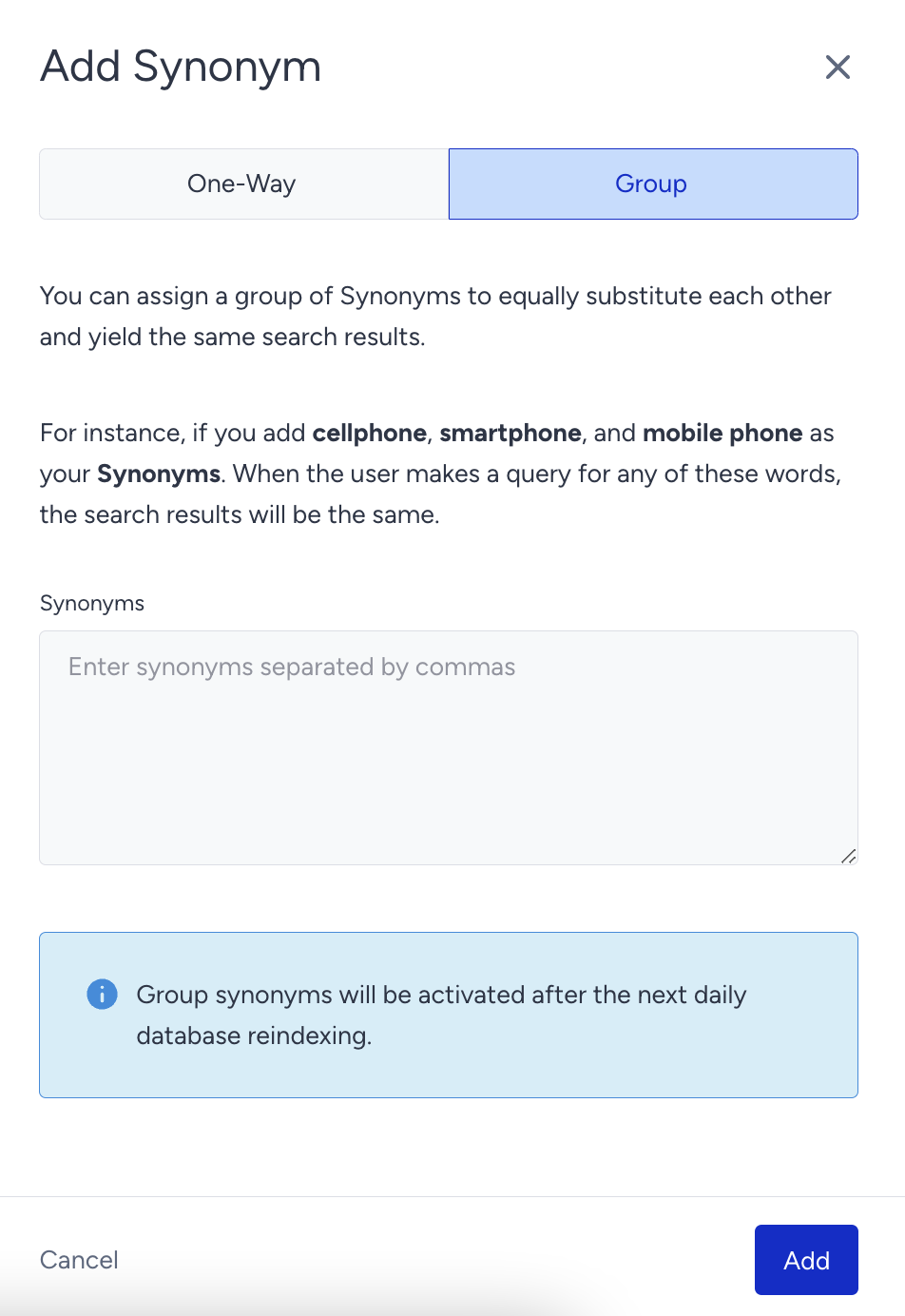
Add related terms, separated by commas (e.g., "mobile phone," "cell phone"), to create a synonym group. Click the Add button.
Then, when users search for "mobile phone," "smartphone," or "cell phone," the results will include products related to all of these terms.
Best practices
Use one-way synonyms if you want to expand search results from a specific primary term to synonymous terms.
Utilize group synonyms when you want to create bidirectional associations between multiple terms, improving search accuracy and coverage.
Regularly review and update your synonym associations to ensure they remain relevant and aligned with user search behavior.
Synonyms operations
The Synonyms menu allows you to create new synonyms, list existing ones, and take actions such as editing or deleting them. You can also search for synonyms if you have an extensive list of synonyms.
When you add or edit a synonym, its reflection in a live search engine needs to be indexed. One-way synonyms are automatically synced, while group synonyms require reindexing.
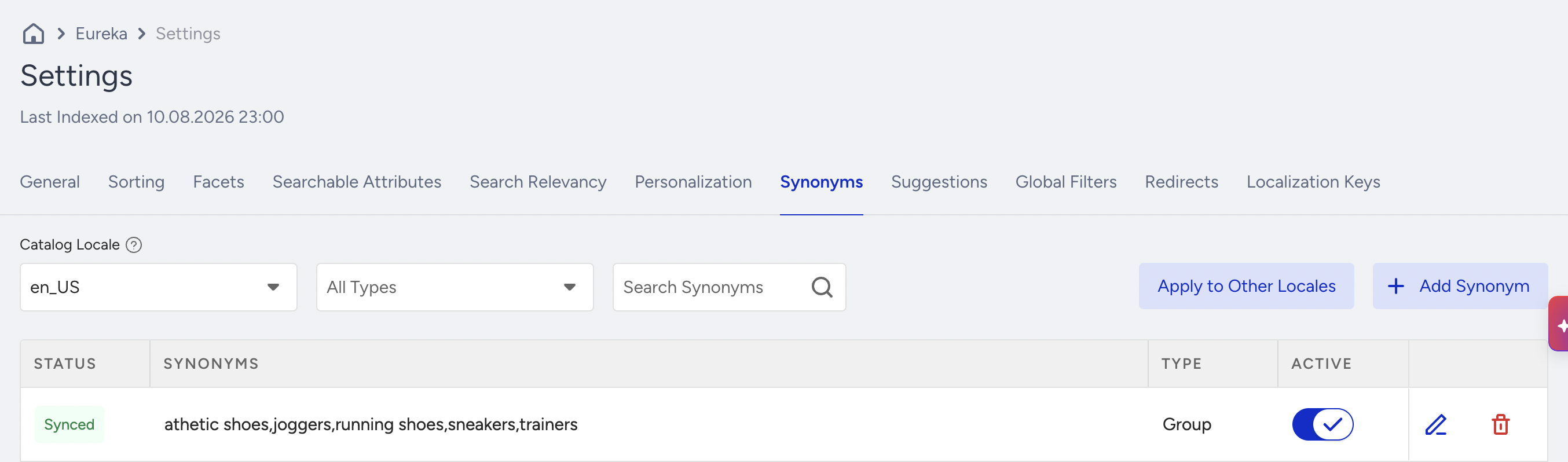
When you add a new group synonym, its status becomes “Pending,” and the reindexing ribbon menu appears at the top of the page. If you don’t take any action, your change will be automatically updated in the daily indexing process. If you click the Reindex button, your change will take effect in the search engine within 30 minutes.
To improve search results, if synonyms like "raincoat" for "rain coat" are only triggering results when the exact phrase is typed, consider using group synonyms instead of one-way mappings. Group synonyms enable a more flexible search experience by recognizing partial keyword matches.