Search Relevancy is part of the search experience setup, so it appears once you integrate search on your website.
In Eureka Settings, the Search Relevancy tab becomes available after your first locale is fully configured in the Insider Onboarding Center. Use it to run the analysis for any additional locales.
To start setting up your Search Relevancy:
Go to Eureka > Settings > Search Relevancy.
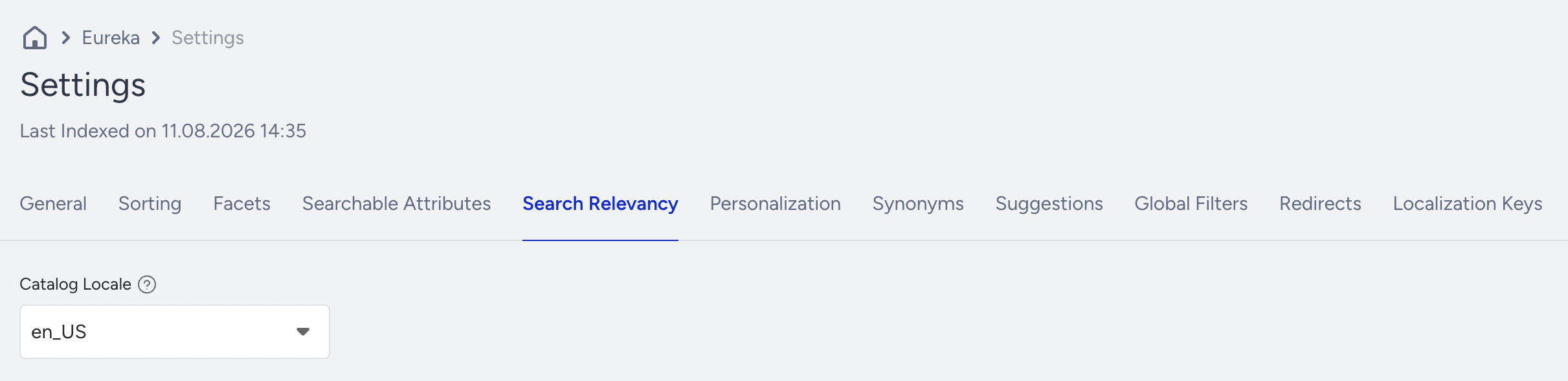
Choose the locale from the Catalog Locale selector.
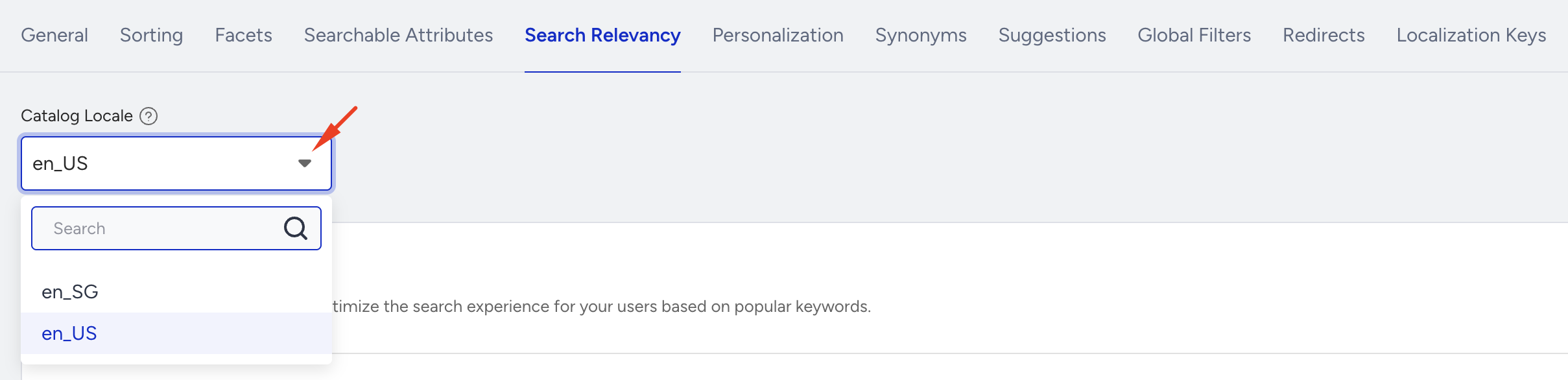
Add your popular keywords for that locale, in the language of the locale, using Add Keyword, Generate with AI, or Import from CSV:
You can add up to 100 popular keywords using one of the three methods below. Once the 100-keyword limit is reached, all input options are automatically disabled.
Add Keyword
Click Enter Keyword and type your keyword directly. Click Enter to confirm each keyword, then repeat for the next one. The same validation rules as synonyms apply; no special characters and no duplicates.
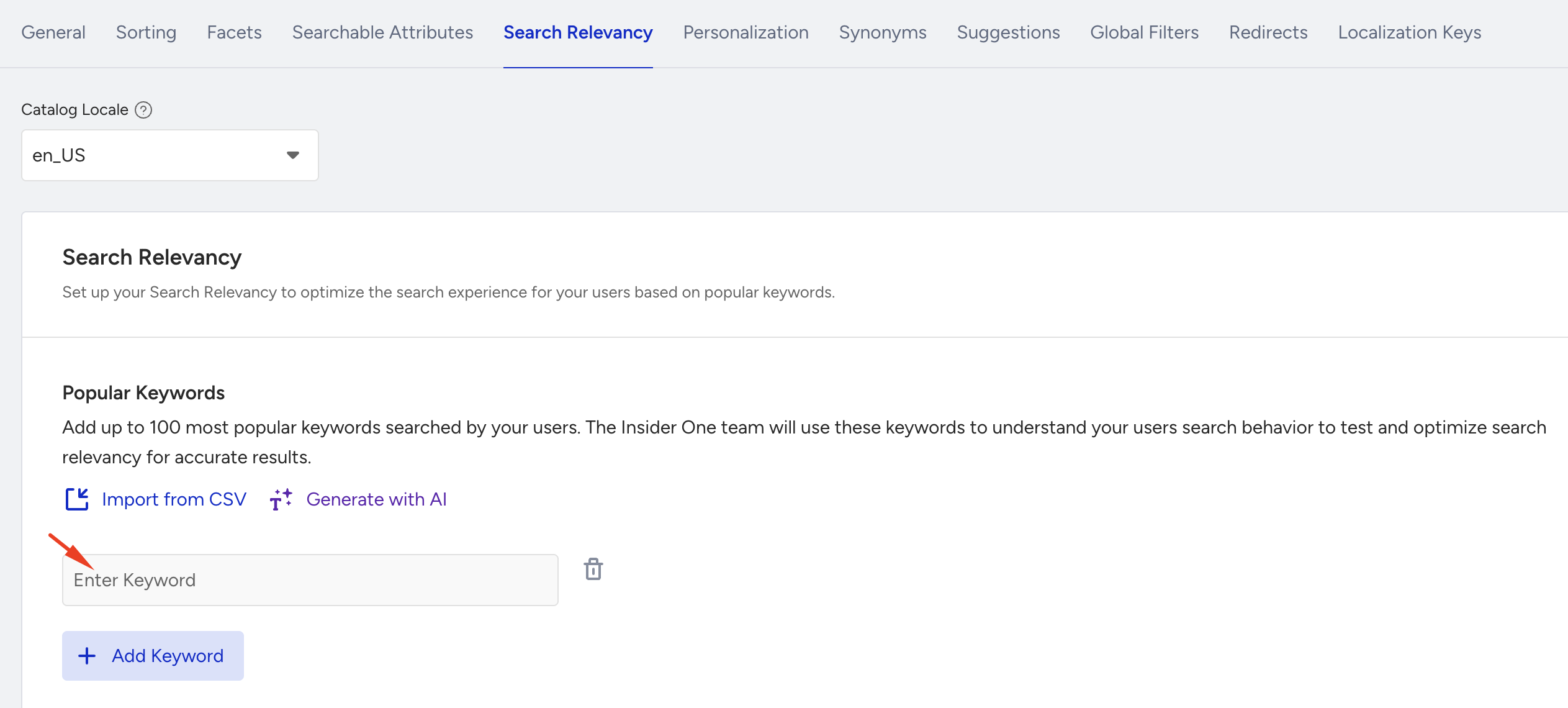
Import from CSV
Click Import from CSV to upload a keyword file. Check the Sample CSV and prepare your file so it meets these requirements:
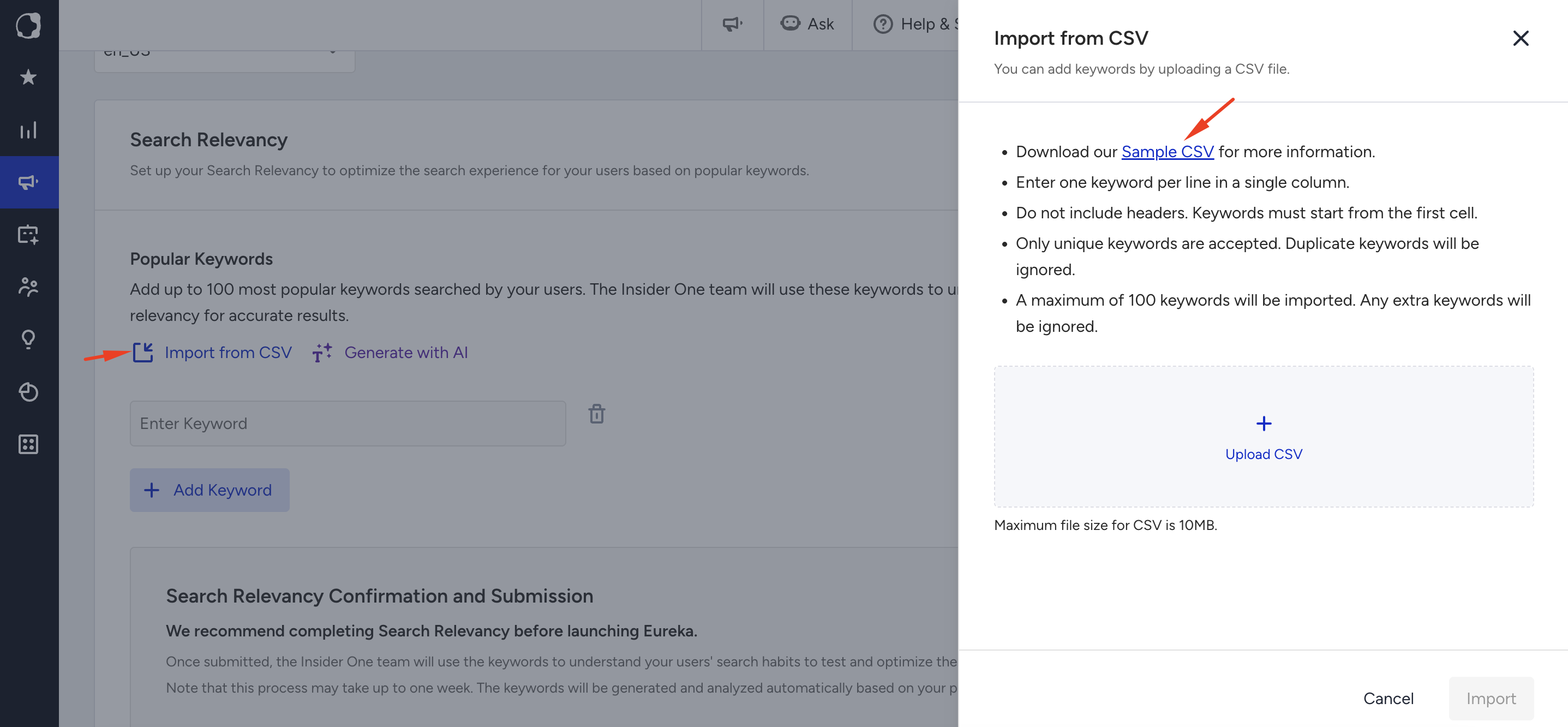
Enter one keyword per line in a single column.
Do not include headers. Keywords must start from the first cell.
Use UTF-8 encoding.
Duplicate keywords are ignored.
A maximum of 100 keywords are imported; any extra are ignored.
The maximum file size is 10 MB.
If the file does not meet the requirements, the keywords cannot be imported.
Generate with AI
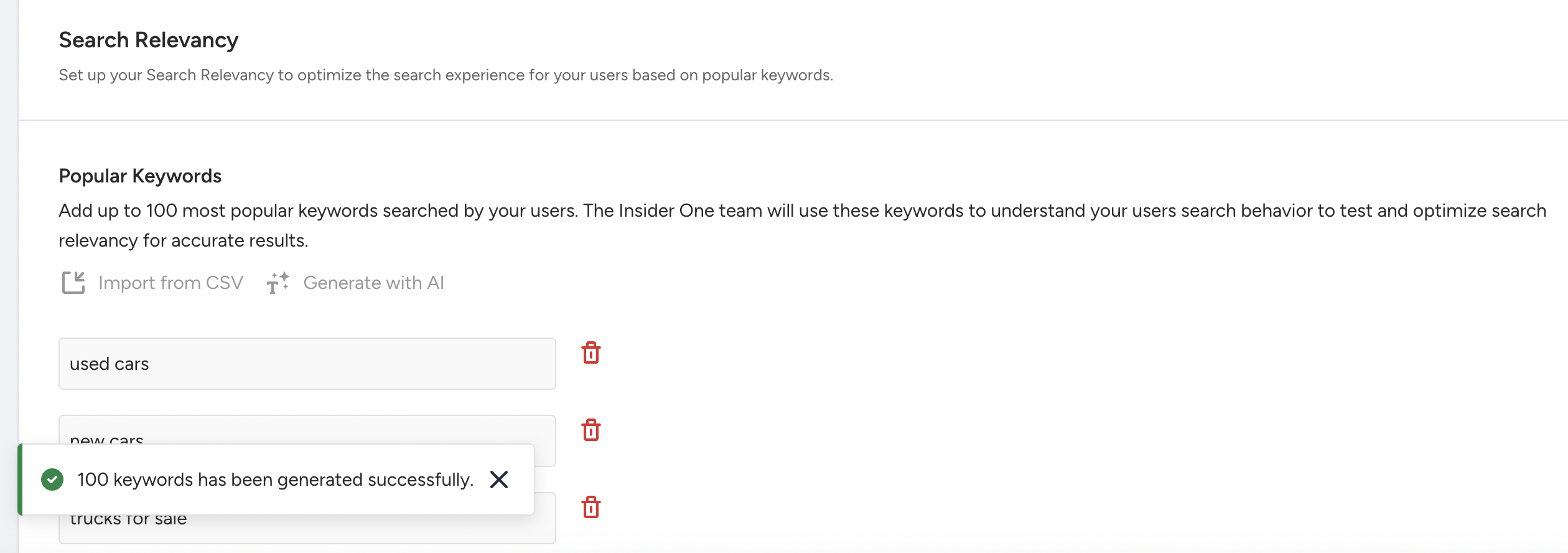
Click Generate with AI to let Eureka suggest popular keywords automatically, based on your product catalog and your vertical. The system generates up to 100 relevant terms.
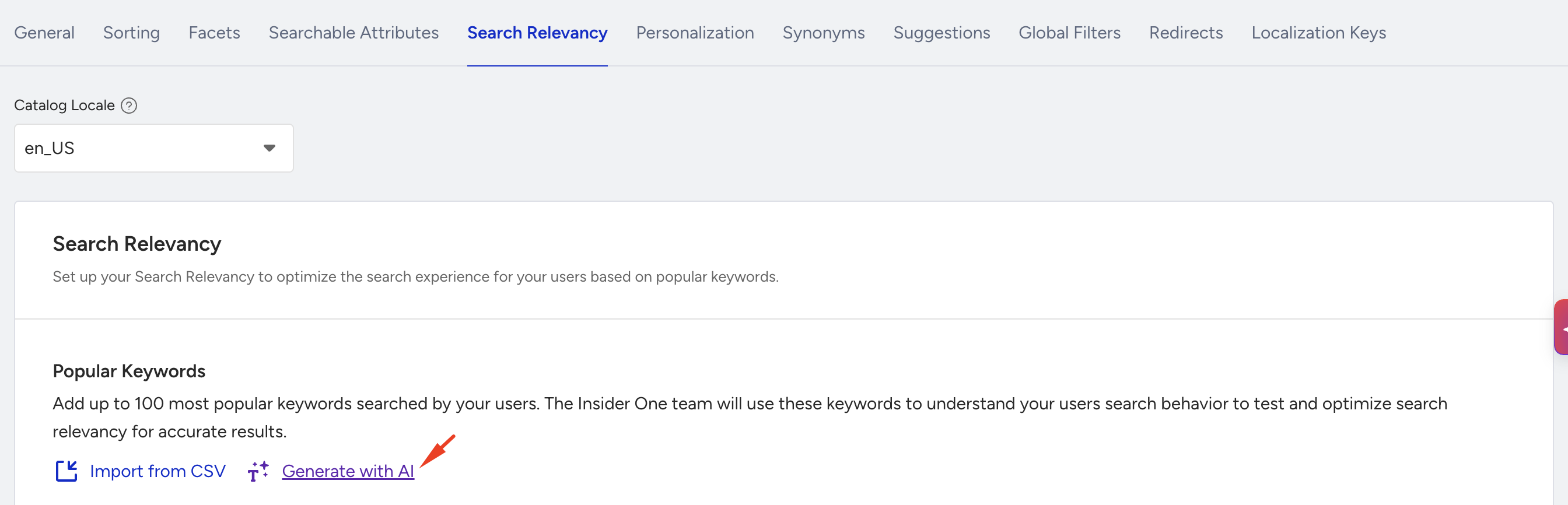
Review the list and remove any that don't apply before submitting.
Submit your keywords
You share up to 100 of your popular search terms per locale, and Insider's team optimizes the search results for those keywords, so you launch on a clean, tuned search baseline for your locales.
Click Confirm and Submit to send your keywords for analysis.

Your keyword list locks when you click Confirm and Submit and cannot be edited afterward. Review it carefully before confirming.
The status changes to Search Relevancy Analysis is In Progress. Insider One’s team is notified automatically and optimizes the search results for the keywords you submitted; no action is needed from you during this stage.
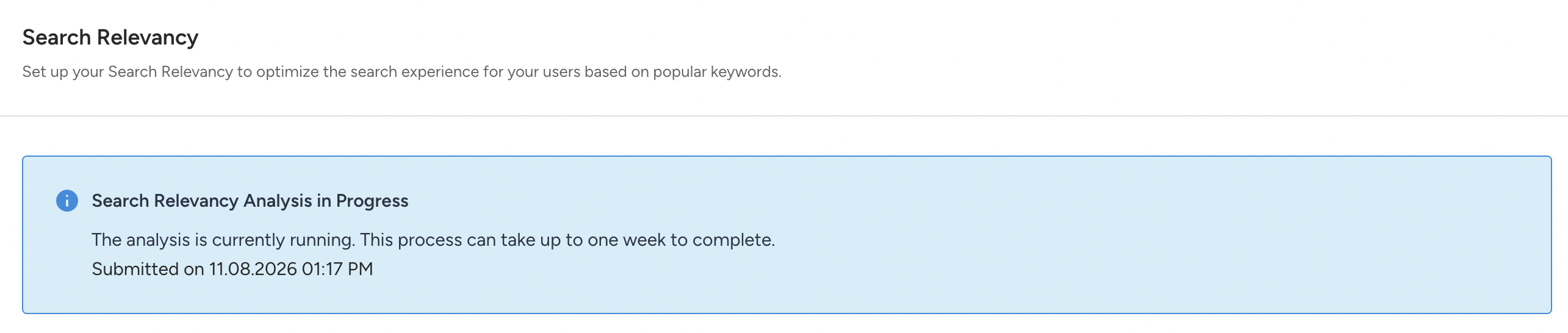
When it is complete, the status changes to Search Relevancy Analysis is Completed.

Status reference
Status | Meaning |
|---|---|
Submitted | Your keywords have been received, and the analysis is queued. |
In Progress | Insider One's team is analyzing your submitted keywords and applying improvements. |
Completed | Based on the keywords you have provided, search results have been optimized. |
Best practices about keyword selection
The quality of your keyword list determines the quality of the outcome. Aim for the terms that matter most to your business rather than adding 100 keywords just to reach the limit. Good keywords include:
Highest volume and high-revenue queries
Key brands and hero products
Tricky queries such as multi-word or attribute-specific searches, and common abbreviations
Terms written in the language of the locale you are configuring
A minimum of 3 characters per keyword
For example, a fashion retailer's list might look like this:
Example keyword | Why it's a good choice |
|---|---|
dress | Head term, one of the highest-volume queries |
jeans | Head term / high-revenue category |
summer sandals | Seasonal head term |
Niki | Key brand |
Live 105 | Hero product |
red midi dress | Multi-word, attribute-specific (color + style) |
black leather jacket | Keywords with color and material attributes |
size 8 ankle boots | Keywords with size and product attributes |
waterproof coat | Attribute-specific (feature) |
pjs | Common abbreviation (pajamas) |
This is a short illustrative sample. You can add up to 100 keywords, and you should adapt the mix to your own catalog and vertical. If you don't have a keyword list ready, you can use Generate with AI; providing your own keywords generally produces better results.
Things to keep in mind:
The maximum number of keywords is 100. Once this limit is reached, Add Keyword, Generate with AI, and Import from CSV are all disabled.
Only one analysis runs at a time per locale.
The analysis can take up to one week.
Providing your own keywords produces better results.