Suggestions, Popular Searches, and Recent Searches work together to turn a standard search bar into an intelligent product discovery experience. These capabilities surface contextual hints, trending queries, and personalized search history in real time, helping users find what they need faster while inspiring exploration. By guiding intent and reducing friction, they play a key role in boosting engagement and driving high-conversion journeys.
Strategic value of search enhancements
Each of these three capabilities delivers unique benefits that elevate your search experience and directly contribute to improved engagement, conversions, and ROI.
Suggestions (Type-Ahead)
Proactively guides shoppers with relevant terms, categories, and brands as they type. By reducing keystrokes and minimizing “no results” scenarios, Suggestions accelerate product discovery, shorten the path to purchase, and enhance overall search efficiency.
Popular Searches (Demand Visibility)
Captures shopper attention even before typing begins. This feature acts as a dynamic merchandising tool, surfacing trending or high-volume search queries that align with demand or campaign priorities. Highlighting these high-interest terms drives immediate traffic toward promoted or best-selling products, improving conversion rates.
Recent Searches (Personalized Efficiency)
Delivers convenience through personalization by displaying each user’s latest search history. This creates a seamless, efficient return experience—allowing users to quickly pick up where they left off, complete unfinished journeys, and deepen loyalty through repeated engagement.
Configuration and implementation
Implementation involves activating Suggestions, Popular Searches, and Recent Searches, and generating and indexing terms according to the specified number for each content type. You can then customize the visual experience and placement in the Design step using the Action Builder. You need to complete all configurations independently for each locale to ensure localized accuracy and performance consistency.
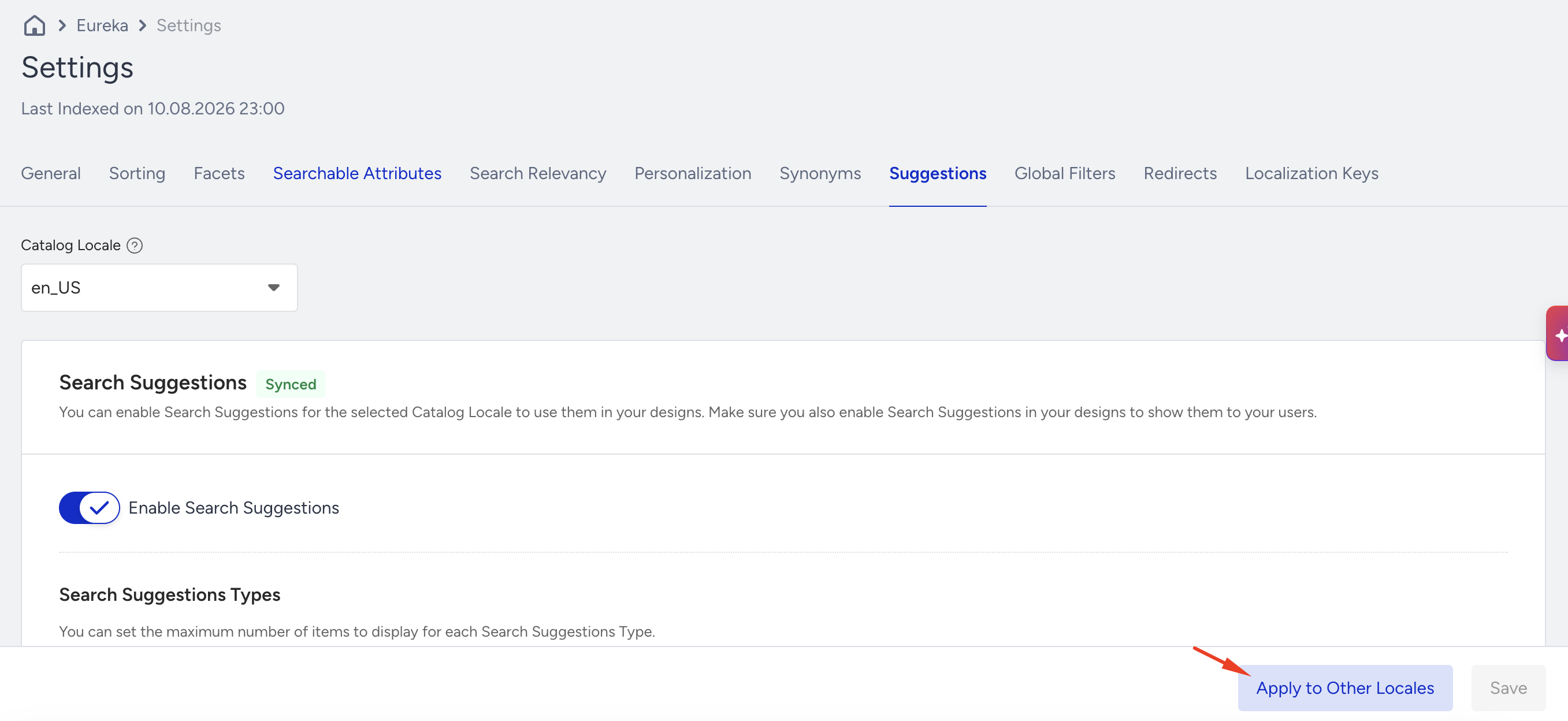
Navigate to Eureka > Settings > Suggestions configuration tab.
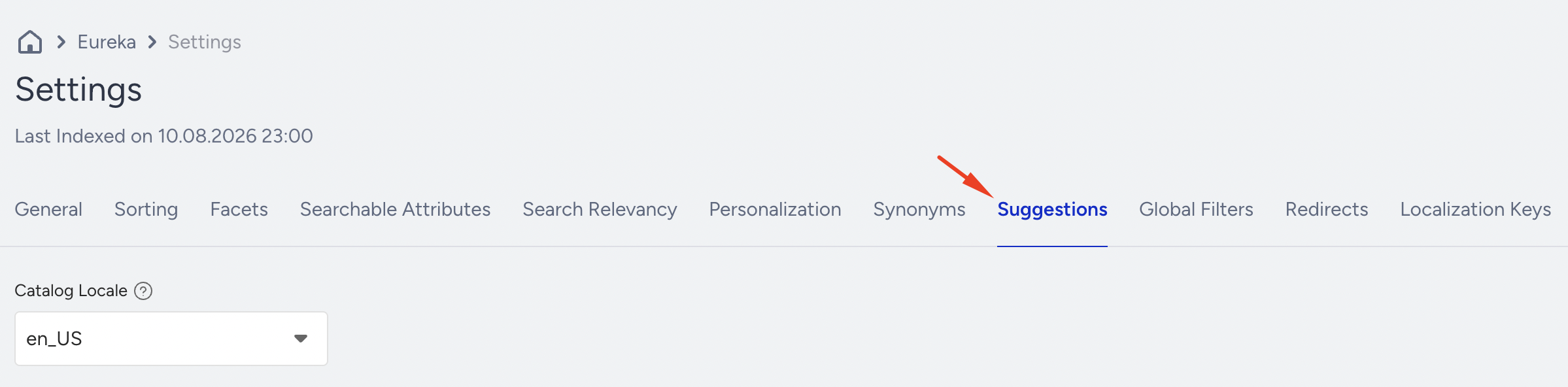
Activate Search Suggestions
Activate the Search Suggestions toggle.
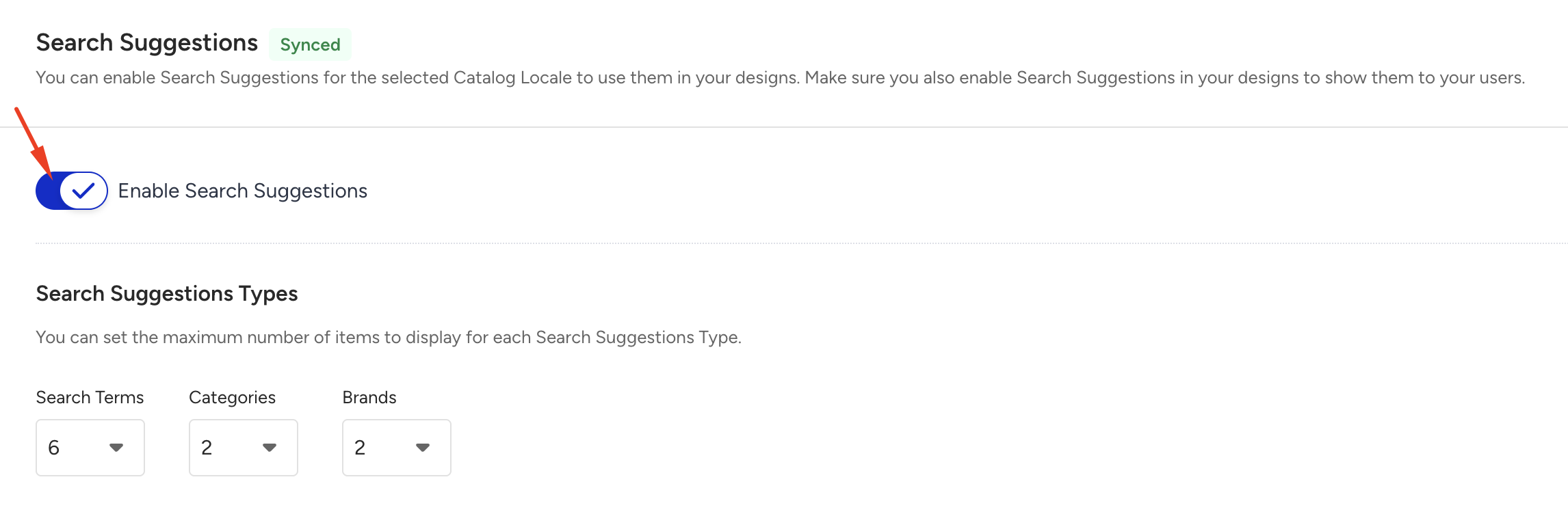
Define the content mix for suggestions using the three dropdown menus, specify the maximum number of:
Search terms (default is 6, up to 9),
Categories (default is 2, up to 5),
Brands (default: 2, up to 5) to suggest.
Activate Popular Searches
Activate the Popular Searches toggle.
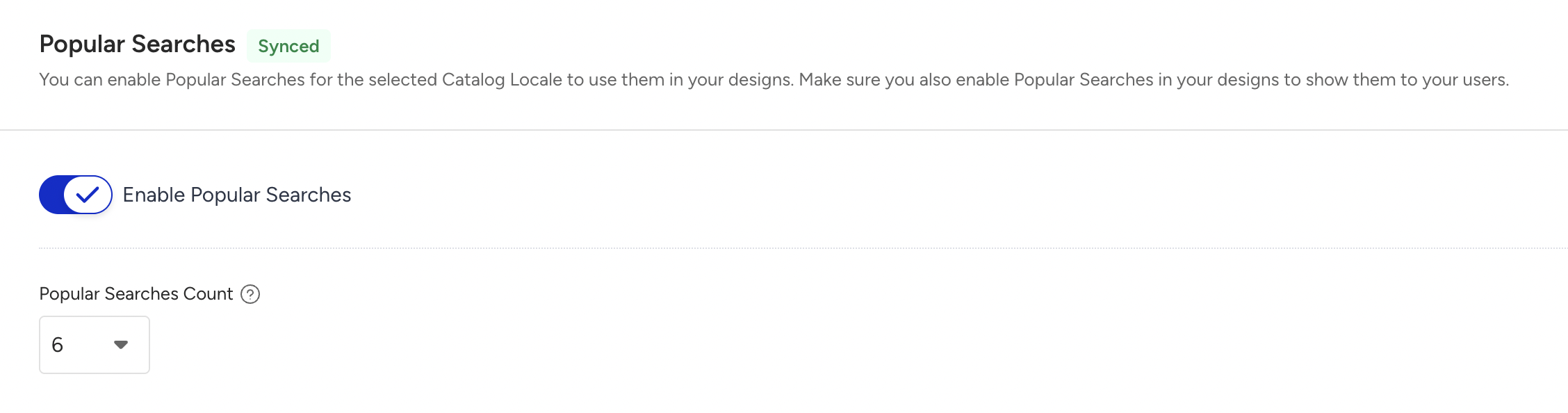
Use the dropdown below to select the number of popular search terms to display (default: 6, up to 9).
Activate Recent Searches
Activate the Recent Searches toggle.
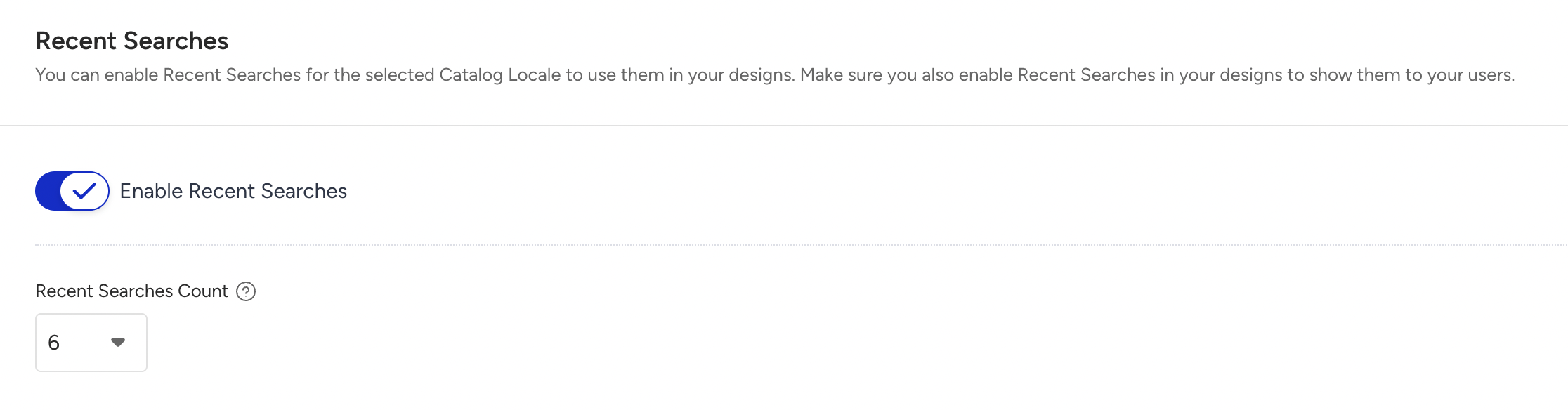
Use the dropdown below to select the maximum number of recent searches to display (default is 6, up to 9).
Data Synchronization
Click Save to complete your configurations. The Suggestions and Popular Searches features will enter a "Syncing" status. You need to wait until the status changes to Synced (typically within 10-15 minutes) before these features become functional. Recent Searches do not require this synchronization period.
To efficiently activate this configuration across multiple regions, languages, or stores, utilize the Apply to Other Locales button.
Design the campaign experience
Once synchronized, enable and style the visual display of Suggestions, Popular Searches, and Recent Searches in the Design step of your campaign.
Navigate to the Design Step for your target campaign, then go to the Action Builder.
Locate the Eureka On Page Instant Preview template and navigate to the Design tab of the Action Builder.
For each feature, navigate to the main template under the Desktop or Mobile Instant Search element tree.
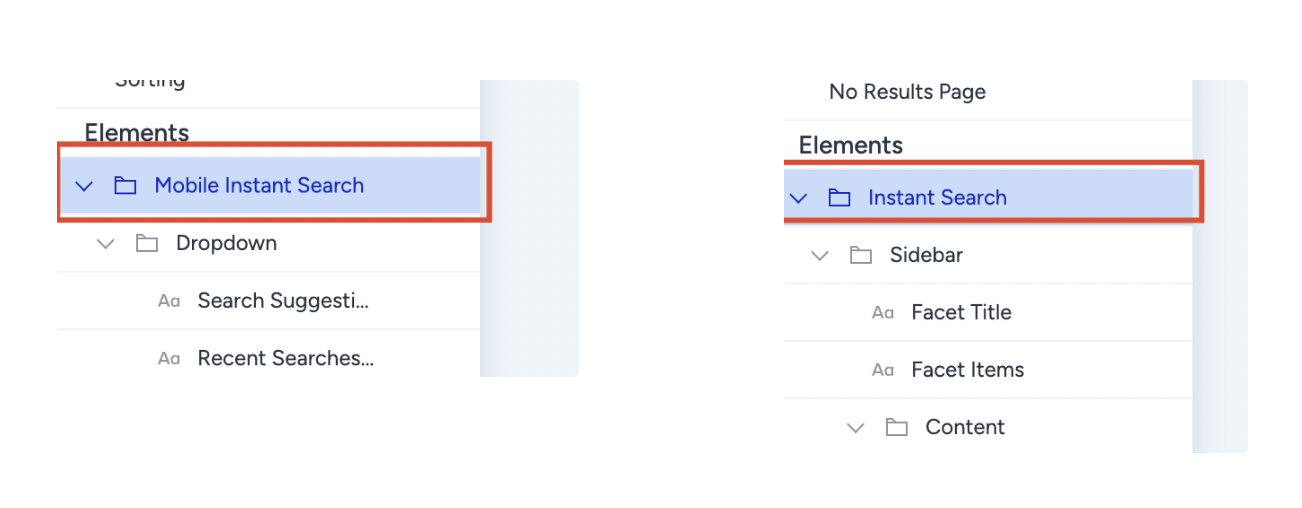
Use each feature's toggle switch in its Properties menu to activate it. The default values of the toggles match the toggle states in the Suggestion tabs of the Eureka Settings for the new campaigns.
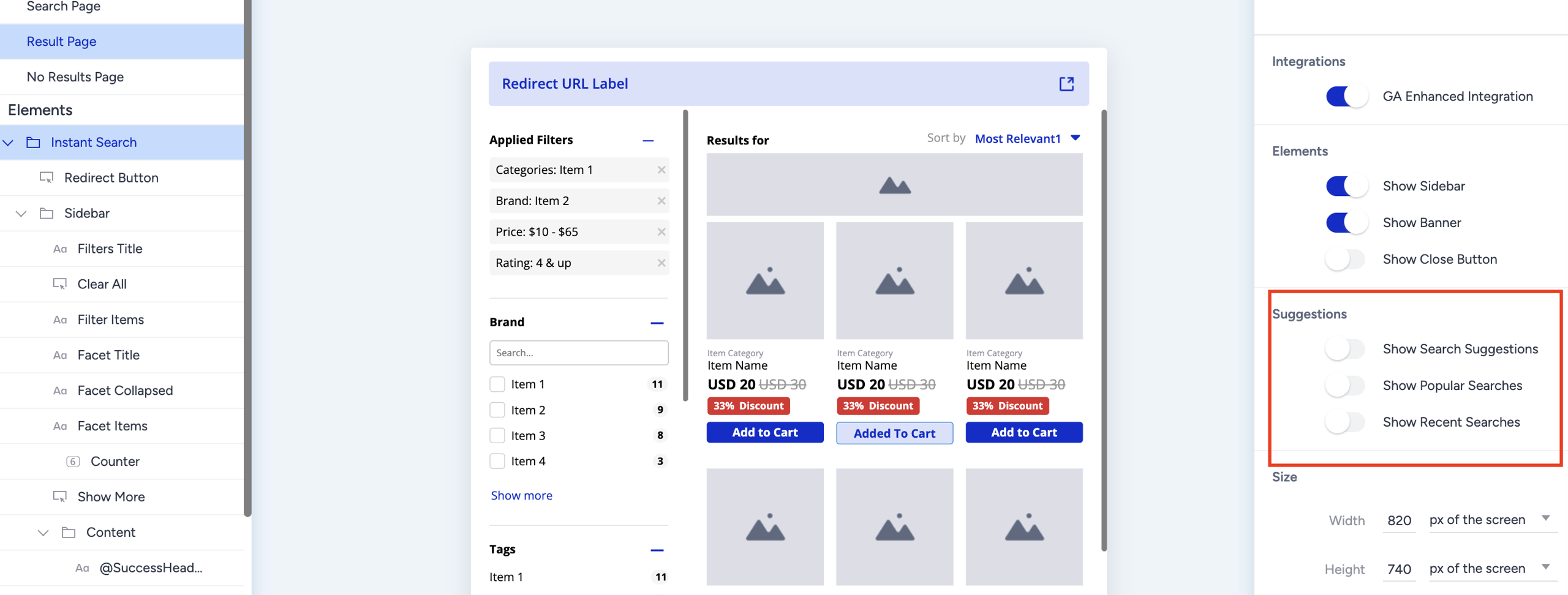
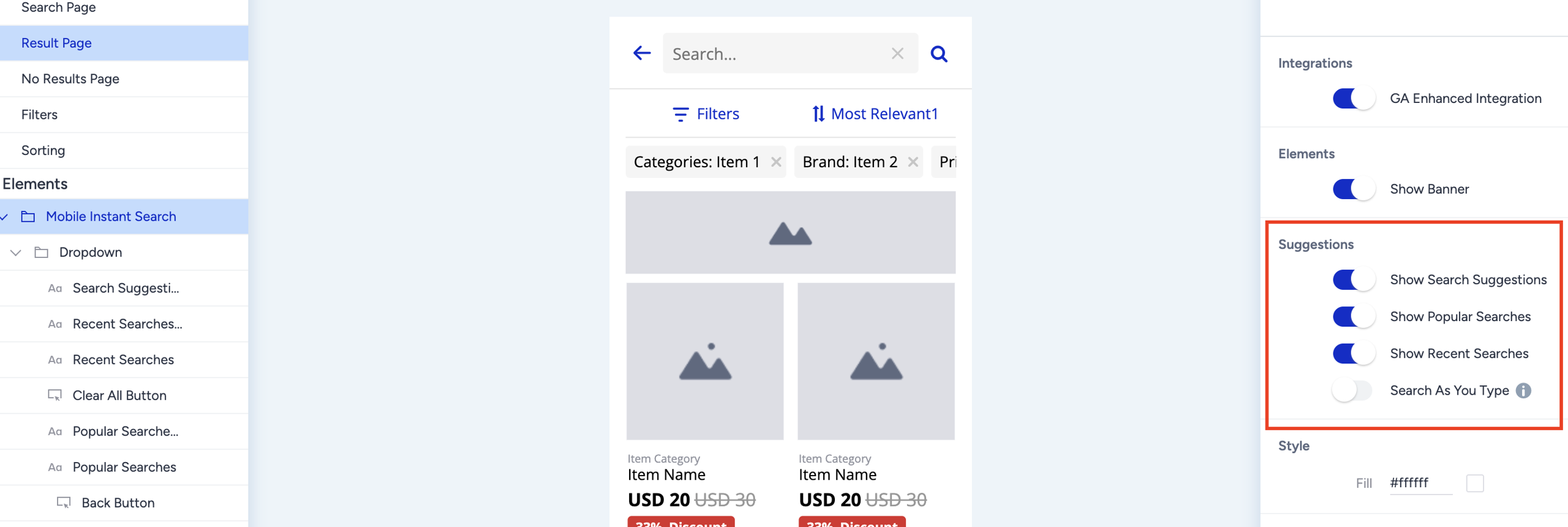
Suggestions
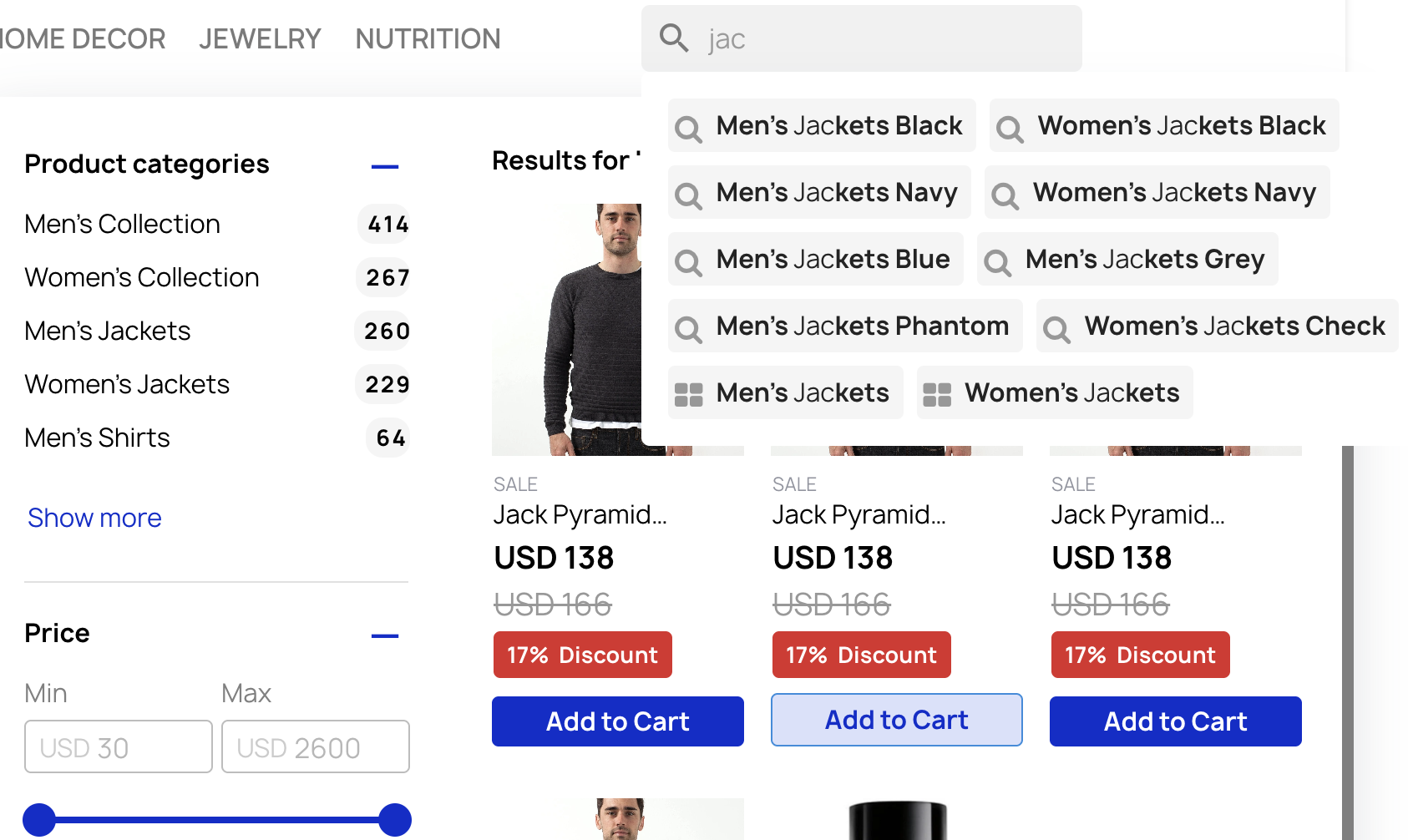
The Suggestions feature requires prior activation and synchronization in Eureka Settings. Suggestions are triggered when the end user starts typing the search term. The suggested search terms, categories, or brands appear in the search bar.
Behavior
The suggestions are updated dynamically as each character is typed, providing tailored options for users to select with a tap or click. Meanwhile, Instant Preview displays results on the search results page based on the term the user typed. If the user clicks a suggestion, the suggestion list closes, and the Instant Preview search results page displays the results for the clicked suggestion.
Generation logic
It continuously scans and updates the search terms your users input on your site to ensure the suggestions it provides are timely and fitting. It prioritizes popularity, generating suggestions only for frequently used terms rather than those typed sporadically. Category and Brand suggestions are generated directly from catalog attributes, such as category and brand, without initially considering the search history. The suggestions are always available from day one and are updated by the category-brand searches your users conduct, based on how many times this category-brand pair has been searched.
Experience customization
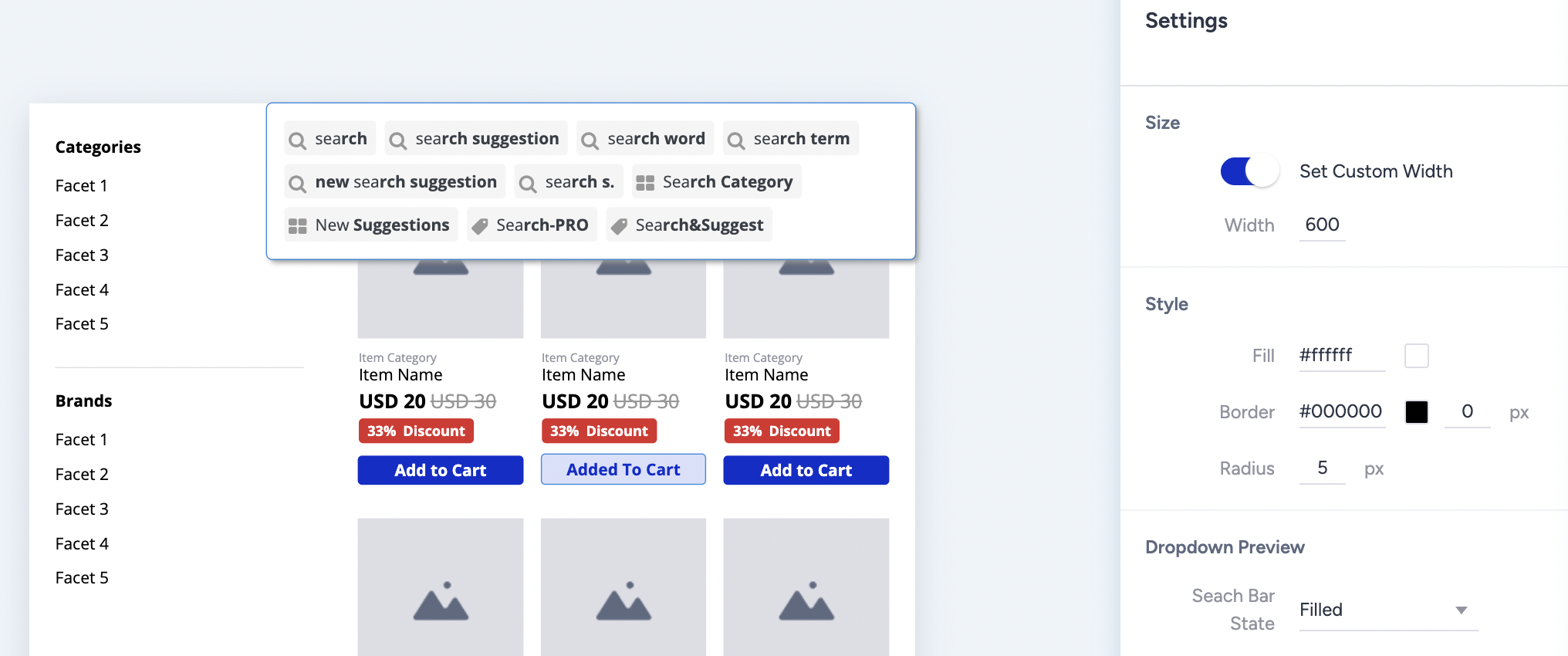
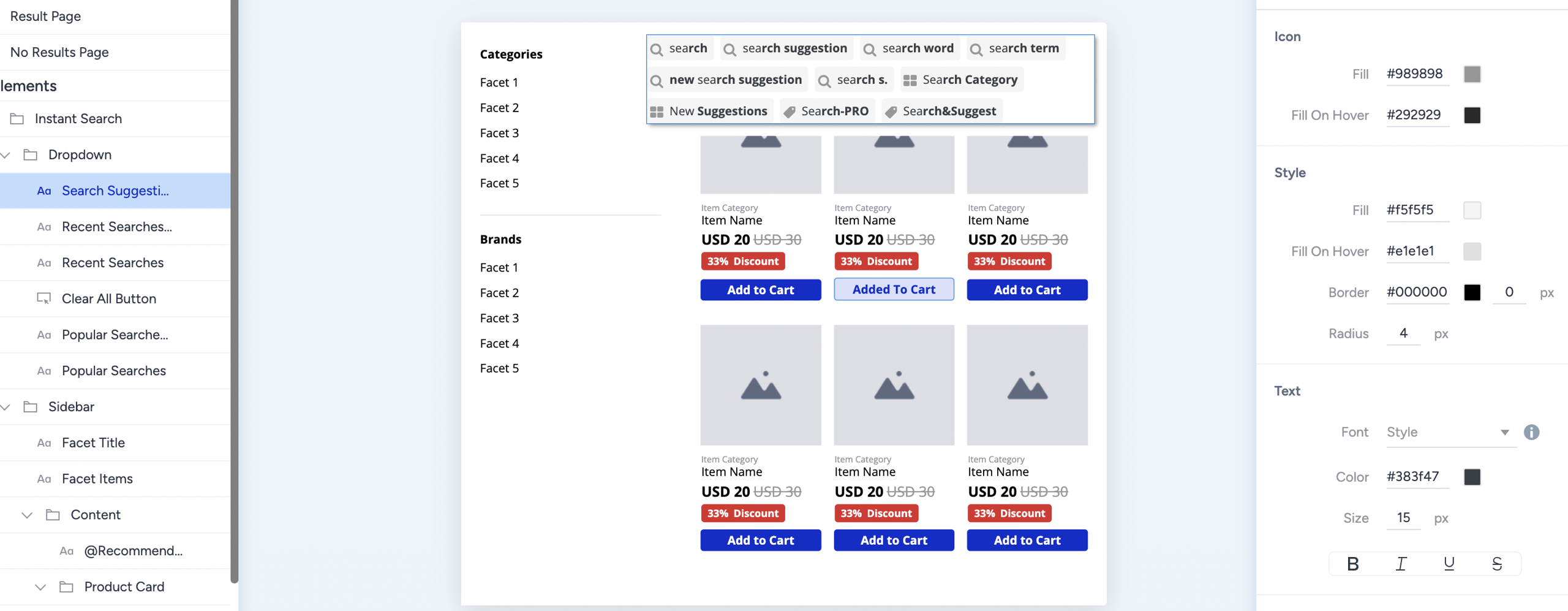
When the Suggestion feature is enabled, the following elements can be edited from the Properties menu:
Dropdown size, color, and border styles
Suggestion elements' icon colors, color, border, and text styles
Popular Searches
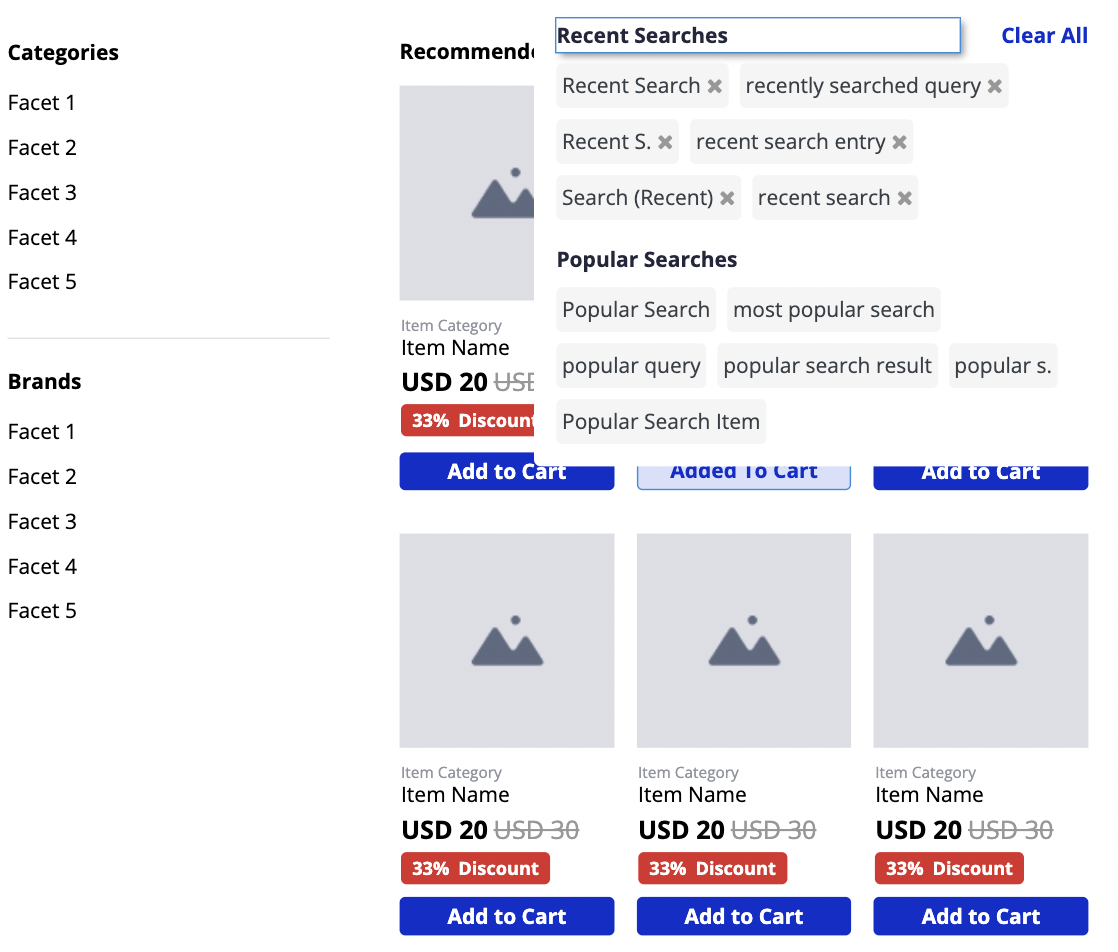
The Popular Searches feature requires prior activation and synchronization in Eureka Settings. The Popular Searches are triggered only when the search input is focused and no search term is typed.
Behavior
Popular Searches activate the moment a user clicks into the search bar (the “no-input state”), instantly displaying high-demand search terms aggregated from all users on your site. When a visitor selects one of these suggestions, Eureka automatically triggers a search for that term. Because the system must first collect sufficient live user data to populate the list to the configured limit in Eureka Settings, the complete and optimized list of Popular Searches typically becomes available approximately 24 hours after campaign activation.
Generation logic
Popular Searches are generated by analyzing the frequency of search terms entered by all users across your site. To maintain accuracy and relevance, the system normalizes these raw terms against your product catalog data, filtering out typos and removing queries unrelated to your products. Eureka then evaluates each remaining term based on both frequency and contextual relevance, specifically, how closely it aligns with existing product attributes. This process ensures that every displayed search suggestion represents a verified, high-value discovery query directly connected to your catalog.
Experience customization
When the Popular Searches feature is enabled, the following elements can be edited from the Properties menu:
Dropdown size, color, and border styles
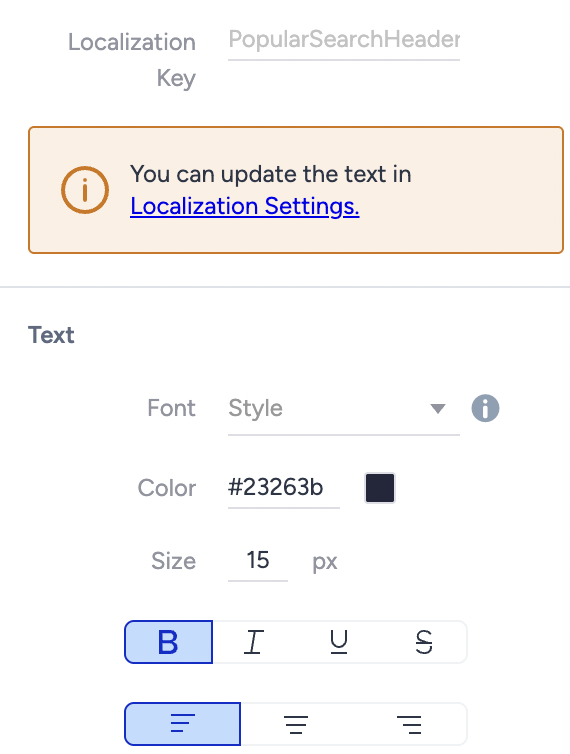
Popular Searches Header localization text and text styles
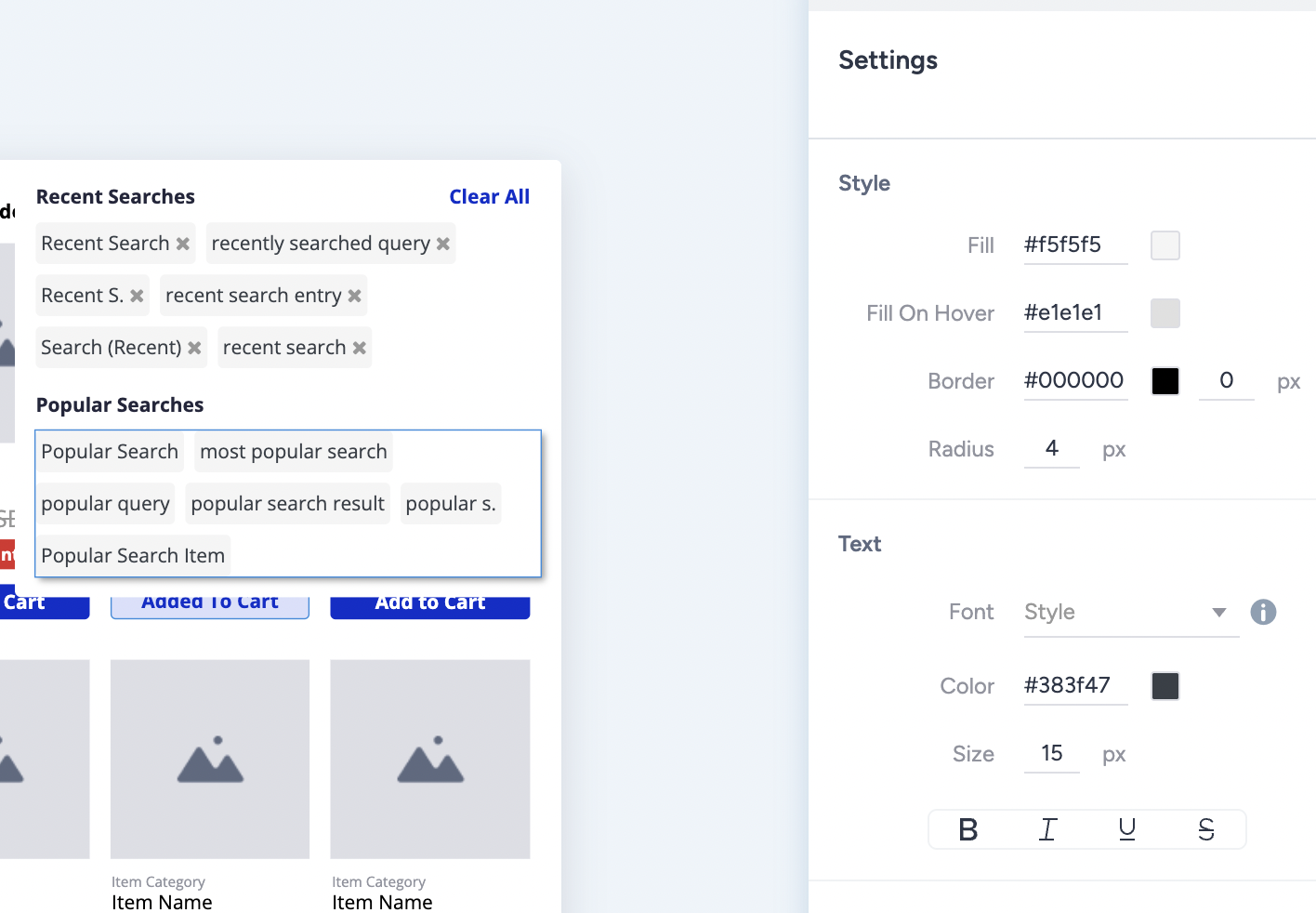
Popular Searches' background color, border, and text styles
Recent Searches
The Recent Searches feature requires no prior settings dependency. The Recent Searches are triggered only when the search input is focused and no search term is typed.
Behavior
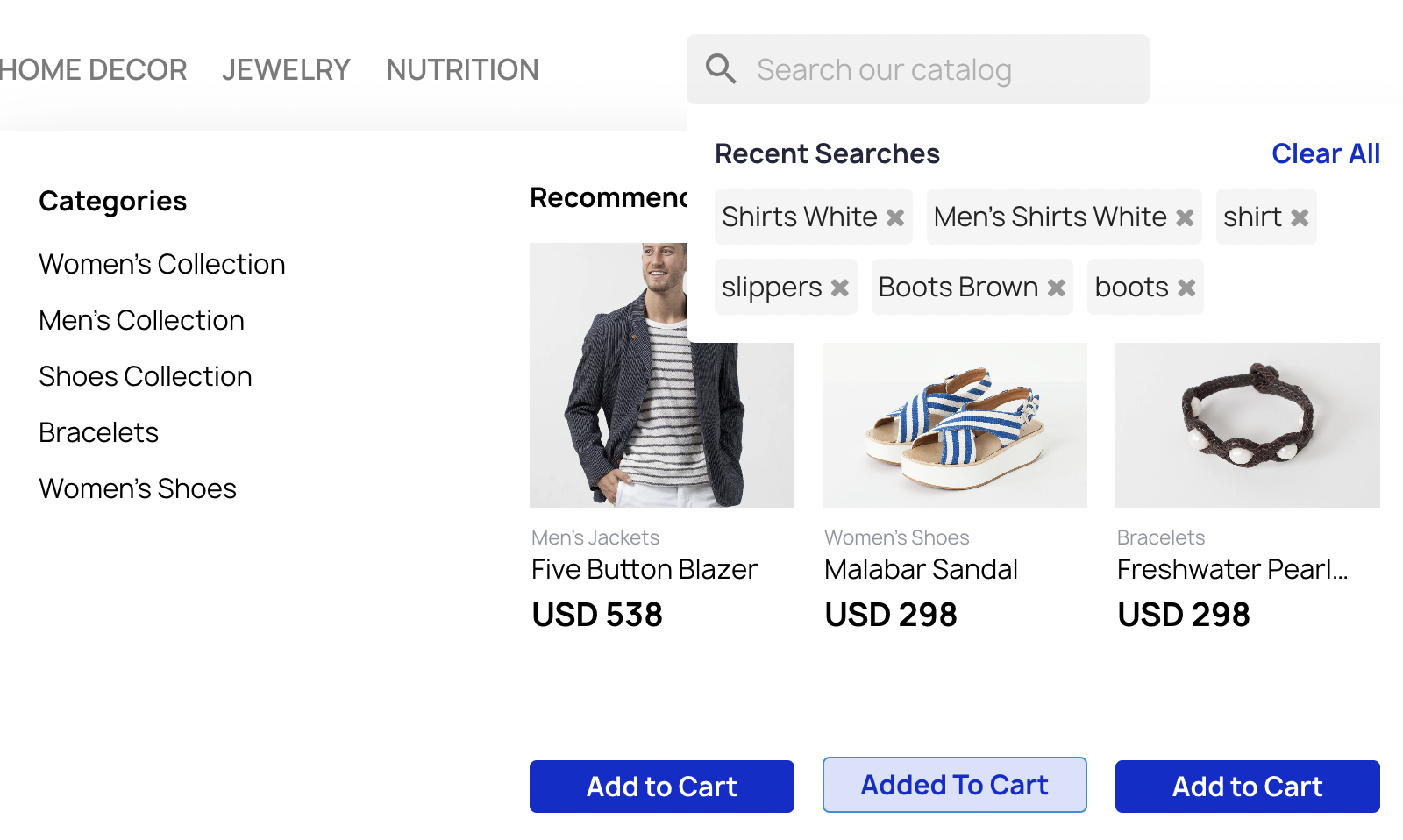
Recent Searches activate the moment a user clicks into the search bar (the “no-input state”), displaying search term suggestions based on that user’s own recent search history on your site. When a user selects one of these terms, Eureka automatically initiates a search for the selected query.
Generation logic
Recent Searches are generated based on the individual user’s most recent search activity and are refreshed automatically after each new search. This feature operates in real time and requires no prior data analysis. If a user has no previous search history, Recent Searches will not appear in the search suggestions.
Experience customization
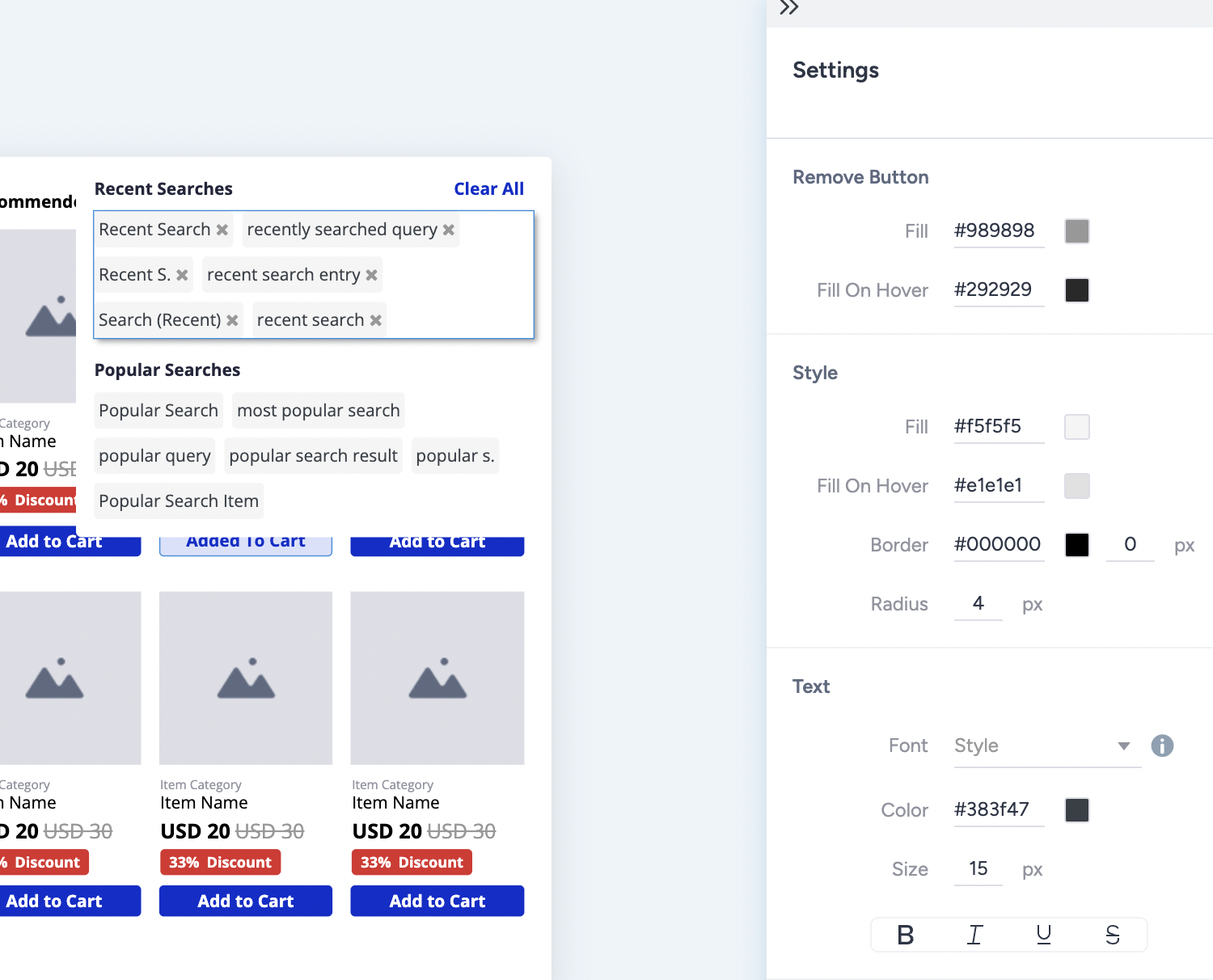
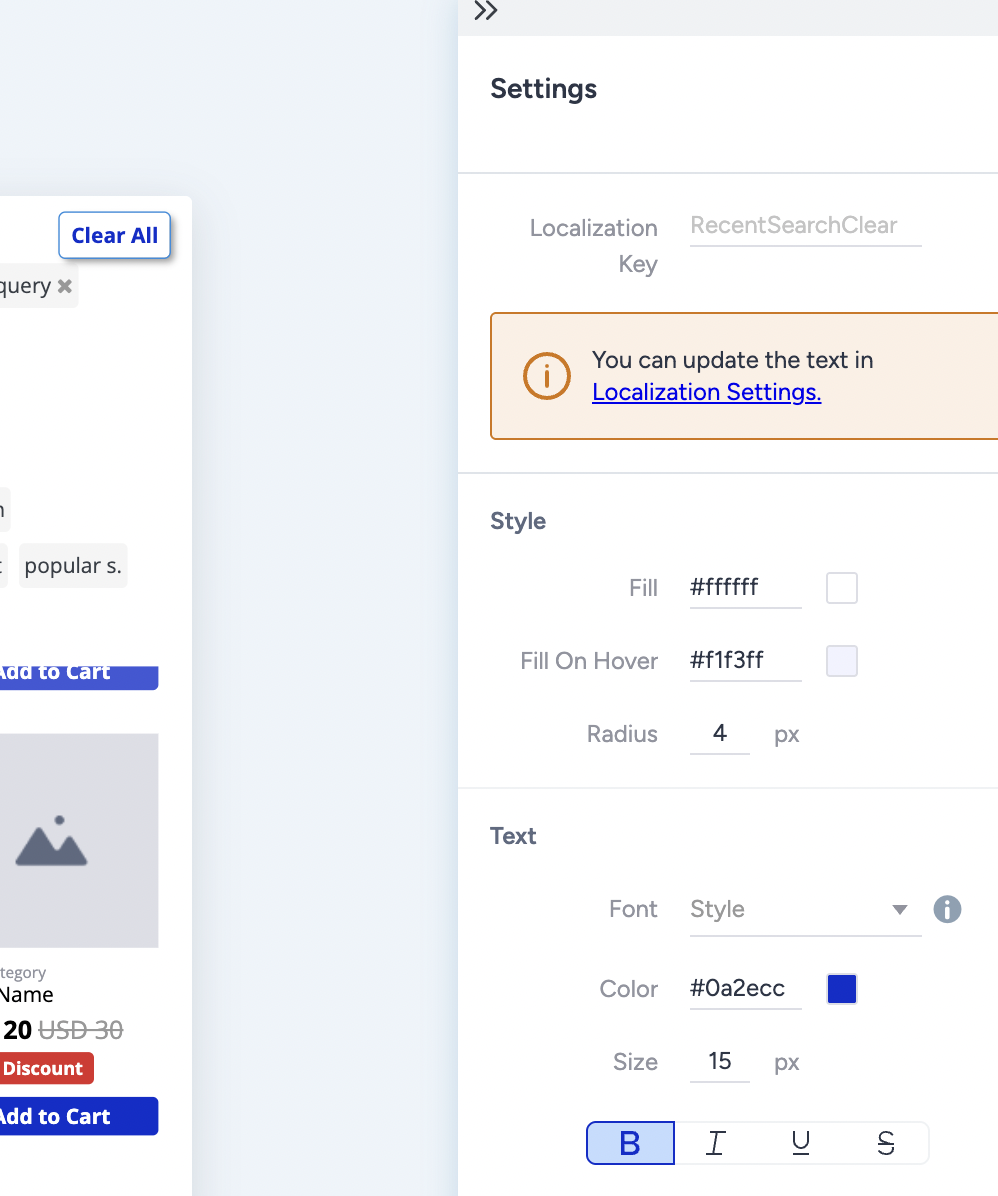
When the Recent Searches feature is enabled, the following elements can be edited from the Properties menu:
Dropdown size, color, and border styles
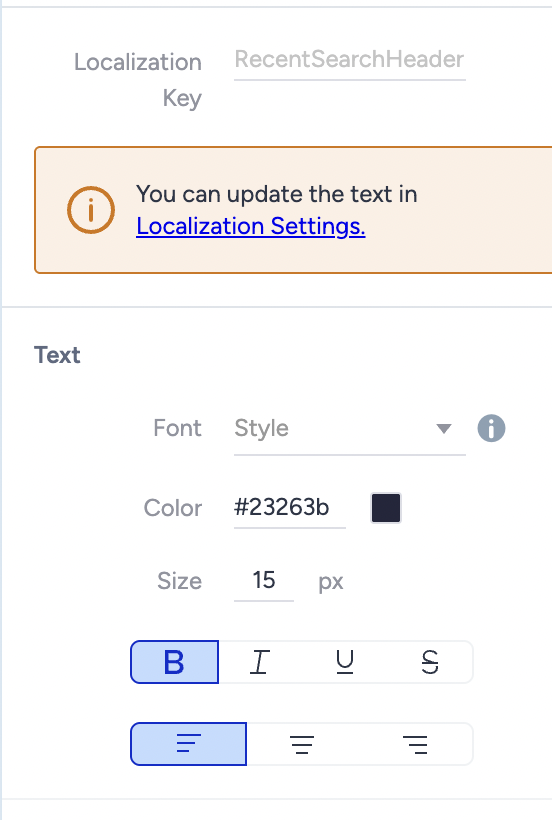
Recent Searches Header localization text and text styles
Recent Searches' Remove button style and background color, border, and text styles
Clear All button localization text, background color, and text styles
Troubleshooting
Common operational challenges can usually be resolved through a few quick verification steps. Most issues are related to data synchronization delays or inactive toggle settings, so review the points below before escalating further.
The feature is not displaying on the site
Resolution: Confirm that the feature toggle is active in Eureka Settings and that the status is marked as Synced. If the status shows Syncing, the indexing process (typically 10–15 minutes) is still ongoing. Wait until the synchronization is complete before testing again.
Popular Searches are not generated in the expected number
Resolution: Ensure at least 24 hours have passed since the campaign and the Popular Searches feature were activated. The system requires one full day to collect enough live user data to populate the complete list.
Inability to activate the toggle in Action Builder
Resolution: This typically indicates a missing dependency in Eureka Settings. If the core Suggestions or Popular Searches toggle is disabled, you cannot enable it within the campaign. Follow the direct link in the pop-up (“toaster message”) to activate the required core setting.
Style or formatting errors on display
Resolution: Reopen the Action Builder and confirm that the visual styles (e.g., colors, fonts, spacing) are applied at the list or element level (e.g., the Popular Searches list) rather than to the broader dropdown container.
Recent Searches data loss
Resolution: This behavior is expected. Recent Searches are stored locally in the user’s browser to protect privacy. Data may be lost if the user clears their browser history or selects “Clear All”. The list will repopulate automatically as new searches are performed.