Generate Text option is available in both Email product and Email channel in Architect journeys.
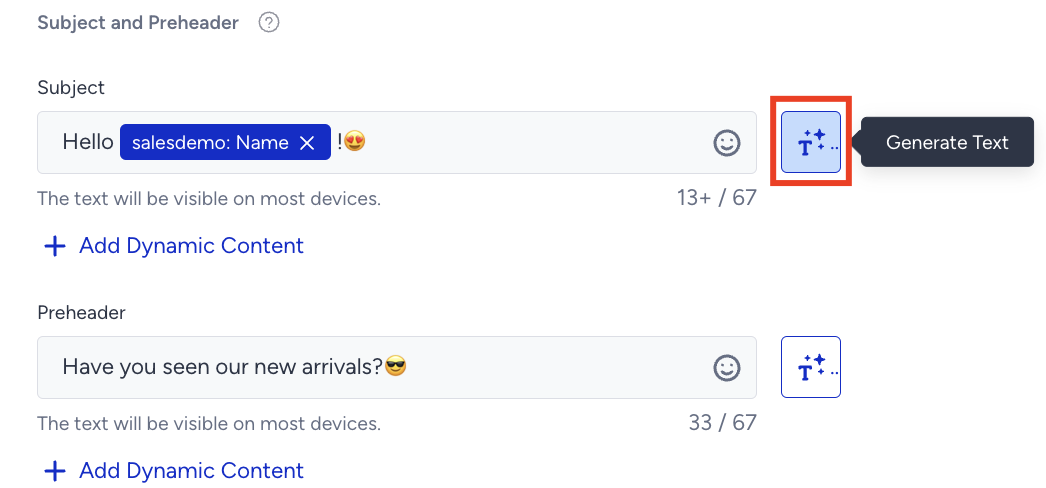
If you need some inspiration or help while creating your Email subject and preheader, you can always use the Generate Text option. This feature is a valuable resource, generating content that aligns with your preferences and objectives, ensuring that your messaging resonates effectively with your audience.
To use AI-generated text in your email's subject and preheader:
Click the Generate Text button to see the side modal.
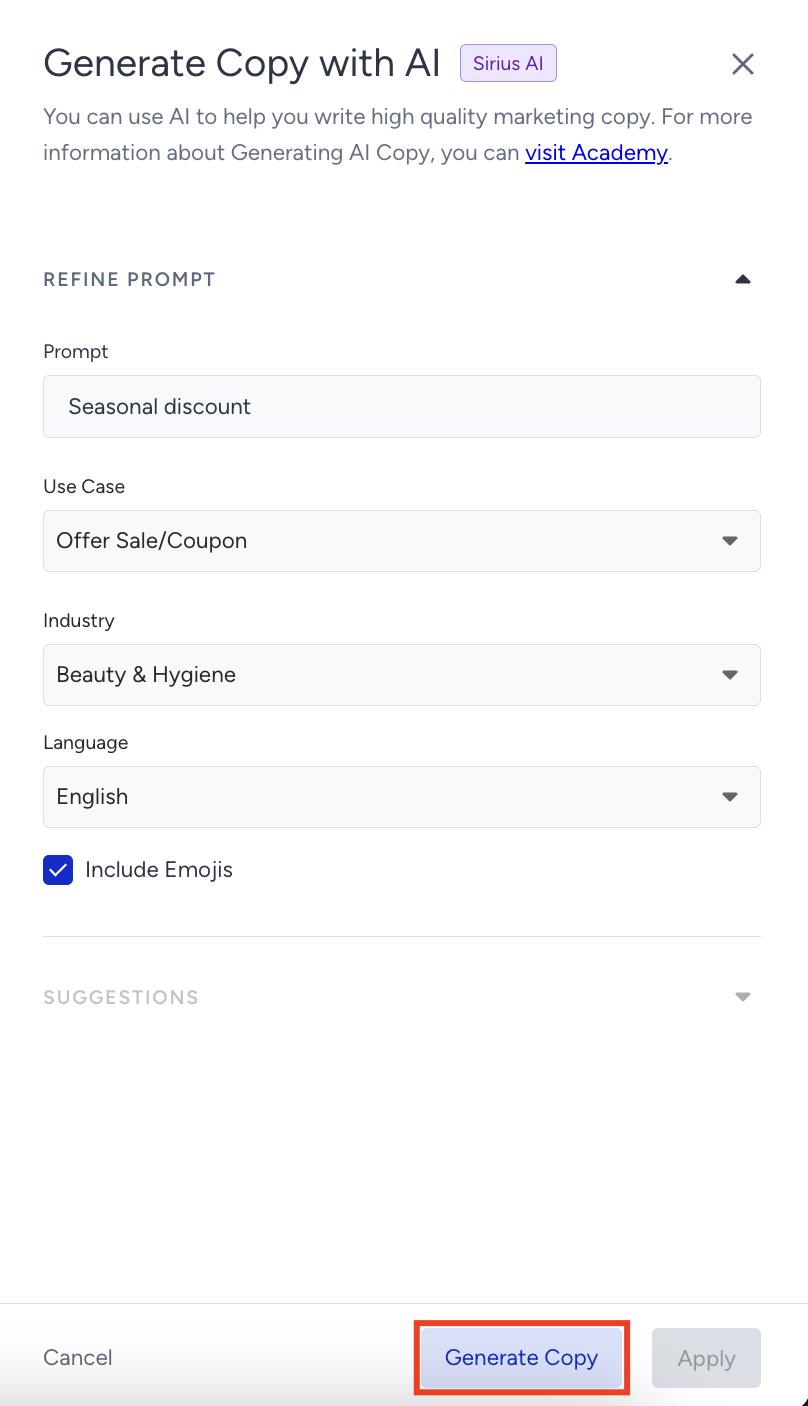
Enter a prompt you want to generate the text about.
Select your use case and industry to define the context for generating the text.
The language option will be the default language selected on your panel.
To include emojis in your copy, select the Include Emojis box.
This option indicates that the AI can generate copy with emojis. However, not all options might include emojis.
Click the Generate Copy button.
The modal offers 8 suggestions, 4 advanced suggestions, and 4 standard suggestions. To see more, click the Generate More button.
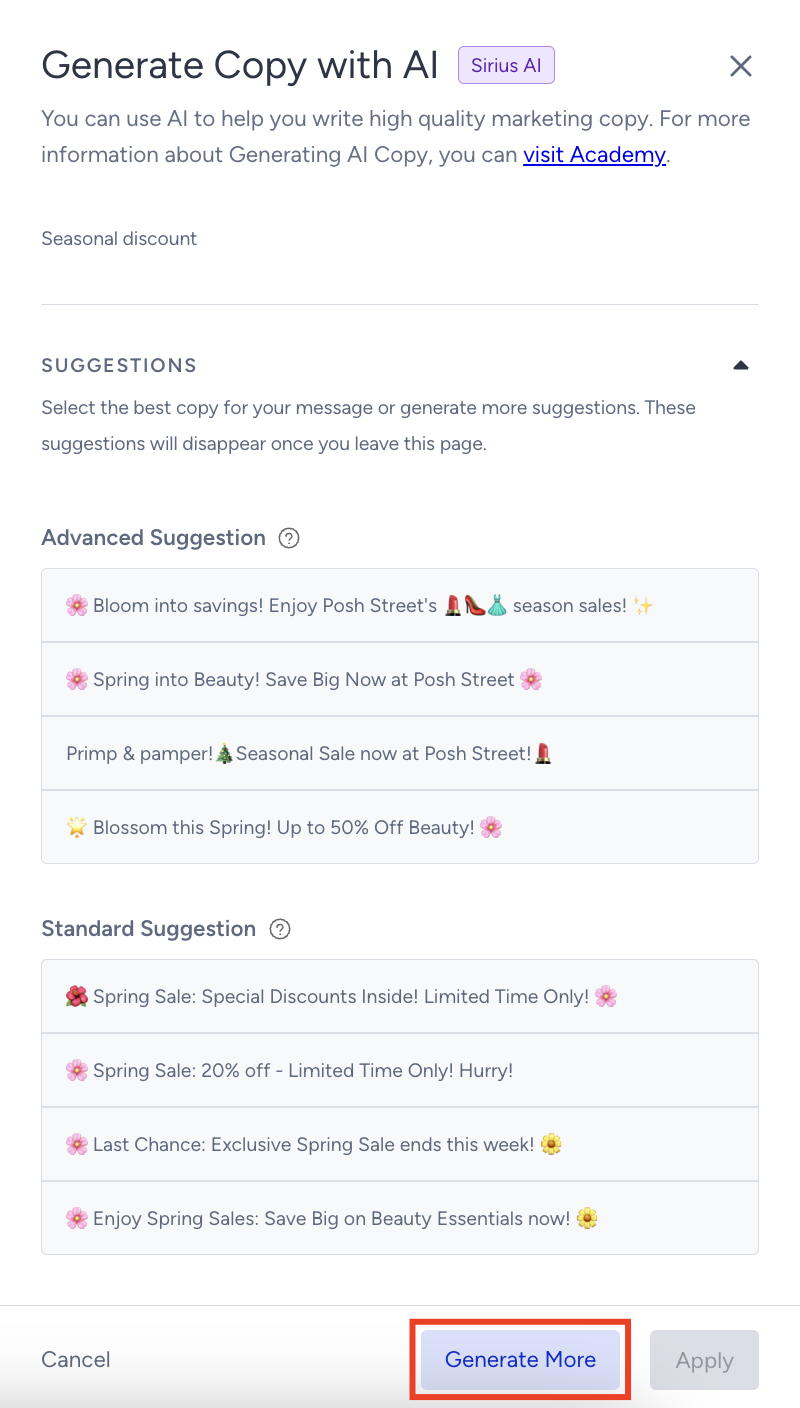
Advanced and standard suggestions in the AI Text Generator are currently only available in the Email channel in Architect Journeys.
In standard text production, the information you enter is sent anonymously to OpenAI, and the suggestions are generated. In advanced text production, your website is analyzed, and suggestions are made based on the combination of the information entered in the fields. This results in more personalized and brand voice-appropriate suggestions.
To use any suggestion, select it and click the Apply button.
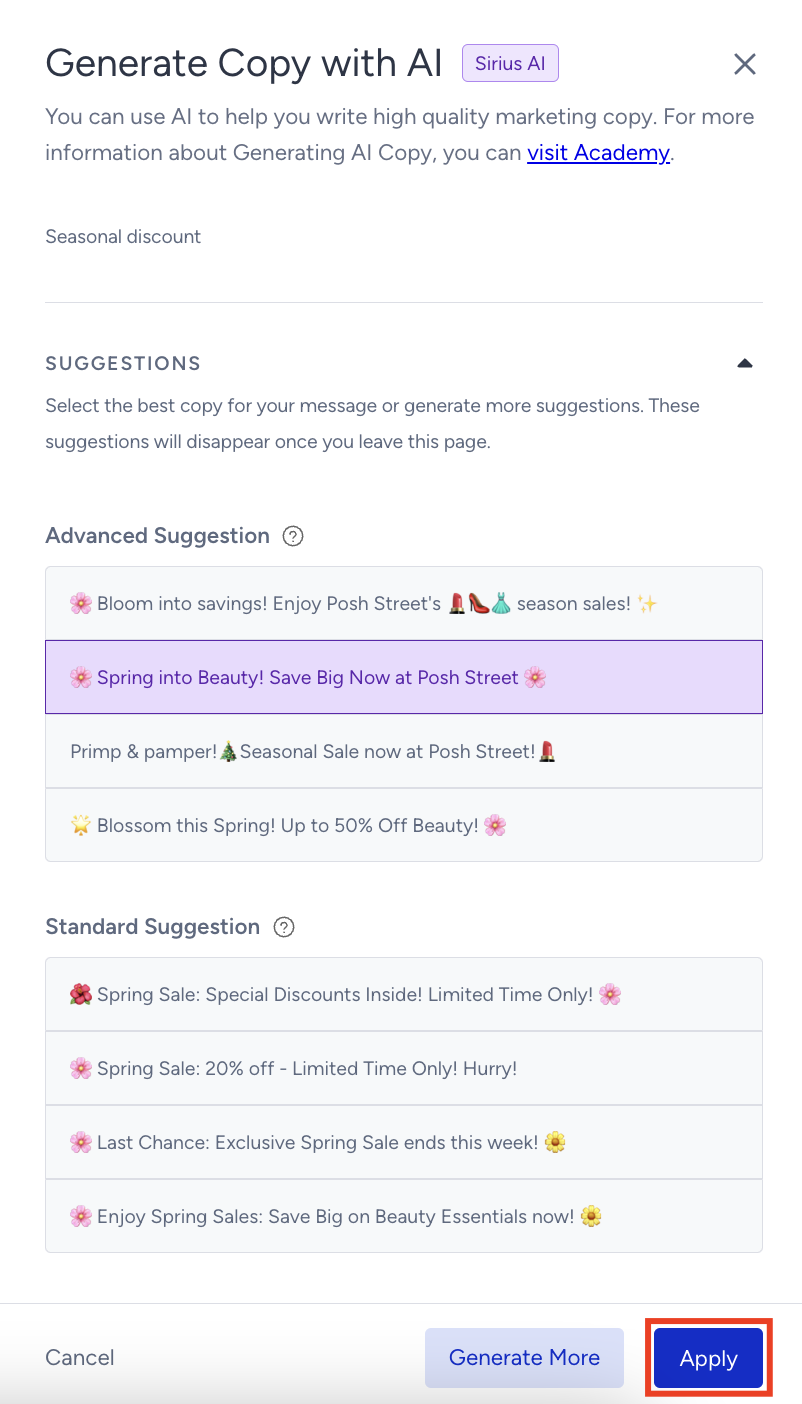
After you click the Apply button, the copy will be added to the respective field.
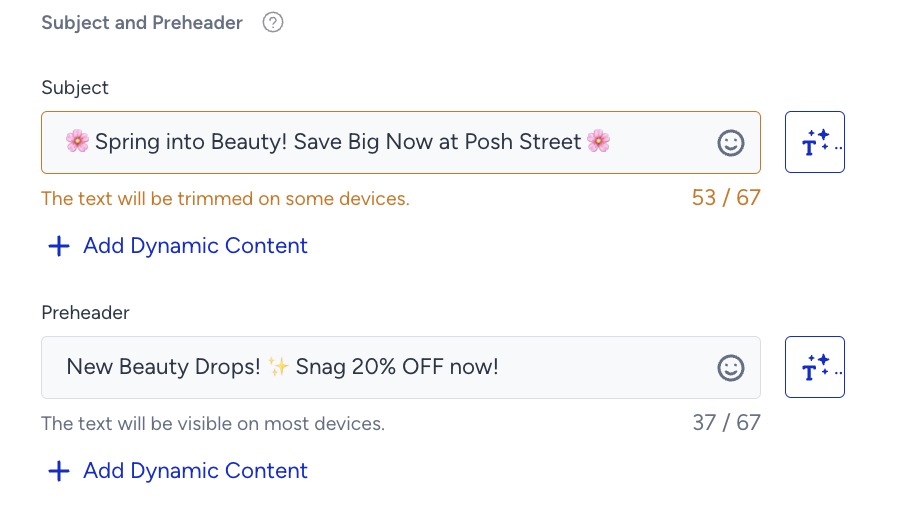
Insider One recommends keeping your content brief, as the title and description may be trimmed on some devices due to the browser, operating system, screen resolution, input language, etc.