Tracking parameters are tags added to the links in your email campaigns to track the performance of these campaigns in Google Analytics or other analytics platforms. These parameters provide insights into where the traffic comes from, helping marketers understand which email campaigns and specific links within those emails drive the most engagement and conversions.
The UTM parameters in an email campaign's Design step are connected to your account's Channel Tracking Parameters (global settings). Values defined there are used as defaults in the Design step, and you can adjust them per campaign. These settings apply to the Architect Email, Email, and SMS channels.
This article explains the following concepts:
UTM parameters
UTM parameters (Urchin Tracking Module parameters) typically include fields like source, medium, campaign, term, and content, each providing detailed tracking data for email performance analysis.
The UTM parameters are as follows:
utm_source (required): Identifies the source of your traffic (e.g., search engine, web push notification, or other referrals). An example of this tag is utm_source=insider_email.
utm_medium (required): Identifies the medium where the link was used (e.g., email, CPC, or another method of sharing). An example of this tag is utm_medium=email.
If there is an Email Recommendation block inside the email, then URLs of Email recommendation will have utm_medium=email recommendation, and other URLs will have utm_medium=email or any other value specified in UTM settings of the Design step.
utm_campaign (required): Identifies a strategic campaign (e.g., product launch, new feature, partnership, etc.) or a specific promotion (e.g., a sale, a giveaway, etc.). An example of this tag is utm_campaign=mothers_day_campaign.
utm_term: Suggested for paid search to identify keywords for your ad. You can skip this for Google AdWords if you have connected your AdWords and Analytics accounts. Let’s say you are running a Google Adwords campaign for your non-profit WordPress theme. You would have specific keywords picked up for your campaign. Some examples for this tag are utm_term=wordpress-theme, utm_term=non-profit-theme, utm_term=non-profit-template, etc.
utm_content: Suggested for additional details for A/B testing and content-targeted ads. Some examples of this tag are utm_content=cta-top-banner, utm_content=cta-sidebar, utm_content=cta-bottom, etc.
In addition to the tracking parameters listed above, the insEmail, insNltCmpId, insNltSldt, insPnName, isIns, and isInsNltCmp parameters are added to the URL by default to track conversion and revenue of the email campaigns and cannot be removed. If your email design has the Email Recommendation block, the isInsEmRcm parameter is also added to the URL by default.
You can enable the tracking parameters on the Design step when creating your email campaigns.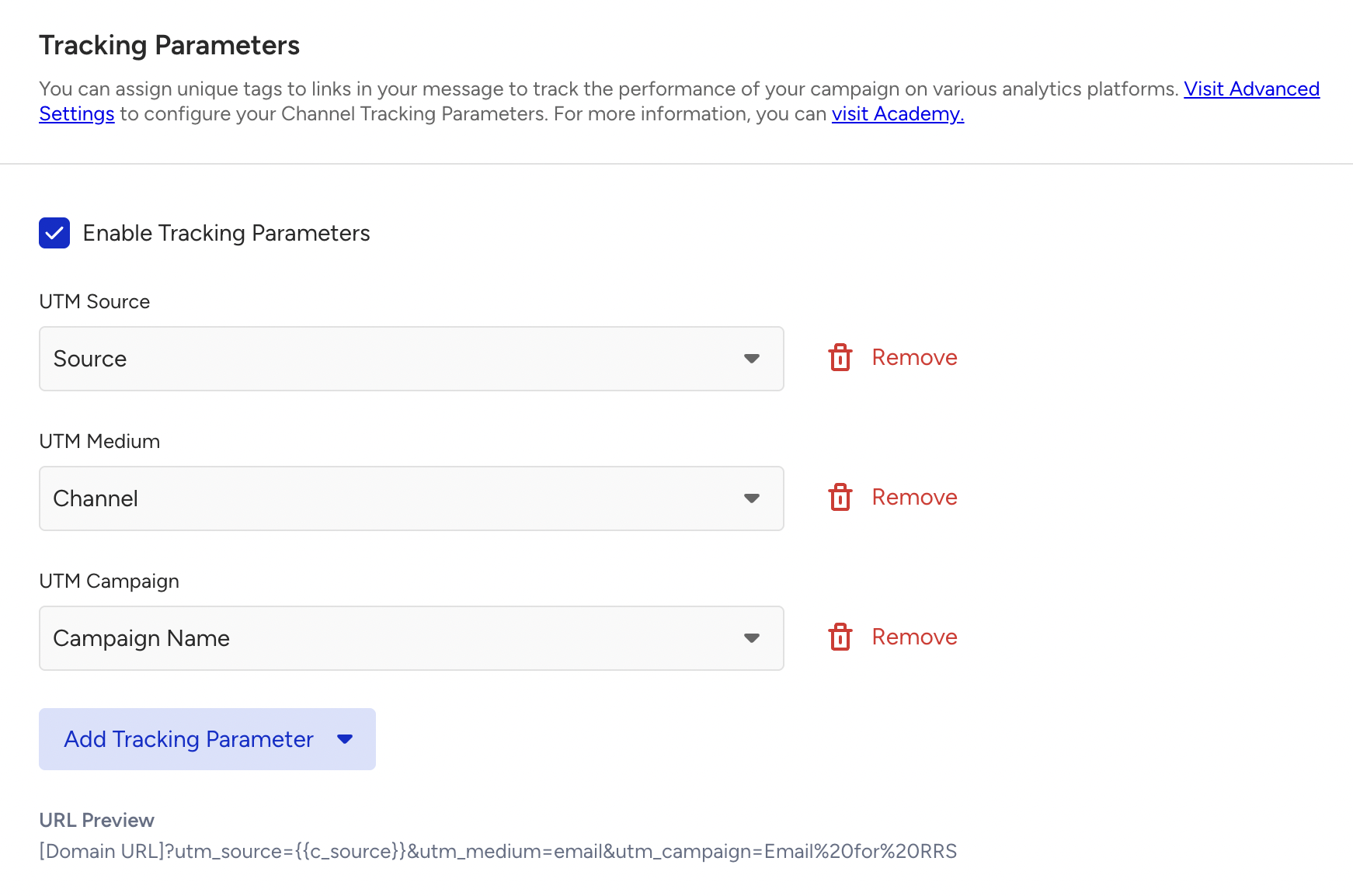
It is possible to manually add tracking settings to the URL. In this case, the parameters entered in the Tracking Parameters section will also be added. That's why you should ensure that no duplicates are added.
Manage Tracking Parameters in the Design Step
When Channel Tracking Parameters settings are enabled, the new version of the tracking parameters will be displayed in the Email campaign's design step, with all previously mentioned features still available in this layout.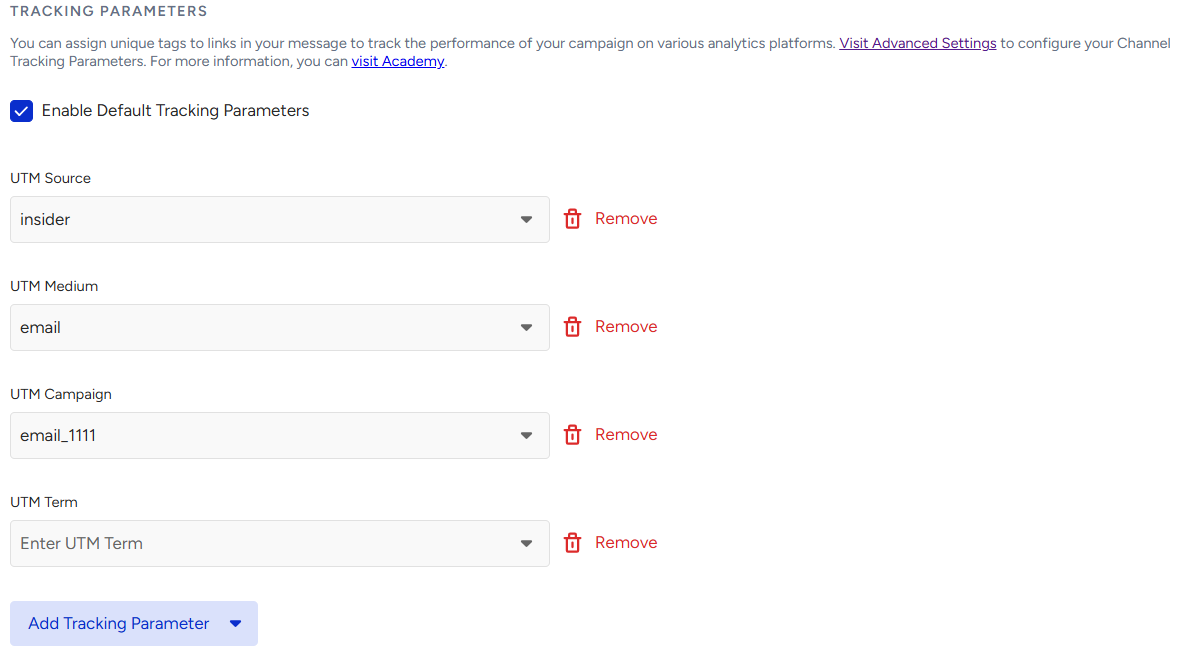
If you add a default tracking parameter in the Advanced Settings, the Enable Tracking Parameters box will be checked by default at the campaign level.
The checkbox is disabled by default at the campaign level.

You can directly use the parameters defined in the Channel Tracking Parameters. You can also adjust the UTM parameters per campaign:
Click the Add Tracking Parameter button to add new parameters for specific campaigns.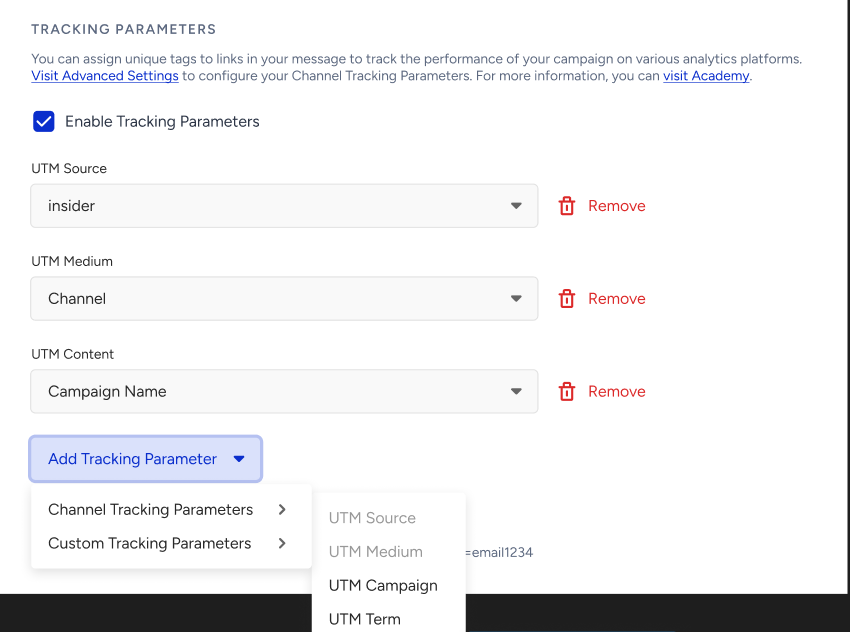
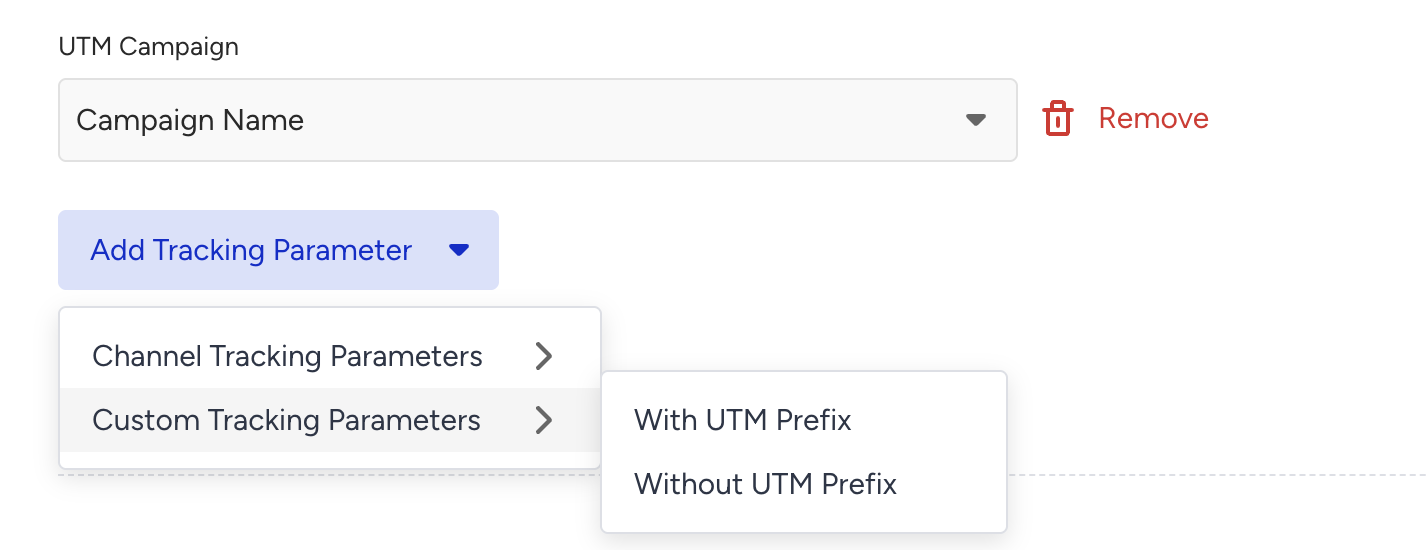
The Channel Tracking Parameters enable you to select parameters not used in the Global UTM Settings directly and add a custom parameter with or without the UTM prefix:
With UTM Prefix → utm_customparam

Without UTM Prefix → customparam

If you manually type the “utm_” parameter, the system will automatically consider it a UTM-prefixed value.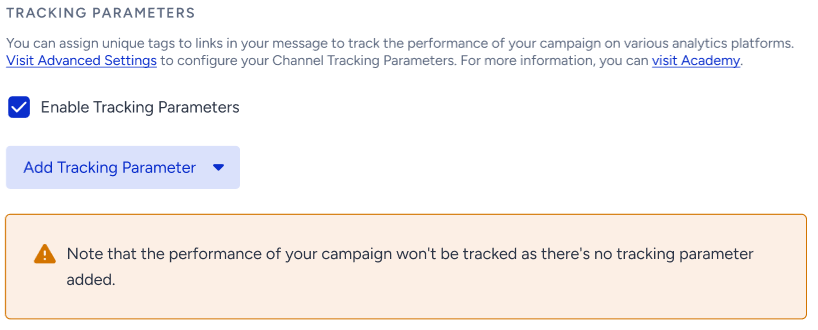
After you update your selection at the campaign level and check and uncheck the box again, your previous selection will be visible. If you update the Channel Tracking Parameters settings, the following message will be displayed at the campaign level:
If you click the Update Tracking Parameters button, you will see the following prompt: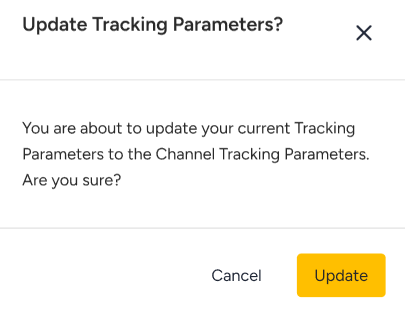
If you click the Update button, you will be prompted with the following success message.
Custom tracking parameters
You can create a custom tracking parameter that includes custom UTMs with static values or dynamic attributes.
To create a custom tracking parameter:
1. Click the Add Tracking Parameter button.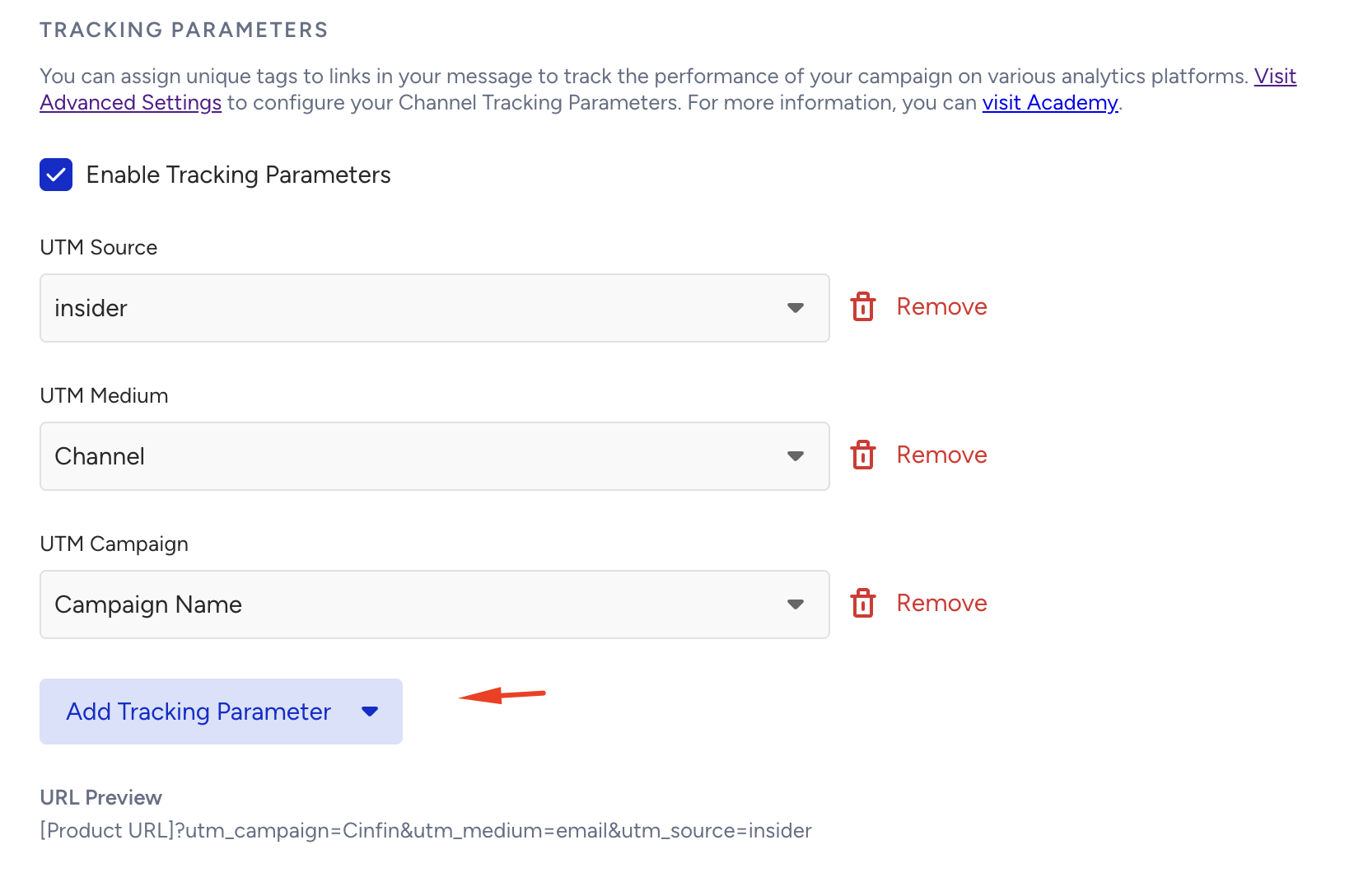
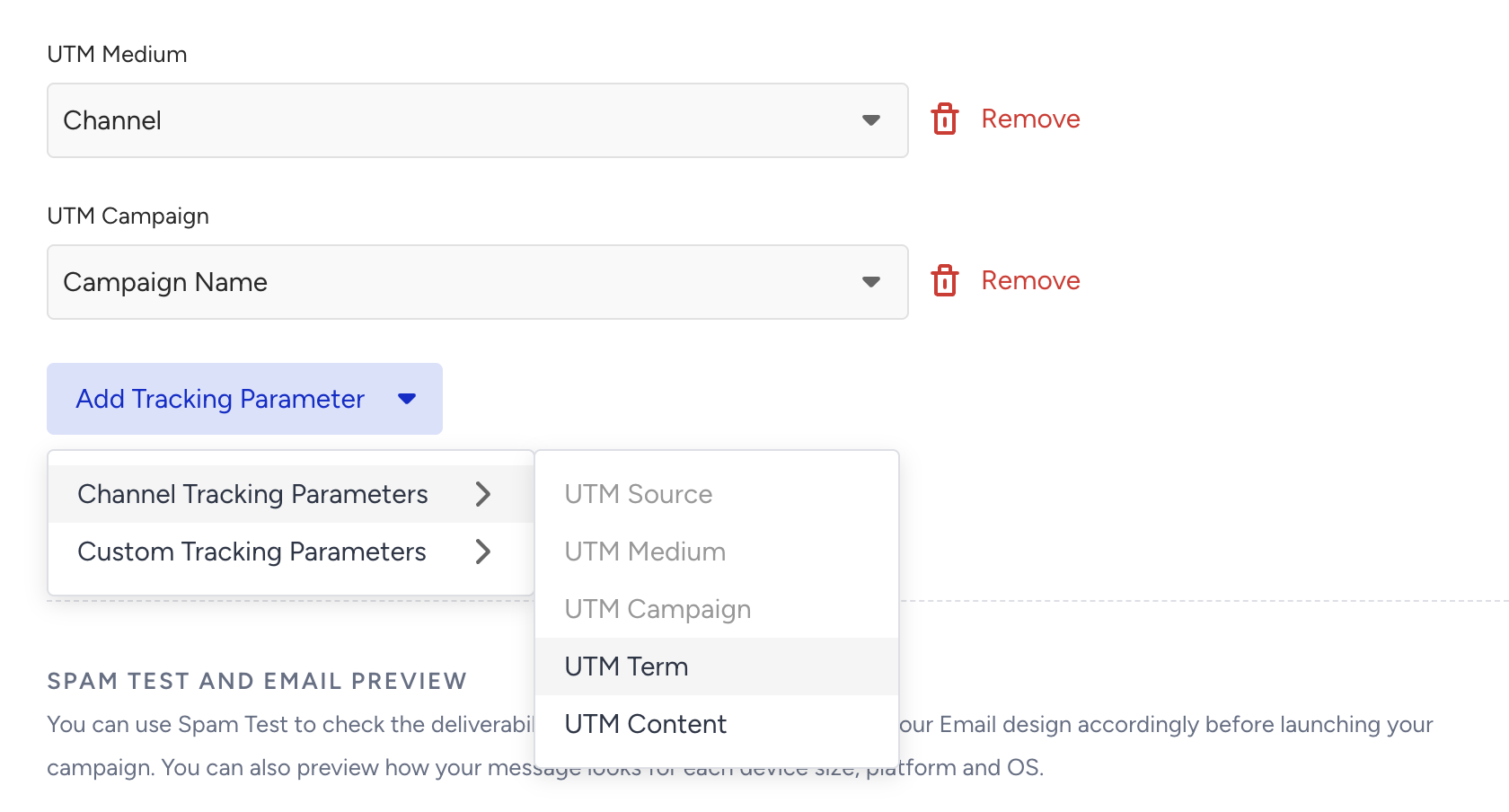
2. Choose if you want to add Channel Tracking Parameters or Custom Tracking Parameters.

2.1. To add a UTM term or content, choose the channel tracking parameters.
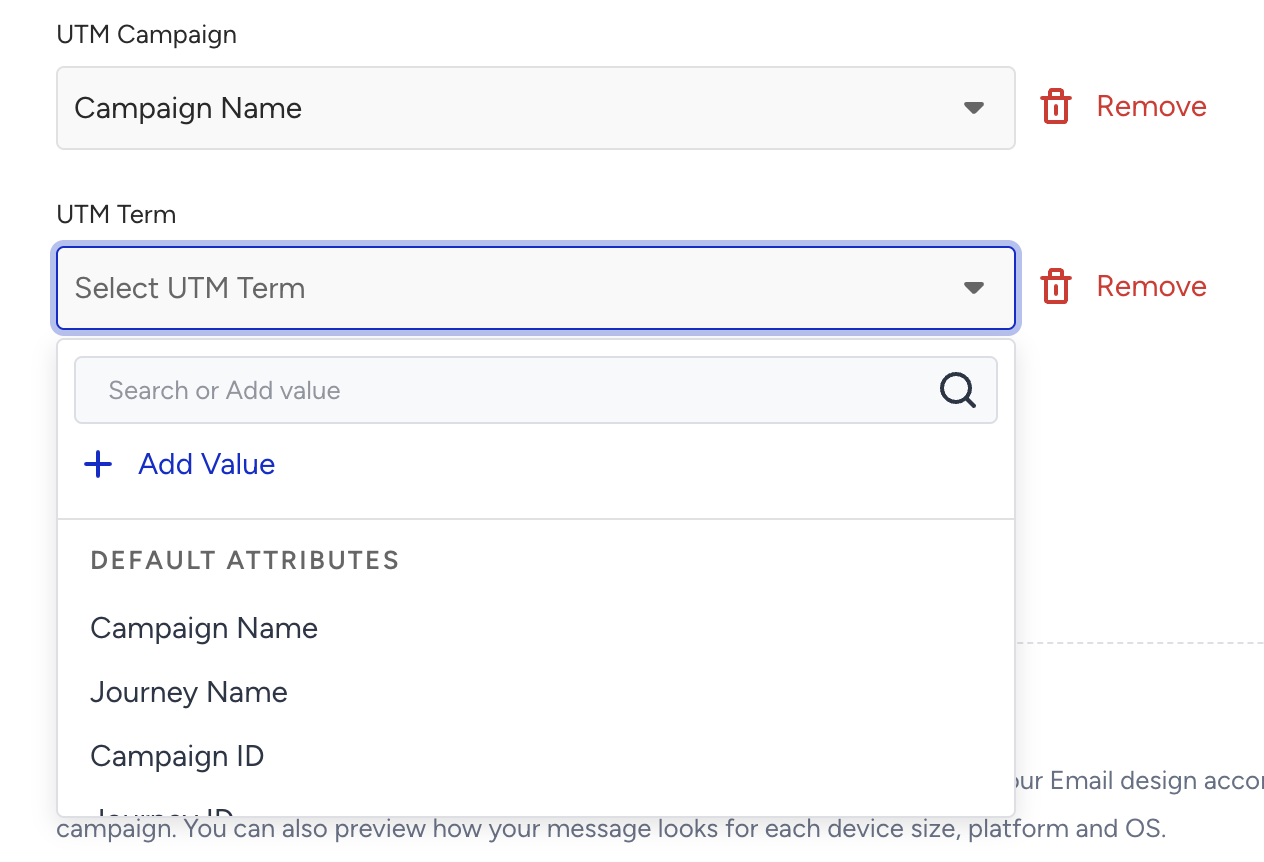
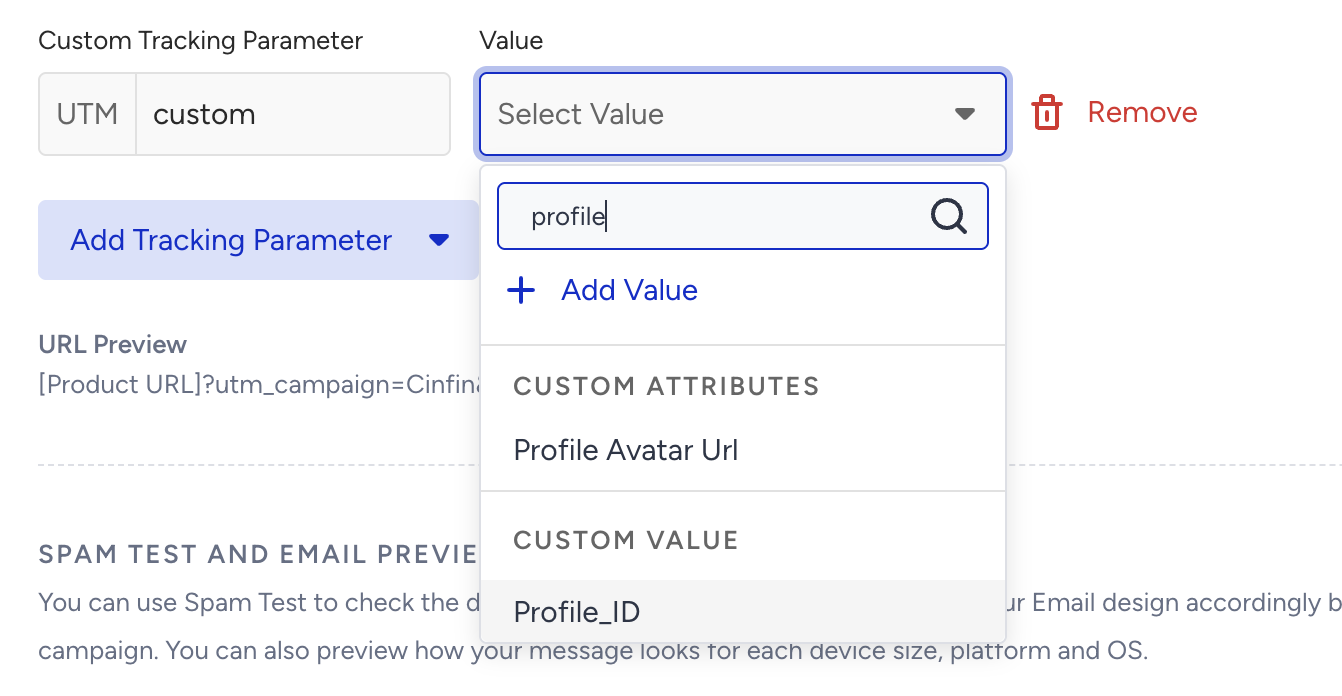
2.2. Select from Default Attributes, Custom Attributes, or Custom Value, or click the Add Value button to add a new value.
2.3. To add a custom tracking parameter, choose if you want to create it with or without the UTM prefix.
The following example shows the parameter named "custom" with the UTM prefix. Select one of the existing values or create a new one. You can also select one of the default or custom dynamic attributes as a value. Profile_ID and UUID are also listed among the options. Once added, they will fetch their values dynamically.
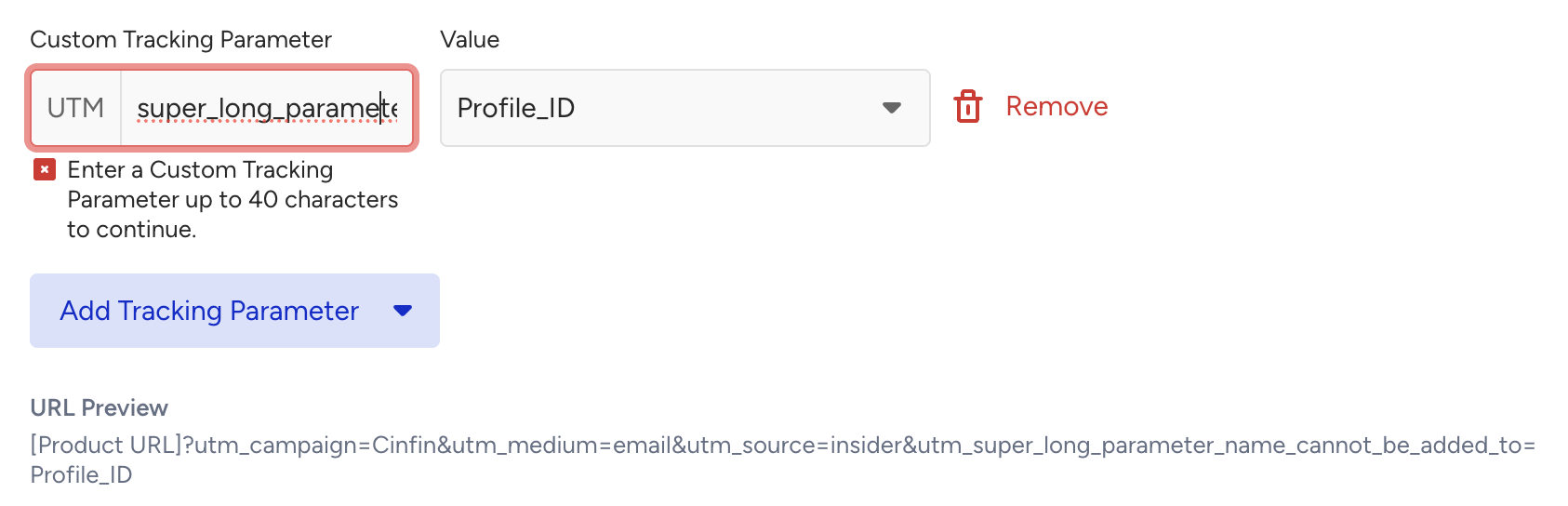
The tracking parameter name can be up to 40 characters, while tracker value can be up to 150 characters.
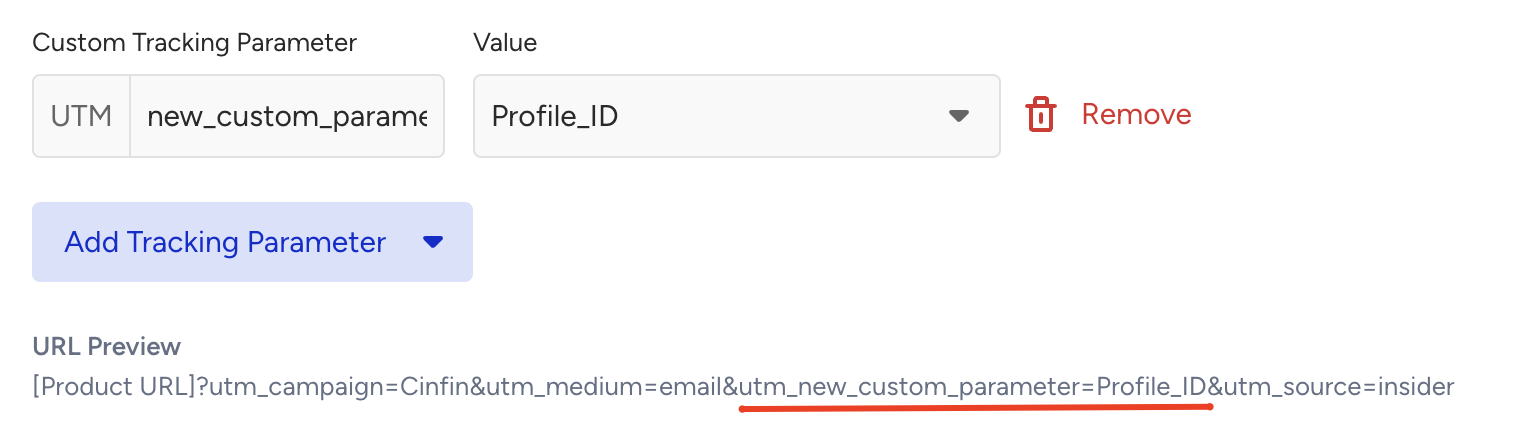
Your custom tracking parameter will be successfully created and listed along with the given UTM parameters.
You can use the following campaign attributes as values in the UTM/tracking parameters: Campaign Name, Campaign ID, Journey Campaign Name, Journey Campaign ID, Insider One, Channel, and Architect Channel.
Keep in mind
Case handling
UTM values and parameter names are stored and generated exactly as you enter them. Capitalization is preserved in both the field and the final URL (e.g., Black Friday appears as Black Friday). Values are not converted to lowercase, so what you type is what appears in the link.
Case sensitivity
UTM parameters are case-sensitive. Source and source are treated as two separate values, so use consistent capitalization across your campaigns to keep your reporting from fragmenting.
Final URL accuracy
The final URL always reflects exactly what you entered, with the same casing shown in the field, so the value in the field and the value in the generated link are always identical.
Space handling and character limit
Spaces in values are automatically URL-encoded as %20, so links stay valid. UTM values can be up to 150 characters, and parameter names can be up to 40 characters.
Links with anchors (#)
Tracking parameters are added to the part of the link that comes before the #, and everything after the first # is kept exactly as you wrote it.
For example, a link to https://www.example.com/activity-finder#filters=locations:High%20Camp is tagged as https://www.example.com/activity-finder?utm_source=insider_email#filters=locations:High%20Camp. The anchor still reaches the right part of the page, and your analytics platform still receives the parameters.
This applies to every kind of anchor:
In-page anchors such as #pricing open the right section of the page.
Single-page-app routes such as #!/product/123 or #/checkout open the right screen.
Encoded characters inside the anchor, such as %26, stay encoded.
If the link already has a query string, your own parameters are kept, and the tracking parameters are added alongside them.
A port or sign-in detail in the link, such as https://www.example.com:8443/page, is kept.
Clicks on these links are tracked in the same way as any other link in your campaign, so you do not need to turn click tracking off to keep an anchor working.
Duplication behavior
When you duplicate a variation or campaign within the same account, values are copied exactly as-is. When duplicating across accounts, common values are carried over, while account-specific custom values and custom tracking parameters are not. This prevents irrelevant data from leaking between accounts.
End-to-end URL consistency
The Final URL, Test Message, and live (end-to-end) send all generate the exact same URL, so what you test is exactly what the users receive.
FAQ
How can you check if tracking parameters work properly?
To test your tracking parameters, enter the tagged URL into your browser. If those tracking parameters remain at the end of the URL when the page is loaded, then it is very likely that the URL, along with the parameters, is working properly. If the tracking parameters disappear after the page loads, they are not working properly, and they will not be tracked on Google Analytics.
You can also check your browser's developer console to see if there is a Google Analytics cookie that contains the tracking parameter information you passed.
Why aren't tracking parameters working?
The most common reason is that tracking parameters get stripped because of the URL redirect. If you tag your campaigns, use the final destination URL, but the URL that will be redirected. If you have issues with server-side, 301, or 302 redirects, you can also modify your server settings. You can ask your web developer to configure your server to pass all the tracking parameters. Other common reasons could include the following:
You might not have used the required tracking parameters on your URL.
You might not have Google Analytics properly installed on the website.
You could have configured filters that prevent this traffic from affecting your data.
Are tracking parameters case-sensitive?
Yes, UTM parameters are case-sensitive, so you should be consistent when tagging your links. When manually tagging URLs, you may prefer lowercase tags to ensure that Google Analytics categorizes sessions correctly.
How many tracking parameters can I add?
You can add as many UTM and tracking parameters as you need. Please also be informed that every parameter will make your URLs longer and increase the size of your email. In this case, Gmail can clip it if the size is over 102KB.