Event Time to Live (TTL) is the period of time for which the data of an event is kept. You can increase the TTL of each event on the Attributes and Events page, up to your account limit.
You can see the current TTL of your events in the Events listing or in See Details.
This guide explains how to change an event's TTL and covers the event TTL rules you should know before you update it.
Change an event's TTL
Navigate to InOne > Components > Attributes and Events > Events.
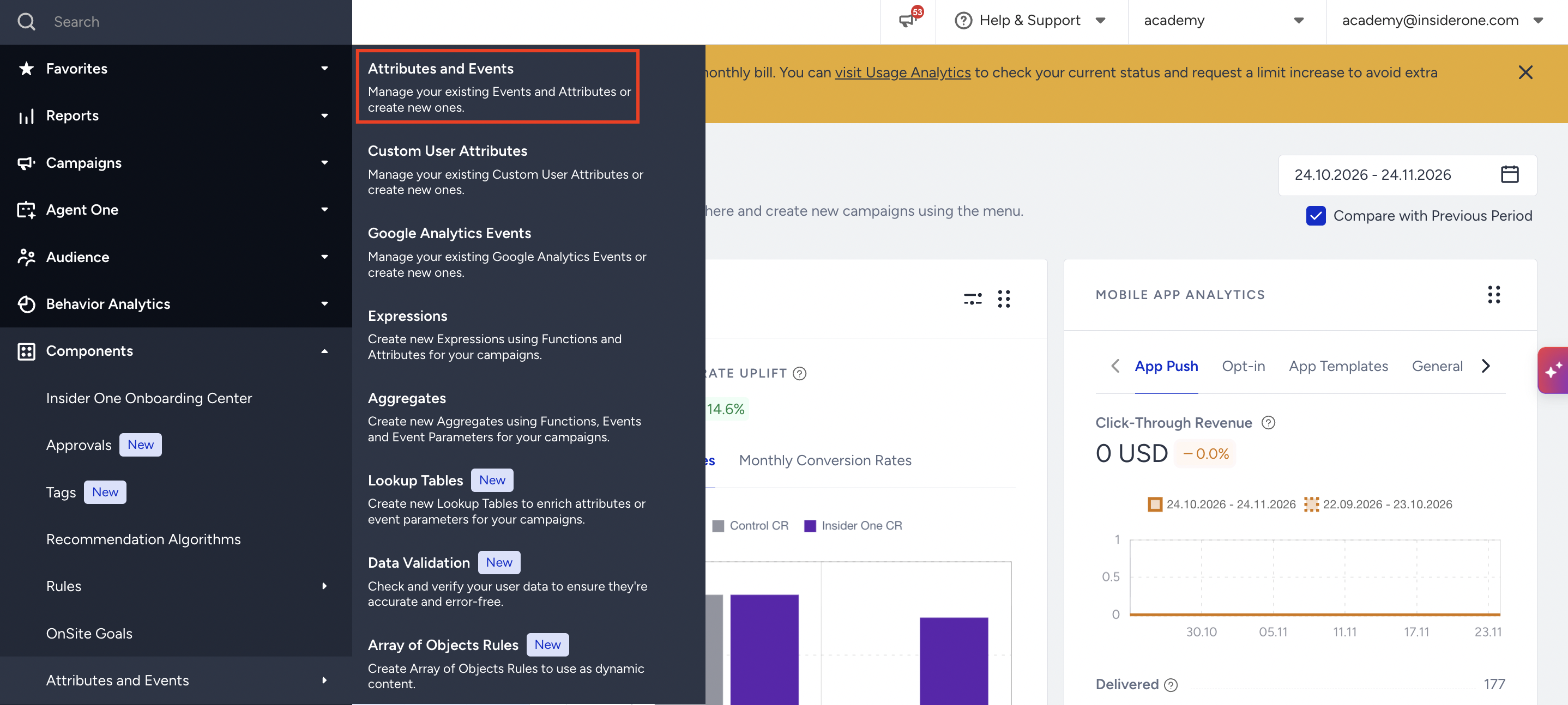
Open the event and click Edit to open the Edit Event drawer.
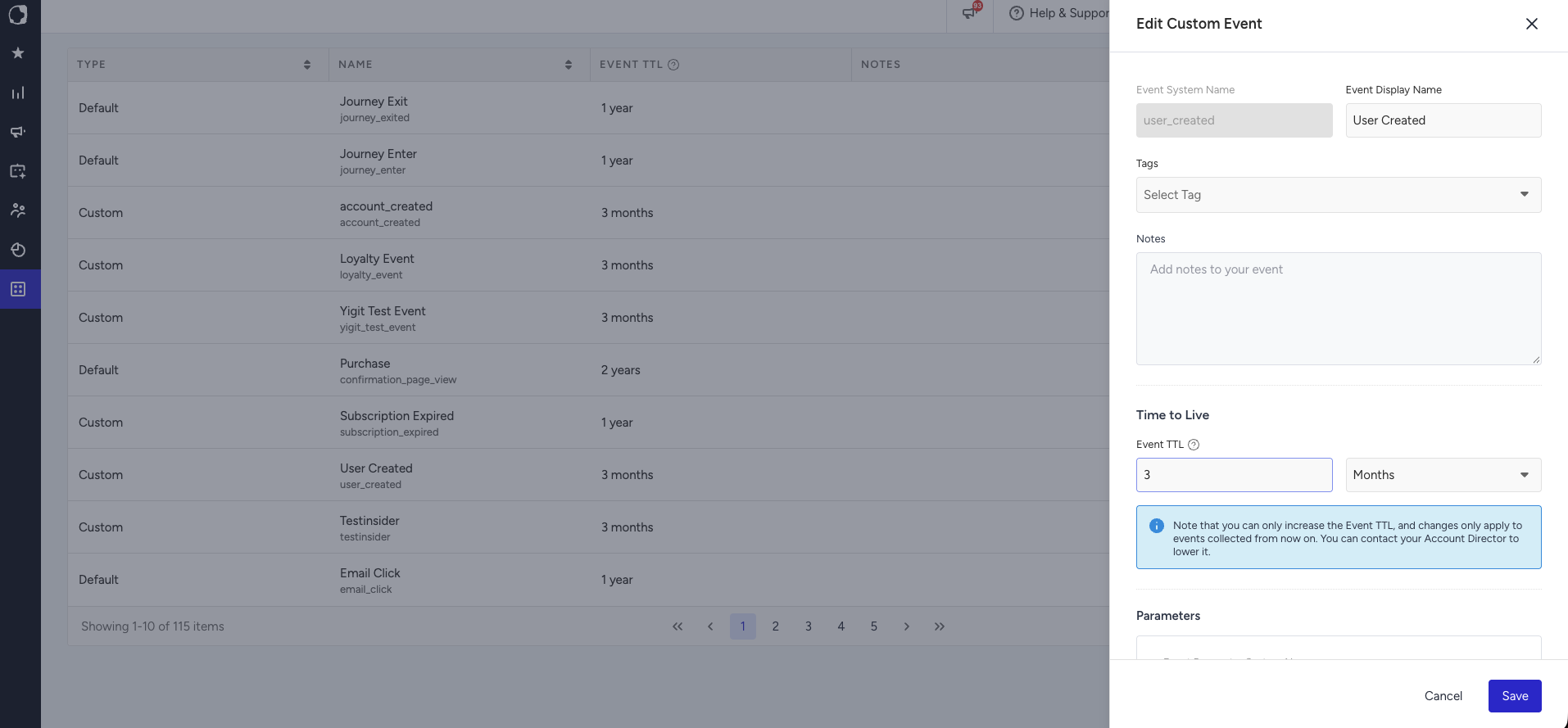
In the Time to Live section, enter the new value in the Event TTL field and select Months or Years. The field accepts digits only.
Click Save. The Update Event TTL? modal opens and reminds you that you can't lower the TTL later and that the new TTL only applies to event data collected from now on.
Click Update Event TTL to confirm. The drawer closes, the new TTL appears in the Events listing, and you see a success message.
You can also edit the Display Name, Tags, and Notes of the event in the same drawer. If you change only these fields, the confirmation modal doesn't open.
Event TTL rules
You can increase the TTL of each event up to the maximum limit agreed for your account. To get a higher limit, contact the Insider One team.
You can only increase an event's TTL. Once you save a new value, you can't lower it yourself.
A new TTL only applies to event data collected from the moment you save it.