There is no limit to the number of events. However, Event Parameters are limited. You can create up to 80 custom Event Parameters (excluding default ones).
If you reach the 80-parameter limit
Event parameters can’t be deleted, so each one counts toward the limit permanently. Hiding an event doesn’t release its parameters. A parameter shared by several events counts only once.
To free up a slot, reuse a custom parameter you no longer need. Rename it and, if needed, change its data type, then send your new data under the new name. Before you do this:
Make sure no running campaign or dynamic segment uses the parameter. Otherwise, you can’t edit its System Name or Data Type. See Edit an Event Parameter.
Stop sending the old parameter from your integration. Custom parameters are created automatically when data arrives, so data sent under the old name creates the parameter again and takes up another slot.
Reuse only a parameter whose stored data you no longer need. Existing values aren’t converted to the new name or data type.
If you can’t free up enough parameters, contact the Insider One team to request an increase.
Similar to the flow for Custom Events, Event Parameters also have a creation process that contains the following settings:
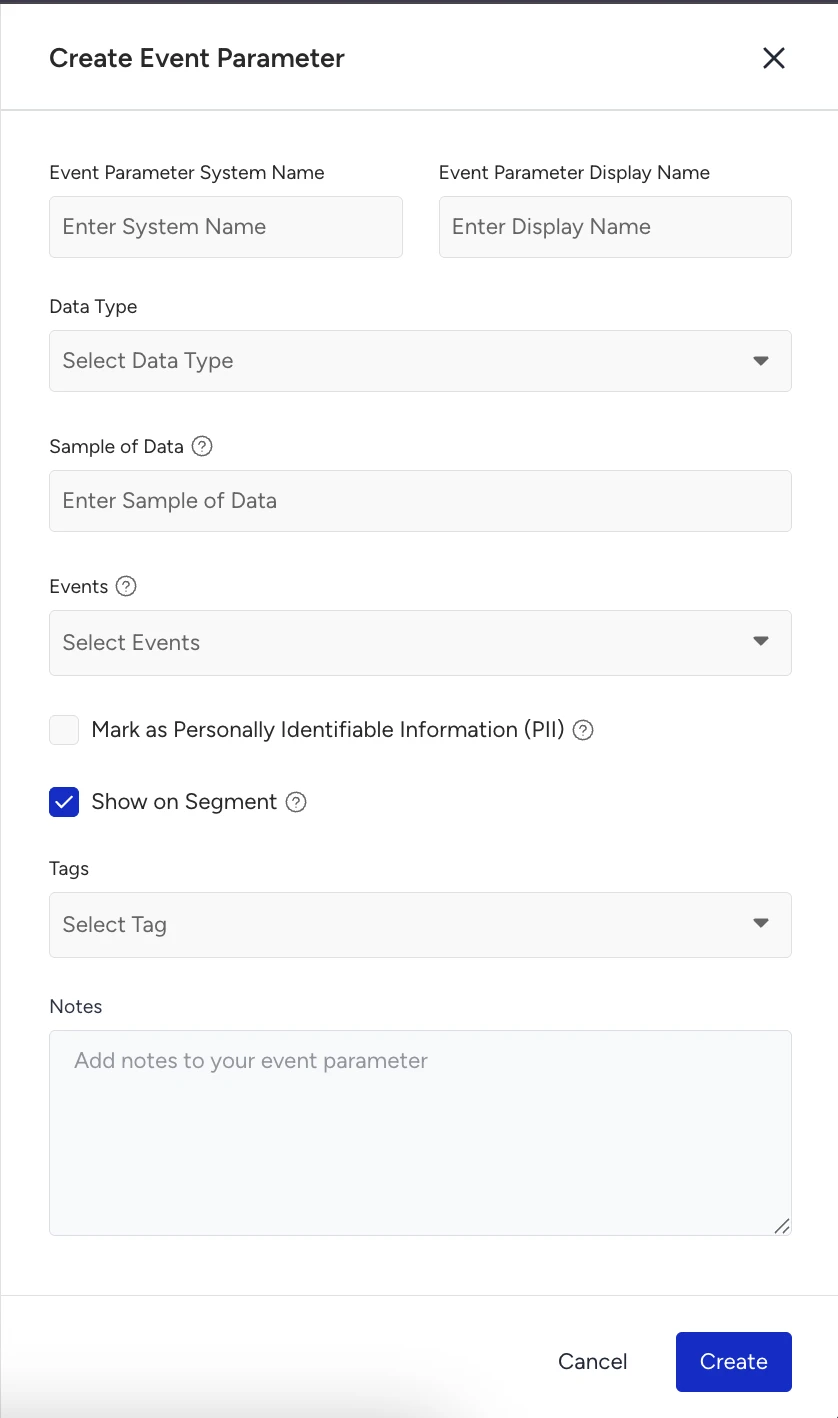
Event Parameter System Name: The name that will be used for any system interaction with the parameter, such as the Upsert User API. You can only use lowercase letters and underscores for the system name. No spaces and special characters are allowed.
Event Parameter Display Name: The name of the data point that users will see while interacting with it inside the InOne panel (e.g., while selecting it in segmentation, etc.).
Data Type: This is the standard type you must define for an Event Parameter.
The Boolean data type can only have one of two possible values: True or False. e.g. Club Member = True
The Date data type is used to store and manipulate dates and times. It is used to represent a specific point in time in RFC 3339 format, such as 2026-01-10T15:41:00Z.
The Number data type represents a number that indicates an amount. The number can be either a whole number, a positive or negative number, or a floating-point number. e.g. '712*
The Number Array is a collection of numerical values stored together, allowing operations such as sorting, searching, and calculations on the elements. e.g. "1, 2, 3, 4, 5."
The String is a data type used to represent text or a sequence of characters. It can be used to store and manipulate alphanumeric data, such as names, addresses, or messages. e.g., "Hello"
The String Array is a collection of strings that can be stored together, providing functionality for tasks such as sorting, searching, and modifying the individual string elements. e.g., "apple," "banana," "orange."
The URL is a string of characters that provides a unique address for accessing resources on the internet. e.g. "http://insiderone.com"
Sample of Data: This is a free-text optional input box designed to add sample values for the Event Parameter you’re creating. Its purpose is to help you skim through the list of possible values and gain a quicker understanding of your datasets.
For example, if you have the attribute of Store ID, you can input one of the sample values: “ST0015-A”
Events: The Events dropdown is a required field that lets you select one or more events for your Event parameter. The Event Parameter will be added to the events you select from the dropdown when you create it.
Mark as PII: Mark this checkbox if you want an Event Parameter to be marked as one that contains Personally Identifiable Information. This allows control over information access for panel users based on their roles and permissions. For example, panel users with PII access set to False cannot see the information in this attribute in the InOne panel.
The "Show on Segment" checkbox allows you to choose whether the attribute you’re creating will be available for selection while you’re creating segments.
Tags: Tags are labels or keywords that you can add to help organize and categorize the data by adding them to your Event Parameter.
Notes: This free-text input field allows you to add any notes or explanations about your Event Parameter as a reminder of the definition.
Edit an Event Parameter
When editing an Event Parameter, editing the System Name and Data Type fields is restricted to prevent potential issues with live campaigns or dynamic segments.
When opening the edit side modal for an Event Parameter, you see a section listing where this Event Parameter is currently in use:
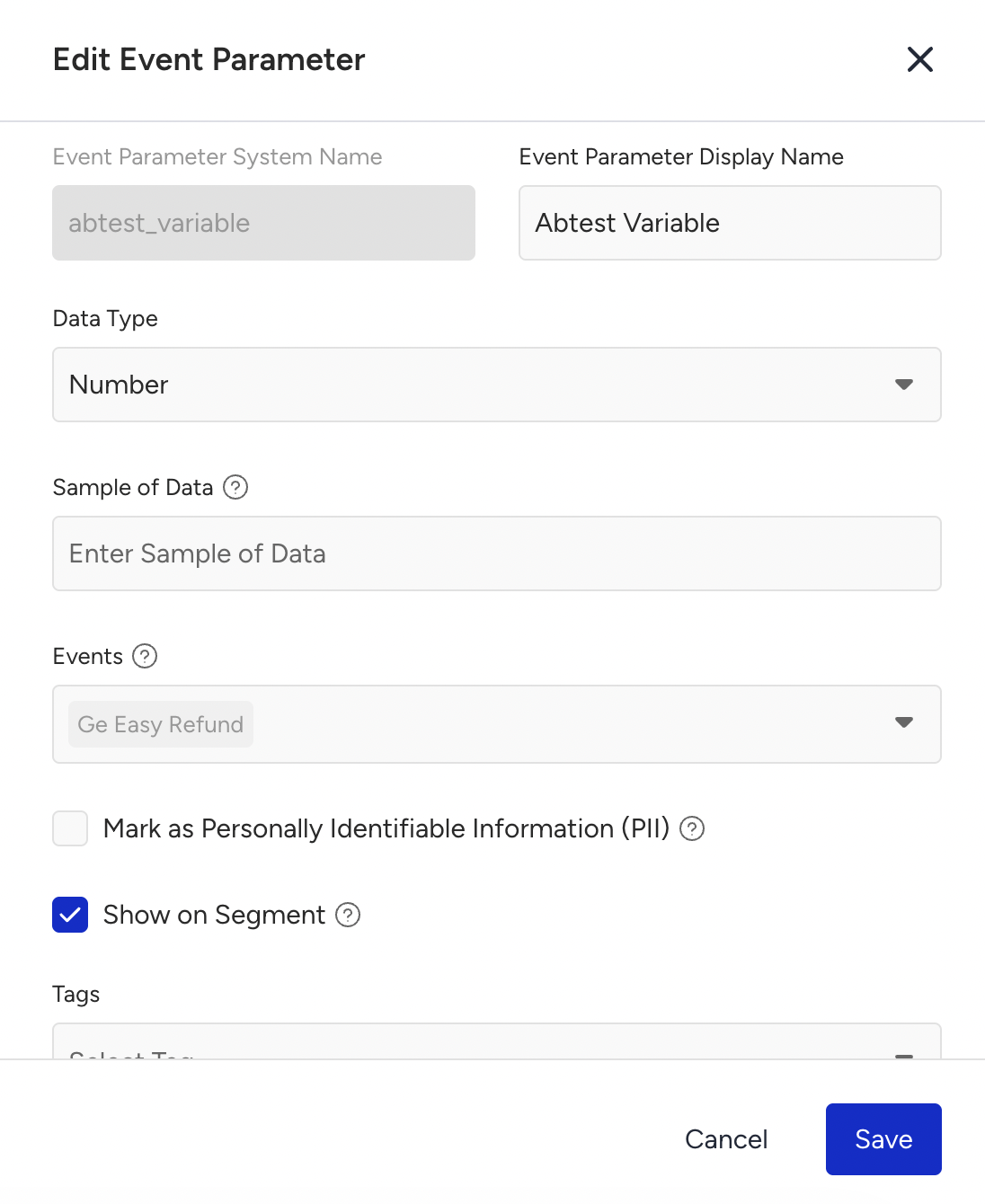
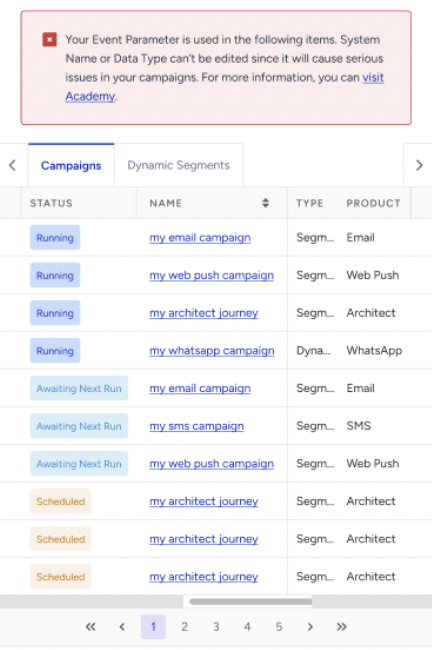
You can edit an Event Parameter depending on where it's currently being used. The ability to update fields like System Name and Data Type changes based on their usage in campaigns or dynamic segments:
Used in Both Campaigns and Dynamic Segments
System Name and Data Type are not editable.
New events can still be added to the parameter via the dropdown. Existing ones cannot be removed.
You must wait until all campaigns have ended and all dynamic segments that use the Event Parameter have been deleted.
Used Only in Campaigns
System Name and Data Type are not editable.
New events can still be added to the Event Parameter via the dropdown. Existing ones cannot be removed.
To edit Event Parameters, all running campaigns must be completed, and any dynamic segments using the event parameter must be deleted.
Used Only in Dynamic Segments
System Name and Data Type are not editable.
New events can still be added to the parameter via the dropdown. Existing ones cannot be removed.
Once all listed dynamic segments are deleted, the fields will become editable.
Not used in any Active Campaign or Dynamic Segment
New events can still be added to the Event Parameter via the dropdown. Existing ones cannot be removed.
All other event parameter fields are fully editable.
You can pause or resume any Events or Event Parameters ingestion directly on the Attributes and Events page. Pausing ingested data means that Insider One will stop accepting data (or block it) from flowing into its database. You might need it in case you send the wrong batch of data and need to stop it.

Event Parameters cannot be deleted. However, they can be hidden from segmentation interfaces if needed.