If you want to create a pop-up campaign using the Cross-platform Layout Banner template, you can follow the steps below:
Remove all elements
Once you land on the Action Builder, you will see the Remove All Elements option on the right menu. When you click the Remove All Elements button, a warning modal will appear to ensure you understand what happens when you select this option.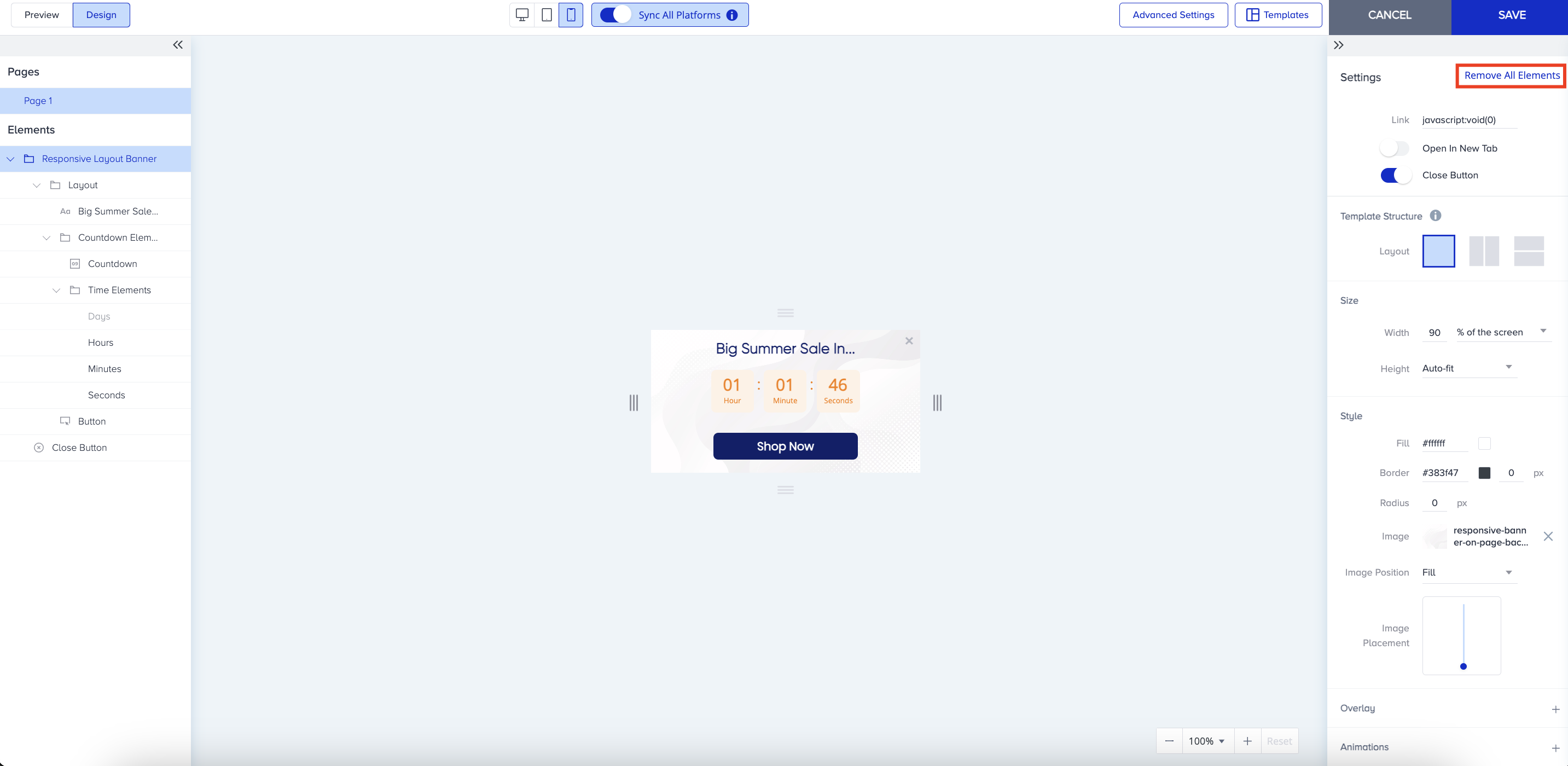
Click the Remove button in the modal to remove all elements from the canvas. 
After you click it, you will see that all elements on the canvas have been deleted.
Upload the pop-up image
To upload the image you want for your pop-up, double-click on your template or click the Add Image button on the right menu..gif)
When you click the OK button and upload the image, your template will be dynamically auto-resized for each platform based on the correlation between the image’s size and the platform’s predefined container size. You can adjust the size of your pop-up campaign in the right menu, or click the canvas and drag and drop the lines around the template.
Preview the pop-up campaign
To see how your pop-up campaign will look on each platform, click the platform icons in the top bar. 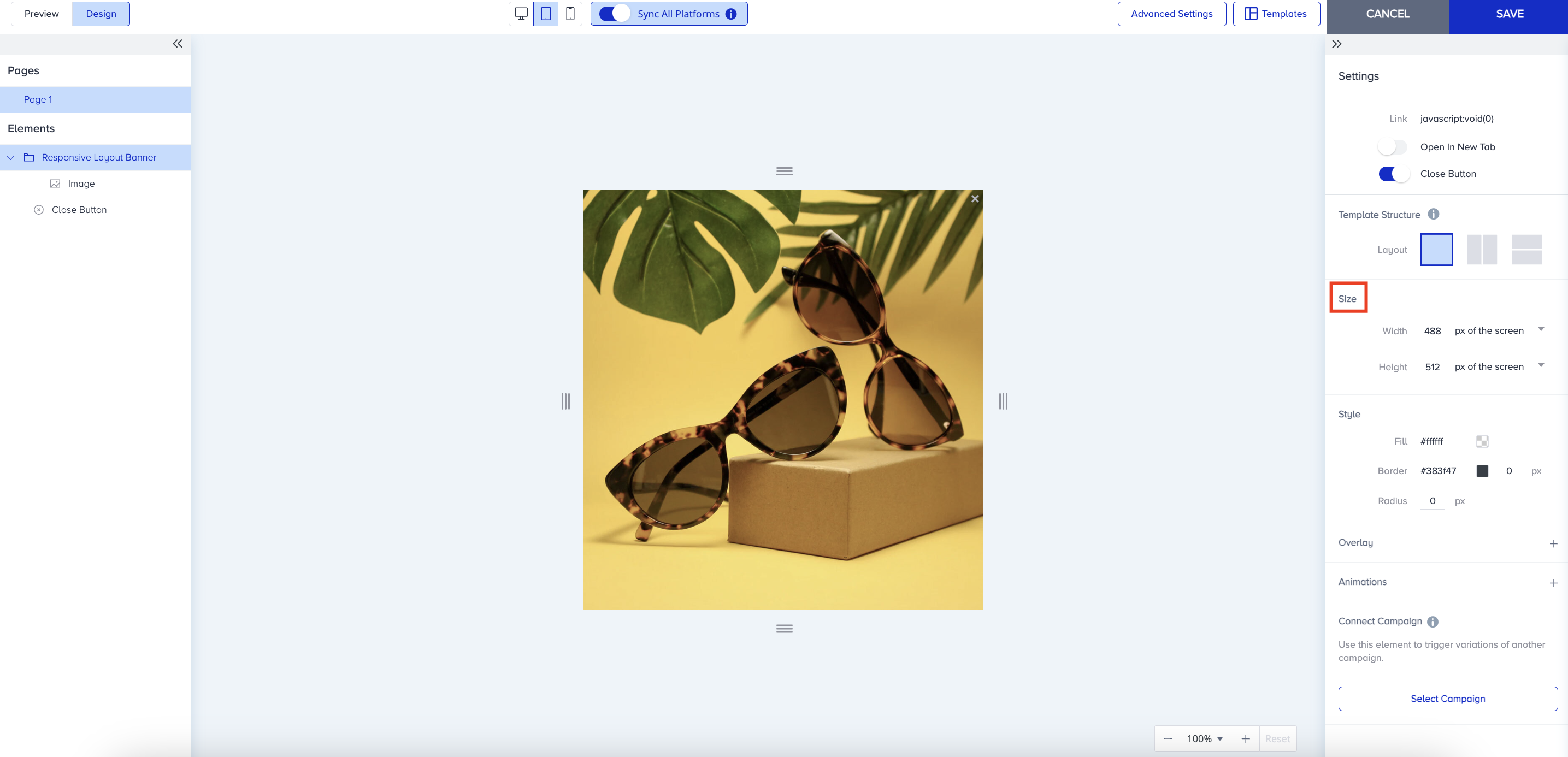
When you switch to the Preview tab, you will see that everything looks proper for mobile, desktop, and tablet. Depending on your device, your pop-up auto-resizes. 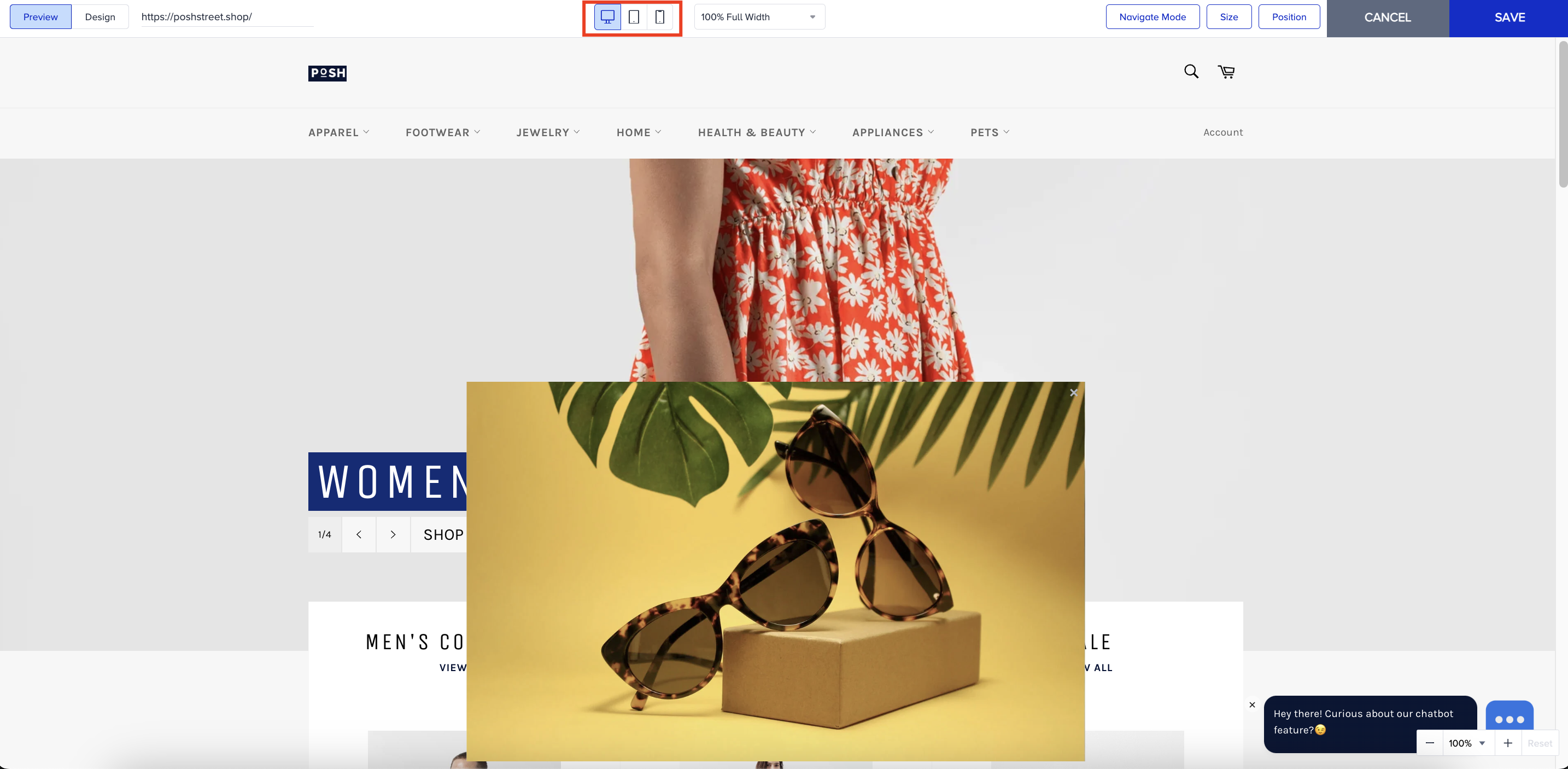
Adjust the pop-up image
When needed, use the Size menu in the top bar to adjust the height and width of your pop-up. 
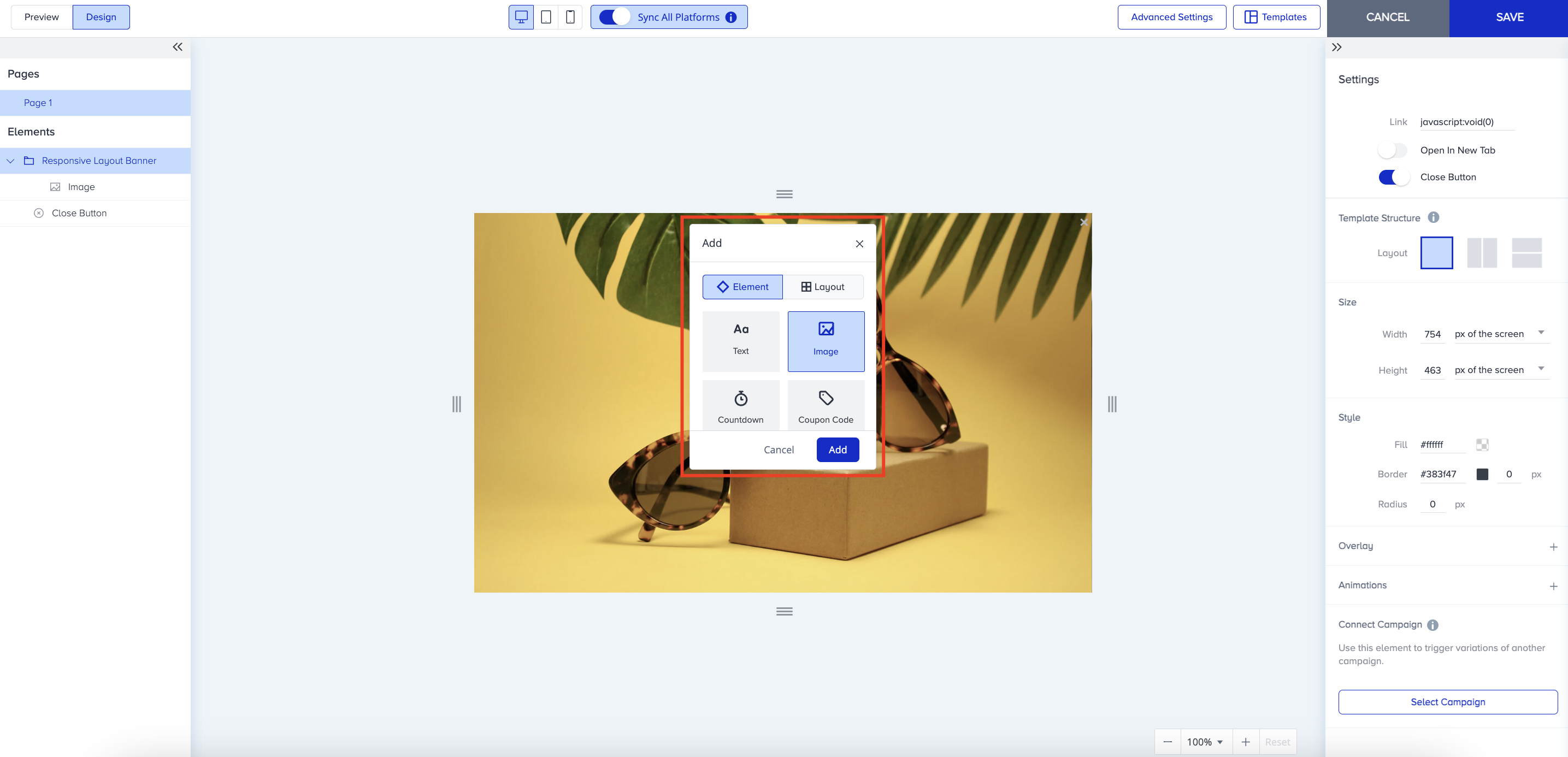
Add an element
If you want to include any other elements, such as a countdown, button, or text, on the image in your design, hover over the layout and click the (+) plus buttons that appear to edit your template. When you choose the element, you can also customize its design as usual.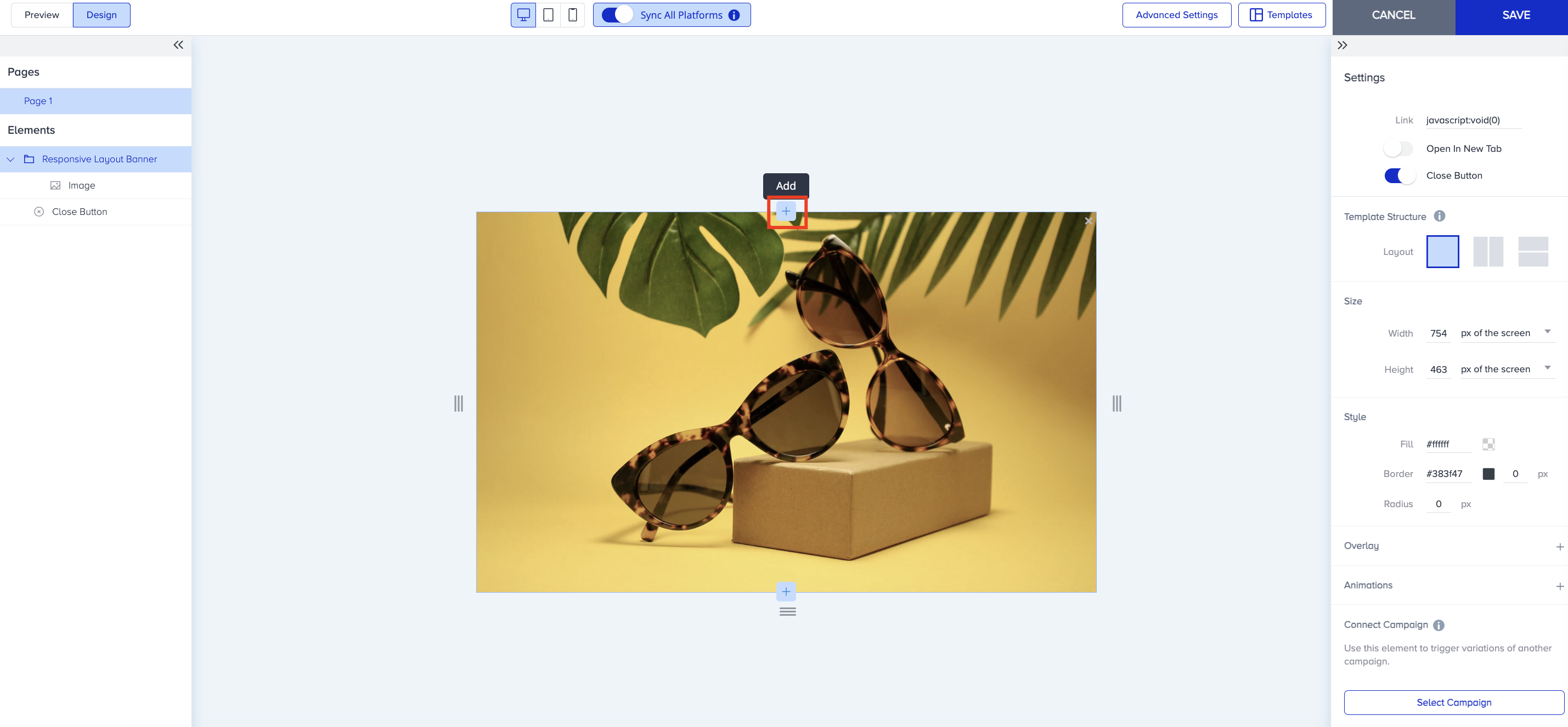
Once you have completed your design, save it and proceed with the rest of your campaign.