Contact Cards let you attach your brand identity (display name, logo, website, and email) to your SMS sender number, then share that identity with recipients as a savable contact card in an MMS campaign. Instead of seeing an anonymous ten-digit number, recipients see a named, branded card in the message thread and can save it directly to their phone contacts. Once saved, every later message from that sender arrives under your brand's name and logo.
This is especially relevant for US A2P senders. US messaging requirements use numeric sender numbers instead of alphanumeric sender IDs, so Contact Cards help recipients identify the brand associated with the sender number.
This guide answers these questions:
Who can use Contact Cards?
You can configure one Contact Card for each eligible SMS sender from the sender's settings. Contact Card setup is available alongside other sender-specific settings, including Unsubscribe, Subscribe, Quick Responses, Silent Hours, and Organization Prefix.
The Contact Card tab is visible only for SMS senders on a dedicated number.
The tab is hidden (not just disabled) for the following sender types:
RCS senders. RCS already displays its verified brand name and logo, so Contact Cards are not available for RCS senders.
Alphanumeric senders
Shared senders
What can you do with Contact Cards?
Configure one Contact Card per sender with a display name, logo, and optional website URL and email address. The saved Contact Card can be reused across campaigns.
Attach the sender's saved Contact Card to an MMS campaign instead of using the Media option. Contact Cards are available for Draft, Scheduled, Automated, including Welcome and Cart Reminder, and Bulk campaigns.
Upload a Virtual Contact File (VCF) for an individual campaign instead of using the Contact Card saved for the sender.
Preview the Contact Card using Card Preview and Card Details for both iOS and Android before launching the campaign.
Keep the Contact Card used in a running or completed campaign unchanged even if you later update the sender's Contact Card.
Automatically include the selected sender's phone number in the Contact Card. This ensures that the phone number on the Contact Card always matches the sender.
Set up a Contact Card
Navigate to InOne > SMS/MMS/RCS > Settings.
From the Actions column, click the Sender Preferences icon for the relevant promotional sender.
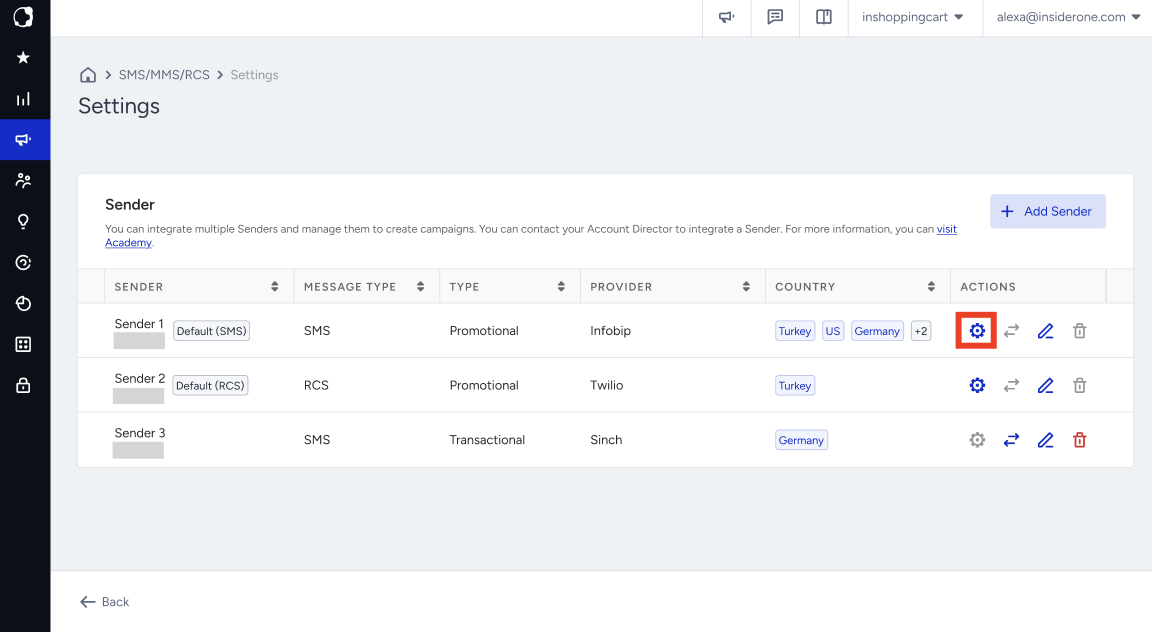
Click the Contact Card tab.
Turn on the Contact Card toggle at the top.
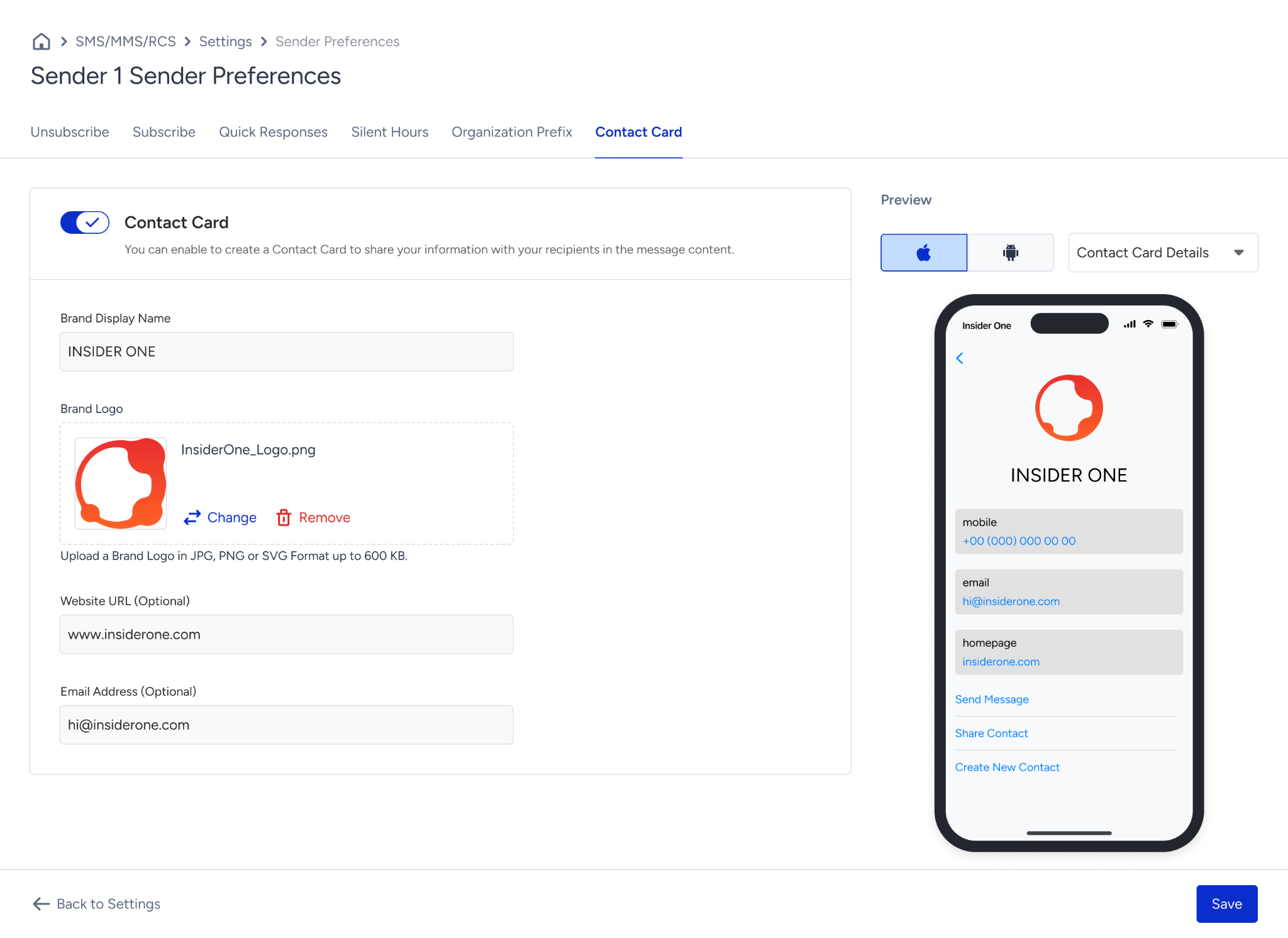
Enter the Brand Display Name. This field is required and determines the name recipients see when they receive and save the Contact Card.
Upload a Brand Logo. This field is required. Upload a JPG or PNG file up to 200 KB.
Optionally, enter a Website URL and Email Address.
Review the live preview next to the form, then click Save.
Insider One automatically adds the sender's phone number to the Contact Card. You do not need to enter the phone number manually.
Turning off the Contact Card toggle hides the form but keeps the previously entered Contact Card details. Turning it back on restores these details.
Attach a Contact Card to an MMS campaign
Build or edit an MMS campaign and open the message content step.
Under message content, select either Media or Contact Card. You cannot use both options in the same message.
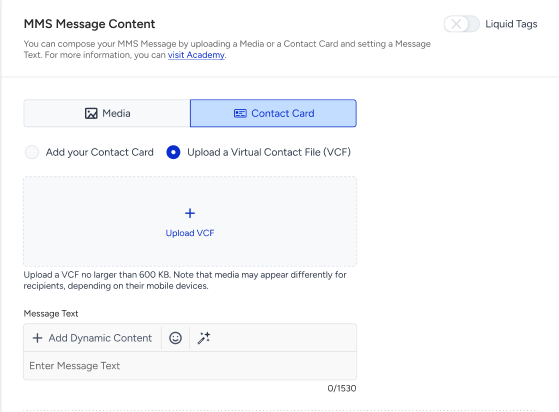
Under Contact Card, select one of the following:
Attach your Contact Card: Uses the Contact Card configured for the selected sender.
Upload a Virtual Contact File (VCF): a one-off file for this campaign only, up to 600 KB.
If the selected sender has no card enabled, Attach your Contact Card is disabled, with a tooltip that points to Settings.
If you change the sender after attaching a Contact Card, the campaign automatically uses the Contact Card configured for the new sender. If the new sender does not have a Contact Card enabled, Insider One removes the attachment and displays a warning.
Changing the sender does not affect a manually uploaded VCF file.
If an existing campaign uses a manually uploaded Virtual Contact File (VCF), the file and sending behavior remain unchanged. When you reopen the campaign for editing, the VCF upload appears under the new Contact Card option.
Contact Cards are an additional option and do not require any changes to existing campaigns.
Preview a Contact Card
Before you launch a campaign, review how the Contact Card is expected to appear to recipients using two preview modes for both iOS and Android:
Card Preview: how the card looks in the message thread.
Card Details: how it looks once opened, including contact rows (mobile, email, website) and the recipient's available actions (Send Message, Share Contact, Create New Contact).
For a finished campaign, the preview always shows the card that actually shipped, not the sender's current card, so reporting stays accurate even if you edit the card later.
Are Contact Card updates reflected?
You can update a sender's Contact Card after creating it. The following table explains whether these updates are reflected in campaigns that already use the Contact Card.
Campaign state | Does an edited card apply? |
|---|---|
Draft | Yes, the edit is reflected. |
Scheduled | Yes, the edit is reflected. |
Automated (Welcome, Cart Reminder) | Yes, the edit is reflected. |
Running | No, the edit is not reflected. |
Completed | No, the edit is not reflected. |
Completed, then duplicated | The duplicate uses the current card. |
Running and completed campaigns continue to use the Contact Card that was applied when the campaign started.
Limitations
You can create only one Contact Card per sender. Multiple Contact Cards and campaign-level Contact Card overrides are unavailable.
Contact Cards are not attached to campaigns automatically. You need to select the Contact Card when configuring the campaign.
The phone number on the Contact Card is automatically set to the sender's phone number and cannot be edited.
You cannot use Media and Contact Card in the same message.
Contact Cards require a dedicated number. Shared and alphanumeric senders can't use it.
Contact Cards require MMS, which costs more than SMS and isn't available in every country.
Contact Cards require a provider that can carry the attachment on the resolved sender.
Contact Card appearance can vary depending on the recipient's device and operating system version.
The brand logo must be a JPG or PNG file, up to 200 KB, for the card to send successfully.
There is no dedicated report for Contact Card sends. To review their performance, check the statistics of individual campaigns that use Contact Cards.