Call an API Body Builder Agent writes the request body for a Call an API element in Architect from a plain-language description, right in the Agent One Teams chat. Describe the message you want to send, and it builds a complete body in the format your endpoint expects, using the dynamic content available in your element. It reads the endpoint selected in the element. For providers such as LINE, KakaoTalk, and Viber, it follows the provider's own API documentation. For your own endpoints, it learns the structure from the bodies you already created for that endpoint. The body goes into the element when you click the Apply button.
It also checks a body you already wrote. Ask what is wrong, and it reads the body in the element, names where it breaks, and gives you a corrected version.
To learn how conversations, tasks, and memory work across all agents, see Work with Agent One Teams. To learn how the Call an API element works, see Use Call an API.
This guide explains the following concepts:
Marketers love Call an API Body Builder Agent for various reasons:
No API documentation to read. It detects the endpoint selected in the element and builds the body to match that provider's API documentation, including message types, required fields, and formats.
Works with your own endpoints too. For an endpoint you built yourself, it learns the structure from the bodies you already created for it and uses the dynamic content available in the element.
Nothing changes without you. The body goes into the element only when you click Apply, and the element keeps it only when you click Save.
Use cases
Remind shoppers of the products they browsed on LINE
You want a LINE carousel that shows the last three products a user viewed. You describe the cards in one sentence, and Call an API Body Builder Agent builds the carousel with the product image, name, price, and a button on each card, filled with your browsed-product dynamic content.
Send a KakaoTalk notification
KakaoTalk endpoints expect a form-encoded body (key=value pairs) instead of JSON. Call an API Body Builder Agent builds the body in the format the endpoint requires, so you don't have to convert it yourself.
Adjust a body built from a saved template
Your element was created from the "Order shipped" template, and this journey needs a different currency. You ask for the change, and Call an API Body Builder Agent keeps every other field of the template body as it is. The change applies to this element only; the saved template is not updated.
Fix a body that will not save
You edited the body by hand, and the element shows "Enter a valid JSON code to continue." You ask why, and Call an API Body Builder Agent points to the exact place where the body breaks and gives you the corrected body.
How it works
When you ask about the request body in the Agent One Teams chat while a Call an API element is open, your request goes to Call an API Body Builder Agent automatically. You don't need to choose an agent; its name appears above each reply. It then:
Reads the element. It sees the endpoint, the current body, the Liquid Tags setting, and the dynamic content available in the element.
Looks up the endpoint. For a supported provider, it checks the provider's documentation for the right message type, required fields, and format. For other endpoints, it follows the bodies you already send to that endpoint.
Builds the body. It writes a complete body, adds your dynamic content in the syntax that matches the Liquid Tags setting, and checks that the body is valid before showing it.
Shows you the body. The body appears in a code block with a short explanation. If an attribute you asked for isn't available, or it uses a different attribute, it tells you.
Waits for you. Nothing reaches the element until you click Apply, and nothing is kept until you click Save.
Build a body
Open the Call an API element. In Architect, open a journey you can edit, click the Call an API element, and select the endpoint.
Open the chat. Open Agent One Teams from the chat entry point in the InOne panel. The chat opens alongside the element, so the body stays in view.
Describe the body. Include the message type, what each part shows, and any text to use. E.g., Send this user a carousel with the 3 products they browsed. Each card shows the product image, name, price, and a "View product" button. Start with "Hi {first name}, still thinking about these?"
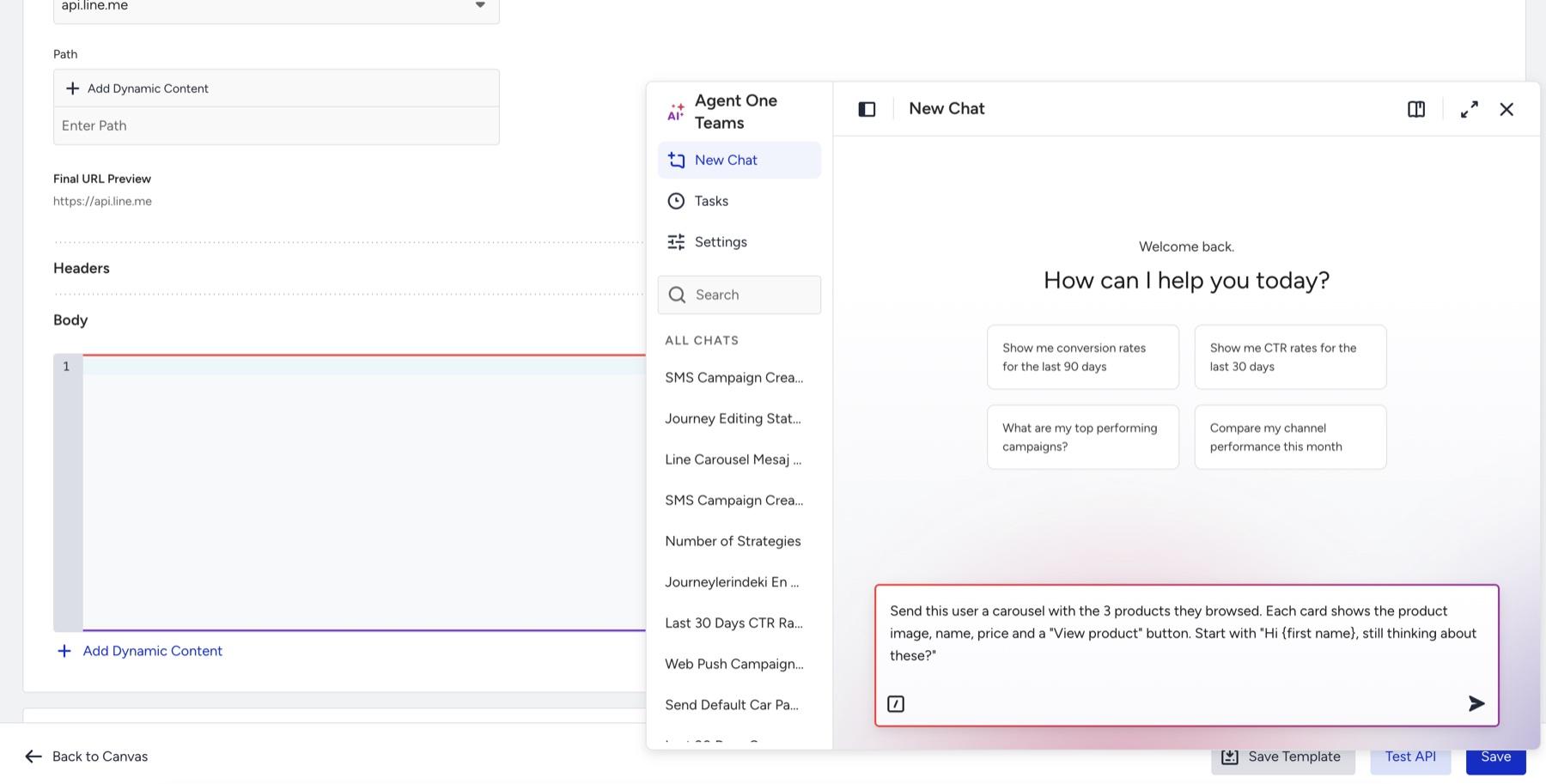
Review the body. Call an API Body Builder Agent replies with the complete body. To change something, tell it in the chat, such as "add the product price to the first card." It changes only what you ask for and keeps everything else.
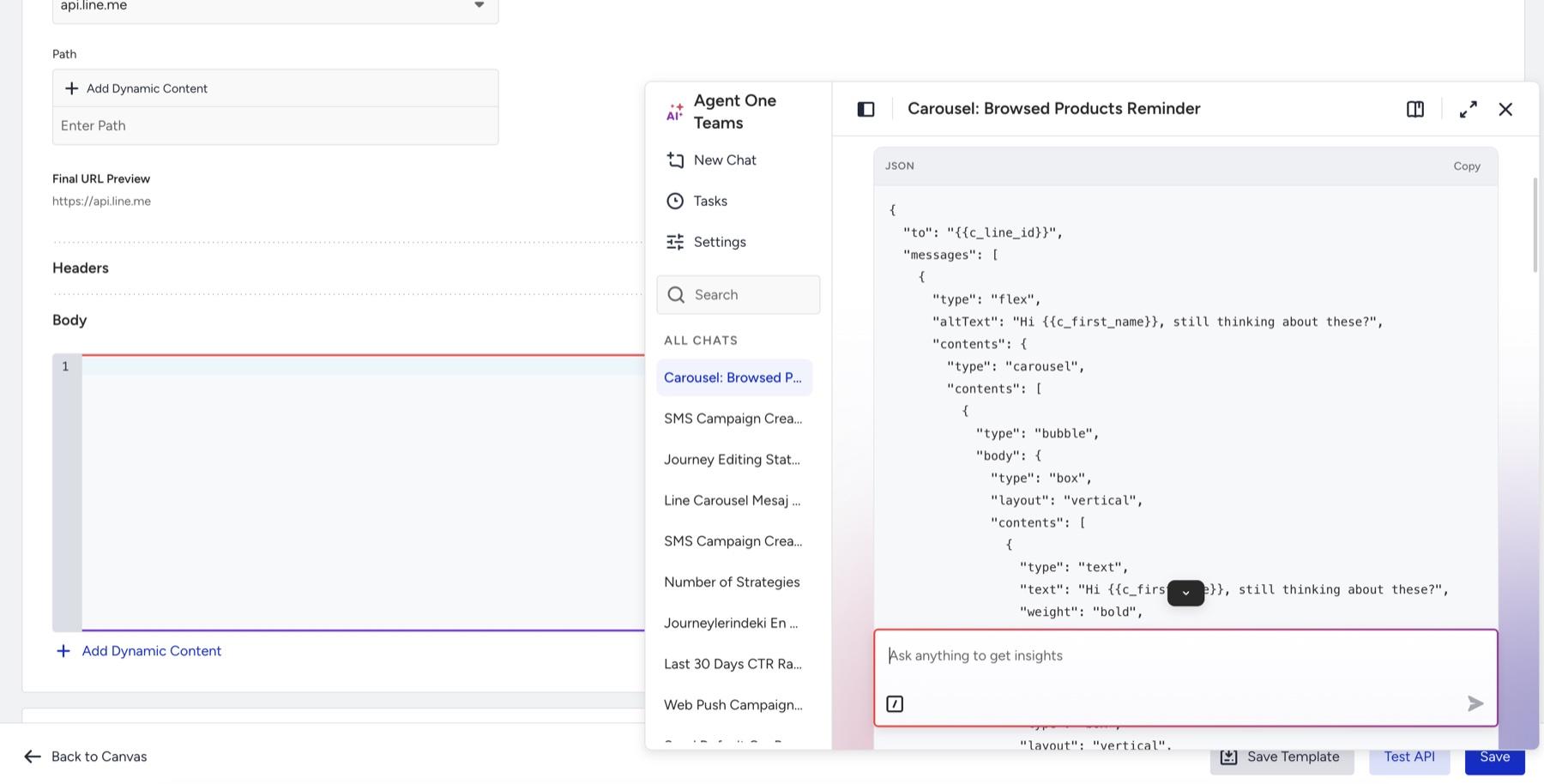
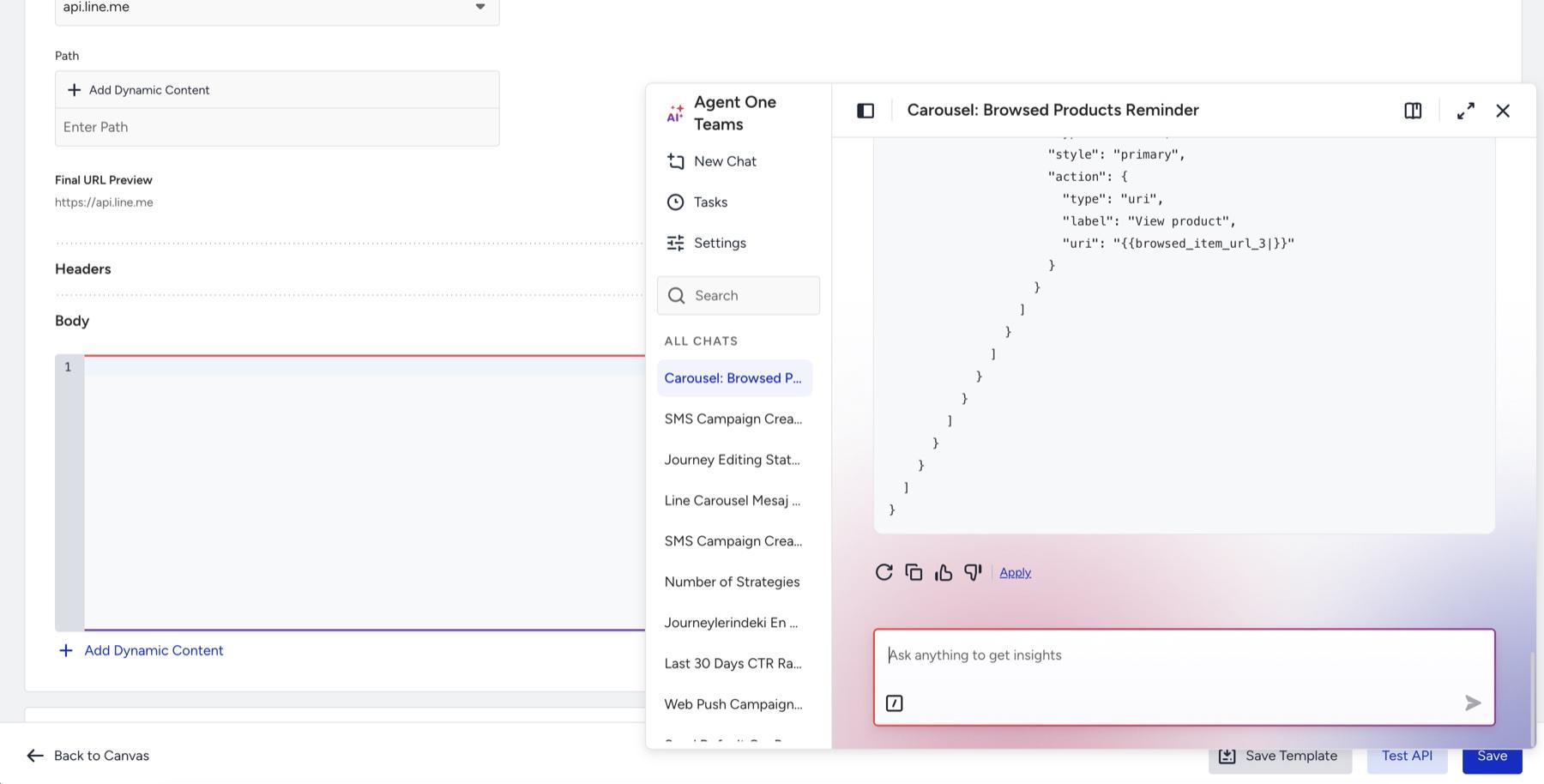
Click the Apply button. Apply appears under the reply, next to the copy and feedback buttons.
Check the body and save. The Apply option changes to Applied, and the body appears in the Body field with your dynamic content highlighted. To reverse it, click the Undo button next to Applied. Click the Save button to keep the body, or Test API to try the call first.
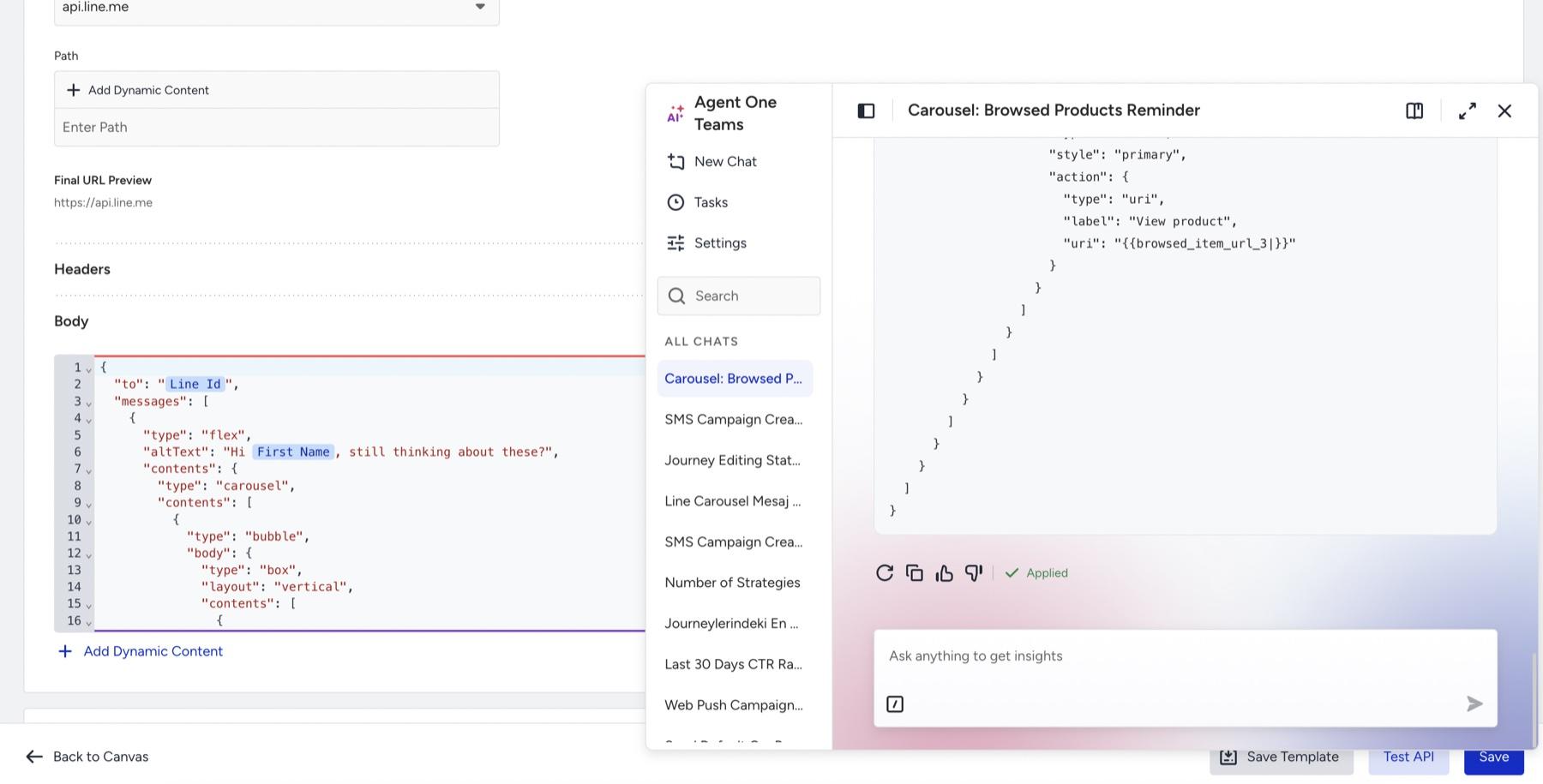
Apply replaces the whole Body field with the body in the reply. If you click Apply on an earlier reply, that body replaces the current one.
Check and fix a body you wrote
Ask what is wrong. When the body is not valid, the Body field shows "Enter a valid JSON code to continue." Open the chat and ask the reason. E.g., Why am I getting an error? You don't need to paste the body; the Call an API Body Builder Agent reads it from the element.
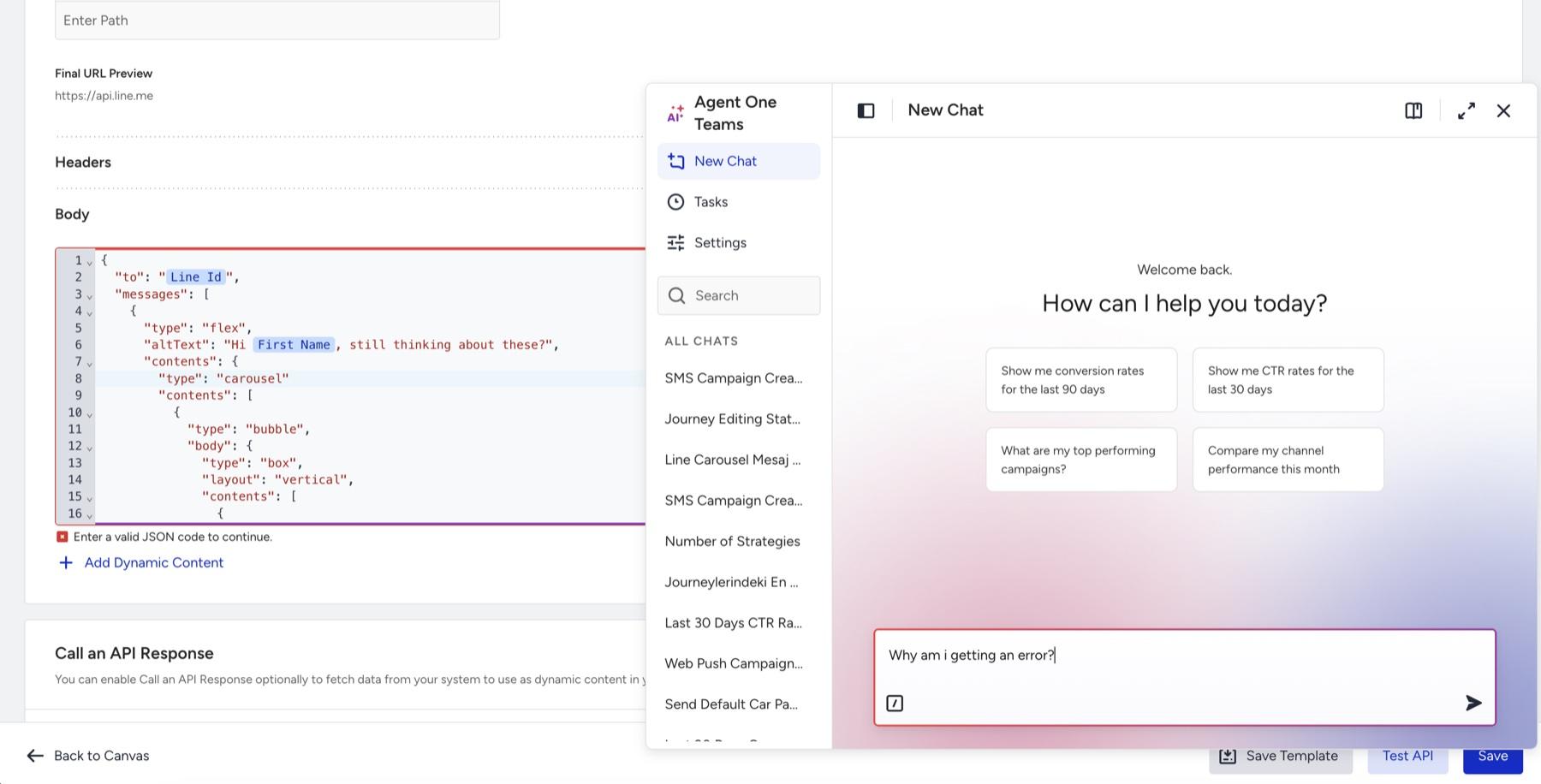
Review the answer and the corrected body. It names the problem and where it is, such as a missing comma after a specific field, and returns the full corrected body in the same reply. Your dynamic content stays unchanged. Click the Apply, button, then Save.
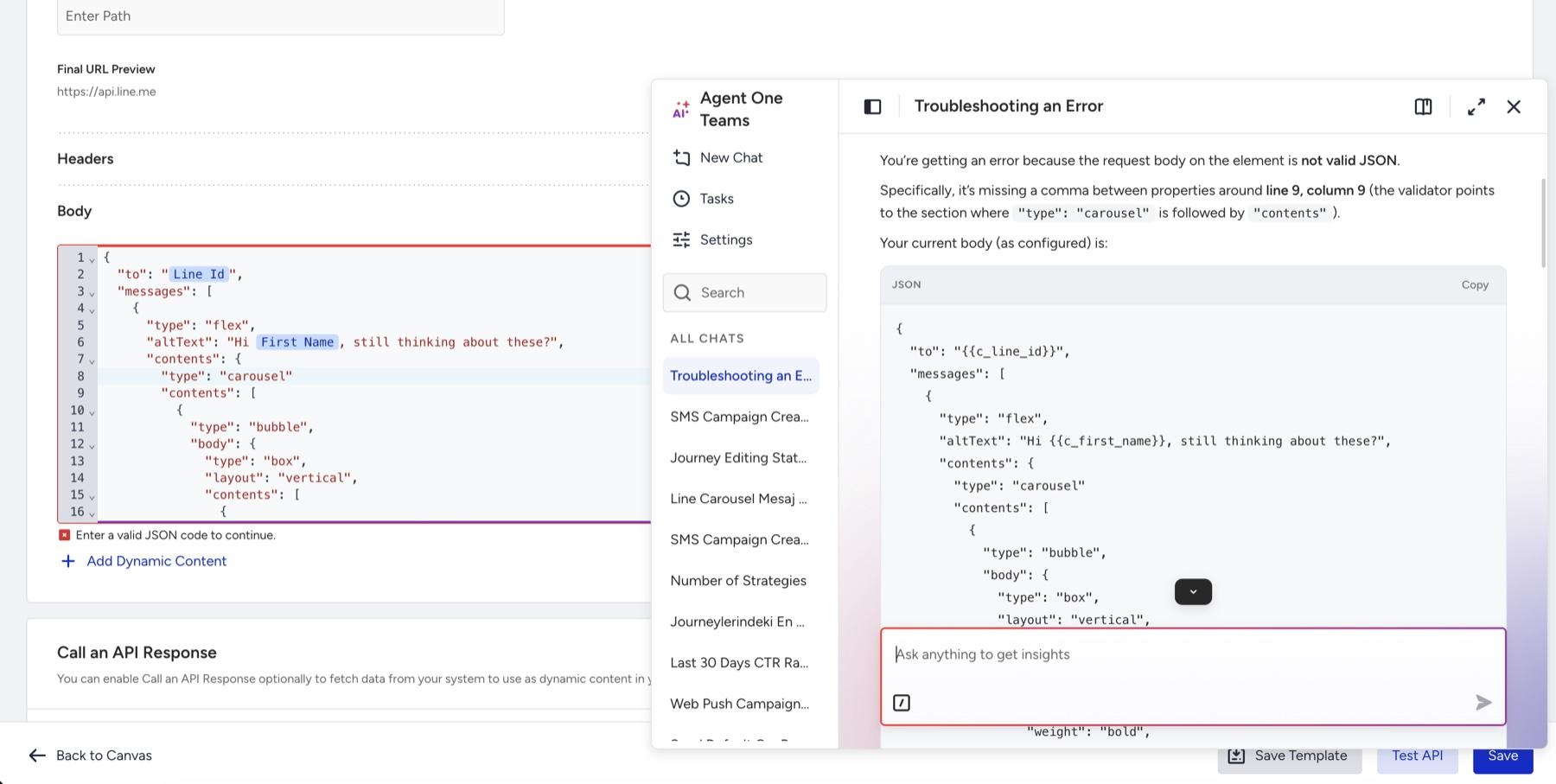
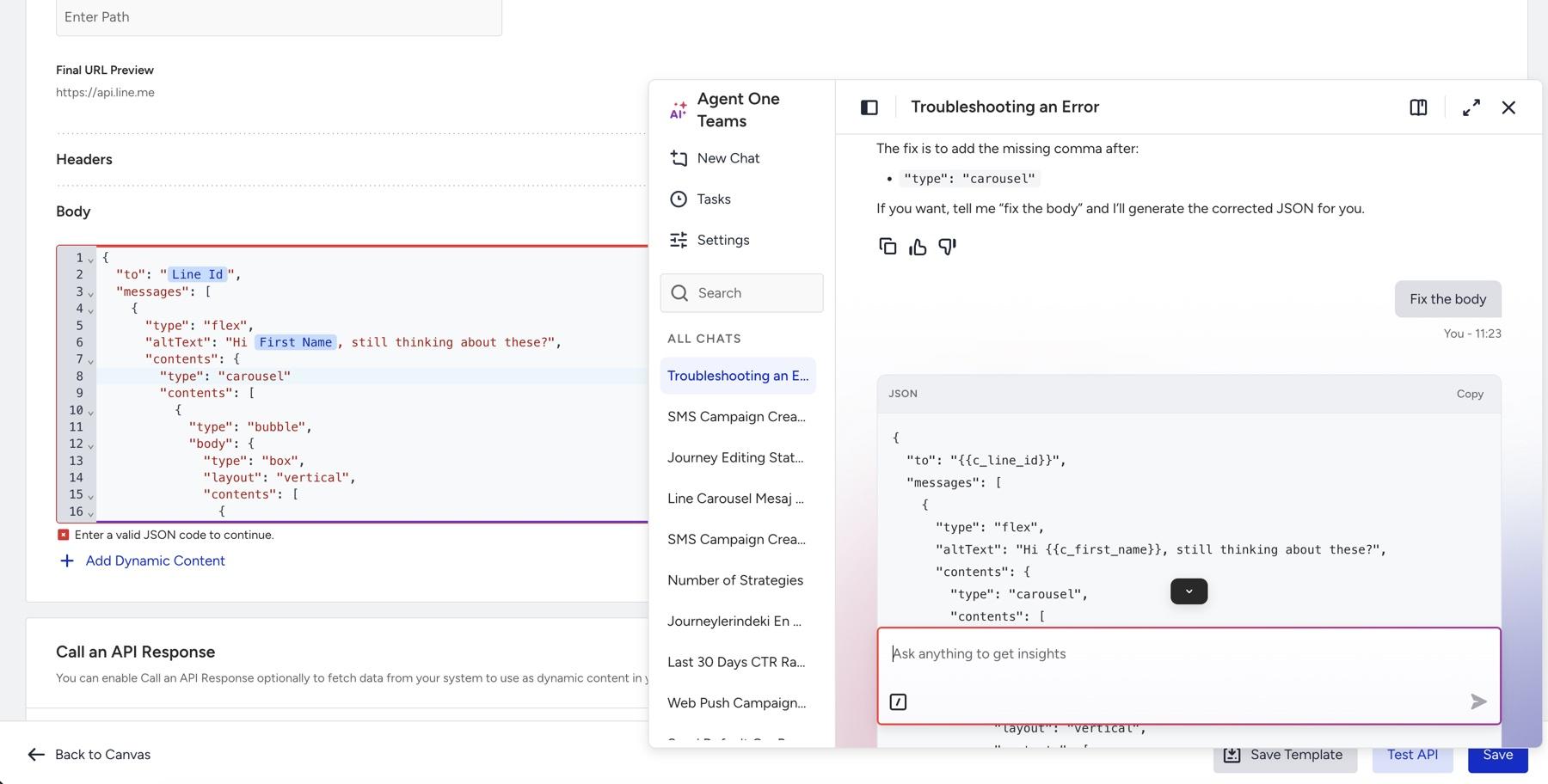
It finds problems such as:
A missing or extra comma, a missing quote, or an unbalanced bracket
Single quotes, comment lines, invalid escape characters, or more than one top-level object
A missing required field, such as an image message without an image URL
A body over the size or nesting limit
If you only want a check, ask "Is this body valid?" It answers without changing anything, and offers to rewrite the body if you want it to.
Supported providers
Call an API Body Builder Agent has documentation for these providers and picks the message type that fits your request, such as a carousel for a product message instead of plain text:
LINE
KakaoTalk
Telegram
Viber
WeChat
For any other endpoint, it follows the bodies you already send to that endpoint. If there are none and you have not named the fields, it asks which fields the endpoint expects instead of guessing.
If your element points to a relay or webhook but you name the provider in your request, such as "this is for LINE," it builds that provider's body and tells you the element's address is not the provider's own. If an endpoint address only looks like a supported provider's, it warns you and does not use that provider's format.
Example prompts and tips
Below are some example prompts:
Send this user a carousel with the 3 products they browsed. Each card shows the product image, name, price, and a "View product" button. Start with "Hi {first name}, still thinking about these?"
Send this user a Viber rich media message with the first product they browsed: the product image, name, price, and a "View product" button.
Send this user a WeChat news message with the 3 products they browsed. Each article shows the product image, name and a link to the product.
Send this user a KakaoTalk message that says "Hi {first name}, the products you viewed are still waiting for you."
Send this user a Telegram message with the name and price of the last product they browsed.
Build a LINE text message that greets the user by first name, with "there" when the name is empty.
Why am I getting an error?
Is this body valid?
Where exactly does my body break?
The element says "Enter a valid JSON code to continue." What is the mistake?
Fix the body.
Fix the body and keep my dynamic content as-is.
Fix the body and show me what you changed.
For better bodies, follow these tips:
Name the message type and each part. "A carousel with image, name, and price on each card" works better than "a nice product message."
Use the names in your panel. Refer to attributes by the names you see under Add Dynamic Content.
Ask for fallbacks by name. Say which value to use when an attribute is empty; it does not add fallbacks on its own.
Make changes one at a time. Each change keeps the rest of the body unchanged.
Good to know
What it writes: The request body only. Set the endpoint, path, and headers in the element as usual.
Body format: JSON, or form-encoded (key=value pairs) when the endpoint's documentation requires it.
Size and depth: Up to 100 KB and 32 nesting levels per body.
Dynamic content: Uses only the dynamic content available in the element. If an attribute you name is not available, it tells you and leaves it out instead of using a similar one.
Fallback values: Written in the syntax that matches the element's Liquid Tags setting. Without Liquid Tags, a fallback value cannot contain {, }, |, or %.
Product lists: Cart, browsed, wishlist, and purchased products are added as numbered slots (first product, second product, and so on). If a user has fewer products than slots, the extra slots are sent empty.
Call an API response: A value from an earlier Call an API element can be used once its response variable is enabled. Wrapping the body under a key changes only the request you send; it does not create a response value.
Templates: If the element was built from a saved template, it starts from that template's body. The template itself is not updated.
Apply and Undo: Apply replaces the whole Body field. Undo reverses the most recent Apply only. The element keeps the body only after you click Save.
Who can use it: Users who can edit the element. It is not offered to viewers of a draft journey or to collaborators on an active journey.
Past bodies: Sensitive values in past bodies, such as passwords, tokens, and email addresses, are masked before the agent reads them.
Language: Replies in the language of your latest message. Text it writes into the body, such as a message or button label, uses the same language.
Scope: Answers questions about the request body only and declines unrelated requests.
FAQ
Will Call an API Body Builder Agent change our element without our approval?
No. The body reaches the element only when you click Apply, and the element keeps it only when you click Save.
Does it test the API call?
No. Use the Test API button on the element to send the call and see the response.
Our endpoint is not a supported provider. Can we still use it?
Yes. It follows the bodies you already send to that endpoint. If there are none, tell it which fields the endpoint expects.
Why did it leave out an attribute we asked for?
The attribute is not available as dynamic content in this element. It tells you in its reply instead of using a different attribute.
Can we undo an Apply?
Yes. Click Undo next to Applied to restore the body you had before. Undo covers the most recent Apply only.
To set up the endpoints you send bodies to, see Use Call an API. To personalize the body with conditions and filters, see Liquid in Architect.