You can set up the Call an API element, also known as the webhook-style action for sending data to an outside system, by following these step-by-step instructions:
1. Add a Call an API element
Add a new Call an API element to the selected Journey or Canvas.

2. Select the method and enter the endpoint
Request method
The request method you should use depends on the endpoint you plan to send information to. Most of the time, you’ll use POST.
See the other request methods that you can use in your Call an API element below:
POST - an HTTP method designed to send significant amounts of data to a server from a specified resource.
GET - a method used to request data from a specified resource and should have no other effect.
PUT - an idempotent method whose responses are not cacheable.
DELETE - a method used to remove a resource from the collection of resources.
Calling a delete method on the resource repeatedly will not change the outcome. However, calling DELETE on the given resource for a second time will return a 404 (NOT FOUND) since it has already been removed.
Call an API can take data from outsourced tools not only by the GET method but also by other methods as long as the response is ready.
You can use the GET method for some purposes, such as pinging some services.
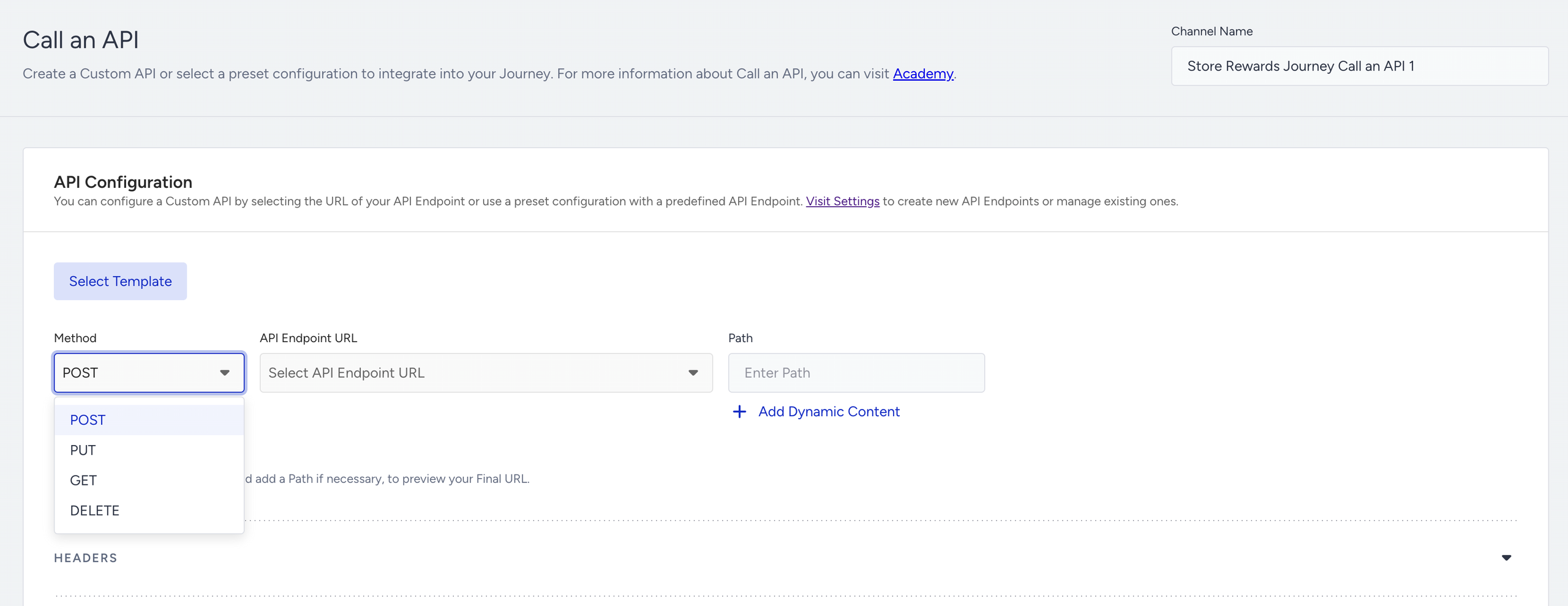
Endpoint (URL)
When an API interacts with another system, the touchpoints in such a communication are considered endpoint URLs.
Base URL: In this dropdown, you can choose from the listed predefined endpoints.
.png)
Path: You can use dynamic content inside the path field. The dynamic content added in the path is auto-encoded by converting the text into a percent-encoded string.
Go to Liquid in Architect to see how to use Liquid Tags in the Call an API channel.
You can assign authentication to your new or existing endpoints through Architect Settings.
For example, if you want to pass any phone number information in the URL, you should add “phone number” as dynamic content. When a user is passing through the Call an API element, the dynamic content is replaced with the user’s phone number value. Since the phone number includes the country code starting with +, the + sign is converted to a percent-encoded string. In this case, +655551234567 becomes %2B655551234567.
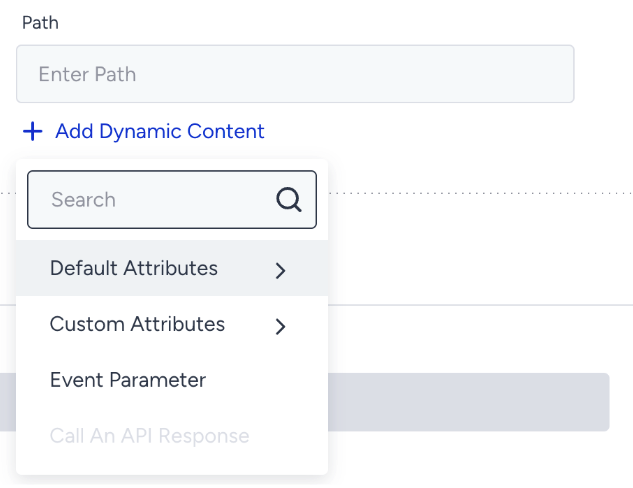
For maximum performance, ensure the endpoint you’re using can support 5k requests per second. However, you can also set throttling for your endpoint.
3. Set headers
Certain endpoints (URLs) may require that you include headers in your request. You can add as many headers as you like. Common use cases for request headers include a content-type specification and authorization headers that contain your credentials along with your vendor or system. Content-type specifications have the key ‘Content-Type’ and the default value as application/json.
The header section includes two settings:
Enter Key: An API key is a token that a client provides when making API calls.
Enter a value: Each API Key should have a value. For example, you can add a token as an API key and enter its value.
Required headers vary depending on the API you are using.
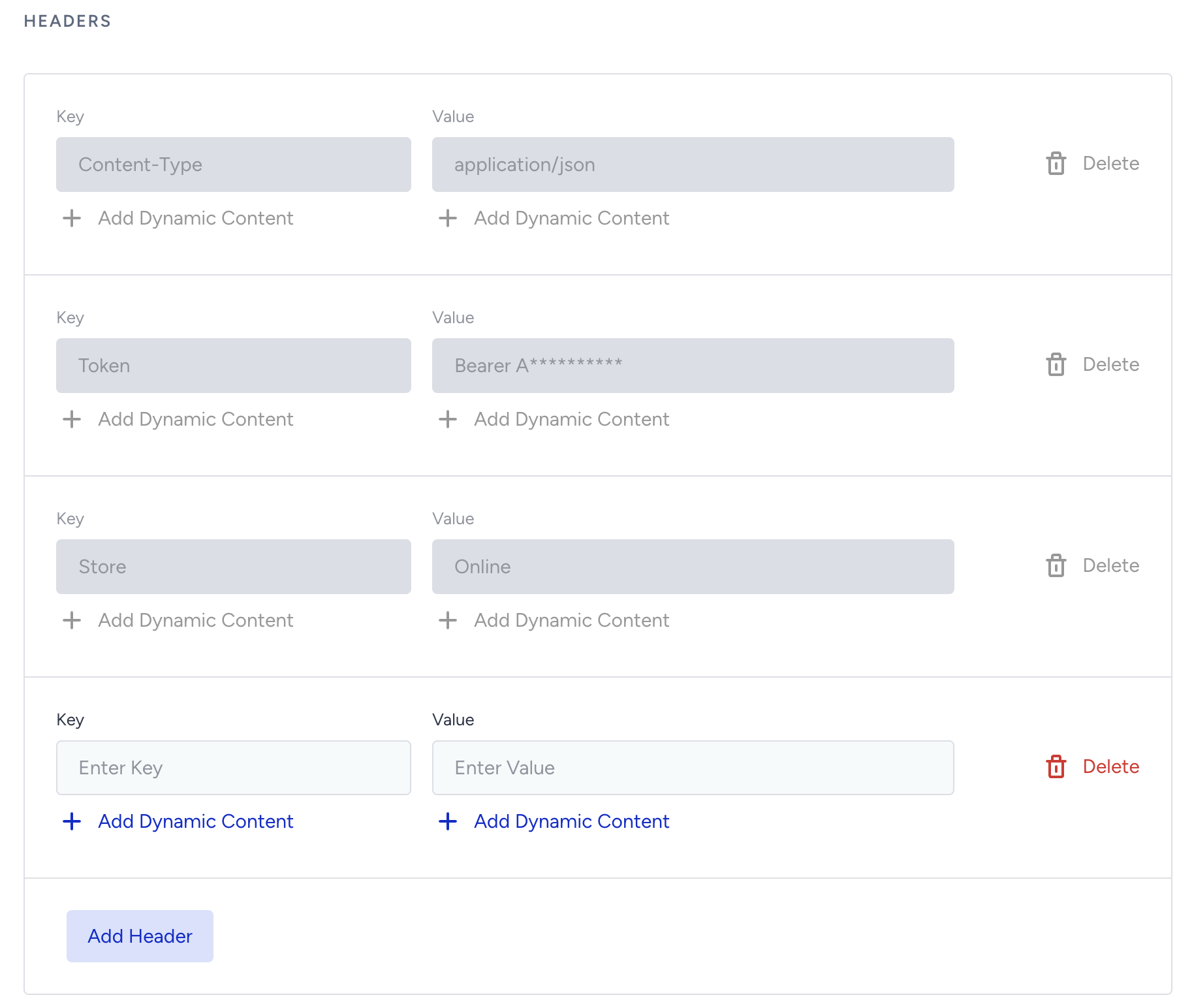
You can click the Add Header button in the bottom section to add multiple headers.
To add any dynamic content, click the Add Dynamic Content button to select an attribute.
4. Configure the body
The body is the information that the request will send to the URL that you specified. The ‘body’ is also known as payload. It should be in JSON format.
The payload requirements for this section should come from your vendor.
You can use this feature only with an endpoint that expects a JSON request. Call an API body accepts a maximum body size of 100 kilobytes.
You can click the Add Dynamic Content button to add default and custom user attributes, event parameters, and cart, browsed, and purchased items. The attribute will be added to the body where your cursor is. Read more on dynamic content.
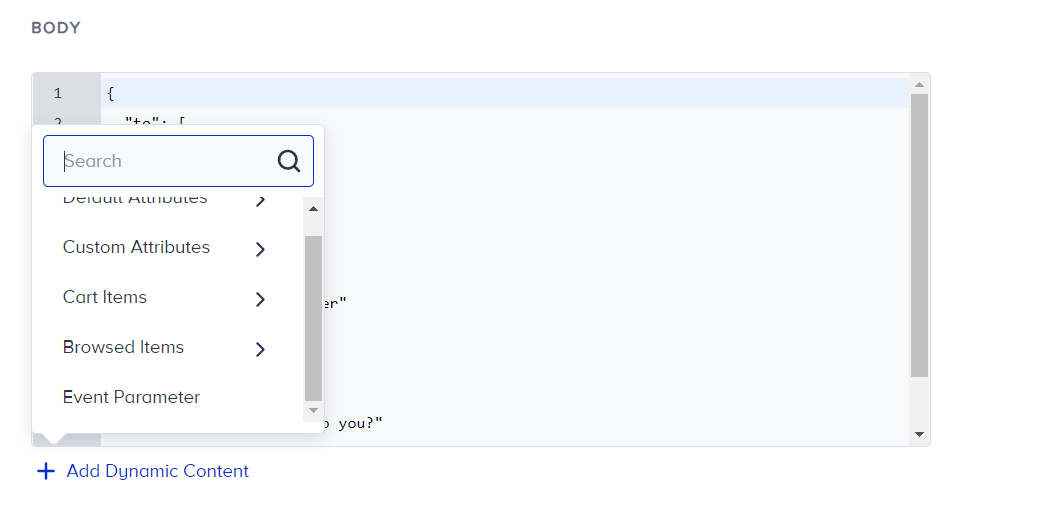
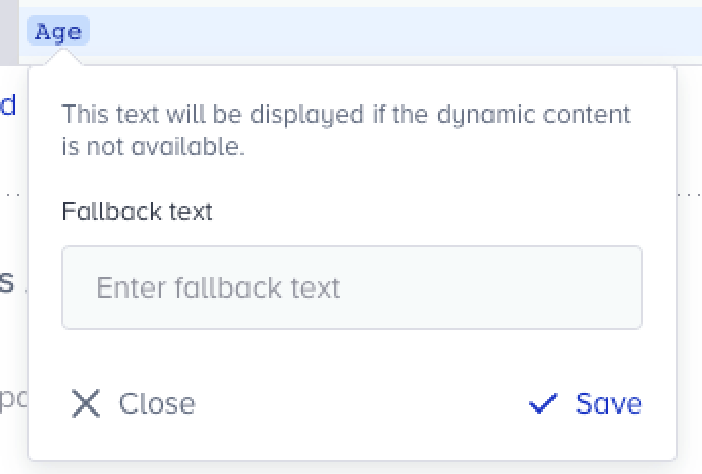
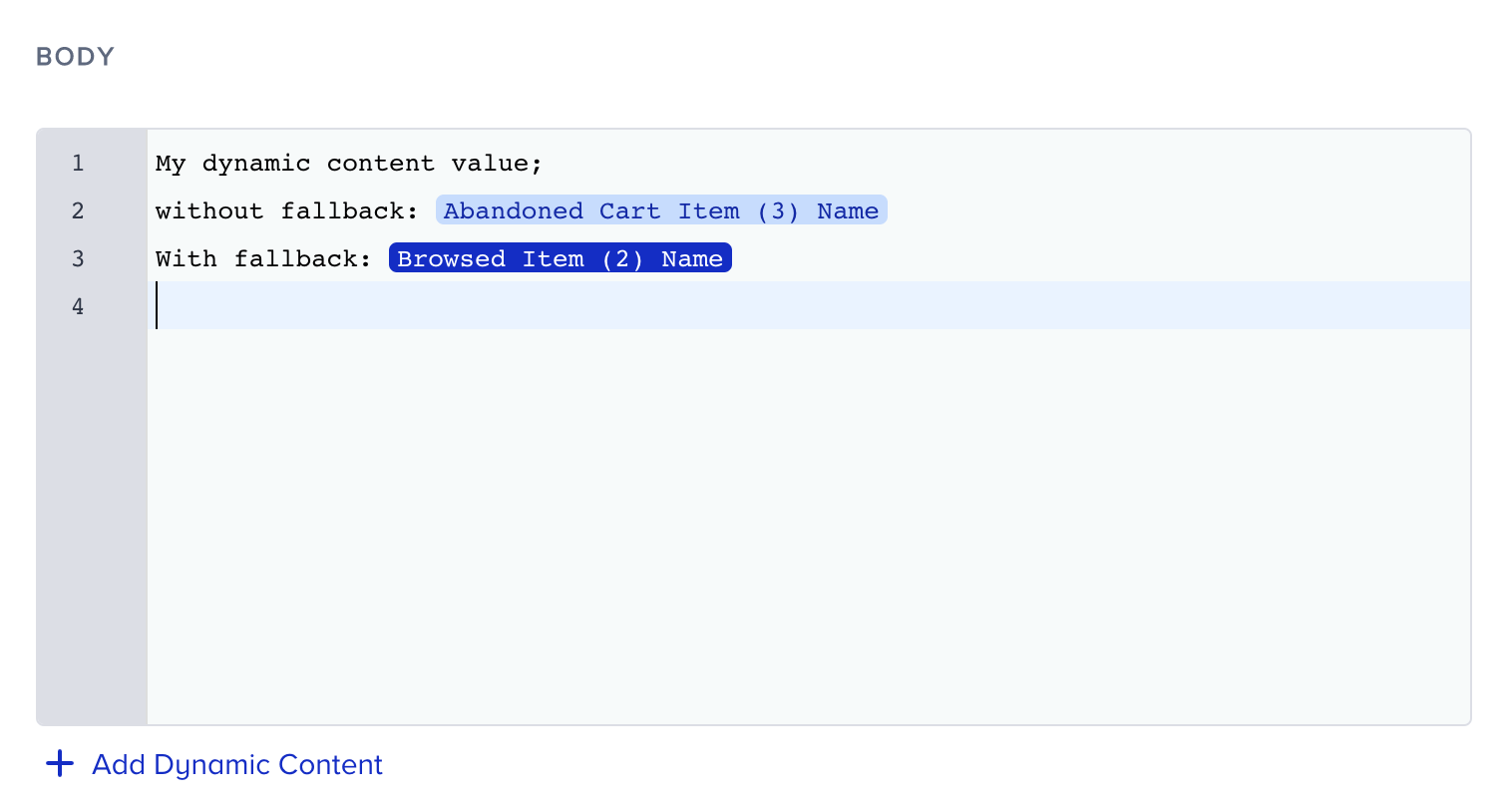
You can also add a fallback value for your dynamic content so the corresponding value is filled in when there is no value to show. You can tell that dynamic content has a fallback value if it has dark blue coloring.
5. Test your API request
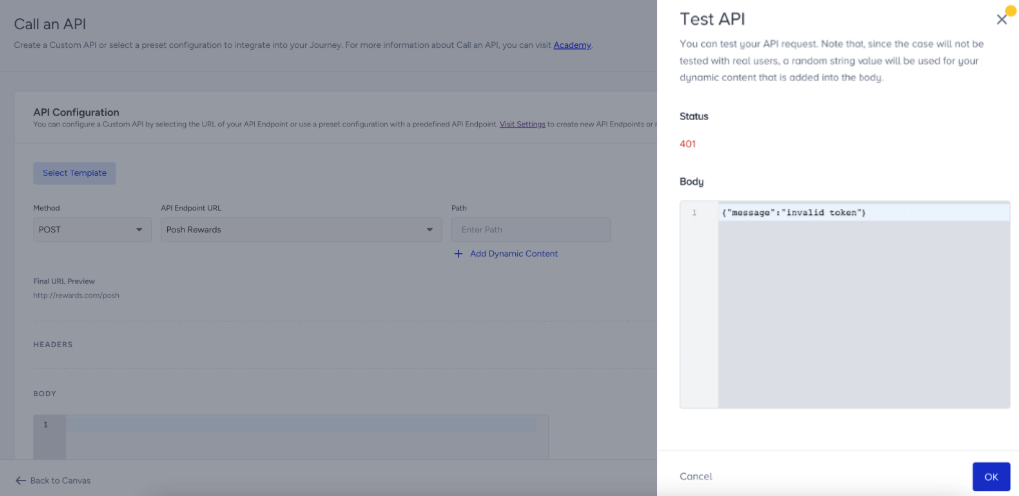
Before launching your journey, you may want to test the Call an API element to make sure that the request is formatted properly. You can click the Test API button in the bottom-right corner. Your test might give one of the following responses:
2XX - Success
4XX - Fail
You can also see the reason for the status below the results. These reasons can help you troubleshoot the fail responses and take actions accordingly, such as checking the endpoint URL, request method, endpoint path, body format, etc.
When testing, all dynamic content in the text fields is replaced by random values, which might result in a false fail response. For example, you might be using dynamic content in the URL field where that value is normally a number. During the test, since we replace it with a random value that includes letters, the response might fail. But when you run the journey, this will be a number and the responses will be successful. To prevent this, you can follow two options:
You can remove the dynamic content, add your own placeholder values, and test the API.
You can keep the dynamic content but test the entire journey using test journey methods.
Retry timeout requests
The request times out if no response is received from the endpoint within 20 seconds. This includes scenarios where the endpoint returns the 429, 503, or 504 (Timeout) error codes due to temporary issues. A retry mechanism is triggered, with the request retried up to 5 times at randomized intervals between 3 and 6 minutes. If the request still times out after 5 retries, it is recorded as a failure and appears in both the channel stats and the Call an API channel analytics. The user then proceeds to the next element in the journey.
6. Save as template
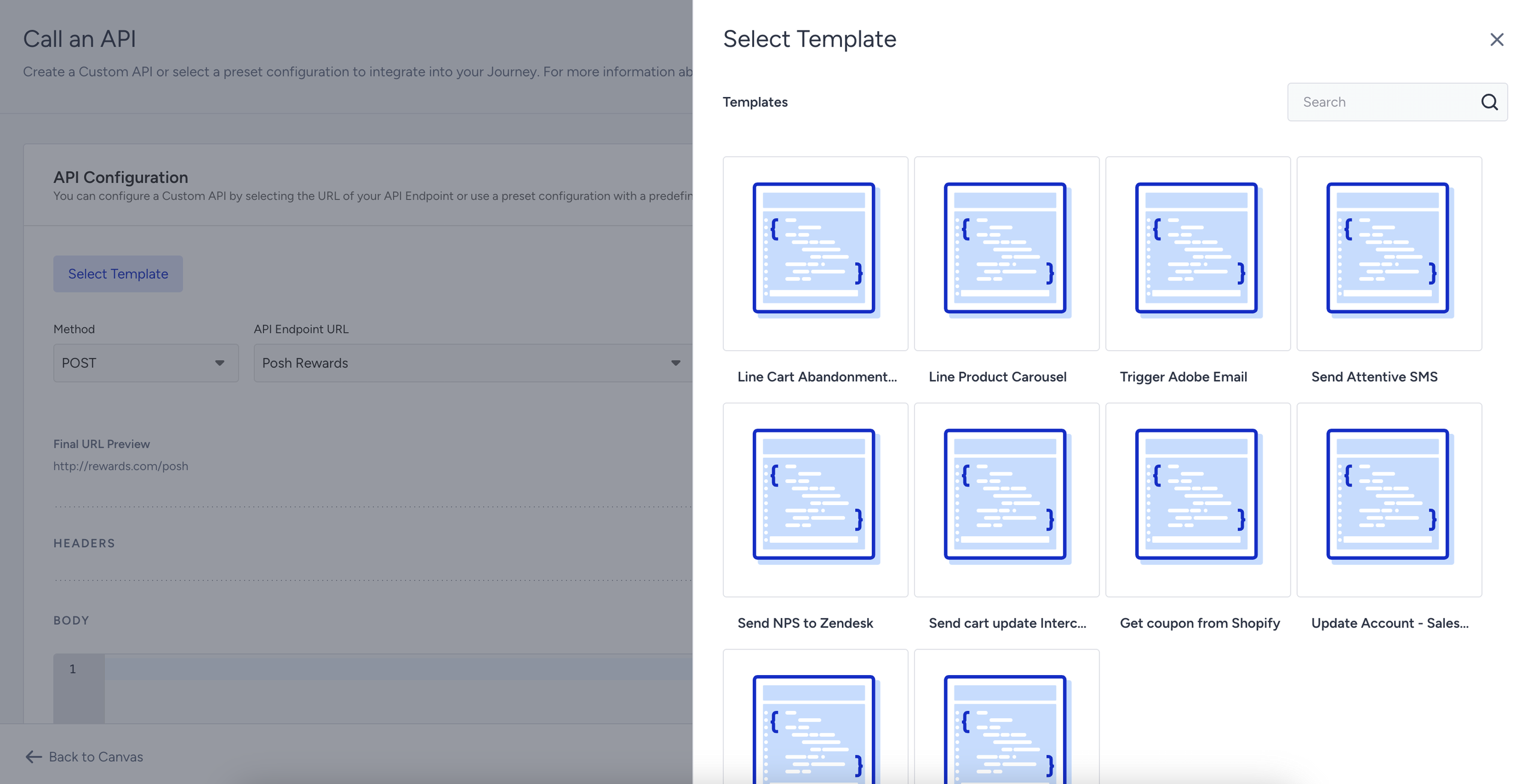
You can save your Call an API settings, including Method, Headers, and Body, as a template.
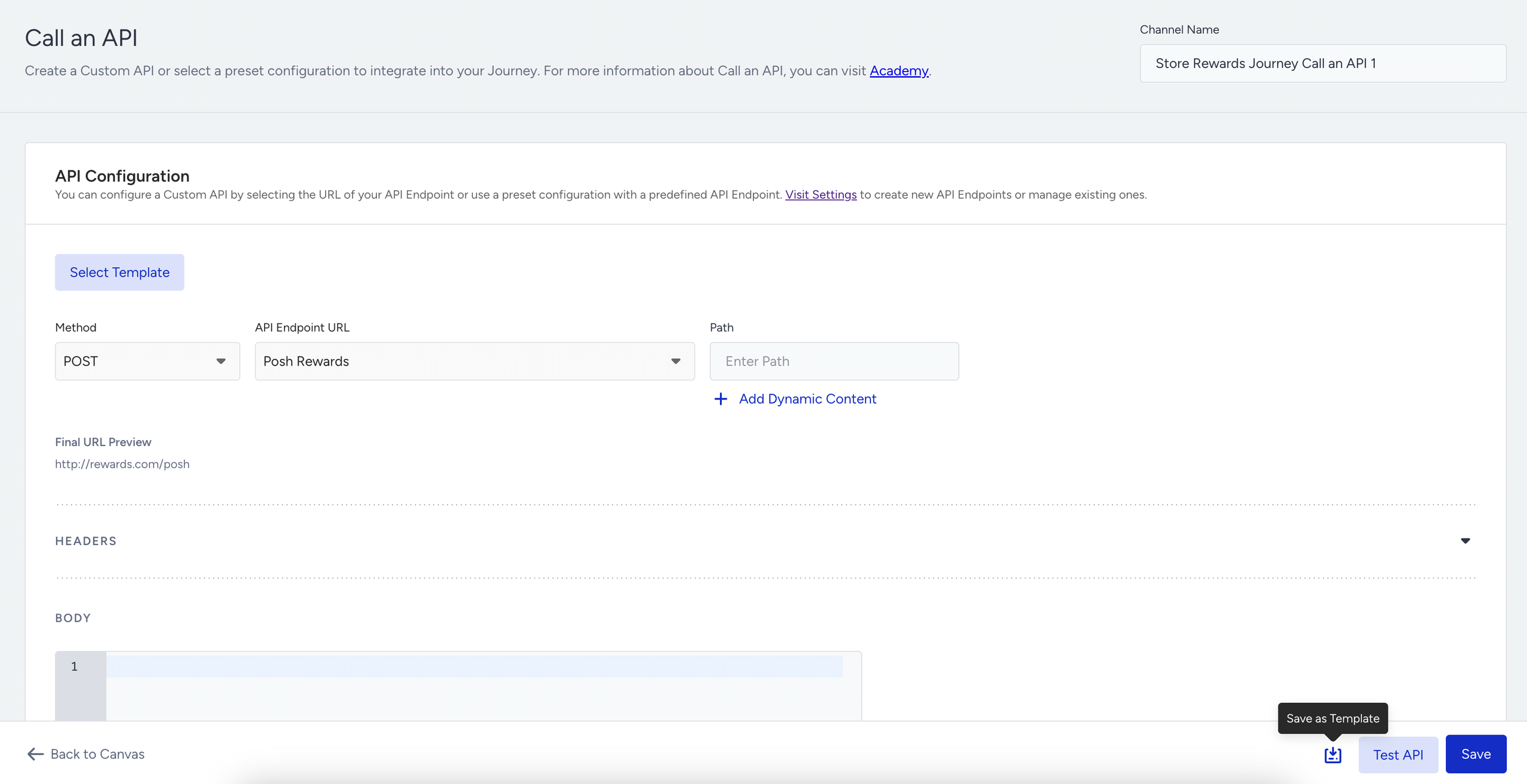
After saving Call an API settings as a template, you can reach your templates via the Select Template button. You can re-use, edit, and delete your templates from the template store.
7. Rename channel name
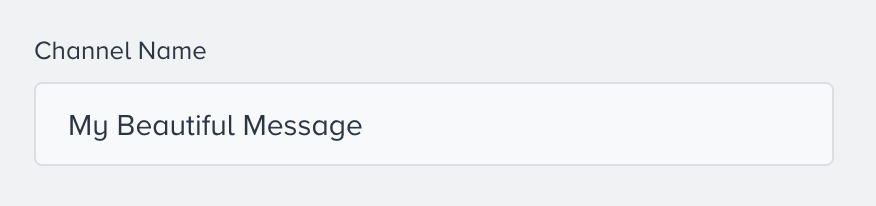
Channel Name is generated by default based on journey name and channel type. You can rename it at the top right corner if you want to give it a different name.
8. Save Call an API element
After configuring Call an API settings, you can save the page. Make sure to click the Save button, as there is no autosaving on this page. Autosaving functions only on the canvas page.
When you click the Save button, the body undergoes a JSON validation. If the mandatory Content-Type header is set to JSON and no other Content-Type headers are present, the system checks whether the body follows proper JSON formatting. If it does not, an error message appears under the body section.
9. Set throttling (Optional)
The Call an API element processes requests without any limit on requests per second. For example, if 5k users arrive at the Call an API element, all requests will be sent immediately, and your endpoint will receive 5k requests at the same time.
In some cases, endpoints for some services cannot handle this many requests and may not be able to receive and process them. For security reasons, you may also want to keep the number of requests from different services to your endpoint at a reasonable level.
Using the Request Throttling function, you can limit the number of requests coming to your endpoint per second. This feature is useful if your endpoint can handle only a certain number of requests.
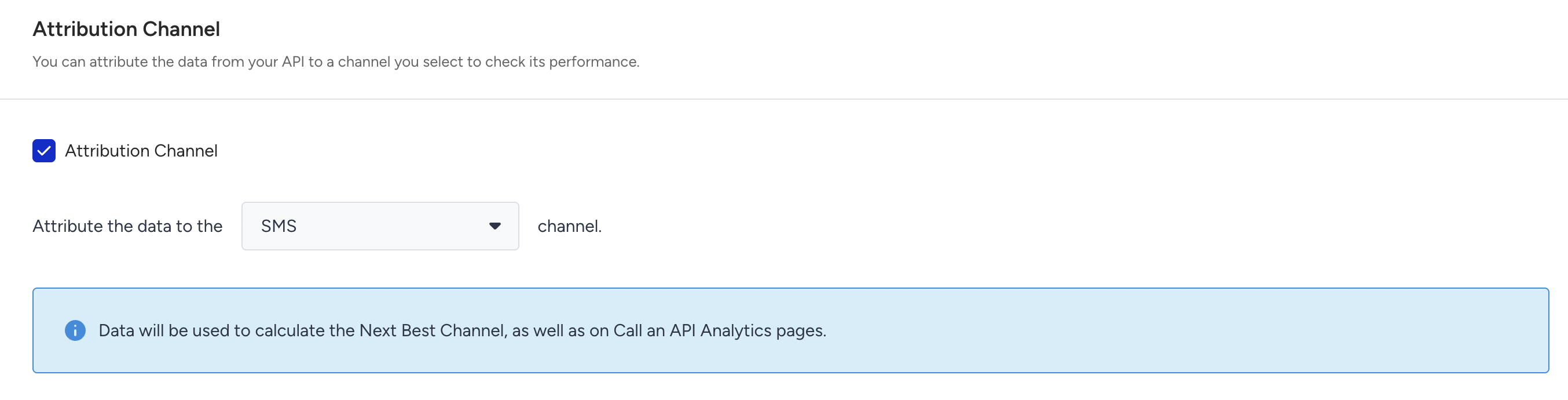
10. Attribution Channel
You can configure which channel this particular Call an API request should be counted as, for performance/reporting purposes. So if you're using Call an API to trigger a message send through a third-party vendor, you can tag that step as belonging to, e.g., the "SMS" or "WhatsApp" channel.
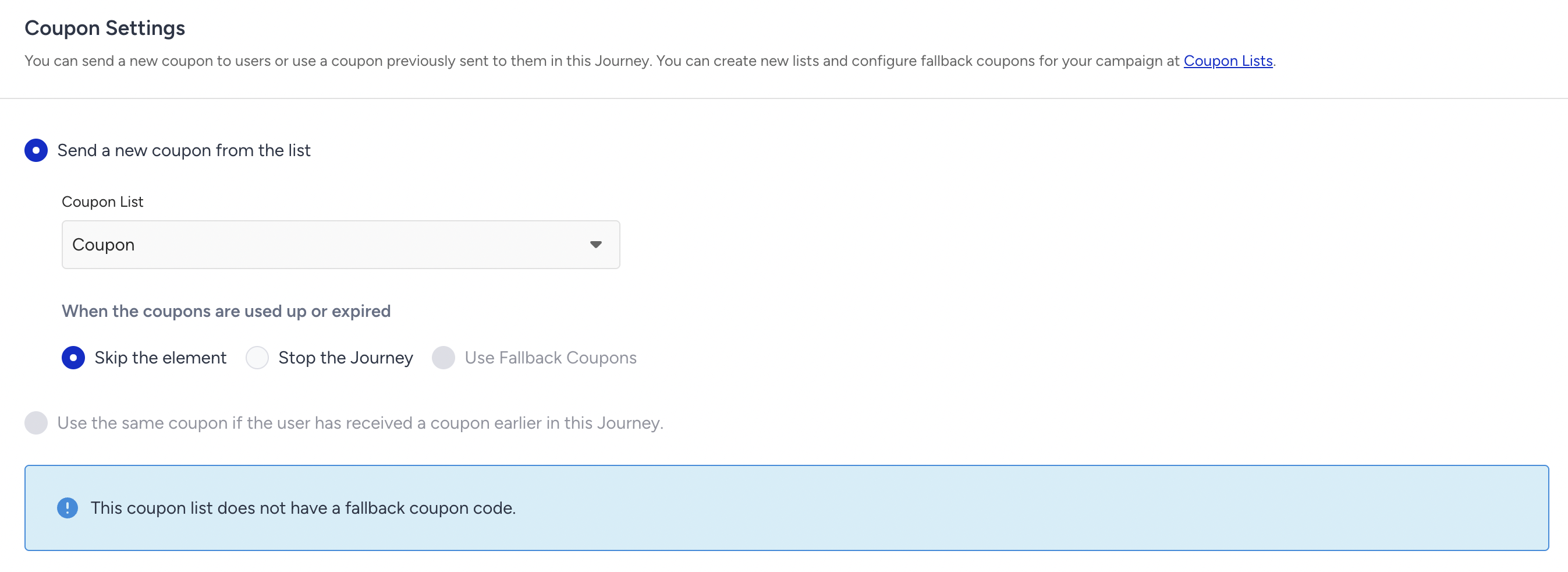
11. Configure coupon settings
You can enable the coupon settings when you add a coupon as dynamic content to your request body.
12. Stock Control
You can add any event parameter from an event with a product_id parameter as dynamic content to perform stock control and confirm whether the product is still in stock immediately before the request is sent.
You can also choose whether the user proceeds to the next element or is dropped from the journey if the product(s) is out of stock.
.png)
Define and manage endpoints
To use any endpoint in a Call an API element, you must first define it through Architect Settings > API Preferences. If you have any previously created endpoints, you can also use them.
All user roles can access this page, but only administrators and editors with PII access roles can define, edit, and delete endpoints.
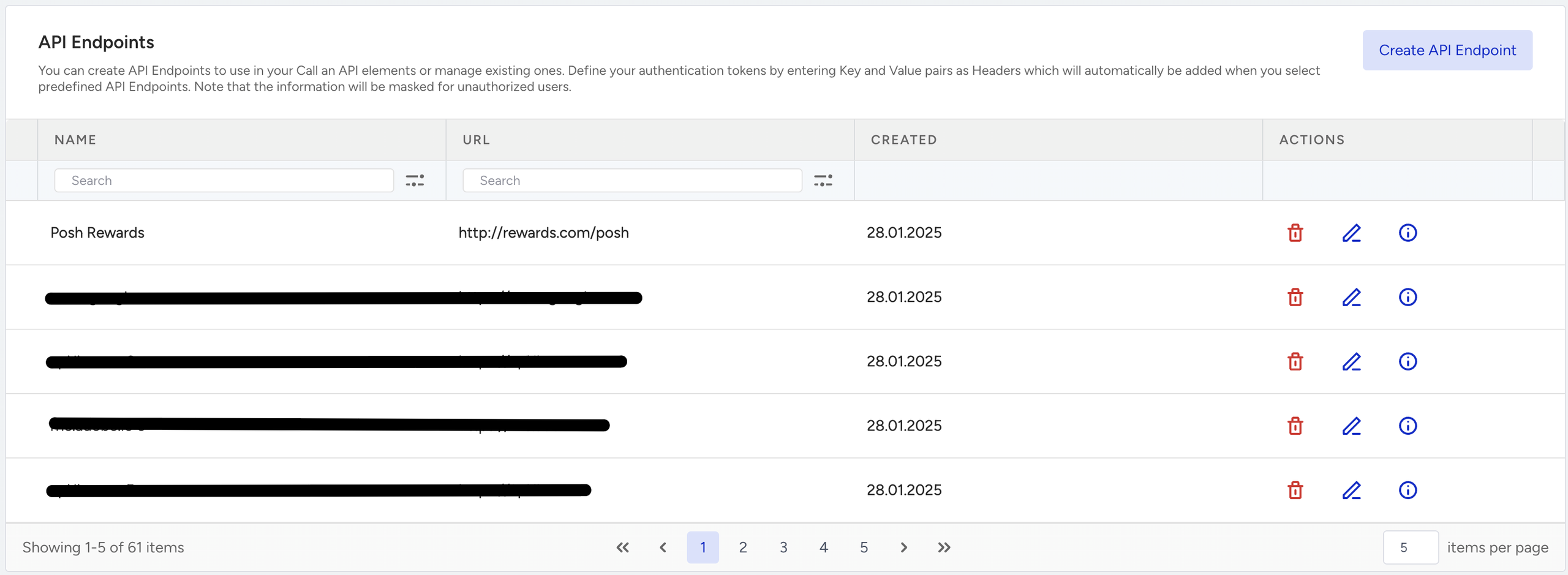
Create endpoints
1. Go to the API Preferences page and click the Create API Endpoint button.

Name: Give your endpoint a name, ideally an explanatory title, as you will see it under the dropdown on the Call an API inner page.
Endpoint: Enter the URL of the endpoint. Ideally, enter only the base URL, since you can define the path on the inner page. In this field, you cannot enter dynamic content. If your endpoint requires dynamic content, you can enter that on the Call an API inner page.
Headers: Enter your key-value pairs as headers. If you check the Mark as Sensitive Information box under each pair, the value will be masked on the Call an API inner page and in the endpoint details section. This way, the token will not be visible as you and other user roles operate through Architect.
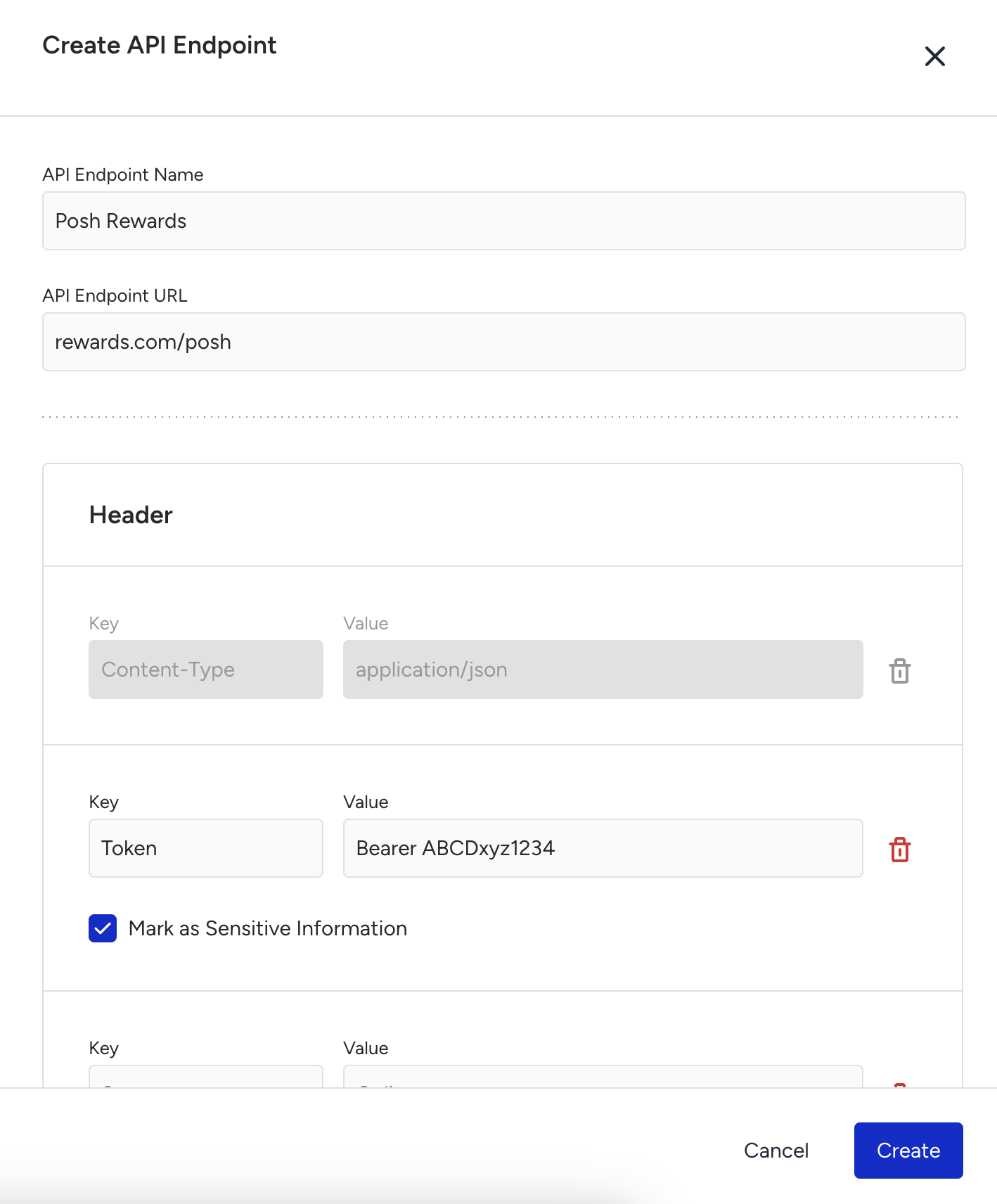
2. Click the Save button to see the endpoint on the listing page of API Preferences.
Edit endpoints
You can edit the name, URL, and headers of any endpoint. After you click Save, you will see all journeys and templates that use this endpoint, and the edited fields in those journeys will be updated. No other action will be taken on those journeys, and active ones will remain active.
The editing function is useful, especially for token expirations, as you can update the endpoint with a new token, and the change will automatically be applied to all journeys.
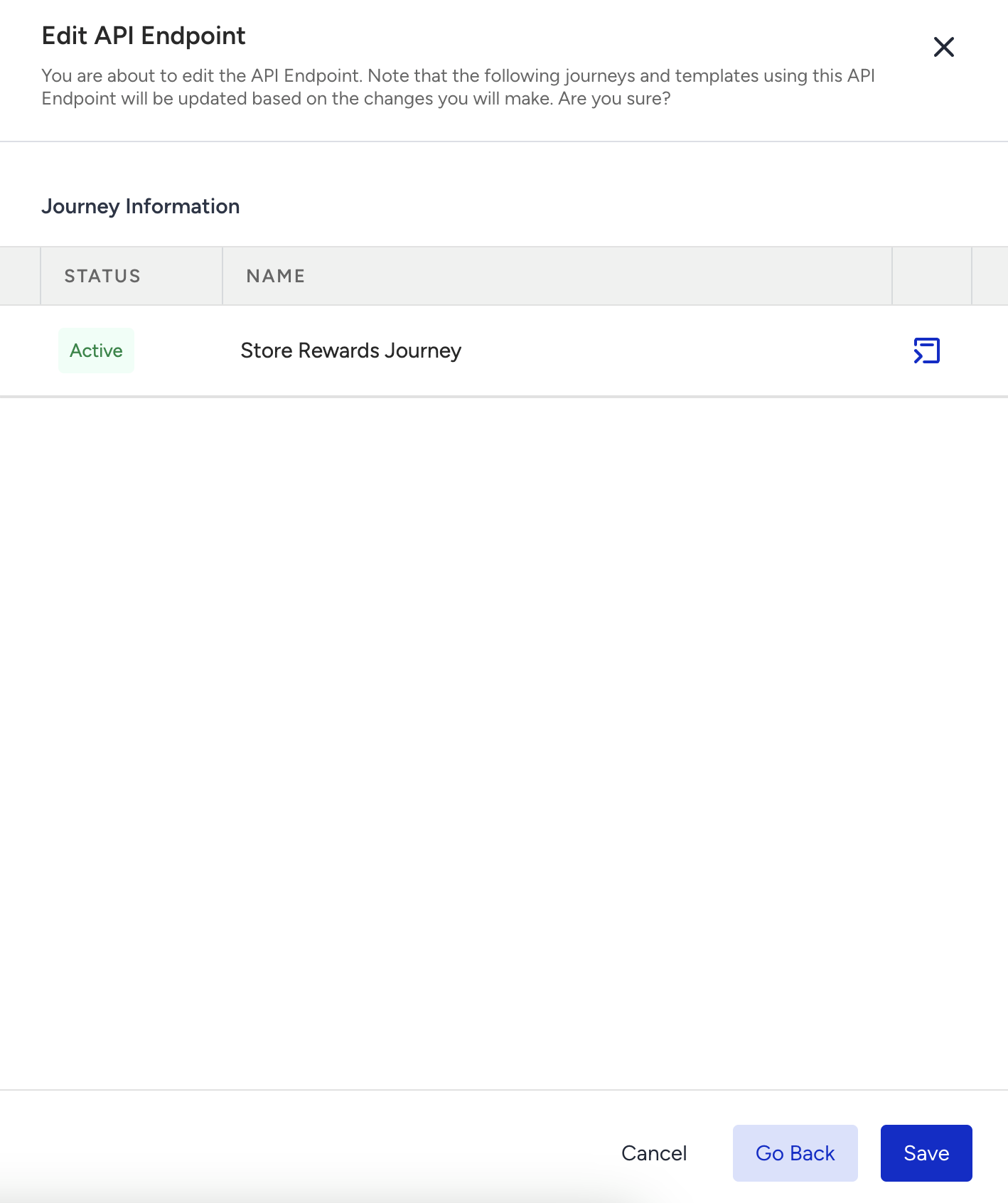
Delete endpoints
You can delete endpoints if you no longer use them. When you click the delete icon, you will see a list of journeys and templates that use the respective endpoint. When you click the Delete button, all running journeys (active, sunset, dry run, and test) will be updated to Passive status. If you have an important journey running on the respective endpoint, you can take action accordingly.
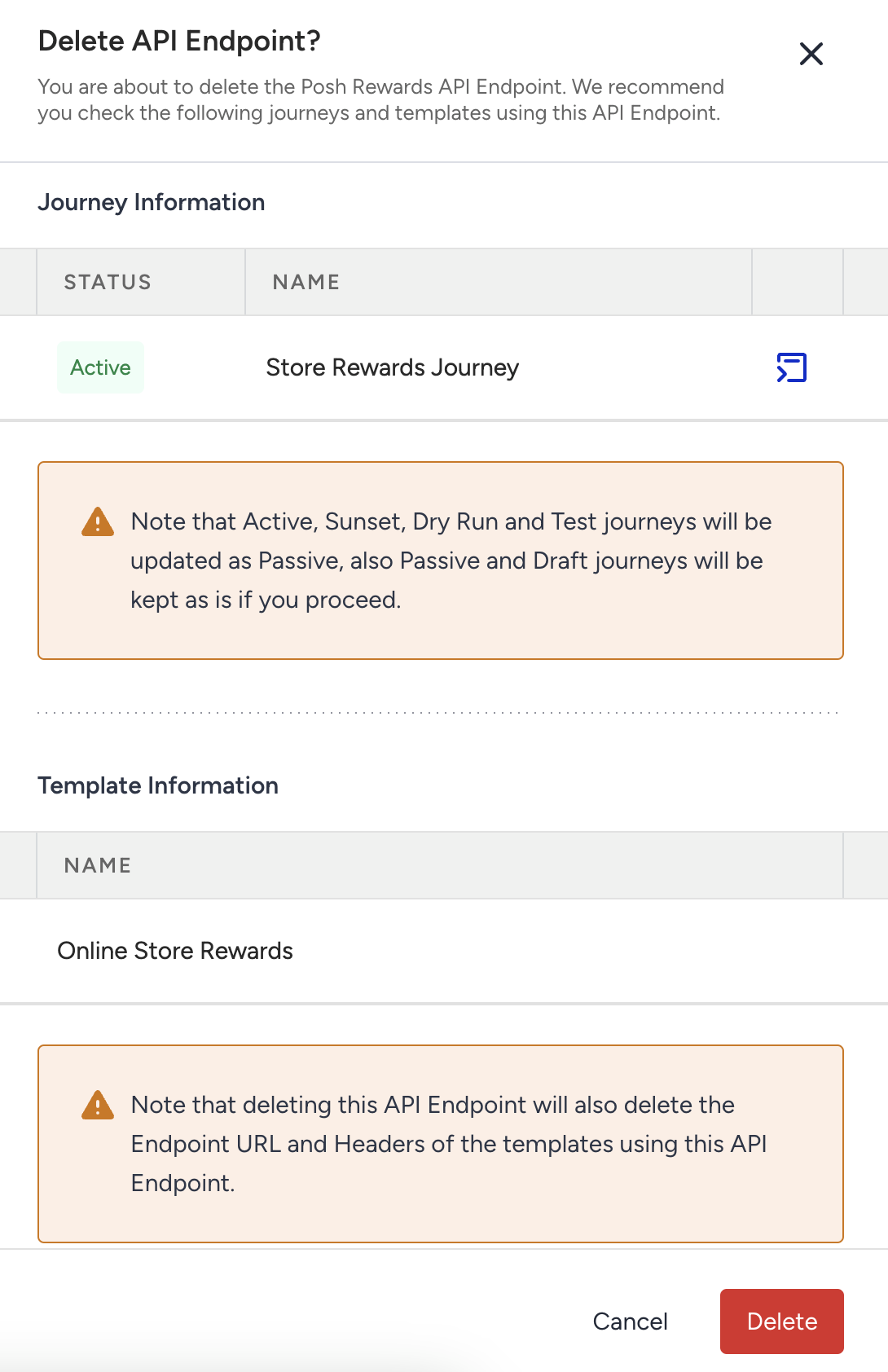
View endpoint details
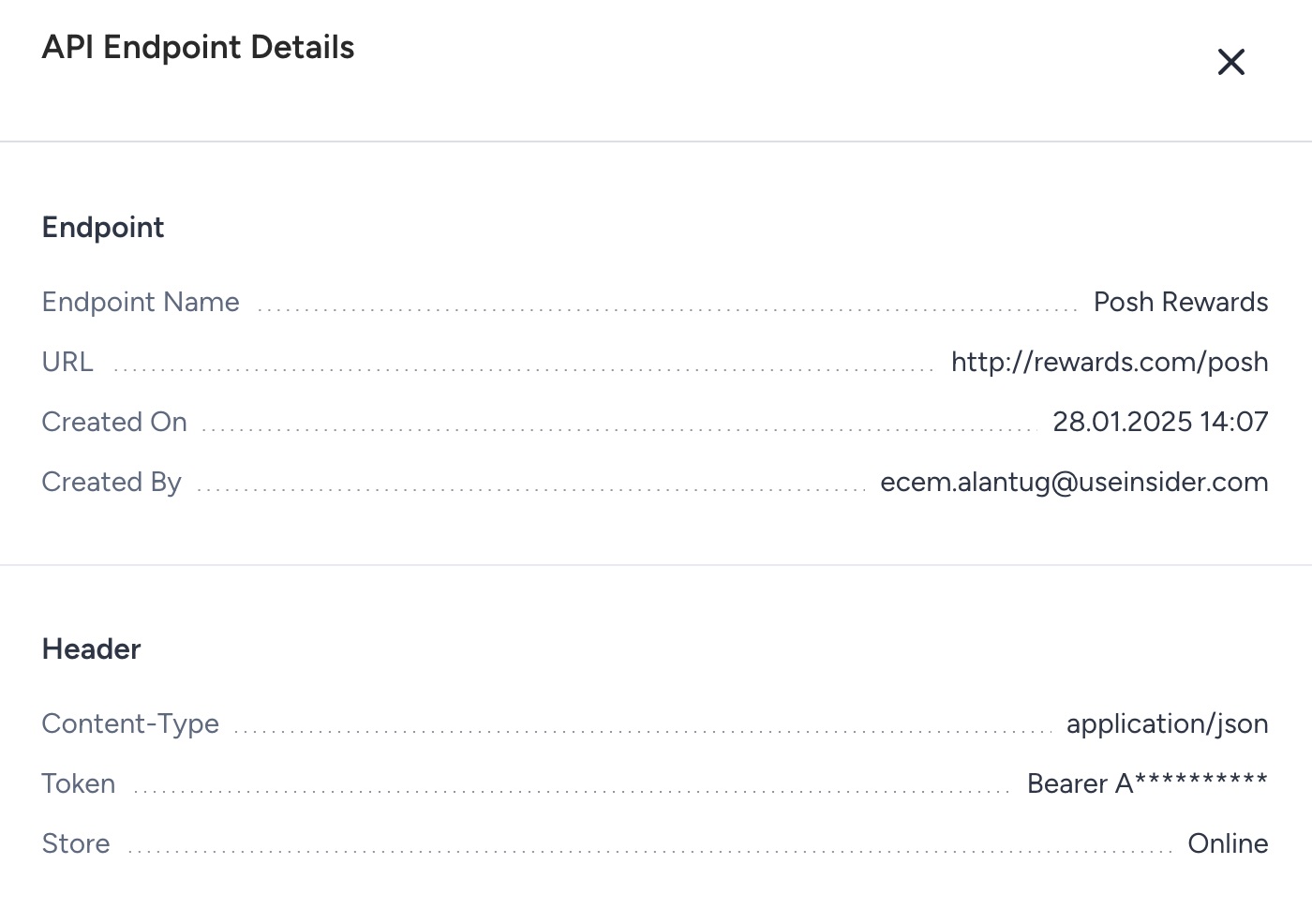
You can click the information (i) icon to view endpoint details such as the URL and headers. All user roles can view this information. Sensitive information will be masked.
Example Payloads
Here are some examples of API Call Elements for various third-party integrations.
The provided payloads are examples only, and you might need to adjust them to the requests you will be sending or the data you will be using for the respective API.
Check the respective vendor's website for details on requirements such as the endpoint, body, headers, and properties.
Insider does not guarantee the accuracy, completeness, or correct sequencing of the required properties in the payloads for the vendors displayed below.
All vendors, including those mentioned below, should provide the details required to fill out the fields in Call an API.
Should you fill in the required fields with the details provided by the respective vendor, run a test with the Test function on the Call an API step, and receive an unsuccessful response, please kindly contact the respective vendor.
Line
You can use Call an API for any current API you have, provided that you fulfill the conditions of a JSON POST request as specified in the Call an API steps above.
Below is an example for LINE, one of the existing payloads in Call an API, along with other payload examples.
You need to have a LINE Business Account to use this API request.
{
  "to": [
	"{{d_phone_number}}"
  ],
  "messages": [
	{
  	"type": "text",
  	"text": "Hello, user"
	},
	{
  	"type": "text",
  	"text": "May I help you?"
	}
 ]
}
See Line for further details.
Zendesk
{
  "ticket": {
	"subject": "<user.company_name> has cancelled their account",
	"comment": {
  	"body": "<event.feedback>"
	},
	"requester": {
  	"name": "{{user.firstname}} {{user.lastname}}",
  	"email": "{{user.email}}"
	}
  }
}
See Zendesk for further details.
Viber
{
   "receiver":"01234567890A=",
"min_api_version":1,
   "sender":{
      "name":"Jane Doe",
  	"avatar":"http://avatar.example.com"
   },
   "tracking_data":"tracking data",
   "type":"video",
   "media":"http://www.images.com/video.mp4",
   "thumbnail":"http://www.images.com/thumb.jpg",
   "size":10000,
   "duration":10
}
See Viber for further details.