Brand Settings is a feature that lets you define your brand identity once, such as colors, fonts, and logo, and have Design Agent automatically apply it to every campaign it generates. Instead of manually styling each template, your brand is built in from the start.
Once configured, Brand Settings become active immediately and apply to every template that Design Agent generates going forward.
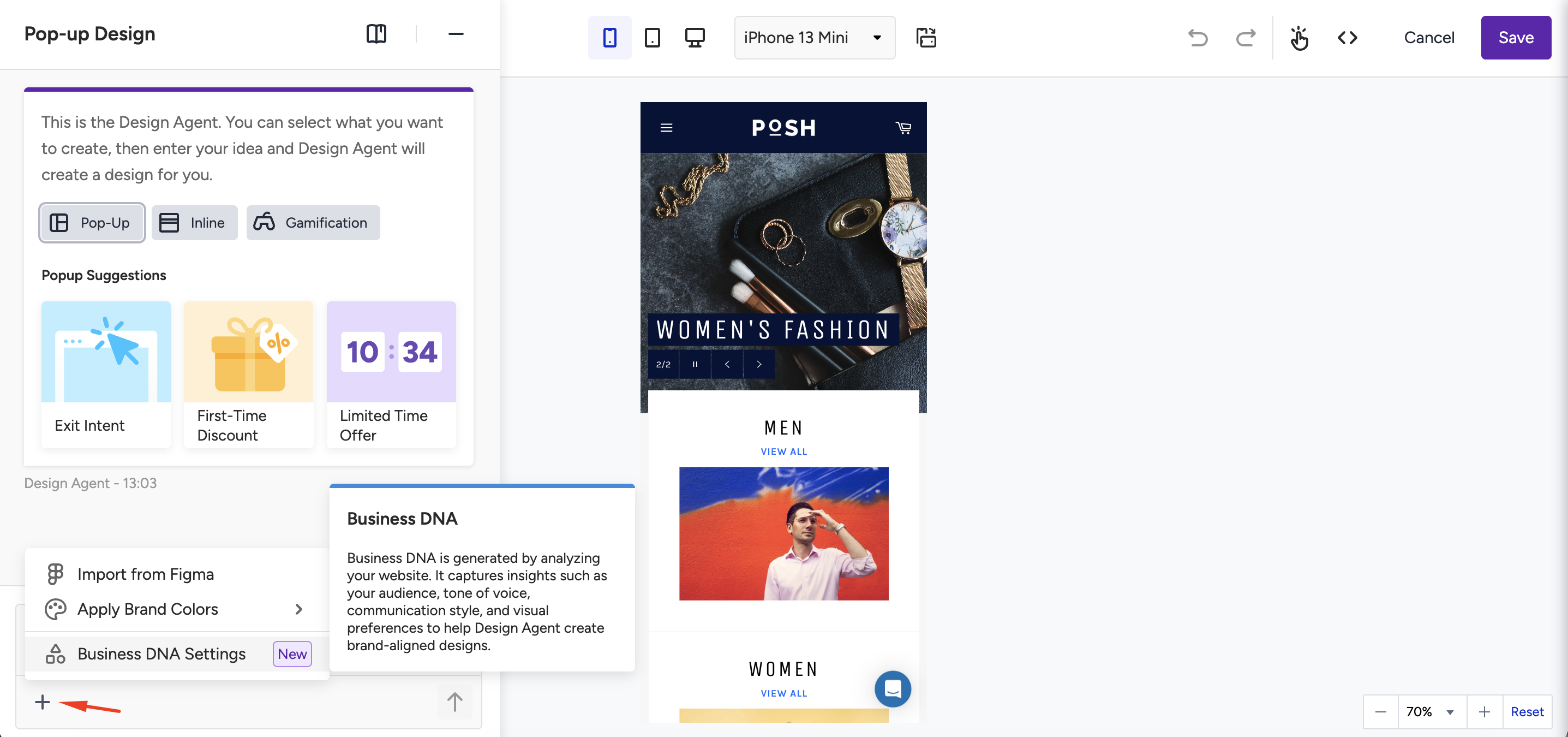
To use different color themes in the Design Agent editor, click Apply Brand Colors. You can return to Brand Settings at any time to adjust your colors.
Industry vertical:
Your industry vertical is pulled automatically from your onboarding settings and cannot be edited on the Brand Settings page.
What gets applied
Once Brand Settings are configured, Design Agent uses them in every generation:
Brand Input | How it is applied |
|---|---|
Primary color | Main CTA buttons, key interactive elements |
Logo | Placed in template header (top-left) or footer (center) |
Typography | Applied to all text elements; custom fonts require manual configuration |
Industry vertical | Design Agent uses industry-appropriate design patterns and language based on your configured vertical |
Override Brand Settings
Brand Settings are applied automatically at generation time, but you can override them at the element level after the design is produced. Overrides are useful when a specific campaign needs a different visual treatment without changing your global brand configuration.
Change colors, fonts, or logos on individual elements without affecting global Brand Settings.
Remove brand styling from specific elements if needed.
Overrides apply only to the current campaign. Global Brand Settings remain unchanged.
Best practices
Set your typography before generating. If your custom font is not loading in generated templates, the font may not be configured in Brand Settings. Add the font to the Typography section in Inone Settings > Branding Settings so Design Agent can load it correctly. Custom fonts used on your website are not picked up automatically.
Keep your neutral color light unless your brand uses dark backgrounds. White or near-white neutral colors produce cleaner template backgrounds. Use a dark neutral only if your brand style intentionally uses dark-mode layouts.
Update Brand Settings whenever your brand evolves. Changes apply to all new generations going forward. Existing published campaigns are not affected.
Limitations
Brand Settings apply only to new AI-generated templates. Changes to Branding Settings do not affect existing published campaigns.
A maximum of three accent colors and three fonts can be configured.
Brand Settings are shared across all Design Agent generations for your account. Element-level overrides apply only to individual campaigns.
The industry vertical is set during onboarding and cannot be edited from Brand Settings.