Each Ad Audience you create from a Dynamic Segment stays in sync with its ad platform until its Sync Expiration Date. This date is the last day Insider One syncs the Ad Audience with your segment.
To help you keep your Ad Audiences up to date, Insider One sends reminder emails before an Ad Audience expires and displays a warning in the InOne panel. This way, you can extend the expiration date before the sync stops. Once the date passes, the Ad Audience is displayed with the Expired status.
This guide covers the following topics:
How the Sync Expiration Date works
You can set the Sync Expiration Date in the Sync Expiration section when you create or edit an Ad Audience.
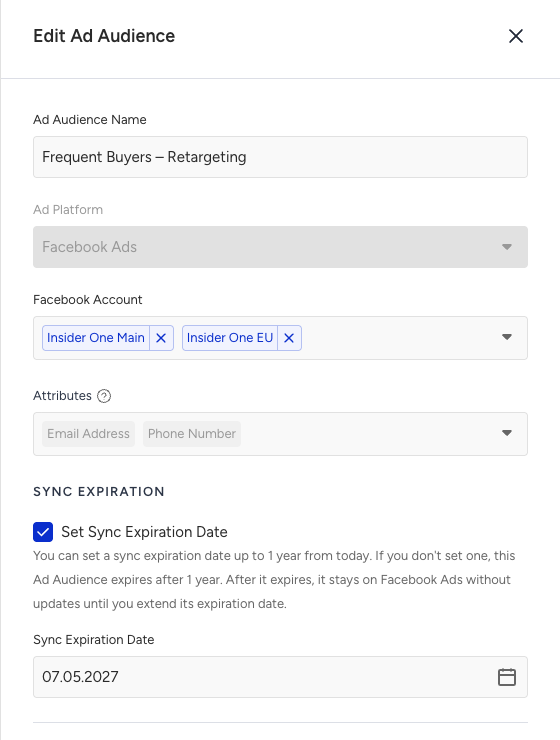
Keep the following in mind when you set the date:
You can select a date up to one year from today.
If you don't select a date, the Ad Audience expires one year after its creation date.
Insider One syncs the Ad Audience for the last time on its Sync Expiration Date. The Ad Audience expires the following day.
The InOne panel displays the Sync Expiration Date in your panel's date format and timezone.
An expired Ad Audience stays on the ad platform, and you can keep using it in your campaigns. However, Insider One no longer adds users to it or removes users from it.
Reminder emails
Insider One sends the following emails to the users who have the manage permission for Ad Audiences on your panel:
When it is sent | |
|---|---|
Ad Audience Expiring in 30 Days | 30 days before the Ad Audience expires |
Ad Audience Expiring in 7 Days | Seven days before the Ad Audience expires |
Ad Audience Expired | On the day the Ad Audience expires |
Each email includes the Ad Audience name, segment, ad platform, ad accounts, and expiration date. Click Visit Dynamic Segments in the email to go to the Dynamic Segments listing page.
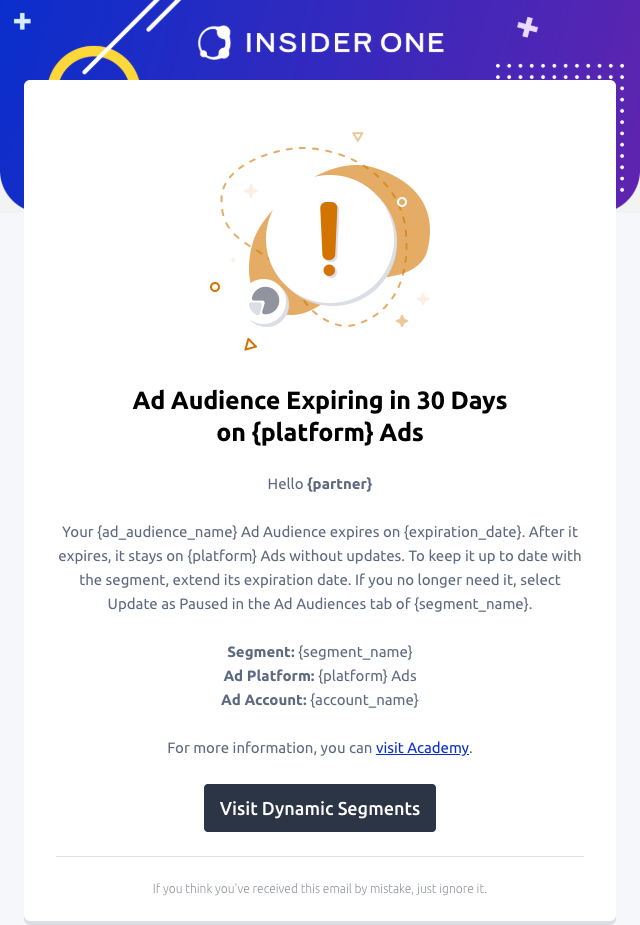
If more than one Ad Audience expires on the same day, Insider One sends a single email that lists all of them, grouped by segment. This email can include Ad Audiences from different ad platforms.
Paused and deleted Ad Audiences don't receive reminder emails. If you change the Sync Expiration Date after a reminder, the next emails follow the new date. If the new date is more than 30 days away, you receive the next email 30 days before it.
Ad Audiences that expire within 30 days
When an Ad Audience has 30 days or fewer left until its Sync Expiration Date, the InOne panel displays a warning in the following places.
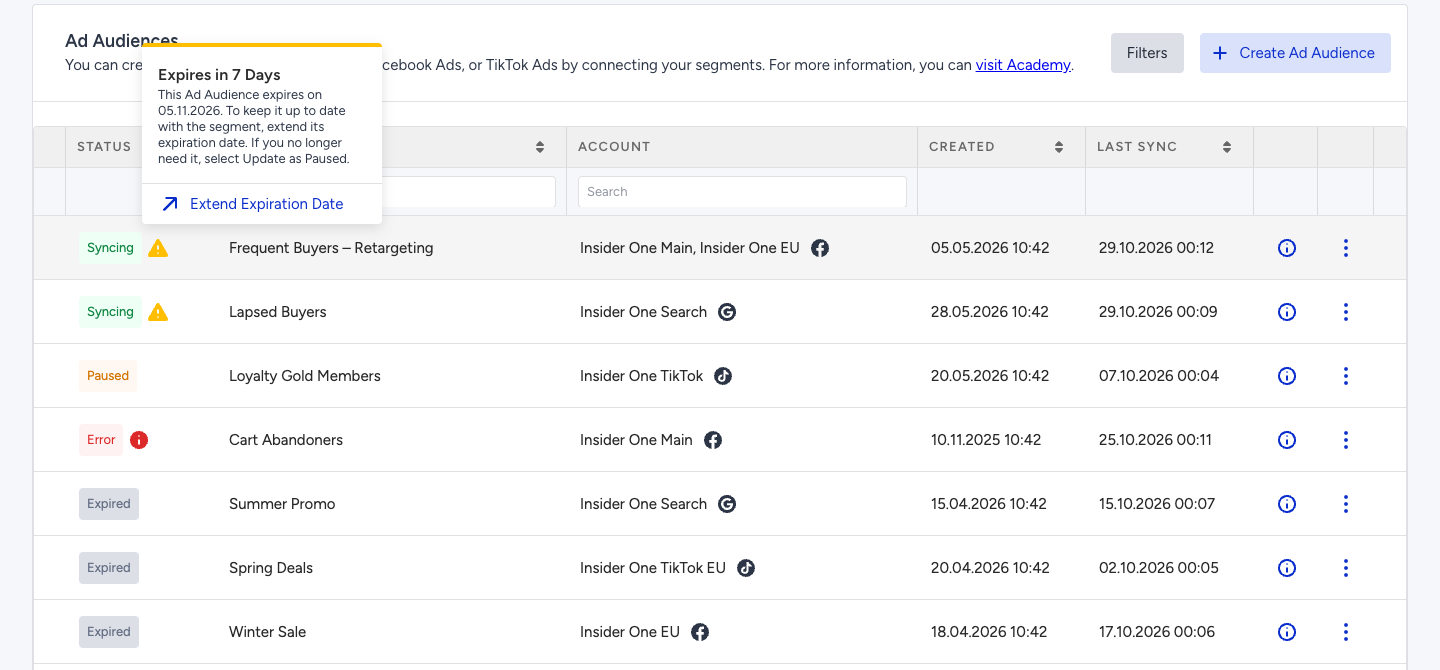
Ad Audiences tab
A warning icon appears next to the sync status of the Ad Audience. Hover over the icon to see the expiration date, then click Extend Expiration Date to open the Edit Ad Audience drawer.
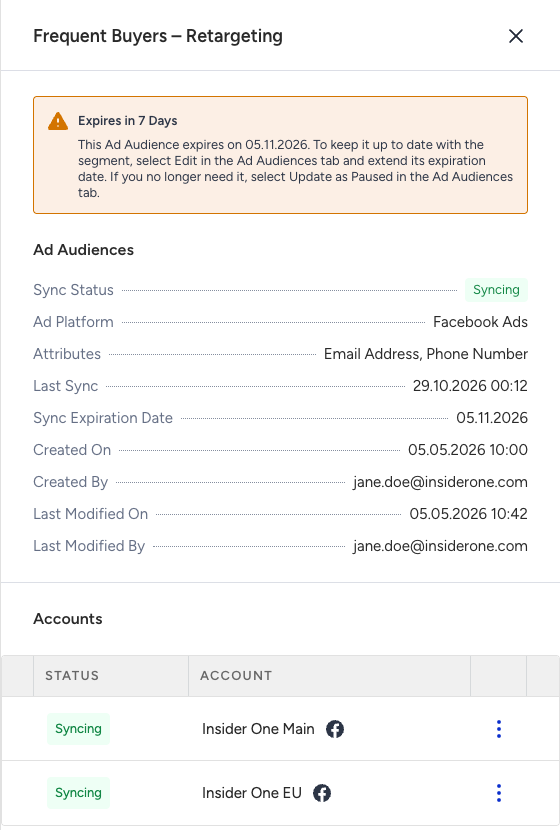
Ad Audience details
A warning message at the top of the drawer shows the number of days left and the expiration date.
Edit Ad Audience
A warning message in the Sync Expiration section shows the number of days left and the expiration date.
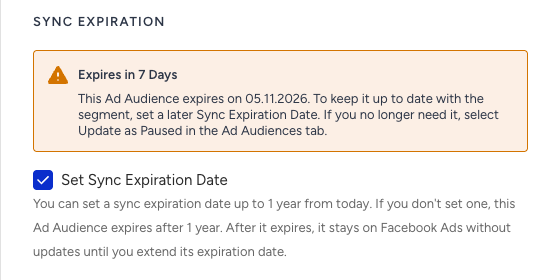
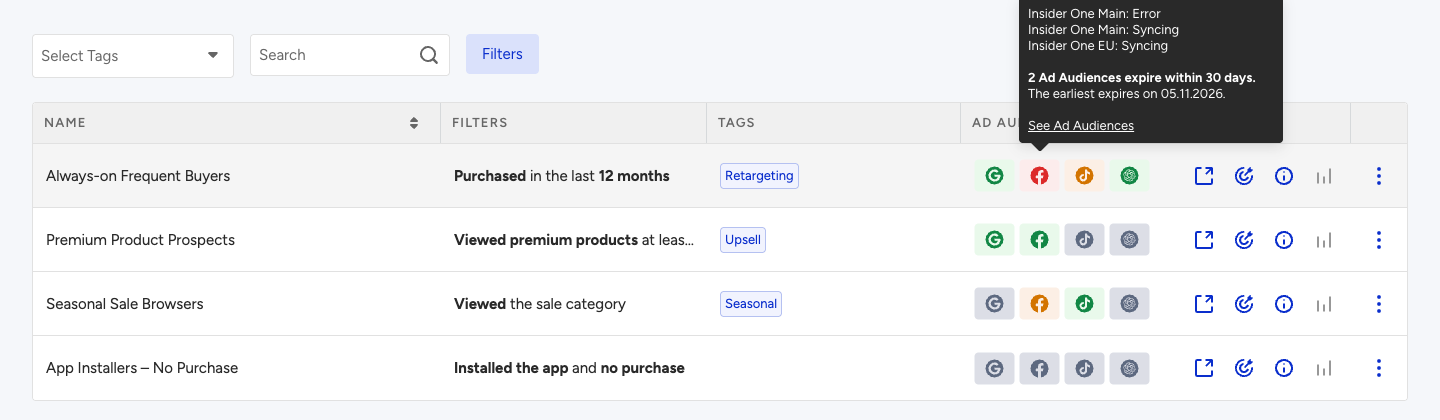
Dynamic Segments listing page
Hover over an ad platform icon in the Ad Audiences column to see how many Ad Audiences on that platform expire within 30 days, along with the earliest expiration date.
The Ad Audiences tab doesn't show the warning icon for paused Ad Audiences or Ad Audiences with an error. For an Ad Audience with an error, the tab shows the Errors Found icon instead. In both cases, the Ad Audience details and Edit Ad Audience drawers still show the expiration date.
Expired Ad Audiences
On the day after its Sync Expiration Date, the status of the Ad Audience changes to Expired. You can see this status in the following places:
The Ad Audiences tab of the segment
The Ad Audience details drawer, for the Ad Audience and each of its accounts
The Dynamic Segments listing page, as a grey ad platform icon (hover over the icon to see which accounts have expired)
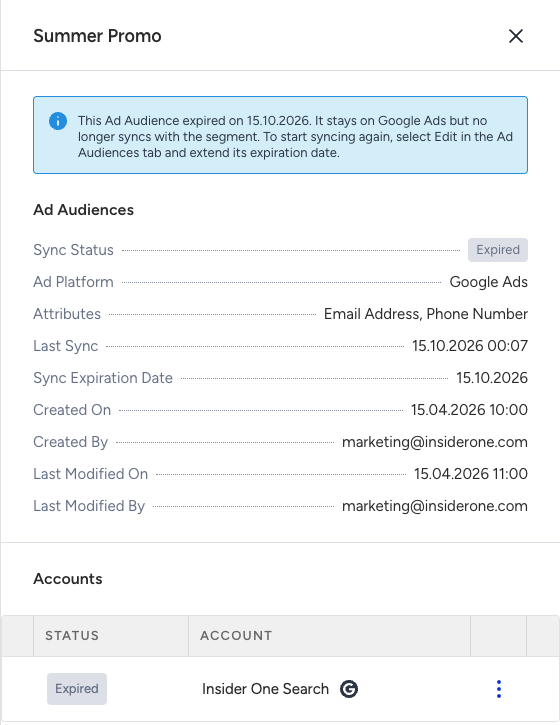
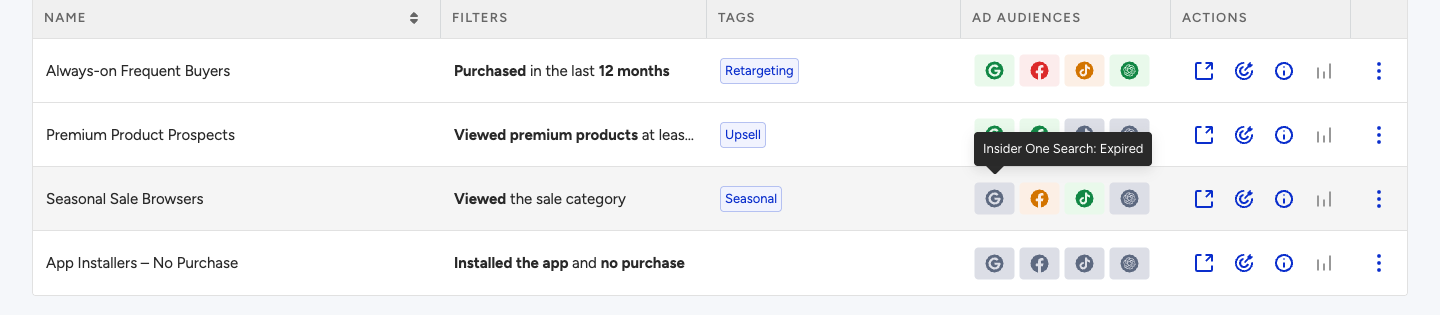
The Expired status replaces the previous status of the Ad Audience. An Ad Audience that had an error or was paused before it expired is also displayed as Expired.
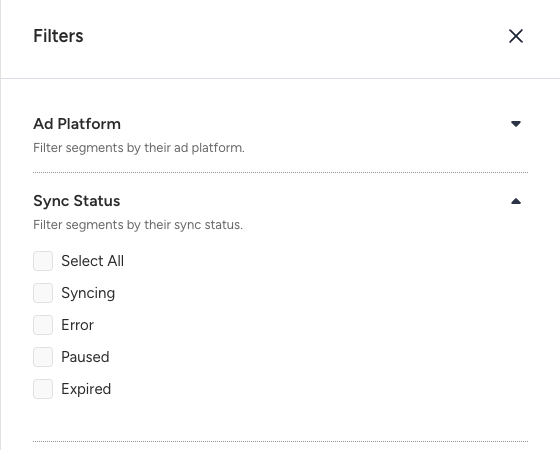
To list your expired Ad Audiences, open the Filters drawer in the Ad Audiences tab or on the Dynamic Segments listing page, then select Expired under Sync Status. On the Dynamic Segments listing page, this filter lists the segments that have at least one expired Ad Audience.
Extend the Sync Expiration Date
You can extend the Sync Expiration Date of an Ad Audience at any time, even after it expires.
Navigate to Audience > Segments > Dynamic Segments and open the segment.
Go to the Ad Audiences tab.
Click the three-dot menu next to the Ad Audience and select Edit. If the Ad Audience expires within 30 days, you can also hover over the warning icon and click Extend Expiration Date.
In the Sync Expiration section, select a new Sync Expiration Date. You can select any date from tomorrow up to one year from today.
Click Update.
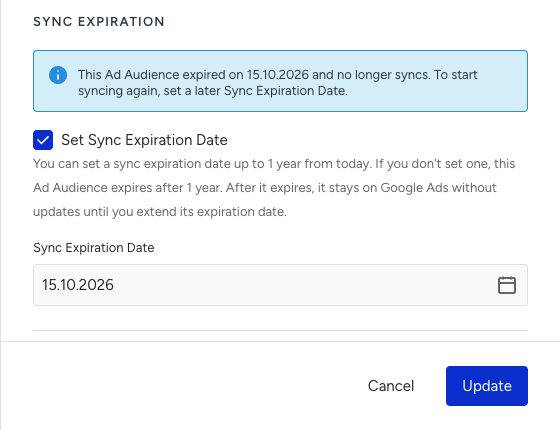
The new date applies immediately:
If the new date is more than 30 days away, the warning no longer appears.
An expired Ad Audience starts syncing again, and its status changes to Syncing. This also applies to an Ad Audience that was paused before it expired.
If an account of the Ad Audience had an error before it expired, its status changes to Error. Resolve the error to start syncing again.
Refer to Common Errors and Required Actions for Remarketing Ad Audiences to resolve sync errors.
Stop an Ad Audience you no longer need
If you no longer need an Ad Audience, you have the following options:
Pause it: To stop the sync before the Sync Expiration Date, click the three-dot menu next to the Ad Audience and select Update as Paused. Paused Ad Audiences don't receive reminder emails.
Let it expire: If you take no action, the Ad Audience expires after its Sync Expiration Date and stays on the ad platform without updates.
Delete it: To remove the Ad Audience from Insider One, click the three-dot menu next to it and select Delete. Deleting an Ad Audience in Insider One doesn't delete it from the ad platform.
Things to know
Insider One sends reminders for both a date you select and the default one-year date.
Reminder dates follow your panel's timezone.
The Visit Dynamic Segments button in the email opens the Dynamic Segments listing page, not a specific Ad Audience.