Google Ads Customer Match allows you to target your existing users with personalized ads across Google Products. By sending your Dynamic Segments to Google Ads as an Ad Audience, you can remarket to users based on their behavior, attributes, and past interactions on your platform.
Google Ads Audience Targeting
Google Ads audience targeting enables you to reach existing users across Google’s ecosystem by matching user identifiers and attributes to Google accounts. This allows you to engage audiences through Search, Display Network, Shopping, YouTube, and Gmail, making it an effective way to re-engage users who may no longer be active on your website or mobile app.
Insider One allows you to create and synchronize Google Ads audiences using Dynamic Segments built from rich, first-party data, including:
Behavioral events (for example, product views, add to cart, purchases)
User attributes (such as gender, country, or loyalty tier)
Real-time interactions across your digital properties
These capabilities help you activate highly targeted, intent-driven audiences directly in Google Ads.
In addition to Dynamic Segments, Architect also supports sending users to Google Ads at specific steps in a journey, enabling more precise, time-sensitive audience activation. For details, refer to the Architect documentation.
With Insider One, you can target all users or specific segments based on behavioral triggers, ensuring your Google Ads campaigns reach the most relevant audiences at the right time.
How Google Ads Remarketing works
Insider One uses the Google Ads API to securely send user data to Google and automatically keep audiences synchronized.
When creating a Google Ads Ad Audience, you select which user identifiers and attributes will be shared for matching.
The following identifiers are mandatory and automatically selected:
Email address
Phone number
In addition to these mandatory identifiers, you can also select user attributes such as Name, Surname, City, or Country to improve matching quality. These optional attributes are listed in the Attributes section and can be enabled as needed.
When sending this data, Insider One automatically applies SHA-256 hashing to all identifiers before transmitting them to Google, ensuring secure and compliant processing.
Audience updates and synchronization
Once the audience is created:
Users who enter the Dynamic Segment are added to the Google Ads audience
Users who leave the segment are removed
Updates occur automatically and do not require users to revisit your website or app
This ensures your Google Ads audiences always remain aligned with the latest segment definitions.
What you need to get started
Before configuring Google Ads audience targeting, both your Insider One setup and Google Ads account must meet Google Customer Match eligibility requirements.
1. Eligible Google Ads account
Your Google Ads account must meet Google’s Customer Match policy requirements, including:
A strong history of policy compliance
A reliable payment history
At least 90 days of active Google Ads history
At least USD 50,000 in total lifetime spend
These conditions are enforced by Google to enable Customer Match functionality. Refer to Google’s official policy documentation for the most up-to-date requirements.
2. Required access level in Google Ads
To connect a Google Ads account in Insider One:
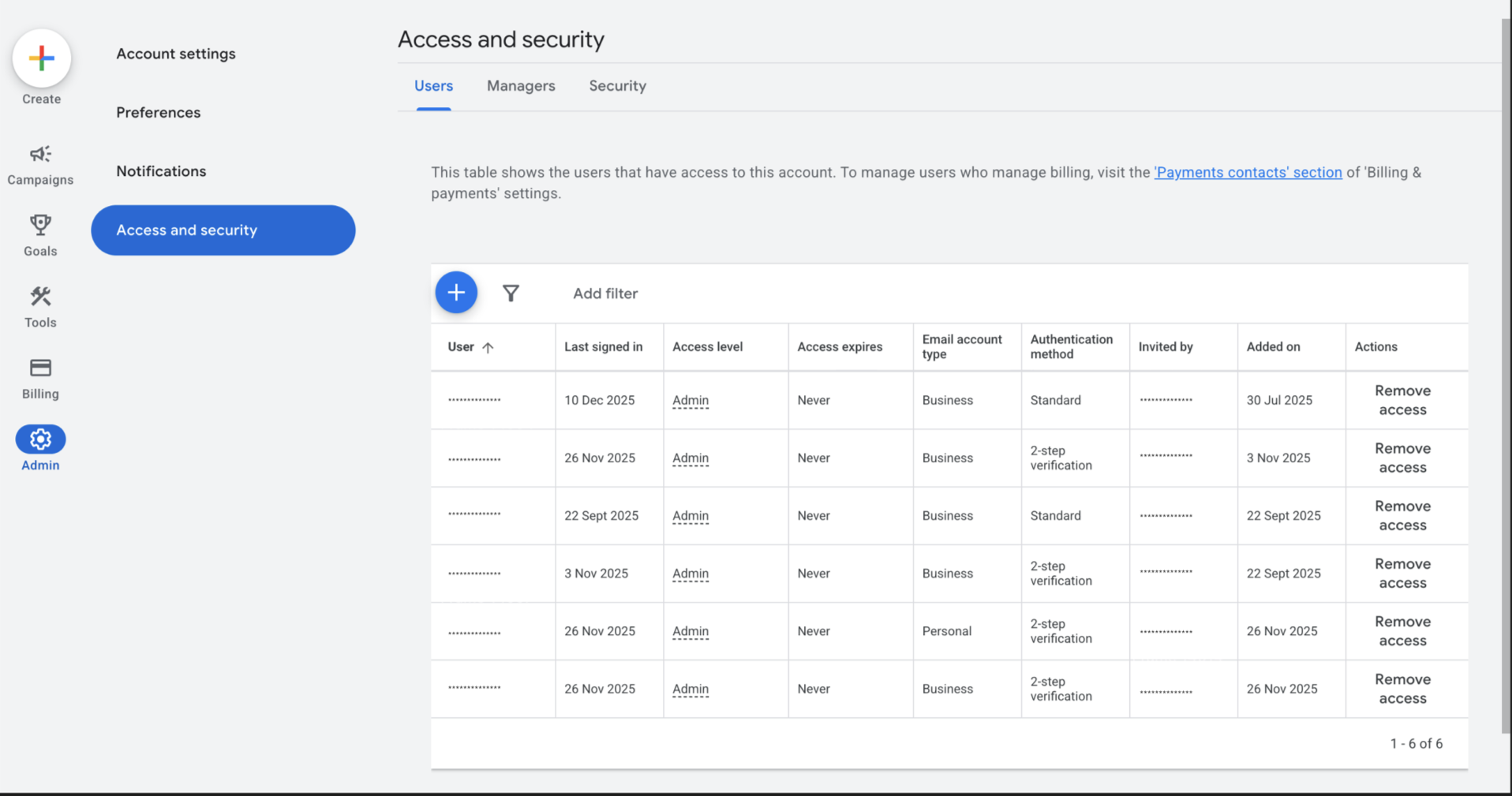
You must log in using a Google user with Admin access.
The Google Ads account must show Admin access under Tools & Settings > Setup > Access and Security.
If you do not have Admin access, the account will not appear in the integration list.
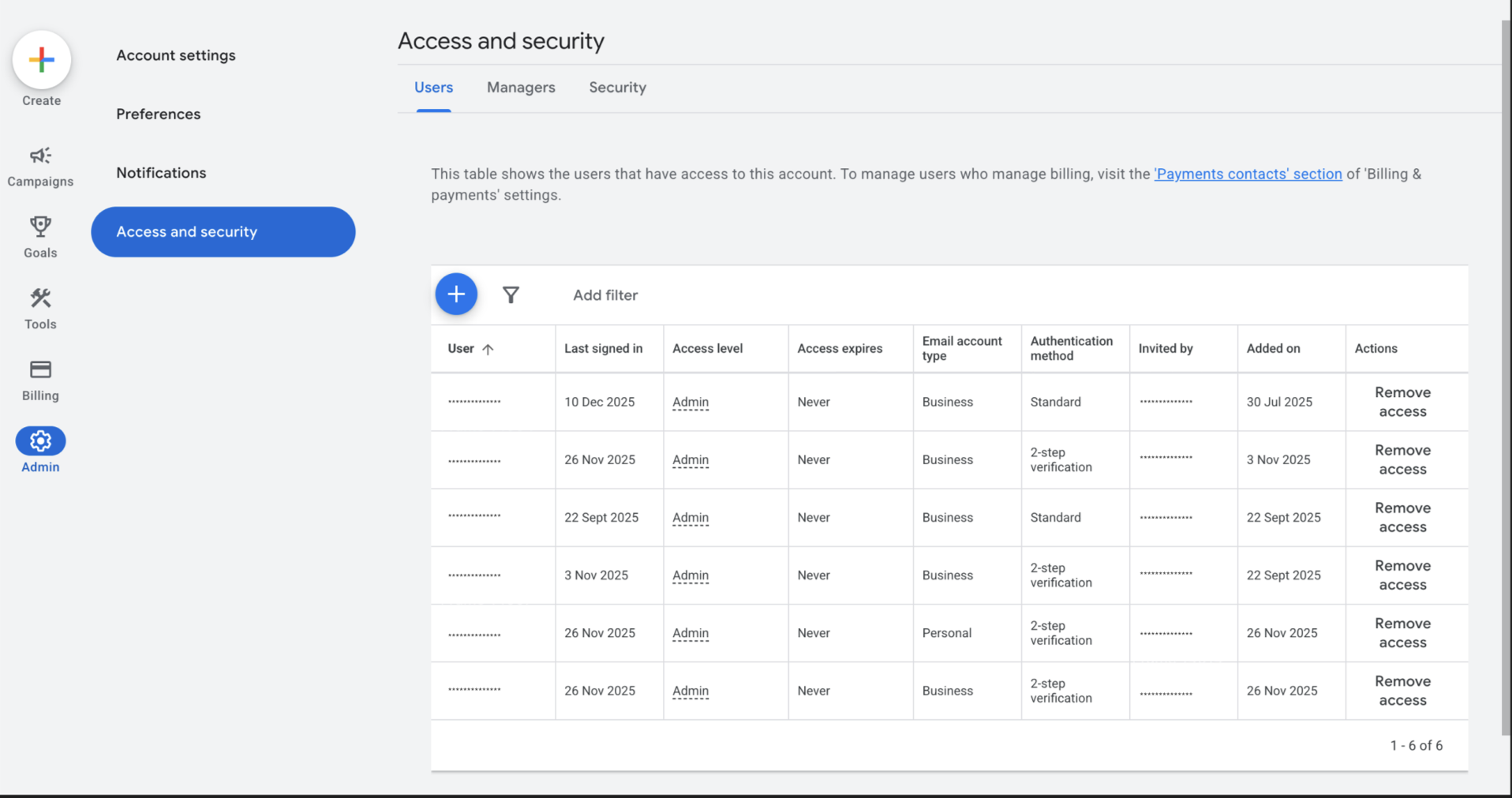
Admin access alone is not sufficient. The account must also be added by another Admin user for successful audience synchronization.
3. Required permissions during Google login
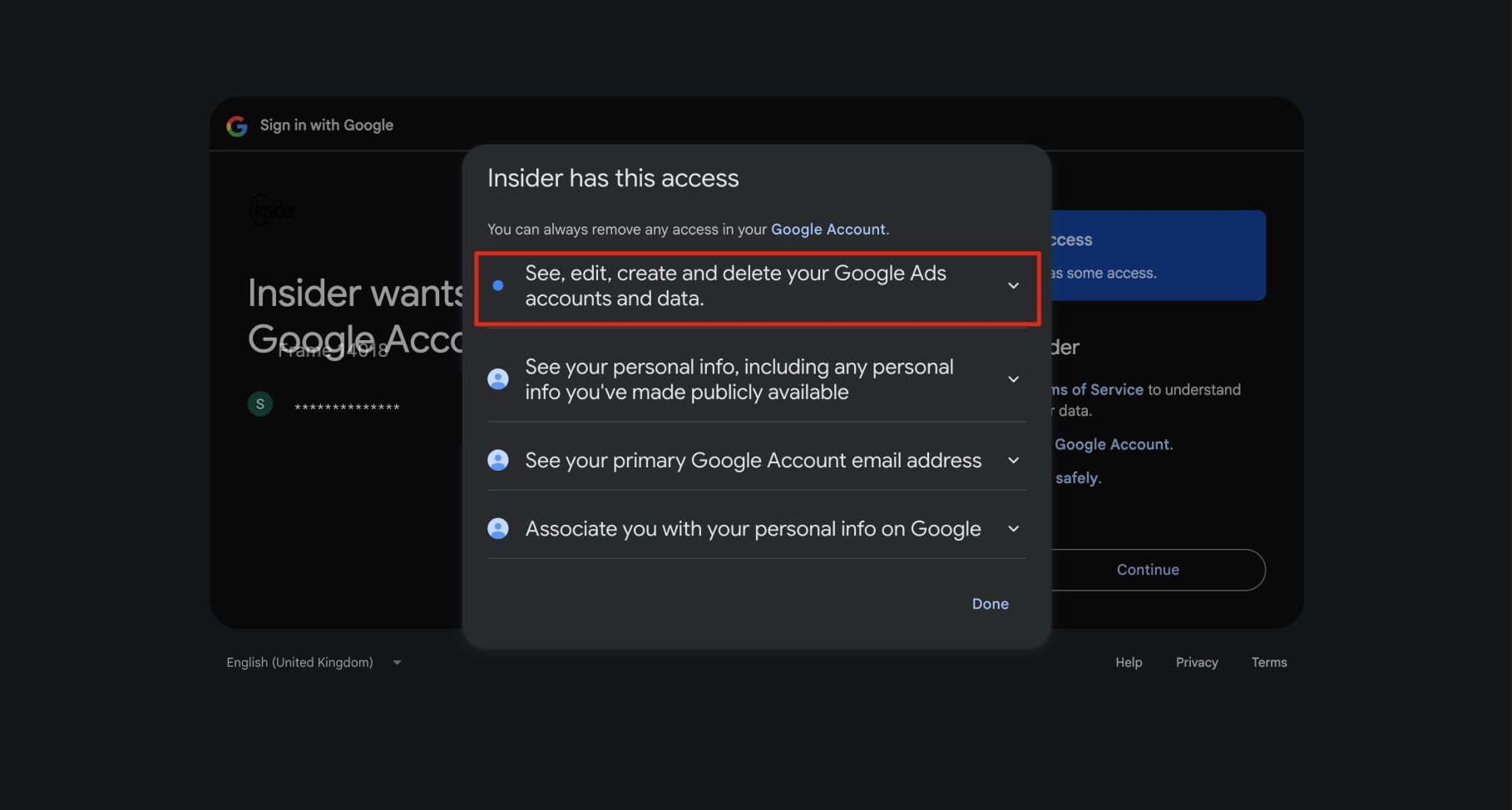
When connecting your Google account, you must approve the permissions shown in the authentication modal, including:
Associating your Google account data
Viewing basic profile information
Viewing your primary Google Account email
Viewing, editing, creating, and deleting Google Ads accounts and data
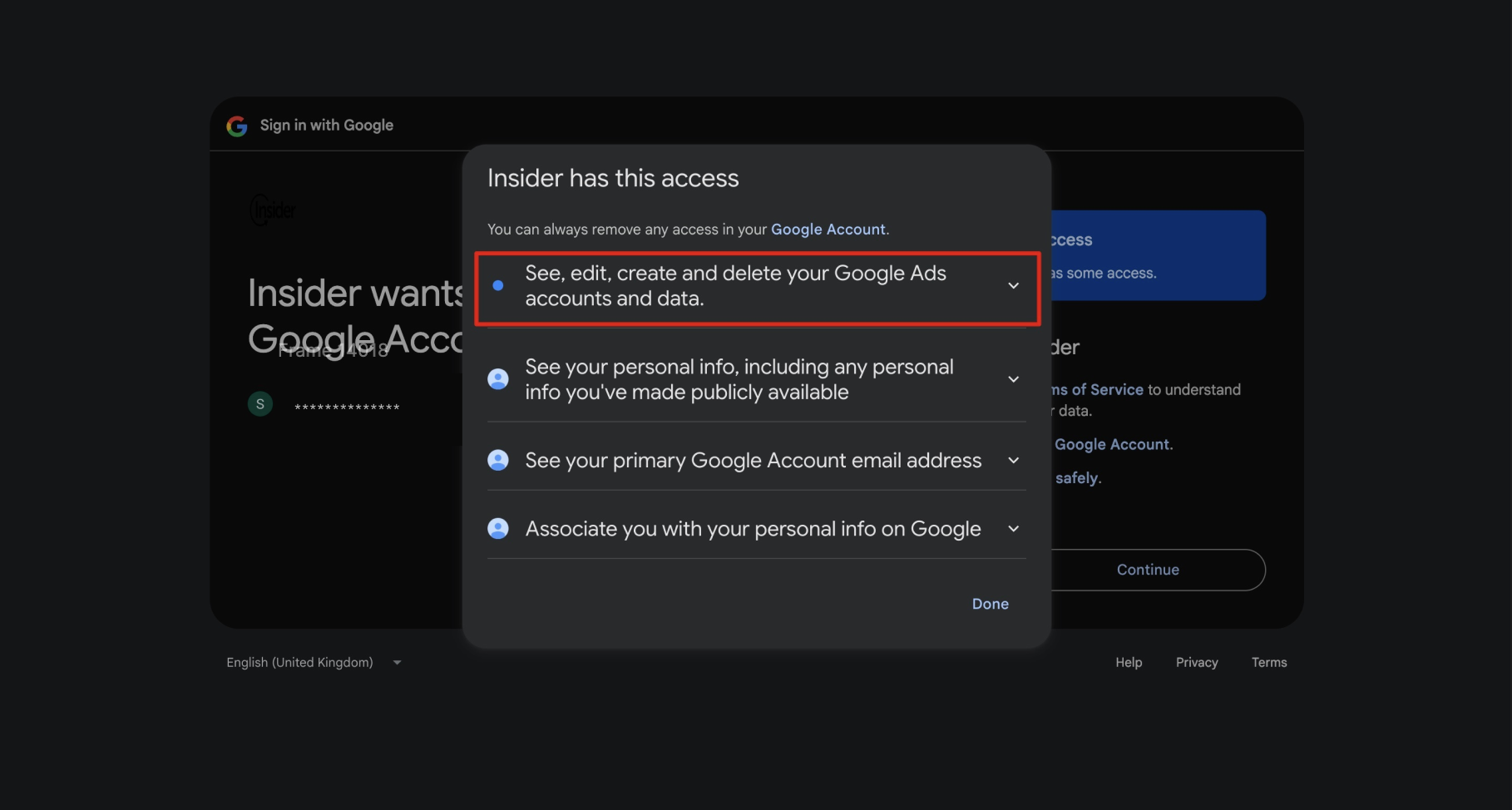
The first three permissions are required simply to authenticate your Google account.
The final permission is mandatory for Insider One to:
Create and update Google Ads audiences
Match users via the Google Ads API
Sync audience membership changes
Without granting this permission, Google Ads audience targeting will not function.
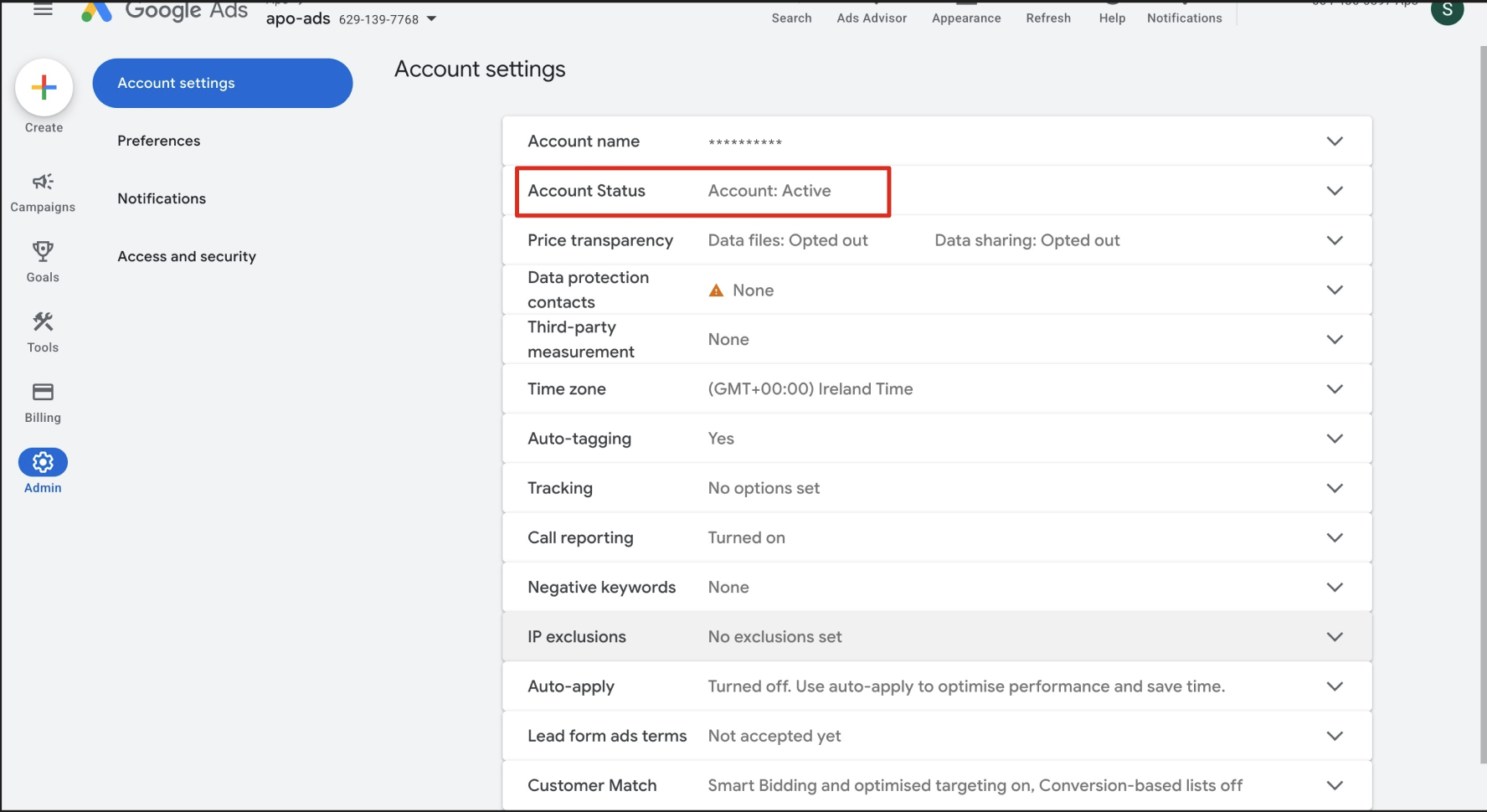
4. Active Google Ads account status
Your Google Ads account must be:
Active (not paused, suspended, or canceled)
Properly linked to your Google user
Able to serve ads and create audiences
If the account is suspended or inactive, Google will block Customer Match and audience targeting features.
Once the connection is successfully completed, your Google Ads account will appear in the integration table, and you can begin syncing Dynamic Segments as Google Ads audiences.
Connect your Google Ads account to Insider One
Before you can send a Dynamic Segment to Google Ads, you must first establish the connection between your Google account and Insider One’s InOne Panel.
Navigate to Google Ads Integration: Go to Components > Integrations > External Integrations > Google Ads.
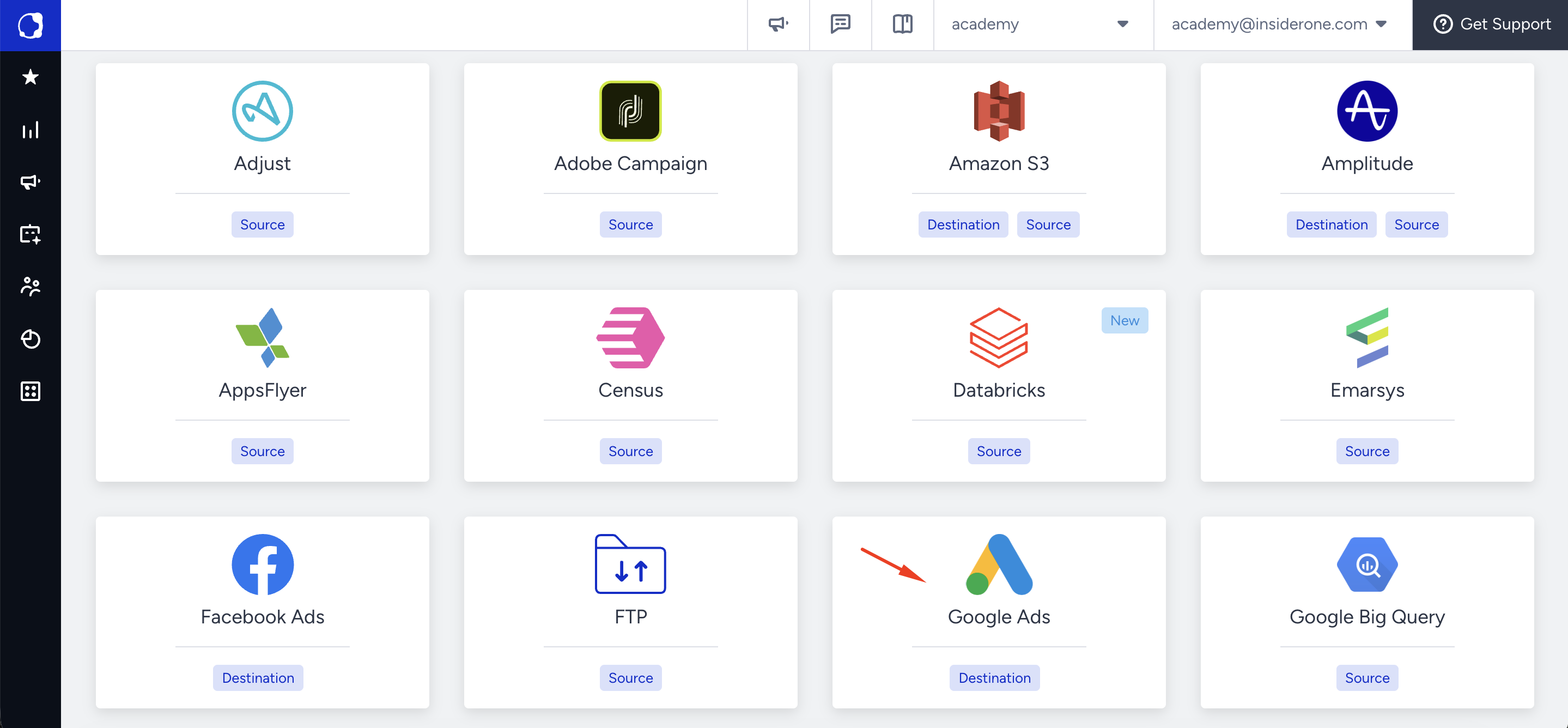
Sign in with Google: Click Sign in with Google and authenticate with the Google account that has access to your Google Ads account(s).
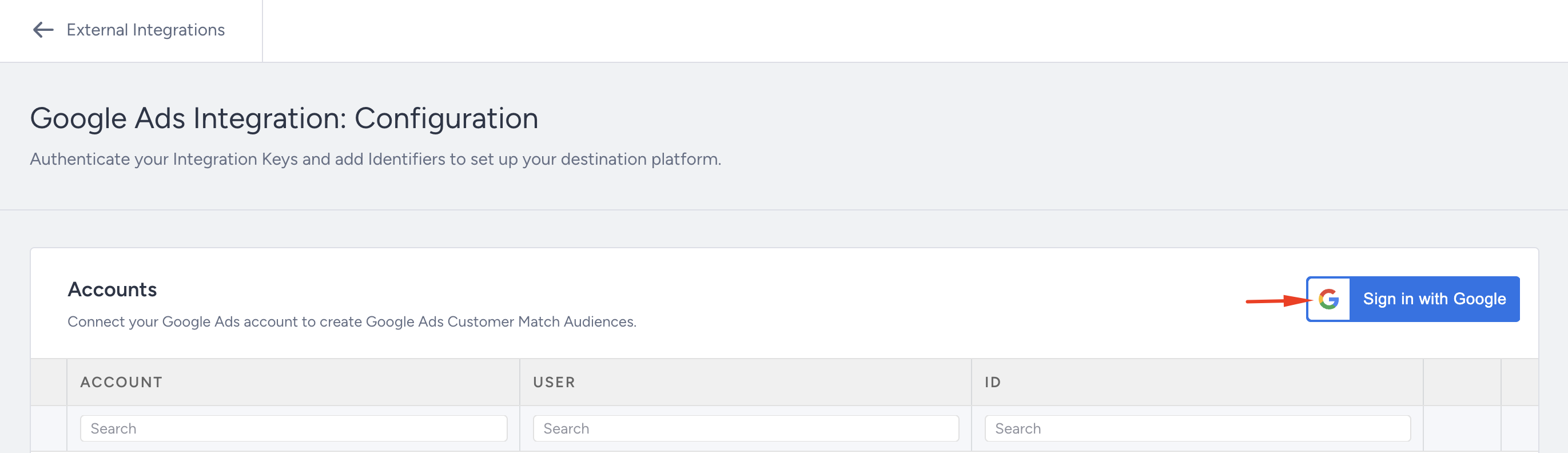
Once authenticated, Insider One will request permissions to manage and update your Google Ads audiences through the Google Ads API.
These permissions must be accepted to enable audience syncing.
Add Your Google Ads Account: After signing in, you will see a table listing the Google Ads accounts linked to your Google user.

Select the Google Ads account you want to connect.
Confirm the Legal Acknowledgment Modal by clicking I Understand.
You will then see your available Google Ads accounts (and sub-accounts). Choose the account you want Insider One to send audiences to.
Ensure Correct Permissions: To sync segments successfully:
You must have Admin access in the selected Google Ads account.
The Google Ads account must also be added and authorized by another Admin user — Admin access alone is not enough for syncing.
You can verify your access under Tools & Settings > Setup > Access and Security.
Once added, your connected Google Ads account will appear in the table.
Send your Dynamic Segment to Google Ads
You can send your Dynamic Segment to Google Ads by creating a Google Ads Ad Audience. Follow the steps below to set up the audience and start syncing users.
Go to Dynamic Segments: Navigate to Audience > Segments > Dynamic Segments and locate the segment you want to send.
Click the Create Ad Audience icon under the Actions column.
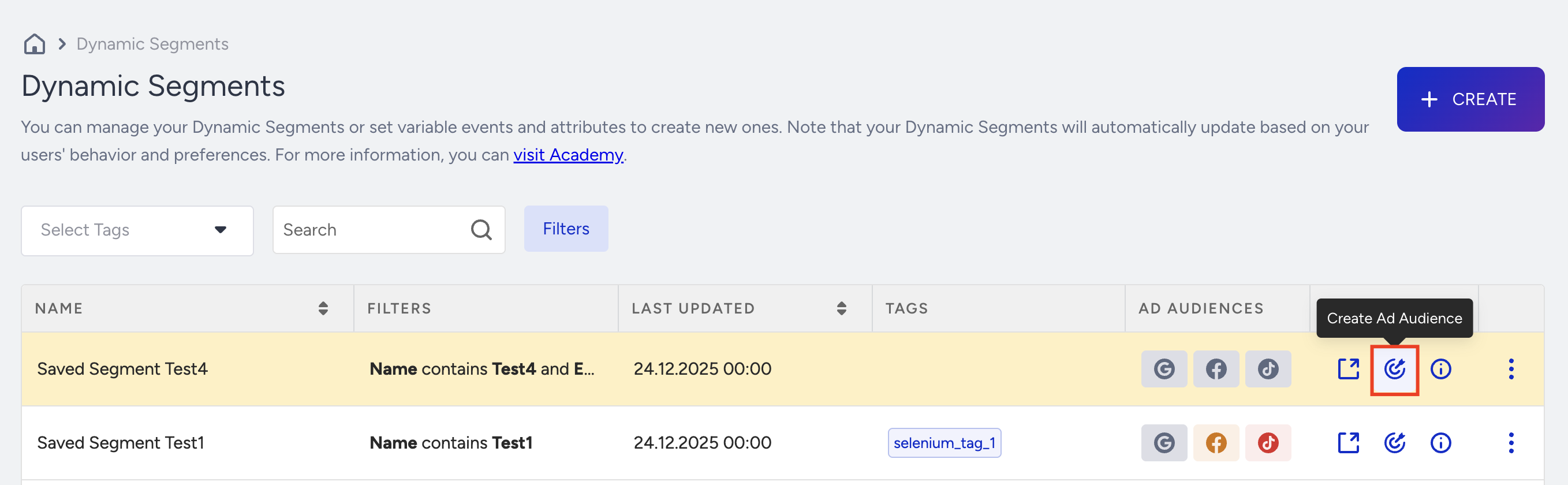
Configure the Ad Audience: On the Create Ad Audience drawer:
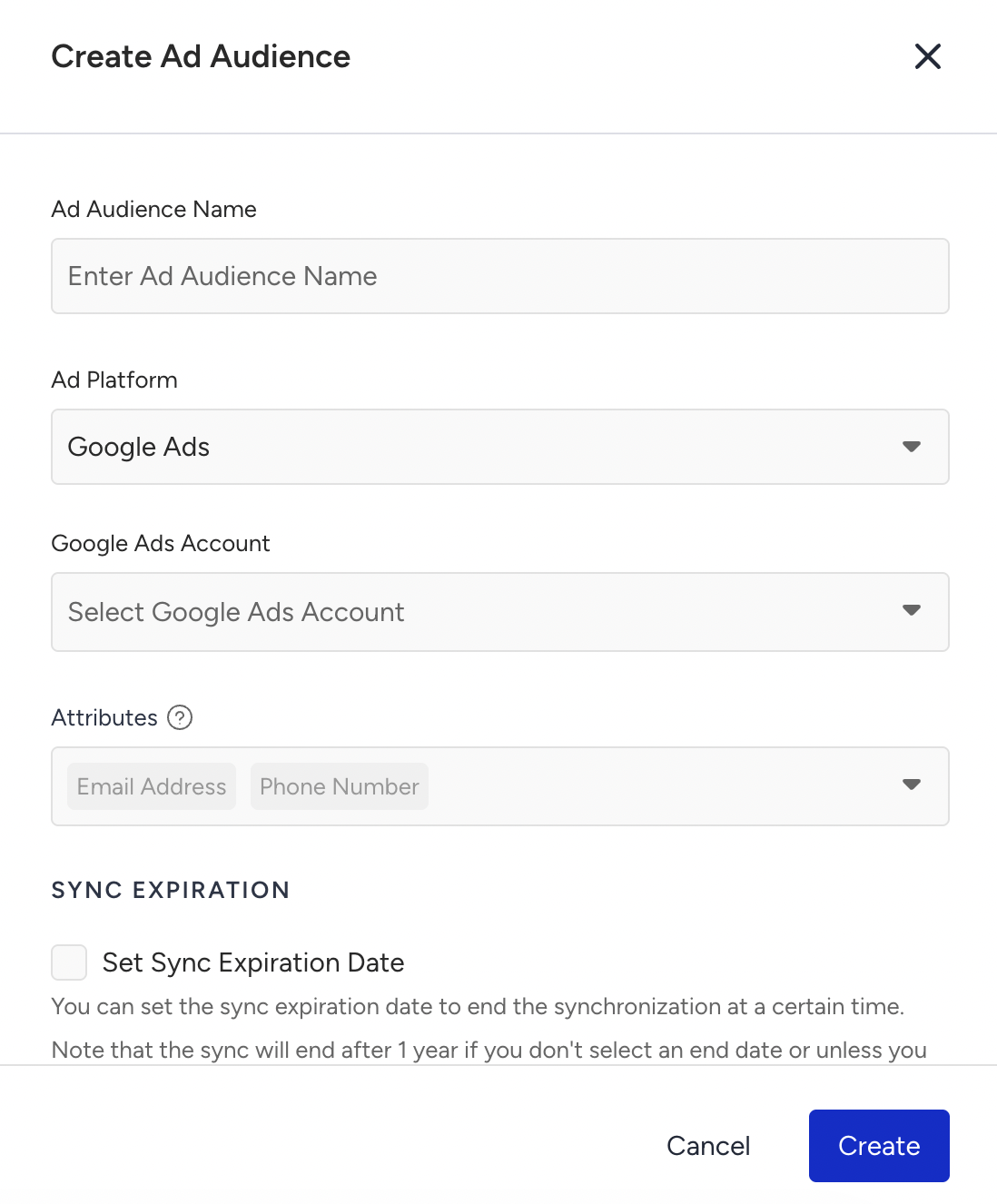
Enter an Ad Audience Name.
Select Google Ads as the Ad Platform.
Choose your Google Ads Account.
Attributes
Review mandatory identifiers:
Email Address (required)
Phone Number (required)
These are preselected and cannot be removed.
(Optional) Select additional user attributes (e.g., Name, City, Country) to improve Google’s matching accuracy.
Sync Settings
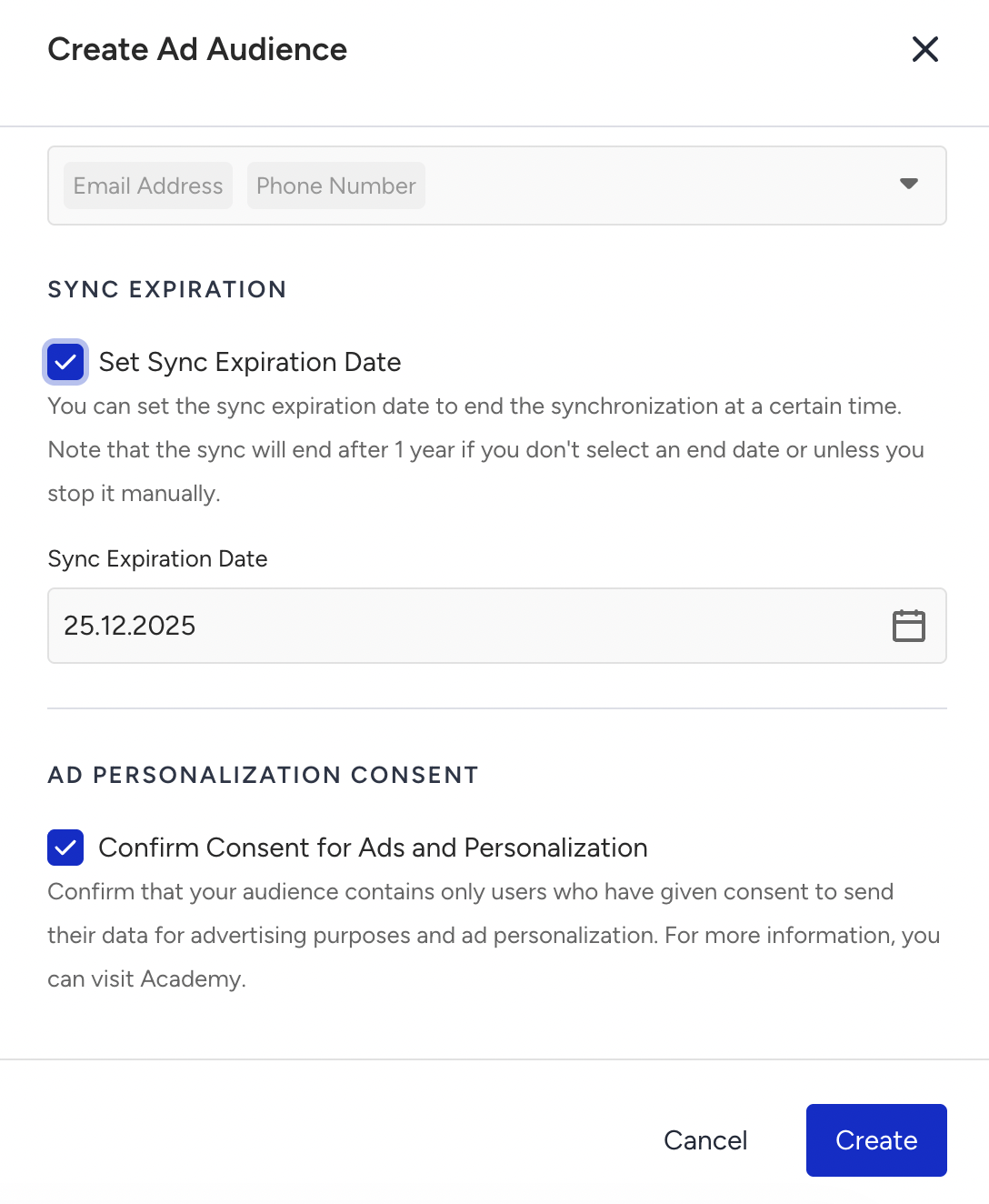
(Optional) Set a Sync Expiration Date.
Sync stops automatically on the selected date.
If no date is selected, syncing continues for 1 year unless stopped manually.
Consent
Confirm Consent for Ads and Personalization.
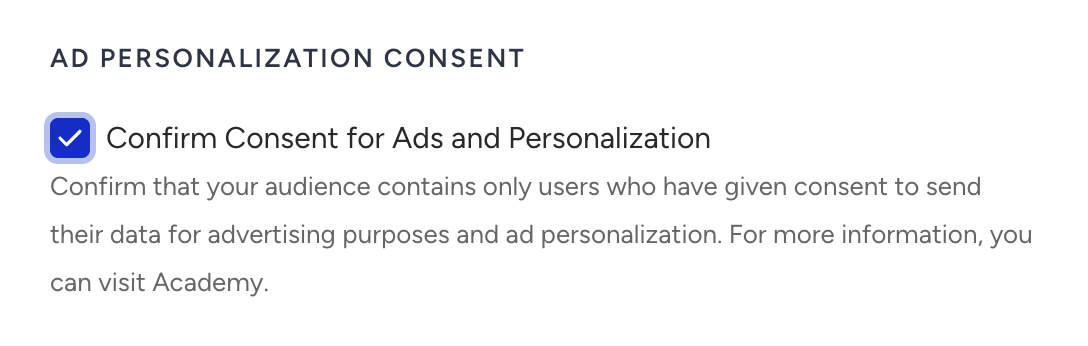
Create the Audience: Click Create to finalize the setup and start syncing your segment to Google Ads.
What happens after Google Ad Audience creation?
After you create an Ad Audience, Insider One generates a corresponding audience in Google Ads using the exact name specified during setup.
The created audience includes a description containing the following metadata:
Insider One Campaign ID
Platform
Server timestamp
All user identifiers, both mandatory and optional, are hashed using SHA-256 before being transmitted to Google, ensuring secure and compliant data handling.
Insider One automatically synchronizes the audience daily at 00:00 (UTC). During each synchronization:
Users who enter the Dynamic Segment are added to the audience
Users who exit the segment are removed
Please note that the audience population in Google Ads may take up to 48 hours to appear. While Insider One sends updates on schedule, Google’s internal processing and matching workflows can cause delays before audience size and availability are fully reflected in the Google Ads interface.
Edit a Google Ads Audience
Open the segment on which you want to make a change.
Go to the Ad Audiences tab.
Click the three-dots menu next to the Ad Audience.
Select Edit.
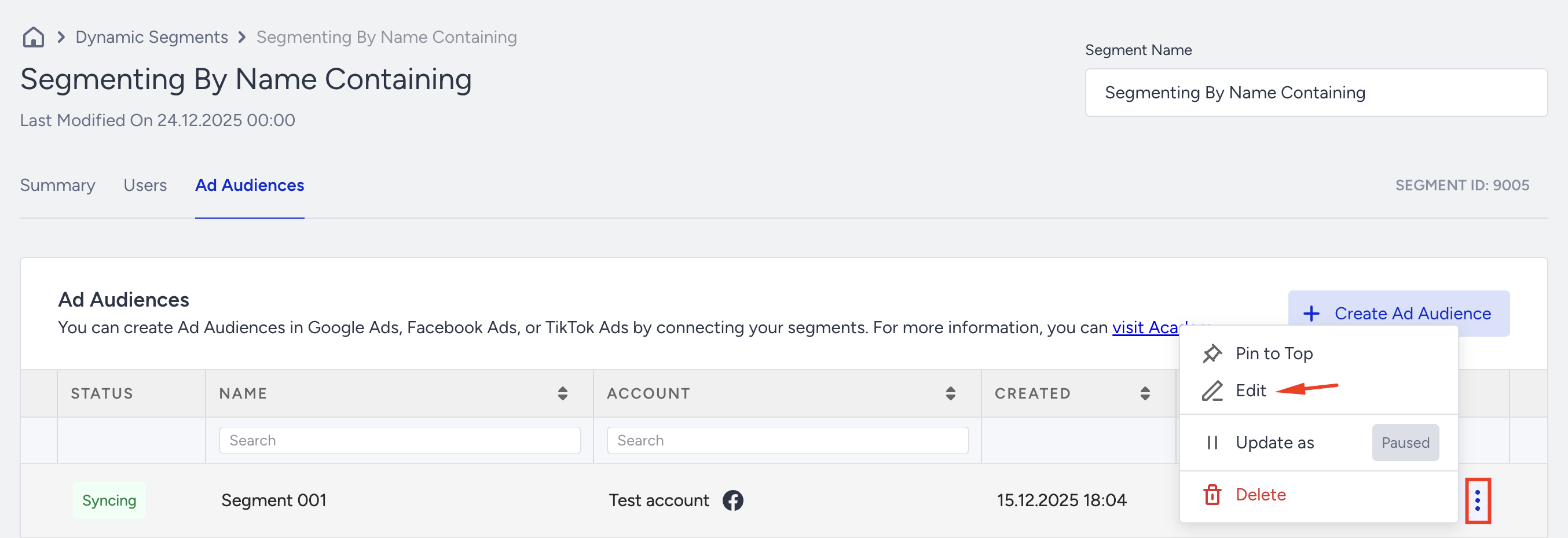
You can change:
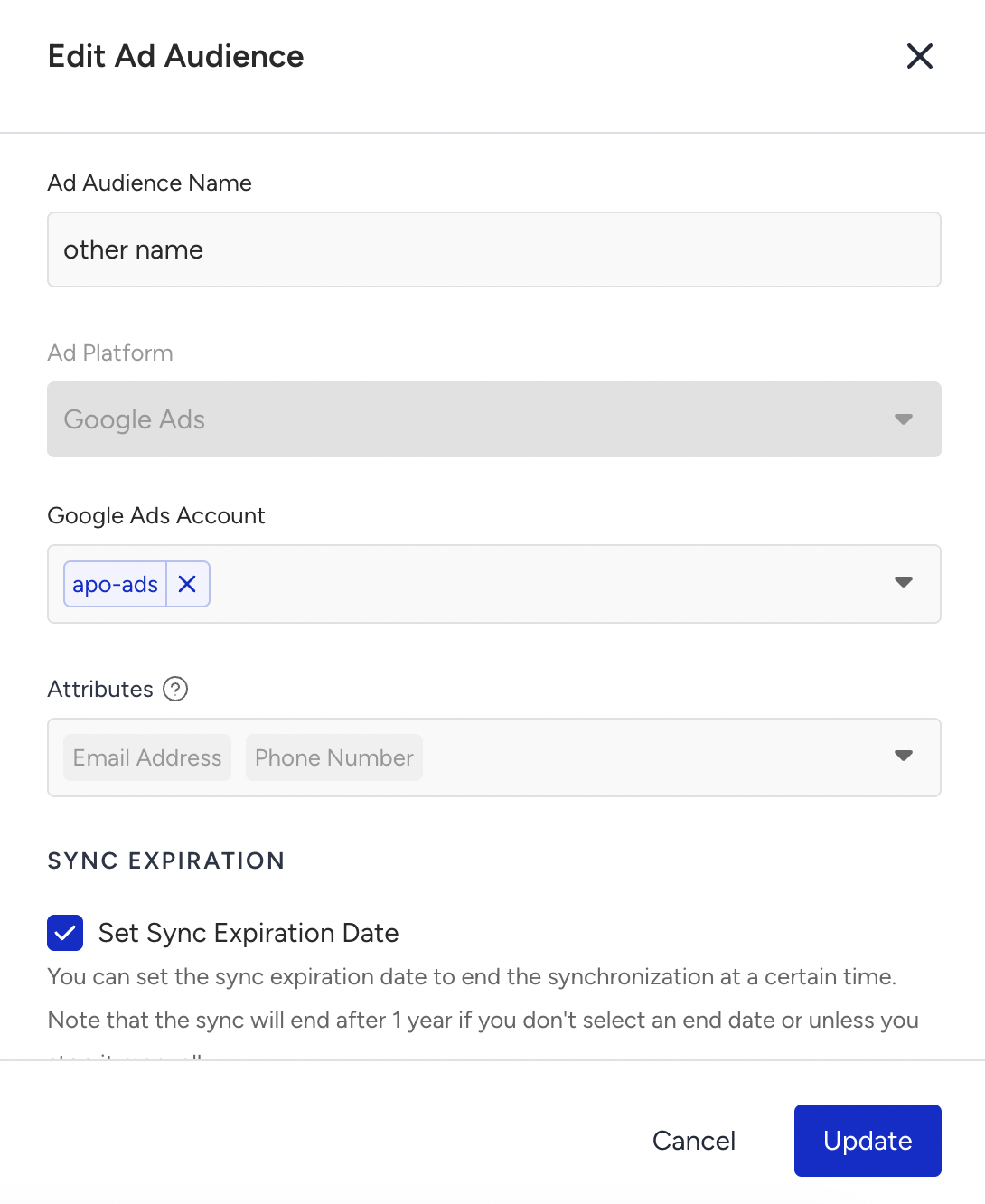
Ad Audience Name
Account (depending on platform integration)
Sync Expiration Date
Consent Confirmation
All changes apply to future syncs.
Since you create the Ad Audience based on the platform, you cannot change it once the Ad Audience is created.
Delete a Google Ads Audience
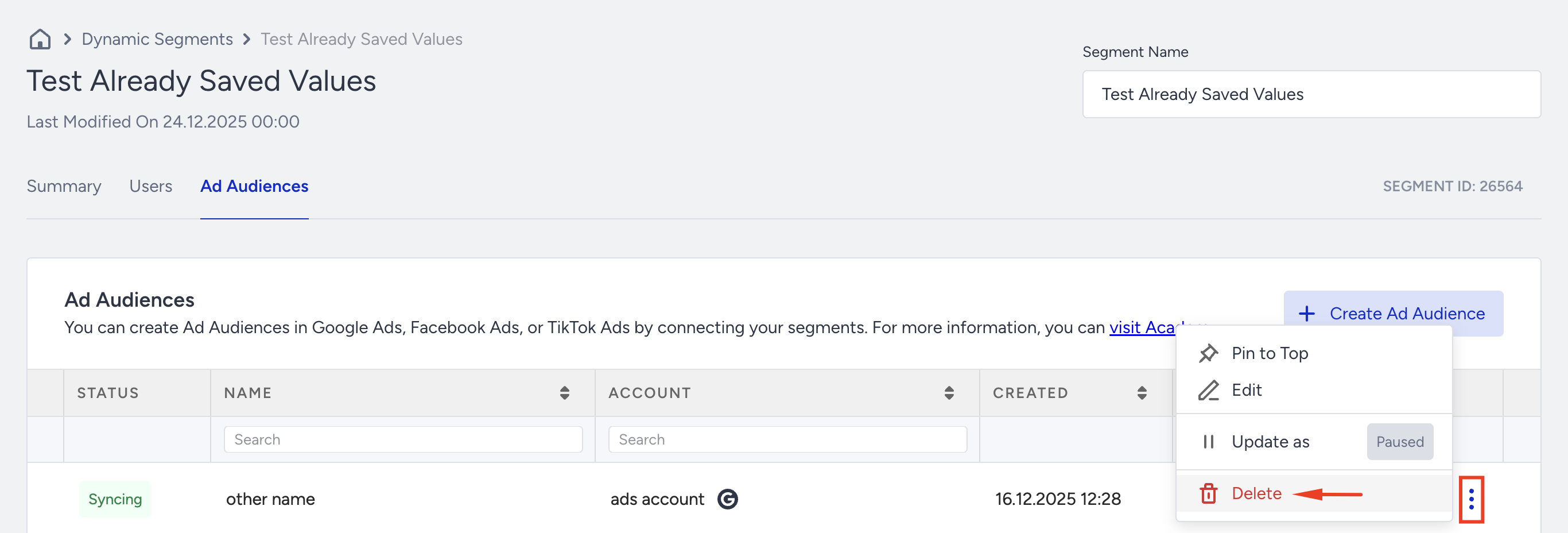
Open the segment that you want to delete.
Go to the Ad Audiences tab.
Click the three-dots menu next to the Ad Audience.
Select Delete.
Confirm deletion.
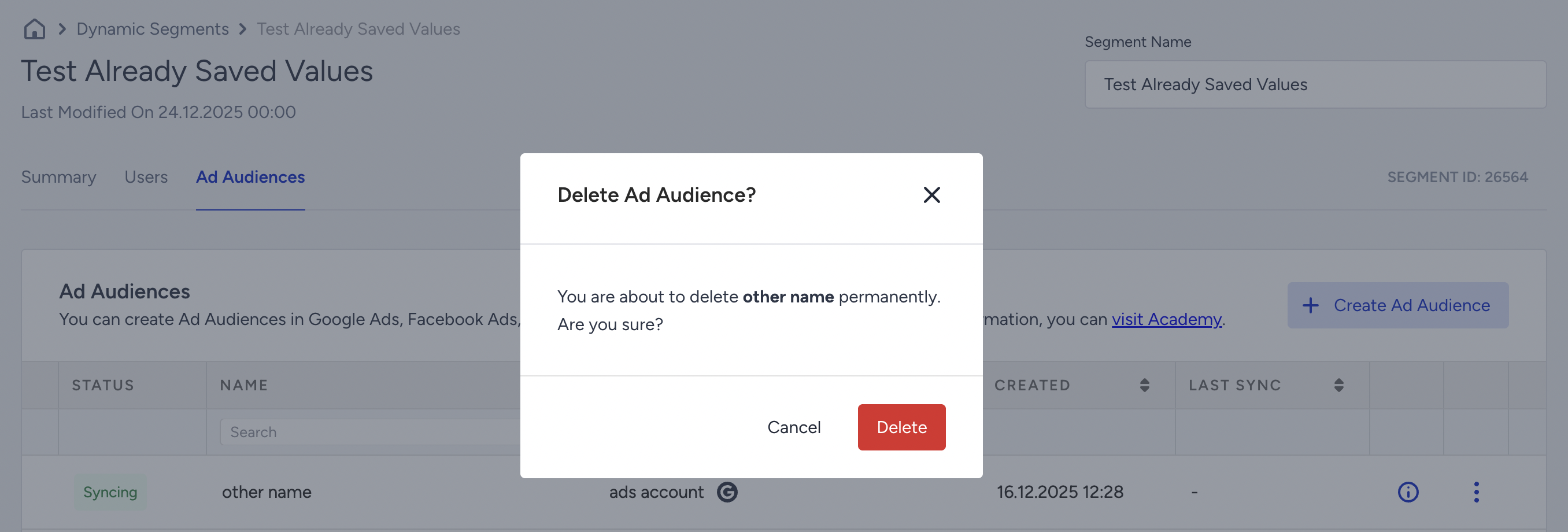
After you delete the Google Ads Audience,
Syncing stops immediately.
The Ad Audience is removed from the list.
The Dynamic Segment itself is not affected.