The WhatsApp Agent builds WhatsApp message templates and campaign drafts from a conversation. Describe what you want in plain language, and it creates the template, submits it to Meta for approval, and builds a campaign draft from an approved template. It gives you a first draft, not a finished campaign.
The WhatsApp Agent creates drafts only. It never sends, schedules, or launches a campaign. Every draft is saved in the product for you to review and launch yourself.
In this article:
Before you start
Three things determine whether the WhatsApp Agent can build a campaign draft for you:
Your account has the WhatsApp product enabled.
Your account has at least one connected WhatsApp Business phone number.
Your account has at least one approved template, or you have permission to submit one to Meta.
Open the WhatsApp Agent
Open Insider One AI from the chat entry point in the InOne panel. The chat panel opens alongside your work, so you can keep the panel open while you build.
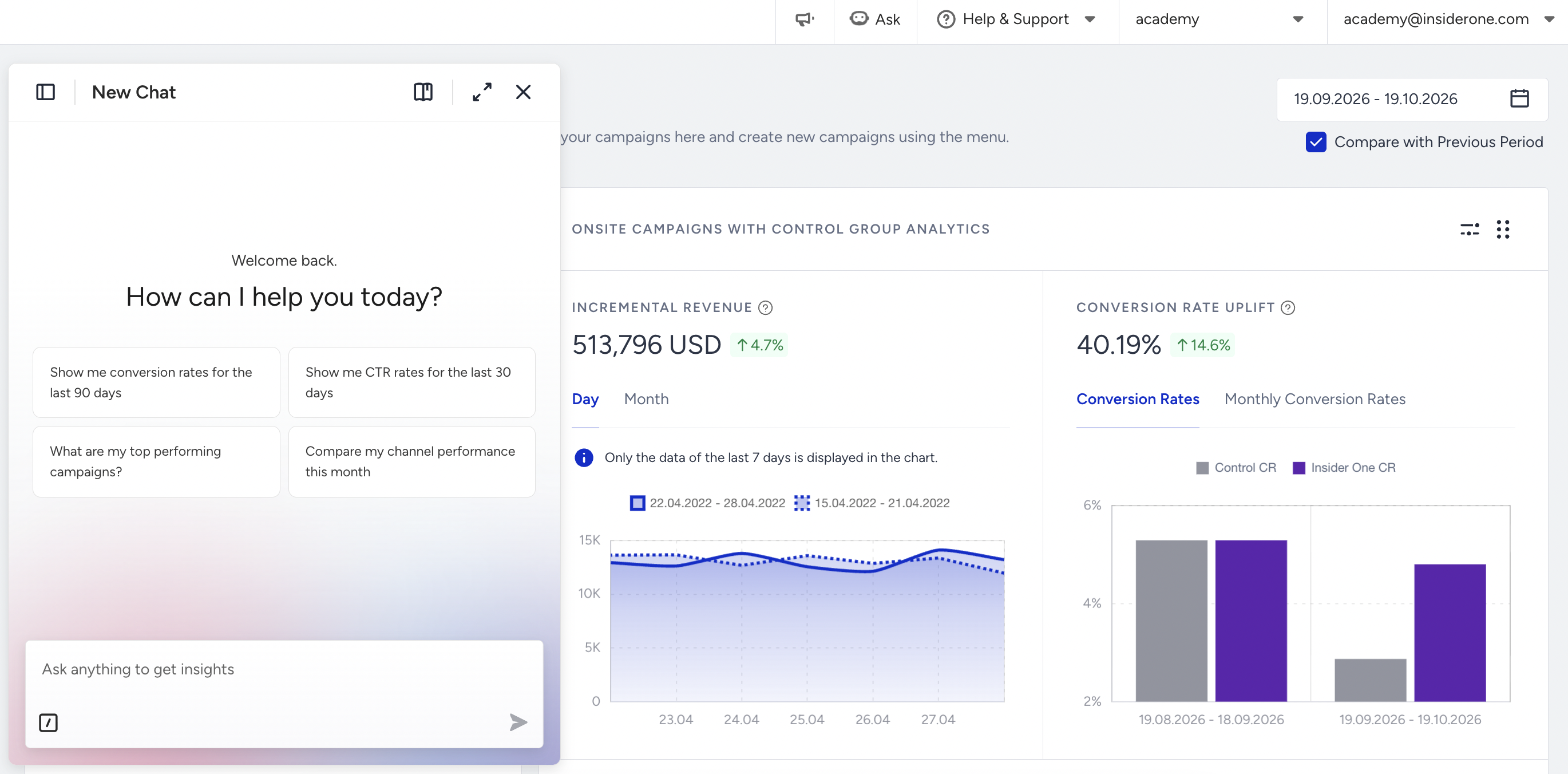
Describe the WhatsApp campaign you want. Your request routes automatically to the agent that builds WhatsApp campaigns, so you do not pick an agent from a list.
Create a campaign draft
What the agent asks you for
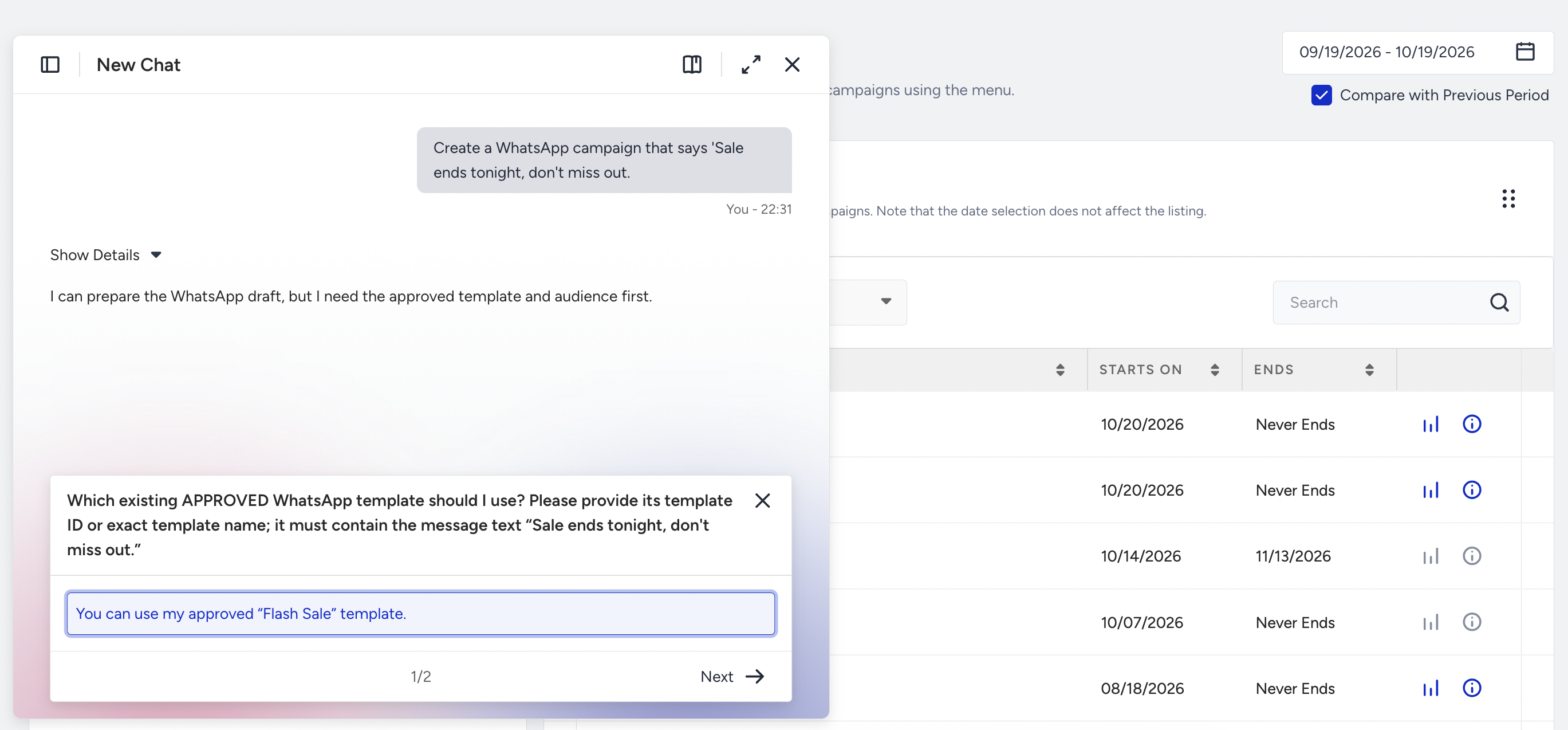
Describe the message you want to send. For example, you can say "Create a WhatsApp campaign that says 'Sale ends tonight, don't miss out.” The WhatsApp Agent uses an approved template that matches your message, or creates a new one and submits it to Meta for approval. It then builds a Single Message campaign draft with that template and a conversion goal.
The agent walks you through what is still missing, usually the audience, and only saves once you approve.
What the agent writes itself
Template: An approved template that matches your message, or a new Marketing or Utility template that it submits to Meta. See The message template.
Message content: The template message, composed or reworded from your description. It uses only real personalization fields from your catalog, never invented placeholders.
Campaign settings: Template variables filled with personalization, plus click tracking, short URLs, and UTM parameters for your links.
Conversion goal: The campaign's goal and conversion window. The WhatsApp Agent defaults to a standard sales goal unless you ask for a specific one.
How your audience is built
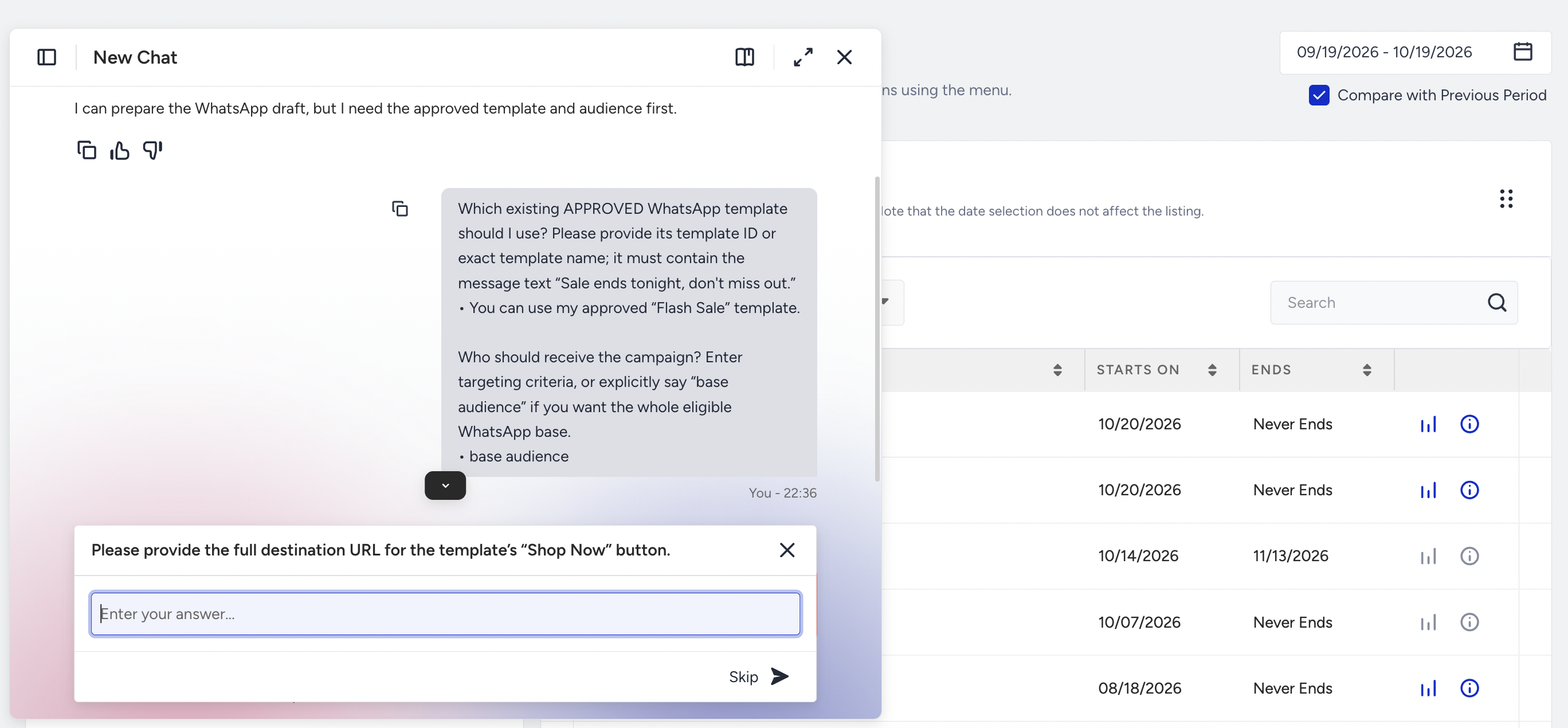
The WhatsApp Agent does not pick your audience. Tell it who the campaign is for, and a separate audience specialist selects the segment in the same draft. The WhatsApp Agent hands this off instead of guessing.
How your phone number is chosen
The WhatsApp Agent chooses the WhatsApp Business phone number the campaign sends from. It asks only when there is a real choice to make, for example when more than one number is connected.
Build the draft
Describe the message. Tell the WhatsApp Agent what you want to send. It uses a matching approved template, or creates a new template for you.
Get the template approved. If you need a new template, review the preview, then let the WhatsApp Agent submit it to Meta. You can build the campaign once Meta approves it.
Build the campaign draft. The WhatsApp Agent creates a Single Message campaign with the approved template, fills in personalization, and applies click tracking, short URL, and UTM settings.
Set the goal and phone number. Confirm the conversion goal and window, and pick the phone number if there is more than one option. The WhatsApp Agent applies a standard sales goal by default.
Add the audience. Tell it who the campaign is for. The audience specialist selects the segment in the same draft, so the WhatsApp Agent hands this off instead of guessing.
Review and approve. The WhatsApp Agent checks the message content and personalization fields, catches unsupported requests early, shows you what it will save, and waits for your approval.
Save, test, and finish. On approval, it saves a real draft campaign and gives you the campaign ID and a link. Send a test message if you like, then open the campaign in the product to review and launch it when you are ready.
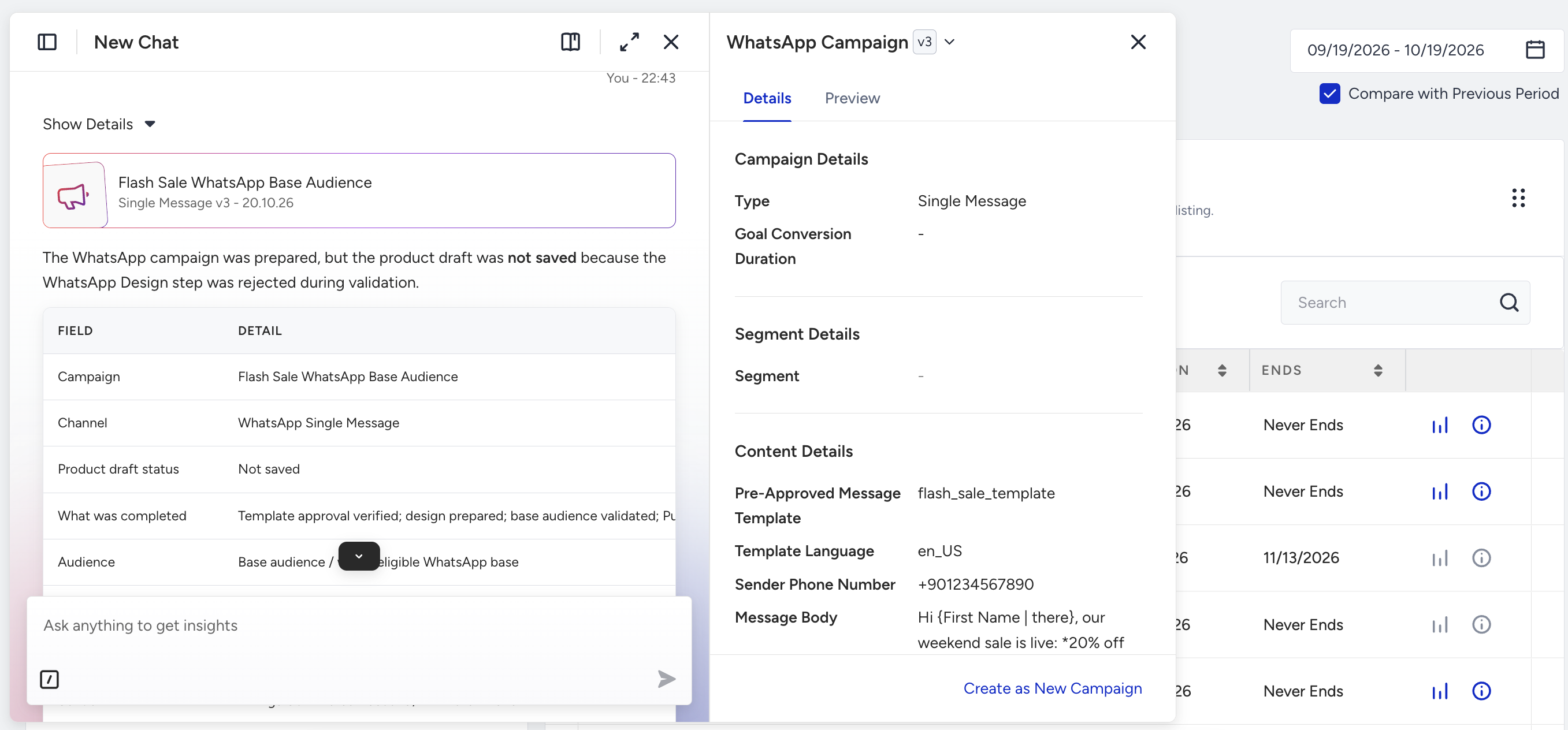
You can start a new campaign or continue an existing one, and ask the WhatsApp Agent to find a WhatsApp campaign by name or ID to review or continue it. The draft it builds stays separate from the live campaign in the product.
The campaign you build is a blueprint that you can preview in chat, save, and reuse, for example for recurring sends such as weekly promos or flash sales. For how a blueprint works, see Insider One AI: Blueprint.
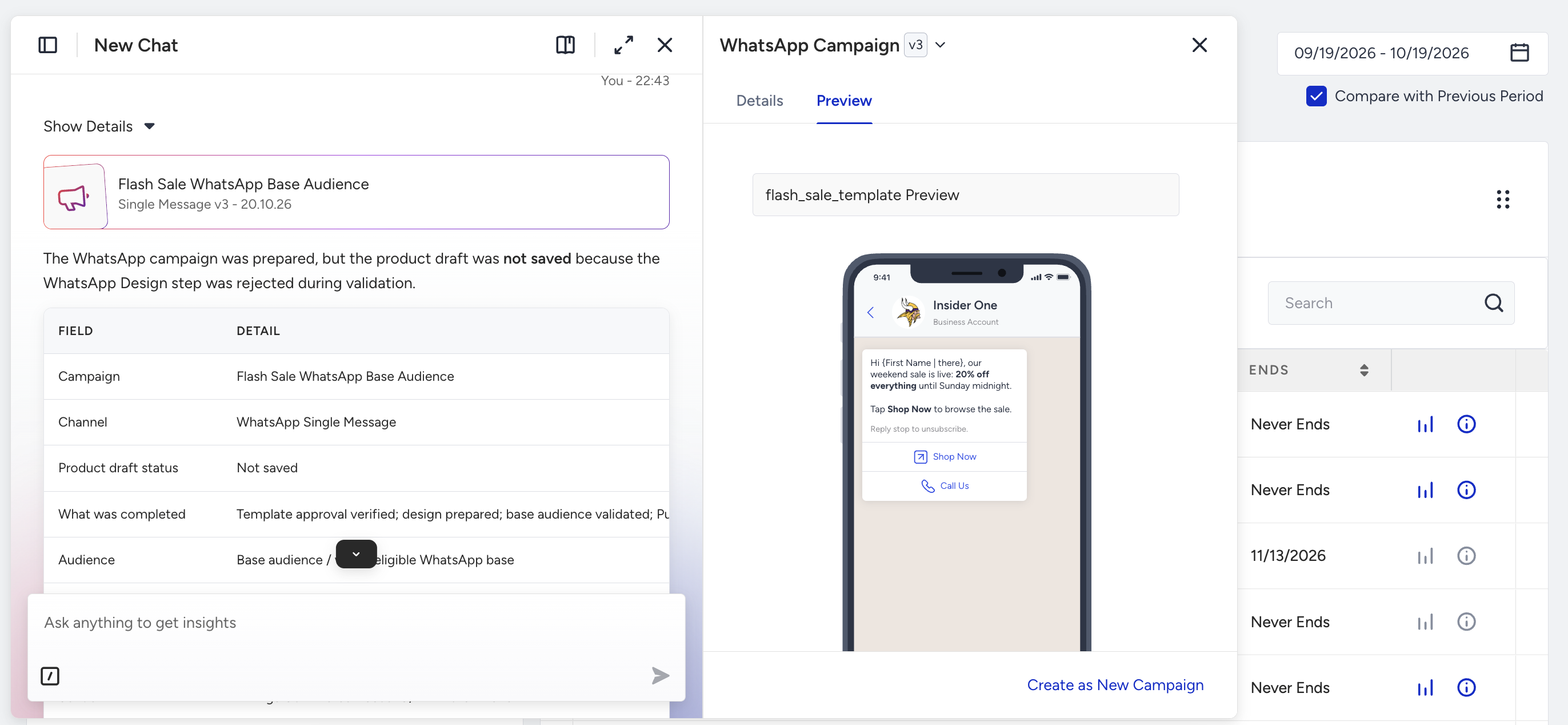
The message template
WhatsApp campaigns are built on message templates that Meta must approve before you can use them. The WhatsApp Agent creates and manages these templates from chat.
Only approved templates whose structure the WhatsApp Agent supports can be used in a campaign. Templates pending approval cannot be used yet. A campaign keeps the button structure of the template you select and cannot add or change buttons.
What the template contains
Marketing and Utility categories. Describe the message, and the WhatsApp Agent builds the template for that category.
Body. Message text with personalization variables from your catalog.
Header and footer. Static text only.
Buttons. Up to two URL buttons (static or dynamic URL) and one phone call button, which you can use together in the same template.
Preview before you submit. See how the template will look before saving it.
Save, update, and submit. Save a template as a draft, keep editing it, and submit it to Meta for approval when it is ready.
What the template does not contain
These template features are created in the product, not in the WhatsApp Agent. The same limits apply when you select an existing template.
Quick reply buttons.
Coupon (copy-code) buttons and other button types.
Media headers.
Carousels.
Headers or footers with variables.
Authentication (OTP) templates.
Personalization and language
Personalization
The WhatsApp Agent inserts personalization from your actual catalog, never placeholder or demo text. It fills template variables with personalization fields that exist in your account, and it confirms the fields are correct before it saves the draft.
Campaign language
One WhatsApp campaign is sent in one language, and that language comes from the template.
The campaign uses an approved template, so it takes the language of the template you select. The WhatsApp Agent does not write or translate campaign copy, and it uses the template text exactly as Meta approved it. If you select a template in another language, the campaign language changes with it.
When you ask the WhatsApp Agent to create a new template, it chooses the template language in this order:
If you ask for a language, the template is written in that language, for example "write it in French".
If you don't, the template is written in your brand's default language from Business DNA.
The agent writes the copy natively in the chosen language instead of translating it word for word, and it picks a language that Meta supports for templates. If you name only a language, the agent uses the general version of that language. It asks you only when your intended choice is unclear, for example when a language comes in several country versions.
Your Business DNA language, tone, and preferred wording apply only when the WhatsApp Agent writes a new template. Existing approved templates are used as they are.
Review and launch your draft in the panel
Saving the draft is the WhatsApp Agent's last action. Opening it, testing it, and launching it are your actions.
Open the campaign. Use the campaign link or the Campaign ID in the chat reply.
Review the draft. Check the template, conversion goal, phone number, and audience. The click tracking, short URL, and UTM settings are also on the draft, so you can review them here.
Send a test message. After the draft is saved and you explicitly approve, the WhatsApp Agent sends a one-off test WhatsApp message to a validated number.
Launch the campaign. Launch it from the panel when you are satisfied with it.
What the WhatsApp Agent does not do
The WhatsApp Agent builds the campaign draft and stops there. Launching, scheduling, and anything outside the message, goal, and template are yours to handle in the product. When you ask for one of these, use the place named below.
You ask for | What happens | Where to do it |
|---|---|---|
Sending, launching, or scheduling a campaign | Not done. The WhatsApp Agent only saves drafts and never activates a live campaign. | The Launch step in the panel |
Deleting a template | Not done. The WhatsApp Agent does not delete templates. | WhatsApp templates in the panel |
A template with quick reply buttons, coupon (copy-code) buttons, other button types, media headers, carousels, headers or footers with variables, or Authentication (OTP) | Not supported in the WhatsApp Agent. | Template creation in the panel |
Adding or changing buttons on a campaign | Not possible. A campaign keeps the button structure of its template. | The template, by editing it |
Picking the audience | Handed off. A separate audience specialist sets the audience on the same draft. | The audience specialist, or the segment step in the panel |
Good to know
Be specific for sharper results. Include the message, the offer, the buttons, and the goal. For example, "20% off with a Shop Now button, purchases within 3 days" works better than "a sale message."
Example prompts
"Create a Marketing template that says 'Sale ends tonight, 20% off everything' with a Shop Now button linking to our sale page."
"Add the customer's first name to the template body."
"Add a Call Us button with our support number."
"Submit the template for approval."
"Create a campaign with the approved 'Flash Sale' template and add UTM parameters."
"Set the goal to purchases within 3 days."
"Send a test to my number."
Next steps
You now have what you need to go from a single sentence to a reviewable WhatsApp campaign draft: an approved template, a conversion goal, a phone number, and an audience. Ready to see it in action? Open Insider One AI and describe your next WhatsApp campaign, then review the draft in the panel.