In this guide, you’ll learn how to generate unique Shopify discount codes using the Bulk Discount Code Bot app, export them as a CSV file, and import them into Insider One’s InOne for use in Email campaigns and Architect Journeys.
This workflow allows you to create Shopify-compliant codes, upload them to Insider One’s Coupon Management module, and distribute them seamlessly in your marketing campaigns. Once imported, these codes can be assigned to any message or journey that requires a one-time, personalized discount.
Following these steps ensures all discount codes are valid, unique, and properly formatted for Insider One’s Coupon Management module.
Step 1: Install and open the Bulk Discount Code Bot App
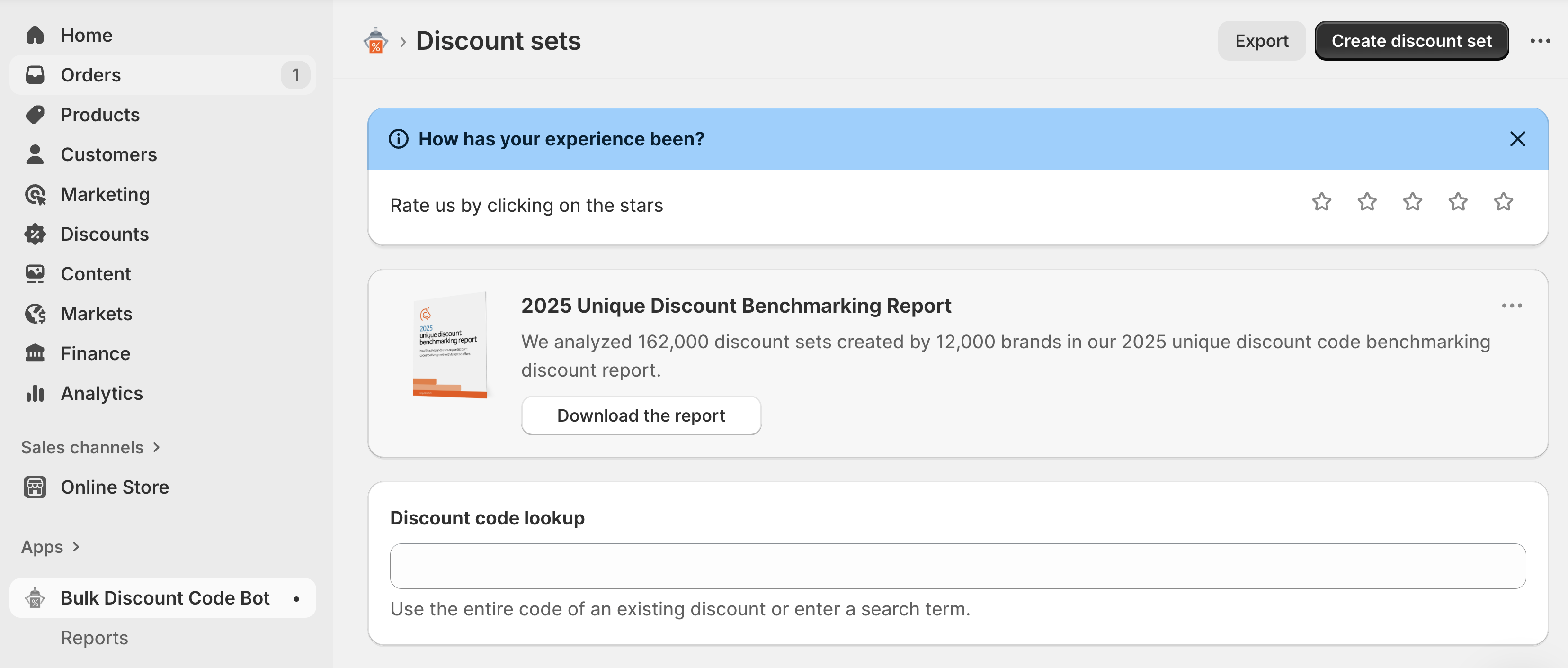
In your Shopify Admin, navigate to Apps > Bulk Discount Code Bot.
Open the app and click the Create Discount Set button to start creating a new batch of discount codes.
Step 2: Create your discount set
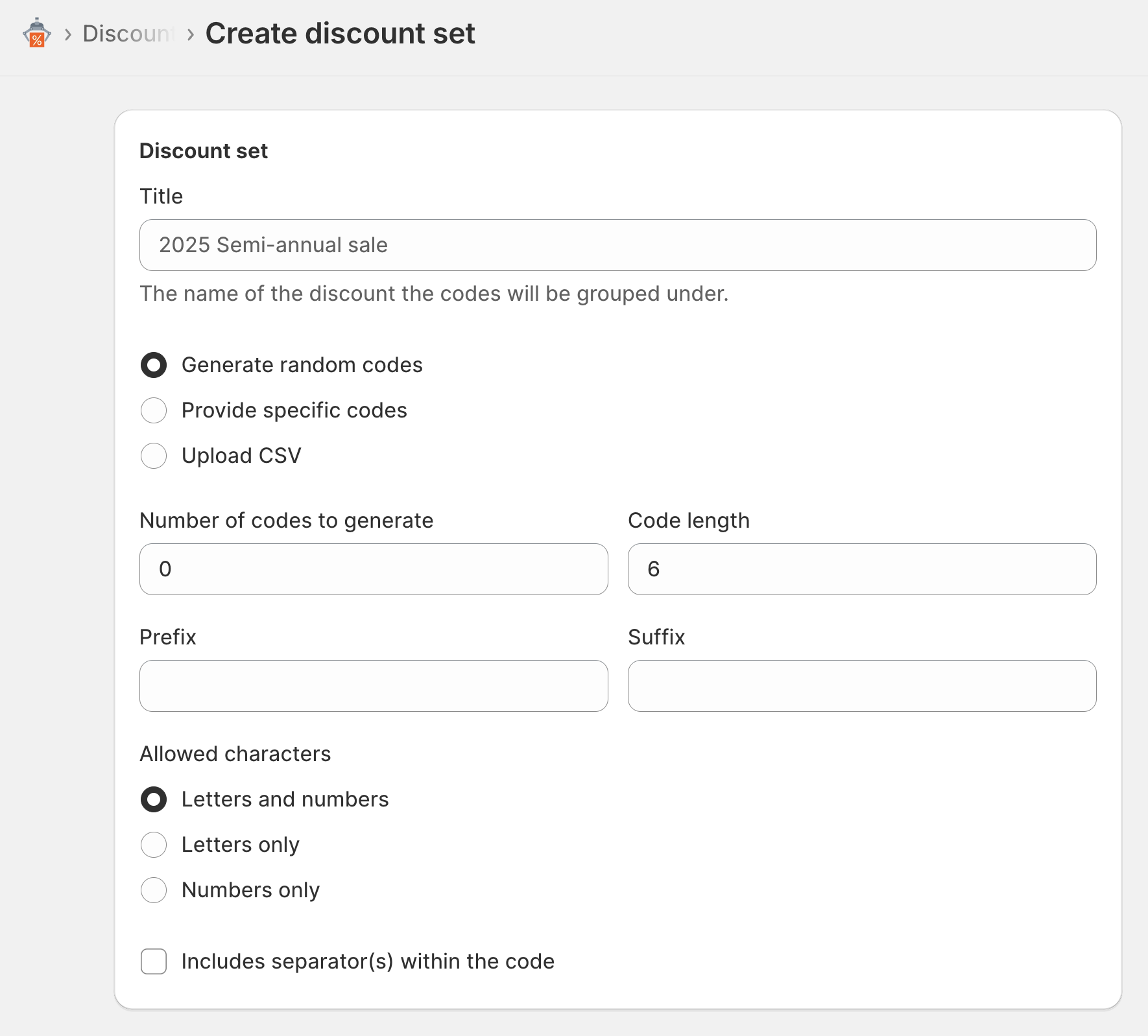
In Bulk Discount Code Bot, you can choose one of three methods:
Generate random codes: Automatically create a set of unique random codes.
Provide specific codes: Input your own custom codes.
Upload CSV: Import pre-existing codes from another source.
Tip: Before generating, make sure you create enough unique coupon codes based on the total number of users you plan to target in your campaigns.
For example, if your email campaign targets 50,000 recipients, generate at least 50,000 unique codes.
Step 3: Configure your discount type and settings
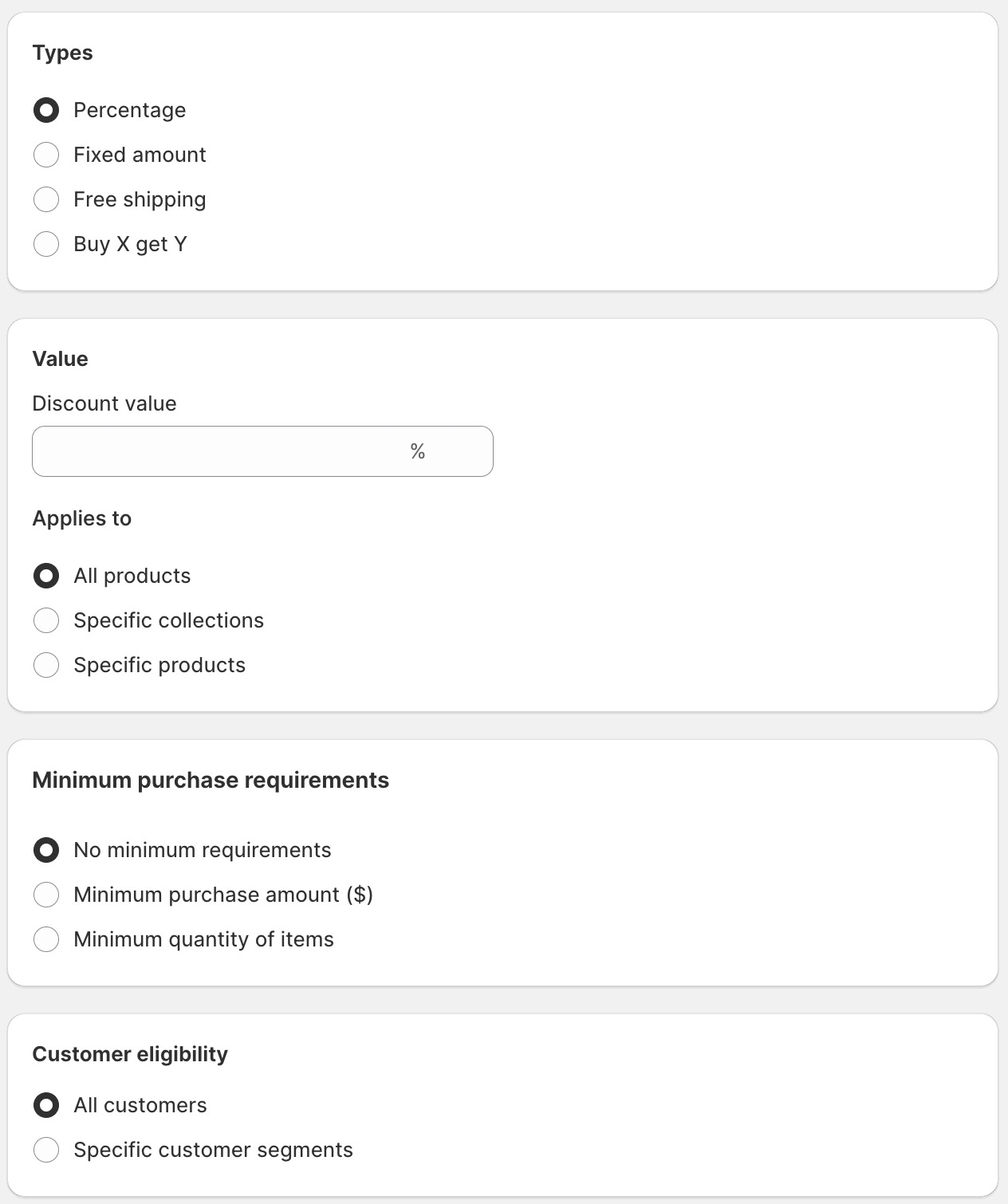
When creating a discount set, define the details of your offer:
Discount type options:
Percentage (e.g., 10% off)
Fixed amount (e.g., $5 off)
Free shipping
Buy X Get Y
Other supported types
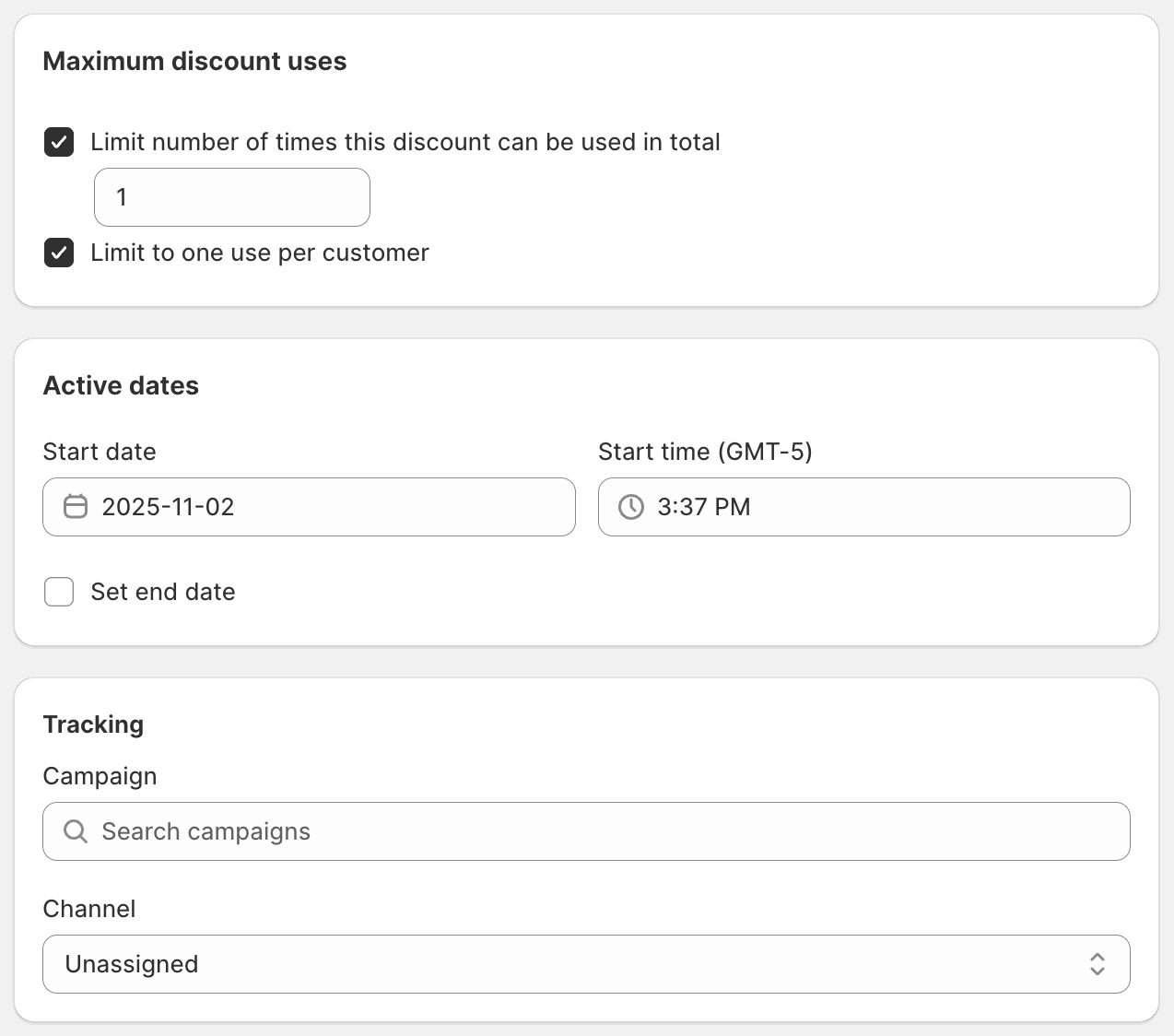
Discount settings:
Amount or rule (e.g., “20% off on all items”)
Eligible products or collections
Minimum purchase requirements
Usage limits per customer or order
Validity period (start and end date)
Step 4: Export codes for InOne
Once your discount codes are generated:
Go to Discounts.
Click on the discount set you want to export
Click to View All Codes.
Click the Export button.
Select codes and export as CSV > Export Discount Codes.
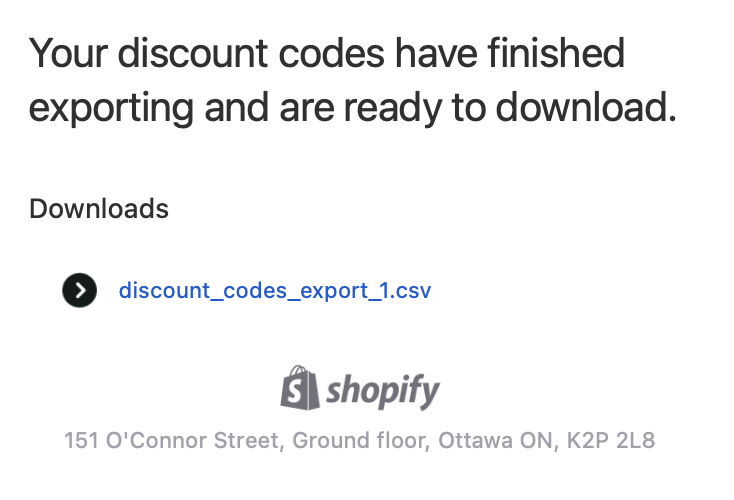
Check your email inbox; you should have received an email from Shopify with a link to download the coupons list.
Download the file with discount codes.
Step 5: Prepare the CSV file for Insider One upload
Before importing, make sure your CSV file meets the following Insider One format requirements:
File format: UTF-8 encoded
.csvfileNo headers: The file should start directly with coupon codes in the first cell.
Comma rule: Any text after a comma (,) in a line will be ignored.
Line separation: Each coupon code must be on a new line.
Uniqueness: Only the unique coupon codes are accepted; duplicates will be dropped.
File size limit: Maximum 10MB per CSV.
Maximum codes: Up to 20 million unique codes per list.
Use a Single Code list if you need more than 20 million codes.
Maximum expiration period: 1 year.
Code format: Each coupon must have at least 2 alphanumeric characters (
a-z,A-Z,0-9,-,_)
Step 6: Upload Coupons into InOne
Log in to InOne and navigate to Components > Coupon Lists > Upload Coupons.
Select your CSV file exported from Shopify.
Enter a name for your list (e.g., “SpringSale2025”).
Set the expiration date (within 1 year).
Click the Upload button. Insider One will automatically validate and remove duplicates.
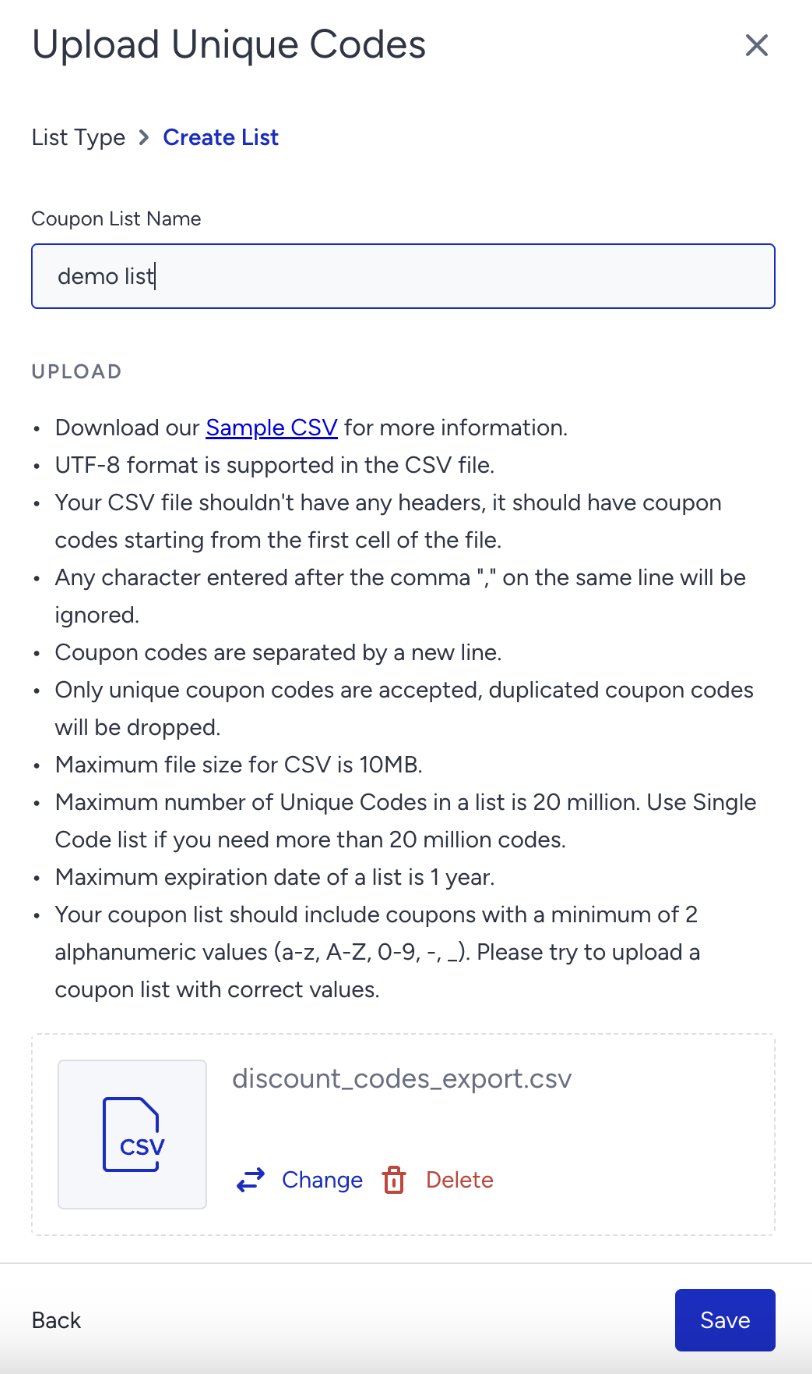
Once uploaded, your coupon list will appear in the Coupon Lists. 
Step 7: Use coupons in marketing campaigns
After the upload is complete, you can use your coupon list across Insider One:
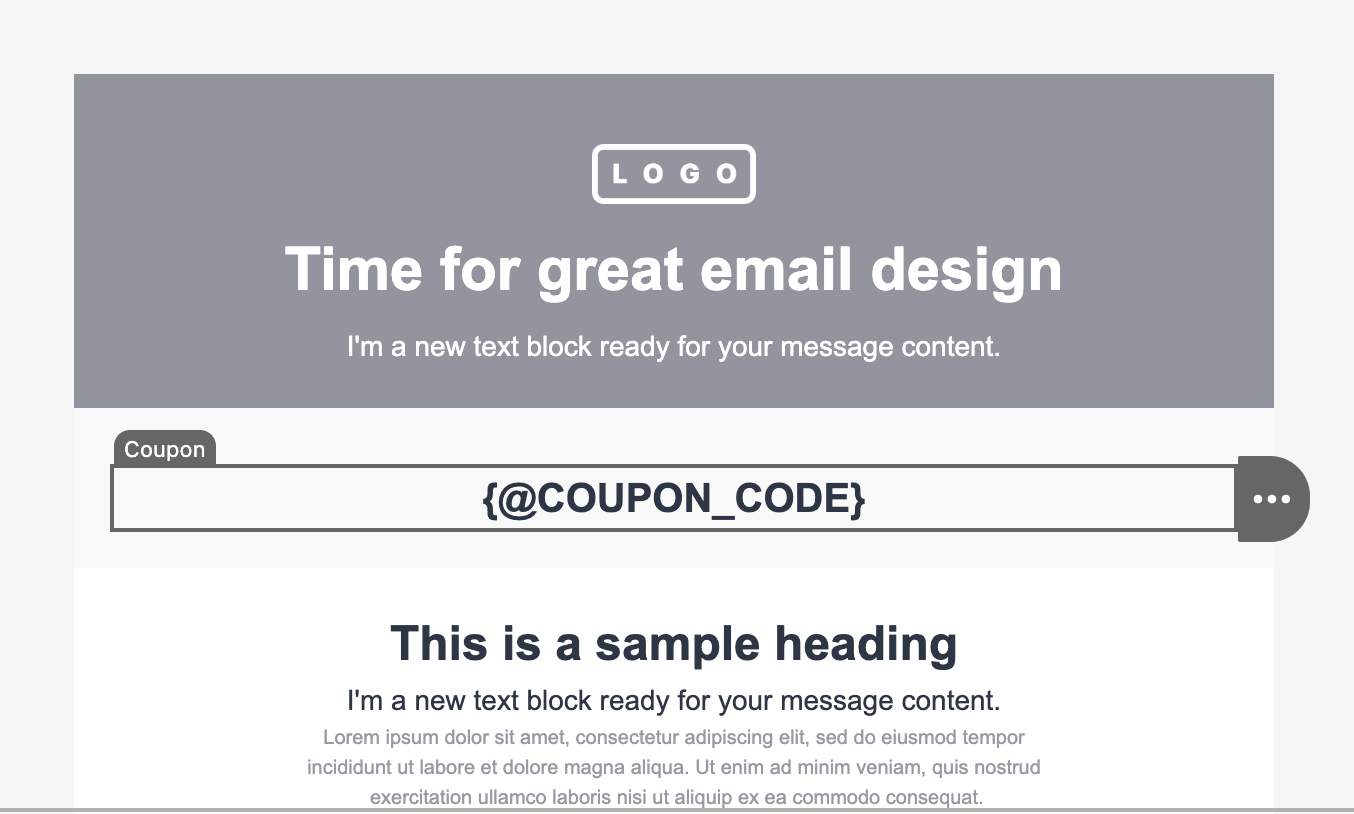
Email Campaigns: Insert coupons via personalization tokens (e.g.,
{{coupon_code}}).Architect Journeys: Use coupon list blocks to automatically assign a unique code to each user during a flow.
OnSite, App Push, and Web Push, SMS, and WhatsApp Campaigns: Reference coupon lists for personalized promotions.
Common Use Cases
Use Case | Description | Implementation |
|---|---|---|
Unique discount in email | Send one-time discount codes to every subscriber. | Generate random codes, export them to CSV, upload to Insider One, and assign them to an email campaign. |
Abandoned cart recovery | Send personalized coupon reminders to users who left items in their cart. | Architect flow with coupon distribution node. |
Loyalty or VIP campaigns | Reward top customers with pre-defined codes. | Provide specific codes manually and import via Insider One. |
Limited-time promotions | Offer free shipping or % off within a set time frame. | Configure time limits in Bulk Discount Code Bot before export. |
Buy X, Get Y offer | Provide product-based discounts (e.g., “Buy 2, get 1 free”). | Select the “Buy X Get Y” discount type in Shopify. |
Frequently Asked Questions (FAQ)
Q: How many codes should I generate?
A: Generate at least the same number of codes as the total number of users you plan to target in your campaign.
Q: Can I upload files larger than 10MB?
A: No, 10MB is the maximum file size. Split your file into smaller parts if needed.
Q: What if my file has duplicate codes?
A: Insider One will automatically drop any duplicates during upload.
Q: Can I reuse the same coupon list in multiple campaigns?
A: Yes, as long as the codes remain valid in Shopify and unredeemed.
Q: What happens if my CSV includes commas or headers?
A: Headers and commas can cause upload errors — remove them before uploading.
Q: What’s the maximum number of unique codes per list?
A: Up to 20 million unique codes per list. For more, use the Single Code list option.
Q: What encoding should I use for the CSV file?
A: Always use UTF-8 encoding to ensure a successful upload.