The WhatsApp Marketing product provides conversational messages, allowing users to initiate conversations with businesses after the business has sent an initial message. To create a conversational flow, one of the ways is to integrate a bot to reply to users' WhatsApp messages.
The Conversational API is designed for WhatsApp Bot connection.
Before sending Conversational WhatsApp template messages, make sure you create your template in InOne first. Refer to Create a WhatsApp Business Standard Template on InOne for step-by-step guidance.
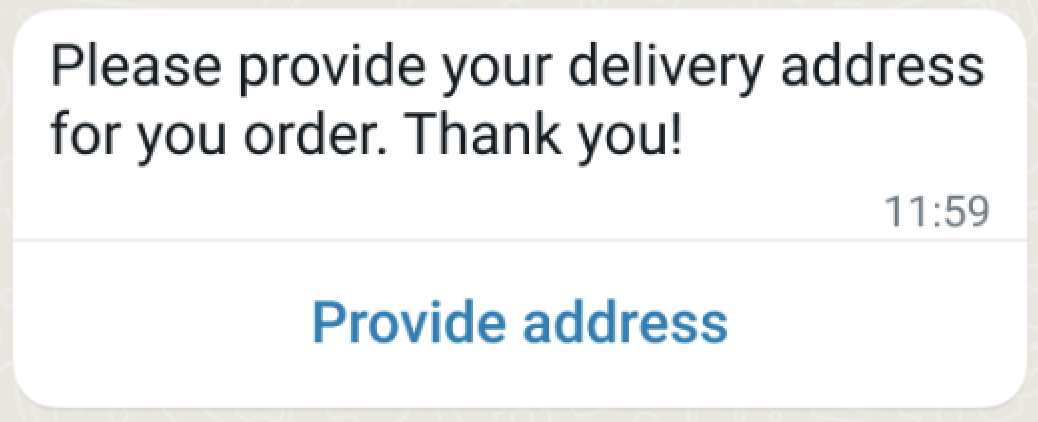
Refer to the visual below for an example of how a conversational WhatsApp template message is displayed.
About Max Price support
Max Price (dynamic pricing) applies only to Marketing message templates.
If you use the Conversational API to send a Marketing template message, Max Price can be applied according to the template configuration and bid settings.
The bid_spec object is set on the template at creation time. Conversational sends do not reference a Max Price Marketing template unless a Marketing template is used, so there is no bid_spec to apply and no multiplier to set for reply, service/session, or interactive messages.
Max Price does not apply to conversational reply messages, session/service messages, interactive messages, or other messages sent within an open customer service conversation.
No additional request parameters or response fields are required for Max Price. If applicable, pricing is determined by the Marketing template configuration in Meta.
Endpoint and Headers
Visit our Postman collection to test this request.
Header | Sample Value | Description |
|---|---|---|
X-INS-AUTH-KEY | 1a2b3c4d5e6f | This key is required to authorize your request. Refer to API Authentication Tokens to generate your token. |
Content-Type | application/json | This header specifies the media type of the resource. |
Body Parameters
Column | Description | Data Type | Required |
|---|---|---|---|
messages | All messages are contained in the messages key. You can send multiple messages with a single request. | Array | Yes |
from | Use only if you are using multiple phone numbers. If you have only one phone number, you do not need to add this. | String | No |
phoneNumber | Phone number for the person you want to message.
| String | Conditional. Required if recipient is not sent. |
recipient | Specifies the recipient’s WhatsApp Business-Scoped User ID (BSUID). For example, TR.2124566744990207. Use this identifier to send messages without providing the recipient’s phone number. Pass the complete BSUID, including its country prefix. | String | Conditional. Required if phoneNumber is not provided. |
message | Message object | Object | Yes |
type | Must be “template” for this message type. | String | Yes |
name | Template name to be sent | String | Yes |
language | - | Object | Yes |
code | Template language | String | Yes |
policy | It must be deterministic. | String | Yes |
message variable components | - | Array | Yes |
type | body | String | Yes |
body parameters | - | Array | Yes |
type | text | String | Yes |
text | Parameter value | String | Yes |
button components | - | Array | Yes |
type | button | String | Yes |
sub_type | Quick_reply, URL, PHONE_NUMBER, COPY_CODE | String | Yes |
index | Absolute, zero-based position in the template's button array | String | Yes |
parameters | - | Array | Yes |
type | payload | String | Yes |
payload | Payload value | String | Yes |
header | Header component object | Object | No |
type | Must be "header". | String | Yes |
parameters | - | Array | Yes |
type | One of: text, image, video, document | String | Yes |
text | Header text (used if type = text) | String | Yes (if type = text) |
image | - | Object | Yes (if type = image) |
link | Image URL | String | Yes |
video | - | Object | Yes (if type = video) |
link | Video URL | String | Yes |
document | - | Object | Yes (if type = document) |
link | Document URL | String | Yes |
filename | File name | String | No |
Meta doesn't support adding emojis to the button ID.
Below is a template example.
{
  "messages": [
    {
      "phoneNumber": "+905551234567",
      "message": {
        "type": "template",
        "template": {
          "name": "order_shipped_combined",
          "language": {
            "code": "tr"
          },
          "components": [
            {
              "type": "body",
              "parameters": [
                {
                  "type": "text",
                  "text": "Ayşe"
                },
                {
                  "type": "text",
                  "text": "TR123456789"
                }
              ]
            },
            {
              "type": "button",
              "sub_type": "url",
              "index": "0",
              "parameters": [
                {
                  "type": "text",
                  "text": "TR123456789"
                }
              ]
            },
            {
              "type": "button",
              "sub_type": "quick_reply",
              "index": "1",
              "parameters": [
                {
                  "type": "payload",
                  "payload": "teslim_alindi"
                }
              ]
            },
            {
              "type": "button",
              "sub_type": "quick_reply",
              "index": "2",
              "parameters": [
                {
                  "type": "payload",
                  "payload": "sorun_var"
                }
              ]
            }
          ]
        }
      }
    }
  ]
}
WhatsApp Status Callback
The Status Callback allows you to track the delivery status of your WhatsApp messages in real time. When you send a message, the system sends status updates to the API URL you’ve specified in the callback parameter. If you don't respond to code between 200 and 300, the system automatically retries the request up to 10 times following this schedule:| Retry Attempt | Time After First Attempt |
|---|---|
| 1st retry | 1 minute |
| 2nd retry | 2 minutes |
| 3rd retry | 3 minutes |
| 4th retry | 8 minutes |
| 5th retry | 13 minutes |
| 6th retry | 18 minutes |
| 7th retry | 28 minutes |
| 8th retry | 38 minutes |
| 9th retry | 48 minutes |
| 10th retry | 1 hour |
Sample Requests
You can find sample requests below for different header types (text, image, video, and document) as well as for all button options you can use when creating your conversational WhatsApp template messages.
Header Samples
You can use these sample requests to add different header components to your conversational template messages:
Image Header
curl --location 'https://whatsapp.useinsider.com/v1/conversational/send' \
--header 'Content-Type: application/json' \
--header 'x-ins-auth-key: INS.**************************************' \
--data '{
    "from": "{{PHONE_NUMBER}}", //Example: +112312312
    "messages": [
        {
            "phoneNumber": "+1**********",
            "message": {
                "type": "template",
                "template": {
                    "name": "{{TEMPLATE_NAME}}",
                    "language": {
                        "code": "{{TEMPLATE_LANGUAGE_CODE}}",
                        "policy": "deterministic",
                    },
                    "components": [
                        {
                            "type": "header",
                            "parameters": [
                                {
                                    "type": "image",
                                    "image":{
                                        "link": "{{IMAGE_URL}}"
                                    }
                                }
                            ]
                        }
                    ]
                }
            }
        }
    ]
}'
Video Header
curl --location 'https://whatsapp.useinsider.com/v1/conversational/send' \
--header 'Content-Type: application/json' \
--header 'x-ins-auth-key: INS.**************************************' \
--data '{
    "from": "{{PHONE_NUMBER}}", //Example: +112312312
    "messages": [
        {
            "phoneNumber": "+1**********",
            "message": {
                "type": "template",
                "template": {
                    "name": "{{TEMPLATE_NAME}}",
                    "language": {
                        "code": "{{TEMPLATE_LANGUAGE_CODE}}",
                        "policy": "deterministic",
                    },
                    "components": [
                        {
                            "type": "header",
                            "parameters": [
                                {
                                    "type": "video",
                                    "video":{
                                        "link": "{{VIDEO_URL}}"
                                    }
                                }
                            ]
                        }
                    ]
                }
            }
        }
    ]
}'
Videos must be in MP4 format and have a maximum size of 16 MB.
Changing a file’s extension to .mp4 does not convert it into an MP4 format. The video must be originally encoded in MP4; otherwise, it might fail the format check and result in an error. If your video is in a different format or exceeds the size limit, you must convert or resize it before uploading.
Document Header
curl --location 'https://whatsapp.useinsider.com/v1/conversational/send' \
--header 'Content-Type: application/json' \
--header 'x-ins-auth-key: INS.**************************************' \
--data '{
    "from": "{{PHONE_NUMBER}}", //Example: +112312312
    "messages": [
        {
            "phoneNumber": "+1**********",
            "message": {
                "type": "template",
                "template": {
                    "name": "{{TEMPLATE_NAME}}",
                    "language": {
                        "code": "{{TEMPLATE_LANGUAGE_CODE}}",
                        "policy": "deterministic",
                    },
                    "components": [
                        {
                            "type": "header",
                            "parameters": [
                                {
                                    "type":"document",
                                    "document":{
                                    "link":"{{DOCUMENT_LINK}}",
                                    "filename":"{{FILE_NAME}}"
                                }
                            ]
                        }
                    ]
                }
            }
        }
    ]
}'
Button Samples
You can use these sample requests if you want to include buttons in your template messages:
Quick Reply Buttons
Select the Quick Reply button while creating your template message, then enter the text you want to display on each button.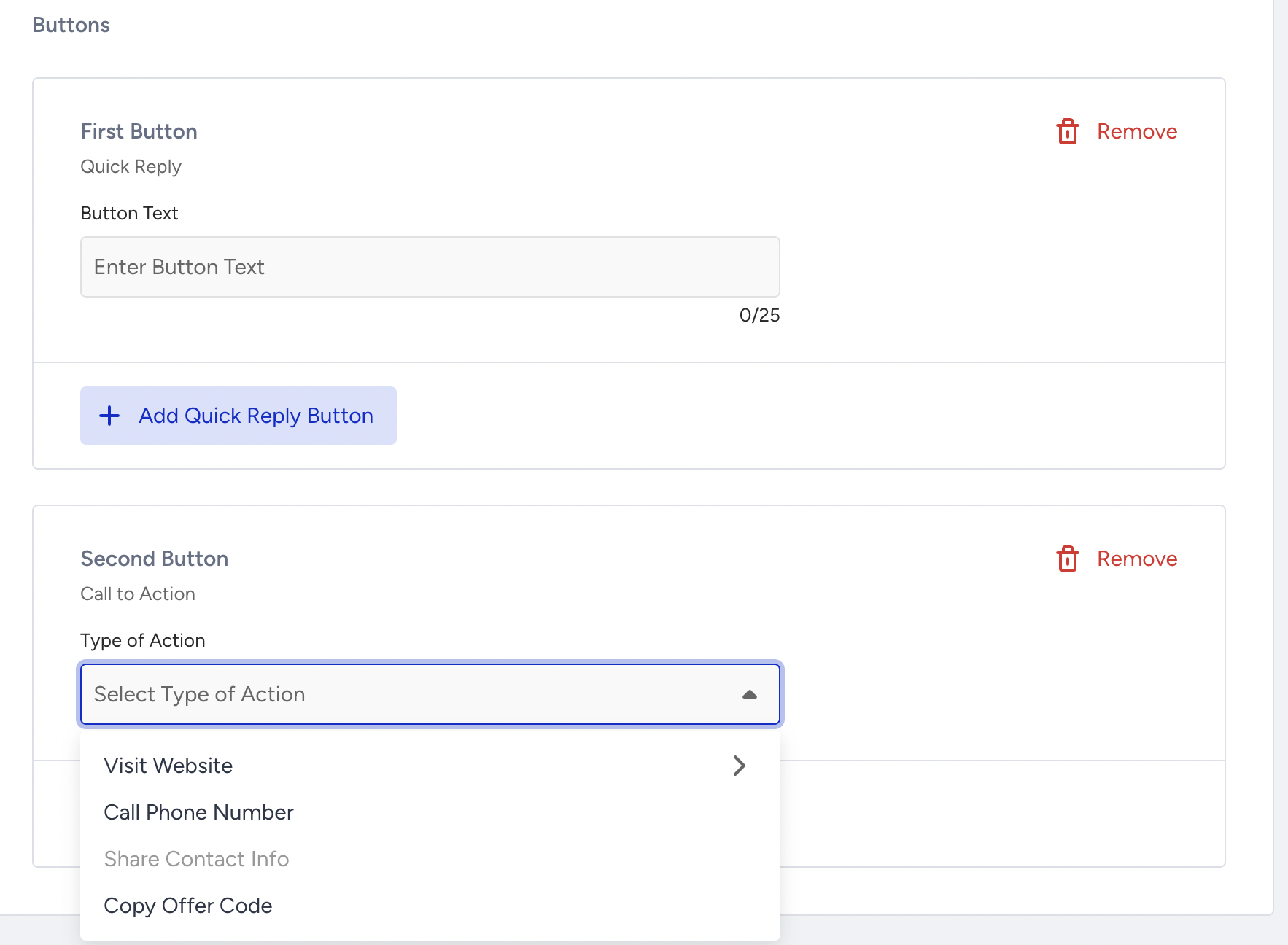
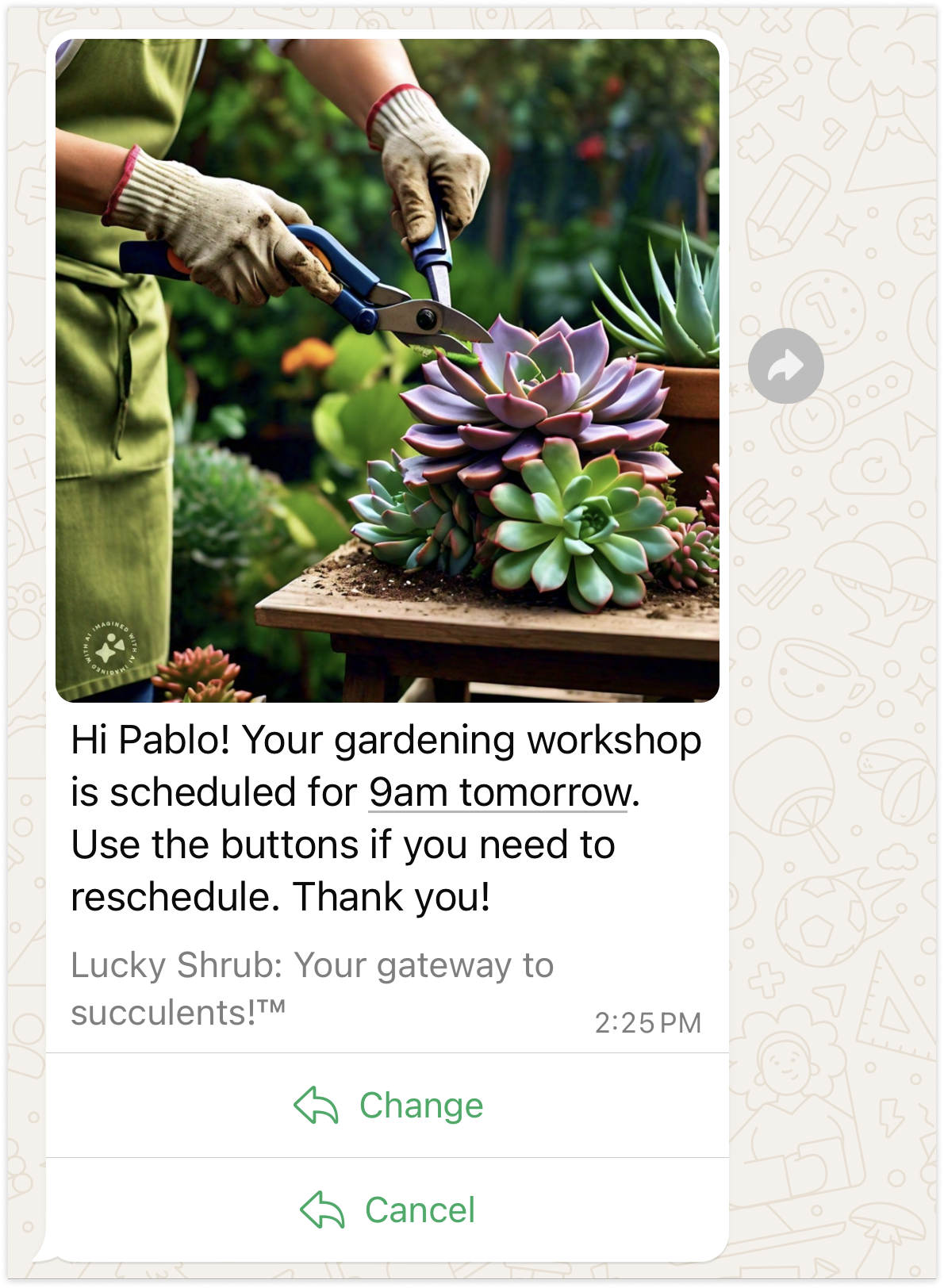
Refer to the visual below for an example of how Quick Reply buttons are displayed in a conversational WhatsApp template.
You can use the sample request below if you want to use the quick reply buttons:
curl --location 'https://whatsapp.useinsider.com/v1/conversational/send' \
--header 'Content-Type: application/json' \
--header 'x-ins-auth-key: INS.**************************************' \
--data '{
    "from": "{{PHONE_NUMBER}}", //Example: +112312312
    "messages": [
        {
            "phoneNumber": "+1**********",
            "message": {
                "type": "template",
                "template": {
                    "name": "{{TEMPLATE_NAME}}",
                    "language": {
                        "code": "{{TEMPLATE_LANGUAGE_CODE}}",
                        "policy": "deterministic",
                    },
                    "components": [
                        {
                            "type": "body",
                            "parameters": [
                                {
                                    "type": "text",
                                    "text": "{{PARAMETER_VALUE}}"
                                }
                            ]
                        },
                        {
                            "type": "button",
                            "sub_type": "quick_reply",
                            "index": "0",
                            "parameters": [
                                {
                                    "type": "payload",
                                    "payload": "1"
                                }
                            ]
                        },
                        {
                            "type": "button",
                            "sub_type": "quick_reply",
                            "index": "1",
                            "parameters": [
                                {
                                    "type": "payload",
                                    "payload": "2"
                                }
                            ]
                        }
                    ]
                }
            }
        }
    ]
}'
After sending the request above, proceed to create your quick reply responses. Refer to the sample response below to create responses for each quick reply button:
Refer to the Send Conversational WhatsApp Message with Button Reply (Quick Reply) to learn more about the Button Reply parameters.
curl --location 'https://whatsapp.useinsider.com/v1/conversational/send' \
--header 'Content-Type: application/json' \
--header 'x-ins-auth-key: INS.**************************' \
--data '{
    "messages": [
        {
            "phoneNumber": "+1**********",
            "message": {
                "type": "interactive",
                "interactive": {
                    "type": "button",
                    "header": {
                        "type": "text",
                        "text": "HEADER_TEXT"
                    },
                    "body": {
                        "text": "BUTTON_TEXT"
                    },
                    "action": {
                        "buttons": [
                            {
                                "type": "reply",
                                "reply": {
                                    "id": "UNIQUE_BUTTON_ID_1",
                                    "title": "BUTTON_TITLE_1"
                                }
                            },
                            {
                                "type": "reply",
                                "reply": {
                                    "id": "UNIQUE_BUTTON_ID_2",
                                    "title": "BUTTON_TITLE_2"
                                }
                            }
                        ]
                    }
                }
            }
        }
    ]
}'
Call to Action Buttons
You can add call-to-action (CTA) buttons, such as "call us" or "visit the website," to your conversational message template (promotional use case) to increase user engagement. You can include 2 visit URLs, 1 CALL, 1 COUPON CODE, 1 REQUEST CONTACT INFO under the CTA.
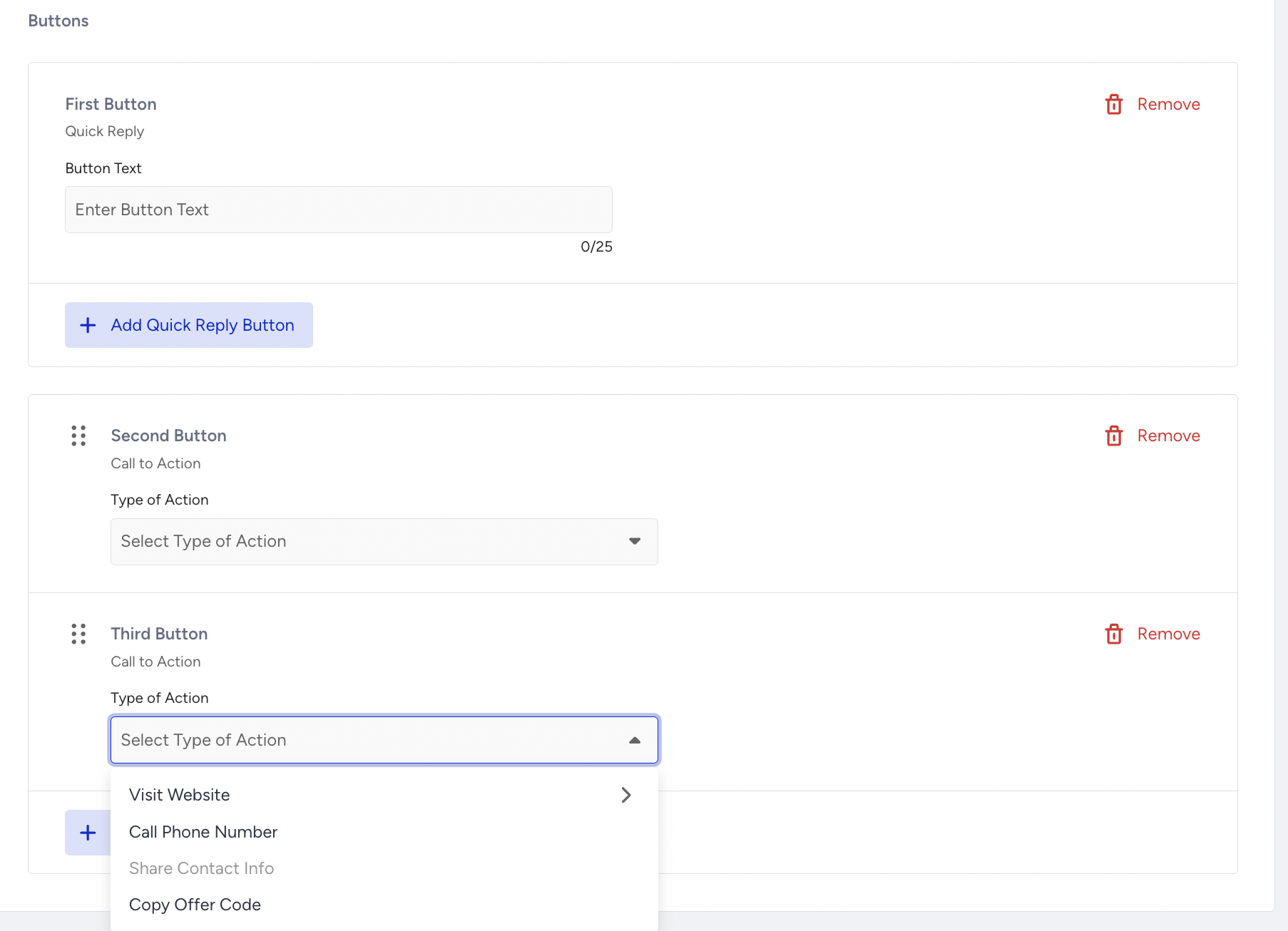
Refer to the visual below for an example of how a CTA button is displayed in a transactional WhatsApp template.
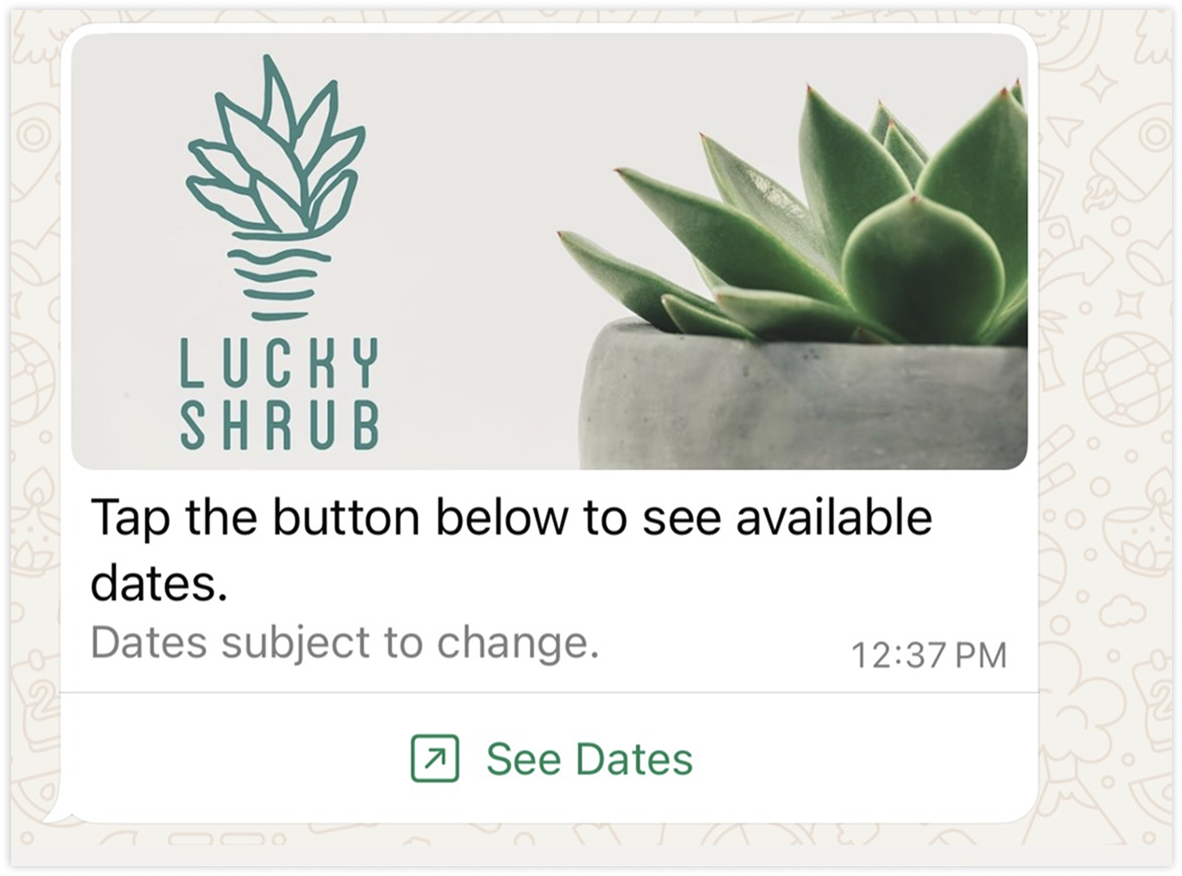
If you want to use CTA buttons in your Conversational WhatsApp template message, you can use the sample request below:
curl --location 'https://whatsapp.useinsider.com/v1/conversational/send' \
--header 'x-ins-auth-key: INS.kjQu-+bL4HpeZqvgr1j0.d4IVgHl9GcE+_eaKxNA3P8M3q8-emrO3-zalg9GSF29mK+Jz5k' \
--header 'Content-Type: application/json' \
--data '{
    "messages": [
        {
            "phoneNumber": "+994558964184",
            "message": {
                "type": "template",
                "template": {
                    "name": "mert_masterfile_media_with_button",
                    "language": {
                        "code": "en",
                        "policy": "deterministic"
                    },
                    "components": [
                        {
                            "type": "header",
                            "sub_type": "",
                            "index": "",
                            "parameters": [
                                {
                                    "type": "image",
                                    "image": {
                                        "link": "https://inshoppingcart.com/seleniumautomation/wp-content/uploads/2018/08/cap-2.jpg"
                                    }
                                }
                            ]
                        },
                        {
                            "type": "body",
                            "sub_type": "",
                            "index": "",
                            "parameters": [
                                {
                                    "type": "text",
                                    "text": "Catch this deal."
                                }
                            ]
                        },
                        {
                            "type": "button",
                            "sub_type": "url",
                            "index": "0",
                            "parameters": [
                                {
                                    "type": "text",
                                    "text": "https://vikingsankara.com"
                                }
                            ]
                        }
                    ]
                }
            }
        }
    ]
}'
No Buttons
If you don’t want to include a button in your Conversational WhatsApp template message, do not select any button.
To use the None option, refer to the sample request below:
curl --location 'https://whatsapp.useinsider.com/v1/conversational/send' \
--header 'Content-Type: application/json' \
--header 'x-ins-auth-key: INS.tiNlcL284J8dwCpfoqdR.gpyLwFG-0fSHPS9+kZYNsI-D2IWFNjlaRDlXJrZjx2_ZPTP37I' \
--data '{
    "messages": [
        {
            "phoneNumber": "+994558964184",
            "message": {
                "type": "template",
                "template": {
                    "name": "7_image_header_no_button_copy",
                    "language": {
                        "code": "fi",
                        "policy": "deterministic"
                    },
                    "components": [
                        {
                            "type": "header",
                            "sub_type": "",
                            "index": "",
                            "parameters": [
                                {
                                    "type": "image",
                                    "image": {
                                        "link": "https://image.insiderone.com/media/whatsapp-business/11521/83rbBaWO7H506118.jpg"
                                    }
                                }
                            ]
                        },
                        {
                            "type": "body",
                            "sub_type": "",
                            "index": "",
                            "parameters": [
                                {
                                    "type": "text",
                                    "text": "shahla"
                                }
                            ]
                        }
                    ]
                }
            }
        }
    ]
}'
Coupon Codes
When sending WhatsApp messages via API, you can add a coupon code that recipients can copy directly from the message. To use this option, add the Copy Code button component to your WhatsApp Business template.
To send a message with a coupon code, your WhatsApp Business Account template must include a Copy Offer Code button. This button is configured at the template level in Meta's WhatsApp Business Manager and cannot be added after the template is created. To set this up, refer to Add Copy Coupon Codes to WhatsApp Business Templates on InOne.
When sending a message using a template that includes a Copy Code button, include the coupon code in the components array of your message payload:
"components": [
  {
    "type": "body",
    "parameters": [
      {
        "type": "text",
        "text": "{{1}}"
      }
    ]
  },
  {
    "type": "button",
    "sub_type": "COPY_CODE",
    "index": "0",
    "parameters": [
      {
        "type": "coupon_code",
        "coupon_code": "SUMMER2024"
      }
    ]
  }
]
Copy Code Button Parameters
Field | Type | Required | Description |
|---|---|---|---|
type | string | Yes | Must be |
sub_type | string | Yes | Must be |
index | string | Yes | The zero-based index of the button as defined in the template (e.g., |
parameters[].type | string | Yes | Must be |
parameters[].coupon_code | string | Yes | The coupon code value that will be shown and copied by the recipient. |
Below is a sample request to send a promotional WhatsApp message with a discount code.
curl --location 'https://whatsapp.useinsider.com/v1/conversational/send' \
--header 'Content-Type: application/json' \
--header 'x-ins-auth-key: 1a2b3c4d5e6f' \
--data '{
  "messages": [
    {
      "phoneNumber": "+905XXXXXXXXX",
      "message": {
        "type": "template",
        "template": {
          "name": "promo_discount_template",
          "language": {
            "code": "en",
            "policy": "deterministic"
          },
          "components": [
            {
              "type": "body",
              "parameters": [
                {
                  "type": "text",
                  "text": "30%"
                }
              ]
            },
            {
              "type": "button",
              "sub_type": "COPY_CODE",
              "index": "0",
              "parameters": [
                {
                  "type": "coupon_code",
                  "coupon_code": "SUMMER30"
                }
              ]
            }
          ]
        }
      }
    }
  ]
}'
The recipient sees the message with a Copy Code button. Tapping it copies SUMMER30 to their clipboard.
Important: You are responsible for tracking whether
SUMMER30has been used or expired. Insider One's Coupon Manager doesn’t record this usage.
Limitations of API-sent Coupon Codes
Coupon codes sent via API are not connected to Insider One’s Coupon Manager. The add, reduce, and expire functionalities available in the Insider One platform do not apply to API-sent messages.
The API accepts any string value for the
coupon_codeparameter and doesn’t validate it against your Coupon Manager inventory.When messages are sent through the InOne, the coupon code field is populated automatically, and the full coupon lifecycle, including creation, usage tracking, and expiry management, is handled by Coupon Manager. This automatic management is unavailable for API-sent messages.
The Copy Code button must already exist in your WhatsApp Business Account template before sending the message. You cannot add a copy code button dynamically at send time.
Sample Responses
One key piece of information will be returned for each message to be sent. This key will be added to all events related to the message.
{
    "keys": [
        "whatsapp-*************************"
    ]
}
403 Forbidden
This error occurs when requests are blocked by Cloudflare’s security mechanisms, which act as an additional protection layer for Insider’s infrastructure.
As part of this setup, Insider complies with Cloudflare’s automated security policies. In certain cases, these mechanisms may block specific User-Agent values or IP addresses.
If the client IP is denied or restricted, the API will return the following response:
{
  "message": "ip-restricted",
  "error": {
    "message": "ip-restricted",
    "code": 1088
  }
}
Notes:
403 Forbidden error occurs when the IP address is not whitelisted for you.
Error code 1088 is specific to IP restriction errors.
How to Troubleshoot a 403 Forbidden Error
If you encounter a 403 Forbidden error when making API requests, for example, through the Conversational or Transactional API, please check the following:
Verify the User-Agent header used in your HTTP client (especially default or empty values such as Java’s default
User-Agent).Review blocked requests under Security > Events in your Cloudflare dashboard to identify whether they were rejected due to User-Agent or WAF rules.
For more detailed troubleshooting guidance and Cloudflare’s official documentation, refer to the following resources:
Limitations
All functions must be executed with a simple HTTPS POST request.
Only new WhatsApp messages can be sent via this API. No data can be retrieved.
The API Key should be provided as the authorization key in the request header. If the key is incorrect, the operation will not be executed, and an authorization error will be returned in the response.
The rate limit is 1000 requests per second (maximum). Incoming requests are queued, and message delivery is processed based on your Messaging Per Second (MPS) capacity.
The default limit shown here is a standard baseline. If your use case requires higher capacity, feel free to reach out to the Insider One team. We can adjust it to fit your needs.