Liquid is currently available in the SMS standalone channel and Architect SMS channel.
Liquid is a templating language that lets you create dynamic, personalized SMS messages from a single campaign.
Instead of creating separate messages for different audiences, you can insert customer attributes such as first name, city, language, loyalty tier, or cart contents, then use conditions, loops, and formatting to personalize the message for each recipient automatically.
Liquid is available in promotional SMS campaigns and can be used in the following message types:
SMS message body
RCS (Rich Communication Service) message text
Each area has its own Liquid Tags toggle, allowing you to enable Liquid only where you need it.
This guide walks you through the following concepts and covers everything you need to start using it confidently.
Step 1: Liquid Tags toggle
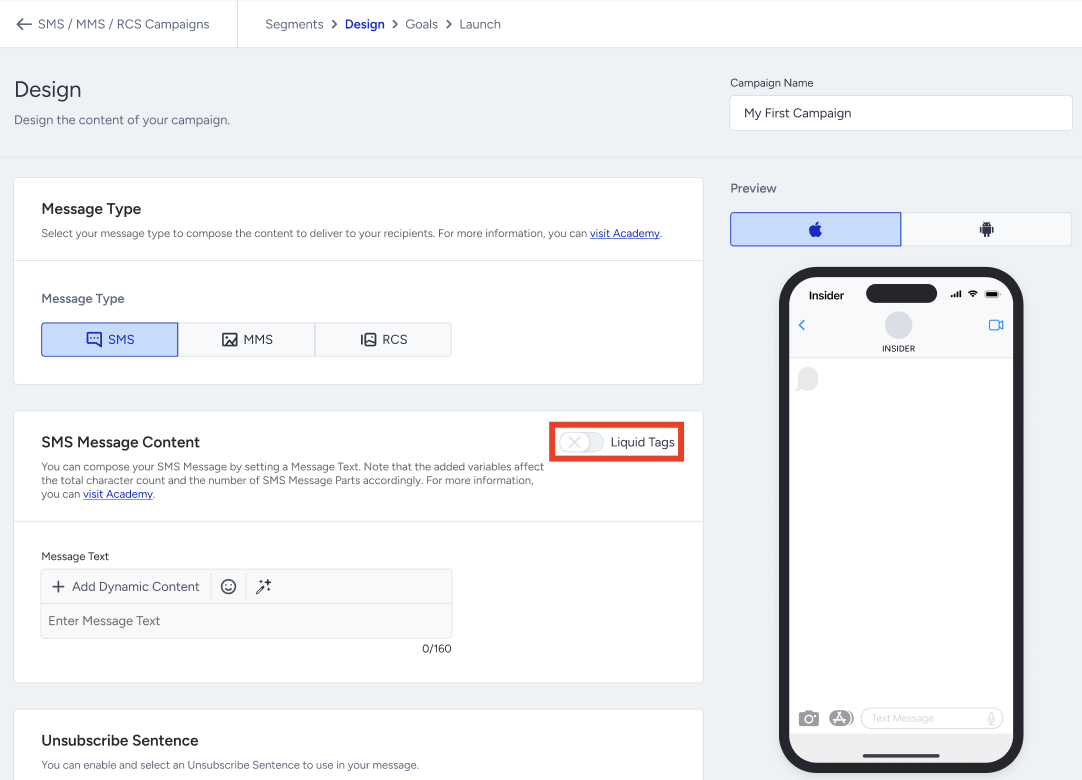
In your campaign, go to the Design step. On the Message Content screen, you'll find the Liquid Tags toggle in the upper-right corner of the editor.
The toggle is off by default.
Step 2: Default mode: Dynamic Content chips
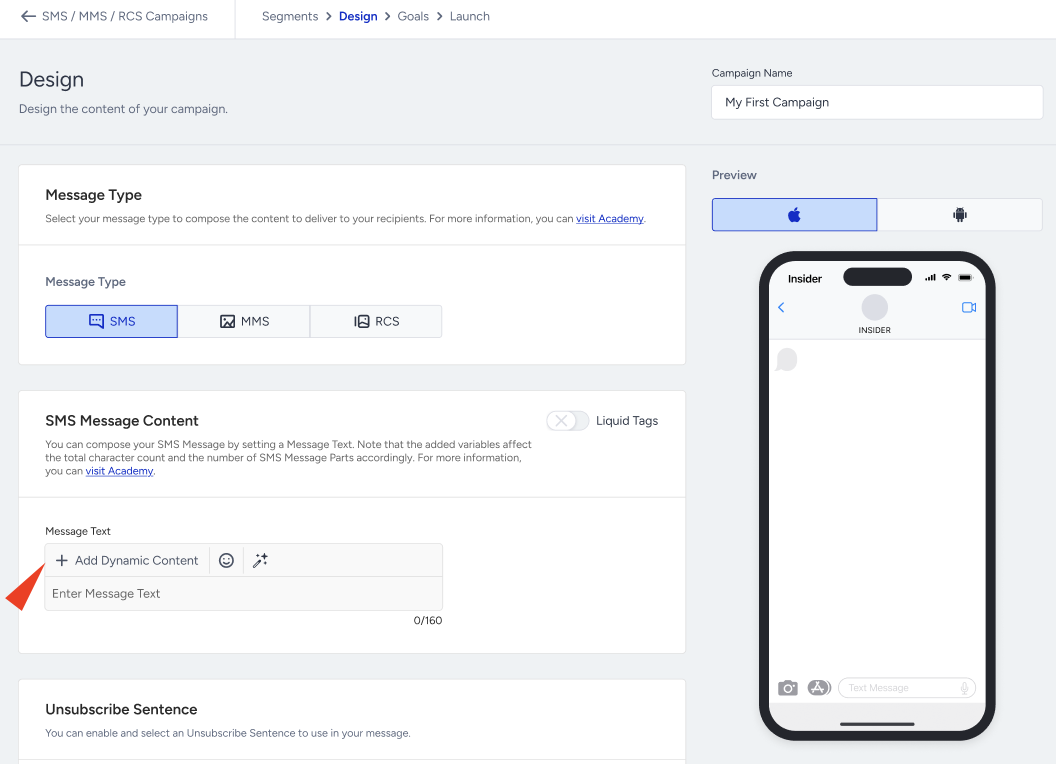
When the Liquid Tags toggle is off, the editor uses the standard no-code personalization experience. Click + Add Dynamic Content to insert an attribute as a chip with an optional fallback value (for example {first_name|fallback=there}). This is the right choice for simple, single-attribute personalization.
Step 3: Enable Liquid Tags
Turn on the Liquid Tags toggle.
If the editor is empty, the toggle switches immediately.
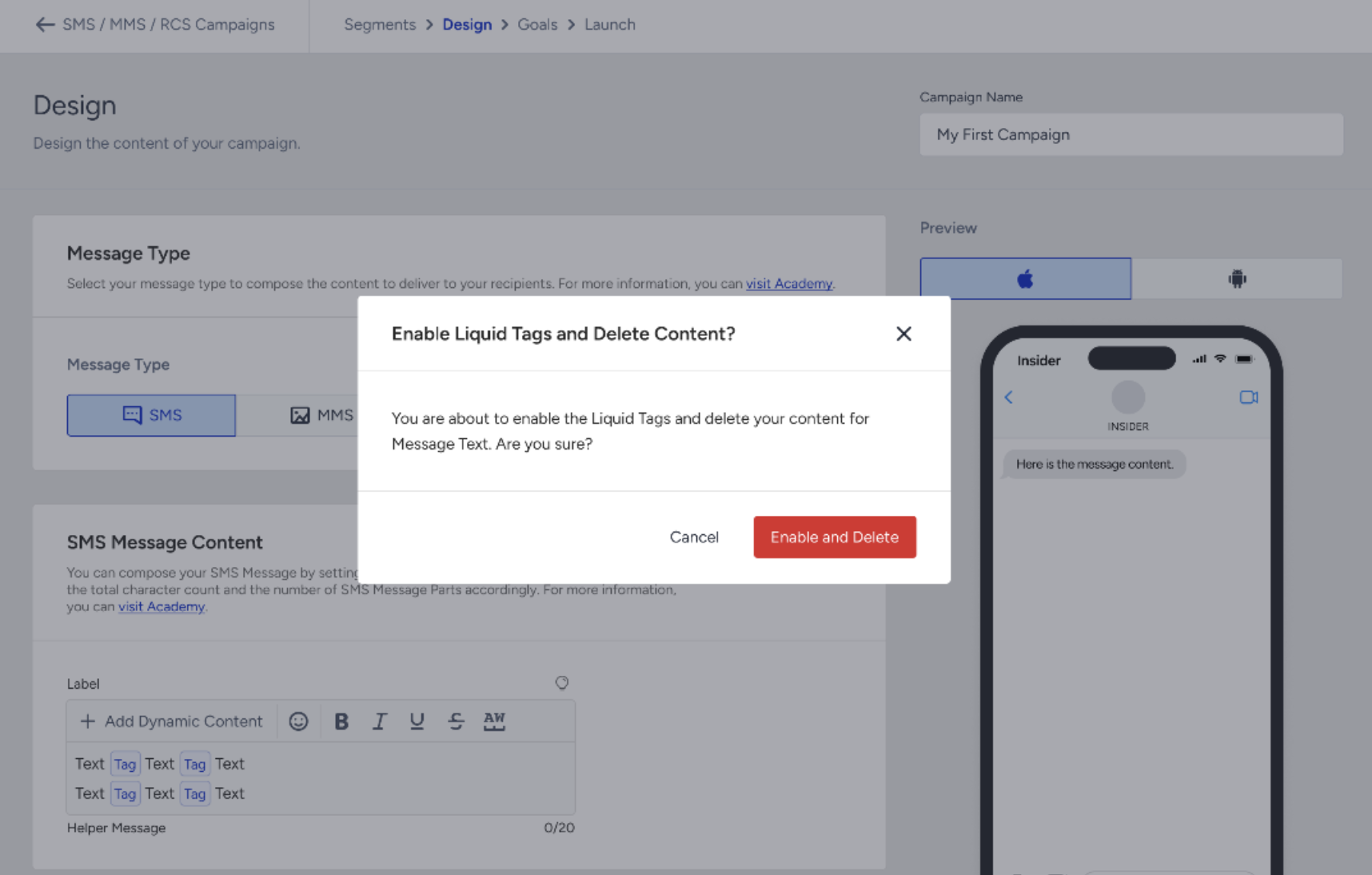
If the editor already contains content, a confirmation dialog appears: ”Enable Liquid Tags and Delete Content?”
Select Enable and Delete to continue, or Cancel to keep your existing message.
Copy your message before switching modes. Switching between standard and Liquid modes clears the editor. If you want to keep your existing content, copy it before enabling or disabling Liquid.
The same confirmation logic applies in reverse: turning the toggle off while Liquid content exists shows a "Disable Liquid Tags and Delete Content?" modal.
Step 4: Author in the Liquid editor
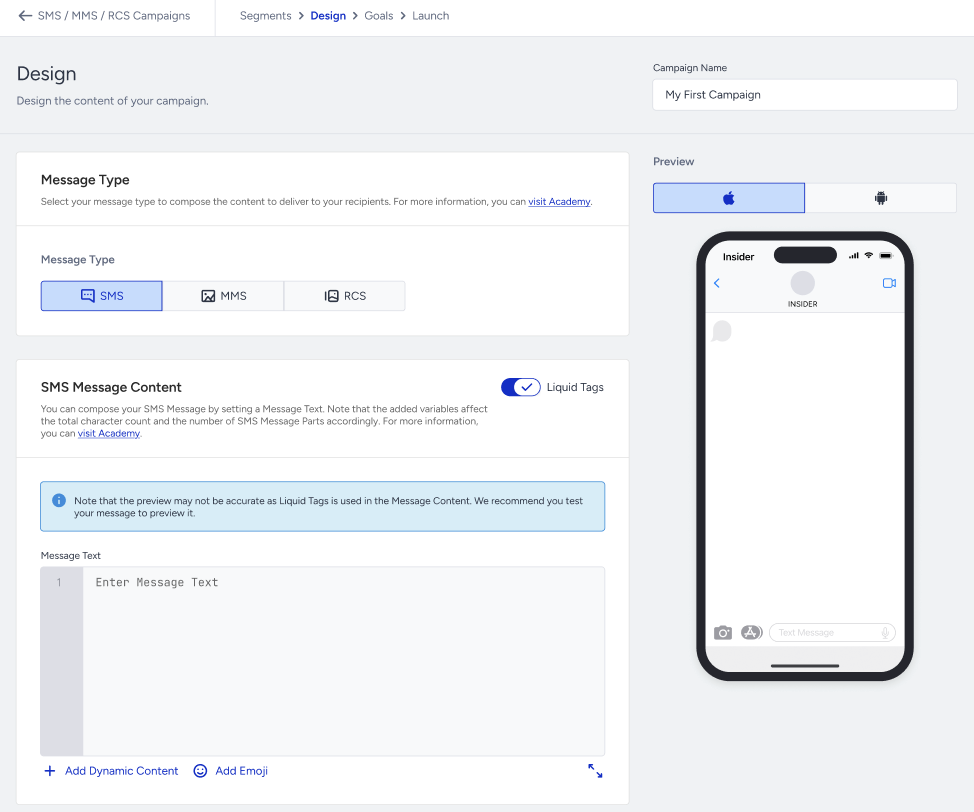
When Liquid is enabled, the standard message field is replaced with a code editor that includes line numbers.
You can write Liquid manually or select Add Dynamic Content to insert the correct attribute names automatically. You continue working in the same Message Content area. No additional field or editor is added.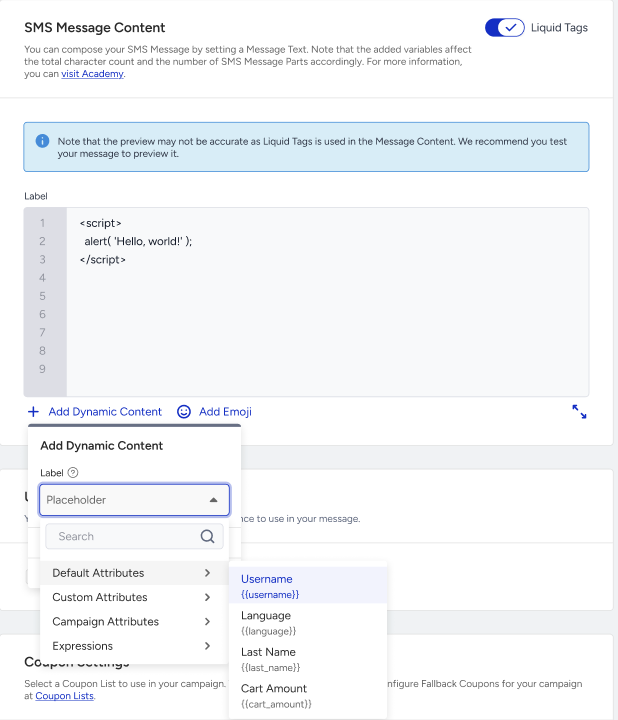
Liquid is controlled independently for each supported message type. You can enable Liquid Tags separately for the SMS body, MMS, RCS message text, and the SMS Fallback of an RCS message.
Step 5: Enable Liquid Tags in SMS Fallback
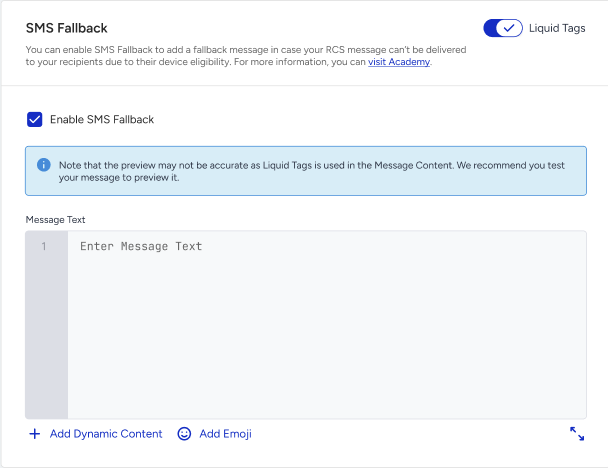
When you create an RCS message, you can optionally enable SMS Fallback. The SMS Fallback has its own Liquid Tags toggle, allowing you to personalize the fallback message independently.
When you create an RCS message, go to the SMS Fallback section, select Enable SMS Fallback, and turn on the Liquid Tags toggle. You can then personalize both the RCS message and its SMS fallback separately using Liquid.
Step 6: Fix validation errors
The editor validates your Liquid code as you type and highlights any issues. The most common validation errors are listed below.
Unclosed tags
A missing {% endif %} or {% endfor %}.
Unknown filter
A misspelled or unsupported filter name (you'll see unknown filter: <name>).
Missing colon in a filter
Write {{ birthday | time_format: "DD MMMM" }}, not time_format "DD MMMM".
Unmatched quotation marks
Every opening " must have a closing ". An unclosed string will cause the rest of the template to be misread.
You cannot save the campaign while the Liquid is invalid. You should resolve every flagged error first.
Where you can use Liquid Tags
Area | Liquid supported | Toggle |
|---|---|---|
SMS body (Message Text) | Yes | Dedicated toggle |
MMS | Yes | Dedicated toggle |
RCS message text | Yes | Dedicated toggle |
RCS SMS Fallback | Yes | Dedicated toggle (available when SMS Fallback is enabled) |
Liquid syntax basics
Liquid consists of three main components:
Objects {{ ... }} output a value: {{ first_name }}.
Tags {% ... %} add logic: {% if %}, {% for %}, {% assign %}.
Filters transform a value: {{ cart_total | money_format: "$" }}.
Attributes are referenced by their UCD attribute name (for example first_name, c_membership_tier). Insert them with Add Dynamic Content to avoid typos. Event parameters are available under the event. object (for example: event.product_name).
Supported Insider One filters
In addition to the standard Liquid filters (default, upcase, downcase, plus, minus, capitalize, truncate, join, size, and so on), Insider One provides these custom filters through the shared Liquid engine:
Filter | Purpose | Example |
|---|---|---|
time_format | Formats a date using Moment.js-style date and time tokens. | {{ c_membership_date | time_format: "DD MMMM YYYY" }} |
number_format | Formats a number with custom thousands and decimal separators. | {{ price | number_format: "dot, comma" }} |
money_format | Formats a monetary value with a currency symbol, custom separators, and symbol position. | {{ amount | money_format: "€", "dot, comma", "suffix" }} |
timezone | Converts a date and time value to a specified time zone. | {{ order_date | timezone: "Europe/Istanbul" }} |
add_time | Adds or subtracts a specified duration from a date. | {{ order_date | add_time: 3, "days" }} |
date_is_between | Checks whether a date falls within a specified date range. | {% if order_date | date_is_between: start, end %} |
at_least / at_most | Restricts a number to a specified minimum or maximum value. | {{ points | at_most: 1000 }} |
titleize | Converts a string to title case and supports Unicode characters. | {{ full_name | titleize }} |
sum | Calculates the total of the numeric values in an array. | {{ line_totals | sum }} |
sha256_hash / md5_hash | Hashes a value for use cases such as audience matching. | {{ email | sha256_hash }} |
b64encode | Encodes a value in Base64 format. | {{ payload | b64encode }} |
Use cases in practice
The following examples demonstrate common Liquid use cases. Each example assumes the sample customer profile below.
Attribute | Sample value |
|---|---|
first_name | Ayşe |
language | tr |
c_membership_tier | gold |
c_membership_date | 2026-04-01 |
cart_total | 35 |
cart_items | [Shoes, Socks, Hat] |
Use case 1: Localization (render the right language per recipient)
Create a single campaign that automatically displays the correct language for each recipient, without creating separate campaigns for each language.
{% if language == "tr" %}Merhaba {{ first_name | default: "there" }}, %20 indirim seni bekliyor!
{% elsif language == "de" %}Hallo {{ first_name | default: "there" }}, 20% Rabatt warten auf dich!
{% else %}Hi {{ first_name | default: "there" }}, 20% off is waiting for you!
{% endif %}
Use case 2: Conditional content by segment or attribute
{% if c_membership_tier == "gold" %}Exclusive Gold offer: 30% off — use code SAVE
{% else %}Member offer: 15% off — use code SAVE
{% endif %}
Use case 3: Numeric threshold logic
{% assign remaining = 50 | minus: cart_total %}
{% if cart_total < 50 %}You're only {{ remaining }} USD away from free shipping!
{% else %}You've unlocked free shipping — checkout now!
{% endif %}
Use case 4: Sentence-restructuring fallback
Produce a complete sentence whether or not the attribute exists, instead of leaving a blank gap.
{% if first_name == blank %}Your cart is waiting — come back and finish up!
{% else %}Hi {{ first_name }}, your cart is waiting!
{% endif %}
Use case 5: Loop over a collection
Still in your cart: {% for item in cart_items %}{{ item }}{% unless forloop.last %}, {% endunless %}{% endfor %}. Checkout now!Renders: Still in your cart: Shoes, Socks, Hat. Checkout now!
Use case 6: Format a stored date
Gold member since {{ c_membership_date | time_format: "DD MMMM YYYY" }}.Renders: Gold member since 01 April 2026.
Personalize with customer data
When an attribute is missing
If an attribute is missing or empty, Liquid renders nothing. No error is generated, but the missing value leaves a gap in your message. Use the default filter as your first line of defense because it handles both missing and empty values.
Hi {{ first_name | default: "there" }}!first_name = Ayşe → Hi Ayşe!
first_name not set → Hi there!
You can also branch on blank:
{% if c_membership_tier != blank %}Welcome, {{ c_membership_tier }} member!{% endif %}Stop a send when required data is missing
Use the abort_message tag to cancel delivery for a specific recipient when critical data is missing, the rest of the campaign is unaffected. Place these checks at the beginning of your message.
{% if phone_number == blank %}{% abort_message "Missing phone number" %}{% endif %}
{% if c_membership_tier == blank %}{% abort_message "Not enrolled in loyalty program" %}{% endif %}
Hi {{ first_name }}, your {{ c_membership_tier }} member offer is inside.
When a message is aborted this way, or if it fails to render at send time, the send is recorded under a dedicated Liquid Abort drop reason in your analytics, so these are clearly visible instead of being lumped in with generic drops.
Preview, test, and send behavior
Preview
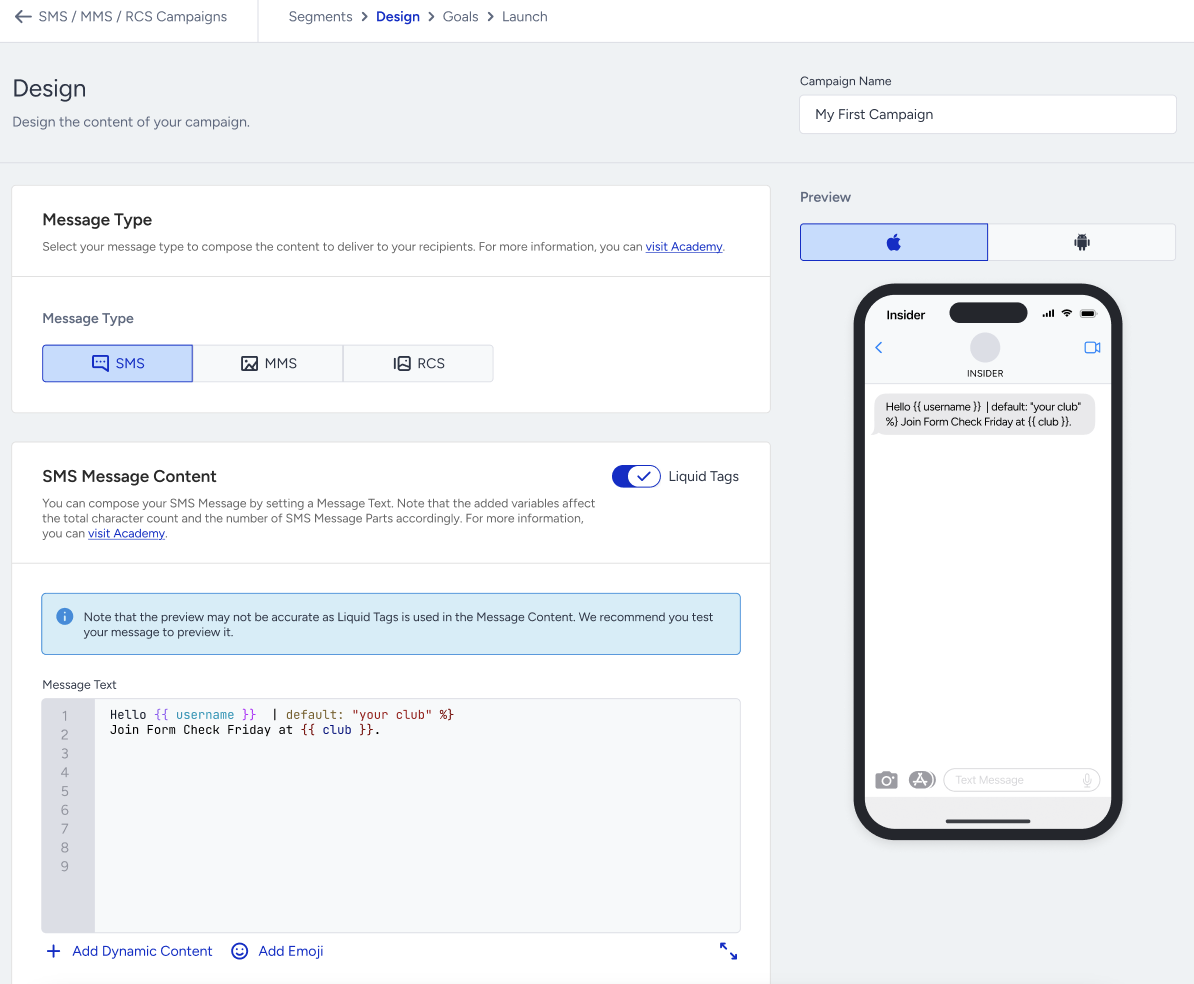
The Message Content preview displays your Liquid code exactly as written. Liquid tags such as {{ }} and {% %} are shown as raw code and are not rendered using customer data. A disclaimer is shown in the editor: "Note that the preview may not be accurate as Liquid Tags is used in the Message Content. We recommend you to test your message to preview it.”
Your unsubscribe sentence is still appended and URL shortening still applies in the preview, exactly as they will at send time.
Test messages
Test messages do not currently render Liquid. Support for rendering test messages with customer data is planned for a future release.
Live send
During a live send, Liquid is rendered individually for each recipient using that customer's data. If a message cannot be rendered, for example, because an abort_message tag is triggered, it is dropped and recorded with the Liquid Abort drop reason.