You cannot make any changes to External Platform Integrations without having either an Administrator or an Editor with PII access in InOne. Refer to User Roles for further information.
Refer to İYS Bağlantısı için Mobildev Entegrasyonu for the Turkish version of Mobildev integration.
Only opt-in and opt-out changes originating from Insider One Lead Collection forms and Insider One’s native email or SMS unsubscribe/resubscribe mechanisms are sent through this integration. Changes made via APIs, CSV uploads, Web or Mobile SDKs, CRM systems, or other integrations are not automatically synced to IYS.
Mobildev integration keeps user data up to date in IYS and ensures seamless transfer of contact information collected through Insider One’s lead collection templates to IYS.
The Mobildev integration syncs consent (opt-in and opt-out) with IYS only. It does not send SMS. To send SMS, use an SMS provider that is set up separately.
To set up the Mobildev integration, follow these steps:
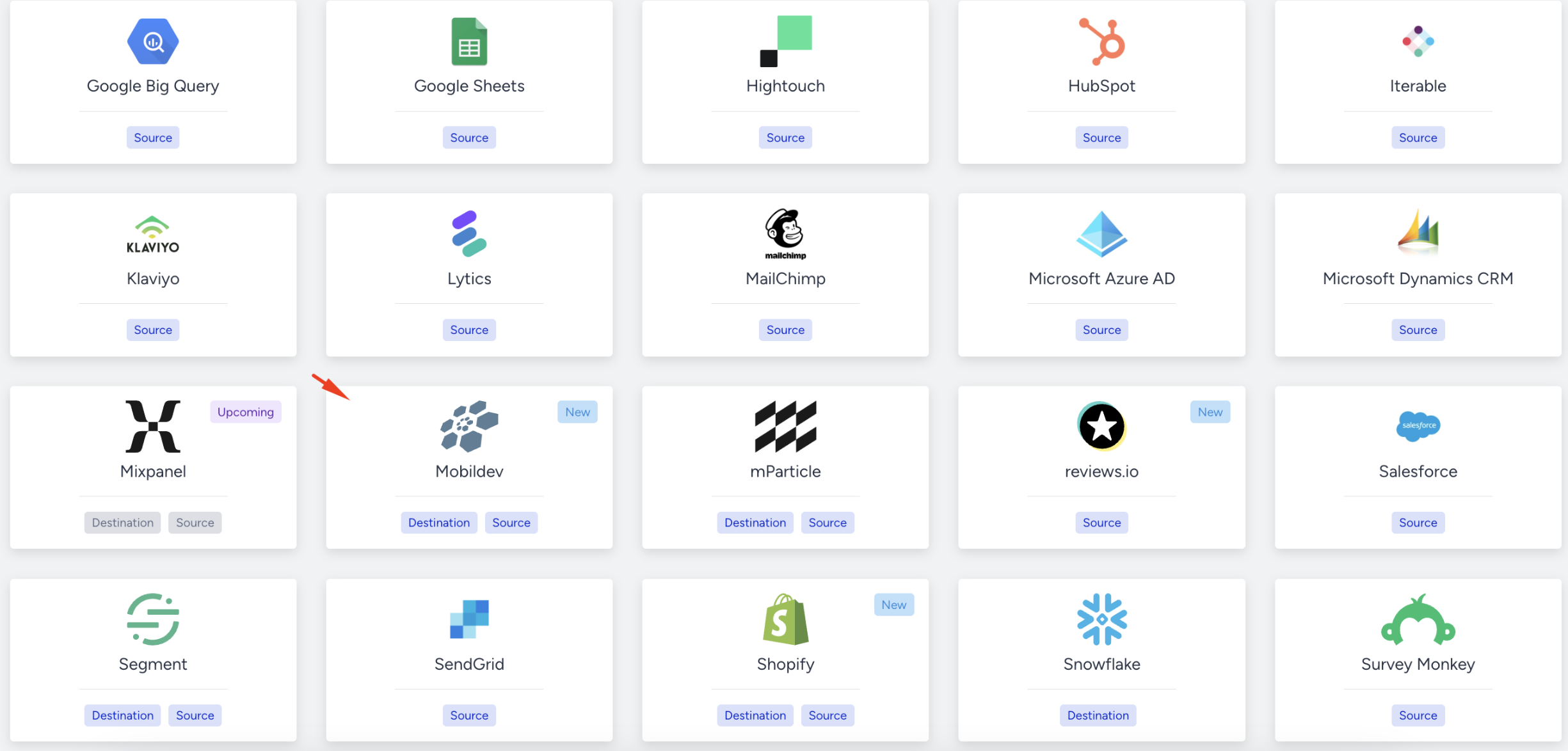
Navigate to Components > Integrations > External Integrations in Insider One's InOne panel.
Select the Mobildev platform.
Enter your Brand Code and IYS Code, which are your IYS authentication credentials, into the relevant fields.
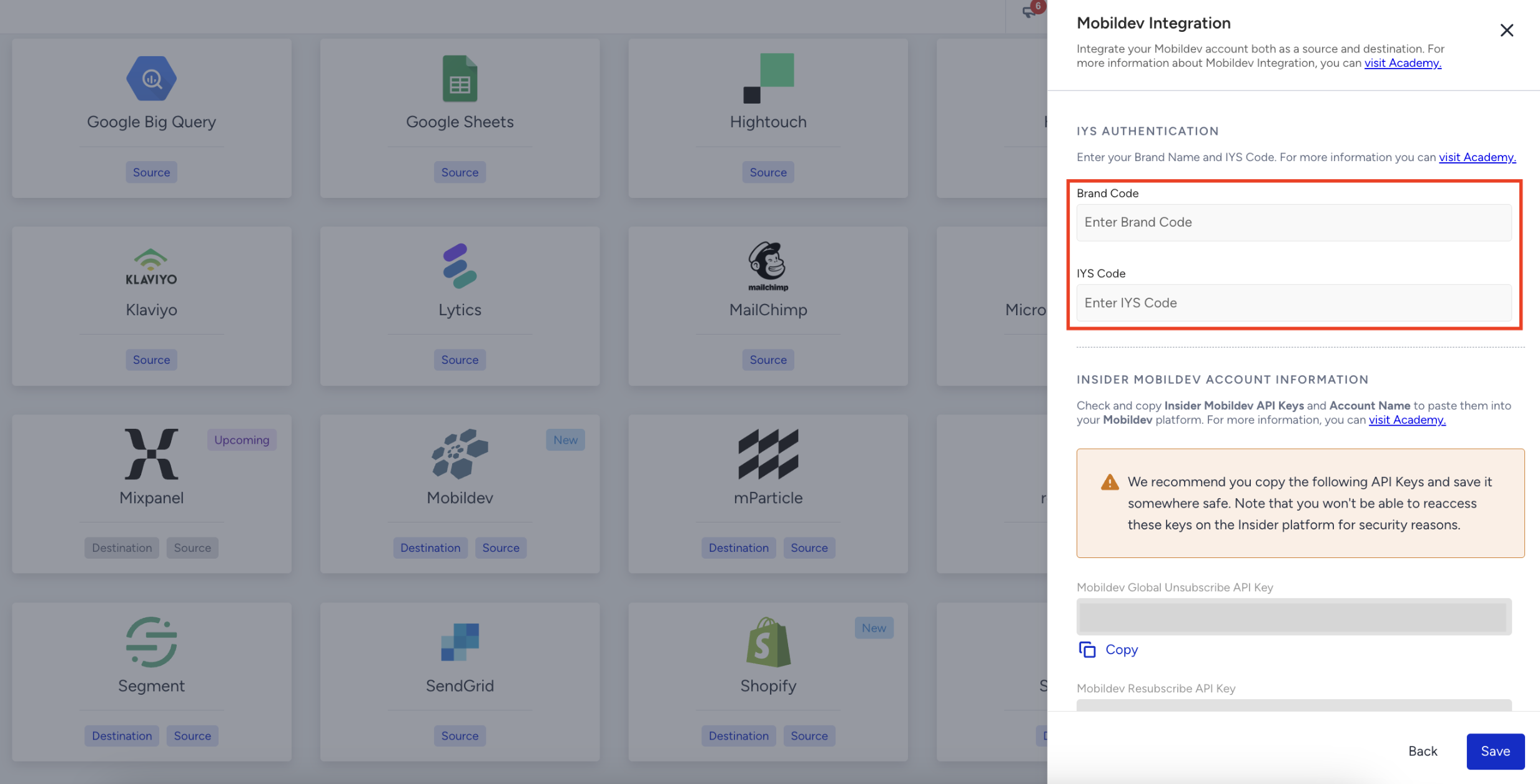
After entering your IYS authentication credentials, copy the following information and click the Save button:
Global Unsubscribe API Key
Resubscribe API Key
Insider Account Name
Enter this information into your Mobildev integration settings.
Once you complete the Mobildev integration, you are all set.
What does the Action Required status mean?
The Action Required status indicates that Insider One could not complete a request to Mobildev. This can occur because of a temporary issue with IYS or incorrect integration credentials. When this happens, you also receive an Action Required: Mobildev Integration Interrupted notification.
Insider One automatically rechecks the connection every 30 minutes. If the issue is resolved, the integration status returns to Available.
If the status remains Action Required, verify the Brand Code and IYS Code in your Integration settings.