Email Settings allow you to configure the settings that will apply to your email campaigns.
To navigate to this page, go to Campaigns > Messaging > Email > Settings.

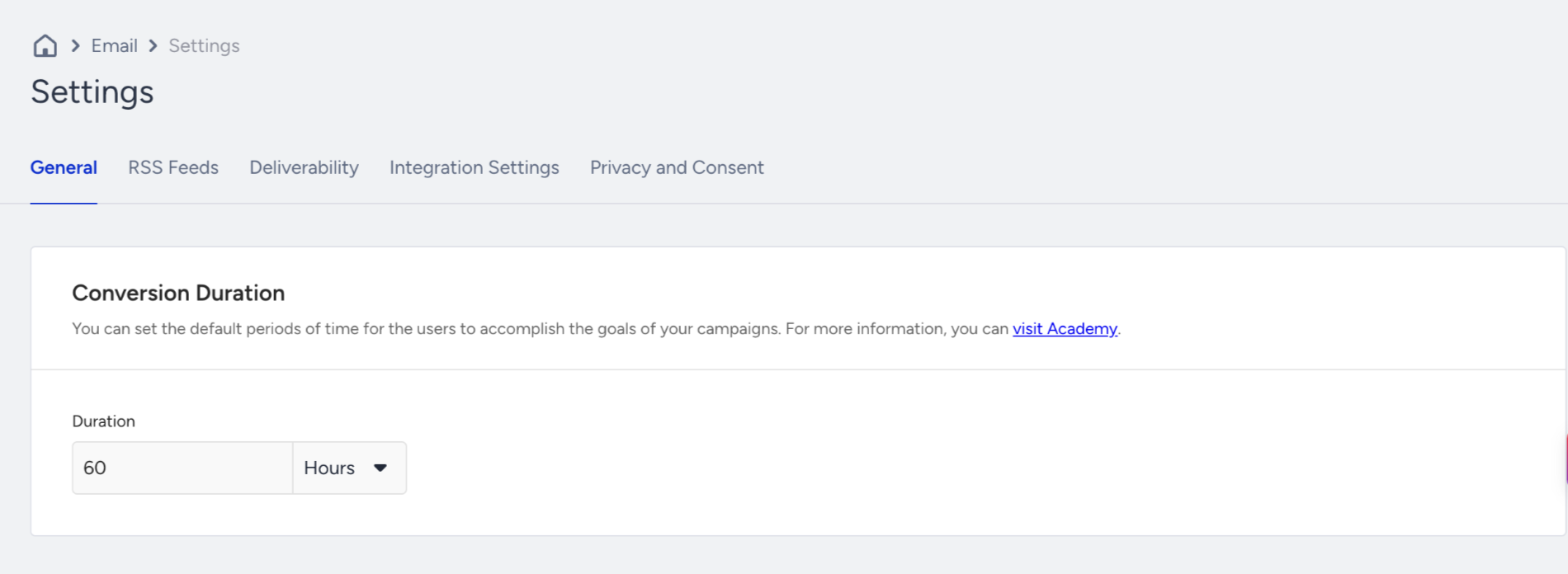
The page is organized into five tabs:
Each tab has its own Save button at the bottom of the page, and clicking it saves only that tab's changes. A success or failure message confirms the outcome of every save.
If you move to another tab or leave the page with unsaved changes, a confirmation dialog asks whether to Save changes, Discard changes, or Cancel. Cancel keeps you on the tab with your changes intact, and Discard returns the fields to their last saved values.
The RSS Feed tab has no Save button. Each action on that tab is saved as you perform it.
If you are not an account admin, the settings appear, but the controls and the Save button are disabled.
General
Conversion Duration
The conversion duration applies to bulk emails. This setting helps you set a duration during which the revenue is attributed to the overall email revenue metric. This duration is 7 days by default. You can set it in minutes, hours, days, or weeks, up to 365 days, using a single field with the unit shown alongside the value.
Read more on Email Analytics.
RSS Feed
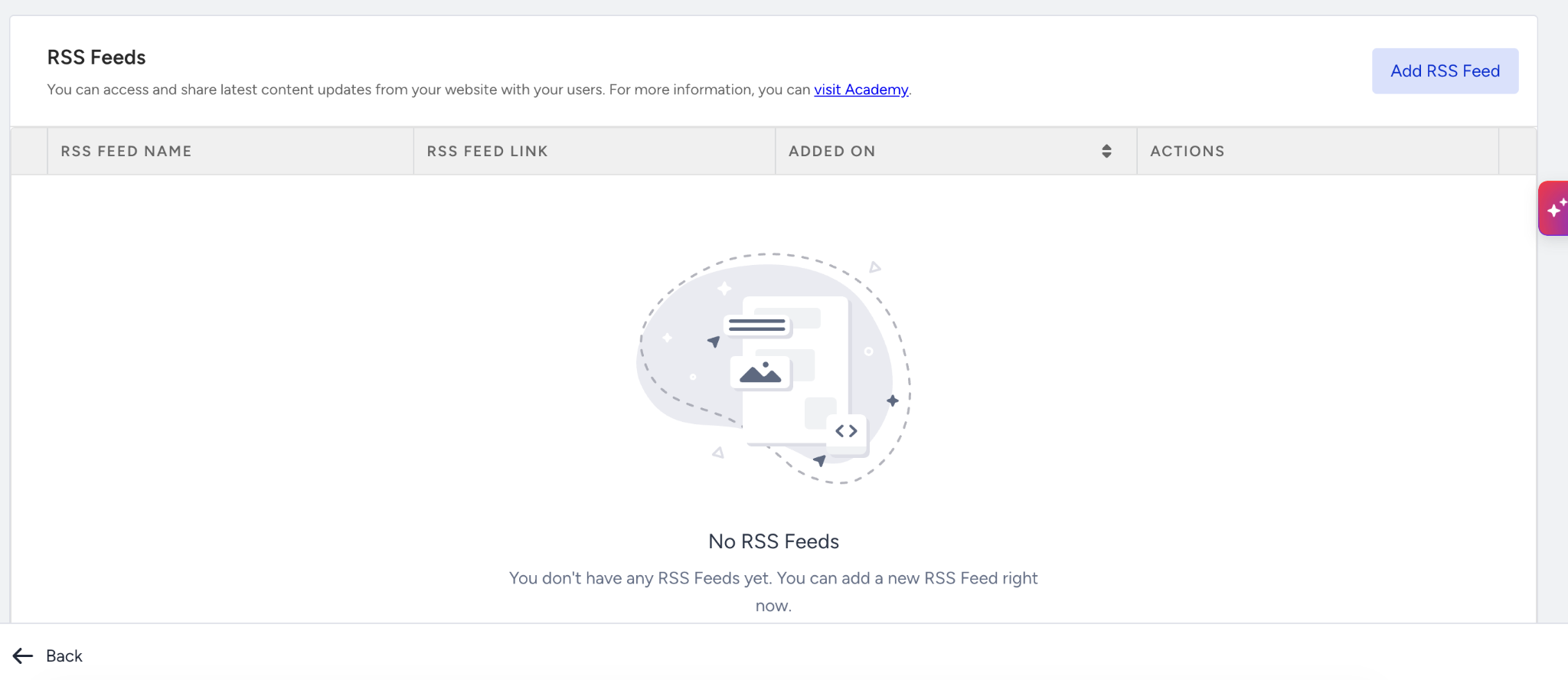
The RSS Feeds setting applies to bulk emails. It allows you to access and share the latest content updates from your website with your users.
Click the Add RSS Feed button in the container header to add a feed, and enter a Feed Name and a Feed Link. Click the info icon on any row to see that feed's details. Use the search field inside the table to find a feed.
Deliverability
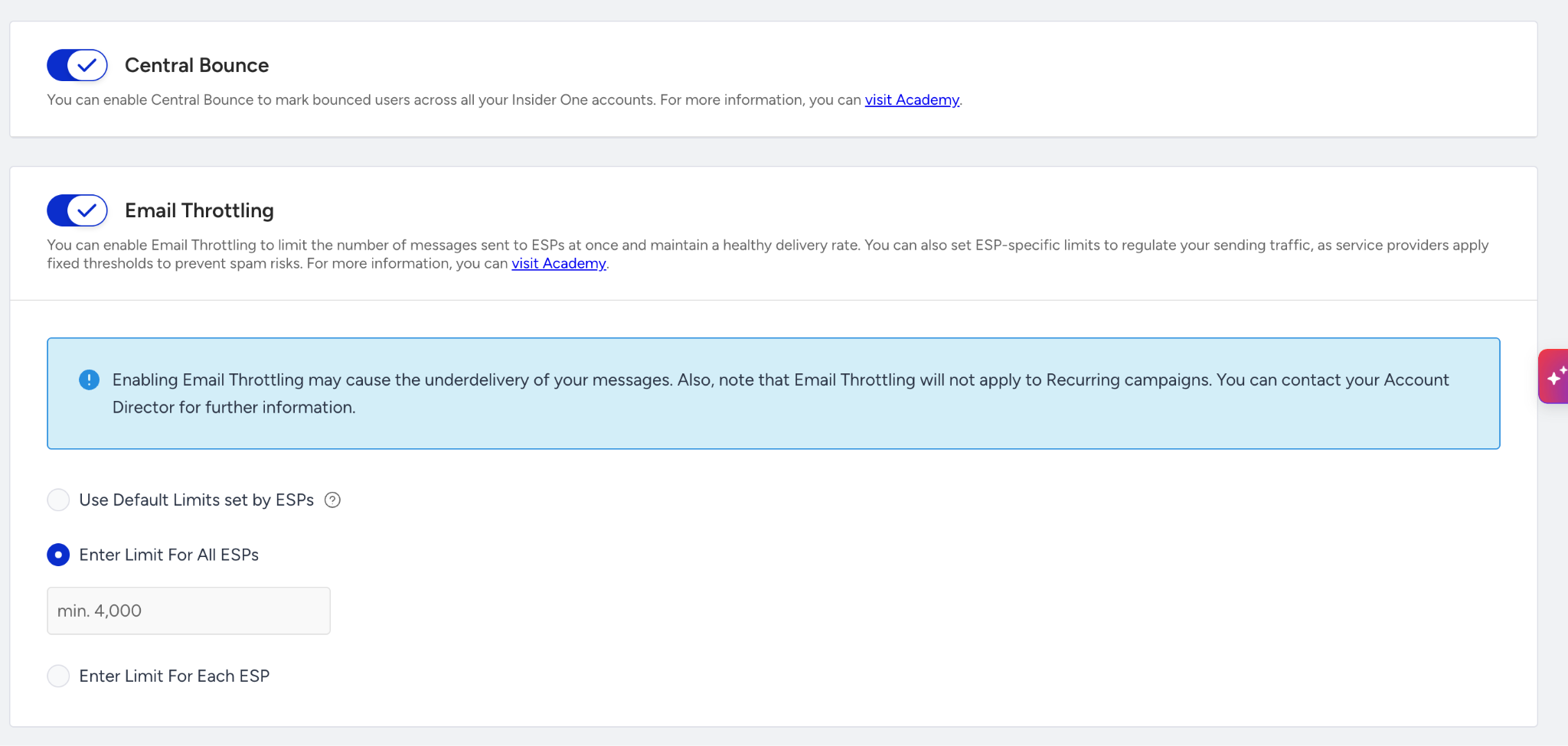
Central Bounce
Once enabled, this setting applies to Architect emails and bulk emails. Permanent bounces across all Insider accounts are flagged as Central Bounce, which can be caused by an invalid recipient email address or a non-existent domain name. When uploading any file to Static Segments, users are checked against Central Bounce and counted as bounced if they exist. You can also see the count of these users on List Upload Confirmation emails under Total Bounced Users.
Read more about Manage Email Suppressions.
Email Throttling
Email Throttling applies to bulk emails. It helps you manage the total email volume delivered to ESPs by evenly distributing it across the hourly limits you set. This ensures system stability, prevents ESP rejections, and improves overall deliverability.
Turn on the toggle and choose one of three options:
Use Default Limits set by ESPs: Limits the total email volume sent from your account per hour based on the defined default throttling settings.
Set Fixed Limit Per ESP: Manages the total email volume sent from your account based on the throttling limit you set. The same throttling number is applied per ESP.
Set Custom Limit For Each ESP: Enables throttling for the total email volume from your account based on the custom limit you set per ESP: Google Mail, Yahoo / AOL, Microsoft, iCloud, BT Internet, Comcast, and all other ESPs.
While the toggle is on, the page shows: "Enabling Email Throttling may cause the underdelivery of your messages. Also, note that Email Throttling will not apply to Recurring campaigns. You can contact your Account Director for further information."
If your combined custom limits exceed 4,000,000 messages per hour, an inline message asks you to adjust them before you proceed. The message clears once the total is at or below the maximum. A value you enter under one option is kept if you switch options and come back.
Read more on Email Throttling.
Integrations
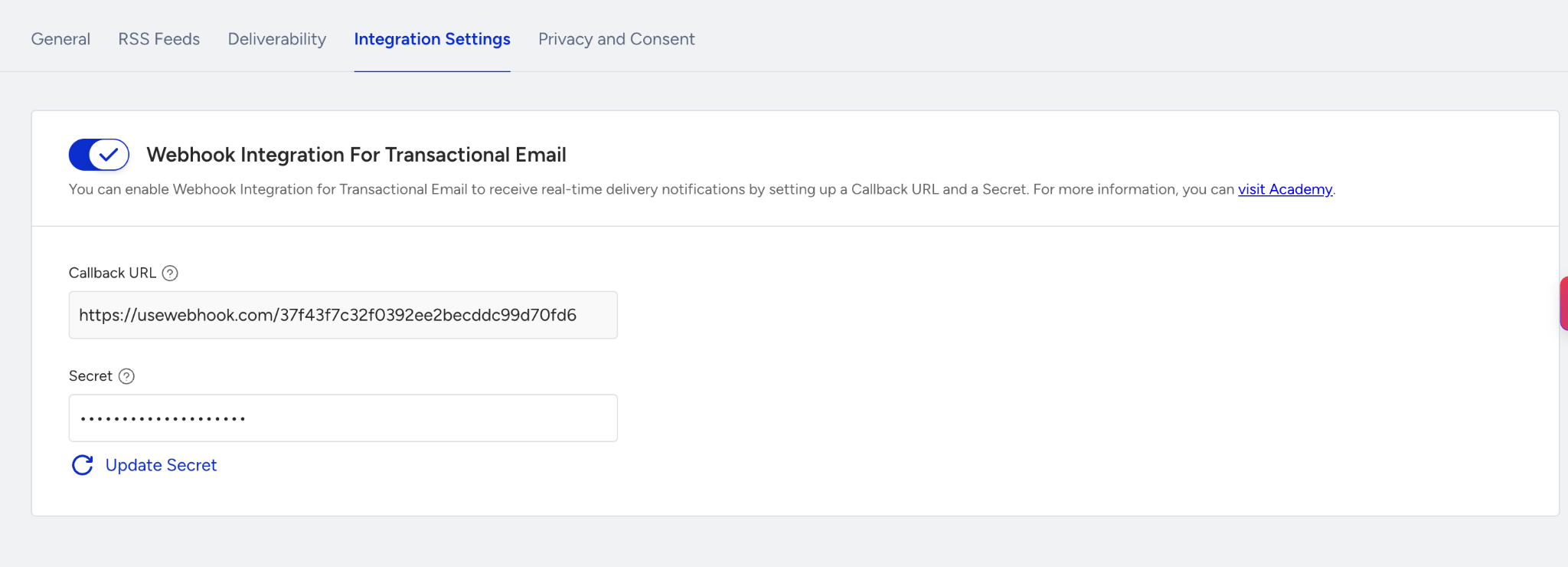
Webhook Integration for Transactional Email
Turn on this toggle to receive real-time delivery notifications for your transactional emails, then enter a Callback URL and a Secret. The Callback URL must start with https://.
Once you save a secret, it is masked. It is kept until you replace it with a new value.
For further details on webhook cases and requests, refer to Webhooks for Transactional Emails.
Webhook Integration for Promotional Email
This setting applies to promotional emails. Turn on the toggle and add a Callback URL and a Secret to receive email events. These values are independent of the transactional webhook's.
For further details on webhook cases and requests, refer to Webhooks for Email Events.
Privacy and Consent
Double Opt-in
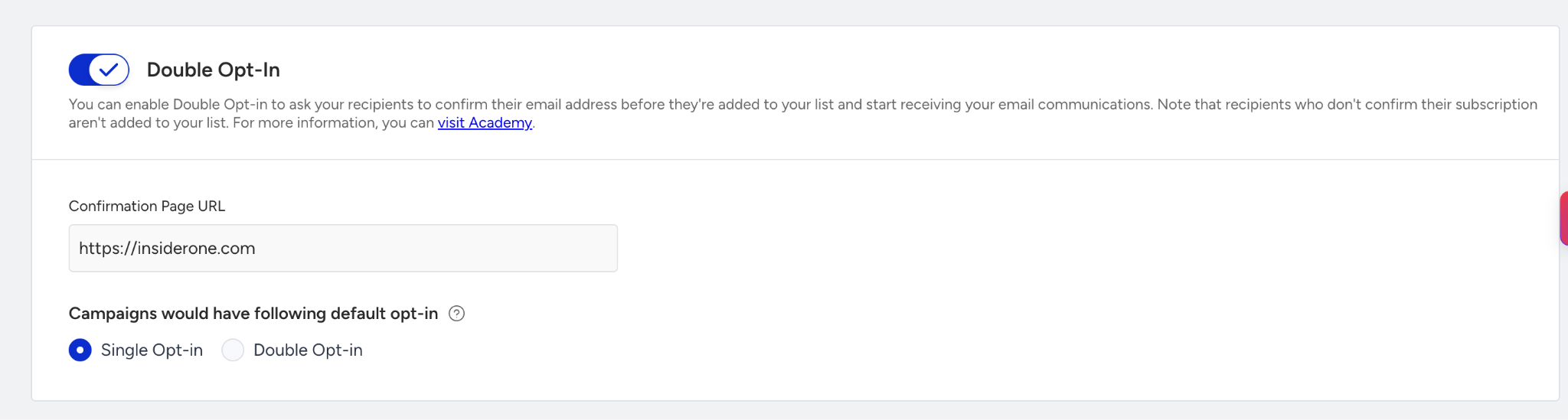
Double opt-in applies to Architect emails. This setting enables users to confirm their email address before being added to your email list and receiving your email. It is a double confirmation of their subscription to your newsletter or to any services that require their email address. Double opt-in in email marketing helps ensure GDPR compliance and keeps your email list clean.
Turn on the toggle to add your Confirmation Page URL and select your default opt-in type, which lets you send emails to single- or double-opt-in users. While the toggle is off, the default opt-in method is Single Opt-in.
Pixel Tracking Opt-In
Turn on this toggle to send messages carrying a tracking pixel only to recipients who have opted in, so only their opens are tracked. Recipients who have not opted in receive your messages without a pixel, and their opens are not tracked.
Read more on Email Open Tracking Consent.