SDK Activity lets you turn the Insider One SDK off and on for your mobile app directly from the InOne panel. You do not need to release a new app version. While the SDK is disabled, Insider One does not collect data from your app, and SDK-driven experiences are not shown to your users. When you enable it again, the SDK resumes the next time your users launch the app.
You might want to disable the SDK in the following cases:
You need to stop all mobile data collection right away (e.g., during an incident or a privacy review).
You are cleaning up or re-importing your user data and do not want new mobile data to arrive in the meantime.
You need a remote off switch that does not depend on an app store release.
You can click your username > Settings > Mobile App Settings > General and go to the SDK Details section to access this setting. If you use Multi App, you can find the SDK Details section under the Apps tab.
You need to have the Administrator role to see and use the SDK Activity setting.
This guide explains the following concepts:
Supported SDK versions
The SDK goes fully idle when it is disabled on the following SDK versions and later:
On earlier SDK versions, Insider One still stops storing the data your app sends, but the SDK in the app might not stop all of its activity. We recommend upgrading to one of the versions above before you rely on this setting.
Disable the SDK
Go to the SDK Activity section. The status shows Enabled.
Click the Disable SDK button.
Read the confirmation message and confirm.
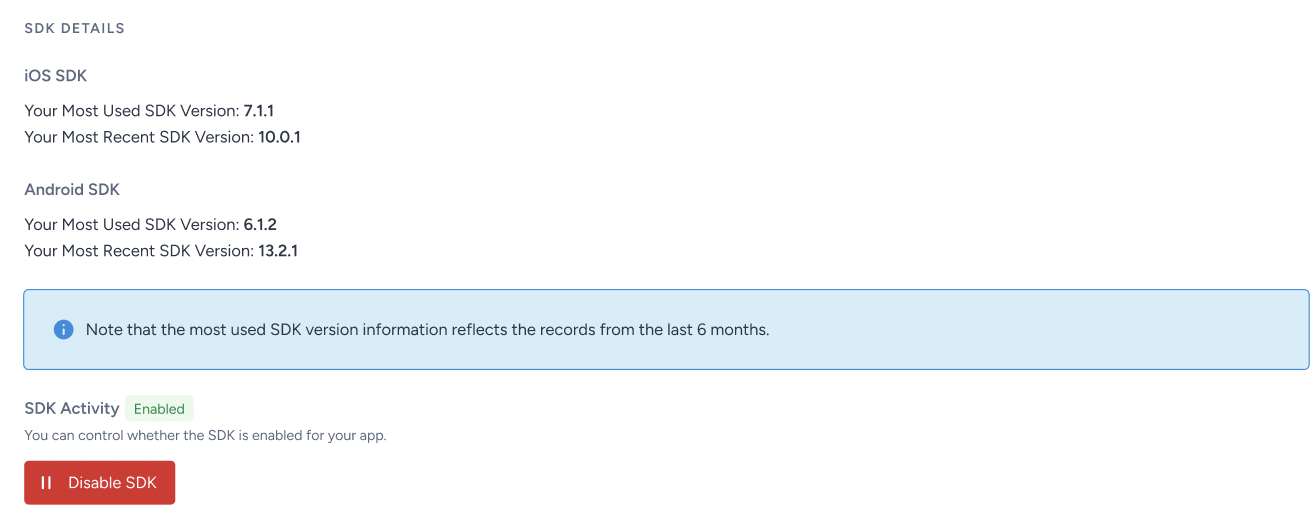
The status changes to Disabled, and the button changes to Enable SDK. The change is saved immediately. You do not need to click the Save button of the page.
Enable the SDK
Go to the SDK Activity section. The status shows Disabled.
Click the Enable SDK button.
Read the confirmation message and confirm.
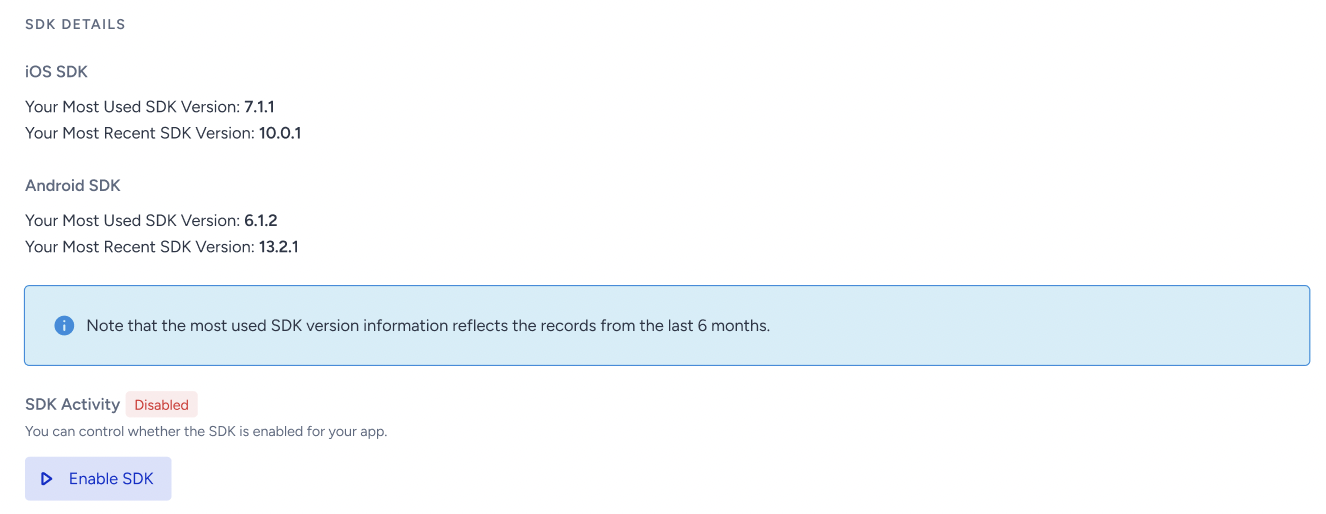
When the change takes effect
On Insider One's side: Within a few minutes after you disable the SDK, Insider One stops storing the data your app sends and stops delivering SDK-driven content to it.
On your users' devices: Each device learns about the change the next time the app is opened. From that point on, the SDK stays idle on that device.
After you enable the SDK again: Each device resumes the next time the app is launched.
The setting applies to your whole panel. If you use Multi App, disabling the SDK disables it in all your apps.
What happens while the SDK is disabled
Area | What happens |
|---|---|
Events, attributes, and identifiers | Not collected. This includes sessions, page views, custom events, purchases, user attributes, and login or logout calls. |
User profiles | No new mobile users are created, and the app does not update existing profiles. Existing profiles and their past data remain unchanged. Nothing is deleted. |
App Templates | Not shown to users. |
Content Optimizer | Not delivered to the app. |
Smart Recommender | Returns no recommendations. |
App Cards | Not available. No cards are listed in the app. |
App Frames | Frames move to the Disabled status and show nothing. They recover on their own after the SDK is enabled. |
Geofencing | Geofence enter and exit triggers do not fire. |
App Push | Not stopped automatically. See the next section. |
Message Center | The SDK returns an empty message list, so the message center in your app shows no messages. Push messages sent in the meantime are listed again after you enable the SDK. The Message Center API is not affected. |
Analytics and segments | They keep working on existing data, but receive no new data from the app. |
Data that your app generates while the SDK is disabled is not stored and cannot be recovered later. It is not sent after you enable the SDK again.
What happens to your campaigns
Disabling the SDK does not stop, pause, or change the status of any campaign in your panel. Your campaigns stay as they are, and you do not need to relaunch anything after you enable the SDK again.
Keep the following in mind:
App Template, App Card, and recommendation campaigns: They stay active in the panel but don't show to users while the SDK is disabled. They start showing again after you enable the SDK.
App Push campaigns: They keep sending. Scheduled, recurring, API, and journey push messages still send to devices with a valid push token. Push opens are not tracked while the SDK is disabled.
Campaigns triggered by app behavior: Event triggers and geofence triggers do not fire because Insider One does not receive events from the app.
Architect journeys: They keep running. Journey steps that depend on app events are not met by app activity while the SDK is disabled.
If you want to stop all communication with your app users, pause or stop your App Push campaigns and journeys separately.
FAQ
Do I need to release a new app version?
No, you do not need to release a new app version. The SDK checks its status with Insider One each time the app is opened.
Is my app affected in any other way?
No, your app is not affected in any other way. The SDK stays in your app but stays idle. SDK methods that your app calls return without doing anything.
How can my developers check the SDK status on a device?
When the SDK is disabled, it writes a log line stating that the session could not be continued because the SDK is disabled. On Android, developers can also call Insider.Instance.isSdkFrozen().
I disabled the SDK but still see new data in my panel. Why?
This setting only affects data coming from the SDK in your mobile app. Data coming from other sources, such as your website or APIs, is not affected. Mobile app data stops within a few minutes after you disable the SDK.
I do not see the SDK Activity setting. Why?
Only users with the Administrator role can see it. Check your role under User Management.