You can customize the text element on the template with various settings while designing it.
You can adjust the alignment to left, right, or center, choose a font, and modify the text color and size for better visibility. Fonts are grouped in the font list:
Custom Fonts: Fonts you uploaded in Branding Settings.
Website Fonts: Fonts detected on your website.
Default Fonts: Standard fonts available to all accounts.
Website Fonts are detected when your website is analyzed and are updated only when it is analyzed again. Standard fonts that come preinstalled on most devices, such as Arial, Georgia, Verdana, and Times New Roman, are not listed under Website Fonts. You can select them from Default Fonts.
Insider One detects Website Font names but does not download the font files. Because the font files are not loaded in the editor, Website Fonts display as a fallback font on the Design screen. To see the actual font, open Preview, which renders the campaign on your website. These fonts display in your campaigns because your website already loads them. If your website stops using a font, it will not display in your campaigns. To use a font regardless of your website, upload it as a custom font in Branding Settings. Custom fonts are loaded from < font.static.useinsider.com >, so if your website uses a Content Security Policy (CSP), this domain must be allowed.
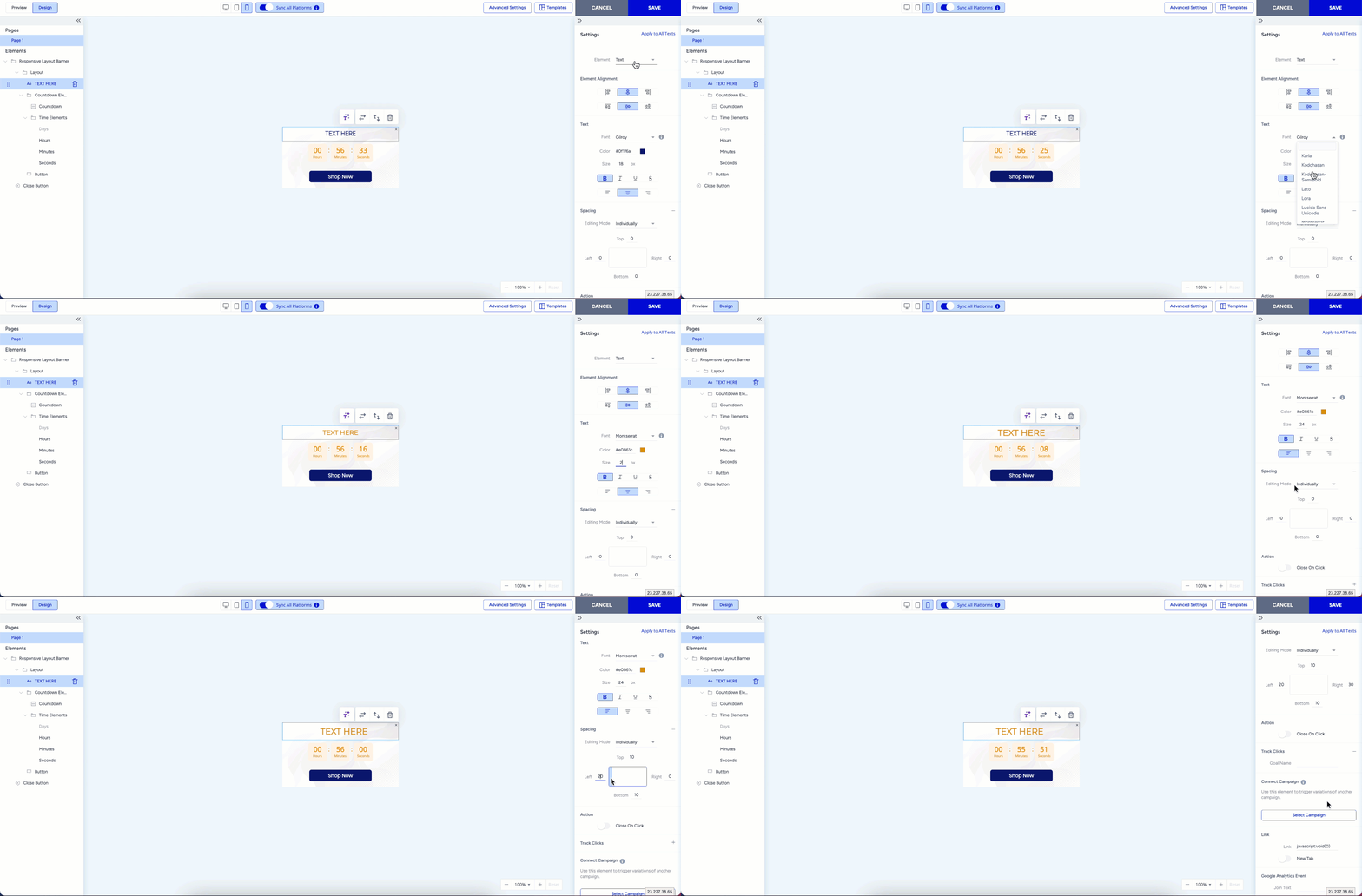
Additionally, you can set spacing to control the margin between the element and the border and enable click tracking to monitor interactions.