Dynamic content lets you personalize your Web Template campaigns by inserting real user data, such as loyalty tier, membership level, or recent purchase details, directly into your campaign text and button labels. Instead of showing the same message to every visitor, each user sees content tailored to their own attributes and behavior.
This feature is available for Web Template campaigns in the Action Builder. It works similarly to dynamic content in your email, SMS, Mobile, and Architect Journey campaigns. If you have already configured UCD attributes and events, you can start using them in web templates immediately with no additional setup.
Thanks to using Dynamic Content, you can personalize text and button elements within your Web Template campaign.
Dynamic Content Types
Default Attributes
User-level attributes stored in your UCD profile, such as loyalty tier, city, membership level, or any custom attribute you have configured. These reflect properties of the user, not a specific action they took.
Event Parameters
Parameters from user events, such as the amount or currency from a purchase event, or the product name from a browse event. You select the parameter (e.g., Amount) rather than the event itself (e.g., Purchase). The most recent matching event value is used at runtime.
Custom user attributes appear in the picker under the Custom Attributes tab. They are created and maintained on the Attributes and Events page. If a custom attribute you expect to see is not appearing in the picker, verify it has been configured on that page and is not marked as PII.
How to add Dynamic Content to Web Templates
While creating your Web Template campaign, go to Action Builder.
Select the text or button element you want to personalize. The [+ Dynamic Content] button will appear in the editor toolbar.
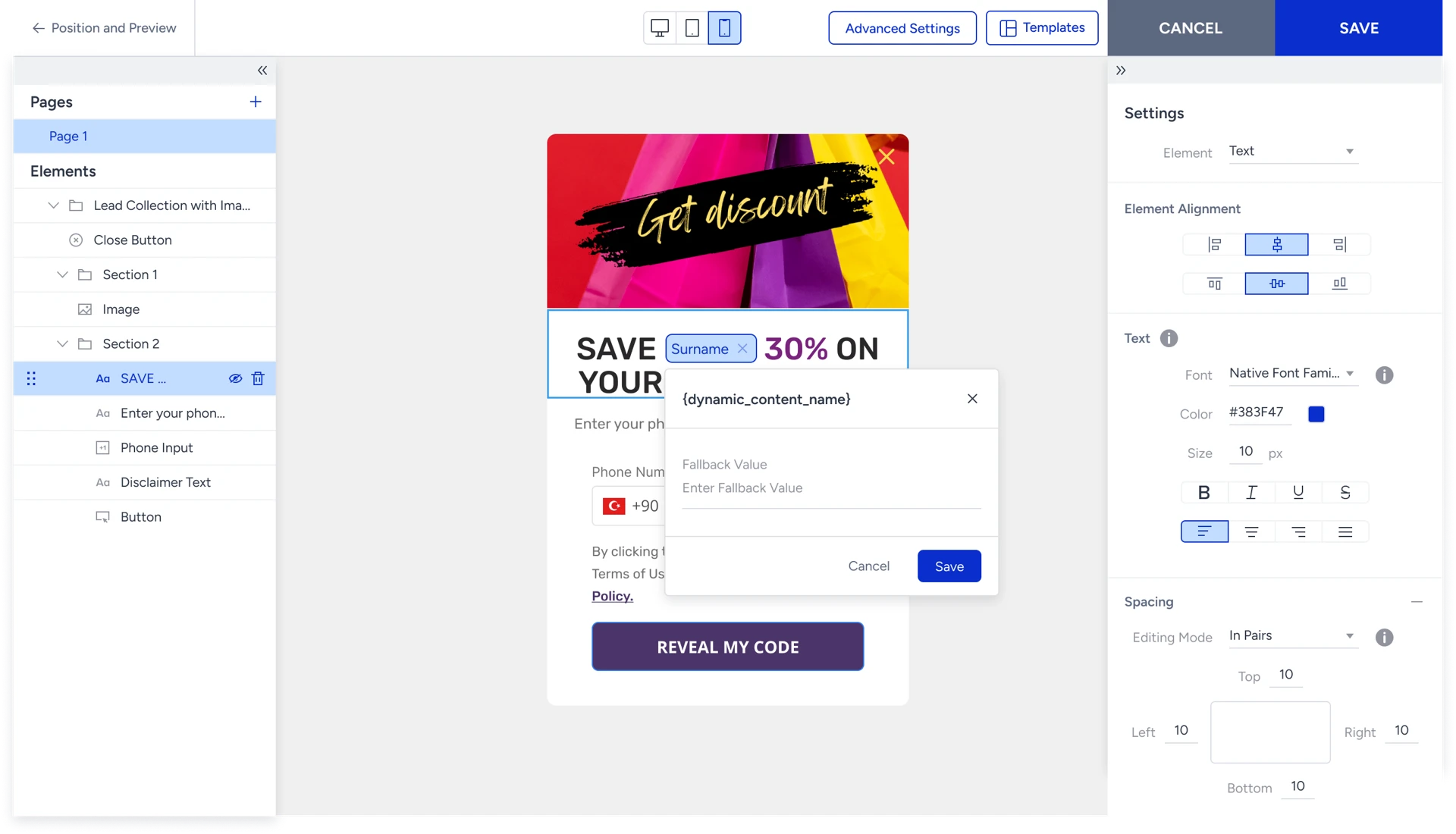
Click [+ Dynamic Content] to open the dynamic content picker. You will see three options:
Default Attributes: UCD default attributes available for personalization (non-PII only)
Custom Attributes: Custom user attributes from your partner data layer (non-PII only)
Event Parameters: Event parameters grouped by event name
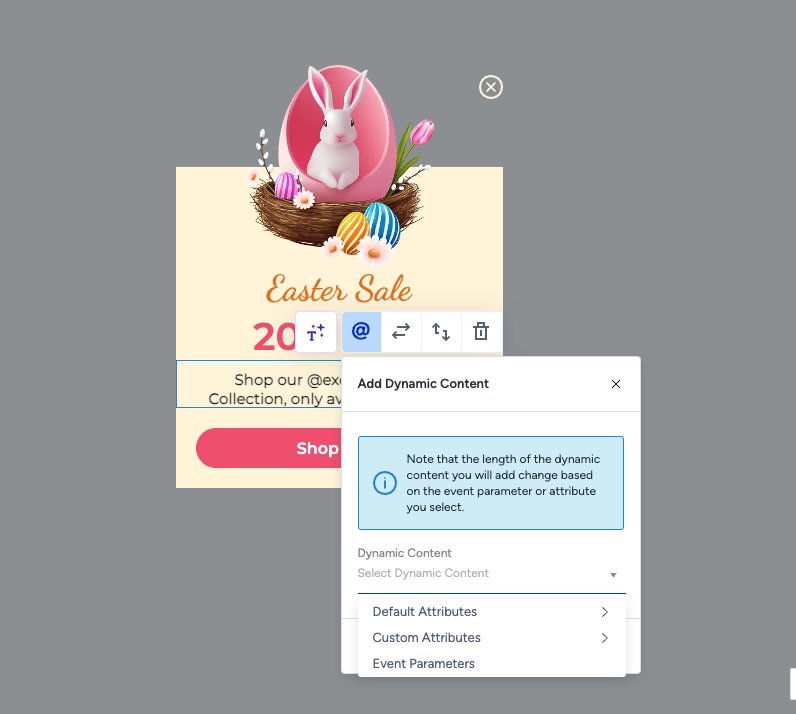
Click the item you want to insert. A fallback field will appear.
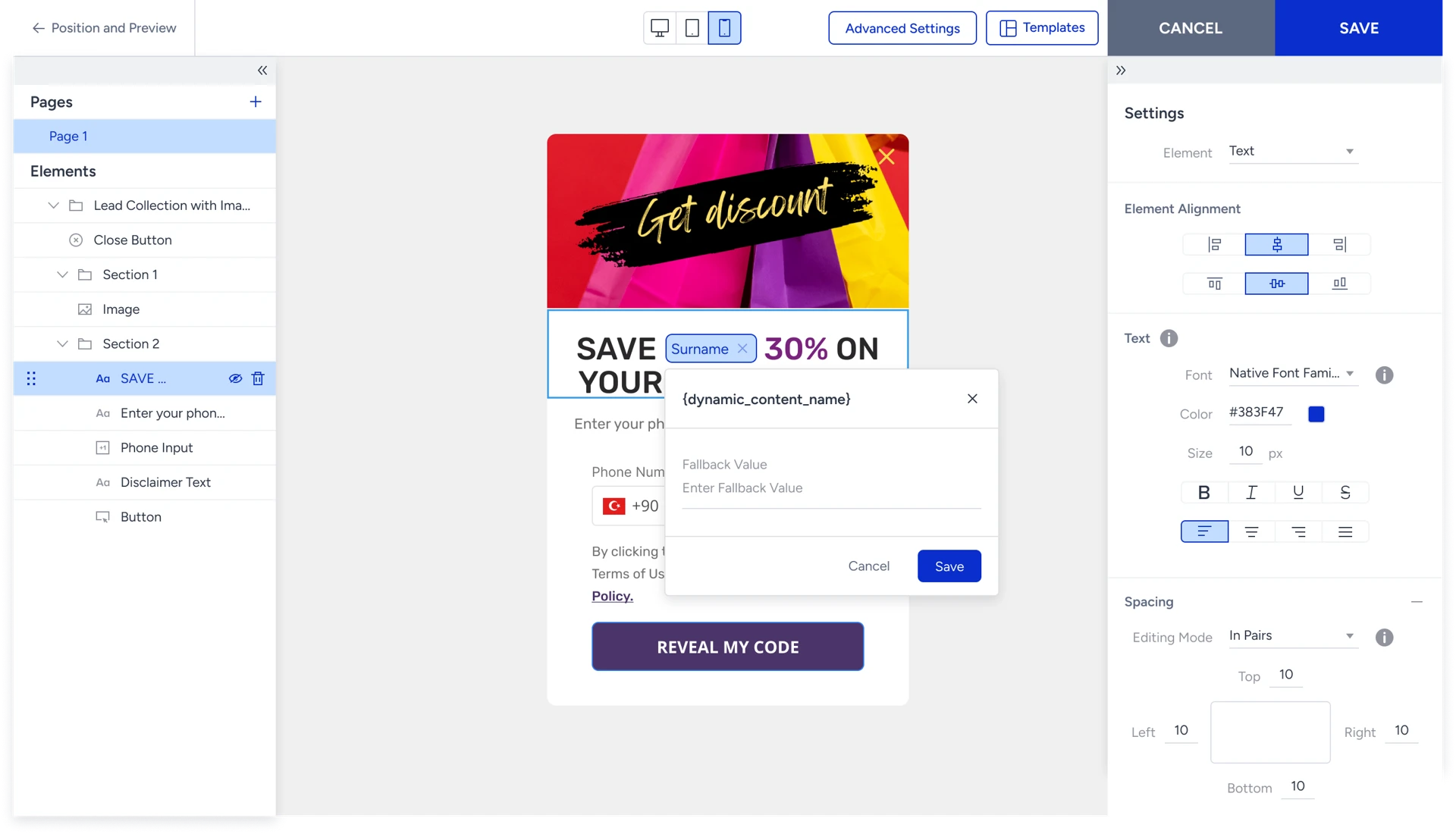
Enter a fallback value. This is the text shown if the user's data is unavailable. For example, if you are inserting loyalty tier, a suitable fallback might be "Member." Click Add.
Always set a fallback value for every placeholder. See the Fallback values section for details on what happens when fallbacks are missing.
The placeholder appears as a chip in the editor, for example, [Loyalty Tier]. You can add multiple placeholders in the same text element and mix them with static text freely.
Click Save. The dynamic content configuration is stored and applied when the campaign goes live.
Fallback values
A fallback is the value shown to a user when their data for a given attribute or event parameter is unavailable.
Situation | Result |
|---|---|
User has data + fallback is set | Real value is shown |
User has no data + fallback is set | Fallback value is shown |
User has no data + no fallback set | Campaign is shown to that user without personalization for that placeholder |
Always set a fallback for every placeholder you add. If a campaign has multiple placeholders and any one of them has no data and no fallback, the campaign continues to display with that value missing.
PII and data safety
Attributes and event parameters marked as Personally Identifiable Information (PII) are not listed in the dynamic content picker and cannot be selected when building a campaign.
If an attribute or event parameter already in use in a live campaign is later marked as PII, the campaign is automatically deactivated to prevent exposure of PII. You must remove the PII attribute from the campaign and reactivate it manually.
If an attribute you expect to see is not appearing in the picker, check whether it has been marked as PII in your attribute settings. You can update the PII flag on the Attributes and Events page.
How dynamic content is resolved at runtime
When a visitor lands on your website, Insider One's script checks whether the campaign uses dynamic content. If it does, it fetches the visitor's attribute and event data in the background and replaces placeholders with their real values before the campaign is displayed.
Timing:
Data is fetched within 1 second of the page loading.
If the fetch takes longer than 1 second, fallback values are used to ensure the campaign displays without delay.
Caching:
Data is cached in the visitor's browser for 30 minutes. Returning visitors within the same session do not trigger a new data fetch.
FAQs
Q: Can I use the same attribute multiple times in one campaign?
A: Yes. You can insert the same attribute or event parameter as many times as needed within the same text element or across different elements in the campaign.
Q: Can I use dynamic content in both the text and the button of the same campaign?
A: Yes. Dynamic content works independently across elements. You can personalize the heading text, the button label, or both.
Q: Why is an attribute I use in email not showing up in the picker?
A: The most likely reason is that the attribute has been marked as PII. Check your attribute settings and update the PII flag if appropriate. If the attribute is not marked as PII and still does not appear, contact the Insider One team.
Q: What is the difference between Default Attributes, Custom Attributes, and Event Parameters in the picker?
A: Default attributes come from your UCD profile and reflect properties of the user. Custom attributes come from your partner data layer and are configured on the Attributes and Events page, which are the same attributes available via the @ mention flow. Event parameters are derived from specific user events and reflect the most recent value of that parameter.
Q: What happens if I have 3 placeholders and only 1 has missing data with no fallback?
A: The campaign continues to display with that placeholder value missing. Set fallback values on all placeholders to ensure every user sees a complete, meaningful message.
Q: Can I preview the campaign with real user data?
A: You can test your campaign using the test link.