The Insider One MCP connector supports one panel per connection. If you manage multiple Insider One panels, such as separate brands, countries, or accounts, you can create an individual MCP connection for each panel and make them available in the same AI assistant.
This setup requires you to generate OAuth 2.0 credentials for each panel and provide them to your AI assistant together with the configuration instructions in this guide. Your AI assistant can configure the MCP connections, while you complete the required sign-in for each panel.
This guide answers these questions:
Supported MCP tools
Insider One MCP uses the Model Context Protocol (MCP), so you can use this setup with MCP-compatible tools that allow you to add an MCP server manually, such as Claude, Cursor, ChatGPT, and Microsoft Copilot.
The general setup consists of the following stages:
Create a separate set of OAuth 2.0 credentials for each Insider One panel.
Add a separate MCP server entry for each panel in your AI tool, with its own authentication configuration and callback port.
Restart the AI tool and sign in separately for each panel.
The menu names and MCP configuration location can differ depending on the AI tool you use. Your AI assistant can identify the appropriate configuration location for the tool.
The configuration uses specific values to establish separate connections correctly. Keep the
mcp-remotebridge, the--resourcevalue, a separate token folder for each panel, and a fixed, unique port for each panel as defined in this guide.
The following sections also provide a complete example using Claude Code.
Requirements
Before configuring multiple panels, make sure you have:
An MCP-compatible AI tool that allows you to add an MCP server manually, such as Claude, Cursor, ChatGPT, or Copilot. The applicable tool or plan must support MCP connections.
Administrator access to every Insider One panel you want to connect. Administrator access is required to generate OAuth 2.0 credentials.
Node.js installed on your computer. If you are unsure whether Node.js is installed, you can ask your AI assistant to check your environment.
Step 1: Generate panel credentials
Complete the following steps separately in every Insider One panel you want to connect.
Navigate to InOne > your email > Settings > InOne Settings > Integration Settings.
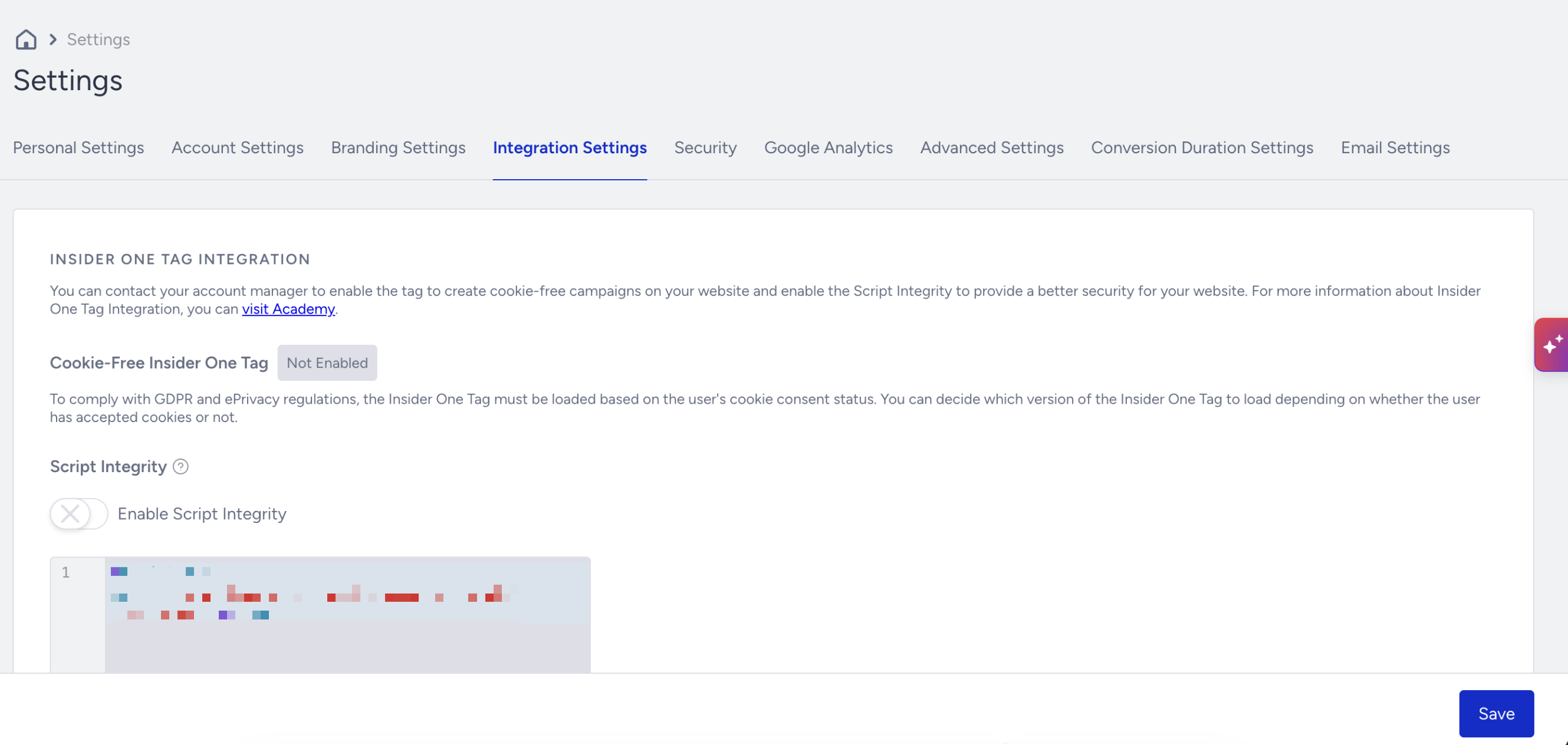
Scroll to OAuth 2.0 Credentials and click Generate OAuth 2.0 Credentials.
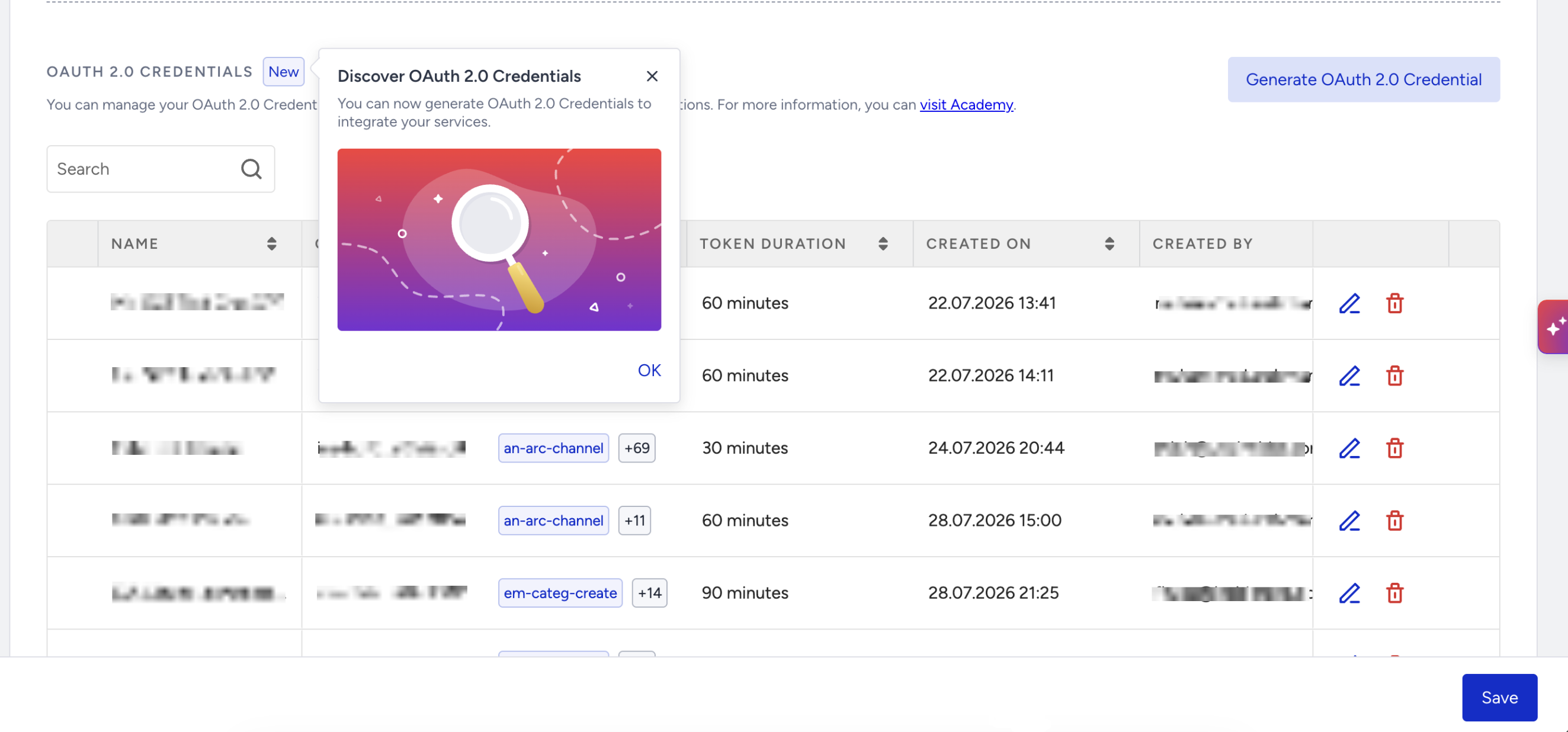
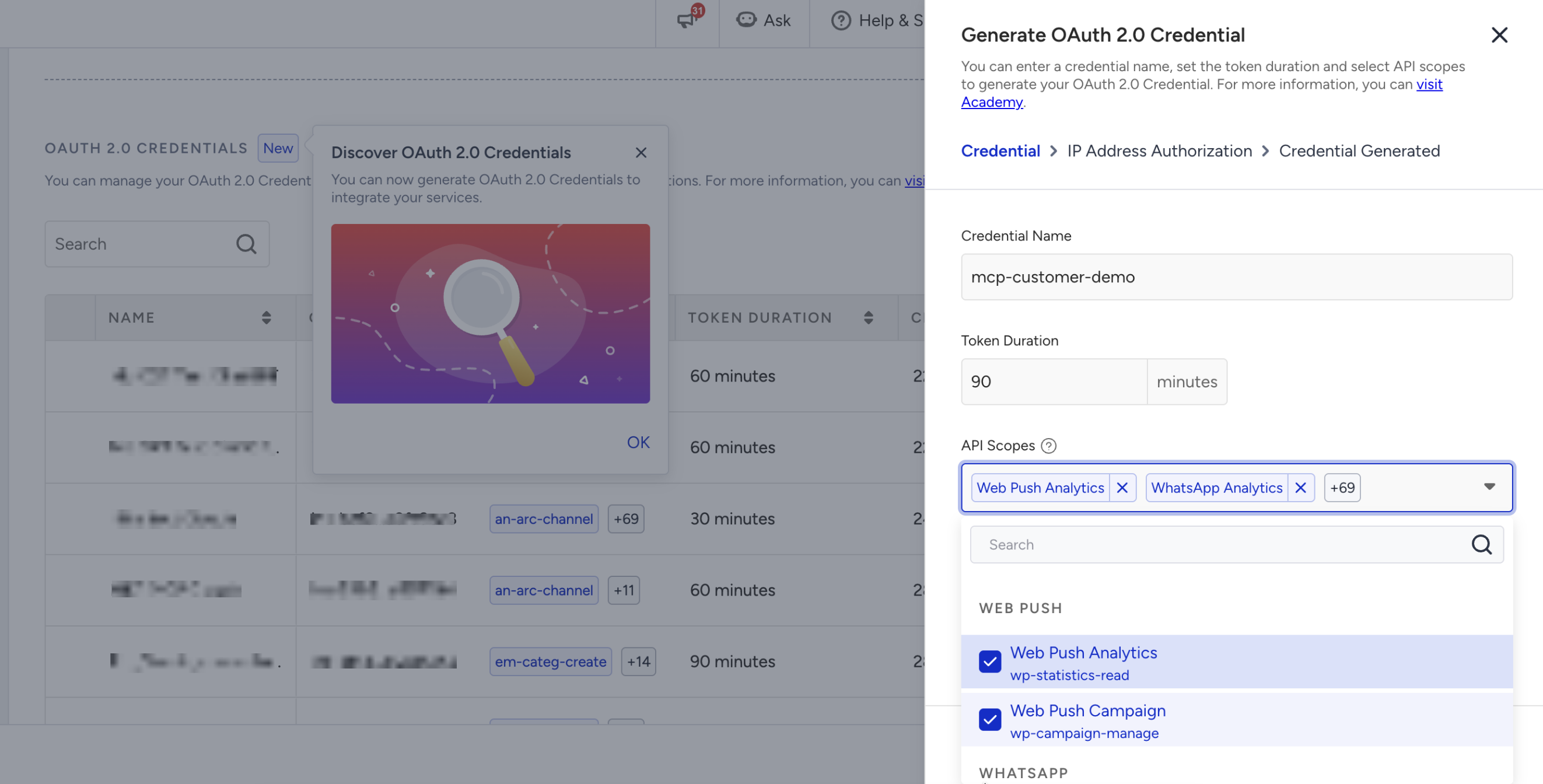
Enter a name that identifies the credential, such as
mcp-customer-x, and configure the token duration. The maximum token duration is 90 minutes.Select the required scopes. Select all available channels when you want the MCP connection to access every supported channel. A channel can only be accessed when its corresponding scope is included in the credential.
For IP addresses, select all IPs. Restricting the credential to a specific IP can prevent the connection from working when the source IP changes.
Click Authorize and Generate.
Copy the Client ID and Client Secret.
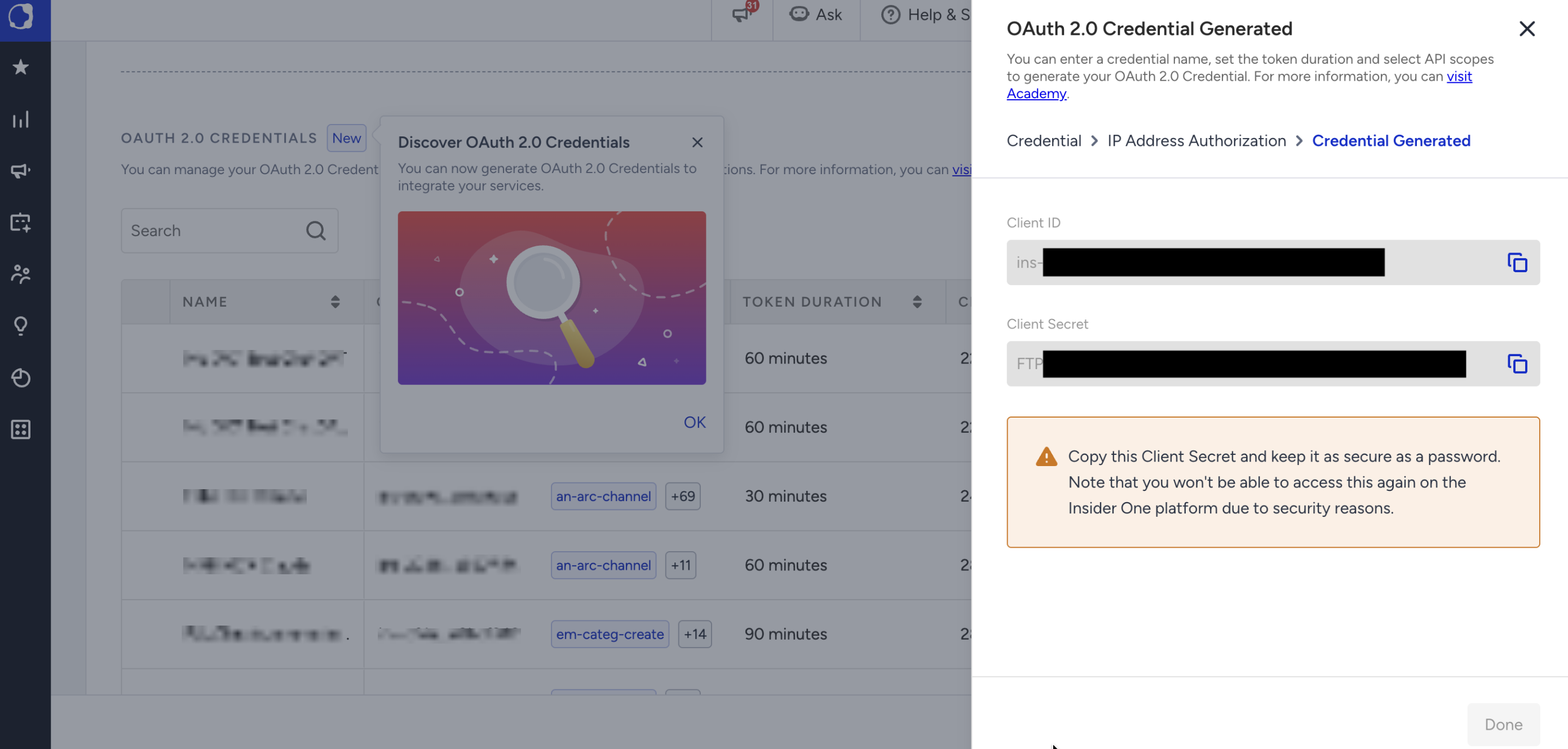
The Client Secret is displayed only once. Copy and securely store it before closing the dialog. If you lose the Client Secret, generate a new credential.
Keep the credentials for each panel organized as you go. For example:
Panel | Client ID | Client Secret |
|---|---|---|
Customer X |
|
|
Customer Y |
|
|
Step 2: Configure your AI assistant
Copy the complete handoff document below into a text editor. Update only the credentials table in Step 0 with the panel names and credentials you generated. Then paste the complete handoff into your AI assistant and instruct it to follow this handoff.
Before using the handoff, consider the following requirements:
Panel names: Use lowercase names without spaces, such as
customer-x.Callback ports: Assign a different port to every panel. You can use
3334for the first panel,3335for the second panel, and continue with3336,3337, and so on. Keep the assigned port fixed for that panel.Configuration values: Do not remove or change the required
mcp-remote,--resource, token-directory, or port configuration.Claude Code example: The handoff uses Claude Code commands as the concrete example. If you use another MCP-compatible tool, follow the additional instructions after the handoff.
Handoff document
# Handoff: Add InsiderOne MCP to Claude Code (multiple panels)

For the human: Fill in the credentials table in Step 0, then paste this complete document into Claude Code and say "follow this handoff". Claude will complete the configuration except for the browser login, which you must complete.

For Claude: This is an executable runbook. Follow it from top to bottom. Do not substitute another configuration approach. Section 1 documents an approach that has already been tested and does not work. Run the configuration commands as written.

## Goal

Register the InsiderOne MCP server in Claude Code at user scope once per panel so that all panels are available separately without sharing authentication sessions.

## 1. Constraint: use `mcp-remote`, not native HTTP

Do not use:

`claude mcp add --transport http`

Claude Code's native HTTP transport supports the required client ID, client secret, and callback-port parameters. However, the InsiderOne authorization server does not support Dynamic Client Registration. Its metadata at:

`https://gw.useinsider.com/.well-known/oauth-authorization-server`

does not include a `registration_endpoint`, so static client credentials are required.

The native HTTP connection still fails with:

```
Protected resource https://gw.useinsider.com does not match
expected https://mcp.insiderone.com (or origin)
```

Claude Code enforces RFC 9728. The protected-resource identifier must match the MCP server origin.

InsiderOne serves MCP from:

`mcp.insiderone.com`

while the authorization gateway advertises:

`resource: https://gw.useinsider.com`

Because these hosts differ, use stdio transport with `mcp-remote`.

The `--resource` option provided by `mcp-remote` enables this configuration. `claude mcp add` does not provide an equivalent option.

## 2. Step 0: Fill in the panel table

Add one row per panel.

Use the `client_id` and `client_secret` generated from the corresponding Insider One panel.

| Panel name (lowercase, no spaces) | Callback port | client_id | client_secret |
|---|---|---|---|
| `<panel-1>` | `3334` | `<fill in>` | `<fill in>` |
| `<panel-2>` | `3335` | `<fill in>` | `<fill in>` |

Port requirements:

- Use an available port.
- Use a different port for every panel.
- Keep the assigned port fixed.
- Continue with 3336, 3337, and subsequent ports for additional panels.

## 3. Step 1: Add each panel

Run the following command once per row.

Only these four values change between panels:

- Panel name
- Port
- `client_id`
- `client_secret`

Keep every other value unchanged.

```bash
claude mcp add -s user insiderone-<PANEL> \
  -e MCP_REMOTE_CONFIG_DIR=$HOME/.mcp-auth/<PANEL> \
  -- npx -y mcp-remote@0.8.1 https://mcp.insiderone.com/mcp <PORT> \
     --resource https://gw.useinsider.com \
     --transport http-only \
     --static-oauth-client-info '{"client_id":"<CLIENT_ID>","client_secret":"<CLIENT_SECRET>","token_endpoint_auth_method":"client_secret_post"}'
```

Keep the following configuration values exactly as shown:

- `-s user`: Registers the MCP server at user scope so that it is available across projects.
- `--resource https://gw.useinsider.com`: The value must be an absolute URI. Using `gw.useinsider.com` without the protocol causes `mcp-remote` to exit during startup, which Claude Code can report as `CONNECTION_CLOSED`.
- `MCP_REMOTE_CONFIG_DIR`: Use a different directory for every panel. Sharing this directory can cause another panel to reuse an existing panel's authentication token.

## 4. Step 2: Verify the configuration

Run:

```bash
python3 -c "
import json, os
d = json.load(open(os.path.expanduser('~/.claude.json')))
for k, v in d.get('mcpServers', {}).items():
    print(k, '| env:', v.get('env'))
    print('   ', ' '.join(v['args']))
"
```

For each panel, confirm:

- A unique `MCP_REMOTE_CONFIG_DIR`
- A unique callback port
- The correct `client_id`
- `--resource https://gw.useinsider.com`

## 5. Why every panel needs a separate config directory and port

`mcp-remote` derives its authentication state from the server URL.

The behavior below was verified against the `mcp-remote@0.8.1` source.

### Config directory

The token cache key is generated as follows:

```js
getServerUrlHash(serverUrl, authorizeResource, headers, authorizeParams, clientMetadataUrl)
  -> md5(parts.join("|"))
```

The `client_id` is not included in this hash.

Because all panels use the same URL and resource, they generate the same hash and would otherwise share one token cache.

`MCP_REMOTE_CONFIG_DIR` separates the token cache for each panel.

A different port alone does not separate the token cache.

### Port

Without an explicit port, `mcp-remote` derives one as follows:

```js
function calculateDefaultPort(serverUrlHash) {
  const offset = parseInt(serverUrlHash.substring(0, 4), 16);
  return 3335 + offset % 45816;
}
```

Because each panel generates the same server URL hash, each connection attempts to use the same default port.

The authentication coordinator can scan additional ports, but the resulting port depends on startup order. This can cause the `redirect_uri` to change between runs.

Assigning and keeping a fixed port for each panel makes the configuration deterministic.

Testing with `GET /oauth2/authorize` and `redirect_uri` ports 3334, 3335, and 9999 returned equivalent login pages. Post-login port validation was not tested.

Use an available port and keep it fixed for the panel.

## 6. Step 3: Restart and sign in

Restart Claude Code.

One browser tab opens for each panel at:

`gw.useinsider.com/oauth2/authorize`

Complete the authorization separately for each panel.

Important:

Complete the browser authorization one panel at a time and verify the panel before approving access.

The tabs can share the same `gw.useinsider.com` session cookie. After approving the first panel, another tab can use the same signed-in account.

If you need to use a different account for another panel, complete that panel's authorization in an incognito or private browser window.

Tokens are stored under:

`~/.mcp-auth/<panel>/`

## 7. Step 4: Confirm the connections

Run:

```bash
claude mcp list
```

Each configured panel should display:

`Connected`

## 8. Troubleshooting

| Symptom | Cause | Fix |
|---|---|---|
| `Failed to connect: CONNECTION_CLOSED` | `--resource` is not an absolute URI, or another argument is invalid | Run the `npx mcp-remote ...` command directly to view the underlying error |
| `Protected resource ... does not match expected ...` | Native HTTP transport was used | Use the `mcp-remote` configuration from Section 3 |
| The connection succeeds but displays data from another panel | Panels share a token cache | Confirm that `MCP_REMOTE_CONFIG_DIR` differs for every panel, remove the affected panel's token directory, and authenticate again |
| The browser opens every time Claude Code starts | The token is not persisting | Confirm that `~/.mcp-auth/<panel>/` exists and is writable |
| The wrong account was authorized | Browser tabs shared the authorization gateway session | Remove the affected panel's token directory, restart Claude Code, and authorize that panel again in an incognito window |

To reset one panel without affecting the others:

```bash
rm -rf ~/.mcp-auth/<panel>
```

Then restart Claude Code and authenticate the panel again.

## 9. Known limitation

The `client_secret` is stored as plaintext in `~/.claude.json` when this configuration uses `mcp-remote`.

Native HTTP transport would allow the secret to be stored through the operating system's credential handling, but the protected-resource mismatch described in Section 1 prevents the native configuration from being used for this setup.

A gateway configuration in which `gw.useinsider.com` advertises:

`resource: https://mcp.insiderone.com`

to match the MCP server origin according to RFC 9728 would allow native HTTP transport.

The equivalent native configuration would be:

```bash
MCP_CLIENT_SECRET='<secret>' claude mcp add -s user insiderone-<PANEL> \
  --transport http --client-id <CLIENT_ID> --client-secret --callback-port <PORT> \
  https://mcp.insiderone.com/mcp
```

This configuration is not applicable while the protected-resource mismatch remains.

Verified on September 11, 2026, against `mcp-remote@0.8.1` on macOS.
Use the handoff with another MCP-compatible tool
If you use Cursor, ChatGPT, Copilot, or another MCP-compatible tool instead of Claude Code, paste the handoff document and add the following instruction:
I'm using [Cursor / ChatGPT / Copilot / other tool], not Claude Code. Follow this handoff, but instead of the
claude mcp addcommands, create the equivalent entries in my tool's MCP configuration file. Tell me which configuration file you are editing before making the change. Keep themcp-remotebridge, the--resourcevalue, a separate token folder per panel, and a fixed, unique port per panel unchanged.
Your AI assistant can adapt the MCP server entry to the configuration format your tool requires while preserving these required values.
Step 3: Configure Claude Code
The following example shows how the process works when using Claude Code. Other MCP-compatible tools can use different interfaces or configuration files, but the same connection requirements apply.
Paste the handoff document and instruct Claude Code to follow it.
Claude Code can verify the provided panel names and credentials before creating the configuration.
Claude Code creates one MCP connection for each panel.
Each connection uses a name such as
insiderone-<panel-name>so that you can distinguish the panels in the MCP server list.Each panel receives a separate authentication configuration.
The separate token directory prevents authentication information from one panel from being reused by another panel.
Claude Code verifies the configuration.
Check that every panel uses its own server name, Client ID, callback port, and token directory.
Restart Claude Code.
The new MCP configuration becomes available after the application restarts.
If Claude Code asks you to approve a configuration-file change, review the file name before approving the change.
Step 4: Restart and sign in
Fully close and reopen your AI tool after the MCP configuration is added. Refreshing the interface alone does not reload this type of configuration.
A browser authorization tab opens for each configured Insider One panel. Complete the authorization for each panel separately.
Complete the authorization one panel at a time and verify the panel before approving access. The authorization tabs can share the same Insider One login session. If another panel requires a different account, use an incognito or private browser window for that authorization.
After successful authorization, the panel stores the authentication token in its token directory and can reuse it for subsequent connections.
Step 5: Verify the connections
Ask your AI assistant to list its configured MCP servers. Each panel should display a Connected status.
You can then test access with requests that identify the panels explicitly, for example:
Compare last month's email open rate for Panel X and Panel Y.
Which of Panel X's WhatsApp campaigns had the highest read rate in June?
The AI assistant queries the configured panels separately and can combine the returned information in its response.
Step 6: Add or remove a connected panel
The setup can include more than two panels. To add another panel:
Generate a new OAuth 2.0 credential in the panel by following the steps in Step 1.
Open the conversation where you used the handoff, or paste the handoff into a new conversation, and provide the details of the additional panel.
For example:
Add another Insider One panel using the same handoff. Panel name:
customer-z, port3336, Client ID: ..., Client Secret: .... Keep the remaining configuration consistent with the panels already configured.Restart your AI tool and complete the authorization for the new panel.
When adding another panel:
Assign the next available port. For example, use
3336, then3337, and continue as needed. Do not reuse a port assigned to another panel.Assign a unique panel name. Each MCP server entry must have a distinct name.
To remove a panel, remove the insiderone-<panel-name> MCP server from your AI tool and revoke the corresponding credential from Integration Settings in the Insider One panel.
Key considerations
Each panel remains independently authorized. Credentials generated for one panel only provide access to that panel. Connecting multiple panels creates multiple separately authorized MCP connections.
MCP write tools do not directly send or publish campaigns. The MCP tools can retrieve information and create supported drafts. Write actions require approval, and MCP does not directly send, schedule, or publish the resulting campaigns.
Client Secrets are stored as plaintext in the local configuration when using this setup. Treat the configuration file as sensitive information. Do not share it in support tickets, Slack messages, or source-code repositories. If a credential is exposed, revoke it from Integration Settings and generate a replacement.
Use a dedicated OAuth 2.0 credential for each panel. Do not reuse credentials created for another integration.
Authentication is stored separately for each panel. If one connection stops responding because authentication is no longer valid, reauthenticate only the affected panel.
Capabilities and limitations
With the applicable MCP tools and scopes, your AI assistant can retrieve supported analytics and access campaigns and templates across channels such as Email, SMS, WhatsApp, Web Push, Mobile App, and Architect for the panels you connect.
Consider the following limitations:
The official MCP connector supports one panel per connection. This configuration creates multiple individual connections and is not native multi-panel support in the connector. No published timeline is provided in this guide for native multi-panel support.
Cross-panel totals are not returned as a single platform metric. When your AI assistant combines values from multiple panels, the combined result is calculated by the assistant rather than returned as an official cross-panel aggregate.
MTU data is not available through MCP.
On-site is not covered by the available MCP tools described in this guide.
App Push overall analytics does not provide a date filter. This reflects the behavior of the underlying API.
For internal workflows that require access across a portfolio of customer accounts, consider the available Insights Agent workflow where applicable.
Troubleshooting multiple panel connections
If a connection returns an error, provide the exact error message to your AI assistant together with the handoff configuration. You can also use the following table to identify common setup issues.
Issue | Possible cause | Recommended action |
|---|---|---|
A panel returns errors for all requests | The credential does not include a required scope, or IP access is restricted | Generate a new credential with the required channel scopes and all IPs |
| A value in the MCP server entry is incorrect | Ask your AI assistant to recreate the affected panel entry using the handoff configuration |
A configured panel does not appear | The AI tool was not fully restarted, or multiple MCP entries use the same name | Fully close and reopen the AI tool, then verify that each MCP server entry has a unique name |
Results appear to come from another panel | The wrong panel connection was selected or authentication state was shared | Specify the panel explicitly in the request and verify the panel's MCP configuration and token directory |
New Insider One MCP tools do not appear | The AI tool is using a cached MCP tool list | Restart the AI tool |
The authorization browser opens every time the AI tool starts | The authentication token is not being stored correctly | Verify that the panel-specific token directory exists and is writable |
If the issue continues, contact the Insider One team and provide the affected panel name, the exact error message, and the MCP-compatible tool you are using.