You cannot make any changes to External Platform Integrations without having either an Administrator or an Editor with PII access in InOne. Refer to User Roles for further information.
To use Insider One's App Push product in your Salesforce journeys, you should:
Configure package
Log in to Salesforce Marketing Cloud and navigate to Setup > Platform Tools > Apps > Installed Packages.
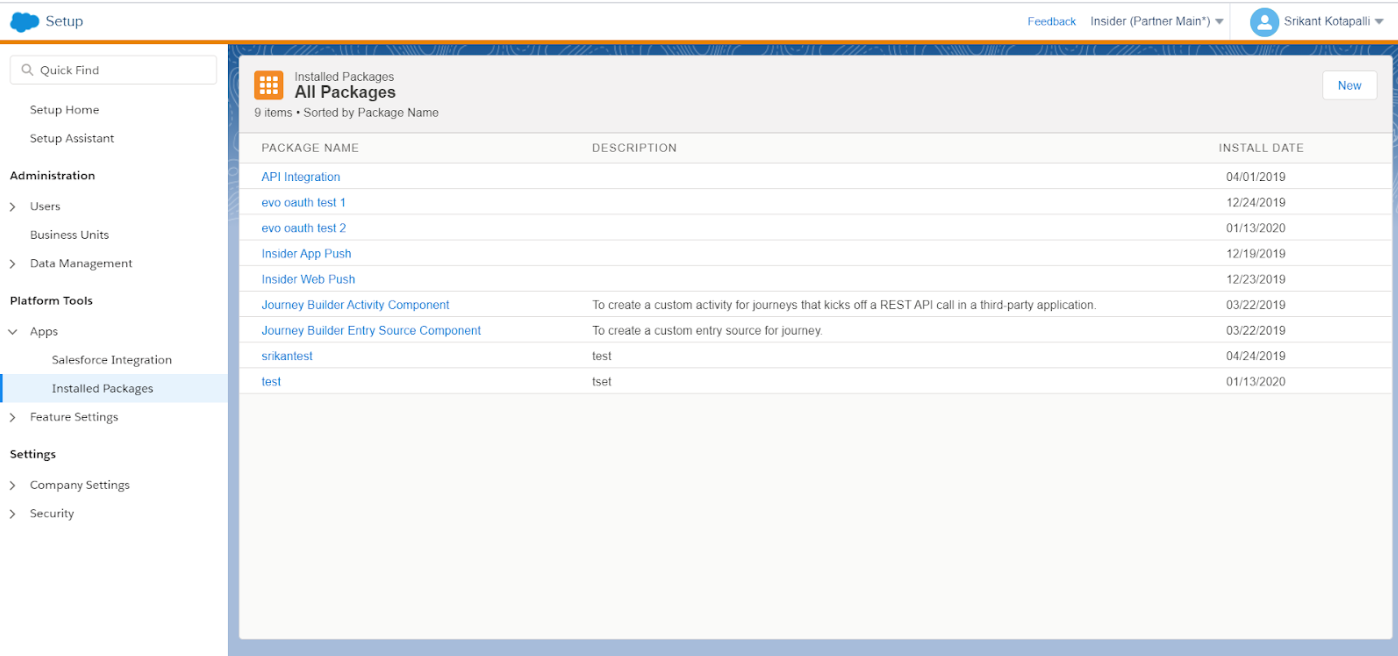
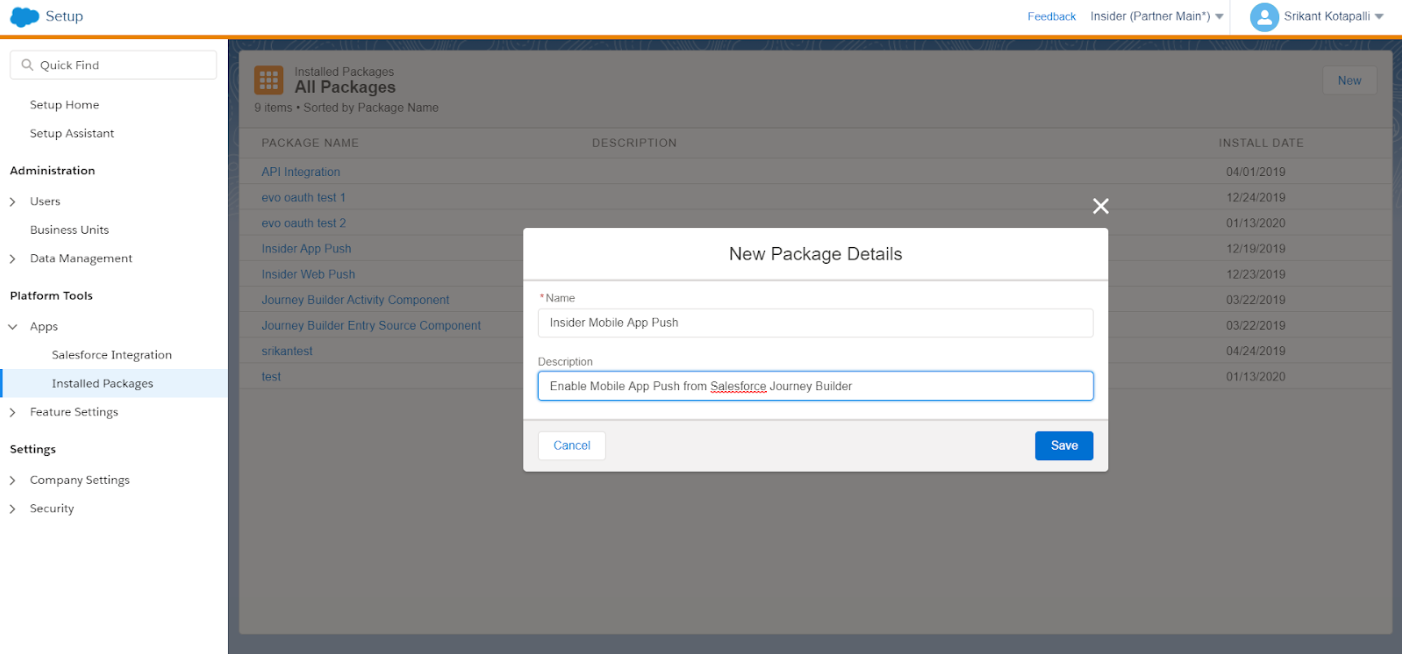
Click New and enter a name and description for your package. Save your changes.
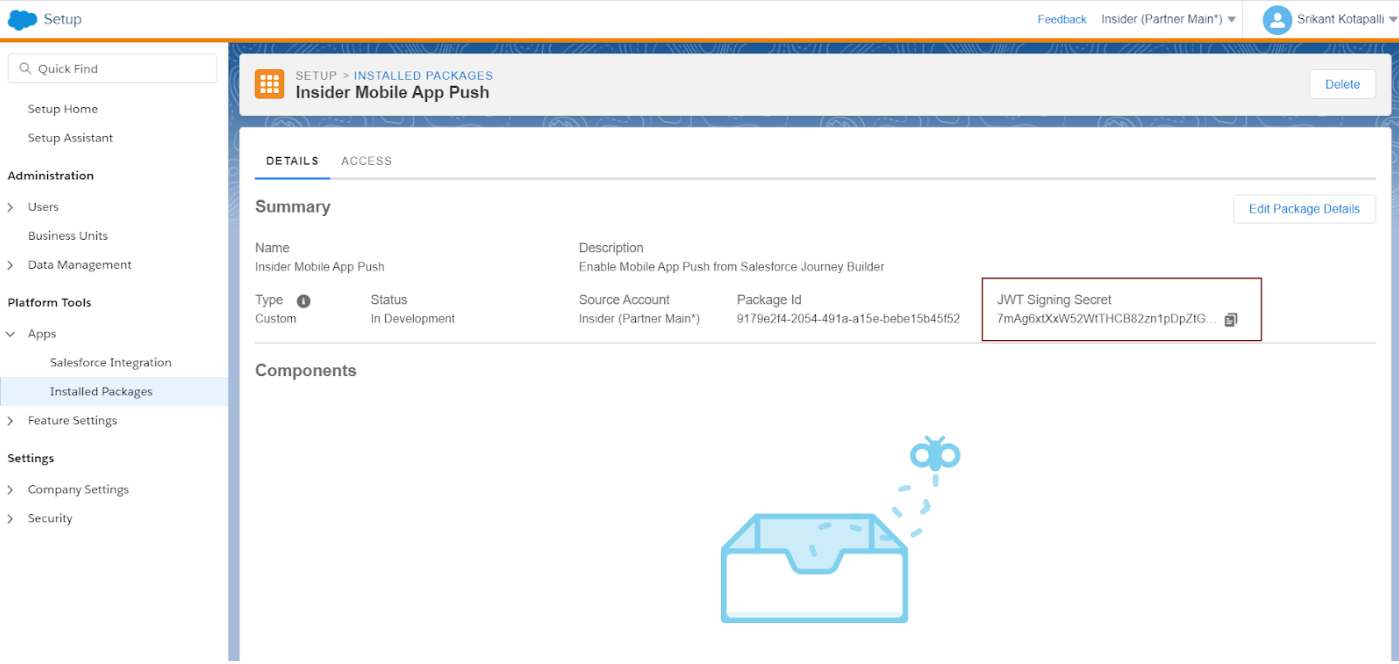
Copy the JWT Secret value from the Summary page and share it with Insider.
Set activity properties
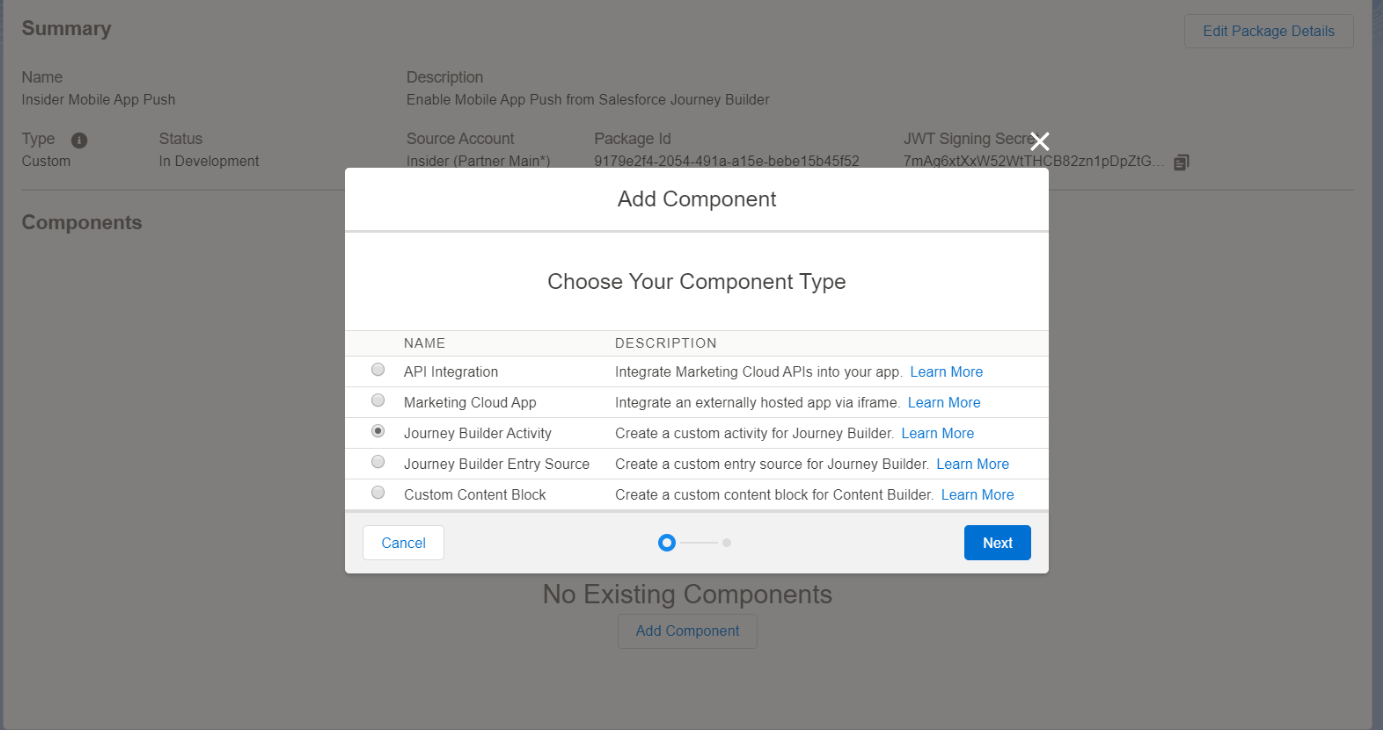
1. Click Add Component. Select Journey Builder Activity, then click Next.
2. Enter the details about the activity. For the Endpoint URL, enter the URL you received from the Insider One team. Save your changes.
The endpoint URL you will receive will be in the https://partnername-sf-mobile.useinsider.com format.
.png)
3. Copy the Unique Key in the Components section of the Journey Builder Activity panel. Share this key with Insider One.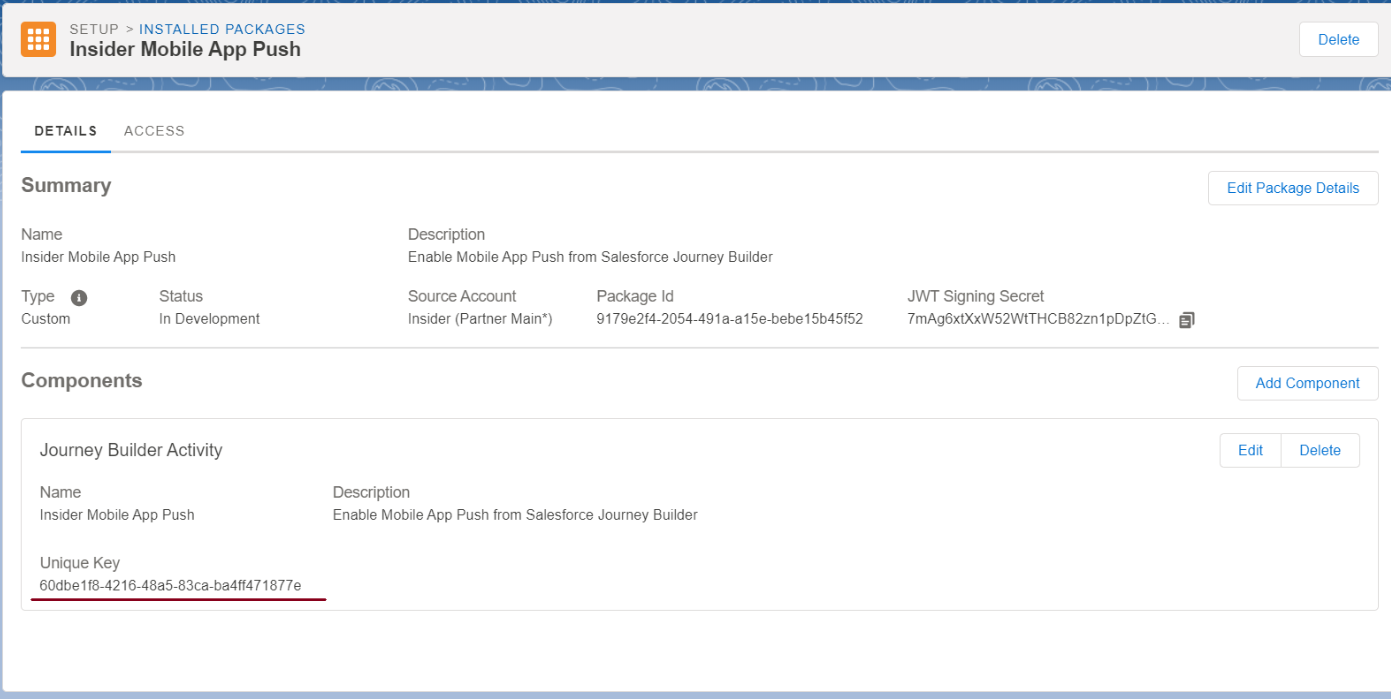
Build journeys with Insider One's App Push
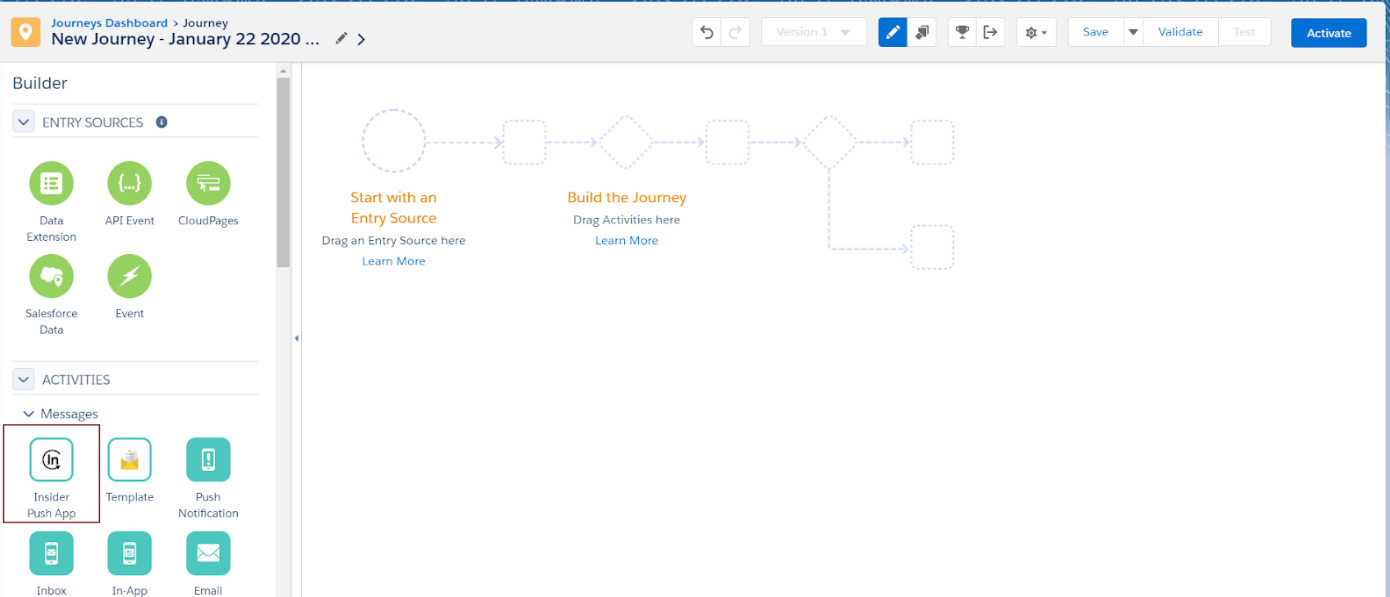
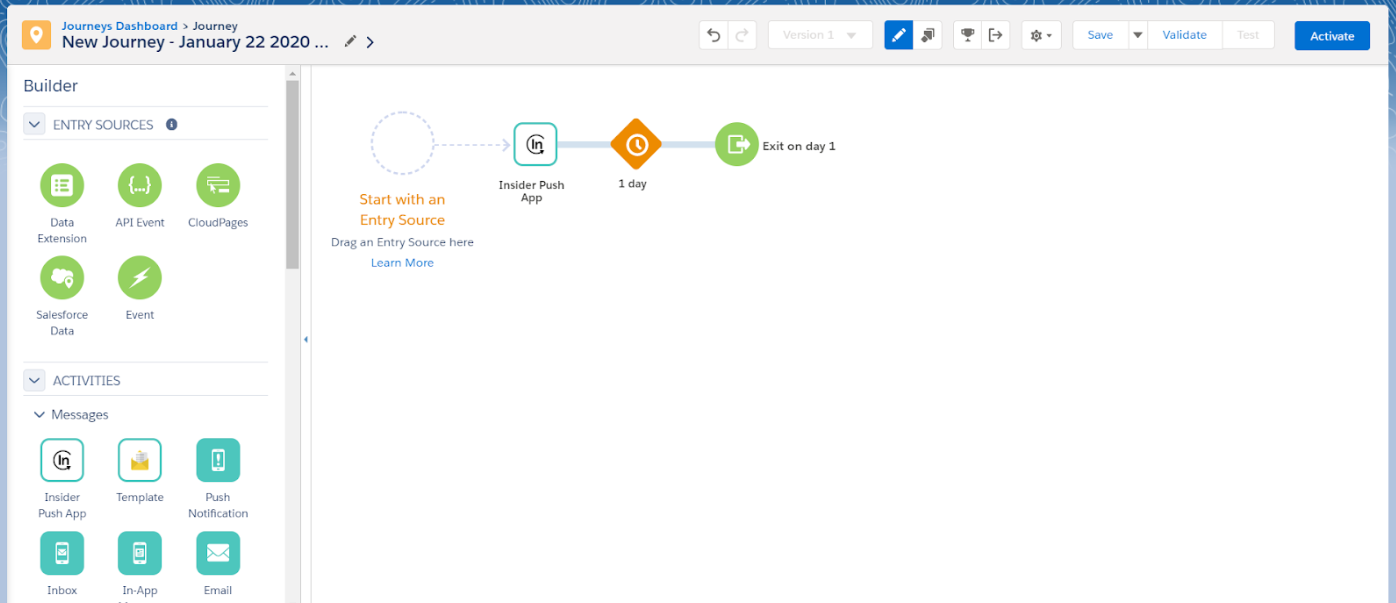
1. On the New Journey screen, you will see Insider One's customer activities under the Activities tab on the left side. You can add any of these activities to your journey simply by dragging and dropping them into the appropriate location on the canvas (journey field).
2. After adding the activity to your journey, click on it to configure its push notifications.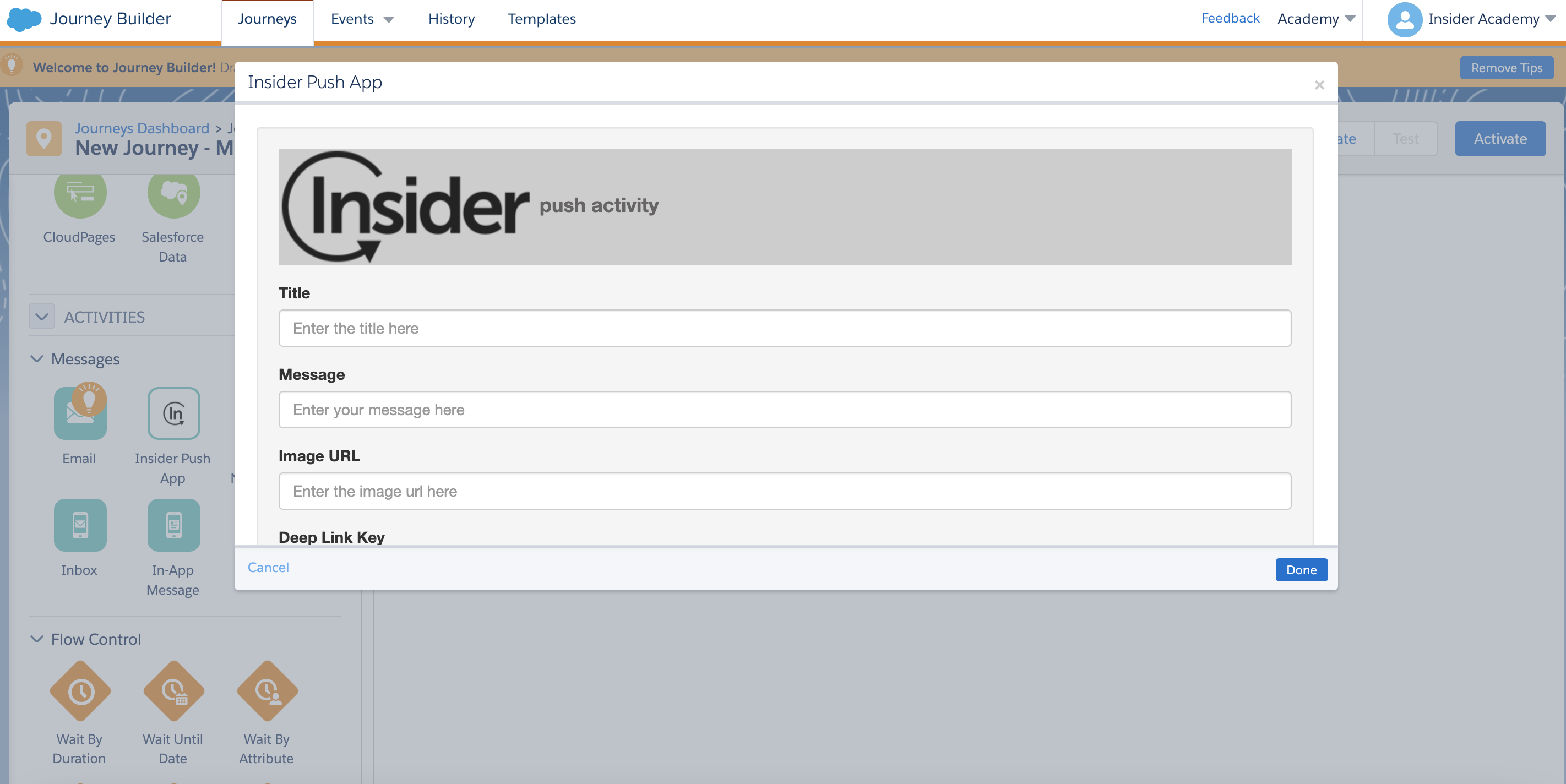
The table below outlines the required content for each field. When you have filled in all the fields, click Done.
Fields to be configured | |
|---|---|
Field | Definition |
API Key | Insider One API Key provided to you by the Insider One team |
Title | Title of the push notification |
Message | The actual message of the notification |
Image URL | URL of the image for rich push |
Deep Link Key | The deep link key in your campaign |
Deep Link Value | The deep link value in your campaign |
Channel ID | ID for the Android push notifications to be grouped |
Campaign ID | The ID of your campaign |
Campaign Name | The name of your campaign |
Thread ID | ID for the iOS push notifications to be grouped |
Now that you have completed this configuration, you can start leveraging Insider One's App Push notifications.
Insider One matches users to the identifier you select. This identifier can be an email address, a phone number, or a UUID for App Push. For example, if you select email as the identifier, Insider One will also check the user's email address. Once you configure your identifier in Salesforce, inform the Insider One team.