Bring Your Own Recommendation (BYOR) lets you use your own recommendation algorithm’s results inside Smart Recommender. If your team already computes recommendations, you can send your product recommendation scores to Insider One through the API; once your data is validated, your algorithm works in Smart Recommender's strategy builder like any of Insider One's default algorithms, with the same filters, exclusions, fallback options, and analytics.
What it does
Send your own recommendation data to Insider One through the API.
Choose from three algorithm types depending on how your recommendations work: Generic, Contextual, or Personalized.
Once your data is validated, your algorithm appears under the Custom Algorithms label in the algorithm selection step when you create a recommendation strategy, alongside Insider One's default algorithms.
Apply the same filters, exclusions, and user context and user attribute controls to your algorithm as you would to a default algorithm.
Set your own fallback strategy for when your algorithm doesn't have enough recommendations to fill a widget.
See how your custom algorithm performs in the same Smart Recommender Analytics views you already use, and A/B test it against Insider One's default algorithms to compare results directly.
Create a custom algorithm
Go to Components > Recommendation Algorithms and click Create Custom Algorithm.
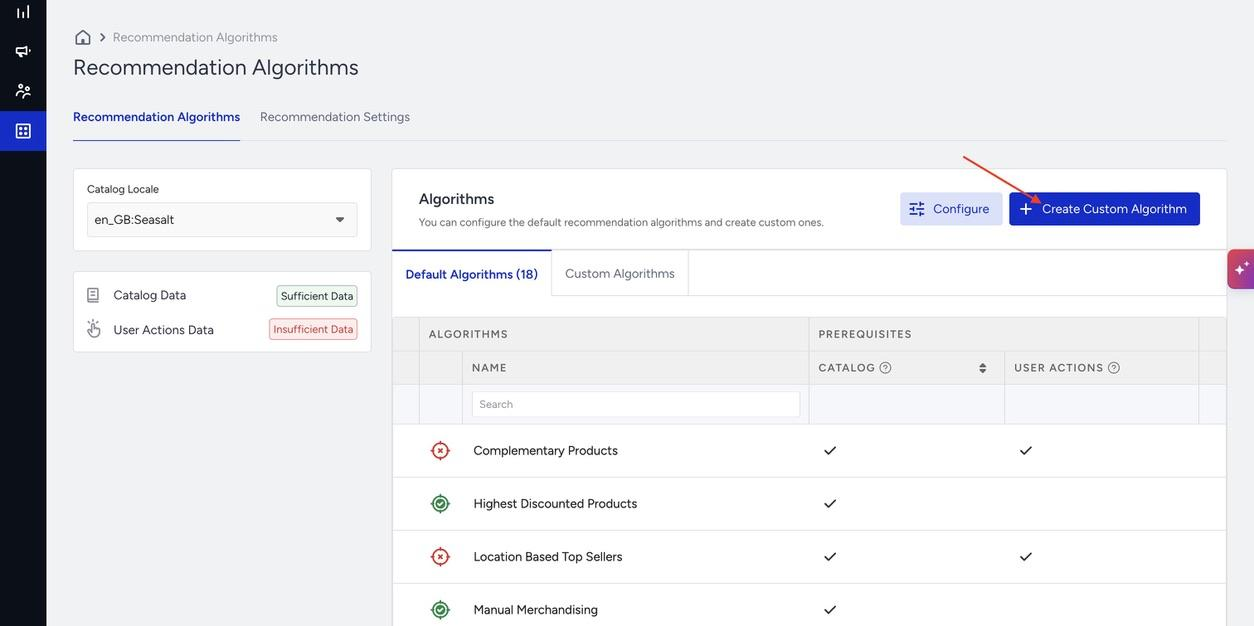
Give your algorithm a name.
Choose its Algorithm Type, which is Generic, Contextual, or Personalized, depending on how your recommendation data is structured. All three types are available on every page; the type you pick determines which fields you send once your algorithm exists, covered next. You can't change the algorithm's name or type after creation.
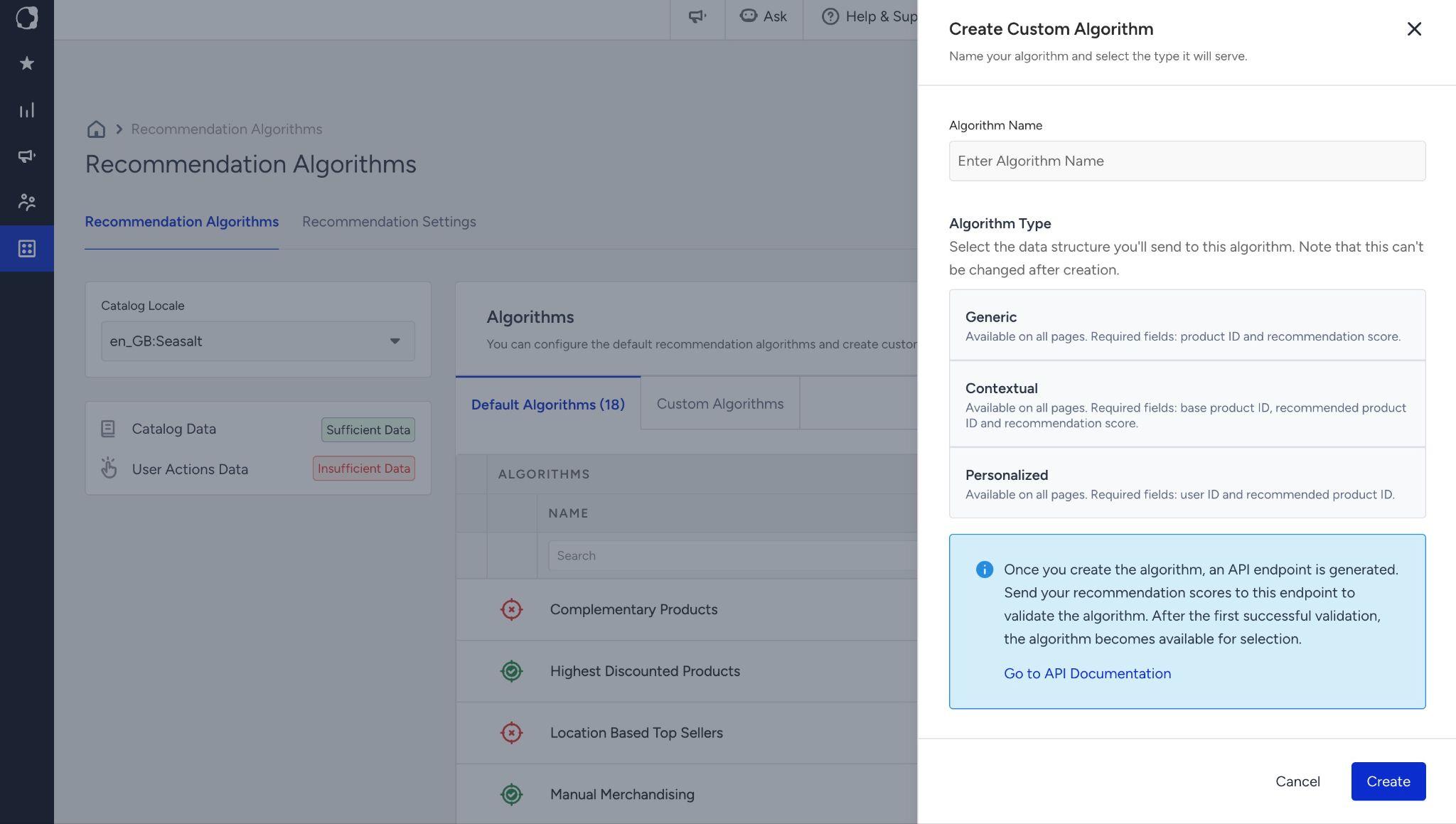
Once you click Create, Insider One generates an API endpoint for your algorithm.
The next step is to send it your recommendation data.
Send your recommendation data
Now that your algorithm exists, you can push and delete records at its endpoint.
Authentication
Navigate to Settings > Inone Settings > Integration Settings.
In the API Keys section, click Generate API Key.
Select the Smart Recommender Ingest API key type, authorize the trusted IP addresses if you want to apply IP restrictions, and click Authorize and Generate.
Copy the key before closing the prompt.
One ingest key can be active per account. Send the key in the ‘Authorization’header of every request:
Authorization: Bearer {your-api-key}The key identifies your account, so no partner-name header is needed. A missing or invalid key returns 401.
Endpoint
Perform a POST request to the URL below, replacing {algorithmId} with the ID shown on the algorithm's detail page (for example, cus-p-8842).
https://sr-ingest.api.useinsider.com/v1/algorithms/{algorithmId}/recordsTo remove the records of an algorithm, send a DELETE request to the same URL. Add ‘?locale=en_US’ to remove only one locale; without it, every locale is removed.
What to send
Every push targets one catalog locale, so include the locale in each request and send a separate push per language. Pushing a row again overwrites the previous list for that user or base product. Here's what each type expects and how Insider One ranks the results:
Type | What you send | How Insider One ranks it | Closest default algorithm |
|---|---|---|---|
Generic | product_id + recommendation_score | Highest score first | Most Popular, Top Sellers, New Arrivals |
Contextual | based_product_id + recommended_product_id + score | Highest score first, per base product | Purchased Together, Viewed Together, Complementary |
Personalized | user_id + recommended_product_id + score | Highest score first, per user | User-Based, Real-Time User Engagement |
All three types are ordered by the scores you supply, highest first. Rows with the same score keep the order you sent them in.
Limitations
Each request can carry up to 1,000 rows. Send larger lists in multiple requests.
Generic: Up to 10,000 product IDs
Contextual: Up to 100 recommendations per base product, across up to 100,000 base products; 10M product IDs in total
Personalized: No limit on the number of users; each user's list is capped by row size (roughly tens of thousands of products)
You can create up to 10 custom algorithms per account.
Check your data
After you create a custom algorithm and send it data, Insider One validates it before serving. The status tells you where it stands:
Awaiting Data: the algorithm has been created but hasn't received any data yet.
Active: your data was sent and passed validation. The algorithm is ready to use.
Scenario | What happens |
|---|---|
A score is outside the 0–1 range | Blocking. Insider One tells you which rows and fields are affected so you can fix the score and resend. |
A score isn't a number | Blocking. Insider One tells you which rows are affected; scores need to be plain decimal numbers between 0 and 1 with at most 3 decimal places (for example, 0.875). Exponent notation is not accepted. |
A required field is missing | Blocking. Insider One tells you which products are missing a required field. |
You've included a field that isn't expected for this algorithm type | Blocking. Insider One tells you which fields to remove. |
A product ID doesn't exist in your catalog | Not blocking. Insider One accepts the push, skips the products whose IDs weren't found in your catalog, and lists them in the response. |
A user ID doesn't exist in UCD (Personalized only) | Not blocking. Not checked at push time; the push is accepted, and the algorithm goes Active. Note: Insider One does not warn you about unknown user IDs, so make sure the user IDs you send match the ones already stored in Insider One. |
View and manage your custom algorithms
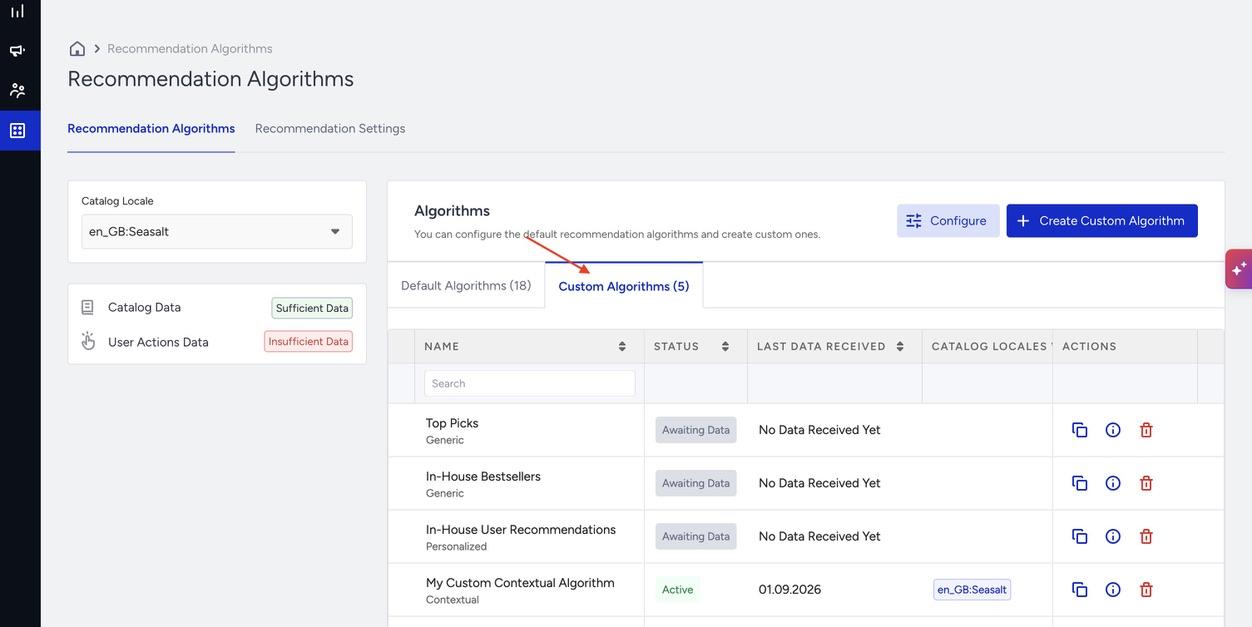
Once you've created a custom algorithm, you'll find it listed under the Custom Algorithms tab, next to Default Algorithms. The list shows each algorithm's name and type, its status, and which catalog locales have data. From Actions, you can copy the algorithm's endpoint, open its details, or delete it.
In the algorithm details, you can see: algorithm type, algorithm ID, when it last received data, when it was created, how many active strategies use it, the API endpoint for sending it data, and a preview of the records it currently holds.
Use a custom algorithm in a strategy
Go to Campaigns > Recommendation > Recommendation Strategies and click Create.
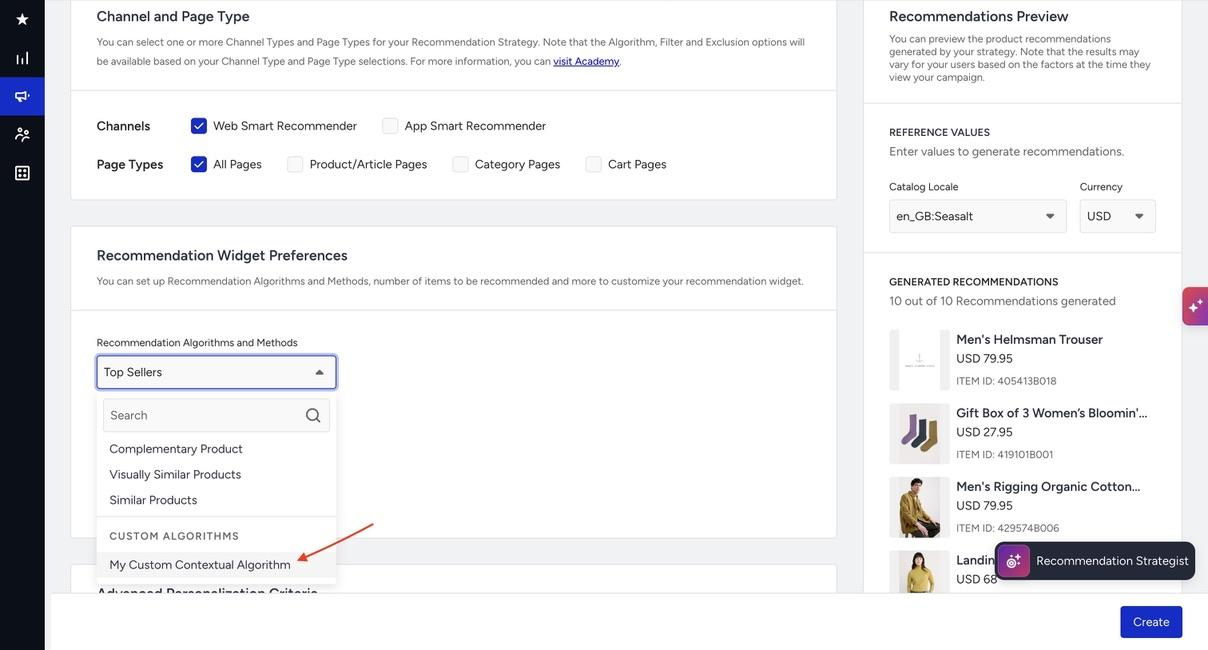
In Recommendation Widget Preferences, open the Recommendation Algorithms and Methods dropdown. Your validated custom algorithms appear in a separate Custom Algorithms group below Insider One's default algorithms. Select the one you want to use.
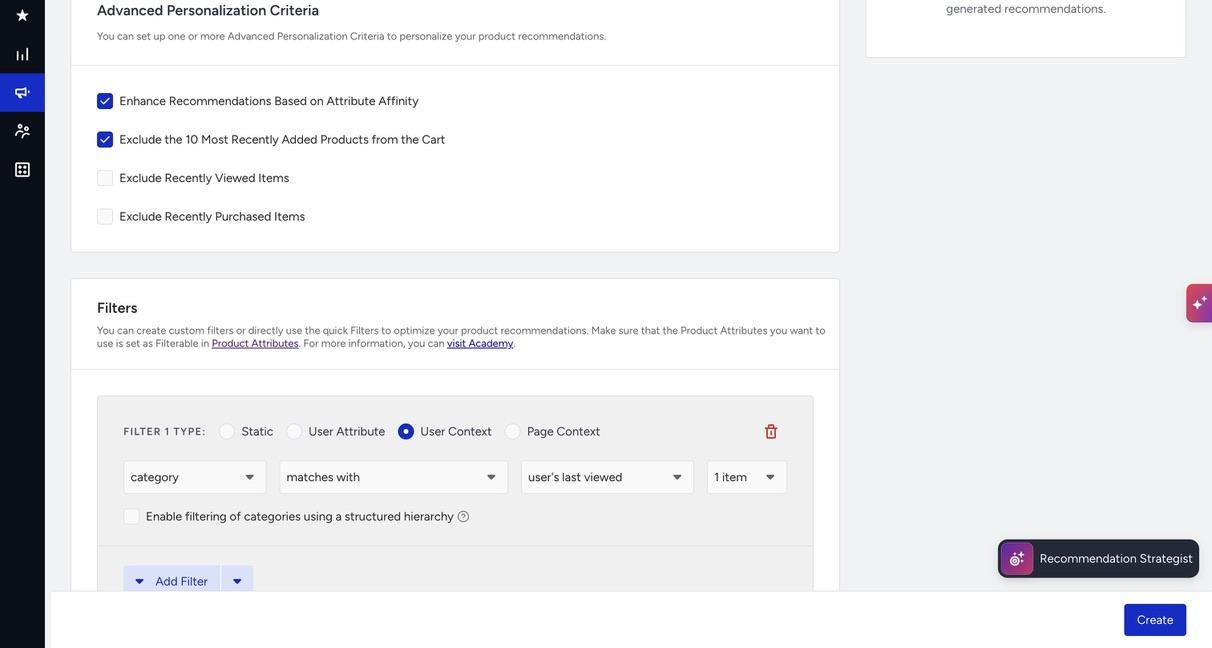
Just as with default algorithms, you can set up Advanced Personalization Criteria, Filters, and Exclusions the same way for your custom algorithm; Insider One applies them on top of your results.
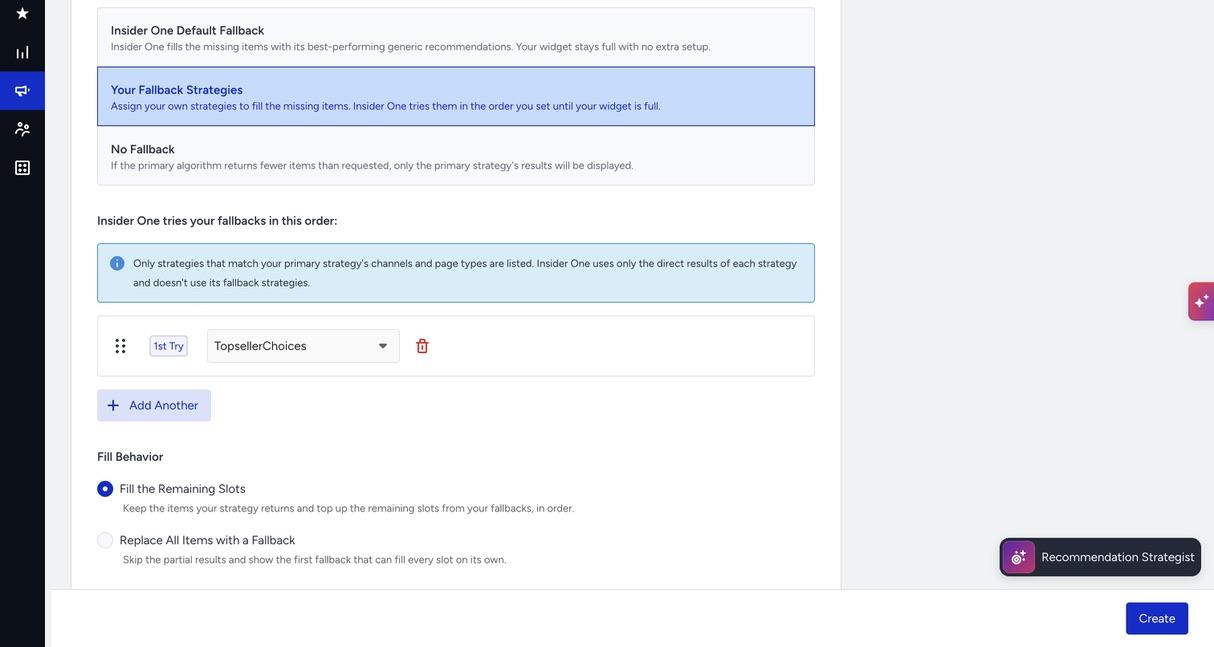
Choose a fallback for when your algorithm can't fill every slot: use Insider One's default fallback, set your own ordered list of fallback strategies (Insider One tries them in order until the widget is full), or choose no fallback at all. Under Fill Behavior, decide whether Insider One tops up the remaining slots with your fallback or replaces the whole set with the first fallback that can fill it on its own.
Note: Custom algorithms do not have a fixed fallback chain. When your list has no entry for the request (or has fewer products than requested), the fallback algorithms configured on your strategy complete the response; the same fallback mechanism used by all native algorithms. If no fallback is configured, the endpoint returns a well-formed empty response rather than an error.
Once your strategy is set up, wire it into a campaign just like any other strategy; target a segment, add display rules, and set up an A/B test against a control group or one of Insider One’s default algorithms.
Delete a custom algorithm
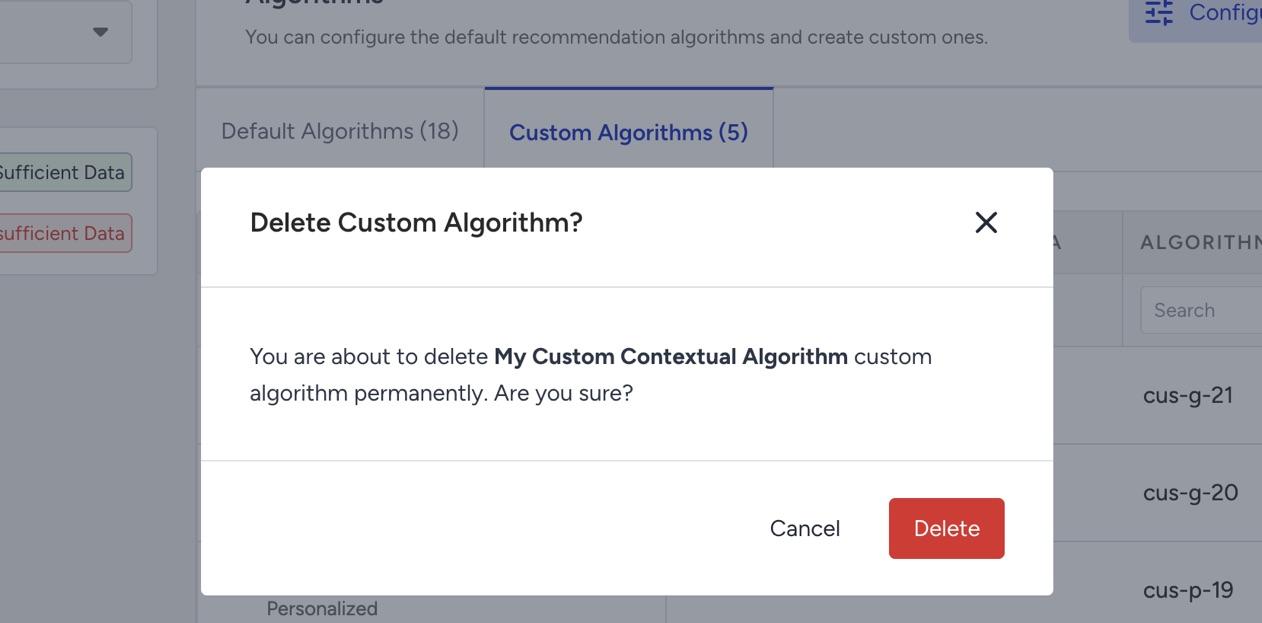
From the Custom Algorithms tab, choose Delete on the algorithm you want to remove.
If the algorithm is used by a strategy that is running in an active campaign, deletion is blocked; you'll see the list of campaigns using it. Pause those campaigns first.
If the algorithm is used only by strategies that are not in an active campaign, you'll see a warning listing them; confirming removes the algorithm from those strategies and their fallback chains.
Once nothing references the algorithm, confirm the deletion. This can't be undone.
The algorithm is removed from the algorithm dropdown immediately.
Things to know
You can only send data through the API.
You can't change a custom algorithm's name or type after you create it.
Insider One doesn't call your recommendation endpoint in real time; you send your data ahead of time through the API, and Insider One serves from what you've sent.
You can create up to 10 custom algorithms per account.