Recommendation algorithms are the core engine behind personalized experiences, which help fix or tune how Insider One’s product recommendations work. Their performance depends on data quality, configuration accuracy, and the strength of the signals they receive from user behavior. This page helps you understand how algorithms work, monitor their health, and fine-tune their settings for the best results.
You will learn how to verify data prerequisites, review accuracy indicators, adjust look-back periods, and choose the right data sources.
Algorithm Accuracy
Each algorithm has its own calculation method, refresh interval, prerequisites, and configuration options. To ensure your strategies perform optimally, verify that each algorithm is functioning correctly and receiving the necessary data to generate recommendations.
Navigate to Components > Recommendation Algorithms and Settings to check the status of your algorithms. Here’s how to ensure everything is in order:
Locale Selection: Most algorithms operate based on user actions and catalog data segmented by locale. First, select the appropriate locale to view your data's health.
Data Status Indicators: After selecting a locale, you’ll see indicators showing whether catalog and user action data are available. This is essential for algorithms to generate accurate recommendations.
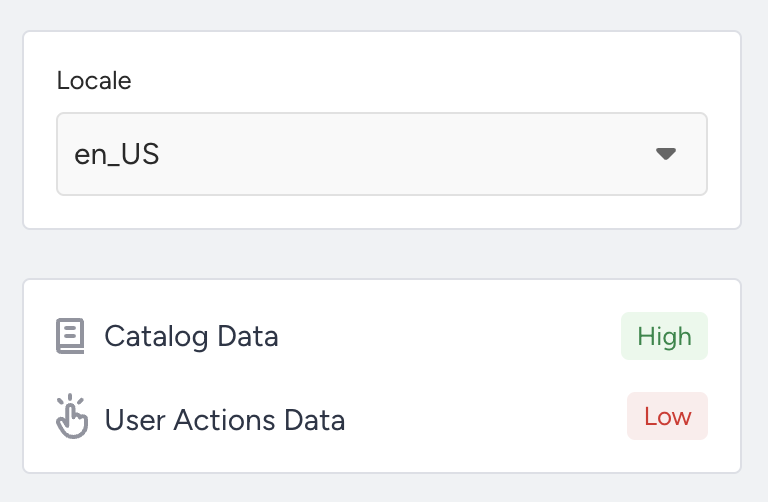
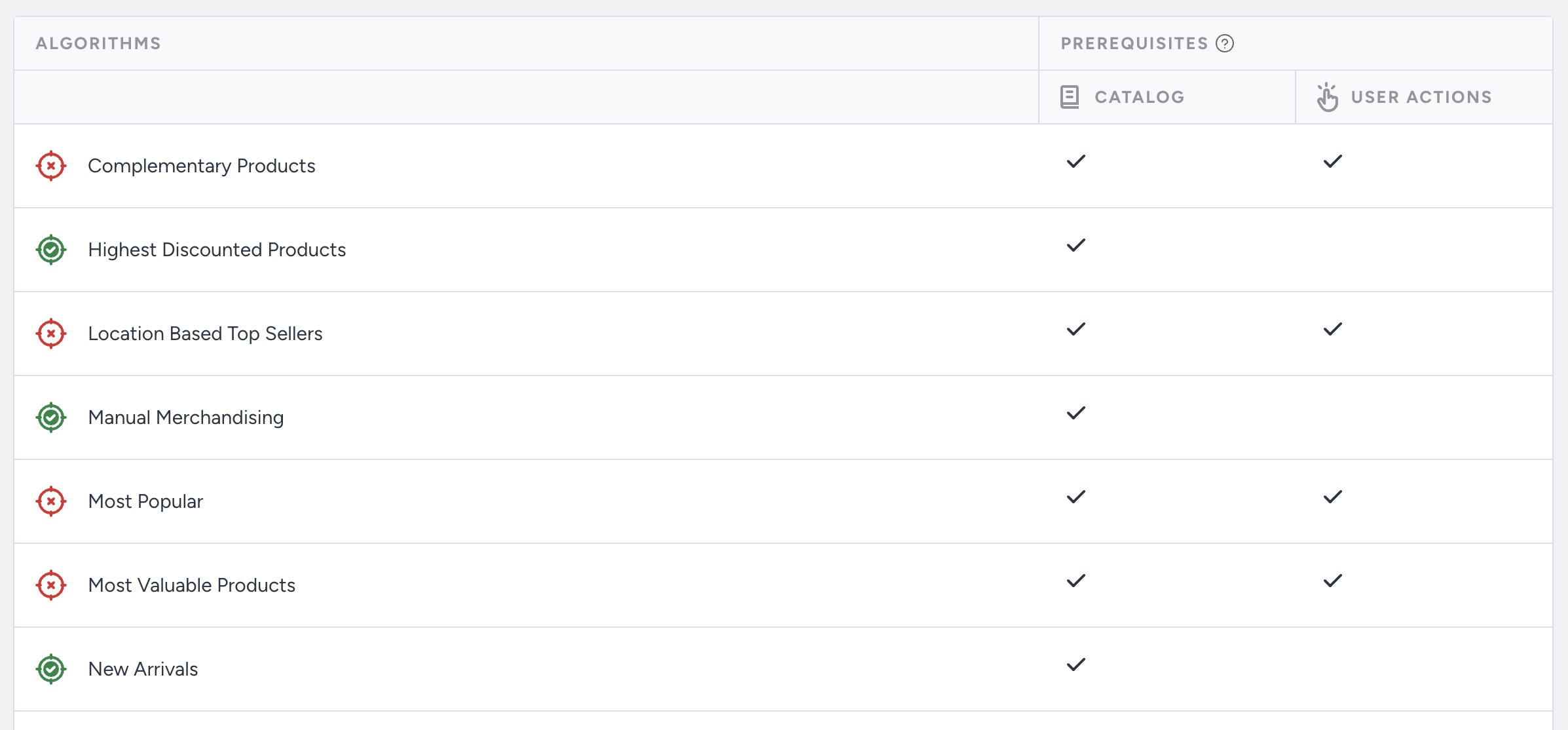
Prerequisite Check: Each algorithm has specific data prerequisites.
A green icon next to an algorithm means its prerequisites are met.
A red icon indicates missing or insufficient data, so the algorithm cannot function as expected.
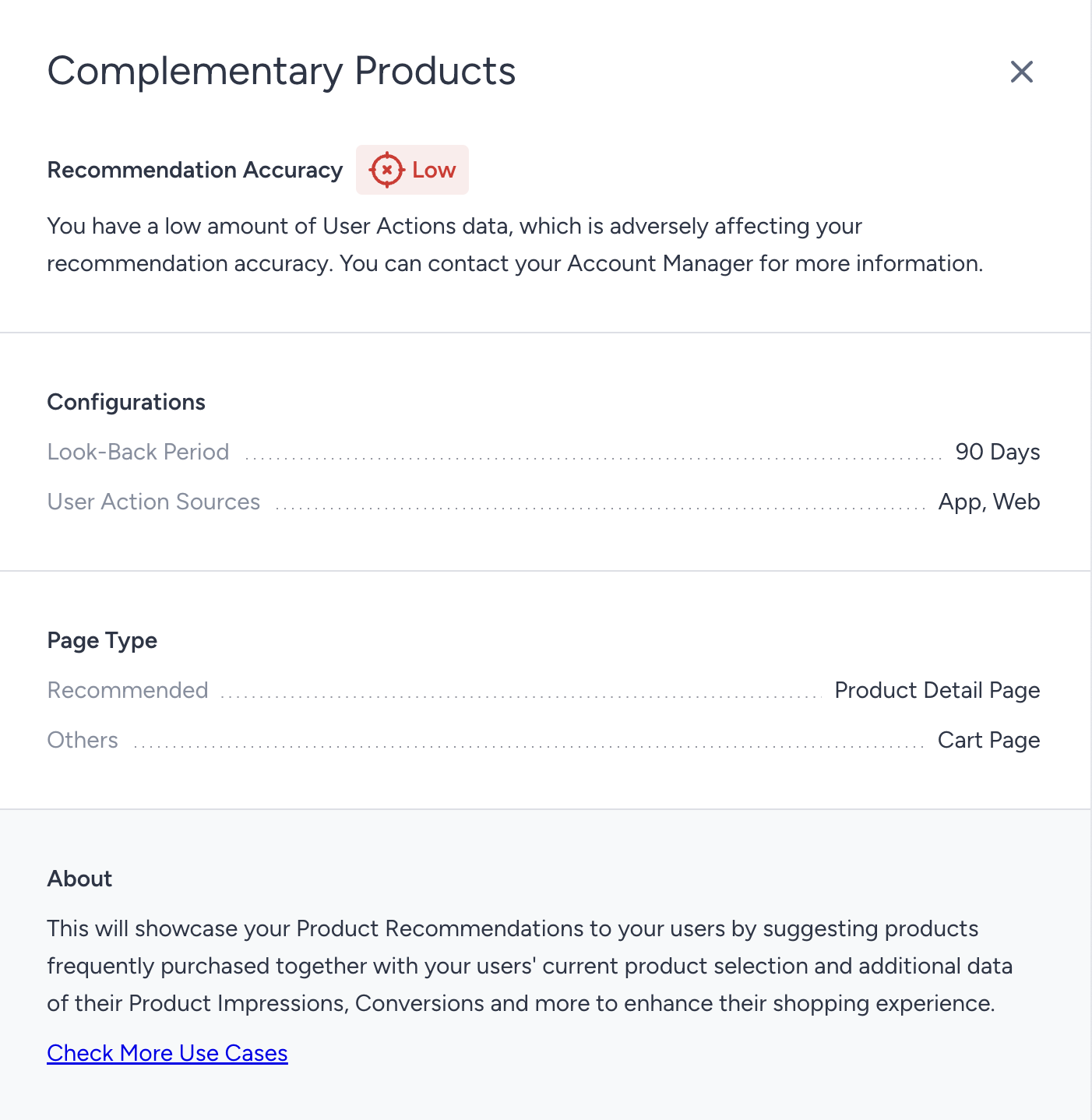
Diagnosing Low Accuracy: If an algorithm displays low accuracy, click on its name to open the Details Modal. This will provide insights into the cause, such as insufficient user actions or catalog coverage, helping you quickly troubleshoot and resolve data issues.
Algorithm Configuration
You can fine-tune algorithm behavior by adjusting look-back periods and data sources to better align with your business goals and user behavior.
Look-Back Period
The look-back period defines how many days of user event data the algorithm should consider. Choosing the right time window keeps recommendations fresh, relevant, and responsive to changes in demand.
Use shorter windows (e.g., 7 days) to highlight recent trends, such as a “Hot This Week” widget.
Use longer periods (14–30 days) to maintain stability in low-traffic periods or when product trends shift slowly.
Each algorithm may require different historical data, so experiment and monitor performance.
Data Sources
Customers engage across multiple touchpoints: web, mobile apps, and offline (e.g., in-store). Each channel generates valuable behavioral data that can improve recommendation accuracy.
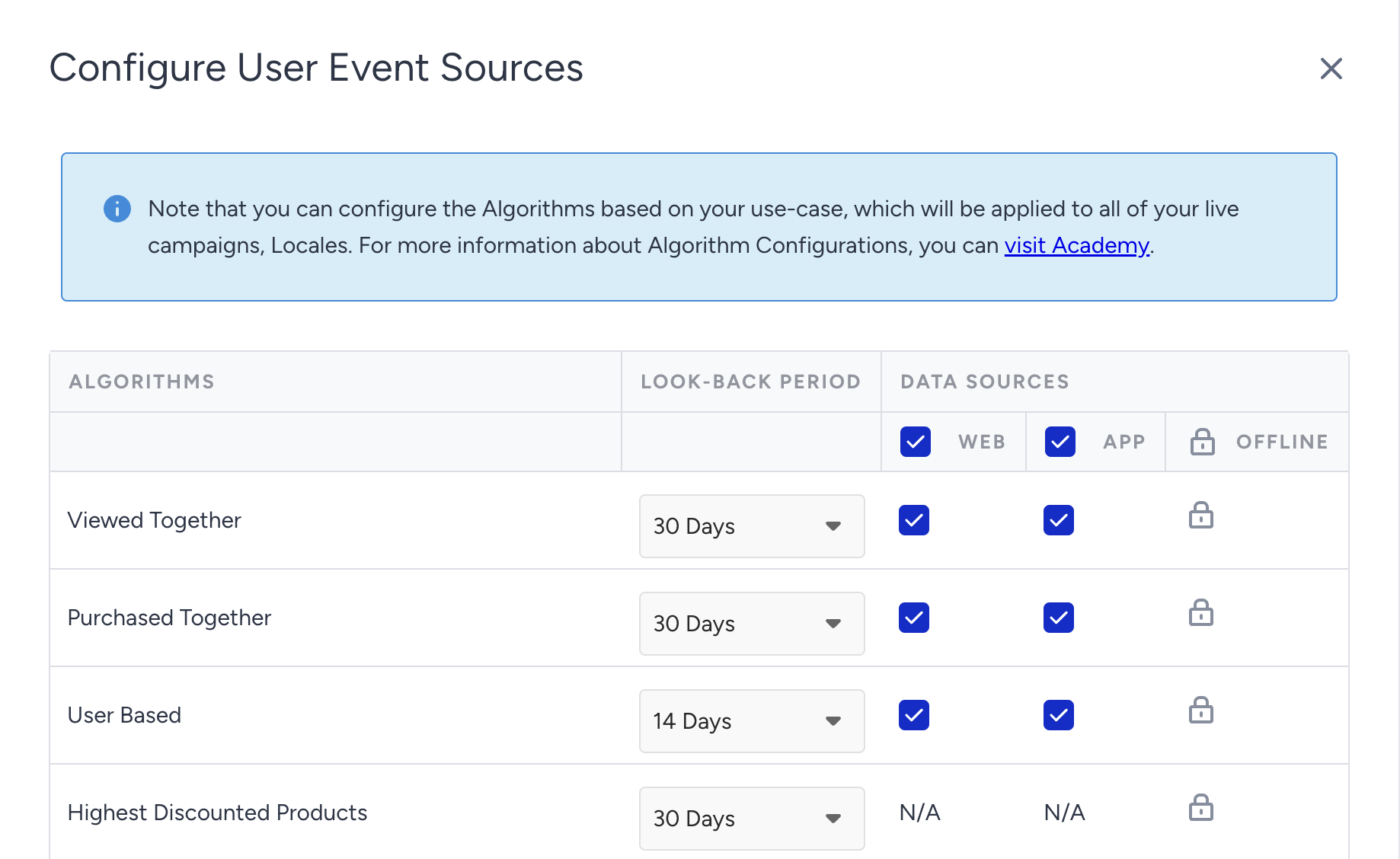
You can enable the relevant data sources, Web, App, and Offline, per algorithm, to ensure your strategy reflects the full customer journey.
How to use offline events
Offline user events can be sent through the Upsert API.
To use these events as offline source in your recommendation algorithms the locale parameter in the event object is required. Without this parameter, the events will not be processed as offline data for recommendations.
To configure these settings:
Navigate to the Recommendation Algorithms.
Click the Configure button at the top right.
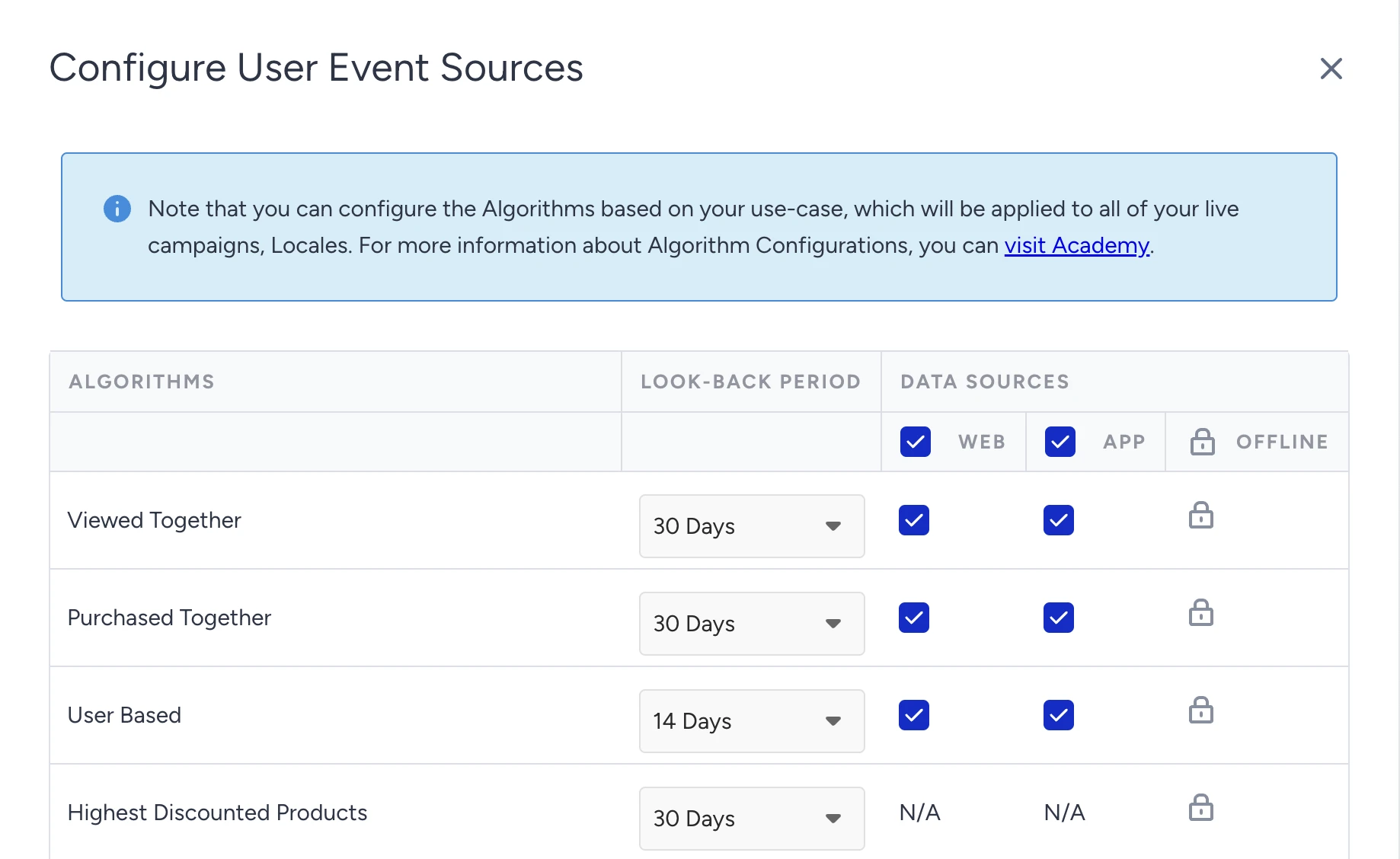
Adjust the Look-Back Period and Data Source settings for each algorithm to match your use case.
Recommendations via Upsert User Events
Smart Recommender is now fully powered by server-side events sent via the Upsert API, eliminating the requirement for on-site (client-side) tracking scripts. You can send Product View (PDP), Add-to-Cart, and Purchase events directly to Insider One via the Upsert API to train your recommendation algorithms without on-site tracking.
To accelerate your time-to-market, Smart Recommender supports historical data backfilling. Instead of waiting to accumulate new organic traffic, you can ingest your existing event logs to generate high-quality, data-driven recommendations from day one.
What you can do
Unified Event Streaming: Send Product View (PDP), Add-to-Cart, and Purchase events via the Upsert API to power recommendation algorithms
Server-Side Independence: Run Smart Recommender entirely through server-side integration, eliminating the need for on-site event integration
Historical Data Backfilling: Ingest weeks or months of historical interaction logs to ensure high-accuracy recommendations from day one.
Configurable Lookback Windows: Define specific lookback windows (e.g., 7, 30, or 90 days) to control the depth of data used to generate recommendations.
Multi-Source Flexibility: Choose which event sources to include, from web, app, or offline touchpoints, to create a comprehensive cross-channel recommendation strategy.
Supported Algorithms
When you send all event types via the Upsert API, Smart Recommender unlocks its complete algorithmic library, including:
Viewed Together
Purchased Together
User Based
Location Based Top Sellers
Trending Products
Most Valuable Products
Complementary Products
Most Popular
Top Sellers
Recommendation accuracy scales with data diversity. For example, sending PDP View events alongside purchases allows Smart Recommender to understand what your users browse, not just what they purchase.
Why all algorithms are not supported
While the Upsert API provides the historical behavioral data (web, app, offline) necessary for advanced modeling, not all Insider One algorithms rely on user interaction history.
Algorithms like Highest Discounted Products and New Arrivals, only use product catalog data (such as price or publish date) and they do not rely on user behavior.
How to set up offline user event sources
Step 1: Send your events via the Upsert API
Send your PDP View, Add-to-Cart, and Purchase events through the Upsert API. You can send events from multiple sources, web, app, offline systems, or any combination.
If you're just getting started, consider backfilling the last 30–90 days of interactions from your internal database. This gives Smart Recommender enough data to generate meaningful recommendations right away, without a "cold start" period where results may feel generic.
You can send offline user events through the Upsert API. Refer to Upsert User Data for full implementation details.
Step 2: Configure your Lookback Window and event sources
Navigate to Components > Recommendation Algorithms. On this page, you can:
Set a lookback window. For example, a 30-day window means that Smart Recommender considers only events from the last 30 days when generating recommendations.
Select which event sources to include, such as web only, offline only, or a mix of all sources.
Smart Recommender runs daily using your configured lookback window, so both recent and historical events you've sent via Upsert are always taken into account.
To configure the settings,
Click the Configure button at the top right.
Adjust the Look-Back Period and Data Source settings for algorithms to match your use case.
Use Cases
Accelerated Launch
For newly onboarded brands, the Upsert API removes the "cold start" period. By backfilling historical purchase and browsing data (e.g., the last 90 days), Smart Recommender can immediately train on existing datasets. This ensures your recommendation campaigns are high-performing and personalized from launch.
Bring Online & Offline Together
In environments where customers transition between online browsing and physical retail purchases, the Upsert API bridges the data gap. Ingesting offline transaction events alongside web-based interactions allows Smart Recommender to build a holistic view of user preferences. This ensures that algorithms like Trending or Purchased Together reflect the true cross-channel popularity of your inventory.
Secure Server-Side Execution
For organizations with strict privacy requirements or complex front-end architectures that limit client-side tracking, the Upsert API provides a path to full functionality. By streaming PDP View and Add-to-Cart events via a server-side integration, you can unlock behavioral algorithms, including Viewed Together and Trending, without deploying on-site tracking scripts or SDKs.
Implementation Notes:
Valid locale: Upsert events must include a valid locale, and this locale must match the catalog locales to be used by the recommendation algorithms.
Attribute Validation: Required event attributes, such as product_id, locale, and price, are mandatory for successful processing. Events with missing fields will be automatically skipped to maintain data integrity.
Deduplication Logic: Duplicate events are automatically detected and removed. You do not need to implement custom client-side or server-side logic to prevent redundant event ingestion.
Configuration Flexibility: You can modify your event sources and adjust your Lookback Window at any time via the Recommendation Algorithms settings page to align with changing business requirements.
Recommendation Settings
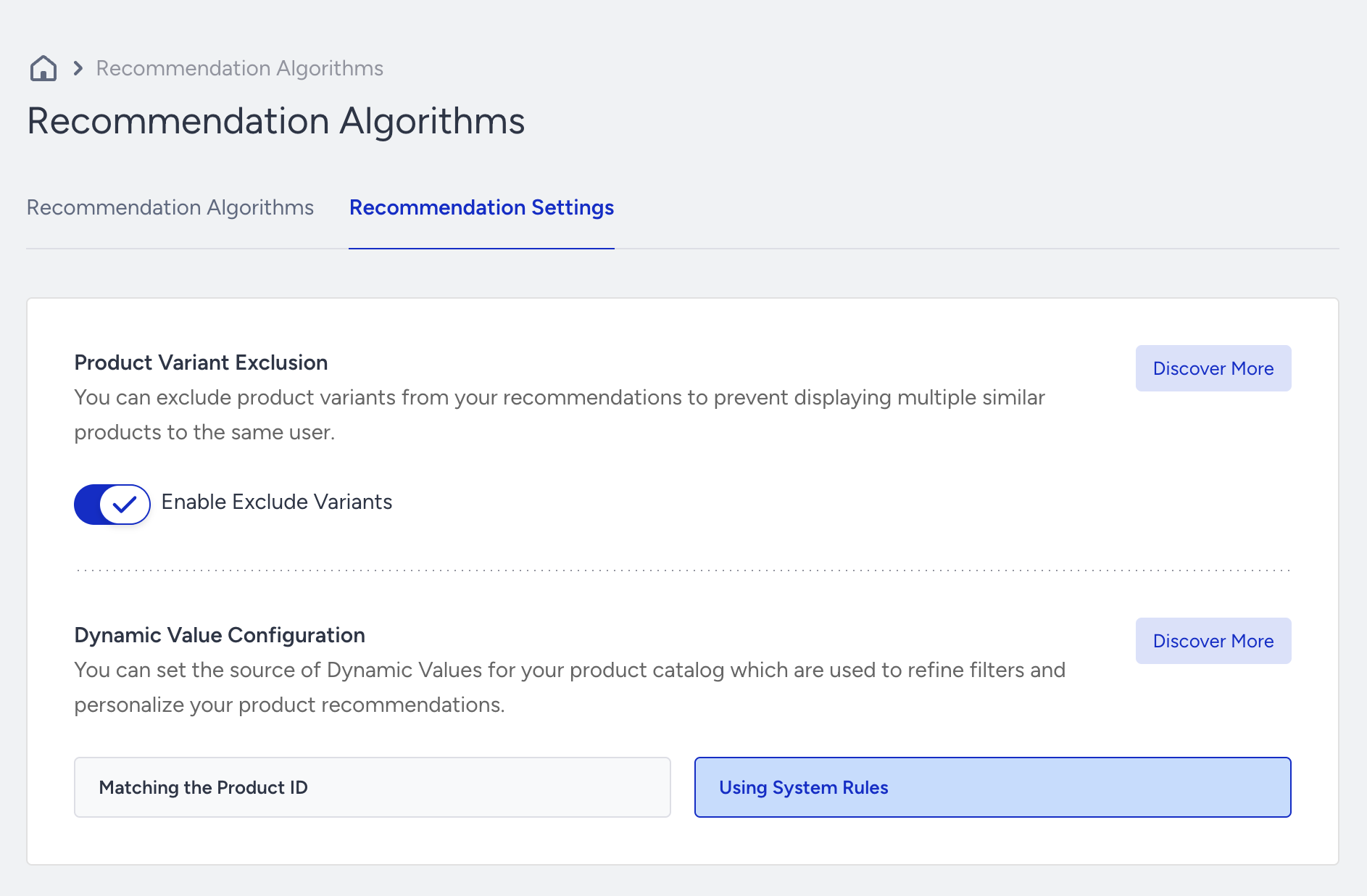
To reach the Recommendation Settings, navigate to Components > Recommendation Algorithms. Switch to the Recommendation Settings tab.
Product Variant Exclusion
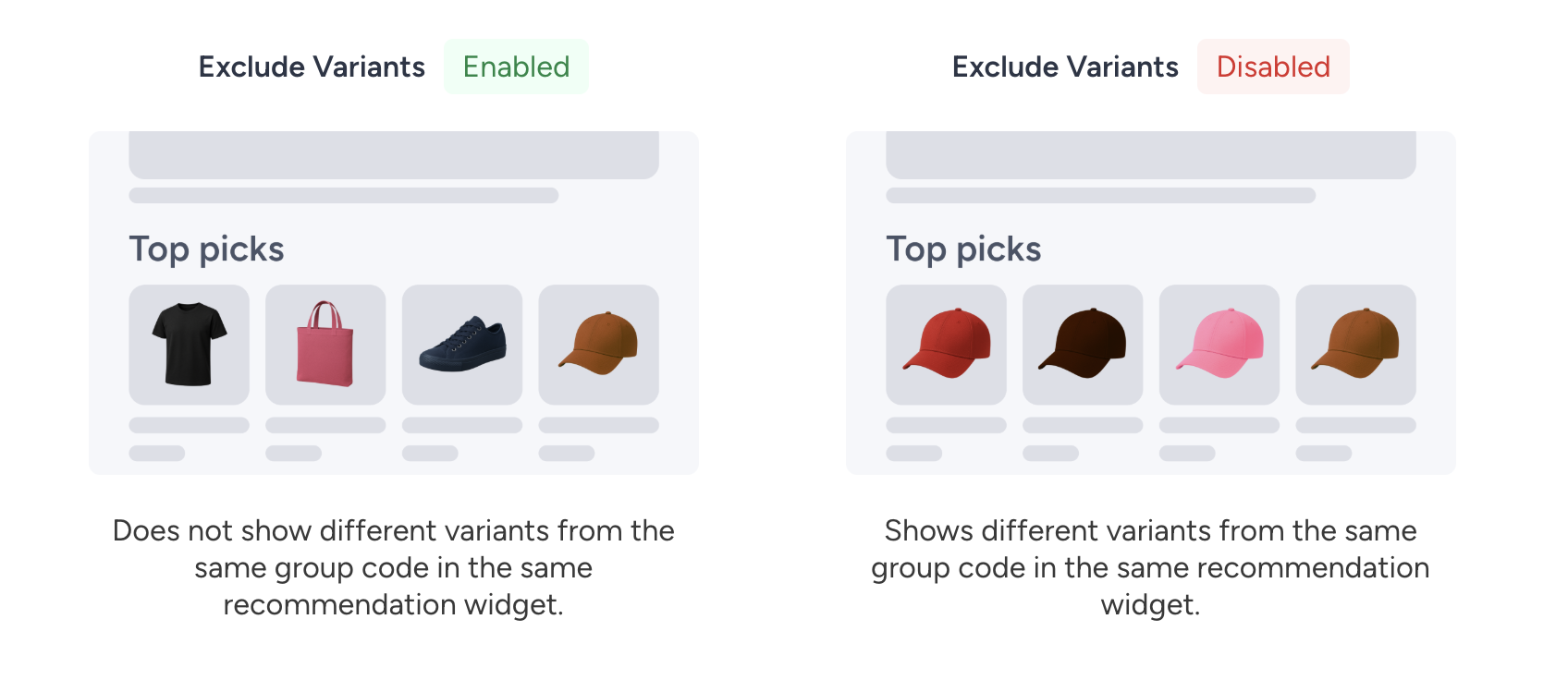
Products in your catalog may have multiple variants based on attributes such as size, color, or style. For example, a sneaker may be available in different colors or sizes, and each of these options is considered a variant. This setting allows you to choose whether variants of the same product should be shown or excluded.
If you choose to exclude variants, only the highest-performing variant within each product group will be displayed, while all other variants from the same group will be removed.
Dynamic Value Configuration
Operators such as “matches the item they’re currently viewing” do not require a manual value selection. These operators work dynamically by filtering recommendations based on the product a user is currently viewing. As a result, recommendations automatically adapt to the user’s browsing context and remain relevant.
Two ways are available for Insider One to retrieve an attribute’s value from the product a user is viewing in order to apply dynamic filtering:
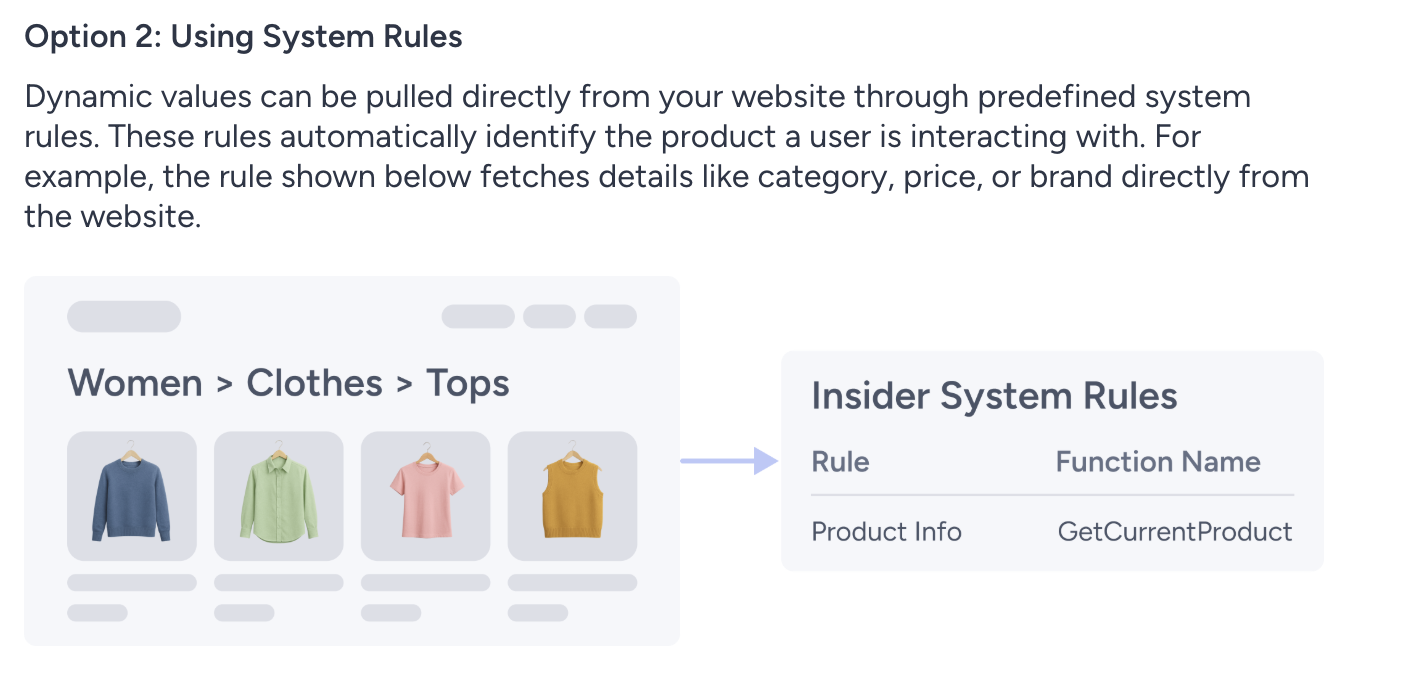
System Rules
Dynamic values are retrieved directly from your website using system rules.
If the campaign is displayed on a product page, the getCurrentProduct() system rule is used to retrieve the attribute value.
If the campaign is displayed on a category page, the getCategories() system rule is used to retrieve the category value.
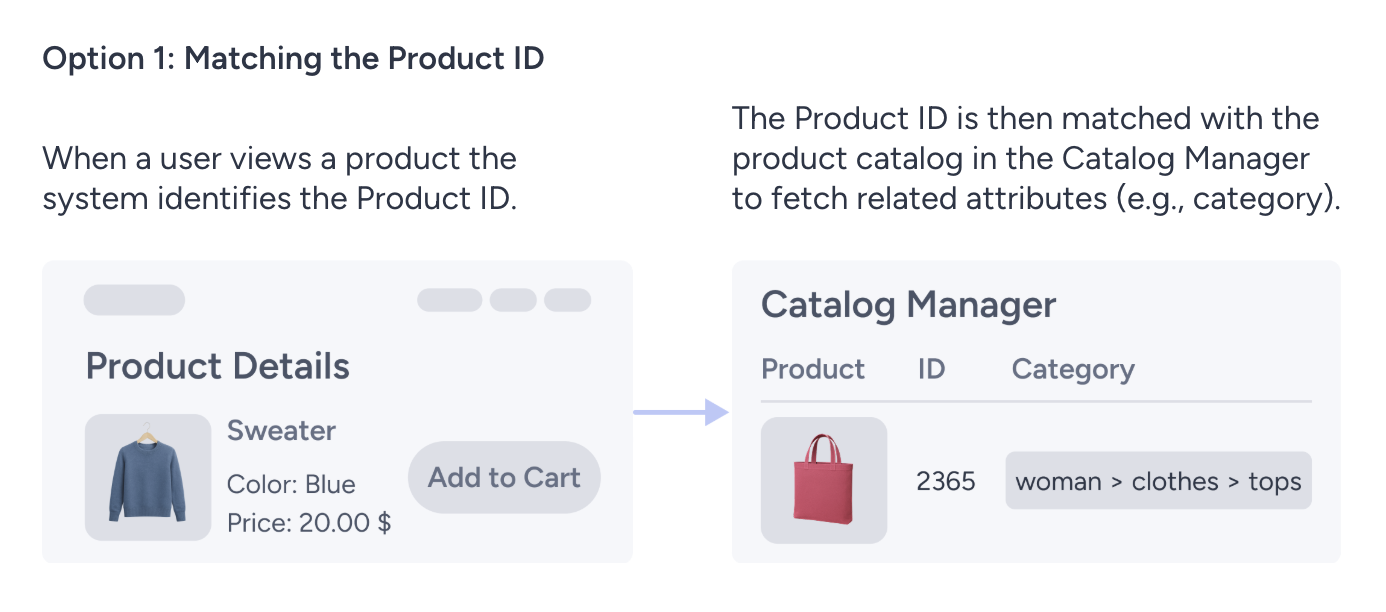
Product ID Matching
Dynamic values are retrieved based on the Product ID of the item the user is currently viewing. The required attribute value is derived from the product catalog using the Product ID collected from the viewed product.
If your dynamic value configuration is set to System Rules, default product attributes cannot be used in dynamic filters.
Real-life example
Suppose you want to create a recommendation campaign on product pages that displays the Most Popular items in the same color as the product a visitor is currently viewing.
To achieve this, you create a recommendation strategy with the filter Color + matches the item they’re currently viewing.
If your configuration uses System Rules, the color value is retrieved directly from the getCurrentProduct() rule on your website. Recommendations are then filtered based on that color. If the color value on your site does not match any value in the product catalog, no products will be returned.
If your dynamic value configuration uses Product ID Matching, the process works differently. First, the Product ID of the item the visitor is currently viewing is collected from your website. Then, the corresponding color value is retrieved from the product catalog using that Product ID. Recommendations are filtered using this catalog-based color value.