Audience Limiting sets the maximum number of users who receive your campaign. You can pick these users at random from your Target Audience. You can also sort your Target Audience by an attribute, aggregate, or expression and keep the users with the highest or lowest values.
The limit applies to the campaign, not to the Dynamic Segment you target. This way, your segment stays complete, and you can reuse it in other campaigns with a different limit or no limit at all.
This feature is currently available for SMS product.
Before you start, make sure you know how to build a segment. For details, see Dynamic Segments.
This article covers the following topics:
Use cases
Control send volume and cost: Cap a campaign at the volume your budget allows. For example, your reactivation segment matches 100,000 users, but your budget covers 50,000 SMS messages.
Reach your most valuable users first: Sort by a value such as total purchase amount or a predictive score, and send to the top users only. For example, send a supplier-funded campaign to the 25,000 users with the highest brand affinity score.
Build a small test audience: Send to a limited, random set of users from a large segment before you send to everyone.
Where you can use Audience Limiting
The Audience Limiting card is on your campaign’s segment step, under the segment builder. You can use it in the following campaign types:
Email
SMS
WhatsApp
Web Push
OnSite
Mobile App
Audience Limiting is currently unavailable on the Dynamic Segments page and in Architect journeys.
Set up Audience Limiting
Open your campaign’s segment step and define your Target Audience in the segment builder. For example, in an Email campaign, go to Whom To Target? on the Recipients step.
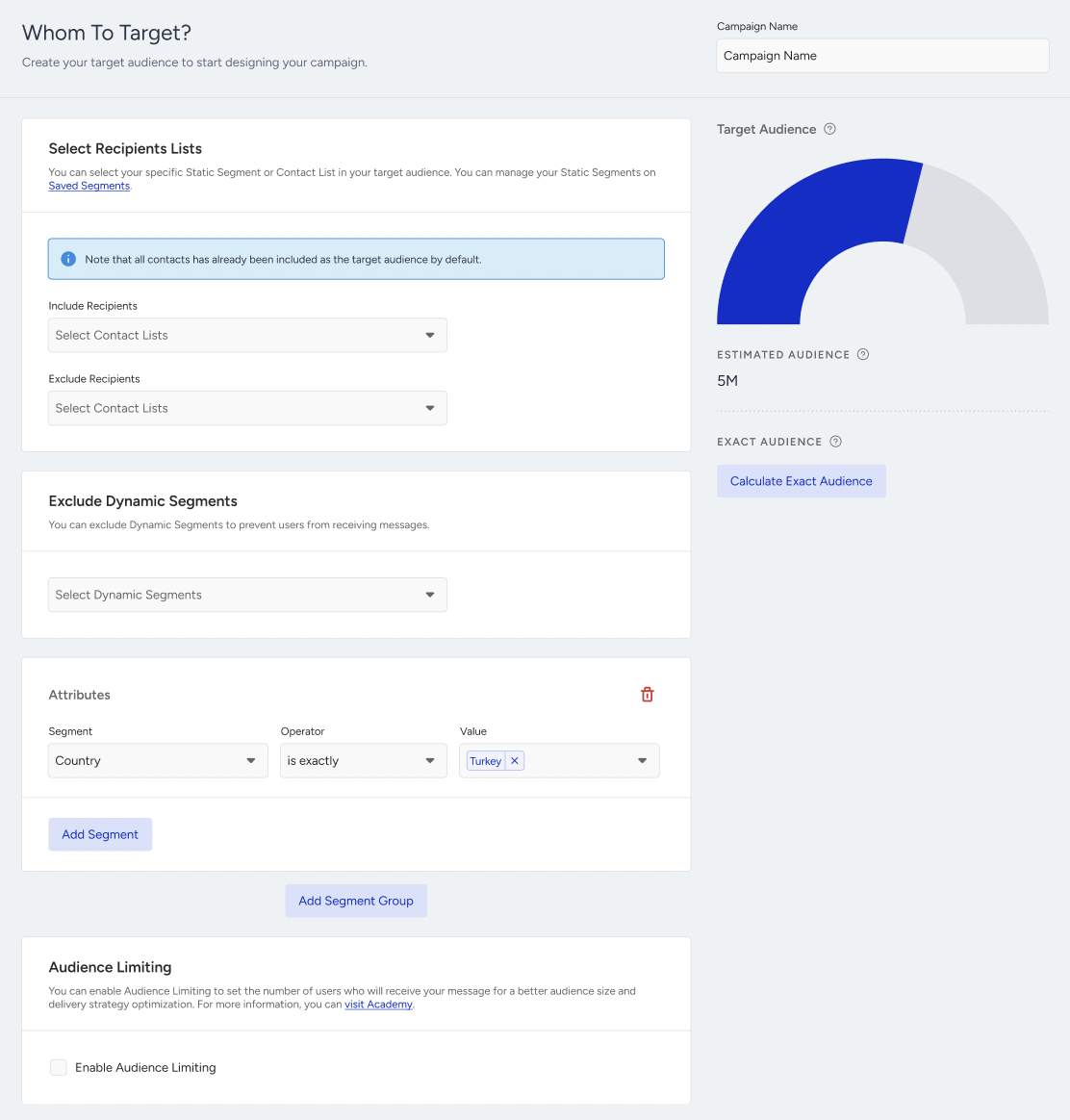
On the Audience Limiting card, select Enable Audience Limiting.
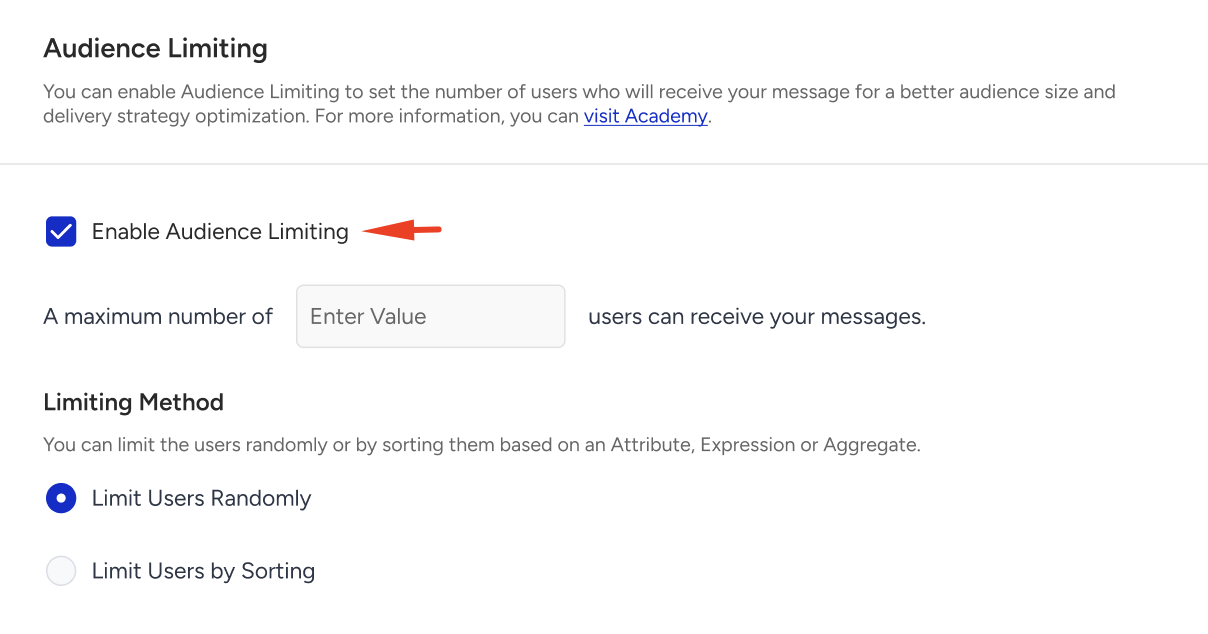
In the A maximum number of [Enter Value] users can receive your messages field, enter the maximum number of users. The value must be a whole number greater than zero.
Under Limiting Method, select one of the following options:
Limit Users Randomly (default): Insider One picks the users from your Target Audience at random.
Limit Users by Sorting: Insider One sorts your Target Audience by the field you select and keeps the users at the top of the list.
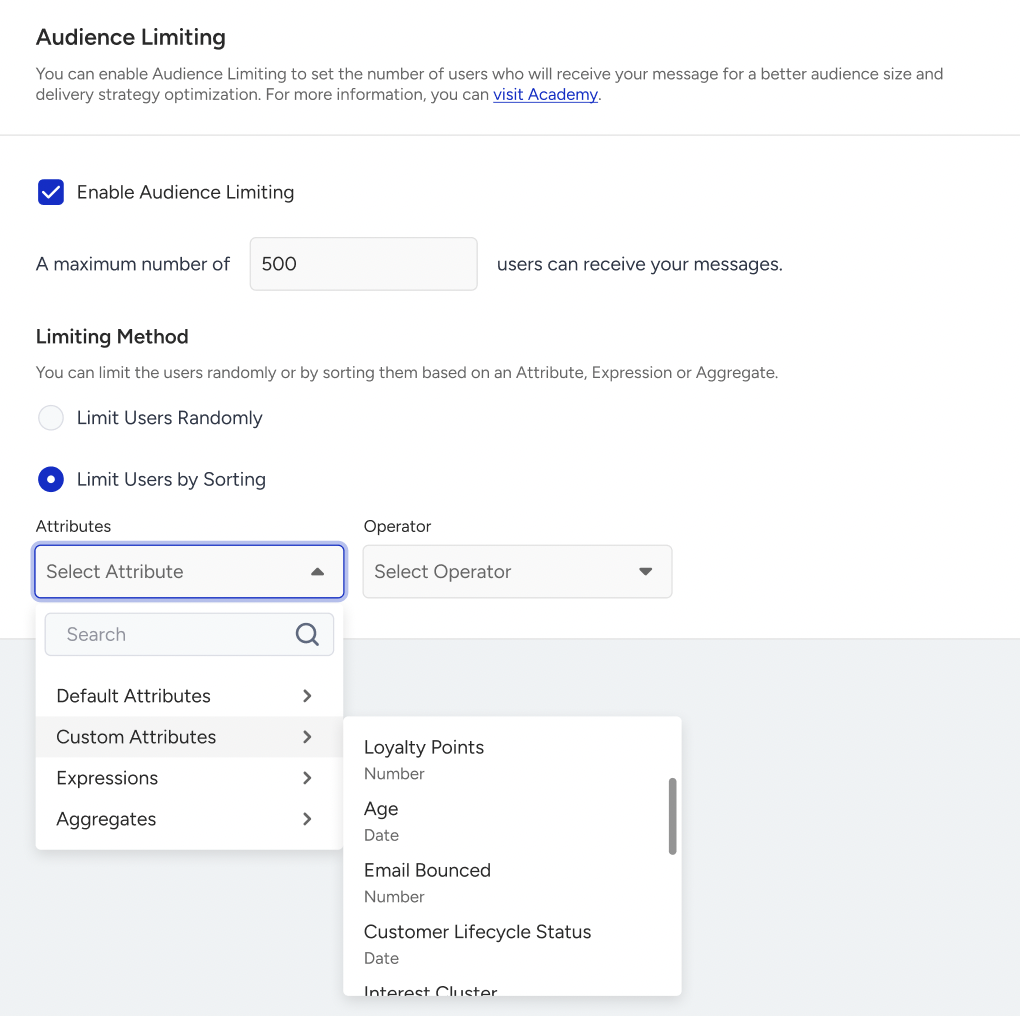
If you select Limit Users by Sorting, complete the following fields:
Attributes: Select the attribute, aggregate, or expression to sort by. The list shows number and date fields only. Aggregates and expressions appear when they are enabled for your account.
Operator: Select Highest to keep the users with the largest or most recent values. Select Lowest to keep the users with the smallest or oldest values.
For example, if your limit is 10,000, the attribute is Loyalty Points, and the operator is Highest, your campaign goes to the 10,000 users in your Target Audience with the most loyalty points.
How Audience Limiting affects your Target Audience
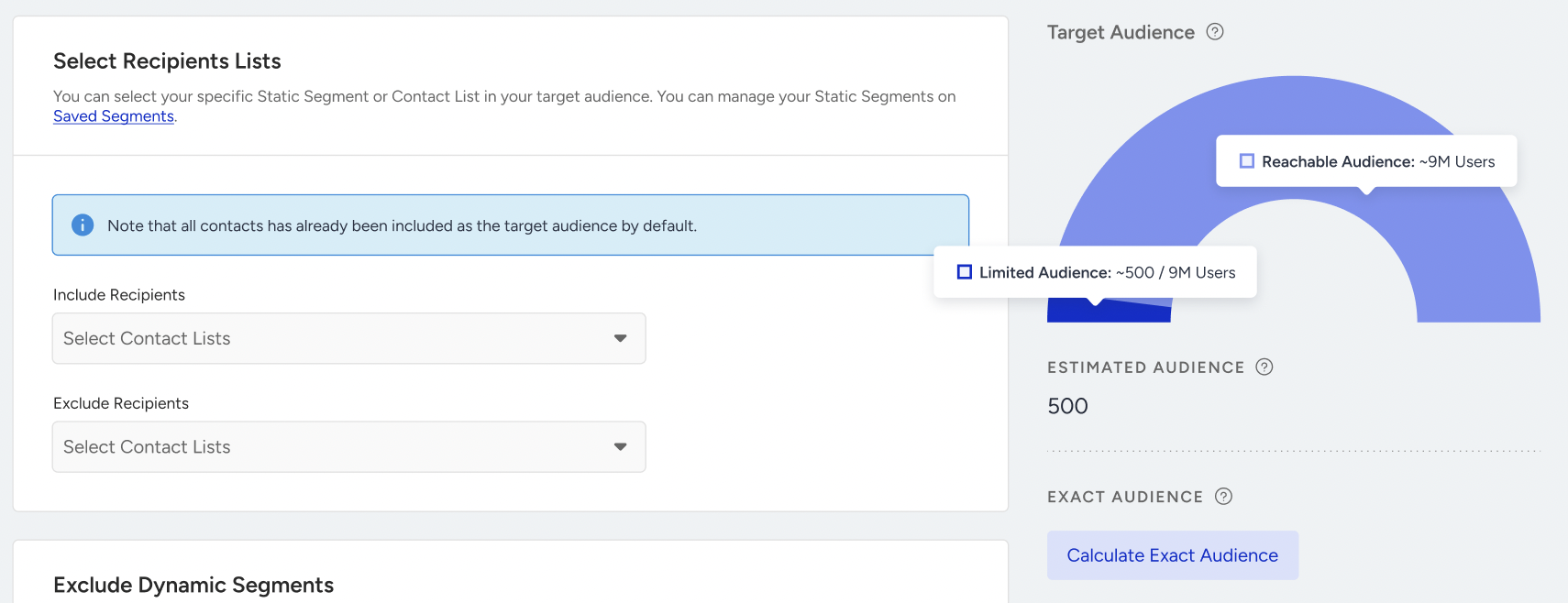
When Audience Limiting is enabled, the Target Audience chart on the right shows how your limit compares with your audience. Hover over each part of the chart to see its count.
Chart part | What it shows | Example tooltip |
|---|---|---|
Reachable Audience | All users you can reach on this channel | Reachable Audience: 9M Users |
Target Audience | Users who match your segment | Target Audience: 5M / 9M Users |
Limited Audience | Users who receive your message after the limit applies. This is your limit or your Target Audience, whichever is smaller. | Limited Audience: 500 / 9M Users |
Excluded Audience | Reachable users who do not match your segment | Excluded Audience: 4M / 9M Users |
The chart starts with the Estimated Audience, which is an approximate count. Click Calculate Exact Audience to get the exact count. The chart and its tooltips then show the exact numbers.
When your limit is larger than your audience
If your limit is larger than your audience, a note appears under the chart:
Compared with your Estimated Audience: “Note that your Limited Audience is larger than your Estimated Audience. We recommend you to calculate Exact Audience, then check and update your Audience Limiting.”
Compared with your Exact Audience: “Note that your Limited Audience is larger than your Exact Audience. You can lower your Audience Limit, or your message will be sent to all recipients in your current Target Audience.”
You can still launch the campaign. If you do, Insider One sends it to your whole Target Audience.
Review your limit before launch
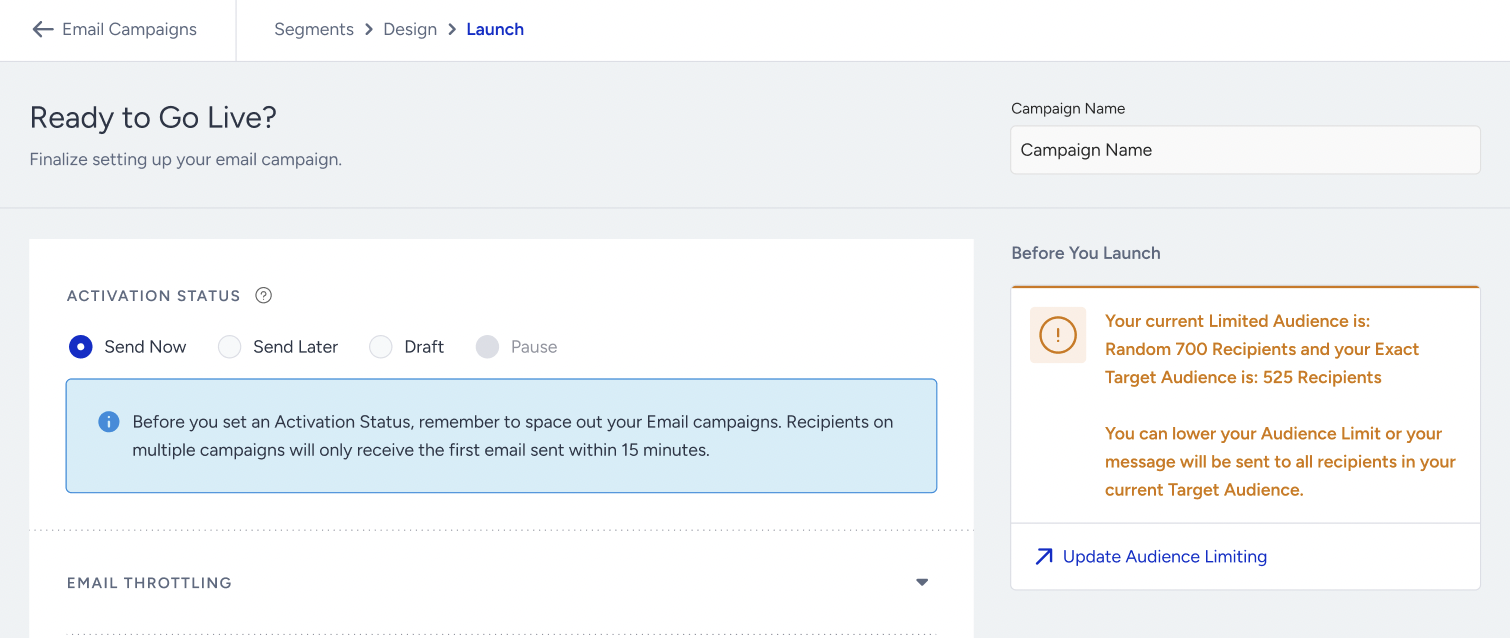
On the Launch step, the Before You Launch panel summarizes your limit so you can confirm it before you go live.
Situation | Message on the Launch step |
|---|---|
Limit Users Randomly | “Your message will be sent to random {volume} users.” |
Limit Users by Sorting | “Your message will be sent to {volume} users with the {operator} {attribute}.” For example: “Your message will be sent to 10,000 users with the highest Total Purchase Amount.” |
Limit is larger than your Exact Audience | “You can lower your Audience Limit, or your message will be sent to all recipients in your current Target Audience.” |
Limitations and considerations
Insider One applies the limit when it calculates your campaign’s audience at send time. For recurring campaigns, each send recalculates the limit, so the selected users can differ between sends.
Limit Users Randomly does not keep a fixed sample. Each audience calculation can select different users.
When several users share the same value at the limit boundary, the users included from that group can vary.
You can sort by one field at a time, and only by number and date fields.
The limit is a number of users. Percentage limits are currently unavailable.
When a campaign is completed, or you have view-only access, the Audience Limiting settings are read-only.