This guide helps you troubleshoot WhatsApp message delivery issues in Insider One: messages that aren't sending, are stuck, or get blocked. It covers the most common causes, including template rejections, spam reports, and messaging limits, with practical steps to resolve each one.
Meta provides various quality control features to help businesses sustain high-quality conversations on WhatsApp.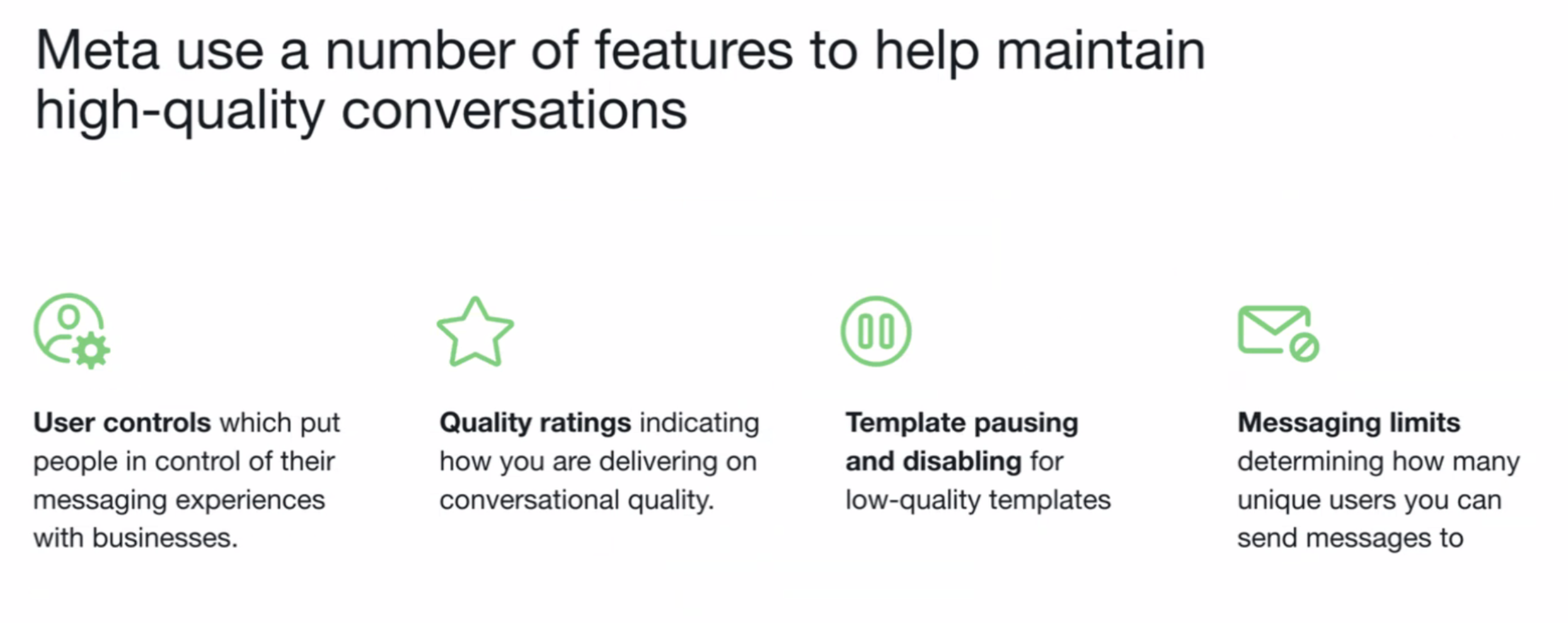
Whether optimizing your messaging strategy or handling specific delivery problems, you can follow this guide to maintain effective communication with your users.
In this guide, you can find details about the following issues and their solutions:
Direct recipient-related non-delivery issues
Some messages might fail to reach recipients due to specific issues related to the recipient. These include:
The recipient’s phone number is not registered on WhatsApp.
The recipient has not accepted WhatsApp’s latest Terms of Service and Privacy Policy.
The recipient is using an outdated version of WhatsApp that does not support certain features or messages.
Managing these issues on a large scale, especially if you run a business with extensive audiences, can result in operational inefficiencies and hinder the effectiveness of marketing campaigns.
Solutions for directly recipient-related non-delivery issues
You can consider these solutions to fix the directly recipient-related non-delivery issues:
Ensure your recipients have accepted Meta’s latest Terms of Service. They can navigate to Settings> Help or Settings > Application Information, where they will be prompted to accept the latest terms if they haven't already.
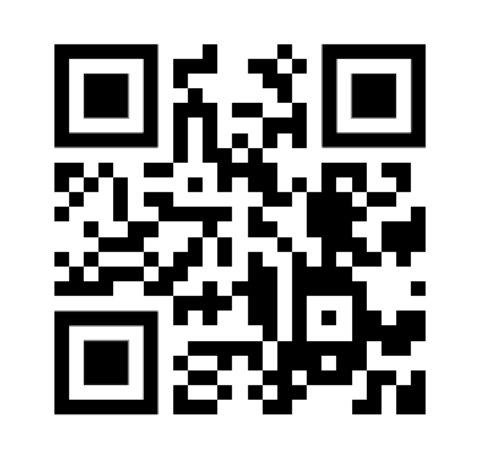
Alternatively, share the Terms of Service link with them, or post the QR code below on your website or other channels (e.g., Instagram stories or posts, offline channels), for quick access to accept the Terms of Service.
If an end user wants to contact the business independently, they cannot send a message without first accepting the Terms of Service. Consent must be obtained before any communication can occur. To facilitate this, you can create a link containing a pre-defined keyword that offers a promotion to incentivize users to provide their consent. When the end user clicks the link, the keyword will appear in the WhatsApp chat, but they won’t be able to send the message until they accept the Terms of Service.
After creating this link with the business's phone number, for example, https://wa.me/90XXXXXXXXXX?text=Receive%20Coupon, where "Receive Coupon" serves as the keyword, you can also convert it into a QR code for convenient use, as outlined in the previous step.If you need any assistance, contact the Insider One team.
Encourage recipients to update to the latest version of WhatsApp to ensure compatibility and prevent issues caused by outdated app versions.
Per-user marketing message limit issues
WhatsApp limits the number of marketing template messages you can send to a user. These limits apply to new marketing conversations and might hinder your ability to re-engage users who don't respond to the initial messages.
Effectively managing these limits requires careful tracking of conversation windows and user responses. If users don't engage with messages, further outreach becomes restricted, making it challenging to maintain engagement or drive conversions without thoughtful planning and relevant content.
Solutions for per-user marketing message limit issues
You can consider these solutions to resolve the per-user marketing message limit issues:
Craft concise, personalized, and action-driven messages to encourage user responses. Messages tailored to the recipient's needs or preferences are more likely to generate engagement.
Include quick reply buttons to encourage interaction and make your messages more engaging.
Segment your audience to identify users who are most likely to engage, whether they click the quick reply buttons or respond to messages, based on their past behavior or preferences.
In most cases, engagement typically means a "click," but Meta defines engagement as replying to a message for this specific rule. For more details, refer to the "Meta Recipient Limit" in the Undelivered Messages table.Avoid sending too many messages in a short period, as this can overwhelm users and lead to disengagement.
Test various templates, content types, and buttons to determine which ones generate the highest response rates.
If your messages fail to deliver due to this error, you must wait for some days or weeks. Then, you can re-segment the users and resend the same campaign as a duplicate. If you reencounter this error, you must extend the waiting period before sending messages. You can find more details about the error in Meta's guide.
Refer to Meta’s Frequency Capping for WhatsApp Marketing Messages for more information on why WhatsApp marketing messages may be restricted at the user level and how to plan campaigns accordingly.
Spam reports and blocking by users
High rates of user blocks or spam reports can result in message suspensions, lower phone number quality, and account flagging and restrictions.
Finding the right balance between frequent engagement and keeping messages relevant and valuable is a delicate challenge, especially when addressing a diverse audience.
Solutions for spam reports and blocking by users
You can consider these solutions to resolve the issues regarding spam reports and blocking by users:
Send relevant, expected messages that align with the opt-in purpose as shared in the Recipient Opt-Ins and Consent Management.
Include a clear call-to-action and quick reply buttons to encourage responses, ensuring two-way communication, and keeping users engaged.
Use the Unsubscribe Keyword to avoid spam or being blocked. Refer to the “Add unsubscribe keyword to campaign" title in the Actions to Reduce the Block Rates for further information.
Meta does not disclose the identities of users who block a business for privacy reasons, so Insider One cannot provide specific details about who has blocked you. However, you might find the following information useful:
When you send a campaign, Meta attempts to reach the users for up to 30 days. Any messages not delivered are shown as “Delivery Pending” in WhatsApp Analytics during this time.
After 30 days, if the message remains undelivered, it will be marked as Undelivered under the “Delivery Report Missing” metric.
This metric can increase for various reasons, such as internet connection issues. However, since blocked users contribute to this metric, you can get a rough idea of how many users have blocked you by monitoring it. For example, if you send a different message to the same blocked user, the metric will increase by +2 in Overall WhatsApp Analytics.
Template approval and pacing process issues
Businesses must use pre-approved message templates for proactive communication. Designing templates that meet Meta’s policies while achieving business objectives can be time-consuming. If templates are rejected or deemed low-quality, it can delay campaigns, particularly those involving time-sensitive updates.
Meta enforces strict guidelines to keep communication user-friendly and non-intrusive, making the template approval and pacing process essential but highly meticulous.
Solutions for template approval and the pacing process
You can consider these solutions to resolve your issues regarding the template approval and pacing process:
Make sure you created templates based on the steps provided in the Create a WhatsApp Business Standard Template on InOne guide. Following the required steps will make your template approved within 5 minutes.
To create a Utility (transactional) template, your content must align with the requirements for Utility templates. Refer to Meta's Template Category guideline for detailed guidance and examples on designing Marketing or Utility templates based on customer objectives.
If your Utility template is repeatedly approved as "Marketing" due to the inclusion of promotional keywords, it can impact message delivery. To address this, you can follow these steps:
Create a template using an unused custom attribute.
Insert the attribute into the message body where you plan to include promotional content.
The template will be approved as Utility since the attribute is initially empty.
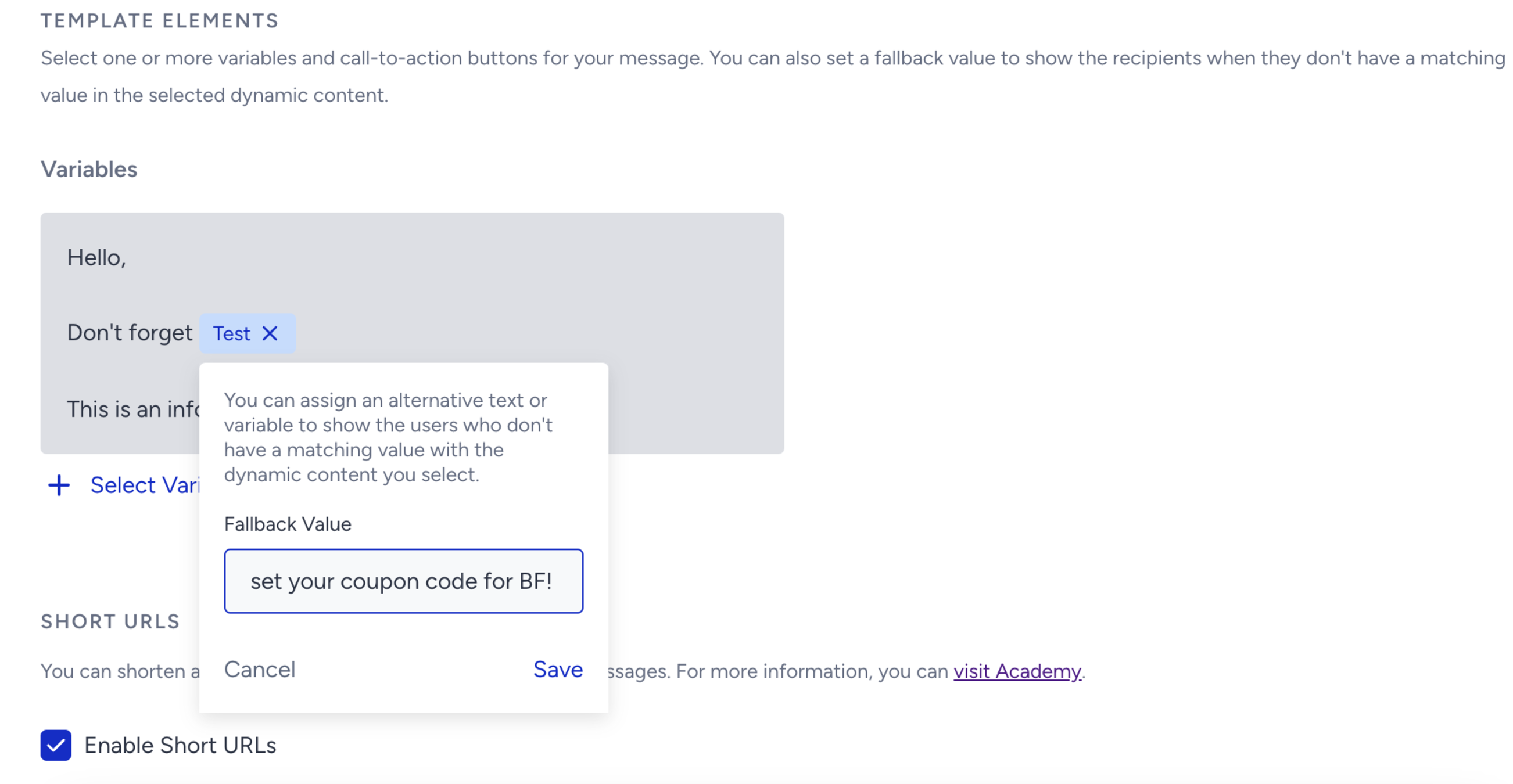
When sending the message, add a fallback value to the custom attribute, inserting your promotional content into the fallback area.
If your messages receive significant negative feedback, such as being marked as spam by users, the template will be paused, and any remaining messages will not be sent. To prevent such pauses from affecting template pacing, consider implementing the solutions in the WhatsApp Template Pacing and Pausing guide.
Remember that any remaining messages will not be delivered even if the paused template is reactivated, per Meta's guidelines. To address this, you can re-segment the affected users and resend the message using either the old or a new template. However, we recommend creating and using a new template.
To avoid quality issues, refrain from using the same template for multiple campaigns. If the first message encounters problems such as spam reports, blocks, or pauses, it can negatively impact subsequent messages in the campaign. Therefore, Insider One recommends using unique templates for each message to maintain quality and avoid potential issues.
If your templates are rejected, you can check the common rejection reasons, and based on the reasons explained in the guide, you can edit the template and send it for re-approval.
Recipient opt-ins and consent management issues
WhatsApp marketing messages require explicit user opt-ins. Ensuring compliance while maximizing reach can be challenging, especially if users are unfamiliar with the opt-in process or businesses need more efficient methods to capture consent.
SMS opt-in is not the same as WhatsApp opt-in. WhatsApp requires separate consent for marketing messages. While you can upload your SMS opt-in users as WhatsApp opt-ins using a CSV file, legal or technical restrictions may apply. However, this can impact message delivery if users mark messages as spam or block the WhatsApp number.
WhatsApp opt-in and opt-out status is managed by phone number, not by individual profile. If multiple profiles share the same phone number, a suppression or opt-out update applies to all of them. A false opt-in value recorded for the number also takes priority over a true value on the other profiles, so WhatsApp messages can stop reaching every profile that shares it.
If a customer reports a changed opt-in status or missing WhatsApp messages, check whether other profiles use the same phone number, and review the whatsapp_optin and wa_opt_out_user attributes.. Use a unique, valid phone number for each profile.
Solutions for recipient opt-ins and consent management issues
You can consider these solutions for your issues regarding recipient opt-ins and consent management:
Start collecting WhatsApp opt-ins through multiple methods. Refer to the WhatsApp Subscriber Collection for further details.
If you upload your SMS opt-in users as WhatsApp opt-ins and encounter delivery or quality issues, Insider One recommends the following three solutions:
Start collecting WhatsApp opt-ins from different sources.
Send a message to these users in small groups, asking if they want to continue receiving messages in this channel with the Quick Reply buttons. If they click the “Yes“ button, you can keep them as WhatsApp opt-in users. If they click the “No“ button, you export these users from the UCP page and re-upload them as WhatsApp opt-out users via the Saved Segment page.
Follow the suggested solutions in the WhatsApp Template Pausing and Pacing guide to increase quality and avoid further issues.
Country-based constraints
Country-specific restrictions can also impact delivery rates. Since WhatsApp message costs vary by country, sending messages according to your orders is essential. Avoid incurring additional messaging costs by sending messages to high-cost countries not included in the main order.
Solutions for country-based constraints
You can consider these solutions for country-based constraints:
If you have a quota in the primary order for country X but also want to send messages to country Y, you can't send messages to country Y and must purchase a quota. To request a quota purchase, you can contact the Insider One team.
If you need to request message-sending quotas specifically for "Test" or "UAT" panels, you must also purchase a quota and can't send messages. To request a quota purchase, contact the Insider One team.
Messaging tier limits
WhatsApp enforces rate limits based on a business's messaging tier. Exceeding these limits might prevent you from sending messages.
If you have an expanding user base or run peak campaigns, you must manage your messaging carefully to avoid exceeding thresholds, which requires ongoing monitoring and strategic planning.
Solutions for messaging tier limit issues
You can consider these solutions for messaging tier limit issues:
Be aware of your daily message limits. If you exceed them, any remaining messages will be dropped and not delivered.
You might have unlimited messages for a day. If you need to send more messages without encountering delivery issues, you must increase your messaging tier limit. Refer to Messaging Limits for WhatsApp to follow the suggested actions.
Invalid phone number issues
Invalid phone numbers prevent message delivery and reduce success rates, often due to outdated information or data entry errors.
Identifying and removing invalid numbers from large databases is time-consuming and requires reliable tools. With proper validation, you might avoid inefficiencies in message delivery.
Solution for invalid phone number issues
Ensure that all end users' phone numbers follow the correct format. You can check the supported phone number format in Meta's guide.
Refer to WhatsApp Campaign Analytics for further information on Unsuccessful messages.
If you have any delivery issues and can't apply these solutions, please contact the Insider One team.