WhatsApp applies messaging limits to help prevent misuse of the channel. These limits define how many unique users you can message within a rolling 24-hour period. They do not limit the total number of messages you send. Messaging limits also do not apply to replies sent within the 24-hour customer service window after a user-initiated message.
WhatsApp LLC applies the messaging limits. Therefore, they are not related to the WhatsApp usage limits you purchased at Insider One.
In this article, you can find answers to the following questions:
What are the limits?
Messaging limits are managed at the Business Portfolio level. All business phone numbers within the same portfolio share a single messaging limit.
For newly created Business Portfolios, the starting messaging limit is 250 business-initiated conversations within a rolling 24-hour period. Newly registered phone numbers do not receive a separate limit. Instead, they automatically use the limit assigned to their Business Portfolio.
Messaging limit tiers include:
250 unique customers (starting limit for newly created Business Portfolios)
2K unique customers (automatic scaling eligibility level)
10K unique customers
100K unique customers
An unlimited number of unique customers
When a Business Portfolio becomes eligible for automatic scaling, the messaging limit increases to 2,000 business-initiated conversations. Upgrades are typically applied within approximately 6 hours after the required criteria are met.
Messaging limits are continuously evaluated based on:
Phone number quality rating
Messaging frequency
Customer engagement
Compliance with WhatsApp policies
Note that a low quality rating might result in messaging restrictions, even if scaling criteria are met.
Refer to the Meta documentation for further details on the upcoming changes to messaging limits.
How are the messaging limits calculated?
WhatsApp messaging limits are defined at the Business Portfolio level and apply to all business phone numbers within that portfolio.
The portfolio’s messaging limit equals the highest limit assigned to any phone number in that portfolio.
Example: The highest limit determines the portfolio limit
If a Business Portfolio contains:
Phone A → 100K messaging limit
Phone B → 10K messaging limit
Phone C → 1K messaging limit
The Business Portfolio messaging limit will be set to 100K.
All phone numbers in the portfolio consume messages from this shared limit pool.
Learn your current limit
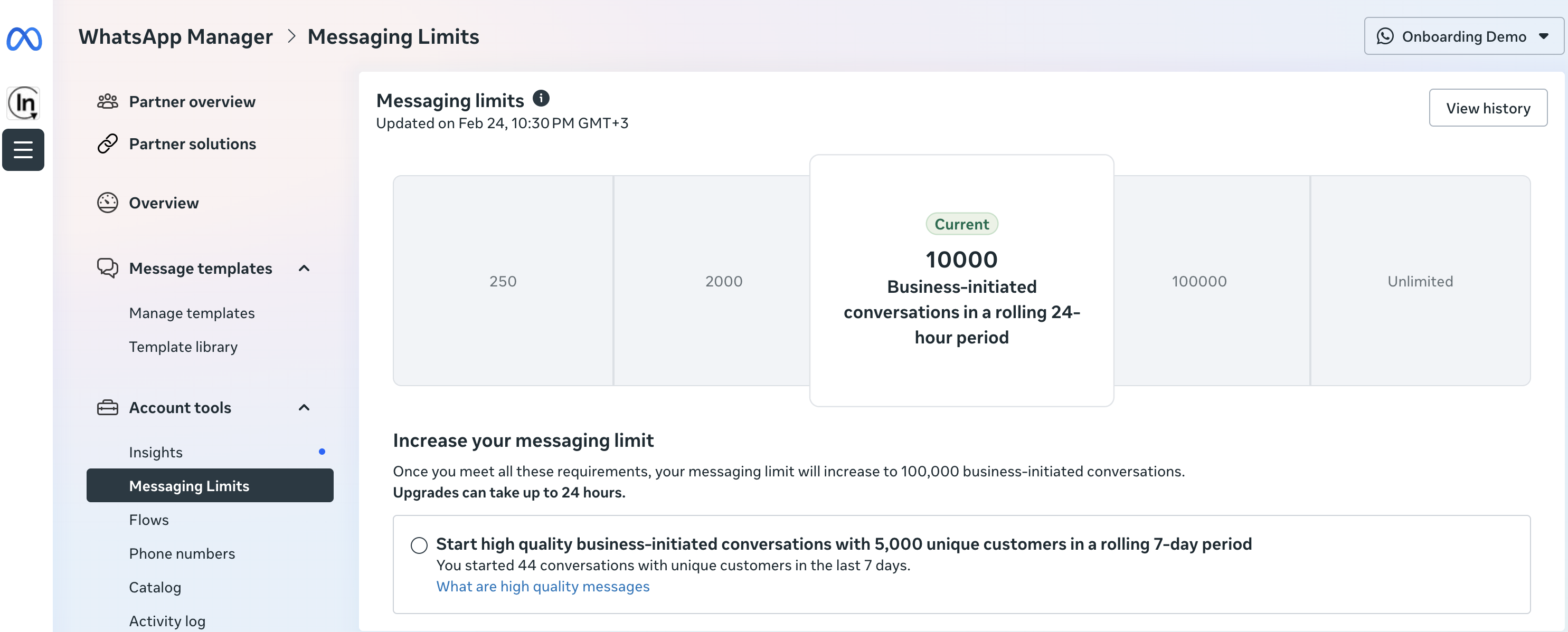
You can access your messaging limits directly from the Meta panel, as shown in the image below.
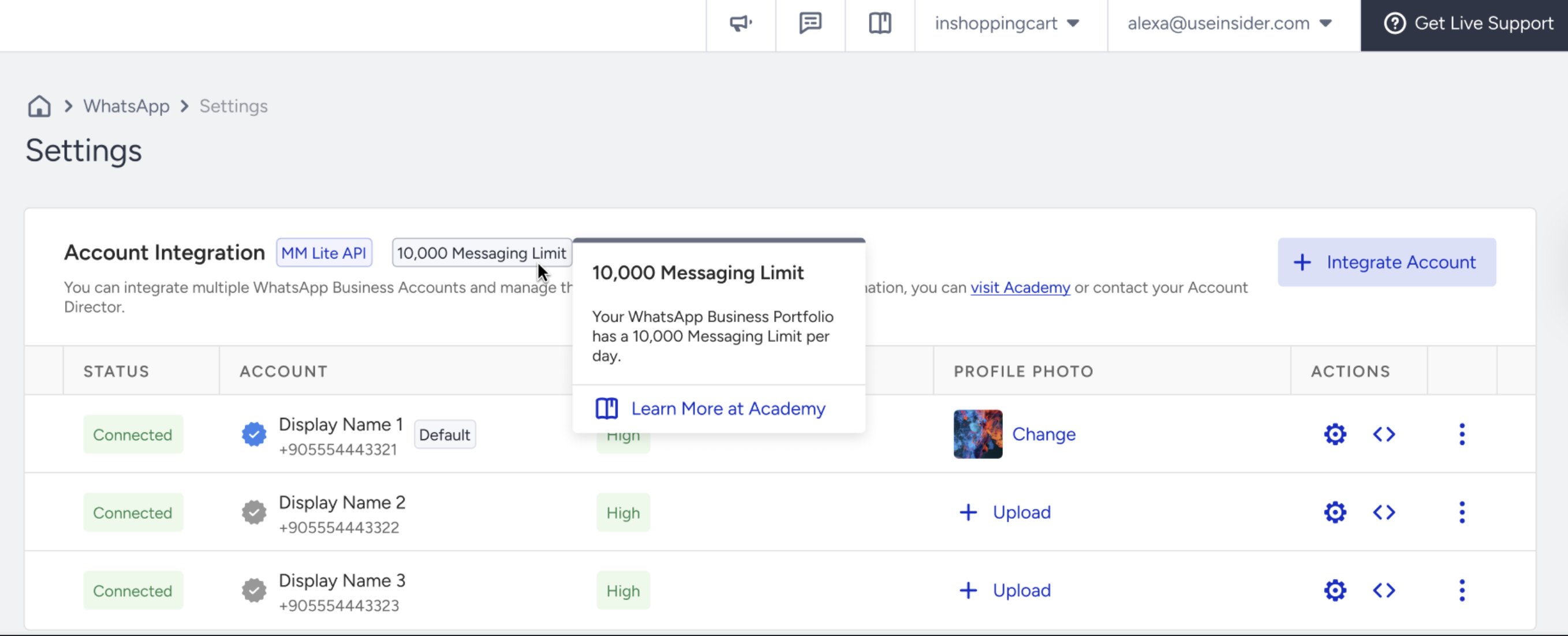
You can also view your messaging limits on the InOne panel under Campaigns > Messaging > WhatsApp > Settings, as shown in the image below.
Increase your limit
Messaging limits increase automatically when your Business Portfolio meets Meta’s scaling criteria.
Meta evaluates eligibility based on the following:
You send high-quality messages across your approved templates.
Your business phone number maintains a Medium or High quality rating.
In the last 7 days, you have used at least half of your current messaging limit in conversations with unique users outside the customer service window.
Once your portfolio reaches 2,000 messages, Meta continues evaluating your eligibility for higher tiers. If the automatic scaling criteria are met, the messaging limit is upgraded to the next tier within approximately 6 hours.
To become eligible for the 2,000 messaging limit, your business must complete one of the following:
Verify your business
Have your solution provider verify your business (if applicable)
Send 2,000 delivered template messages with a high quality rating to unique users outside the customer service window within a rolling 30-day period
After completing one of these paths, Meta reviews your messaging quality and determines whether automatic scaling is approved.
If your daily messaging limit is 2,000, you can only initiate conversations with 2,000 unique users within a rolling 24-hour period, even if your total audience is larger.
Example cases
The following examples assume the Business Portfolio maintains a high quality rating and meets all automatic scaling criteria.
In the chart below, you can see that the messaging limit increased from 250 to 2K within 24 hours.
Day 1 | Day 2 | Day 3 | Day 4 | Day 5 | |
|---|---|---|---|---|---|
Business-initiated conversations (new) | 150 | 150 | |||
Business-initiated conversations in the last 7 days | 125* | 300 | |||
Messaging limit | 250 | 2K |
In this scenario, the Business Portfolio becomes eligible for automatic scaling once it uses at least half of its messaging limit and maintains quality standards.
*For example, if the 125th conversation (half of the 250 messaging limit) is initiated at 3 pm, and all quality requirements are met, the messaging limit is automatically increased to 2K at approximately 9 pm the same day (i.e., approximately 6 hours later).
In the chart below, you can see that the messaging limit increased from 250 to 2K in 4 days.
Day 1 | Day 2 | Day 3 | Day 4 | Day 5 | |
|---|---|---|---|---|---|
Business-initiated conversations (new) | 60 | 120 | 120 | 180 | |
Business-initiated conversations in the last 7 days | 60 | 100 | 125* | 480 | |
Messaging limit | 250 | 250 | 250 | 2K |
In this example, the messaging limit increases progressively as the Business Portfolio continues to meet usage and quality requirements. Once the required thresholds are reached, the portfolio is automatically upgraded to higher limit tiers.
*For example, if the 125th conversation is initiated at 7 pm, the messaging limit is increased at approximately 1 am the same day (i.e., around 6 hours later).