WhatsApp Channel allows you to send real-time transactional WhatsApp messages to users who enter a journey through an On API Call starter.
Transactional WhatsApp is designed for time-sensitive, informational messages such as order updates, delivery notifications, appointment reminders, and account alerts. Messages are sent immediately when a user reaches the WhatsApp element in the journey. Unlike Email and SMS, WhatsApp messages are built from a pre-approved message template rather than from free text you write in the panel.
In Transactional Journeys, WhatsApp messages are sent as a single, immediate operation. You can use WhatApp in Transactional Journeys when you want to deliver messages immediately, the content is informational or operational, or when the message includes quick-reply buttons and a short conversation back.
When a user reaches the WhatsApp element:
The message is generated from the selected template and its dynamic content.
The WhatsApp message is sent immediately.
The journey continues without waiting for user interaction.
Each user receives an individual WhatsApp message. Messages are not batched or scheduled.
Transactional WhatsApp does not evaluate user consent, opt-in status, or silent hours before sending.
Only templates categorized by Meta as Utility can be used in a transactional journey. Marketing and Authentication templates are filtered out of the template list.
Step 1: Add a WhatsApp element on canvas
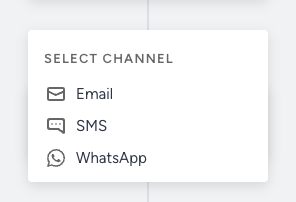
To send a WhatsApp message in a transactional journey, add a WhatsApp element from the Select Channel list on the canvas.
The Channel Name field sits at the top right of the inner page. It is prefilled with the journey name followed by WhatsApp 1, and you can rename it. The channel name is what identifies this element in analytics.
Step 2: Select a pre-approved message template
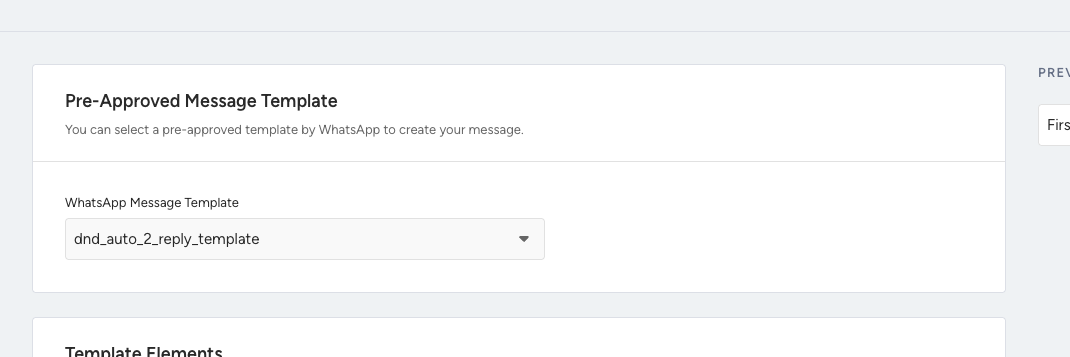
Open the WhatsApp Message Template dropdown inside the Pre-Approved Message Template container.
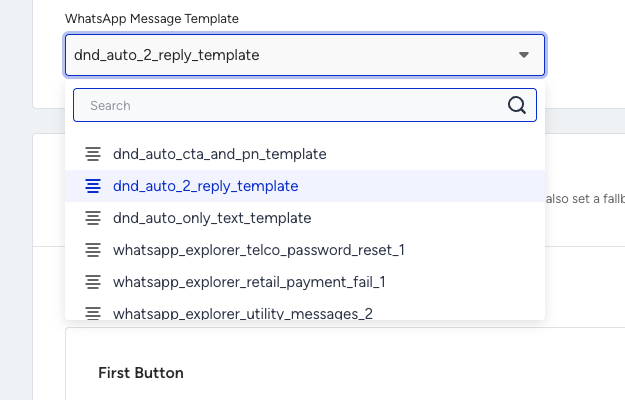
The dropdown is searchable by template name, shows an icon per row for the template type (text, image, document), and lists only Utility templates approved for your WhatsApp account
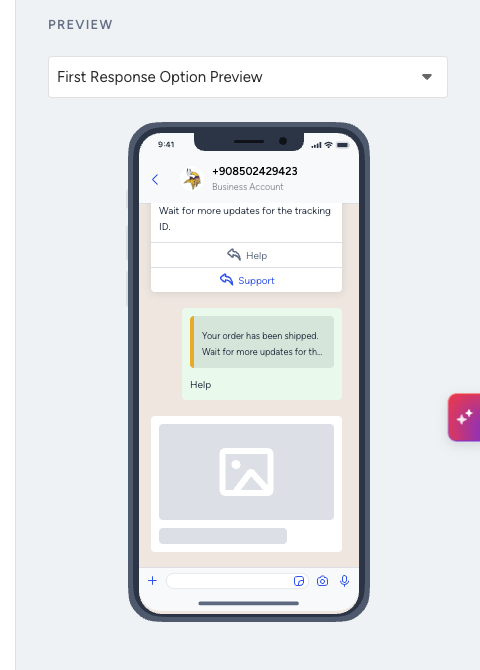
Selecting a template renders it in the Preview panel on the right. The dropdown above the preview switches between Default Template Preview and a preview per response option, so you can check the whole conversation, not just the first message.
Step 3: Configure template elements
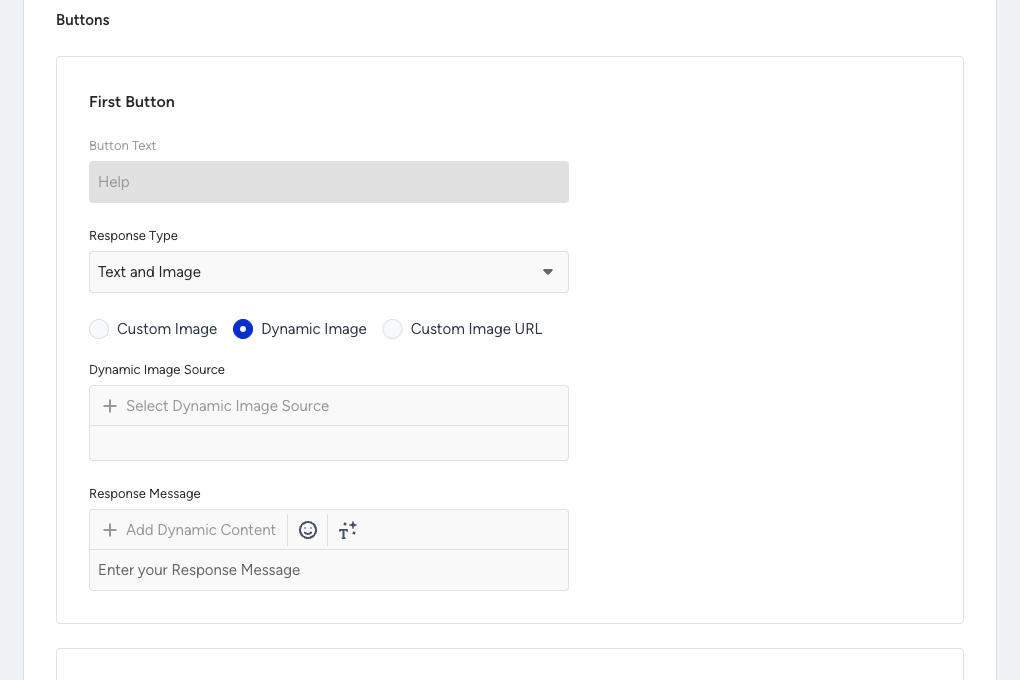
Once a template is selected, a Template Elements container appears between the template and the Short URLs settings. This is where you set the variables and the replies for the call-to-action buttons that the template already contains.
Each quick-reply button in the template gets its own block:
Button Text is read-only. It comes from the approved template and cannot be changed in the journey.
Response Type sets the format of your reply.
Response Message is the message sent back when the user taps that button. It supports dynamic content, emoji, and text formatting.
Response types
Response Type controls what the reply contains. Four options are available.
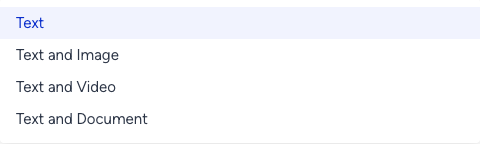
Text sends the response message on its own and does not require any other setting.
Text and Image attaches an image, with three sources:
Custom Image: An image you upload
Dynamic Image: Selected by default, which resolves the image per user from a Dynamic Image Source.
Custom Image URL: A link to an image hosted elsewhere

Text and Video and Text and Document work the same way. Both offer a custom upload or a URL. Documents must be PDF and no larger than 100 MB.
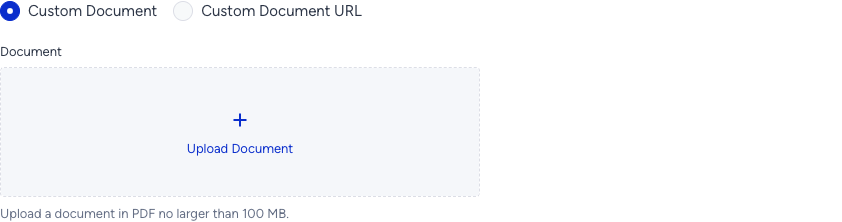
If the response type requires an image or a document, the element cannot be saved unless the image or document is uploaded.
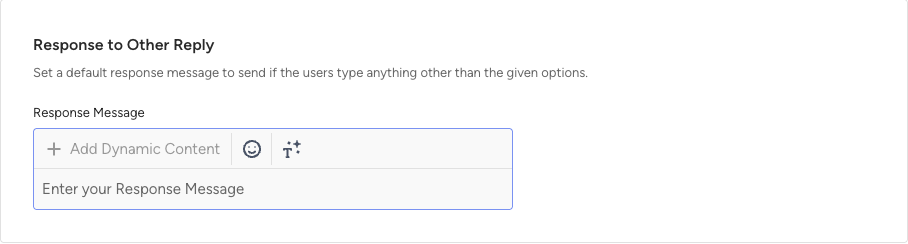
Step 4: Response to Other Reply
Response to Other Reply sets a default response message to send if the users type anything other than the given options.
Step 5: Short URLs
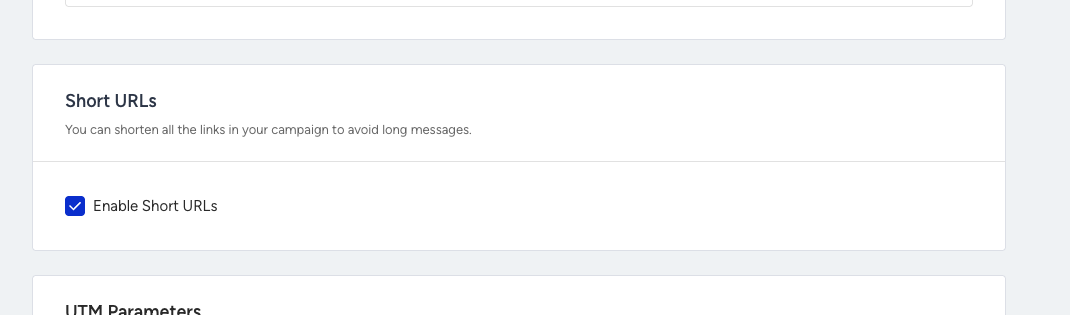
You can enable Short URLs for links included in your message. Enable Short URLs is switched on by default.
When Short URLs are enabled:
Long URLs are automatically shortened.
Link click tracking is enabled.
Step 6: UTM Parameters
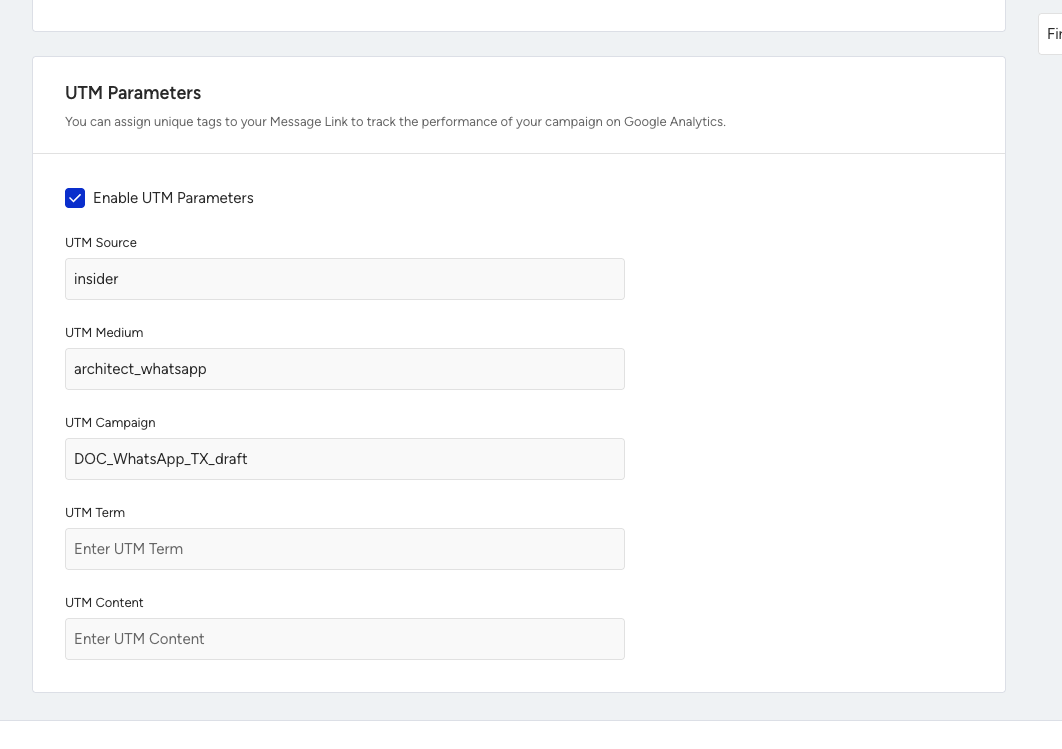
Enable UTM Parameters is switched on by default, and the fields are pre-populated.
UTM Source: insider
UTM Medium: architect_whatsapp
UTM Campaign: the journey name
UTM Term and UTM Content: optional, empty by default
Step 7: Preview and Test Message
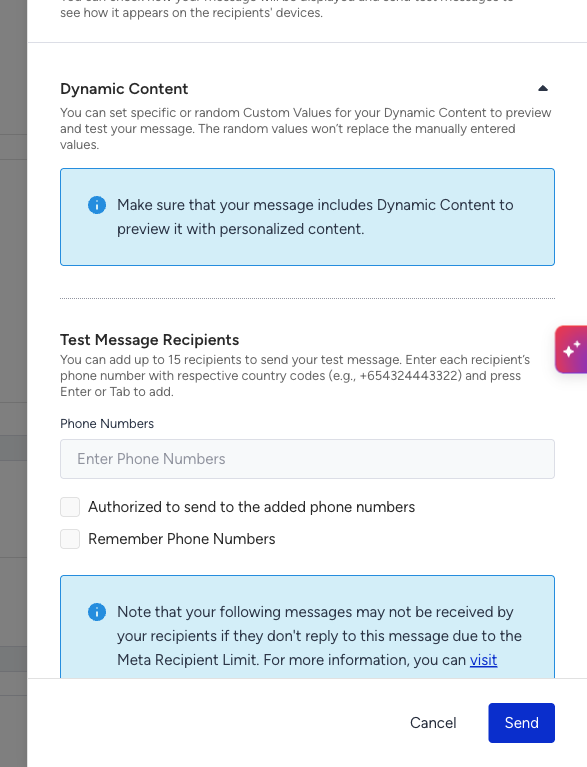
Preview and Test Message renders the message with real dynamic content values and lets you send a test WhatsApp message to a phone number.
In the Dynamic Content section, you can set specific or random custom values for your dynamic content. Random values do not replace values you entered manually.
Under Test Message Recipients, you can add up to 15 recipients. Enter each recipient's phone number with the country code (e.g., +654324443322) and press Enter or Tab to add it.
Authorized to send to the added phone numbers must be ticked before the test can be sent.
You can select Remember Phone Numbers to keep the list for the next test.
Step 8: Save the WhatsApp element
After configuring the template and settings, click the Save button.
WhatsApp elements do not auto-save, and unsaved changes are lost if you leave the page.
Every response message is required. If one is empty, the field shows Enter a Response Message to continue. and” and a toast reads “Fill in all required fields to continue”.
Dynamic Content in Transactional WhatsApp
Dynamic content personalizes the message using data sent with the API request that triggers the journey.
Dynamic content in WhatsApp:
Uses only dynamic attributes whitelisted on the On API Call starter.
Does not support CDP attributes, event parameters, coupons, recommendations, or product catalog items.
Can be used in template variables and in your response messages.
If an attribute is not whitelisted on the starter, it is marked as invalid, and the element cannot be saved until it is removed.
Analytics
Transactional WhatsApp has its own channel analytics page, plus a breakdown inside the journey and overall transactional analytics, covering the unsuccessful message reasons and the response metrics.
Limitations
The message body comes from a template already approved by Meta. That’s why only the variables and response messages can be edited in the journey.
Only Utility templates are accepted.
Transactional communication is conducted in real time; that’s why this feature does not support Send Time Optimization.
Transactional messages are informational and operational, and they are expected to be sent when the triggering action occurs. So they cannot be capped by frequency.