WhatsApp Channel Analytics in Transactional Journeys provides reporting for transactional WhatsApp messages sent through a journey.
To access WhatsApp Channel Analytics, click the WhatsApp element on the canvas and select the Go to WhatsApp Analytics option.
The analytics page displays metrics based on the selected date range. WhatsApp Channel Analytics tracks metrics as users progress through the journey and interact with the WhatsApp message.
Channel metrics are reported as soon as users arrive at the WhatsApp element and delivery events occur.
Engagement metrics update as opens and clicks are detected.
Response metrics are reported when recipients reply using the template's quick-reply buttons.
Conversion metrics are reported only if a goal is enabled and are counted within the configured goal duration. Metrics outside the goal duration window are not included in conversion or revenue calculations.
Opens depend on Read Receipts. Opened messages cannot be tracked if recipients disable Read Receipts in WhatsApp, so Open Rate under-counts those recipients.
You can view WhatsApp Channel Analytics with or without conversion metrics.
Analytics without conversion metrics
This type of analytics is available when the journey is launched without Goal Tracking.
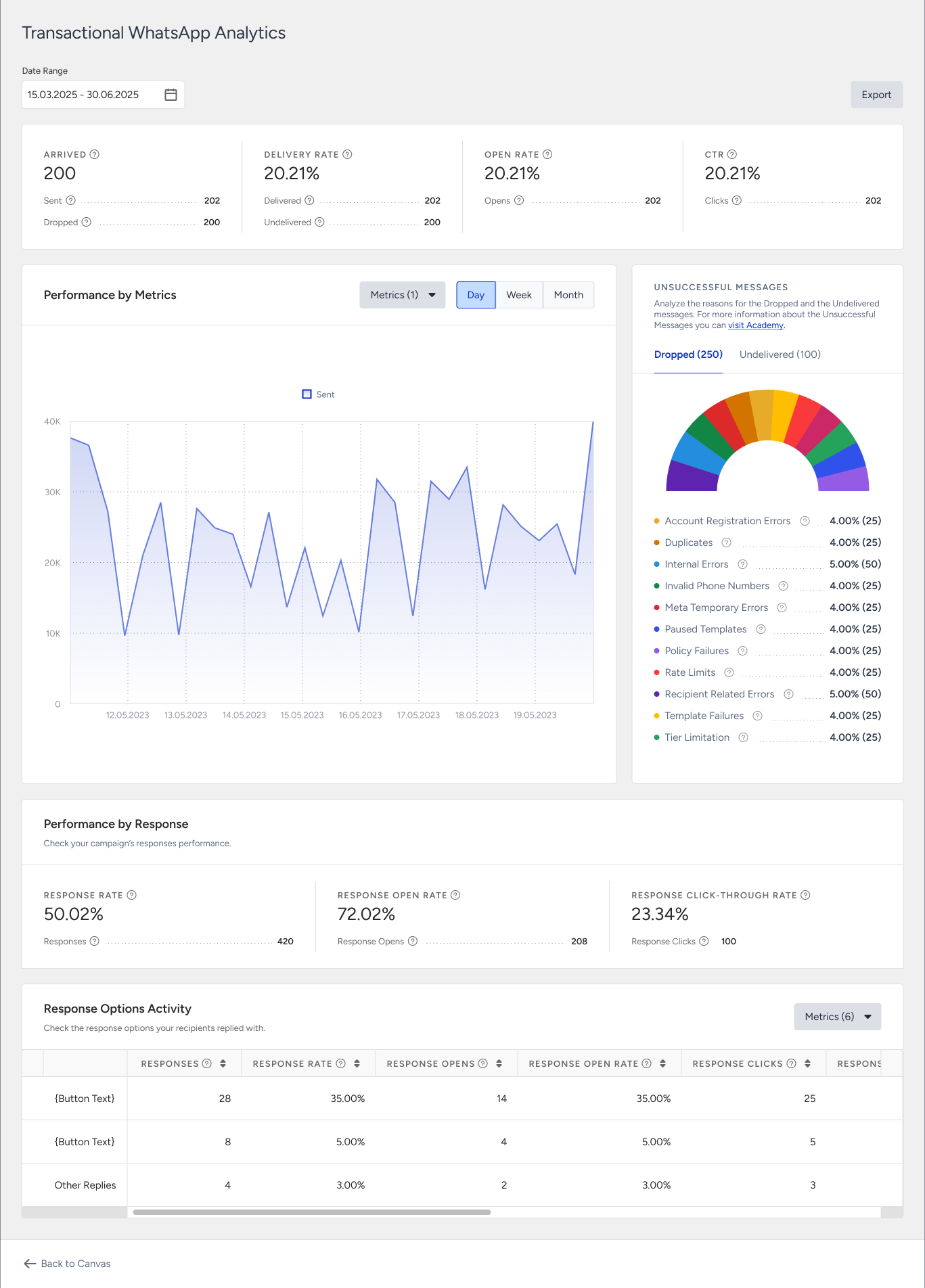
Use the date picker at the top of the page to define the reporting window. All metrics, charts, and breakdowns update based on the selected range.
Below are the metrics displayed on the analytics page:
Arrived: The number of users who arrived at this WhatsApp element in the journey. Reported immediately when users arrived at the WhatsApp element.
Sent: The number of WhatsApp messages successfully transferred to the service provider to be addressed to recipients.
Dropped: The number of WhatsApp messages that were not transferred to the service provider to be addressed to recipients. Reported when a message cannot proceed to delivery.
Delivered: The number of WhatsApp messages successfully transferred to recipients. Reported as delivery confirmations are received.
Undelivered: The number of WhatsApp messages that were not addressed to recipients by the service provider. Reported after delivery attempts fail.
Delivery Rate: The percentage of Delivered messages compared to Sent messages.
Opens: The number of Delivered messages opened by recipients who have Read Receipts enabled.
Open Rate: The percentage of Opens compared to Delivered messages.
Clicks: The total number of times recipients clicked any link in the WhatsApp message.
Click-Through Rate (CTR): The percentage of total Clicks compared to Delivered messages.
Unsuccessful Messages Breakdown: Dropped and Undelivered messages are broken down by reason, each on its own tab, with a gauge and a list of reasons showing the percentage and count.
Dropped messages
Dropped messages are WhatsApp messages that were never transferred to the service provider.
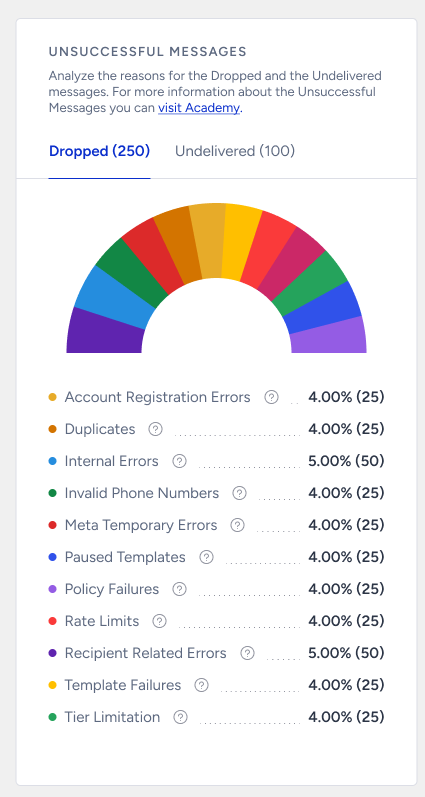
Account Registration Errors: Dropped due to registration issues with your phone number at Meta.
Duplicates: Dropped due to duplicate recipients in the audience.
Internal Errors: Dropped due to various internal system issues.
Invalid Phone Numbers: Dropped due to non-standard phone number formats.
Meta Temporary Errors: Dropped due to temporary issues at Meta.
Paused Templates: Dropped because the message template was paused by Meta after too much negative feedback from recipients.
Policy Failures: Dropped due to violating Meta policies.
Rate Limits: Dropped because your account exceeded one of Meta's rate limits.
Recipient Related Drops: Dropped due to various issues with the recipient's WhatsApp account.
Template Failures: Dropped due to a mismatch in the template elements.
Tier Limitation: Dropped due to the daily messaging limit for a WhatsApp Business Portfolio.
Undelivered messages
Undelivered messages are WhatsApp messages not delivered to recipients after being sent to the provider.
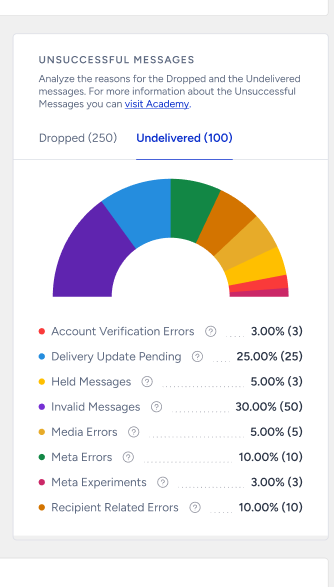
Account Verification Errors: Undelivered due to verification issues of your phone number at Meta.
Delivery Report Missing: Undelivered because no delivery report was received from Meta.
Held Messages: Undelivered because the messages were held by Meta after too much negative feedback from recipients.
Invalid Messages: Undelivered due to uncertain issues with your message content.
Media Errors: Undelivered due to issues with the media elements of your message templates.
Meta Errors: Undelivered due to unexpected rejections by Meta.
Meta Experiments: Undelivered due to experimental features tested by Meta on specific WhatsApp users.
Recipient Related Errors: Undelivered due to various issues with the recipient's WhatsApp account.
Analytics with conversion metrics
Analytics, including conversion metrics, are available when the journey is launched with Goal Tracking.
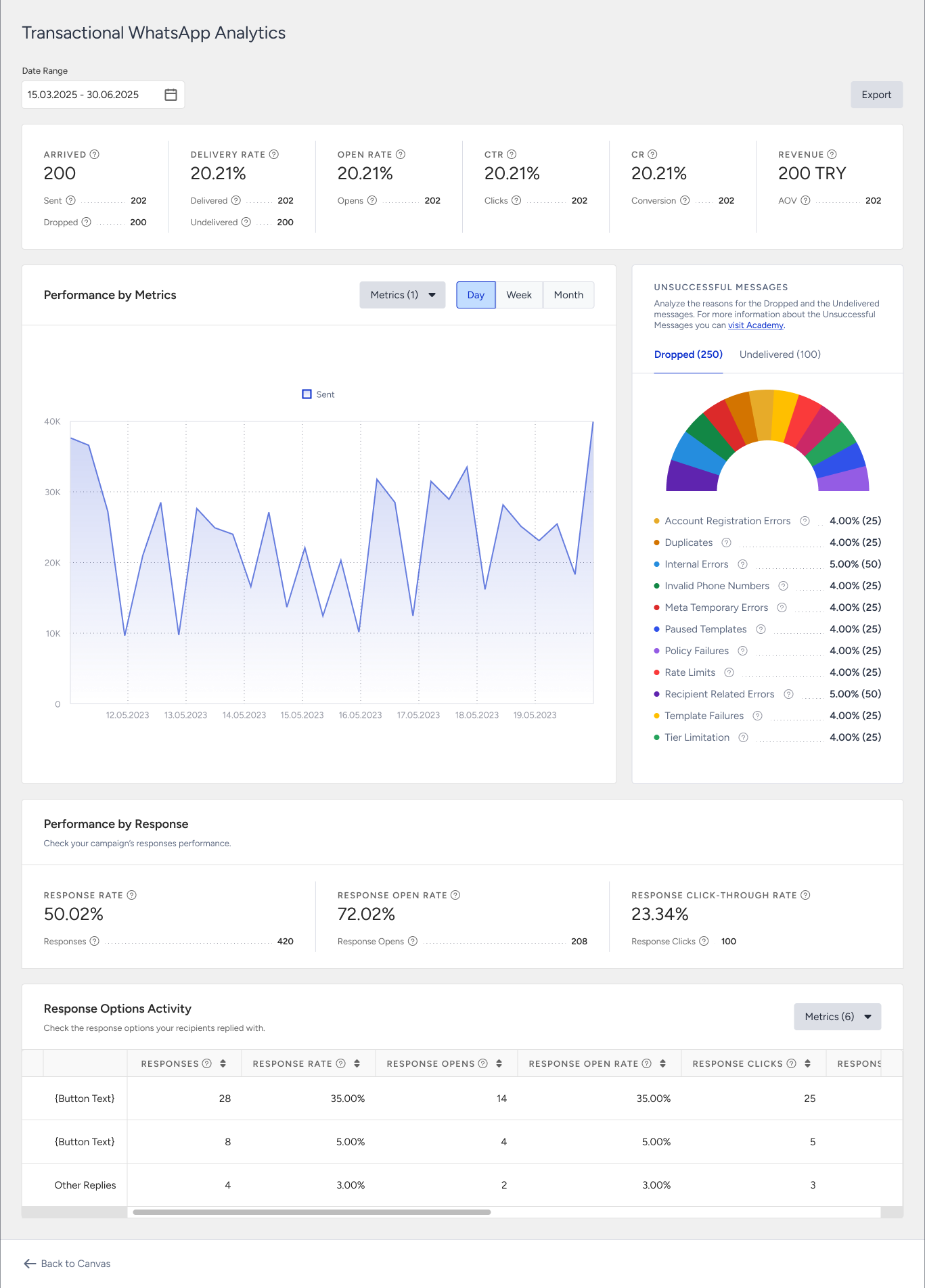
The metrics below are displayed in addition to the metrics listed above.
Conversion: The number of successful goal accomplishments attributed to the WhatsApp message within the goal duration.
Conversion Rate (CR): The percentage of Conversions compared to Delivered messages.
Revenue: The total value of purchases completed within the goal duration and attributed to the WhatsApp message.
Average Order Value (AOV): The division of Revenue by the number of purchases made after clicking the WhatsApp message.
Response metrics
Response metrics are displayed only when the selected template has quick-reply buttons. A WhatsApp element using a template without reply buttons does not show these sections at all.
Performance by response
A summary of how recipients replied, with three rates and their counts is displayed:
Responses: The total number of response messages delivered to the recipients who replied to your initial messages.
Response Rate: The percentage of Responses compared to Delivered messages.
Response Opens: The number of Responses opened by recipients who have Read Receipts enabled.
Response Open Rate: The percentage of Response Opens compared to Responses.
Response Clicks: The number of times recipients clicked any link in your Responses.
Response Click-Through Rate: The percentage of Response Clicks compared to Responses.
Response options activity
A table with one row per configured response option, plus an Other Replies row for anything a recipient typed that did not match a button, is displayed. Use the Metrics dropdown to show or hide the Responses, Response Rate, Response Opens, Response Open Rate, Response Clicks, and Response Click-Through Rate columns, and click a column header to sort.
Export
Use the date picker at the top of the page to define the reporting window. Click the Export button to download the analytics data. The exported file is in XLSX format and includes only the selected date range and visible metrics.
The Export option is disabled when there is no data in the selected range.