You cannot make any changes to External Platform Integrations without having either an Administrator or an Editor with PII access in InOne. Refer to User Roles for further information.
Checkout Abandonment might frustrate you since users browse your website, fill their carts with items, and then leave without making a purchase. You might want to find a way to boost your conversion rate, and tackling cart abandonment is a core element of this challenge.
You can boost your conversion rate and encourage checkout abandoners to return to your website or app and complete their checkout process by retargeting and re-engaging them with personalized communications over additional channels, depending on their responses..png)
Common Reasons for Checkout Abandonment
Many reasons may cause checkout abandonment, but the most common ones are as follows:
Lack of trust: Users do not always feel comfortable with providing online credit card information.
High shipping costs: Consumers sometimes abandon shopping carts after seeing how much they need to pay for delivery.
Browsing: Many users who add items to their cart but do not complete their purchase are just browsing with low buying intent.
Complexity: Online shoppers have a short attention span and will abandon the checkout flow if it is too complex or time-consuming.
Lack of interest: Users need to be engaged with the items more to draw their attention.
Re-engage Checkout Abandoners
You can send messages to checkout abandoners based on their actions to recover those interested in buying their items. While you're creating these messages, make sure to comply with the following best practices:
Show item(s) in their checkout.
Write a clear call-to-action message.
Show the advantages of buying the items now.
Take actions according to their behavior.
Goals
While converting your carts with checkout abandonment journeys to grow your business, you can also improve customer acquisition, retention, and transactions. Each targeted and converted user will help you:
Reduce checkout abandonment rate.
Boost average order value.
Increase revenue.
Increase transactions.
Increase user retention.
Increase conversion rate.
Requirements
To run a checkout abandonment journey for your Shopify Store, you must enable checkout abandonment on your Insider One Shopify App. You can refer to the Shopify Checkout Event Synchronization for further information.
Checkout items and purchase information must be collected. Once your website is mapped by Insider One during your onboarding, Insider One starts to collect this information by default. This does not require any additional integration.
Before starting to use any channel in your journeys, integrations for the respective channels should be completed. Depending on the channels you want to use in your journeys, additional integrations might be required.
Create a Checkout Abandonment Journey
You can create a Checkout Abandonment journey to re-engage users to buy the items in their carts.
1. Select a starter
On Event starter tracks user events and immediately takes them into the journey when users perform the specified event. You can select the “Checkout Page View” event under the Events.
How does “Checkout Page View” work?
This event is tracked by Insider One when;
- The logged-in user visits the checkout page.
- The logged-in user updates the item on the checkout page.
- User enters contact and shipping information on the first page of the Shopify Checkout Page and proceeds to the next step.
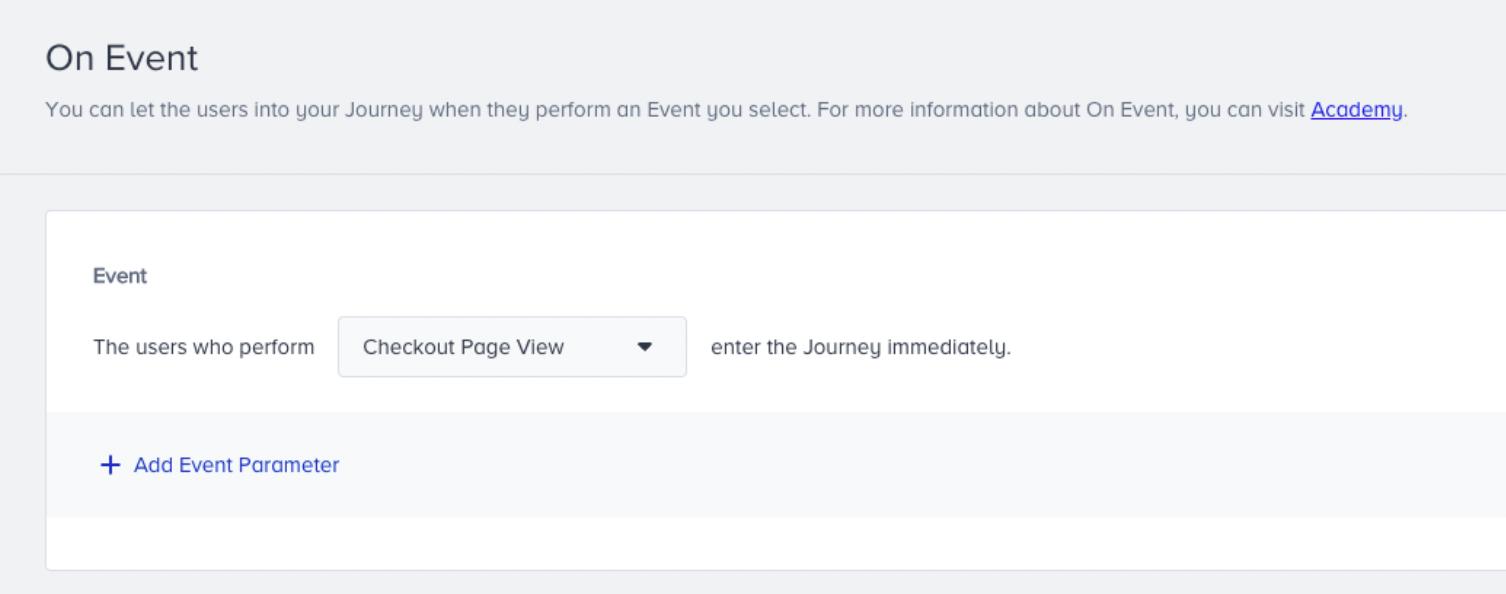
If you want to target the users based on the product name or category items in the checkout cart, you can select the respective event parameters.
If you want to wait for users to complete the purchase before taking them on the journey, you can add an optional segment filter to control if they purchase in a specific period of time.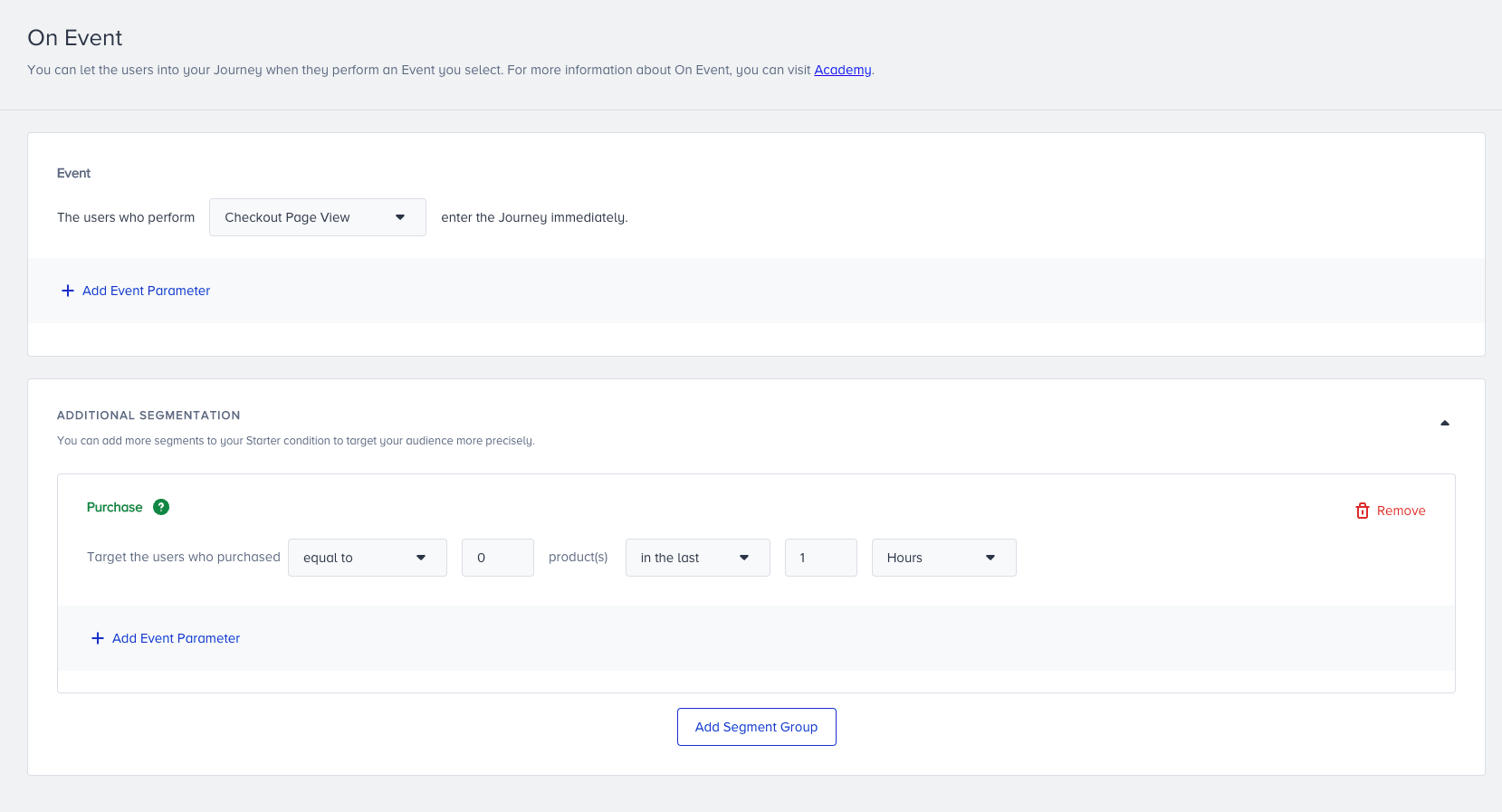
2. Add flow logic
You can add the Wait element after the starter element with at least a 1-hour duration to wait for users to make a purchase, and check whether they make a purchase.
You can either select Purchase or use the same event in the events.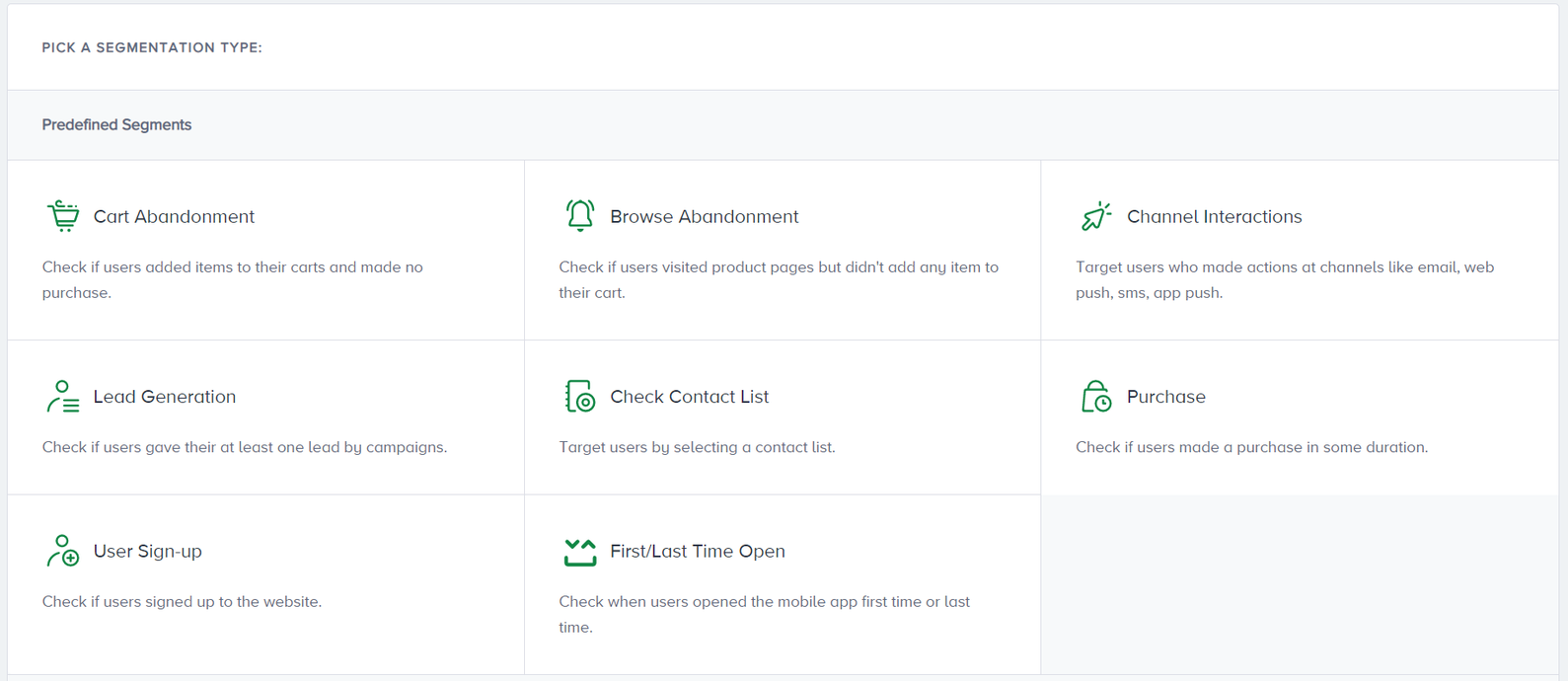
Using the Purchase event, you can check if users did not make a purchase based on the time period you wait (1 hour).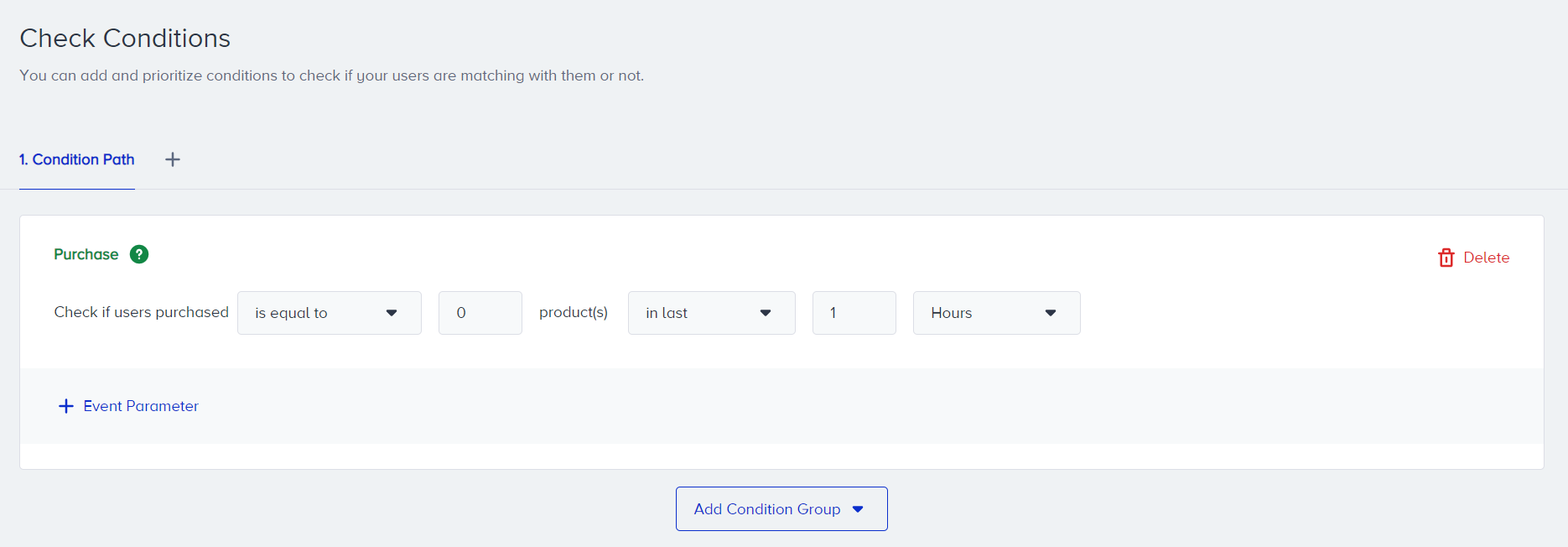
Read more on Check Conditions.
Before sending a message, you can check if users are reachable on that channel. If not, you can try another channel on another path. Also, you can use the Next Best Channel to increase the possibility of engagement.

Read more on Check Reachability and Next Best Channel.
3. Creating content
You can create different messages on all channels you have in your journey, including app, web push, email, SMS, or WhatsApp. You can customize your message content with the products that would interest your users, display a banner on the on-site or in-app channels, or use Facebook remarketing.
After deciding how you want to continue with the communication for checkout abandonment, you can design your content. You can add product details by utilizing event parameters to add checkout items information to the content. To do so, select dynamic content and choose “Checkout Page View” event as your event.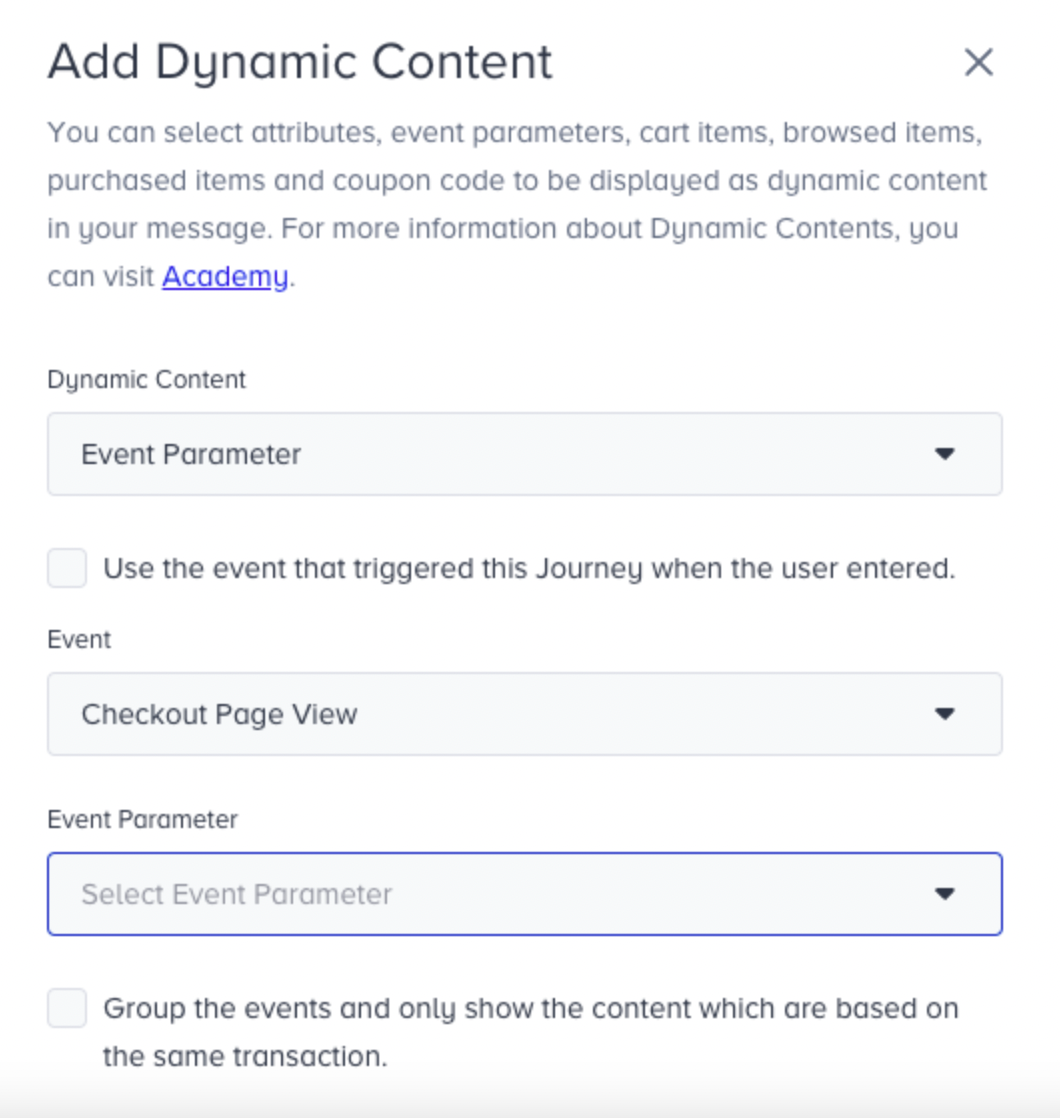
We highly suggest you select the group events option to show the products generated in the same transaction and show multiple event parameters of the same events in the content. Refer to the Grouping Events in Email Content for further information.
The following event parameters will act as your product details.
Event Parameter | Personalization | Description |
|---|---|---|
Product Name | Checkout Page View.Product Name | Last Abandoned Product Name |
Image URL | Checkout Page View.Product Image URL | Last Abandoned Product Image URL |
URL | Checkout Page View.URL | Last Abandoned Product URL |
Unit Sales Price | Checkout Page View.Unit Sales Price | Last Abandoned Product Price |
Quantity | Checkout Page View.Quantity | Last Abandoned Product Quantity |
Abandoned Checkout URL | Checkout Page View.Abandoned Checkout URL | ShopifyCheckout Page URL |
Read more on Dynamic Content.
Web Push
You can select the last abandoned product information (e.g., name, URL, image, etc.) for your content. You can also add event parameters such as "checkout_page_view.name".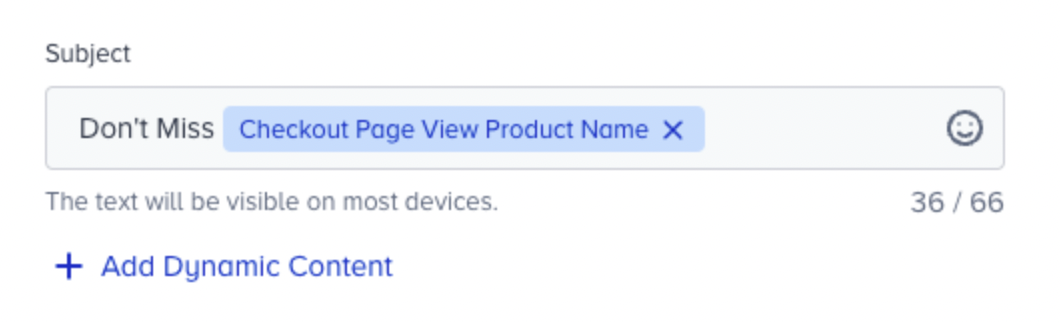
You can utilize and customize the ready-to-use cart abandonment email templates placed on the template selection screen.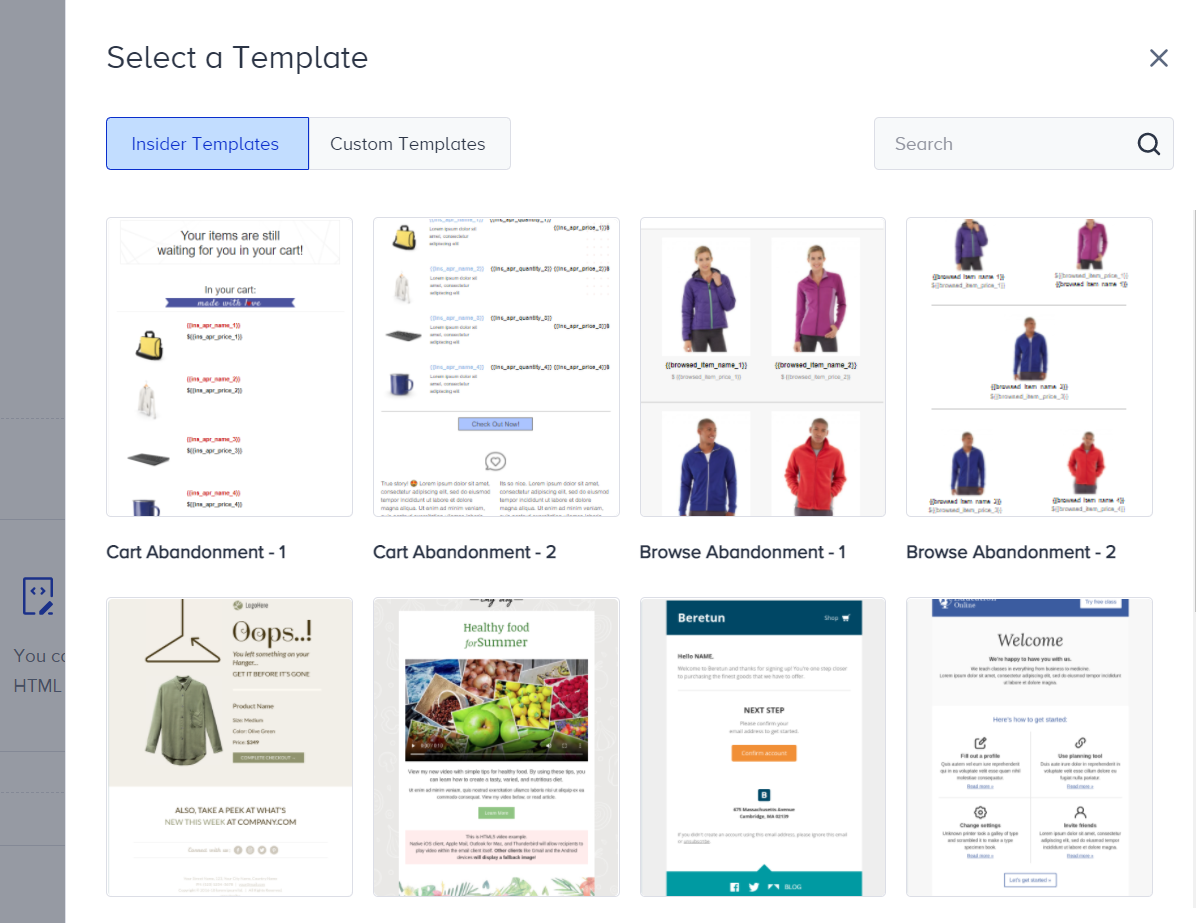
You need to set display conditions for rows in the email template. Display conditions allow you to display rows (checkout items) based on user behavior and their actions. For example, you can display 1 product (meaning the first row) in the email template if the user has only 1 product in their checkout. If they have 2 products, they will see the second row as well in the email template as it shows the second product.
You can refer to the ready-to-use cart abandonment email templates to see how these conditions are created.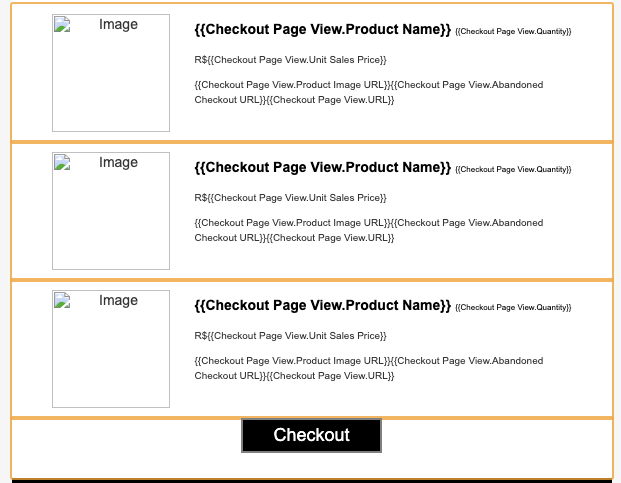
When an event parameter is utilized, it will count the items from events automatically and set the keys from event parameters accordingly.
Advanced Checkout Abandonment
You can move your journey to an advanced level by checking user behavior and interactions deeply. For example, you can check if the user’s discount affinity is high, and you can give out promo codes accordingly.
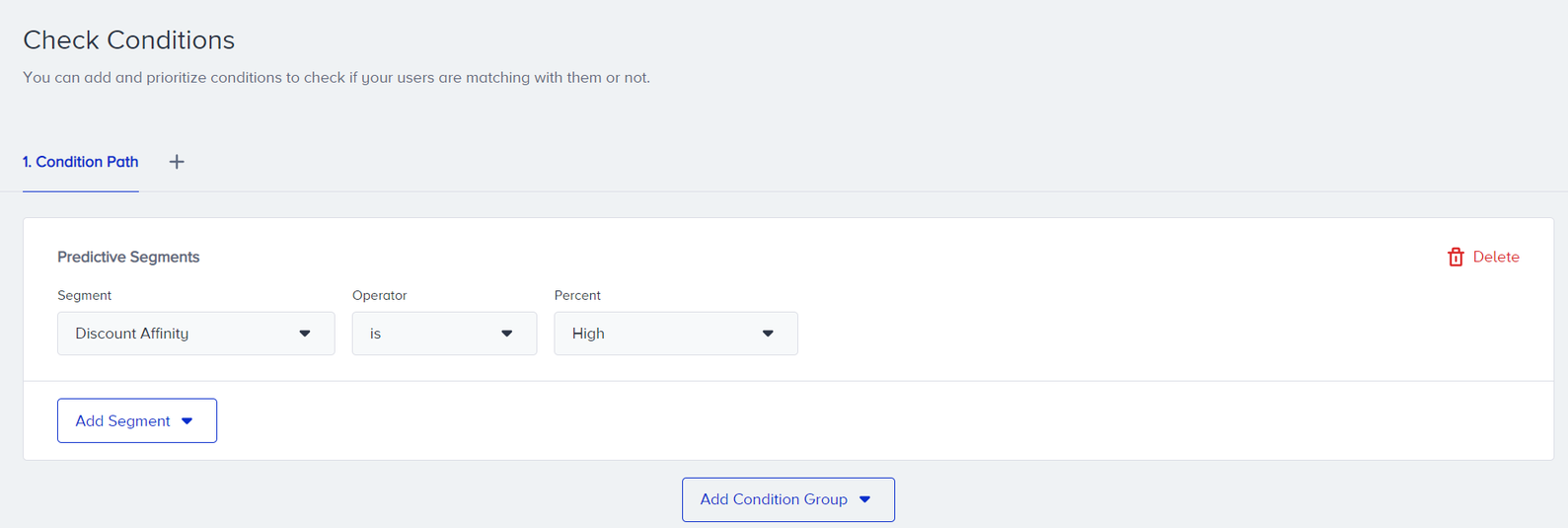
If you want to send different contextual messages based on user properties (attributes) or segments besides being a checkout abandoner, you can have multiple paths by using the Check Conditions. For example, you can send users who did not make a purchase, but also who are VIP users, to the first path.
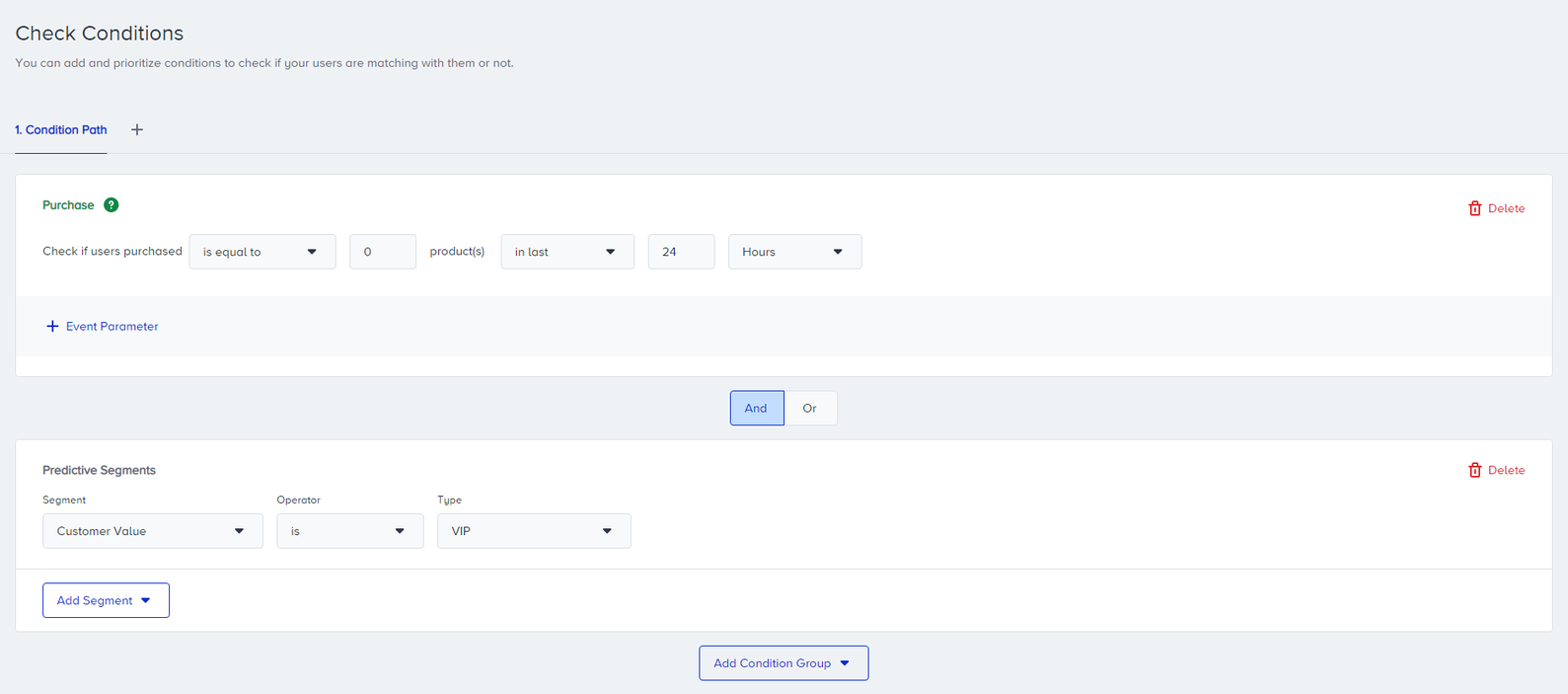
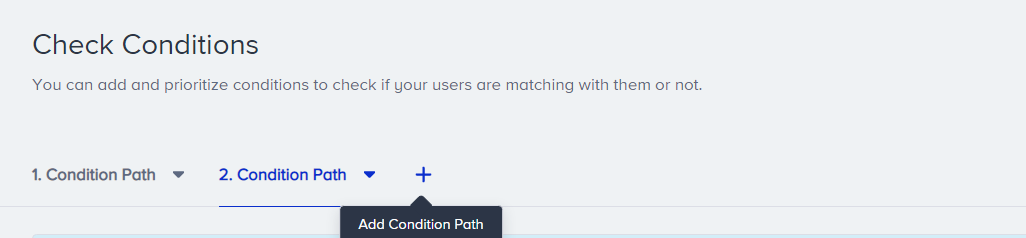
After setting the first tab, you can create more tabs, which will create different paths in the flow. This time, you can select Customer Value as High.
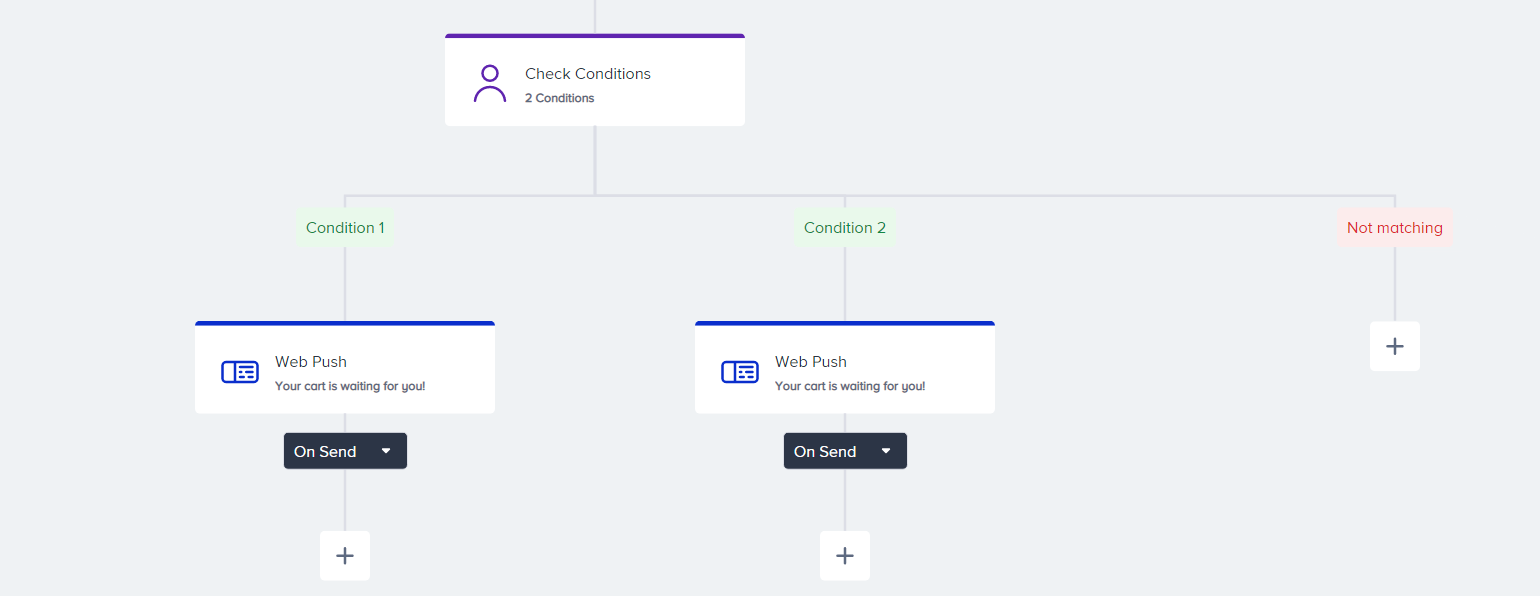
Read more on Check Conditions.
You can check if the users interact with the messages you send from the journey, and can take actions accordingly. For example, if the user clicks the web push notification or the URL in the email, it means the user responds to your campaign. So, you can continue to interact on the same channel.
Read more on Check Interaction.
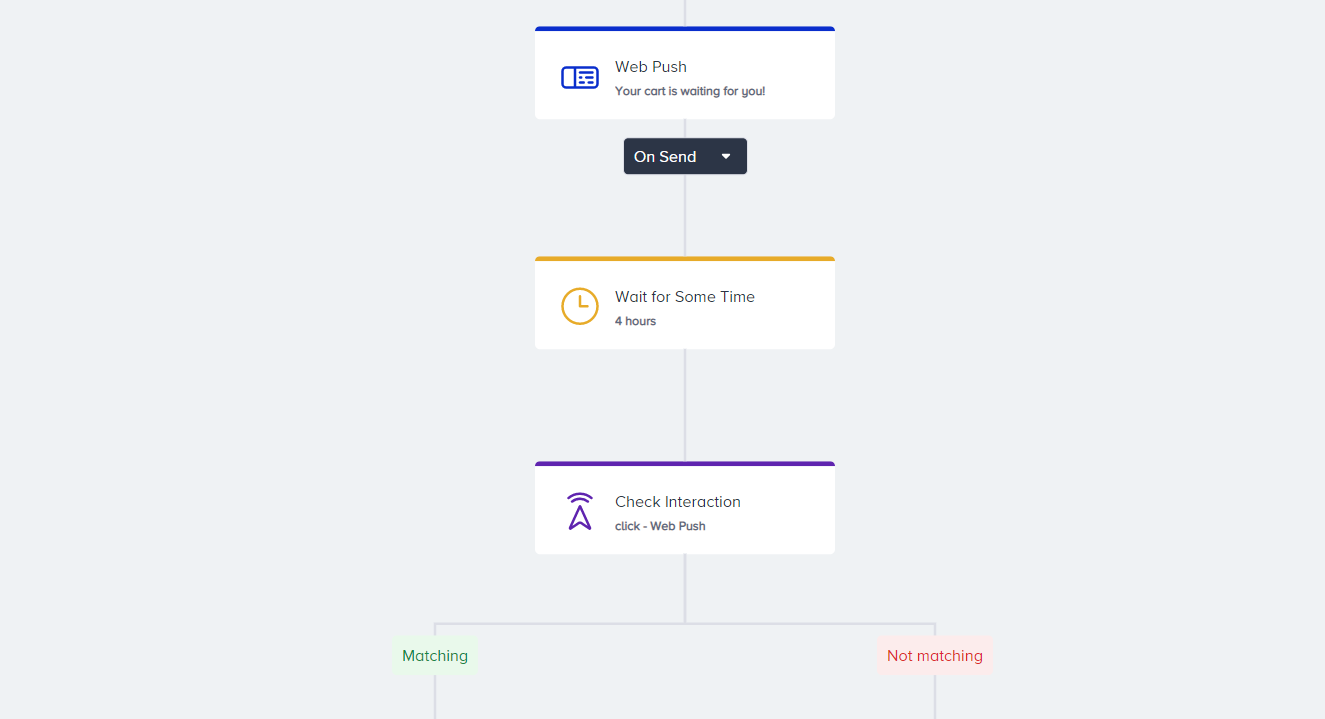
You can check multiple reachabilities on channels for users at the same time, and you can lead them to the corresponding path.
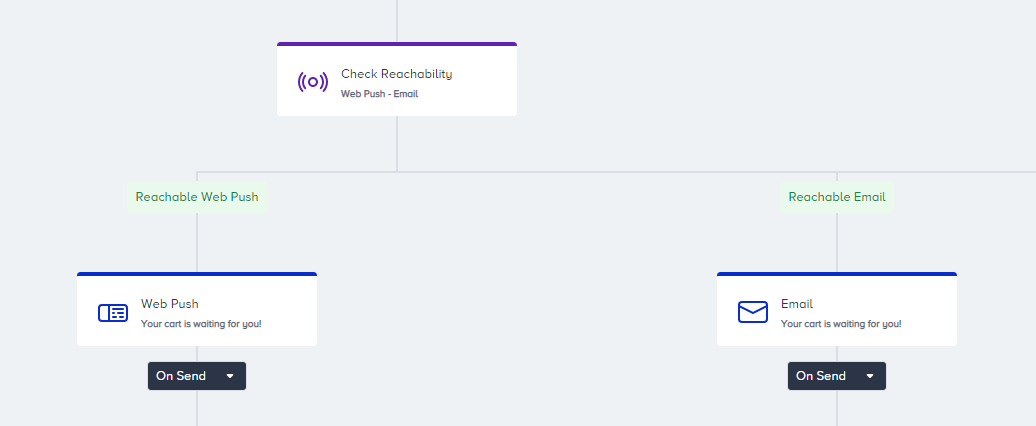
Read more on Check Reachability.
You can have an A/B Split on the journey flow to compare different content on the same or different channels, and an auto winner leads users to the winning content/channels automatically.
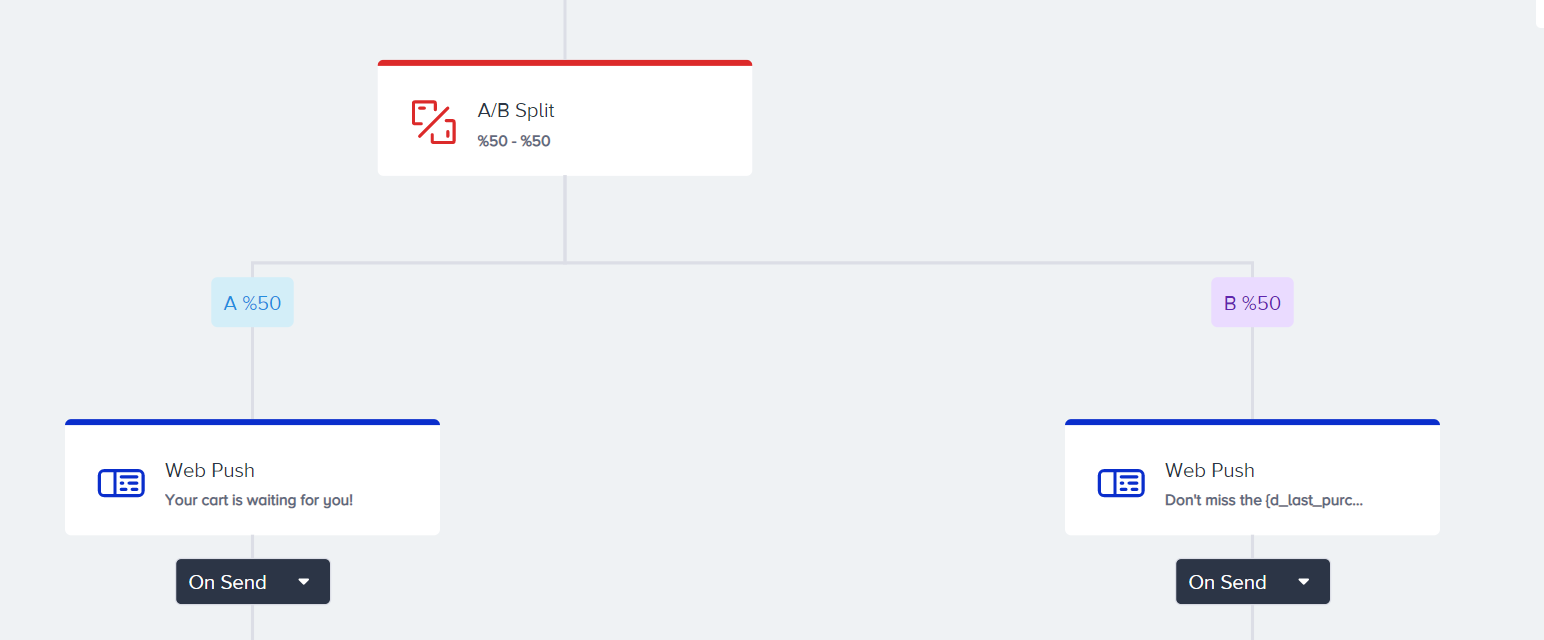
Read more on A/B Split.
You can set special Goals besides purchase for the users who enter the cart abandonment journey (e.g., ride booking, redeeming coupons, buying a particular product, etc.). You can have a custom event to set goals, or you can use default events as well as their event parameters.
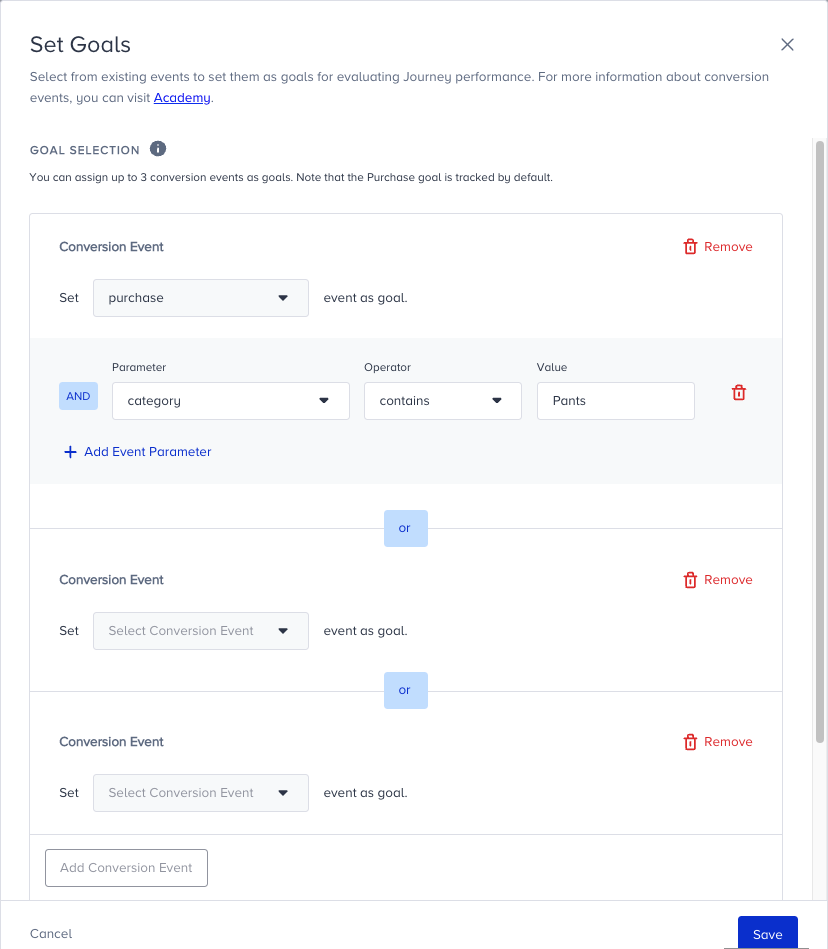
Read more on Set Goals.