You cannot make any changes to External Platform Integrations without having either an Administrator or an Editor with PII access in InOne. Refer to User Roles for further information.
Workato is an intelligent automation platform that enables businesses to integrate applications and automate workflows without extensive coding. It offers a range of features designed to streamline operations and enhance efficiency.
In this guide, you will find answers to the following questions:
What are the supported syncing modes for Workato integration?
How can I set up the sync configuration for Workato integration?
Benefits of Workato integration
Using Workato to transfer customer data to Insider One enables you to run targeted marketing campaigns easily. Whether targeting specific groups, re-engaging inactive customers, or offering personalized recommendations, Workato helps you maximize your marketing efforts.
The supported actions
Track Custom Events: Records custom events to Insider One.
Track Purchase Event: Records purchase events to Insider One.
Create or Update a User Profile: This action updates a User's attribute in the Insider One's InOne panel.
Connect Workato to Insider One
Log in to your Workato Dashboard.
Navigate to the Community Library, select Insider under Custom Connectors, and click Install.
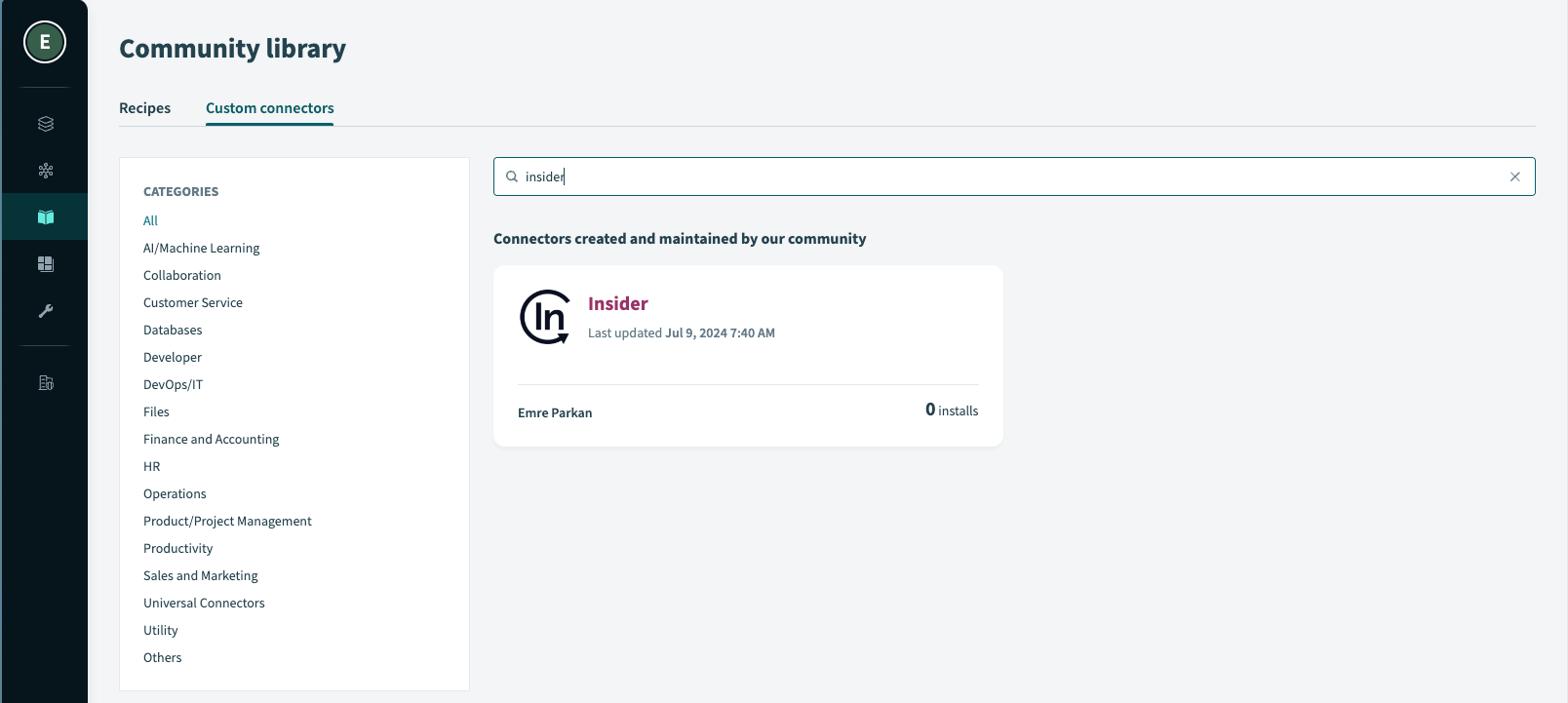
Once it is installed, fill out the requirements you get from Insider One's InOne panel to authenticate your integration.
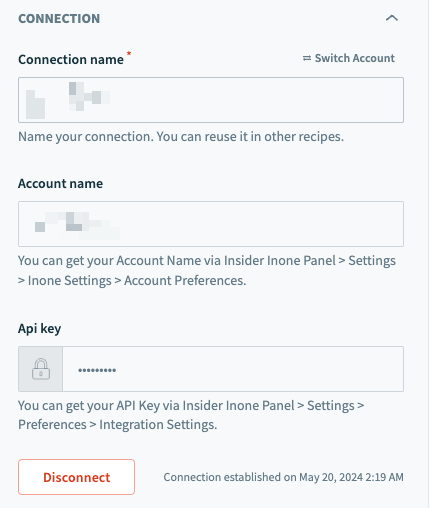
You can find the Account Name and API Key in the Inone Settings.
Set up the sync configuration
Once you complete the Integration step, you can see the Insider integration within the Workato recipe builder.
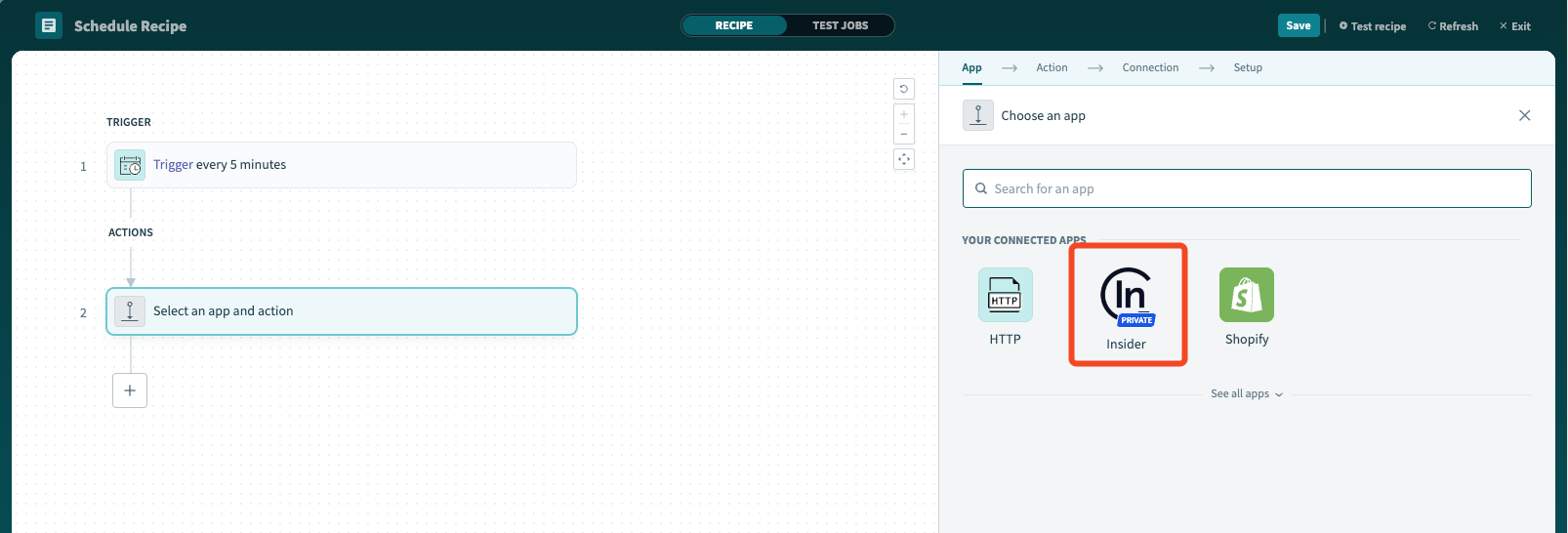
The Insider One connector has three different actions:
Track Custom Events: Records custom events to Insider One.
Track Purchase Event: Records purchase events to Insider One.
Create or Update a User Profile: Action used to update a User's attribute in Insider One's InOne panel.
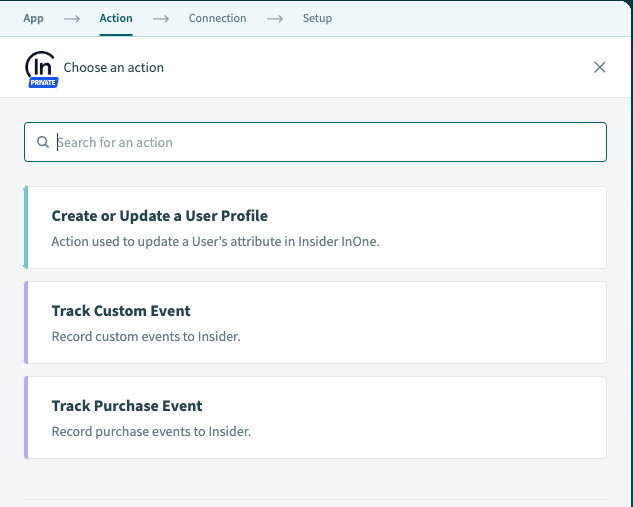
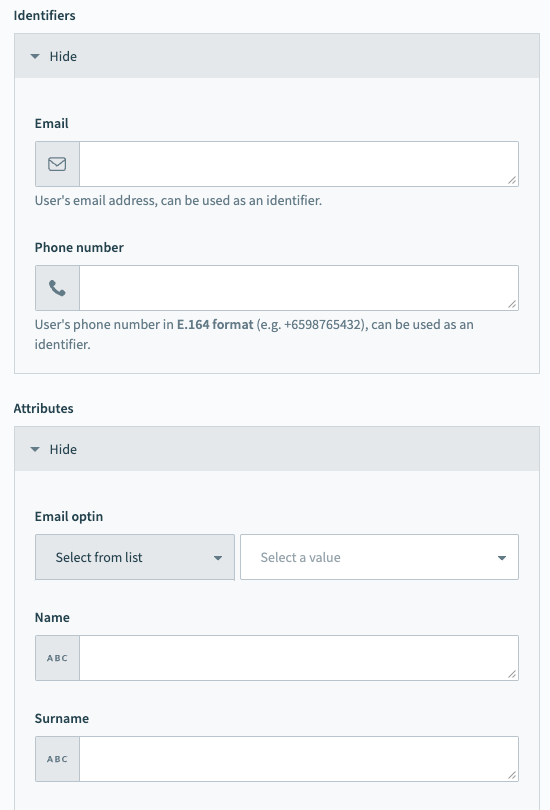
Each action has different mapping fields, which you can see below:
Identifiers: When sending data to Insider One from Workato, you need to select at least one common identifier across Insider One and Workato to match users on both platforms. (Ensure the selected identifier on Workato is marked as an identifier on Insider One’s Identity Resolution Management page.)
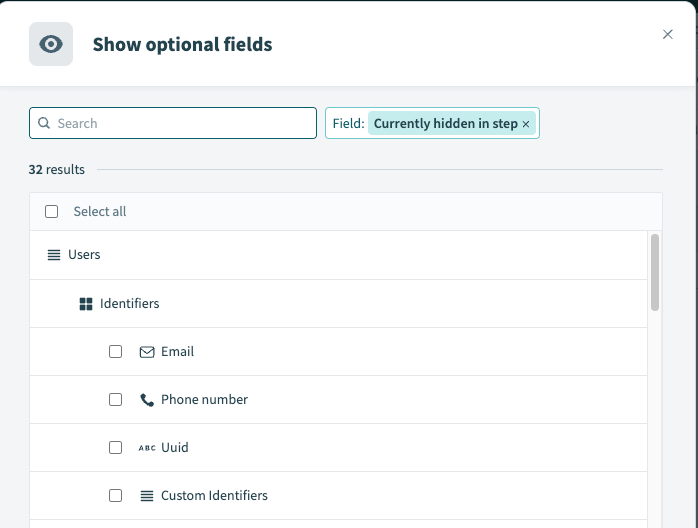
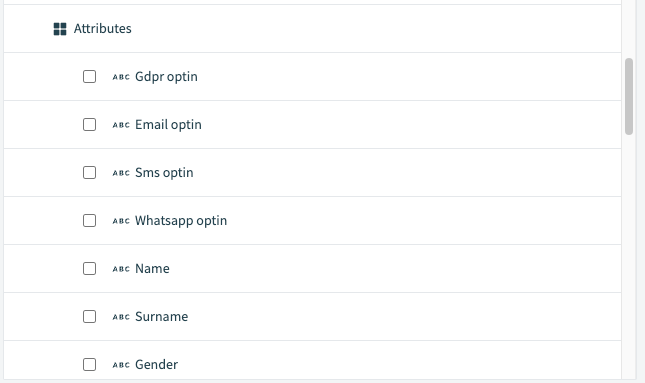
User Attributes: You can map the user attributes you send from Workato to Insider One here. If you want to send an attribute that is not listed here, make sure to use custom attribute mapping.
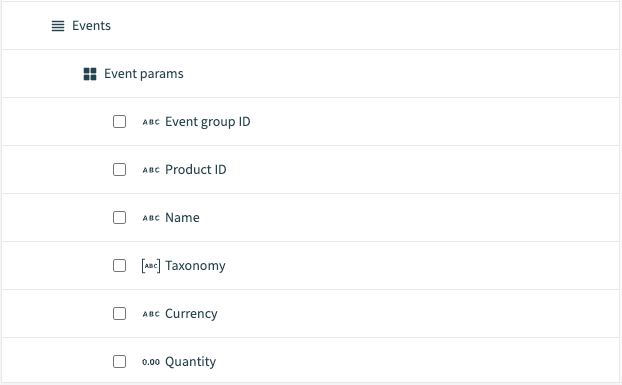
User Events Parameters: You can map the user events parameters you send from Workato to Insider One here. The event's name needs to be mapped under the “Name” field for the event parameters. If you want to send an event parameter that is not listed here, make sure to use custom event parameter mapping.
Once you finish selecting the fields to be sent, each field will be shown in the recipe.
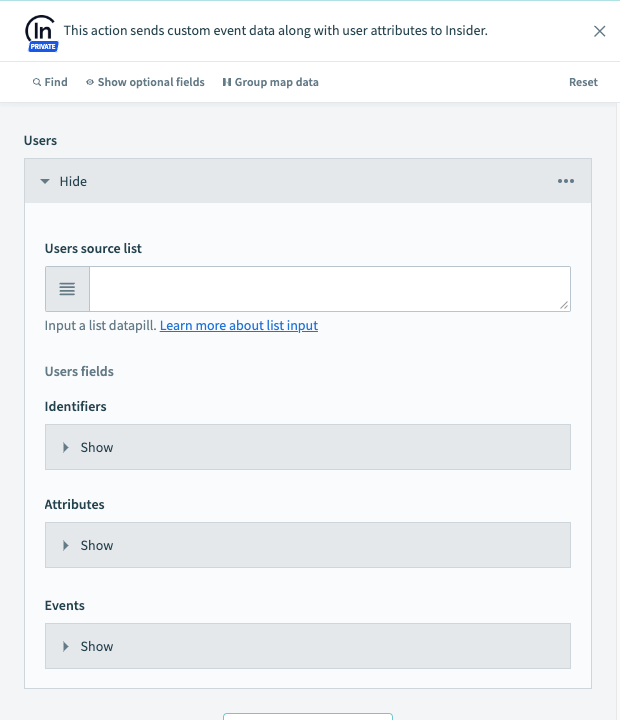
Before proceeding, ensure that a source parameter (datapill) is selected for each selected identifier/attribute/event parameter.
Click save, and your sync will start based on the selected criteria and mappings.