You cannot make any changes to External Platform Integrations without having either an Administrator or an Editor with PII access in InOne. Refer to User Roles for further information.
Mixpanel integration lets you export your Mixpanel cohorts to Insider One and create custom segments you can apply to your Insider One campaigns. To do this, you should:
Enable Insider One integration
To enable the integration, navigate to Data Management > Integrations.
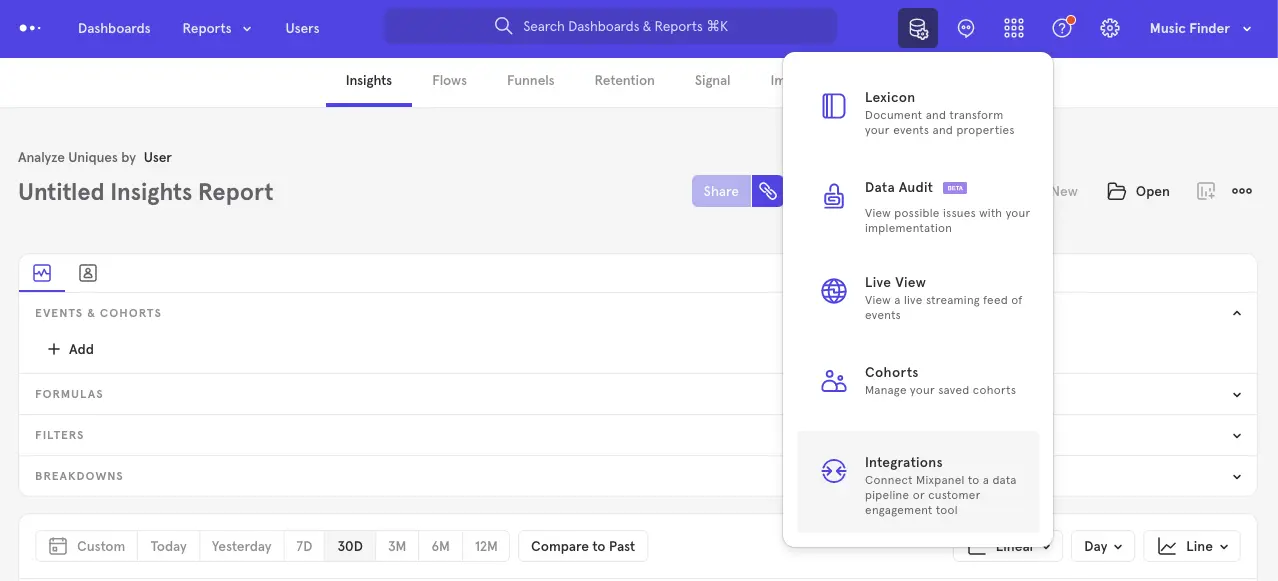
From the Integrations page, select the Insider One dropdown and click the Connect button.

Navigate to Insider One's InOne panel InOne> Your Username > Settings > Inone Settings > Integration Settings tab to generate your Insider One API Key.

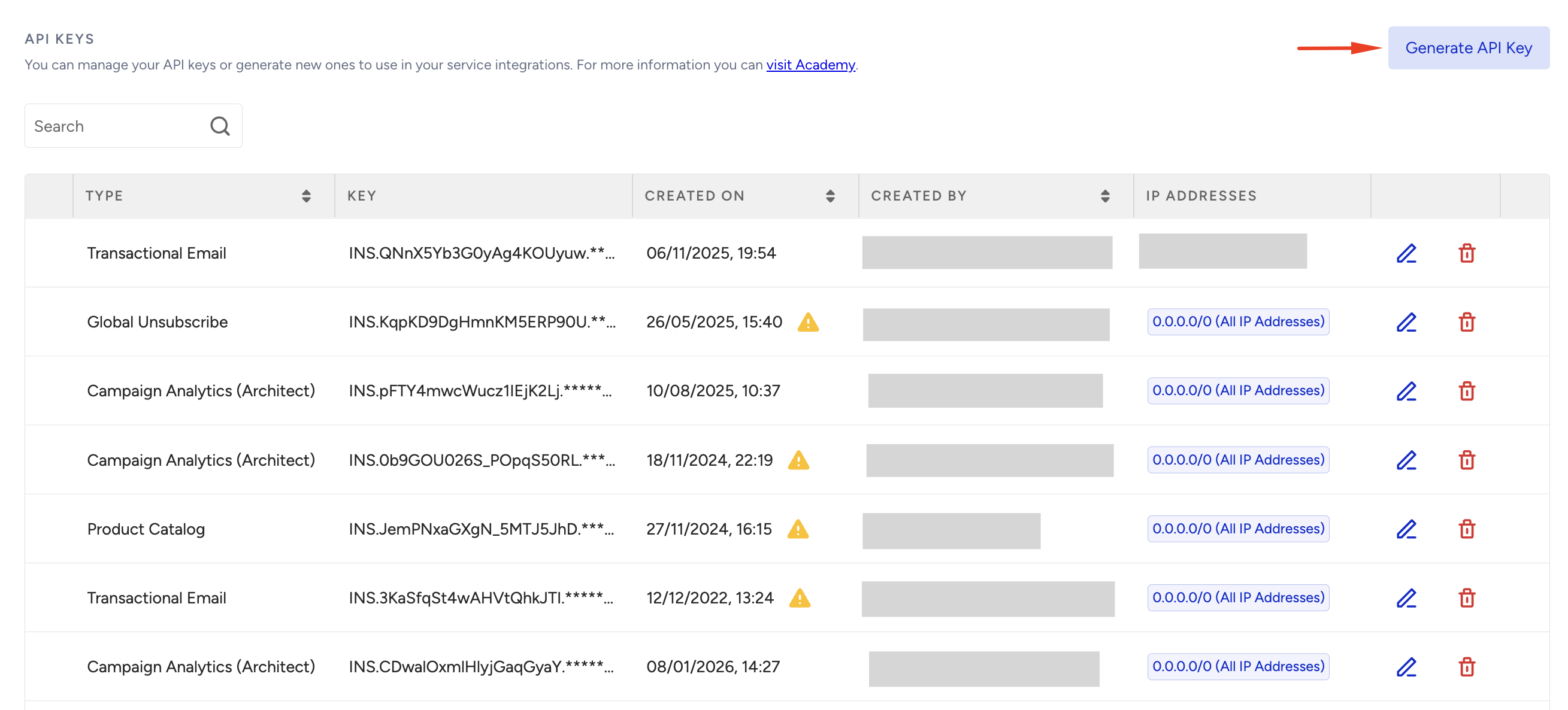
Scroll down and click Generate API Key.
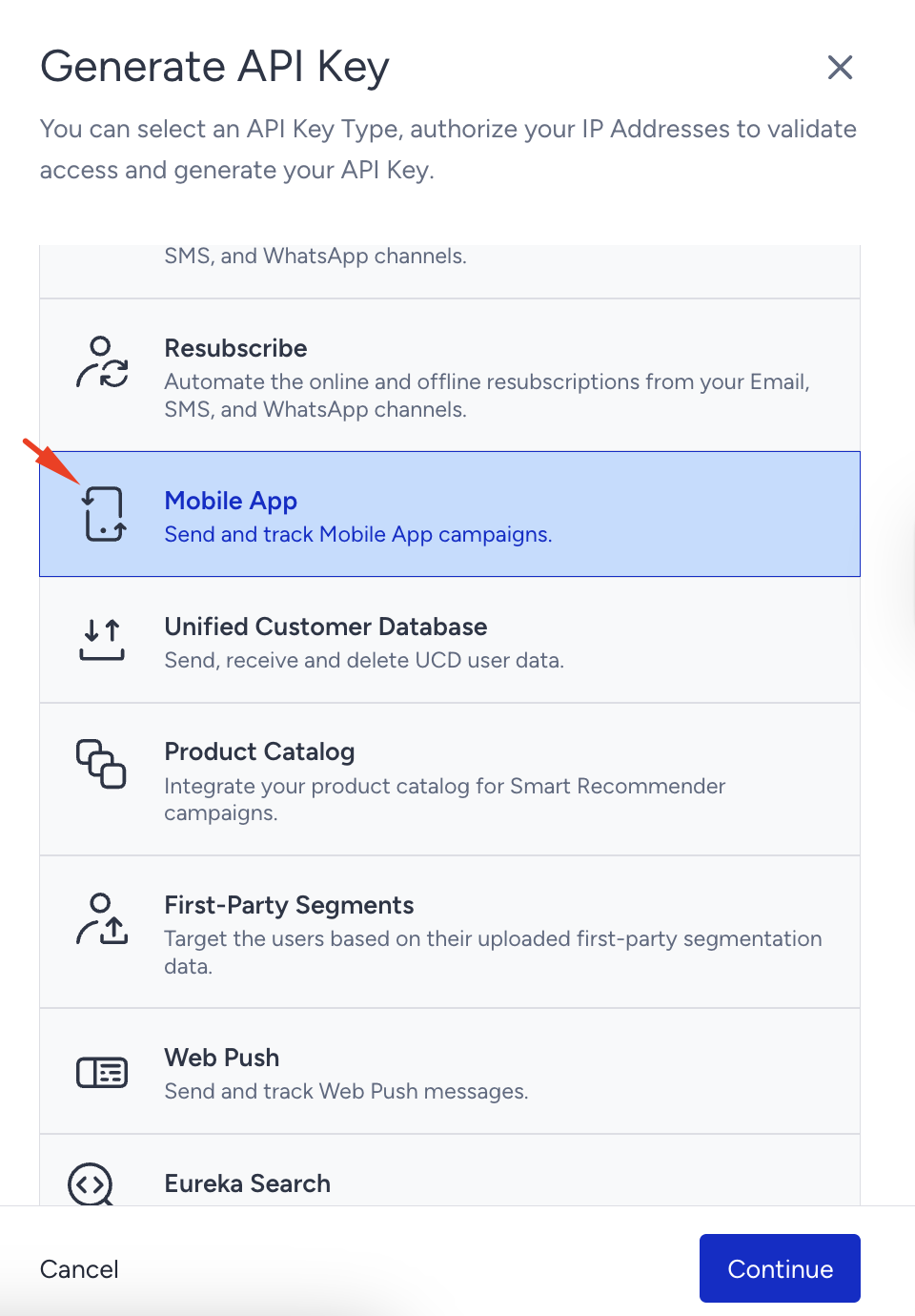
Select the Mobile App and click Continue.
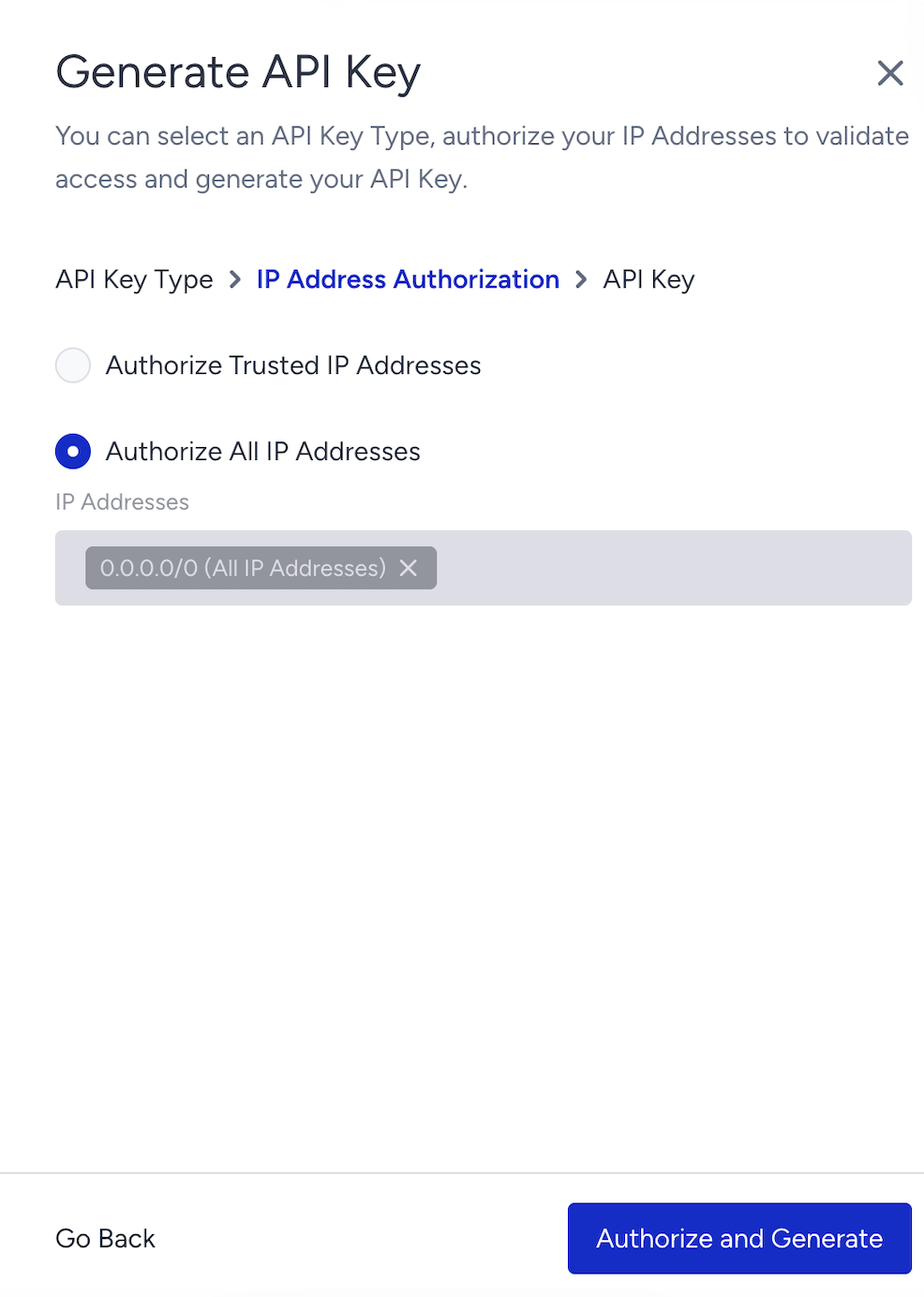
Select Authorize ALL IP Addresses and click Authorize and Generate.
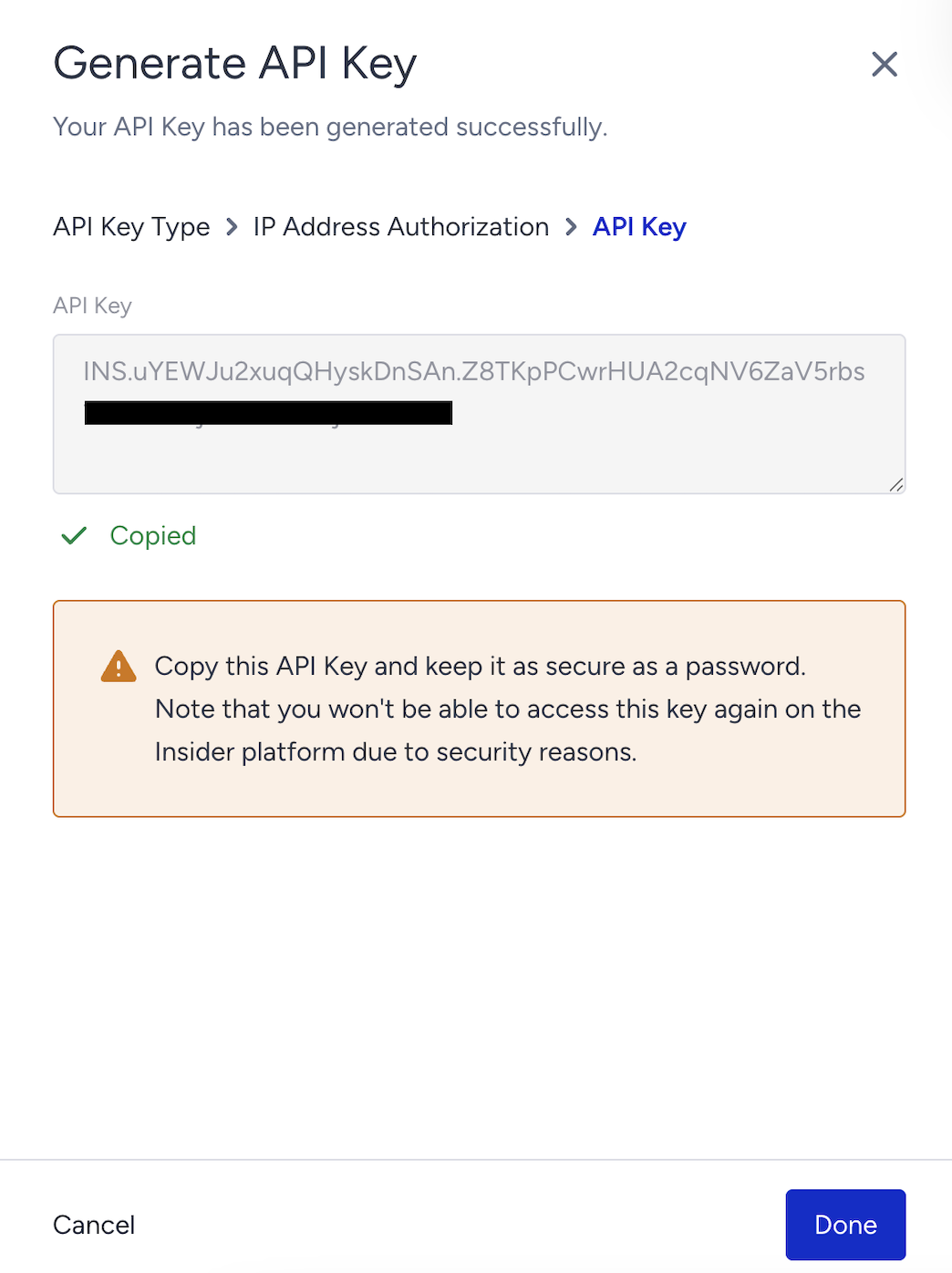
Copy the generated API Key and click Done.
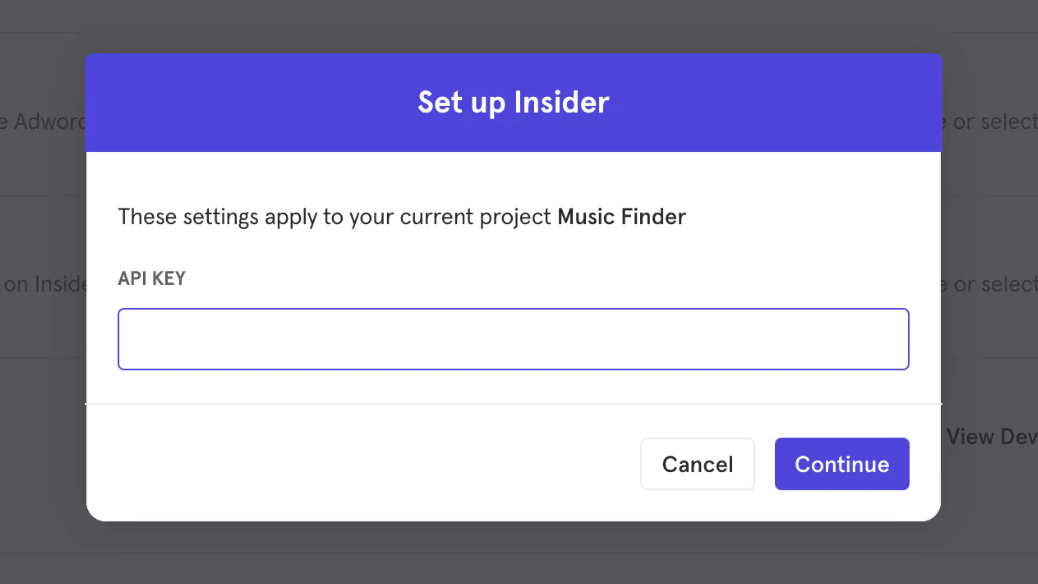
Enter the copied API Key in the "Set up Insider" prompt.
Once the connection is successful, you will see a Connected tag.
Match users between Insider One and Mixpanel
Follow Mixpanel's guide to match your users between Insider One and Mixpanel.
Select a sync type
Follow Mixpanel's guide to select a type to export.
Select the custom segment in Insider One
Once the export is completed, go to InOne and select a campaign you want to use the Mixpanel cohort with.
For your Mobile App campaigns, create a new segment and select Mixpanel Cohorts.
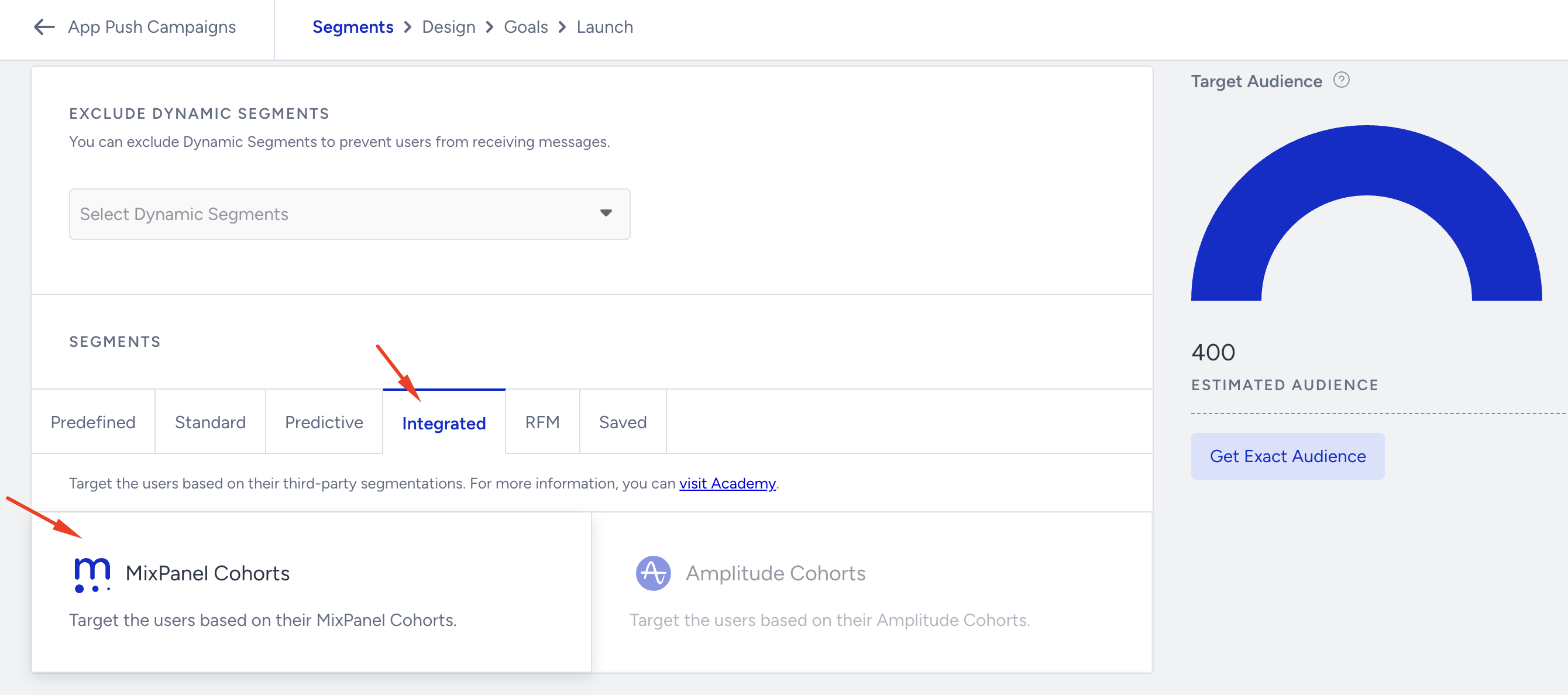
Select the segment that represents the set of users from your Mixpanel cohort and is synced to Insider One to use it in your campaign.

For campaigns where you can use the Standard Segments, create your campaign and select Attributes > Mixpanel Cohort Segment. Then select the segment that represents the set of users from your Mixpanel cohort and is synced to Insider One as the value.
