Scheduling controls when an SMS campaign is delivered. You can send a campaign immediately, schedule it for a future date and time, or schedule delivery according to each recipient's local time zone.
This guide explains the scheduling options available when you launch an SMS campaign, including how Insider One determines recipient time zones and handles recipients whose time zone cannot be identified.
This guide answers these questions:
How can I schedule SMS campaigns in recipients' local time zones?
How do silent hours and the campaign end date work with local time zone scheduling?
Choose a scheduling option
In the Launch step of an SMS campaign, you can choose one of the following options:
Send Now: Delivers the campaign as soon as you launch it.
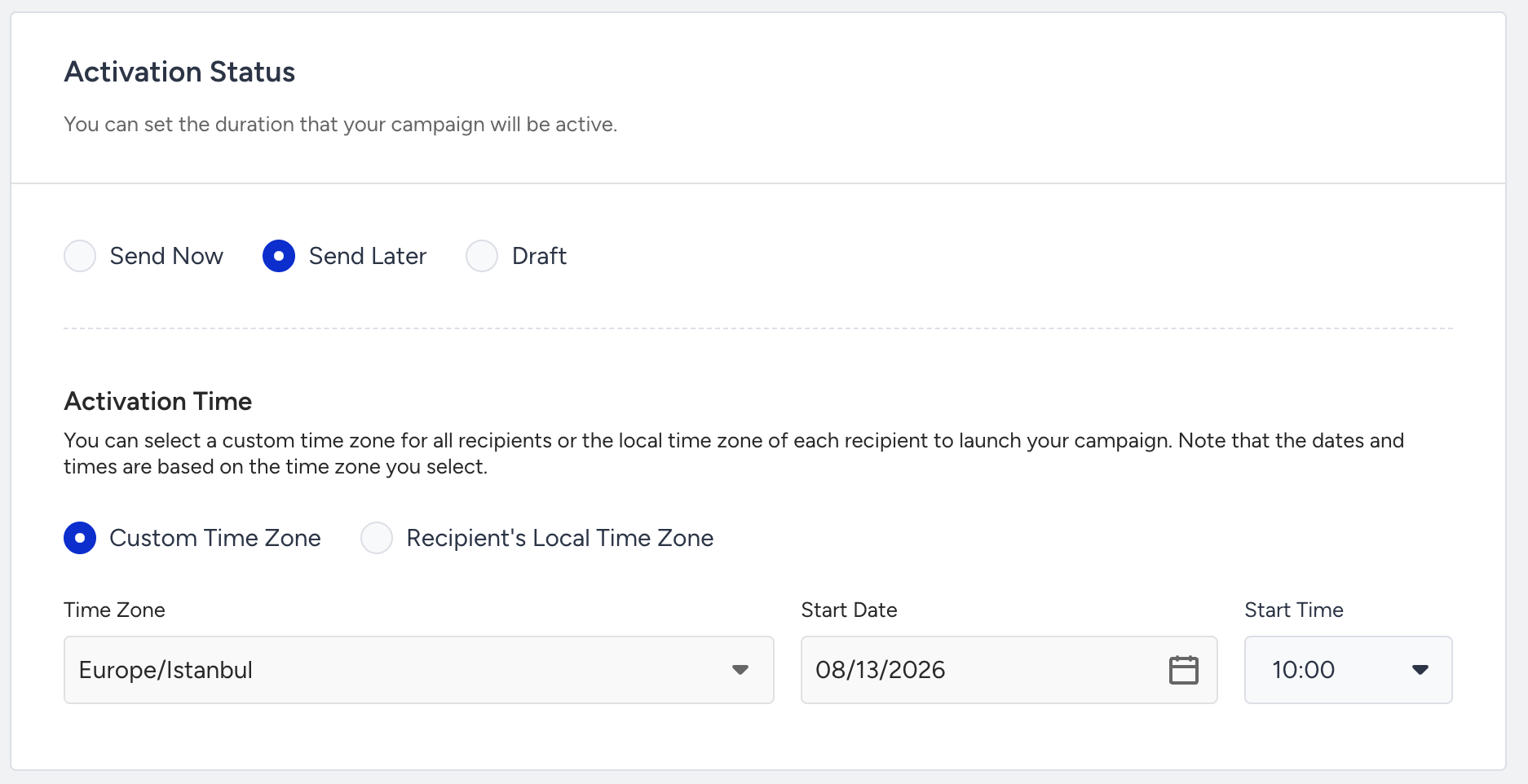
Send Later: Delivers the campaign at the future date and time you select. The campaign remains in Scheduled status until the scheduled start time, and then moves to Running.
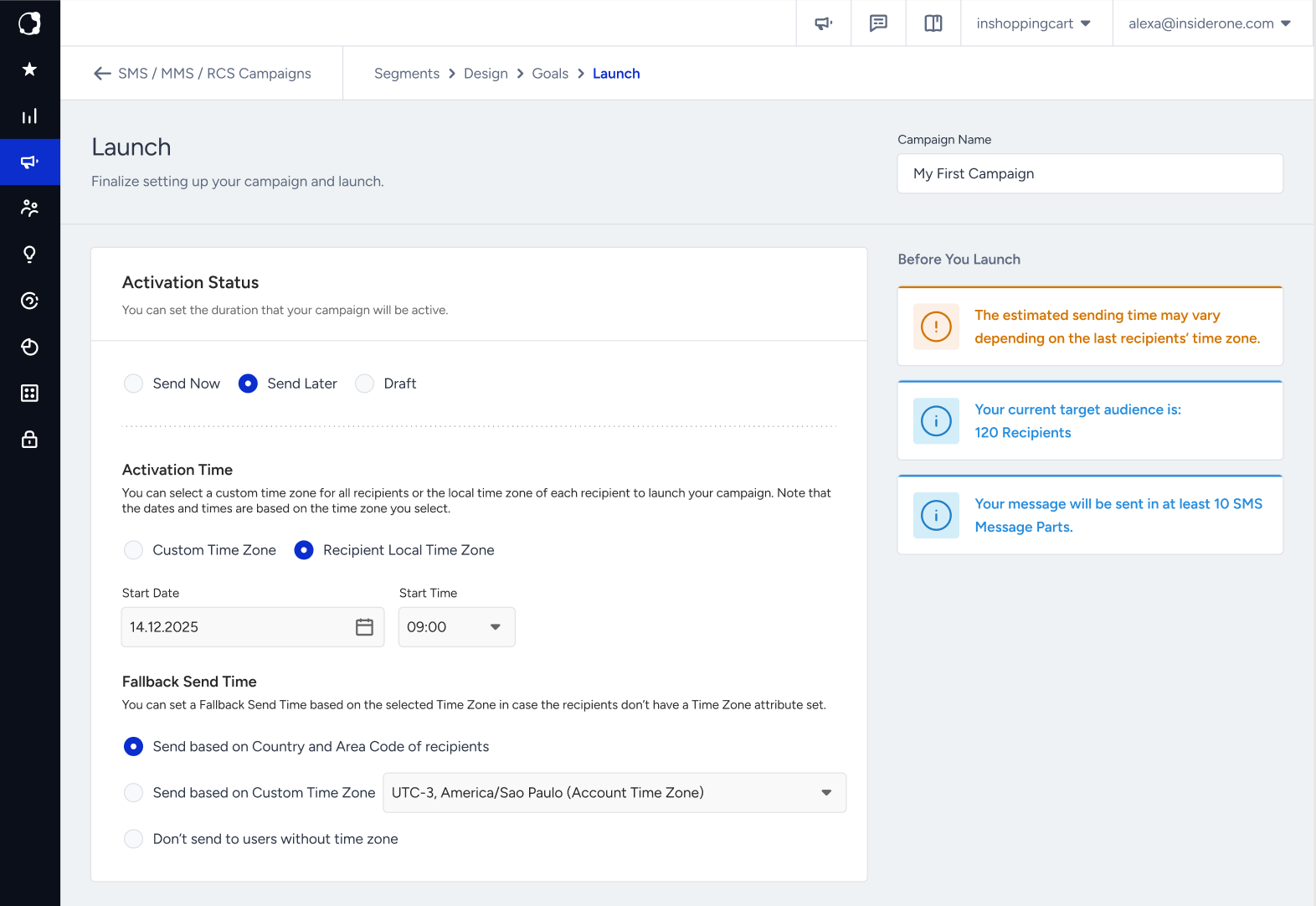
When you select Send Later, the campaign uses your workspace time zone by default. You can also schedule the campaign according to each recipient's local time zone.
Schedule campaigns in recipients' local time zones
With local time zone scheduling, you can deliver a scheduled campaign at the same local time for recipients in different time zones.
For example, if you schedule a campaign for 3:00 PM, it is delivered at:
3:00 pm PT for a recipient in California
3:00 pm GMT for a recipient in the United Kingdom
3:00 pm JST for a recipient in Japan
When you select Recipient's Local Time Zone, Insider One determines each recipient's time zone and schedules delivery for the selected local time.
Handle recipients whose scheduled send time has passed
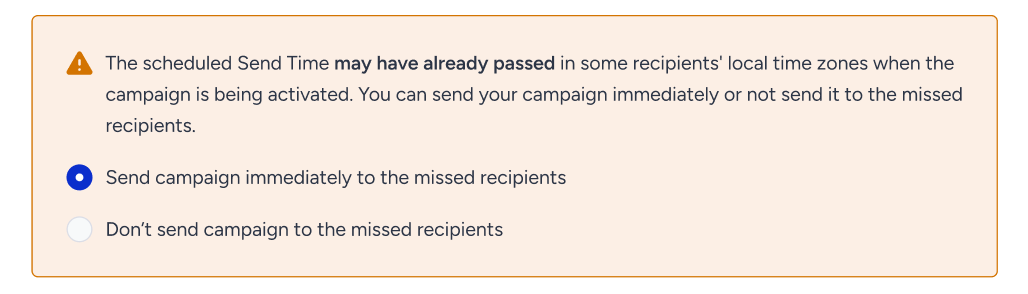
When you schedule a campaign according to recipients' local time zones, the selected send time might already have passed for some recipients when the campaign is activated.
Choose how to handle these recipients:
Send campaign immediately to the missed recipients: Sends the campaign to these recipients immediately.
Don't send campaign to the missed recipients: Excludes these recipients from the campaign and records them as Dropped.
Determine each recipient's time zone
Insider One first checks the time zone information saved in the recipient's User Profile. You can view this information on the recipient's User Profile page in InOne. If time zone is unavailable in the profile, Insider One uses the fallback option selected for the campaign.
Handle recipients without a determined time zone
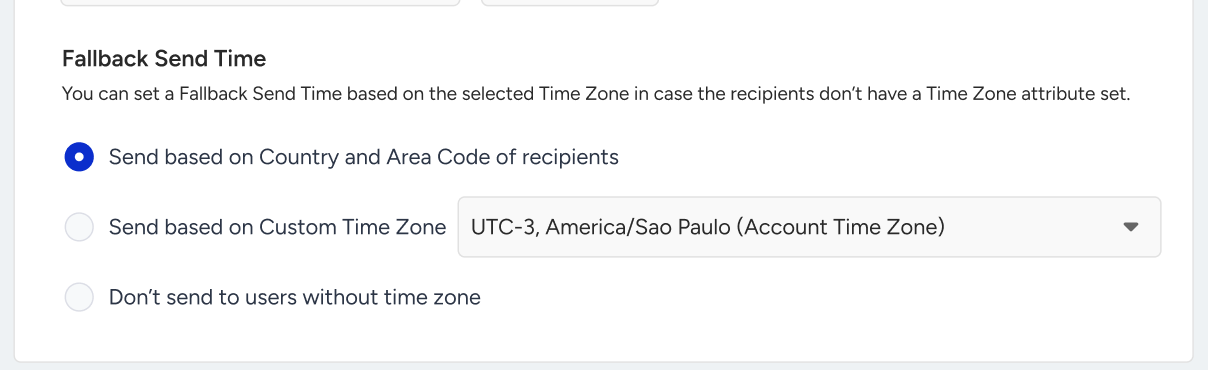
If Insider One cannot determine a recipient's time zone from the stored information, select how the campaign should handle that recipient using one of the following fallback options:
Send based on Country and Area Code of recipients: Insider One determines the recipient's time zone based on their phone number's country and area code.
Send based on Custom Time Zone: Select a specific time zone to use for recipients whose time zone cannot be determined.
Don't send to users without time zone: Excludes recipients whose time zone cannot be determined from the campaign. These recipients are recorded with a drop reason.
Apply silent hours and the campaign end date
When you use local time zone scheduling, Insider One also applies silent hours and the campaign end date according to each recipient's local time zone. This keeps the applicable delivery restrictions and campaign end time aligned with each recipient's local time.