When you build an AI Agent, you usually want to test how it behaves for a real shopper or customer, not just a generic, anonymous visitor. The Test Settings option lets you preview and chat with your agent as if you were a specific user in your customer database.
This is especially useful when:
Your agent uses Dynamic Instructions or Audience Instructions that reference user attributes (name, loyalty tier, language, purchase history, etc.).
You want to confirm that the right personalized content shows up for the right kind of user.
You want to check whether your agent greets a repeat customer differently from a first-time visitor.
If you haven't configured any personalized content, the preview still works; it just behaves the same as an anonymous preview.
Step 1: Open the Test Settings drawer
The Test Settings drawer allows you to test your agent from different user perspectives. This helps you compare how the agent behaves for an anonymous visitor versus a known user, especially when using personalized content. You can also safely validate how your agent responds to different user scenarios before going live.
Navigate to your AI Agent in InOne > Agent One > AI Agents.
Go to the Personality step.
In the preview panel on the right side of the screen, click the gear icon at the top.
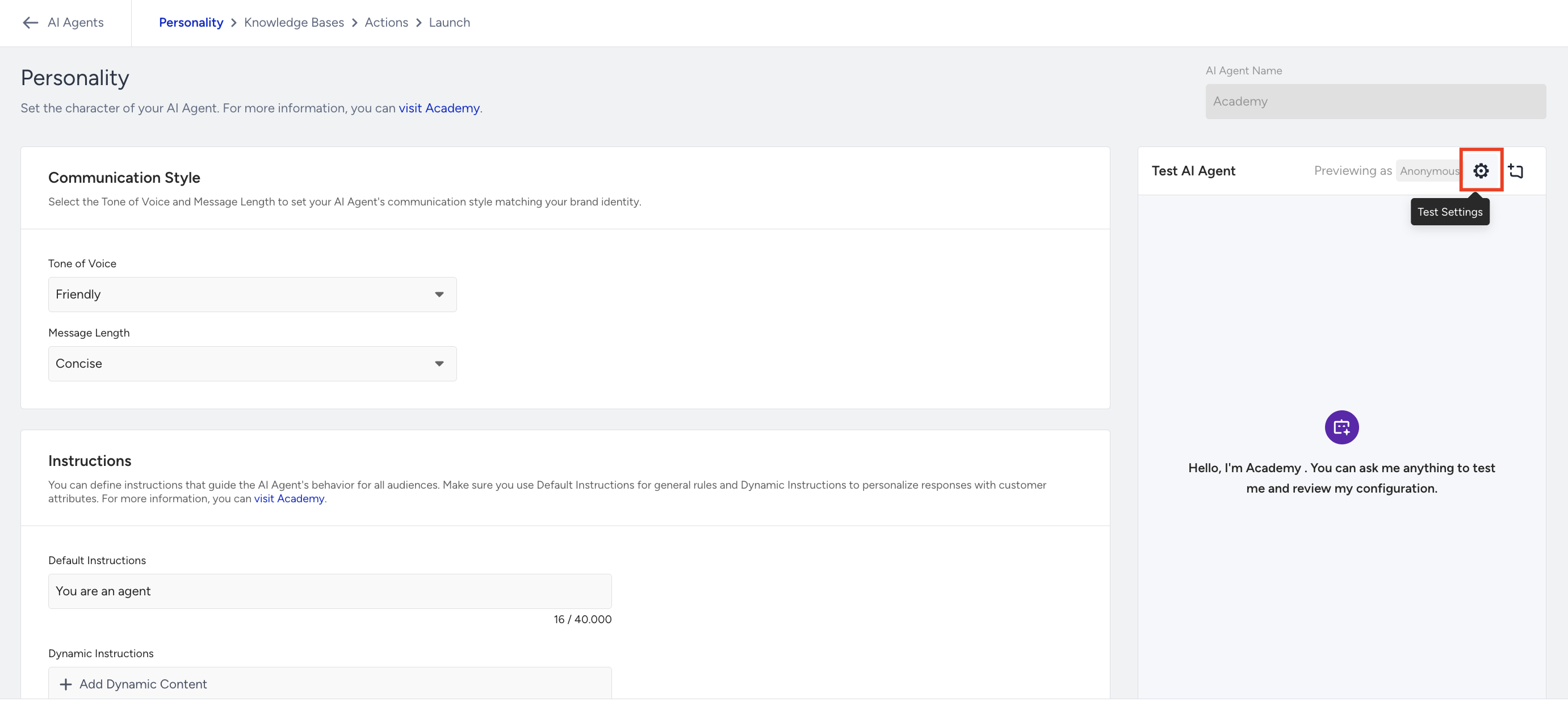
The Test Settings drawer opens on the right-hand side.
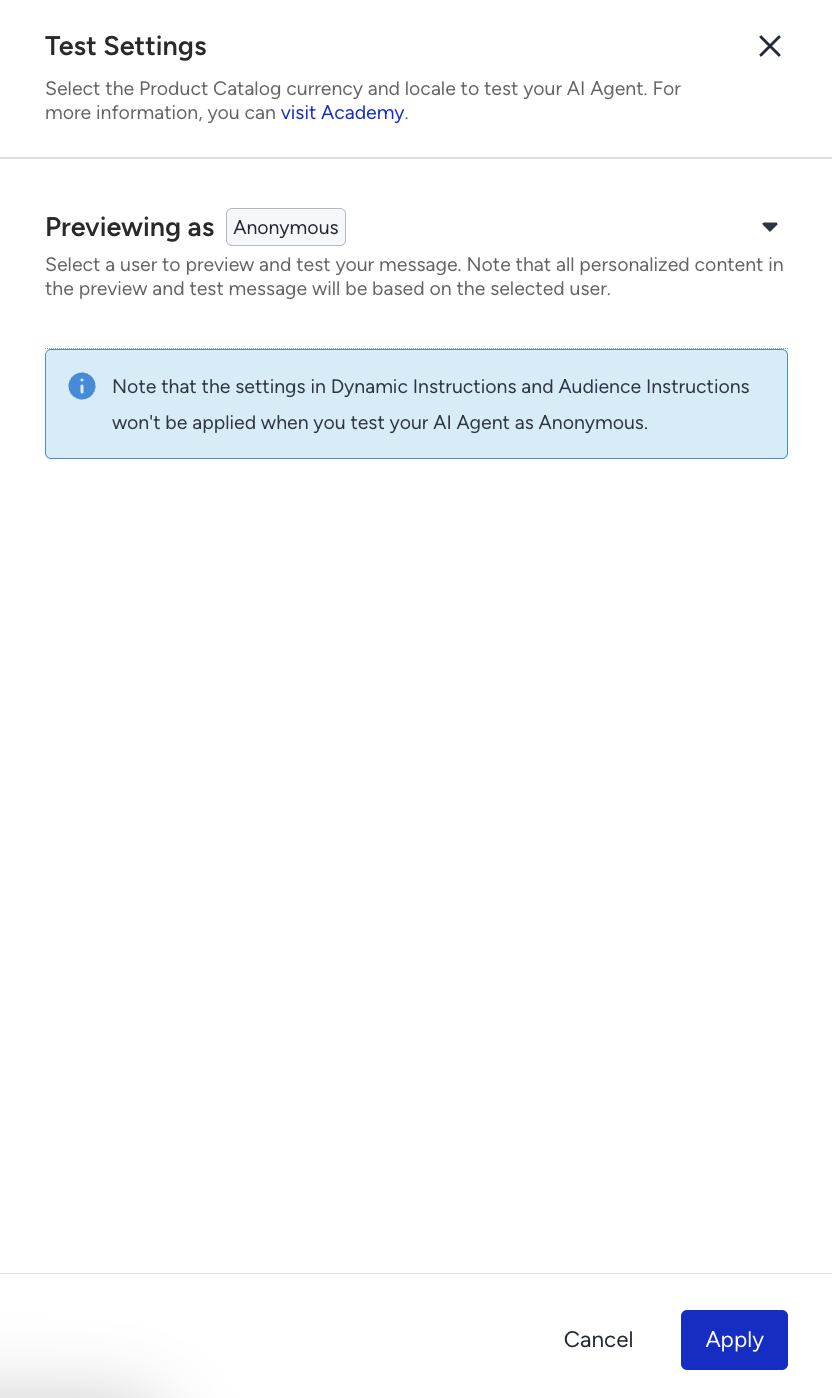
Step 2: Use the "Previewing as" section
In the Test Settings drawer, you will see the “Previewing as” section. This setting determines which user perspective the preview will simulate.
You can preview your agent in two modes:
Mode | What it means |
|---|---|
Anonymous (default) | The agent treats the session as a new, unknown visitor. Dynamic content appears as fallbacks instead of real values. |
A specific user | The agent retrieves the selected user's real attribute values from your customer database and uses them in the preview, just like in a live conversation. |
Tip: If Dynamic Instructions or Audience Instructions are not configured, both preview modes will display the same output. Hover over the Previewing as Anonymous label in the preview to see a tooltip with more details.
Preview as a specific user
Open the Test Settings drawer (gear icon).
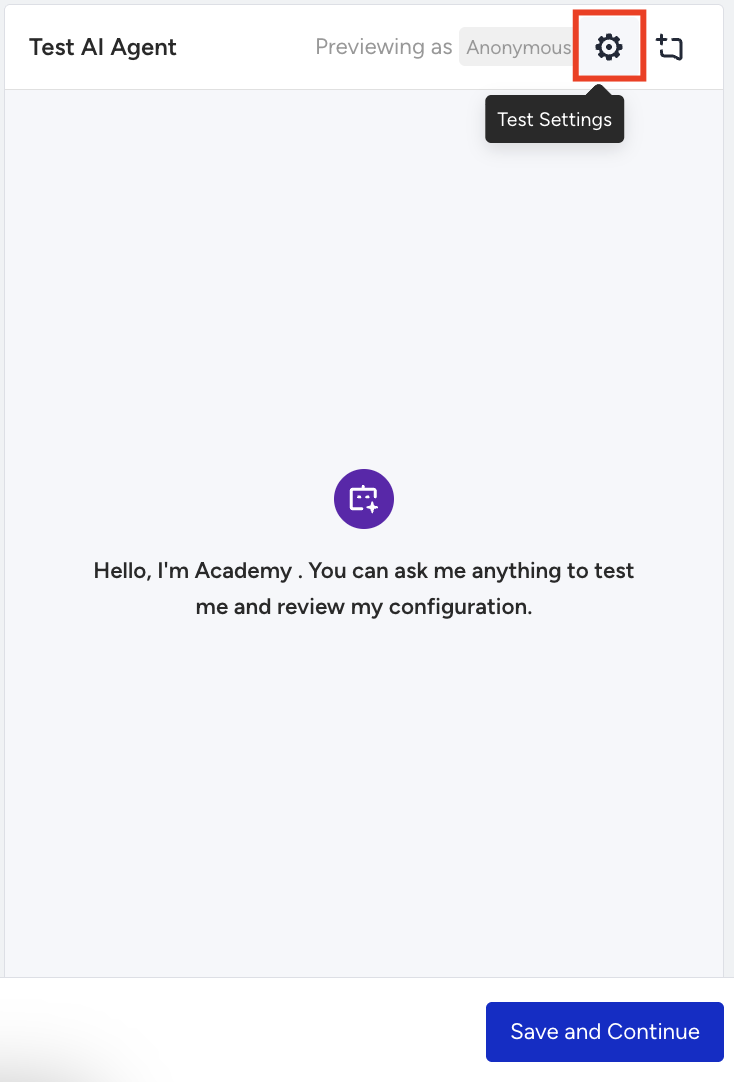
Expand the “Previewing as” section.
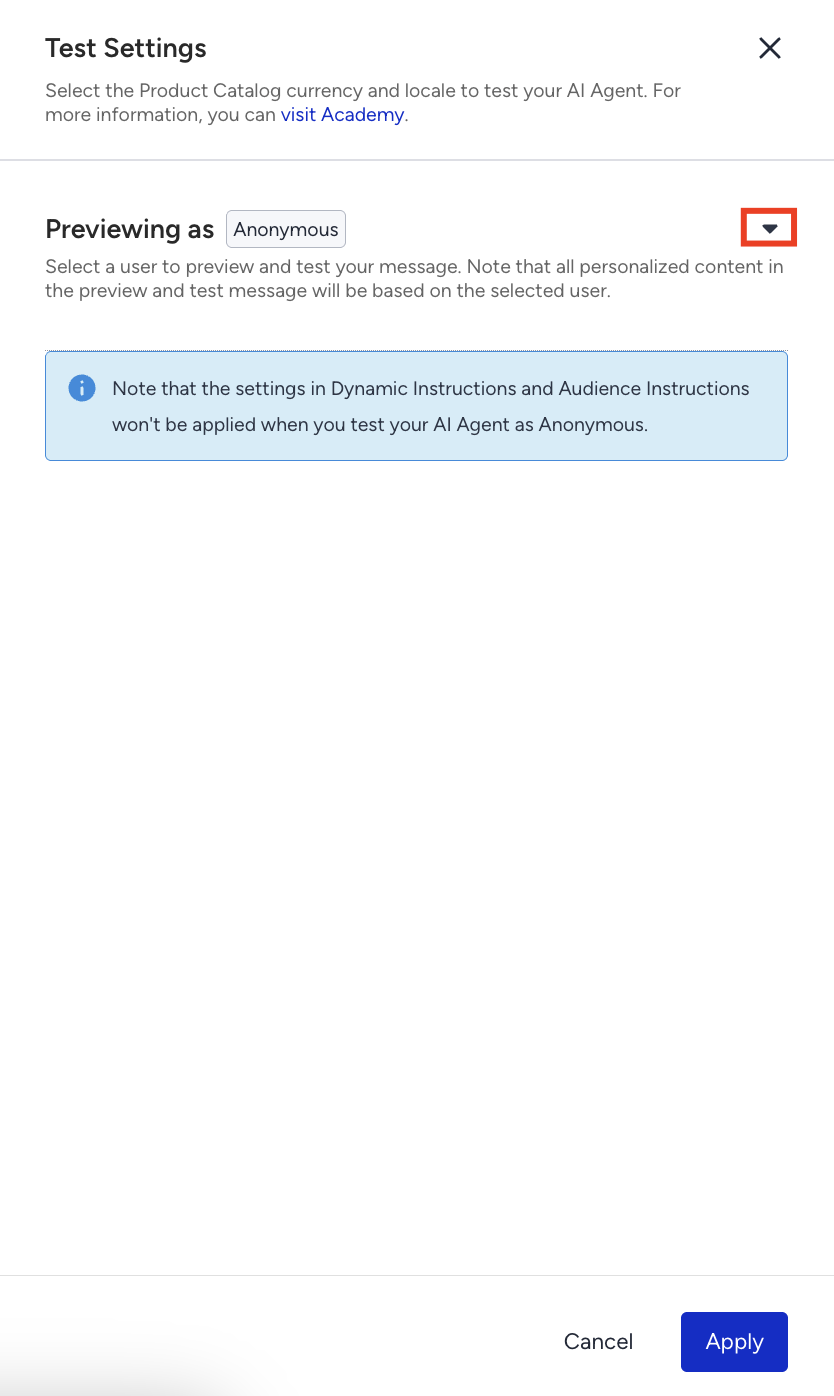
From the User Identifier dropdown, choose how you want to look up the user:
Profile ID: The internal Profile ID of the user
UUID (Unique User Identifier): Your own system's unique ID for the user
Email Address
Phone Number: It requires a Country Code field as well
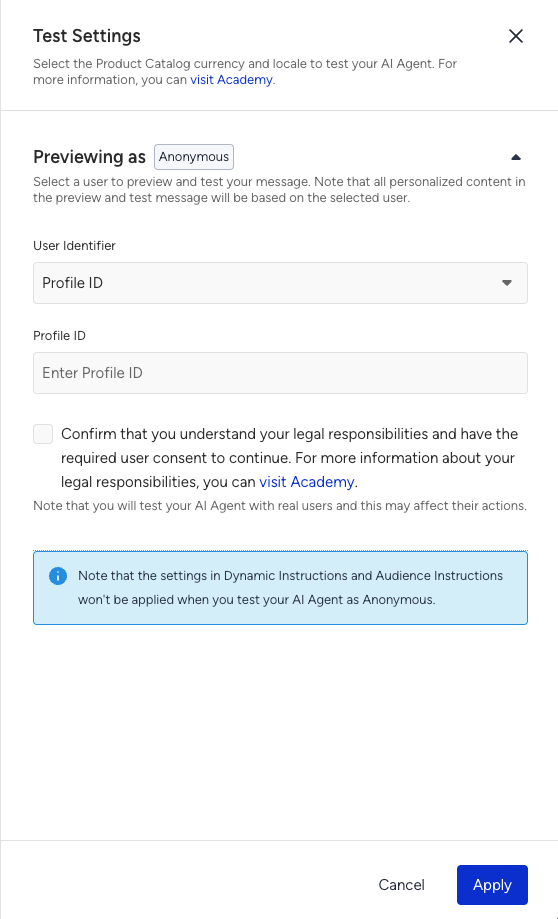
Enter the identifier value in the field that appears.
Read the consent notice and check the box to confirm that:
You understand your legal responsibilities.
You have the required user consent to test with real customer data.
Why the consent checkbox matters
Previewing as a specific user is not a dry run. The agent interacts with that user’s real profile. By selecting the checkbox, you acknowledge the following risks:
The agent can take real actions on the user’s account. If your agent is configured with tools, API calls, or integrations that perform actions (such as canceling an invoice or flight, issuing a refund, updating an address, or triggering a notification), these actions are executed on the selected user’s actual record. For example, a test request to cancel an order can cancel the user’s real order.
You can access the user’s personal data. If your agent uses Dynamic Instructions or Audience Instructions that reference custom attributes (such as name, email, phone number, loyalty tier, or order history), these real values are loaded into the preview and visible to you. This data might be subject to regulations depending on your region.
Because of this, only preview as a real user when:
You have a valid testing purpose and the user’s consent, or you are using a dedicated test profile owned by your team.
You understand which actions your agent can trigger and can avoid unintended or destructive actions during testing.
Tip: For day-to-day testing, create and use a dedicated test profile in your customer database. This should be a profile you own, with orders, payments, and notifications that are safe to affect. Reserve previewing with a real customer profile for cases where the test profile cannot reproduce the scenario.
After clicking Apply, you will preview the conversation as the selected user.
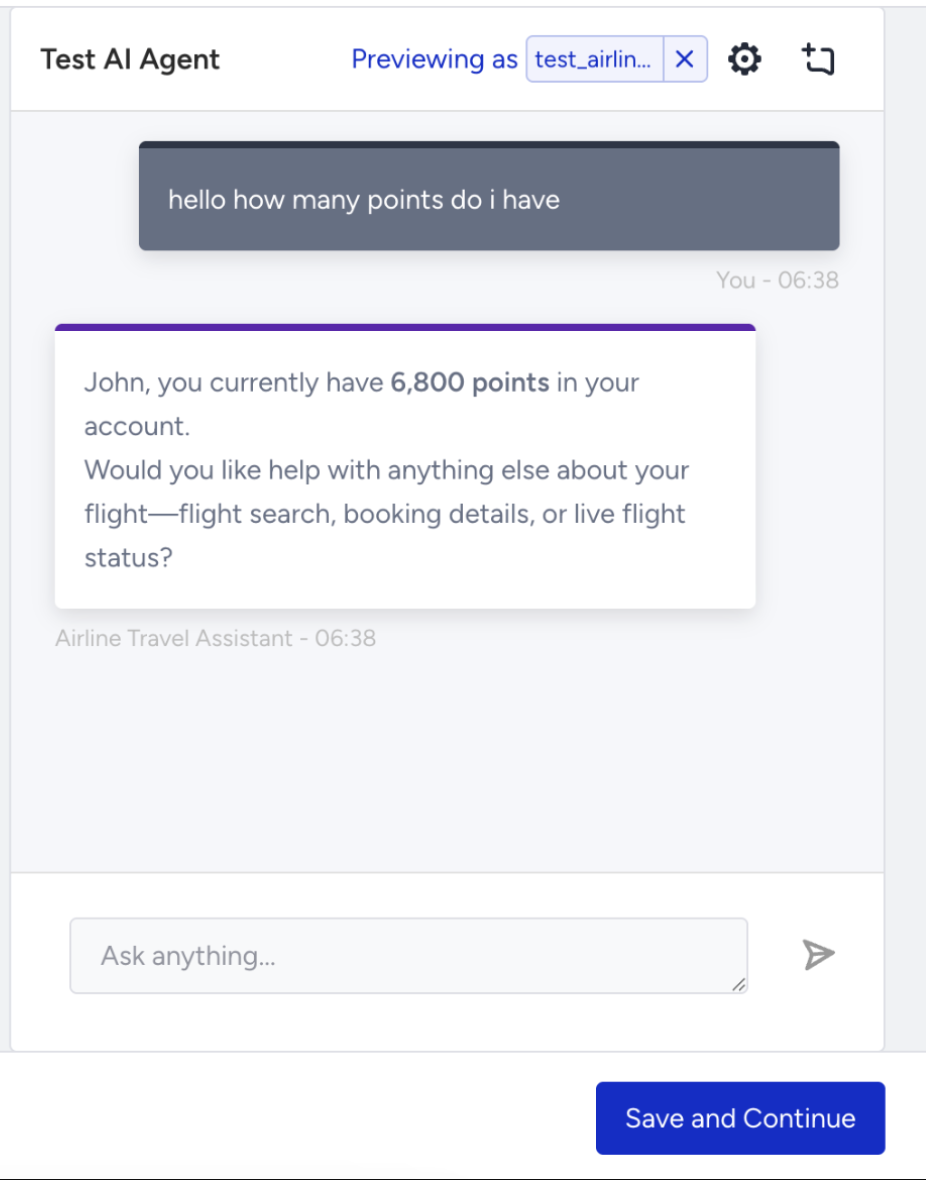
When you send a test message in the chat preview:
If you are previewing as a specific user, every Dynamic Content variable in your instructions is filled in with that user's actual attribute values.
If you are previewing as Anonymous, every Dynamic Content variable is shown as a fallback. Audience Instructions targeting a specific segment will not apply either.
While in Anonymous mode, the drawer shows the note: "Note that the settings in Dynamic Instructions and Audience Instructions won't be applied when you test your AI Agent as Anonymous." This is a reminder, not an error.
Previewing as chip
Once you click Apply, the preview panel at the top shows a chip that says Previewing as [identifier]. This reminds you that what you see in the preview is personalized to that specific user, not a generic view. 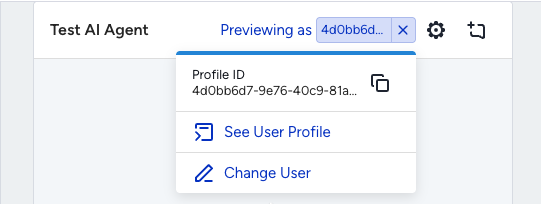
Click the chip to open a popover with more details:
Profile ID: Shown in a shortened form with a Copy button
See User Profile: Opens the user's full profile in UCD in a new tab, so you can verify their attributes
Change User: Reopens the Test Settings drawer with the current selection pre-filled, so you can switch to another user quickly
To exit "specific user" mode, click the X icon on the chip. The preview will go back to Anonymous.
Permissions: PII Access
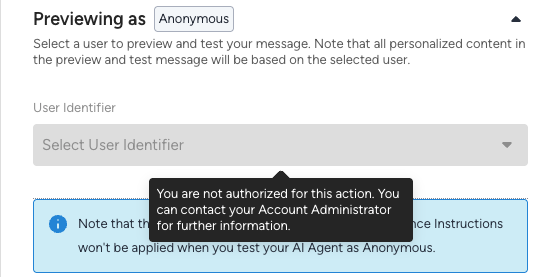
Looking up a real user requires permission to access PII (Personally Identifiable Information). If your role does not have PII access:
The identifier type dropdown and input fields are disabled.
You will see a tooltip: "You are not authorized for this action. You can contact your Account Administrator for further information."
You can still preview and test your agent in Anonymous mode without any restrictions.
If you need PII access to test your agent with real customer data, reach out to the Insider One team.
Shopping Agent
Shopping Agents use your product catalog to return product recommendations in the preview. In addition to the Previewing as section, the Test Settings drawer includes two catalog-specific fields for Shopping Agents:
Field | What it controls |
|---|---|
Product Catalog Currency | Controls the currency used for product prices in the preview, such as USD, EUR, or TRY. Use this field to verify how product recommendations appear for a specific market without switching accounts or storefronts. |
Catalog Locale | Controls the language and regional catalog variant used in the preview, such as en_US, tr_TR, or de_DE. Use this field to confirm that product titles, descriptions, and recommendations appear in the correct language for the audience you are testing. |
Configure Shopping Agent preview settings
Use these fields to test how your Shopping Agent behaves for different markets before going live.
Open the Test Settings drawer from the Shopping Agent Personality page.
In the Previewing as section, choose whether to preview as Anonymous or as a specific user.
Under Product Catalog Currency, select the currency you want to test.
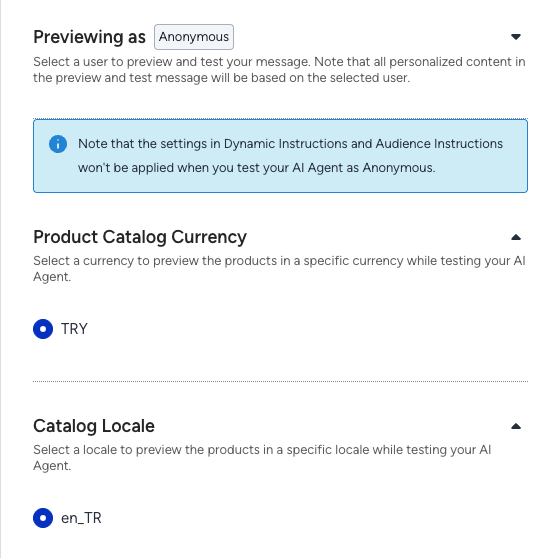
Under Catalog Locale, select the language or region variant supported by your product catalog.
Click Apply.
The preview shows product recommendations based on the selected currency and locale. If you also preview as a specific user, the recommendations are personalized for that user.
Tip: If your brand serves multiple countries or languages, test each market combination separately, such as en_US + USD or tr_TR + TRY. This helps you confirm that your agent returns the right product experience for each audience before going live.
Frequently Asked Questions
Q: Does previewing as a user send data to the real user?
A: No. The preview runs in your admin panel and is only visible to you. It reads the user's attributes to personalize the session, but it does not send the user any messages.
Q: Can I use any Profile ID, email, or phone number?
A: Only identifiers that exist in your own customer database (UCD). Unknown identifiers are rejected with an error.
Q: Can I test multiple users quickly?
A: Yes. Click the Previewing as chip, then Change User to reopen the drawer with the current selection pre-filled. Update the identifier and click Apply again.
Q: Why don't I see the identifier fields?
A: Your account does not have PII access. To request it, please contact the Insider One team. You can still preview in Anonymous mode.