The App Push Analytics page provides detailed insights into your app push campaigns and helps you better understand your campaign strategies.
On this page, you can see the overall metrics for your app push campaigns. You can also narrow down the campaigns to see more related data. On the same page, you can also see the campaign results individually and compare them.
This guide explains the following:
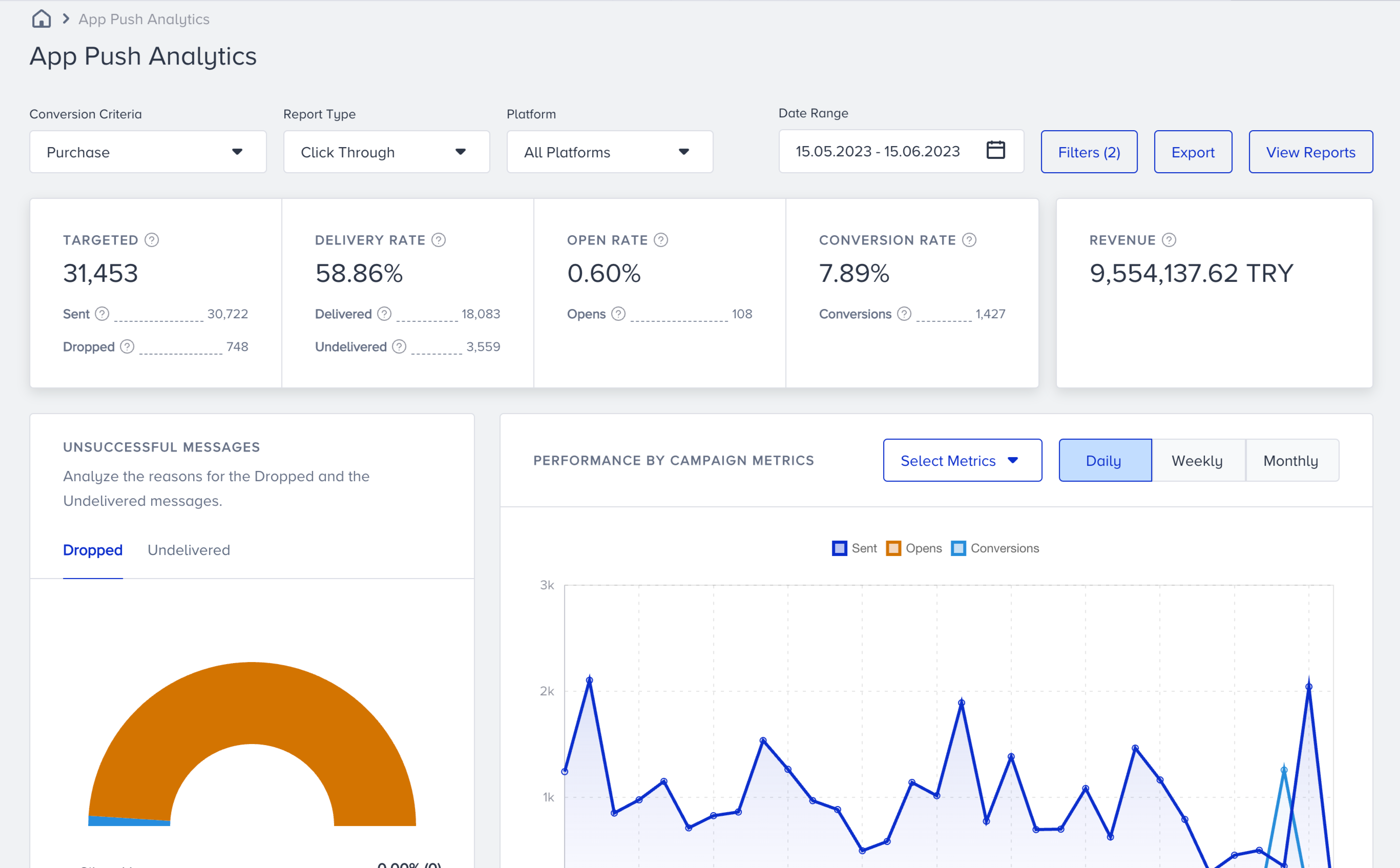
The analytics dashboard consists of 5 sections: Pre-filters, Filters, Summary Metrics, Graphs, and Campaigns Table.
Pre-filters
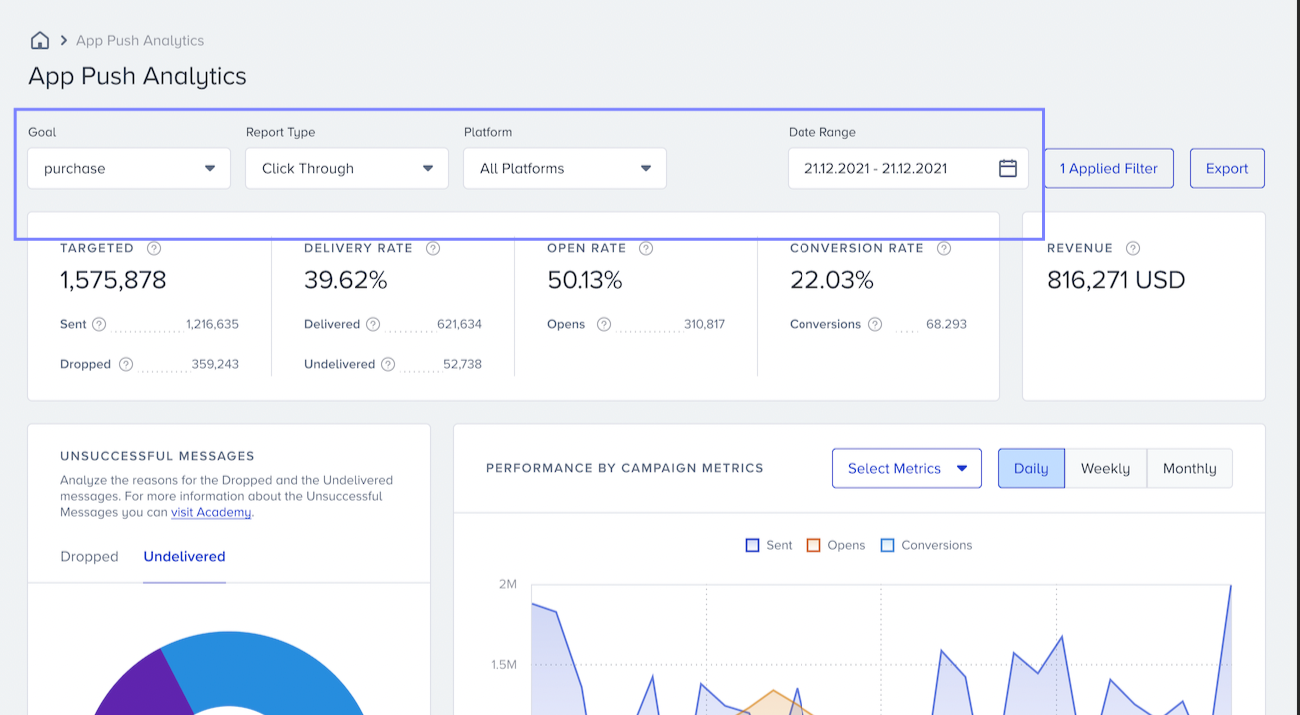
You can apply Goal, Report Type, Platform, and Date Range pre-filters to your data to see related insights. Each filter has a default selected option. You can change these preferences to view the respective data.
Goal
This option allows you to calculate your conversions via the selected event. Campaigns without the selected event as their campaign goal will not be listed on this page, as their conversion automatically becomes zero (0) for the selected event.
Platform
You can see three platform options: All Platforms, iOS, and Android. The results are sorted by device platform type.
Date Range
You can select specific date ranges to view your data. When you select a time range, campaigns with metrics for that range that contribute to the overall metrics are listed on the dashboard.
Filters
You can apply different filters to view only a selected group of campaigns.
To apply filters, click the Filters button on the right of the page to see the filters modal.
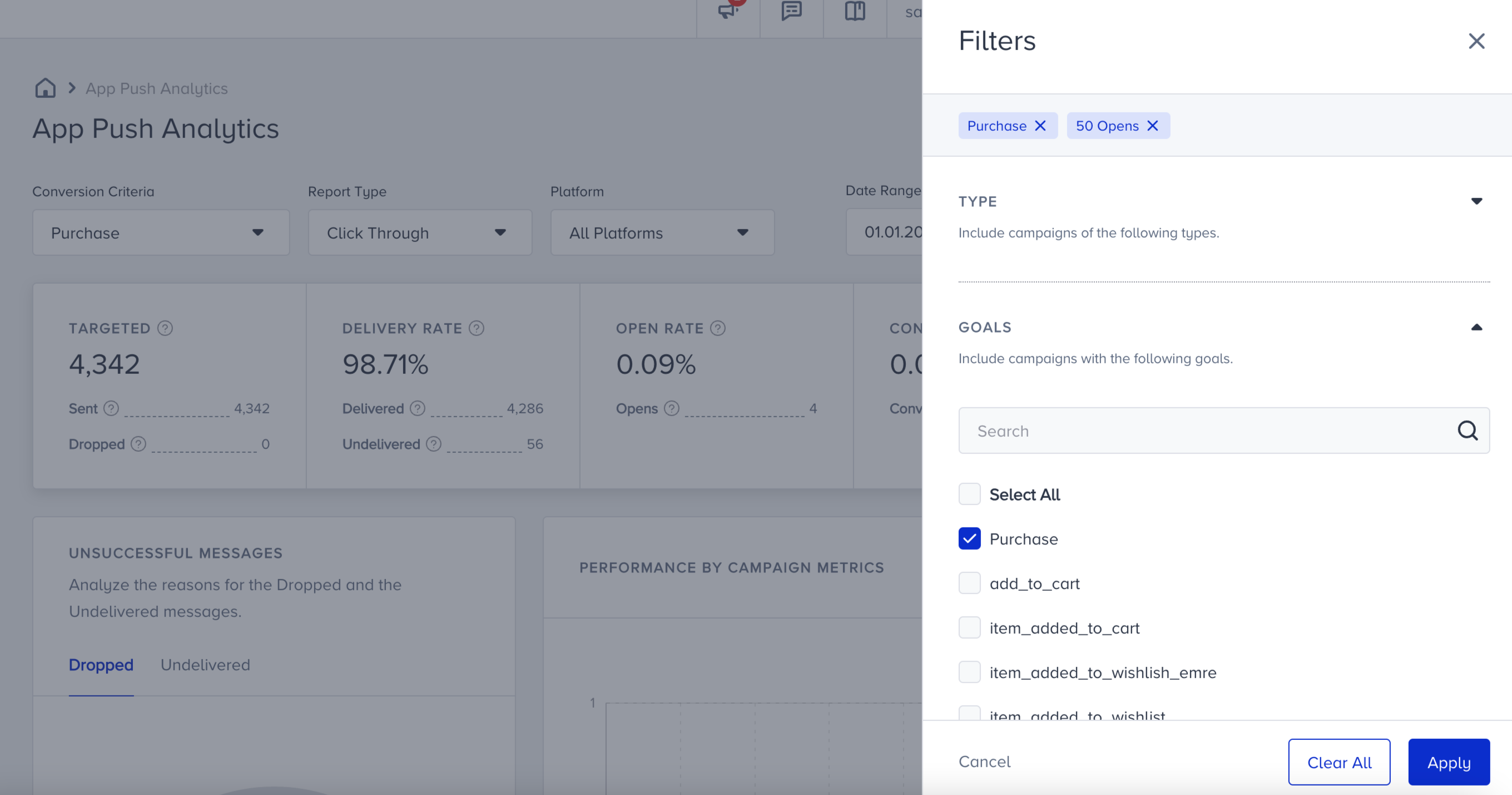
Filters are not mandatory but optional. You can use them to narrow down the campaigns included in the stats.
The filter options are Type, Goals, Status, Control Groups, Opens, and Tags.
Type
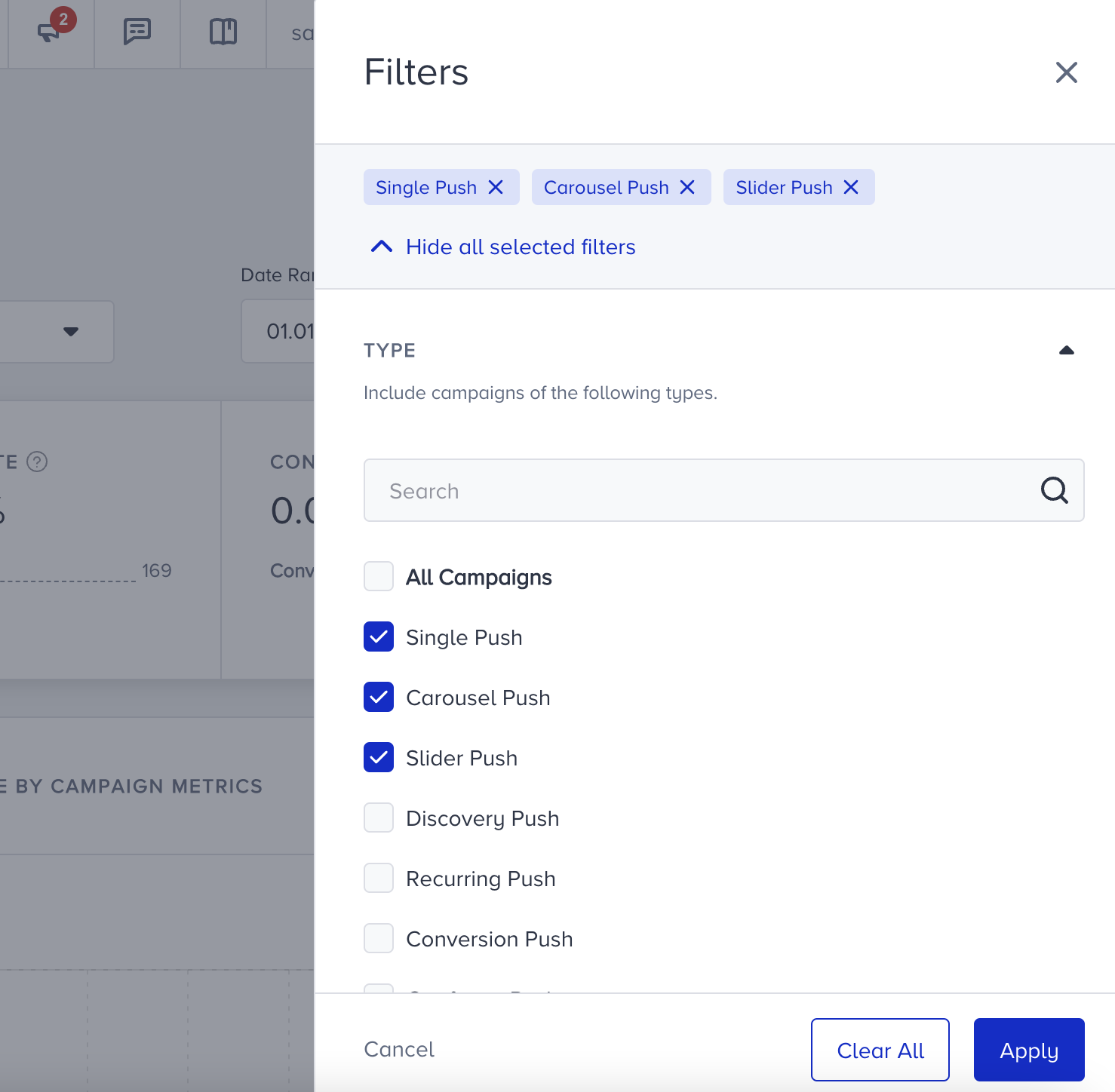
Type helps you filter your campaigns based on the campaign type. The available options are Single, Carousel, Slider, Discovery, Recurring, Conversion, Geofence, and Cart Reminder.
You can select more than one campaign type at the same time, or the All Campaigns option to see the metrics for all types.
Goals
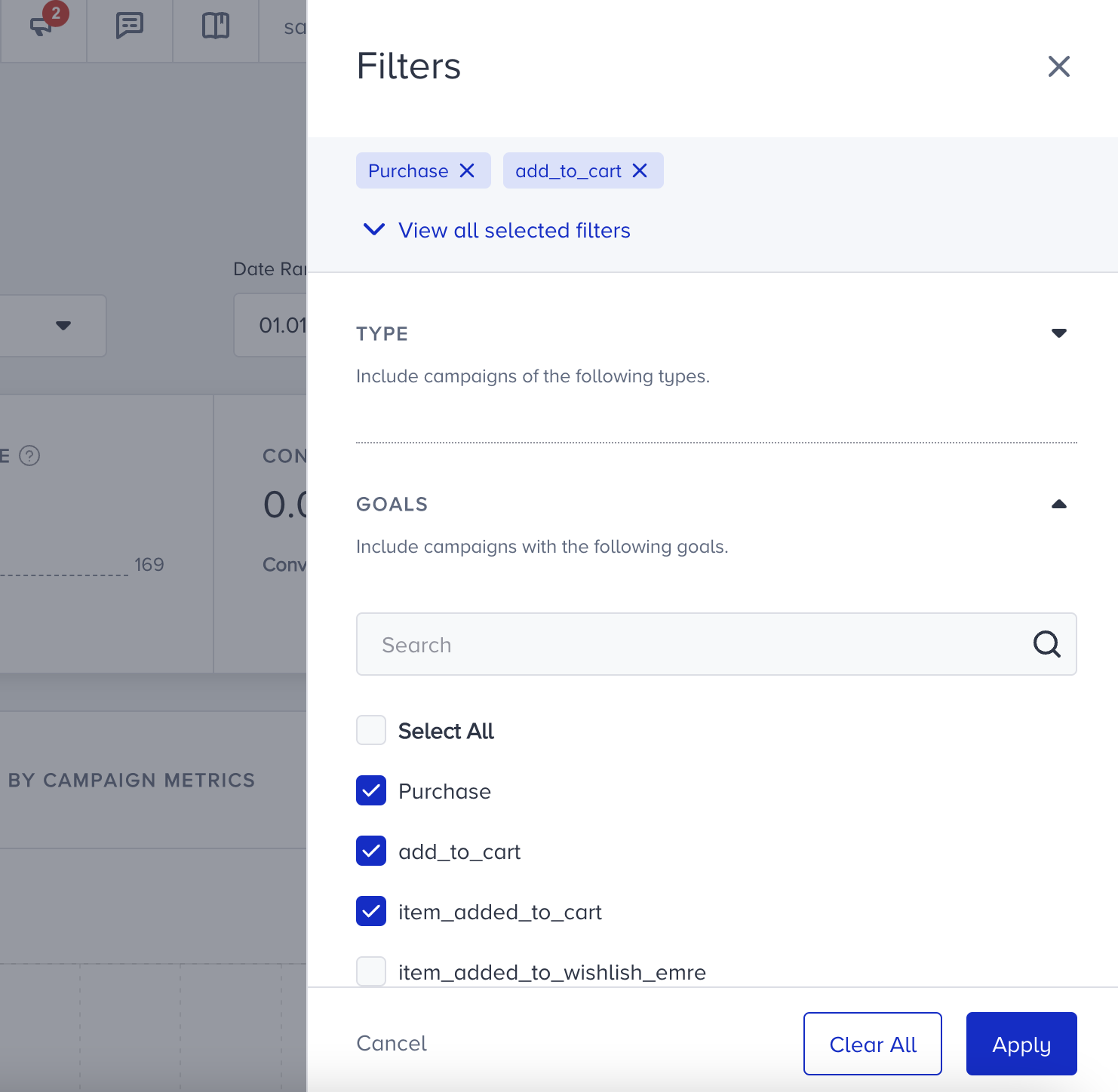
This filter allows you to see the campaigns with the selected goals. You can add up to 5 goals as purchase and 5 goals as campaign goals. When you select any event, the campaigns with this event as one of the goals will be listed on the dashboard. For example, if you want to see the campaigns with the Purchase goal only, you can select the Purchase option and get the campaigns with this goal.
Status
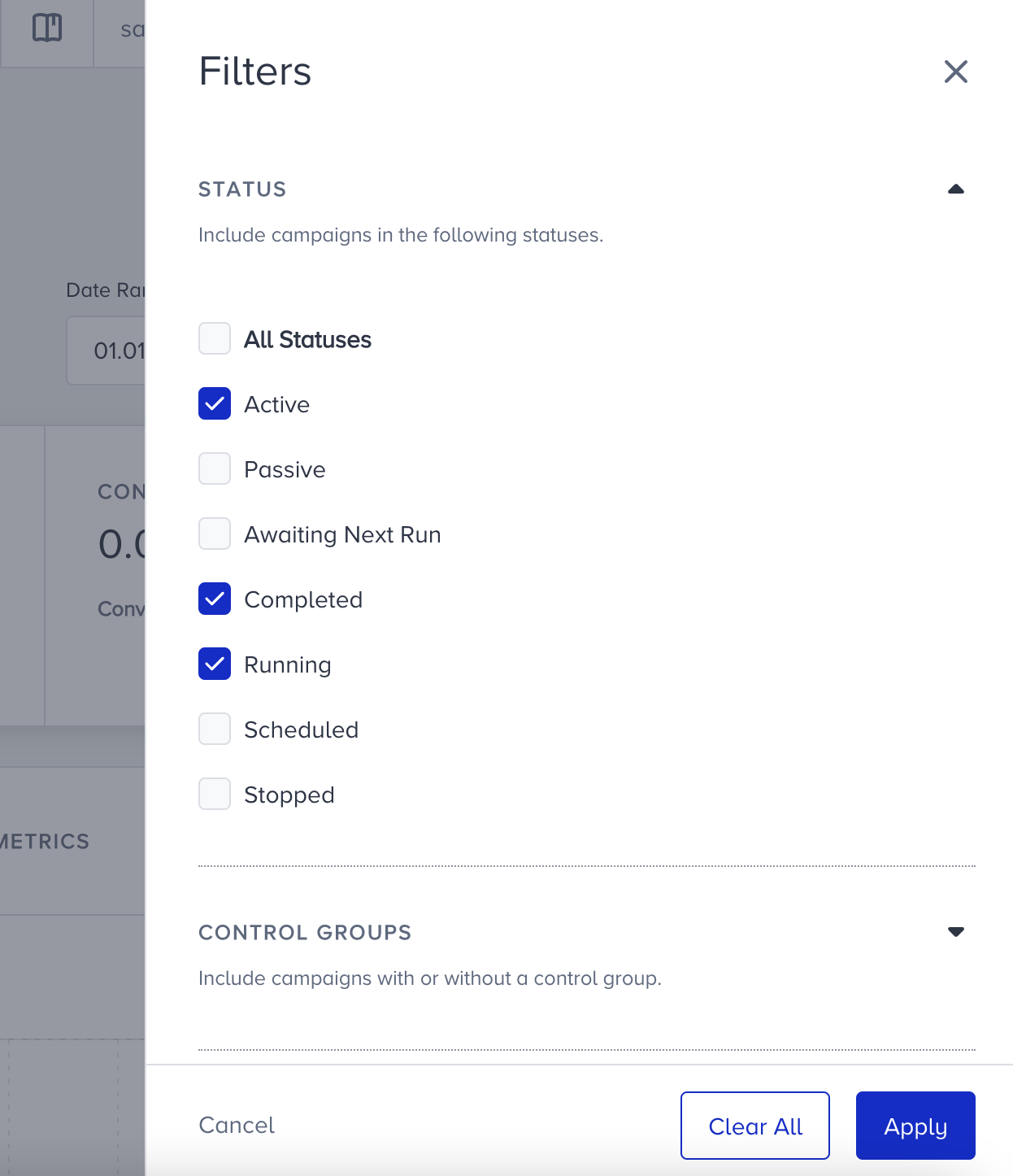
Status helps you see the campaigns on a specific activation status. For example, you can see the Active, Completed, and Running campaigns.
Control Groups
Control group metrics are in the dashboard by default. This filter helps you hide the metrics of the control groups from the data.

Opens
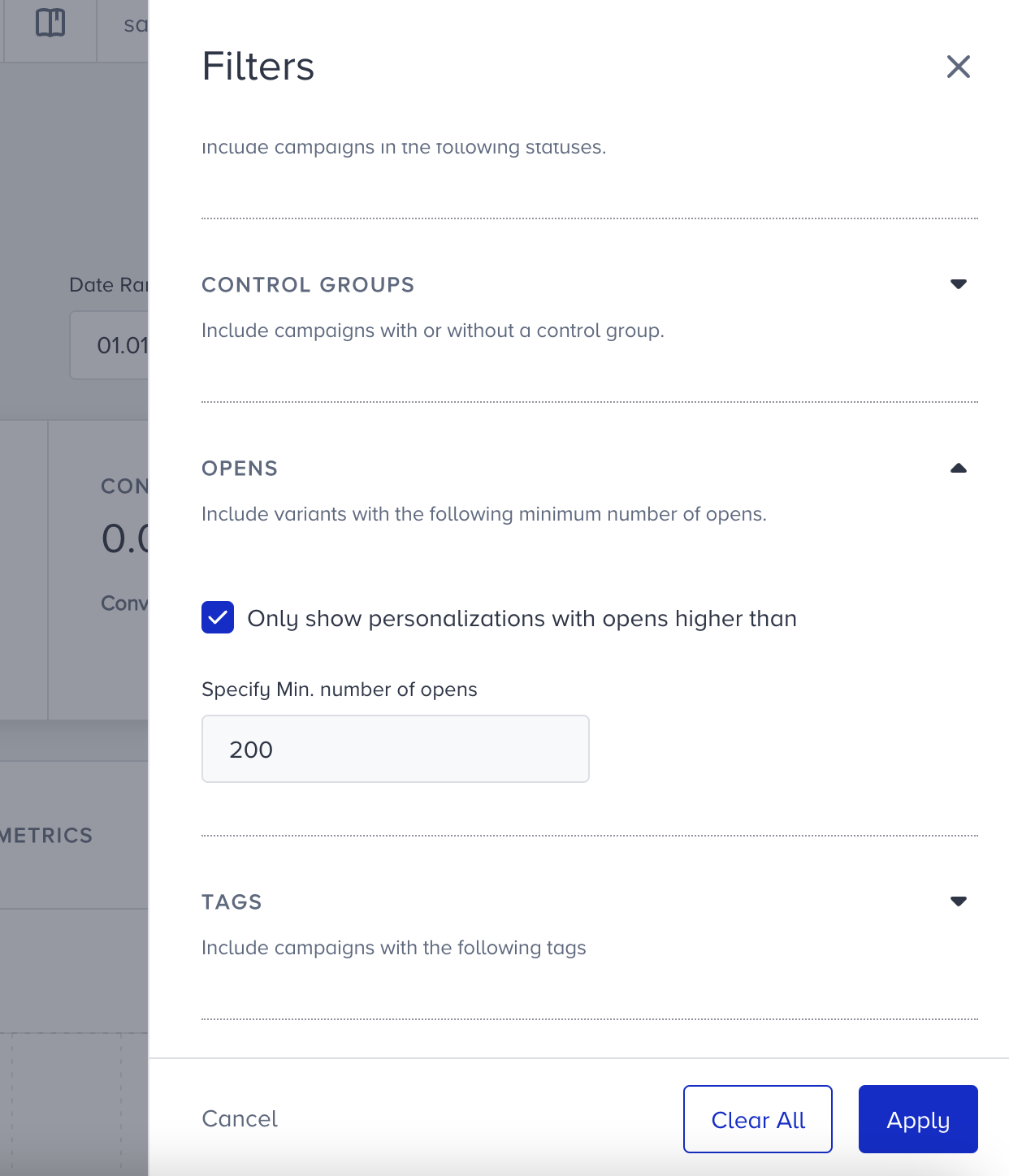
This filter allows you to set up a minimum limit for the open count of the campaigns. For example, if you want to see the campaigns with more than 200 opens, you can set this filter to 200.
Tags
The Tags option helps you see campaigns only with a specific tag. You can select your tags and filter the campaign list on the dashboard. For example, you can filter them by a Black Friday tag you created to see the respective metrics.
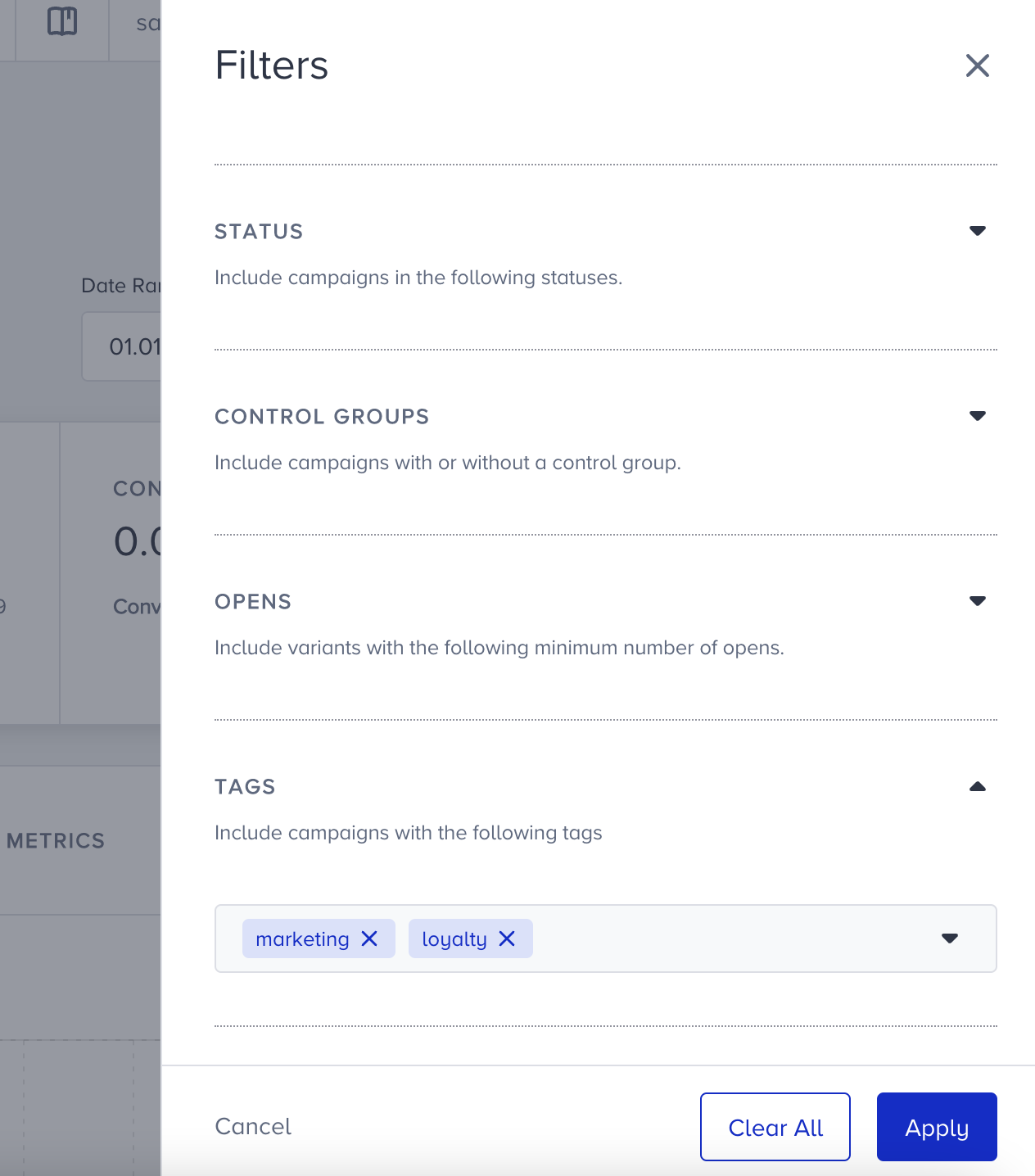
Above the filters modal, you can see all applied filters. You can add/remove any filter at any time, and clear all of them at once. Click the Apply button to see the filters applied to the data.
Export
You can export your App Push analytics easily.
1. After you decide which data to export, click the Export button.
2. You will see Single Report and Recurring Report options to create your report. Choose the one you need and proceed.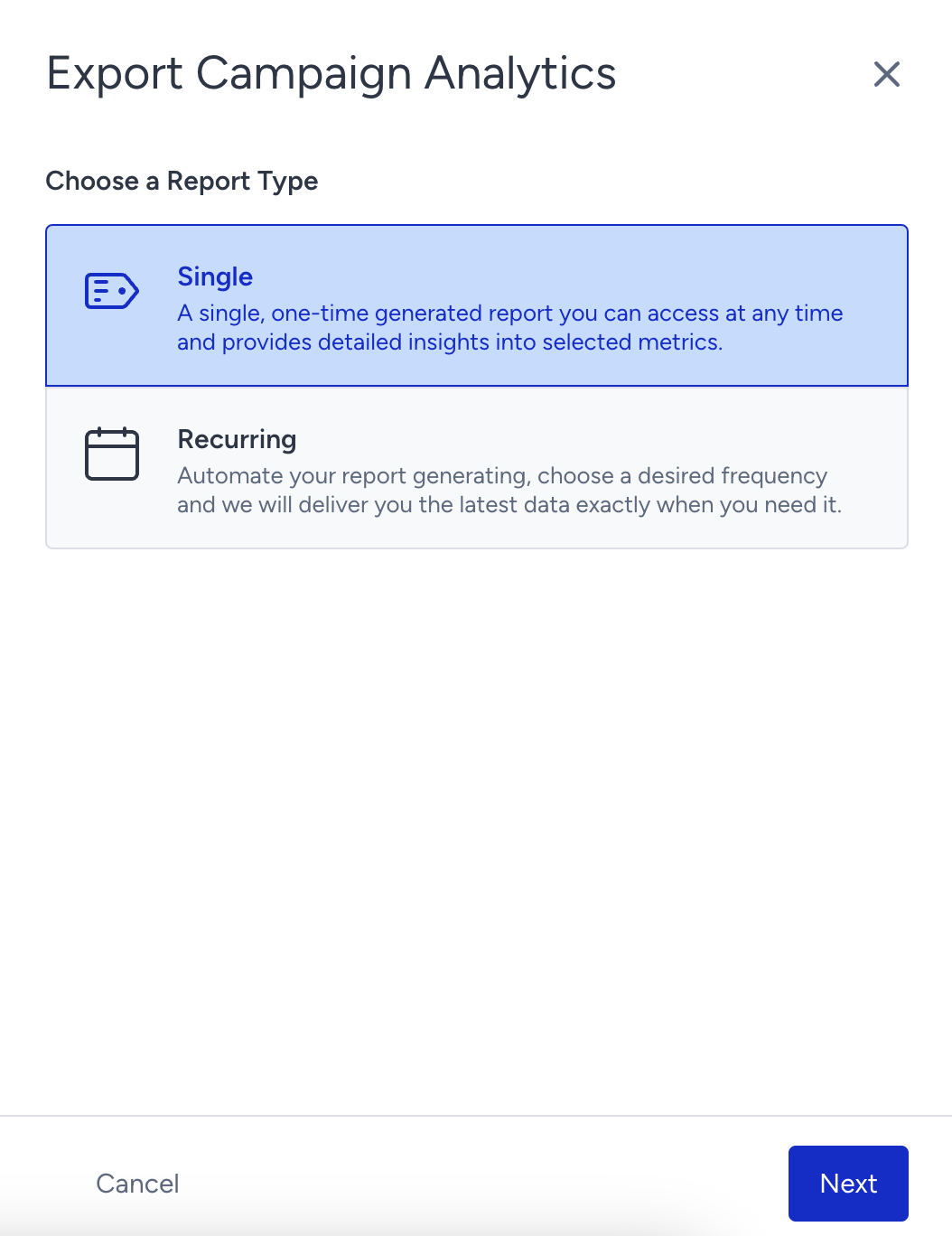
2.1. Single Report is a one-time generated report that you can access at any time, and it gives you detailed insights about your results based on the metrics you selected. You can get your report with or without the filters you applied. Click the Create Report button to receive it.  2.2. The Recurring Report enables you to automate your report creation depending on your desired frequency choice. Therefore, you receive the latest data at the time you need it. It is a user-based report. After configuring the recurrence and range settings, click the Create Report button.
The exported file includes overall analytics, campaign metrics, goal details, and revenue metrics.
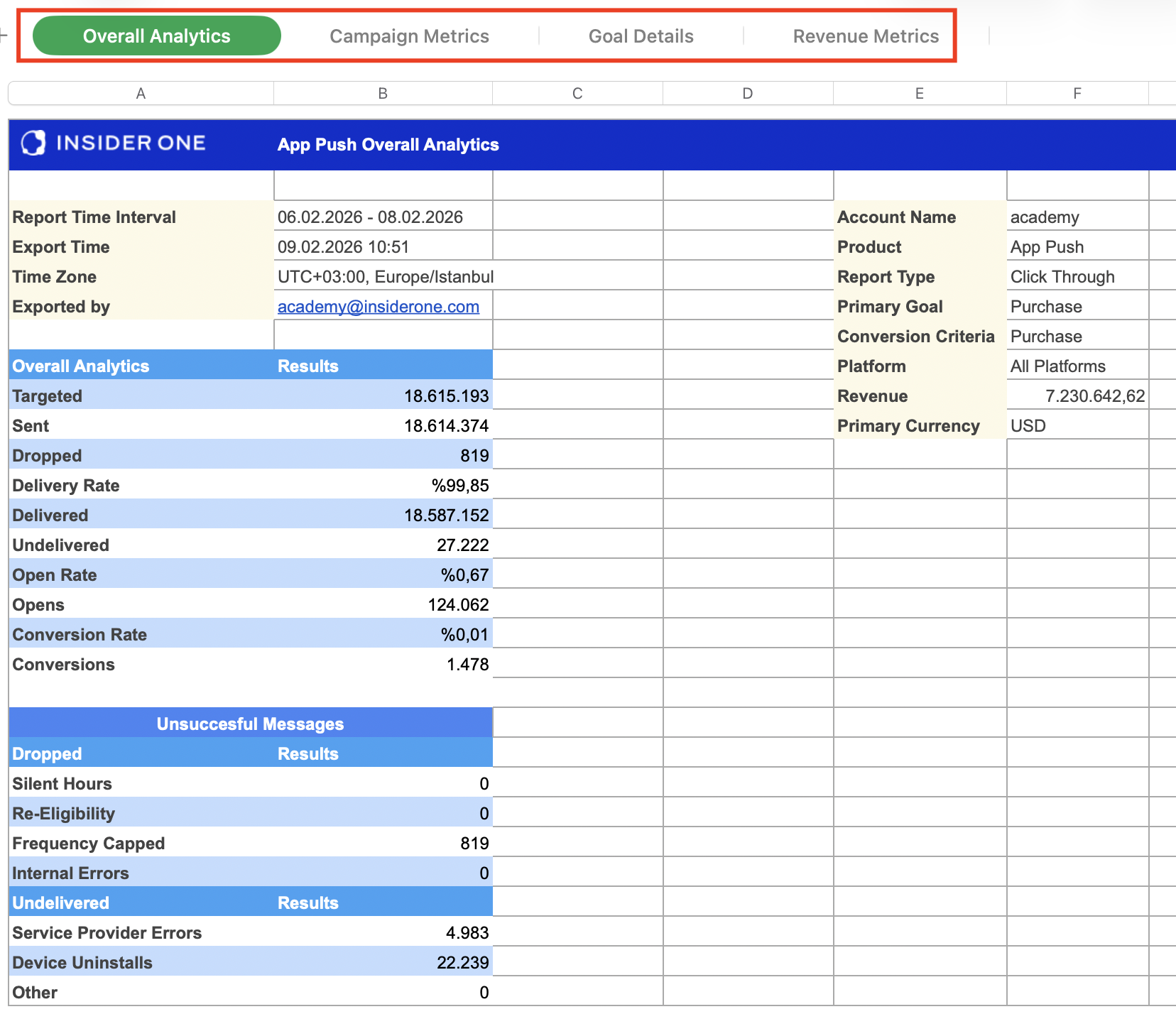
The campaign metrics tab displays campaign ID, campaign name, variant ID, variant name, purchase goal conversion, purchase goal conversion rate, conversion, primary purchase revenue, overall revenue, opens, open rate, delivered, status, type, segmentation name, rule, start date, start time, end date, end time, bypass frequency capping, view-through duration, click-through duration, campaign title, campaign message, deep link, linked InApp, rich image, purchase goal event, purchase goal parameter, and primary purchase parameter.
The goal details tab displays campaign ID, campaign name, variant ID, variant name, goal type, goal name, event, parameter, opens, open rate, delivered, conversion, conversion rate, and purchase revenue.
The revenue metrics tab displays campaign ID, campaign name, variant ID, variant name, primary purchase revenue, overall revenue, view-through duration, click-through duration, and primary purchase parameter.
Summary Metrics
The summary metrics are above the graphs. These are the most important metrics for your app push campaigns and help you get an overall idea of them.
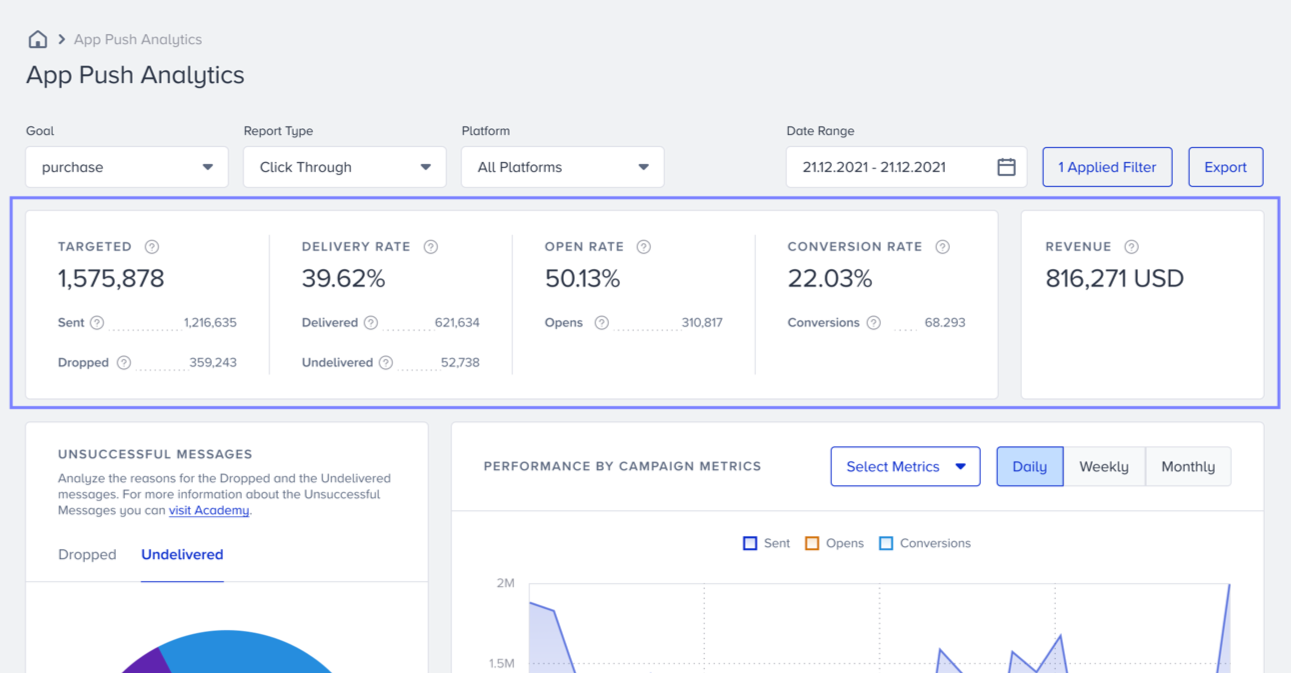
Summary metrics are Targeted, Delivery Rate, Open Rate, Conversion Rate, and Revenue.
Targeted: The number of recipients in your target audience generated based on the segmentation of your campaigns. Targeted is the sum of Sent and Dropped.
Sent: The number of app push messages successfully transferred to the service provider to be addressed to the recipients. Sent is the sum of Delivered and Undelivered messages.
Dropped: The number of app push messages that were not transferred to the service provider to be addressed to the recipients.
Delivery Rate: The percentage of the Delivered to the Sent app push messages. Delivery Rate is Delivered/Sent.
Delivered: The number of app push messages successfully transferred to the recipients.
Undelivered: The number of app push messages that were not addressed to the recipients by the service provider.
Open Rate: The percentage of the Opens to the Delivered app push messages. Open Rate is Opens/Delivered.
Opens: The number of app push messages opened by the recipients.
Conversion Rate: The percentage of the Conversions to the Delivered app push messages. Conversion Rate is Conversions/Delivered.
Conversions: The number of successful goal accomplishments.
Revenue: The value of purchases made via your app push messages.
Unsuccessful Messages Pie Chart
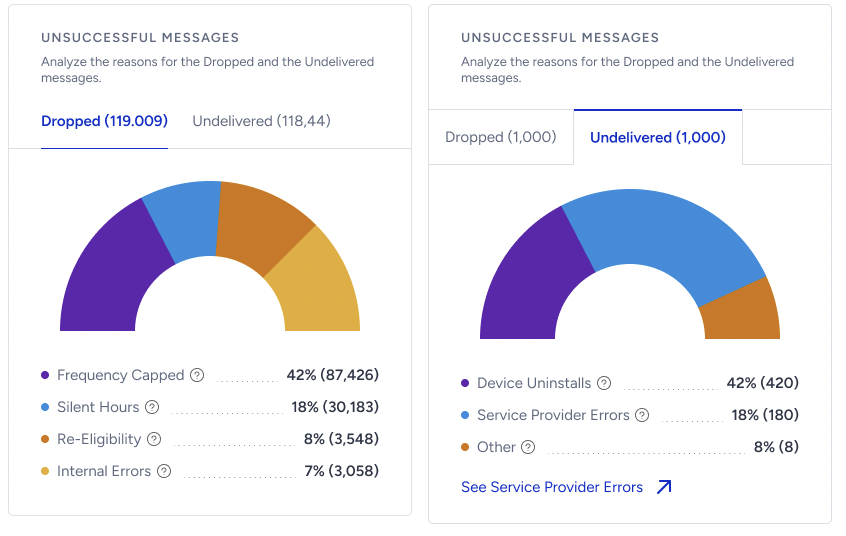
The Unsuccessful Messages view provides insight into push notifications that were not successfully delivered to users. It shows how many messages failed and why, allowing customers to better understand delivery issues and take action using segmentation.
Unsuccessful messages are grouped into two categories:
Dropped
Undelivered
Each category contains detailed breakdowns and generates real-time events that reflect the true delivery status of every push.
Dropped
A push is marked as Dropped when it is blocked by campaign or channel rules before it is sent to the device.
Dropped messages can occur due to:
Silent Hours: The percentage (and the number) of dropped messages due to the Silent Hours settings.
Re-Eligibility: The percentage (and the number) of dropped messages due to the Re-Eligibility settings.
Frequency Capped: The percentage (and the number) of dropped messages due to the Channel Frequency Capping settings.
Internal Errors: The percentage (and the number of) dropped messages due to various internal system errors.
Each of these appears as a separate item in the Dropped tab and is also recorded in push events.
Undelivered
A push is marked as Undelivered when it is sent to a device but fails to arrive.
Undelivered messages can occur due to:
Device Uninstalls: The percentage (and the number) of undelivered messages due to the recipients who uninstalled your app from their devices.
Other: The percentage (and the number) of undelivered messages due to unknown system or client issues.
Service Provider Errors: The percentage (and the number) of dropped messages unexpectedly rejected by Google, Apple, and Huawei servers.
The Service Provider Errors modal provides detailed visibility into technical delivery failures, including error type, operating system, and push service provider.
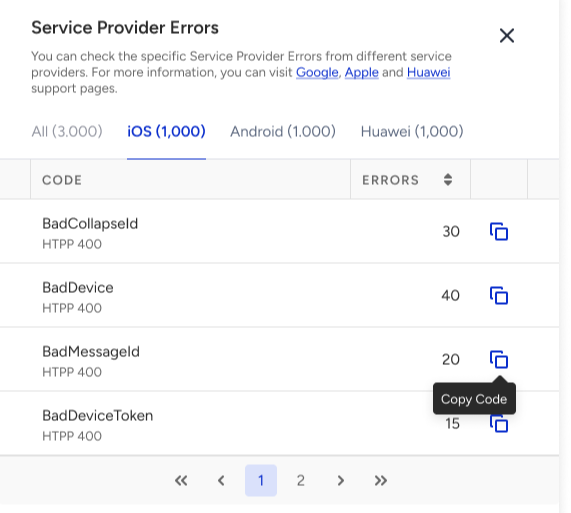
This allows customers to identify issues such as provider outages, operating system-specific failures, or misconfigured credentials.
Every push generates one of the following real-time events based on its actual outcome: Delivered, Dropped, or Undelivered. For Dropped and Undelivered pushes, the event includes an issue type parameter (e.g., Silent Hours, Uninstall, or Provider Error).
Only pushes sent after this feature's release on February 5, 2026, generate Dropped and Undelivered events. Older pushes are not converted into this event structure.
These events are logged to the user profile, and you can build audiences based on these delivery outcomes and failure types. Such segmentation enables precise retargeting, suppression, and troubleshooting flows in real time. For example, you can segment:
Users whose pushes were dropped due to frequency capping
Users whose pushes failed due to provider errors
Users whose devices are no longer reachable
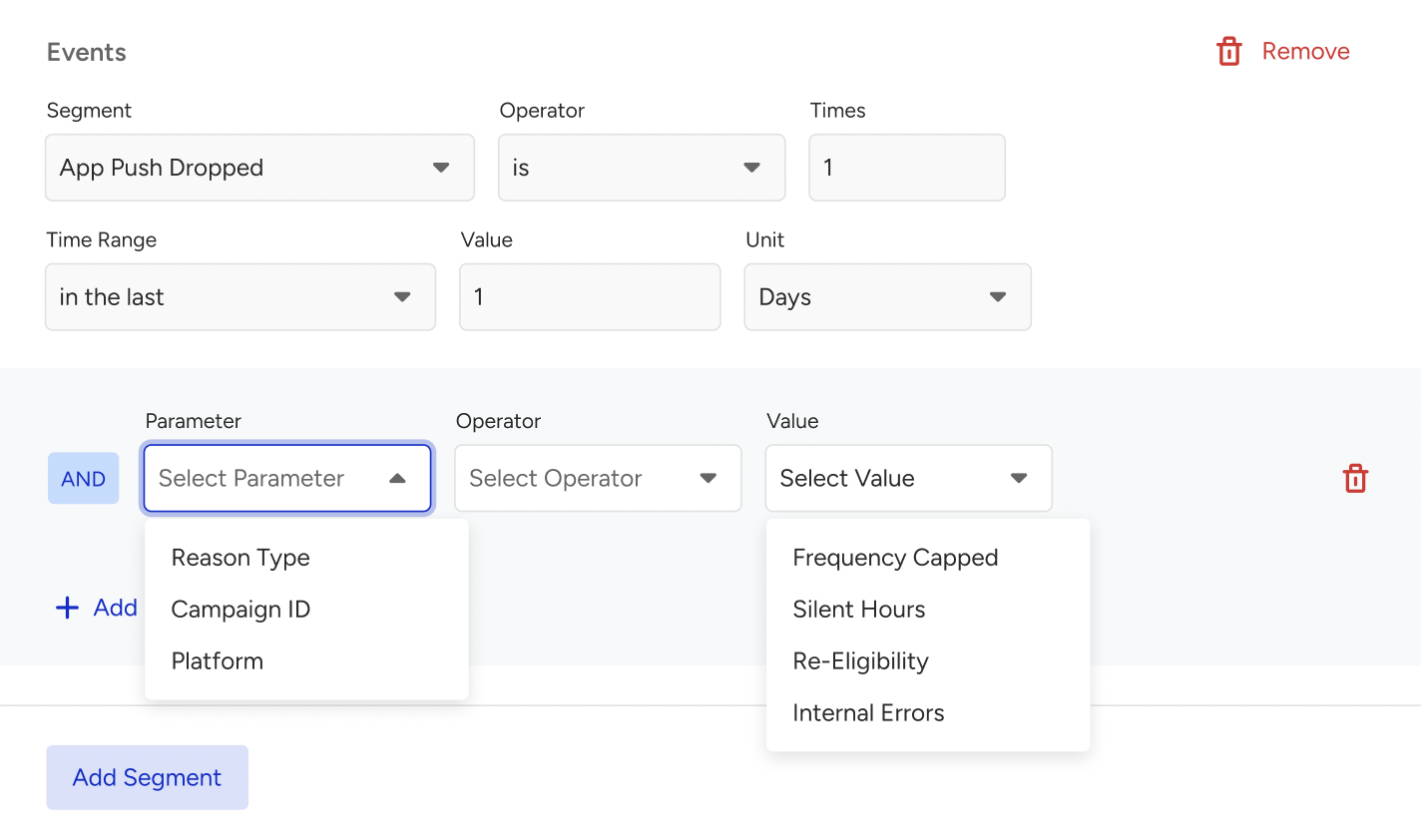
You can use dropped and undelivered errors for segmentation and to build real-time audiences. However, this data cannot be exported, used for historical reporting, or added retroactively to past events.
Performance by Campaign Metrics Graph
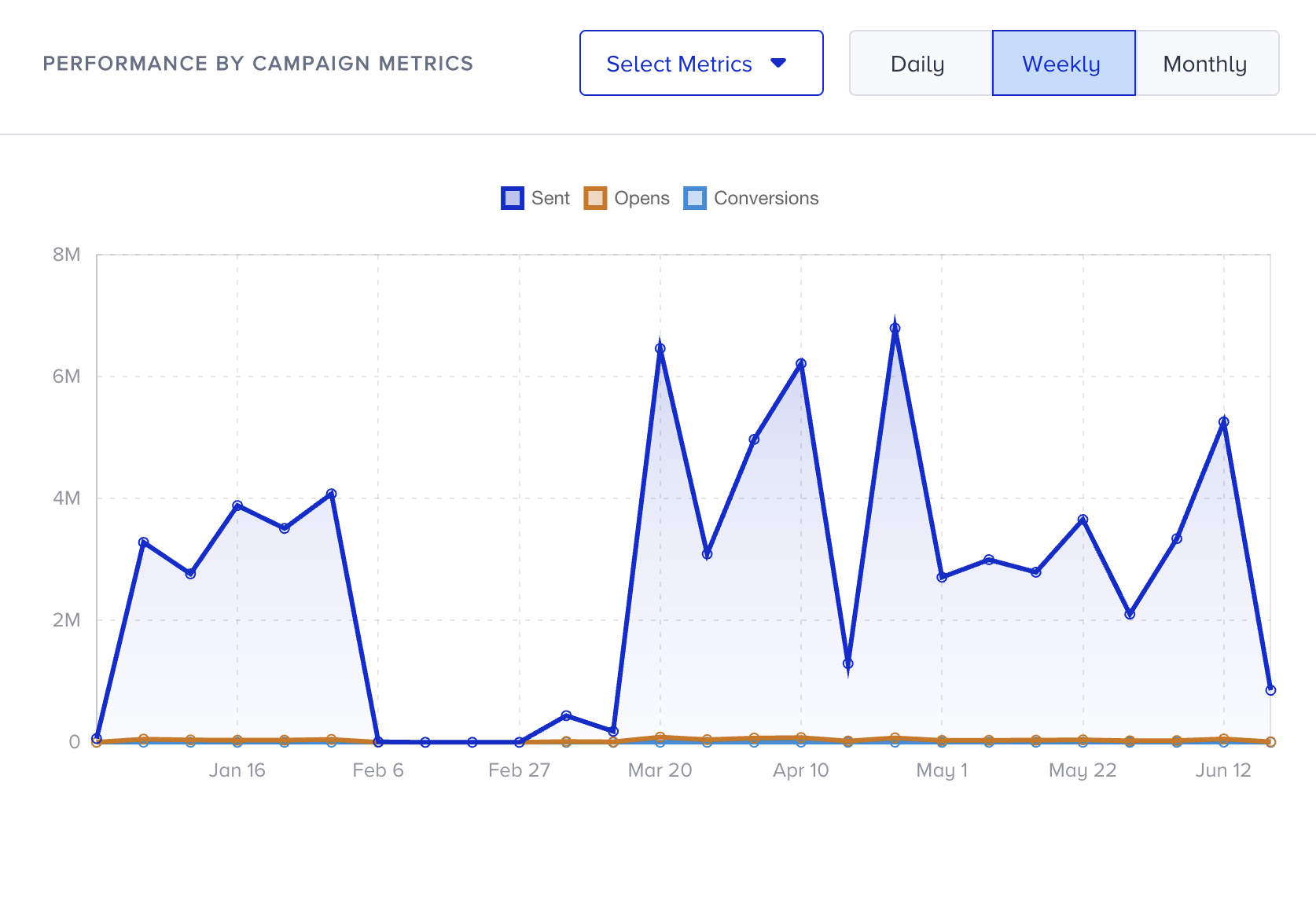
You can view the Sent, Opens, and Conversions summary metrics of your campaigns on a daily, weekly, or monthly basis based on your date range. This graph helps you see the change in these metrics over time.
Campaign Metrics Data Table
The campaigns data table displays all campaigns with detailed metrics. The listed campaigns might vary depending on the filters, date range, and selected goal.
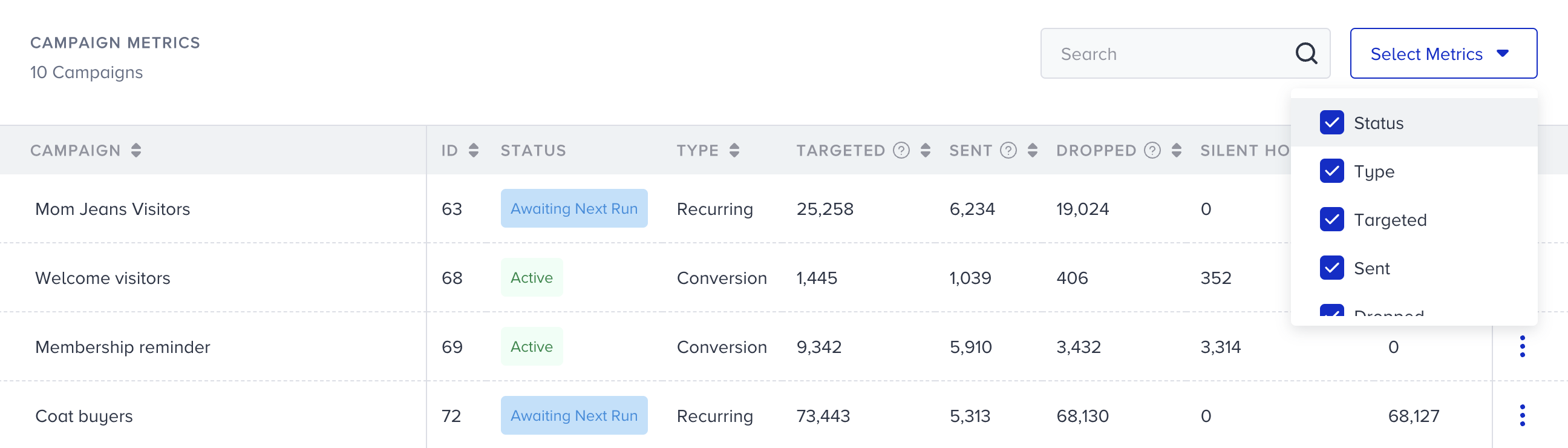
This table provides the following metrics:
Campaign: Campaign names listed in the table.
ID: ID of the listed campaign.
Status: The status of the listed app push campaign. The status can be one of these options: Completed, Active, Passive, Awaiting Next Run, Running, Scheduled, or Stopped.
Type: The type of the listed app push campaign. The type can be one of these options: Single, Carousel, Slider, Discovery, Recurring, Conversion, Geofence, or Cart Reminder.
Targeted: The number of recipients in your target audience generated based on the segmentation of your campaign.
Sent: The number of app push messages successfully transferred to the service provider to be addressed to the recipients.
Dropped: The number of app push messages that were not transferred to the service provider to be addressed to the recipients.
Re-eligibility: The percentage (and the number) of the Dropped messages due to the Re-Eligibility settings.
Silent Hours: The percentage (and the number) of the Dropped messages due to the Silent Hours settings.
Delivery Rate: The percentage of the Delivered to the Sent App Push messages.
Delivered: The number of app push messages successfully transferred to the recipients.
Undelivered: The number of app push messages that were not addressed to the recipients by the service provider.
Delivery Issues: The percentage (and the number) of Undelivered messages due to various errors on recipients’ devices.
Device Uninstalls: The percentage (and the number) of Undelivered messages due to the recipients who uninstalled your app from their devices.
Open Rate: The percentage of the Opens to the Delivered App Push messages.
Opens: The number of app push messages opened by the recipients.
Conversion Rate: The percentage of Conversions to the Delivered App Push messages.
Conversions: The number of successful goal accomplishments.
Revenue: The value of purchases made via your App Push messages.
Primary Goals: The goal selected as the primary goal for the app push campaign.
Segment: The segment used in the app push campaign.
Rule: The rule set used in the app push campaign.
Starts On: The start date of the campaign.
Ends On: The end date of the campaign.
Tags: Tags used in the app push campaign.
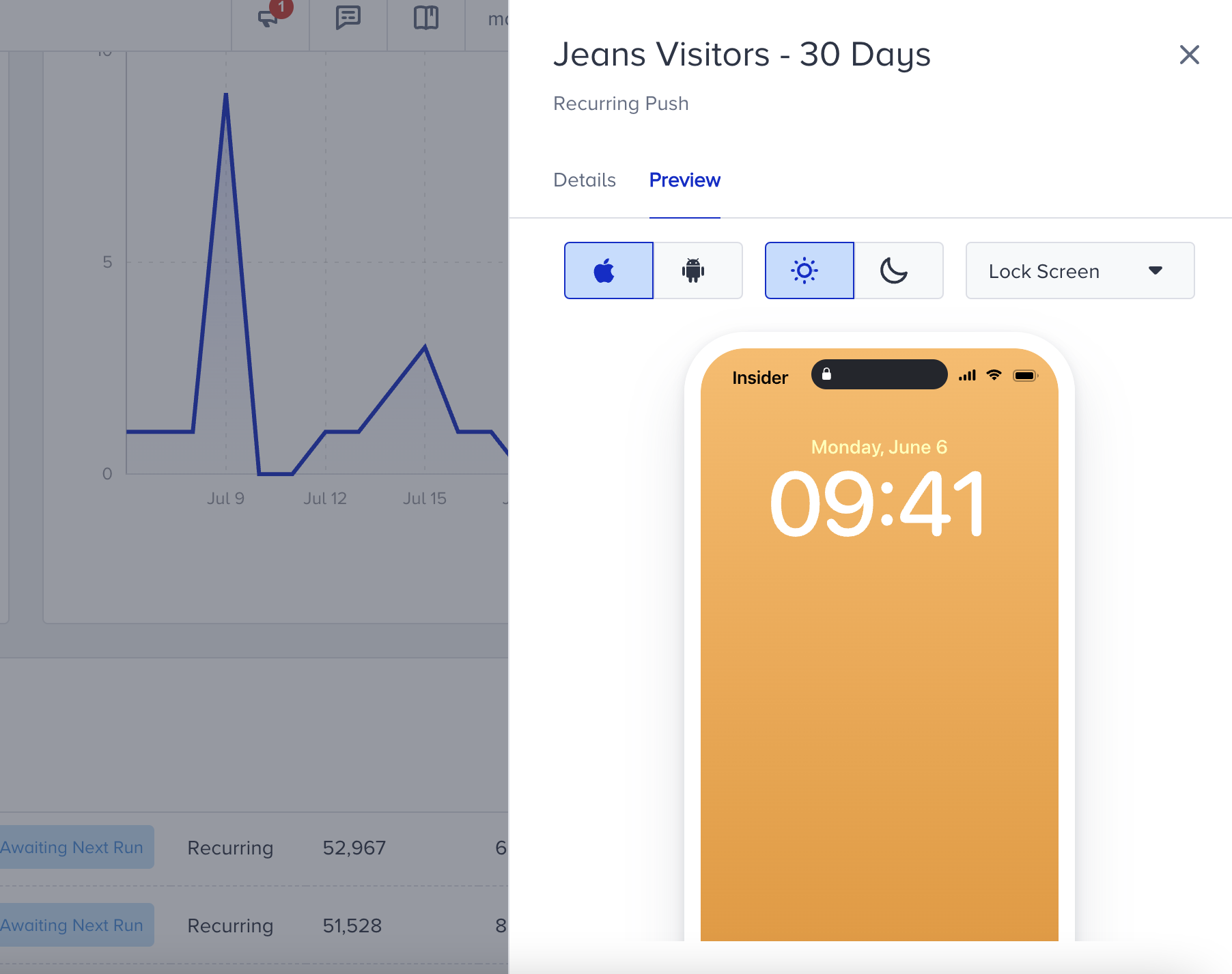
To view the details and preview your app push campaigns, click the menu against the campaign and the Details button.
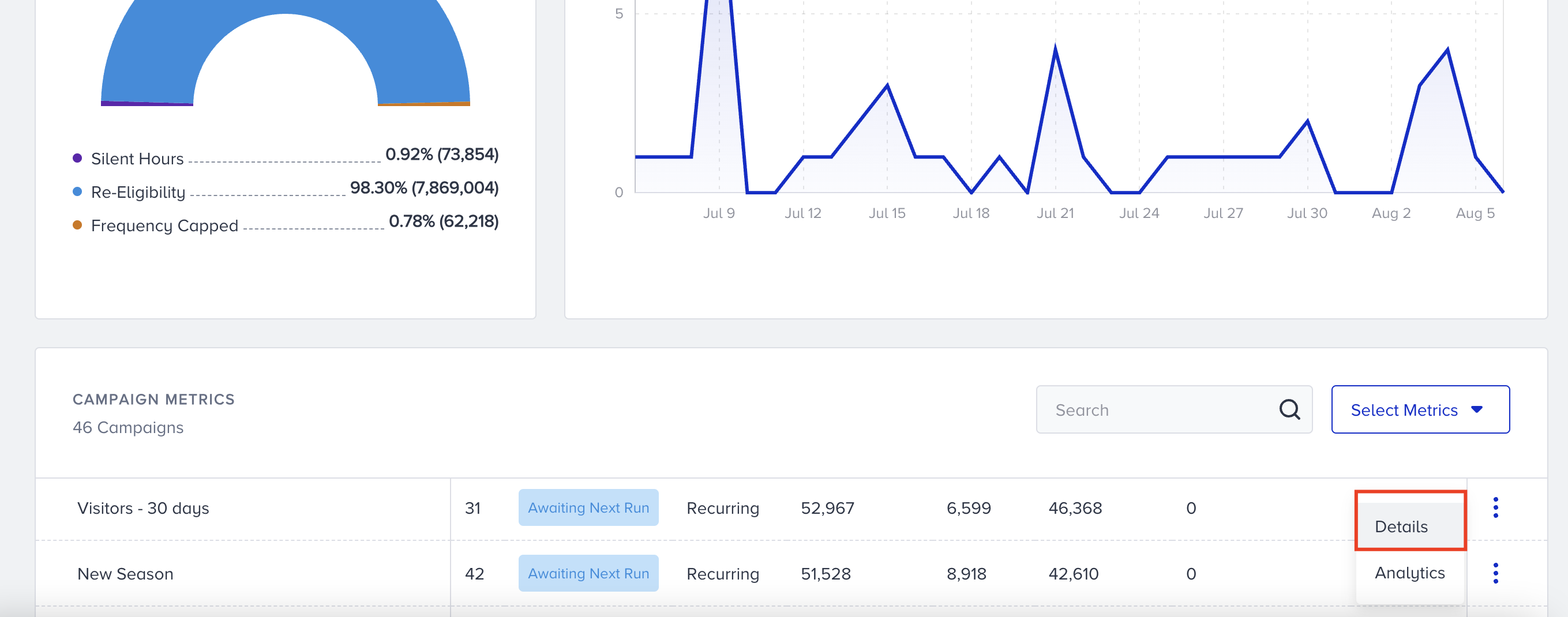
The first tab displays the details of your push campaign, while the second tab displays the preview.