Synchronized Modules help you edit and update all your email templates at once with ease. Whenever you make a change to a synchronizable module within just one template, these changes automatically get applied to all other templates where you use this module.
An online store uses about 50 emails on average, including welcome series, abandoned carts, and user retention emails, to maintain proper communication with its customers. For example, if the store changes its Facebook page URL or company logo, that change needs to be applied to all 50 emails, which requires a lot of manual work.
With Synchronized Modules, you can apply changes automatically without editing each template individually. Save elements that don't change from campaign to campaign, such as headers, footers, signatures, and contact information blocks, as synchronized modules.
You should create a ticket to Insider One's Operational Excellence Team to enable this feature for your panel.
This guide explains the following concepts:
Use cases
Keep your emails up to date with company changes:
If your company rebrands, including logo and color updates, you can update header and footer blocks across all emails at once.
Update contact details or office location information in all emails simultaneously.
If your social media or website URLs change, update the corresponding buttons in one click.
Add a customized touch to promotional emails:
Customize banners with seasonal product images and logos for holidays or special occasions.
Adjust brand colors for events like Christmas or Mother's Day.
Tailor offer details, including dates and promotional text, for specific campaigns.
Save elements as synchronized modules
To save your elements as synchronized modules:
Create your email design as usual, along with the module you want to save.
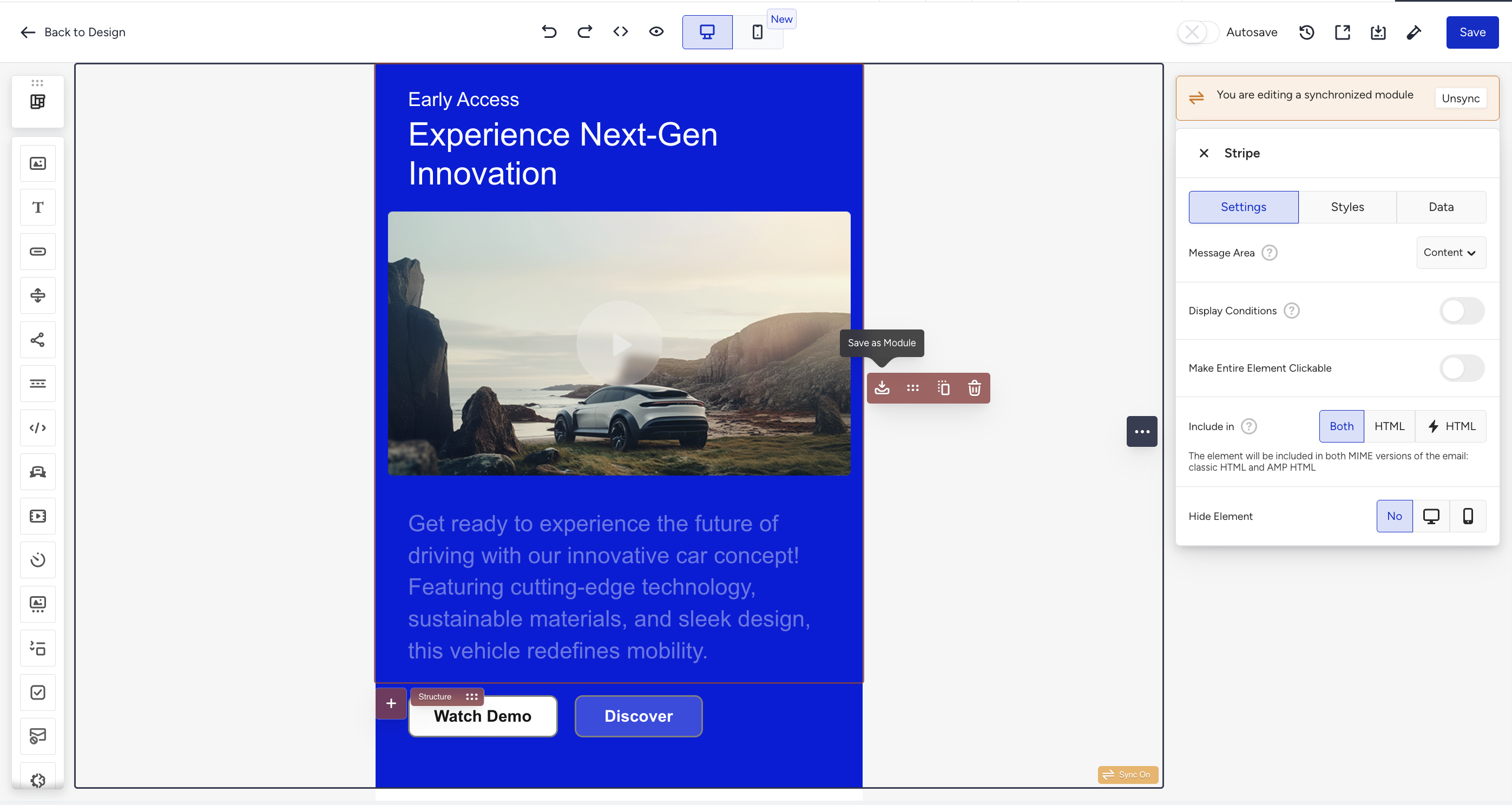
Click the Save as module icon to save your element to your content library.
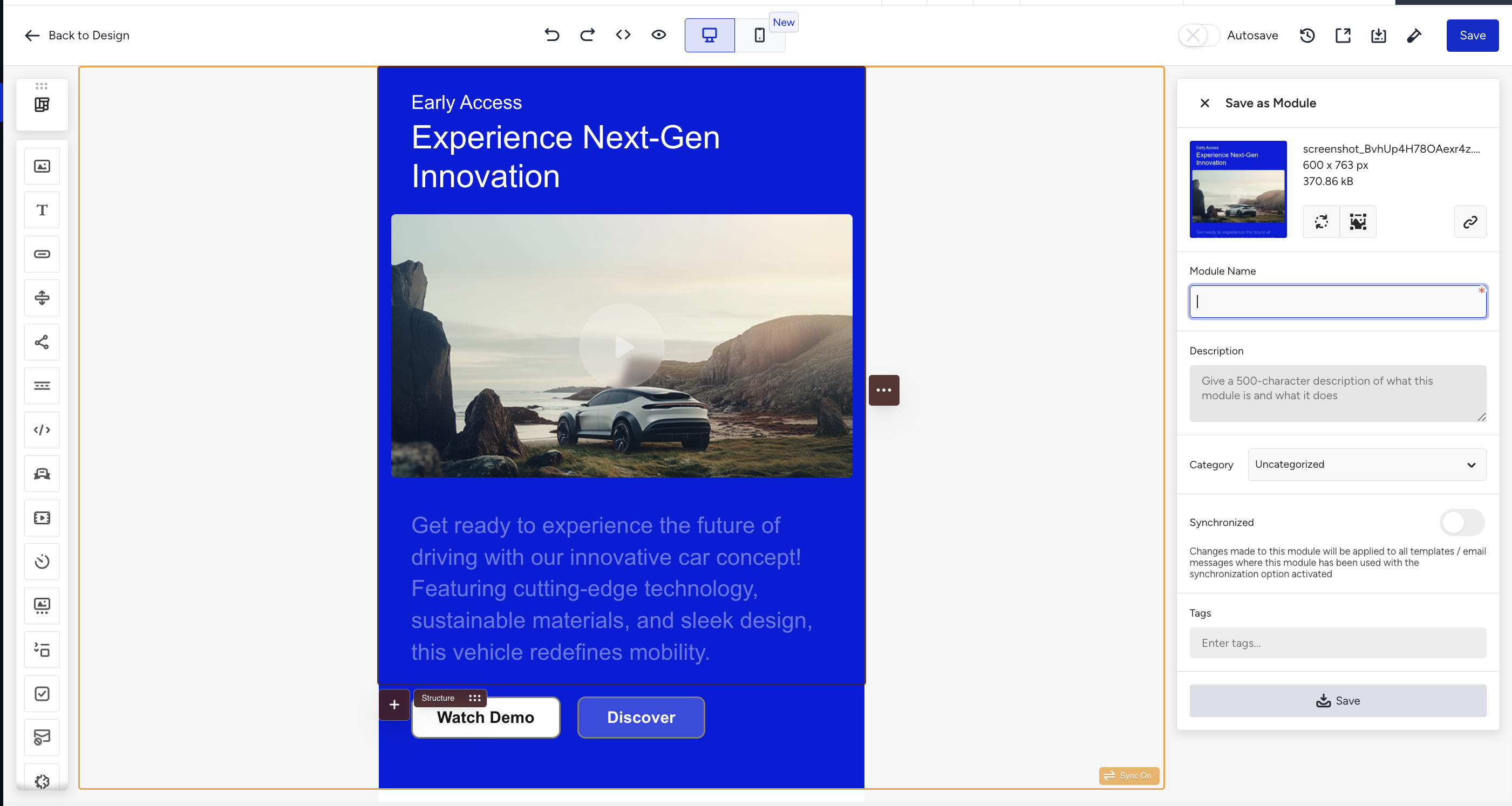
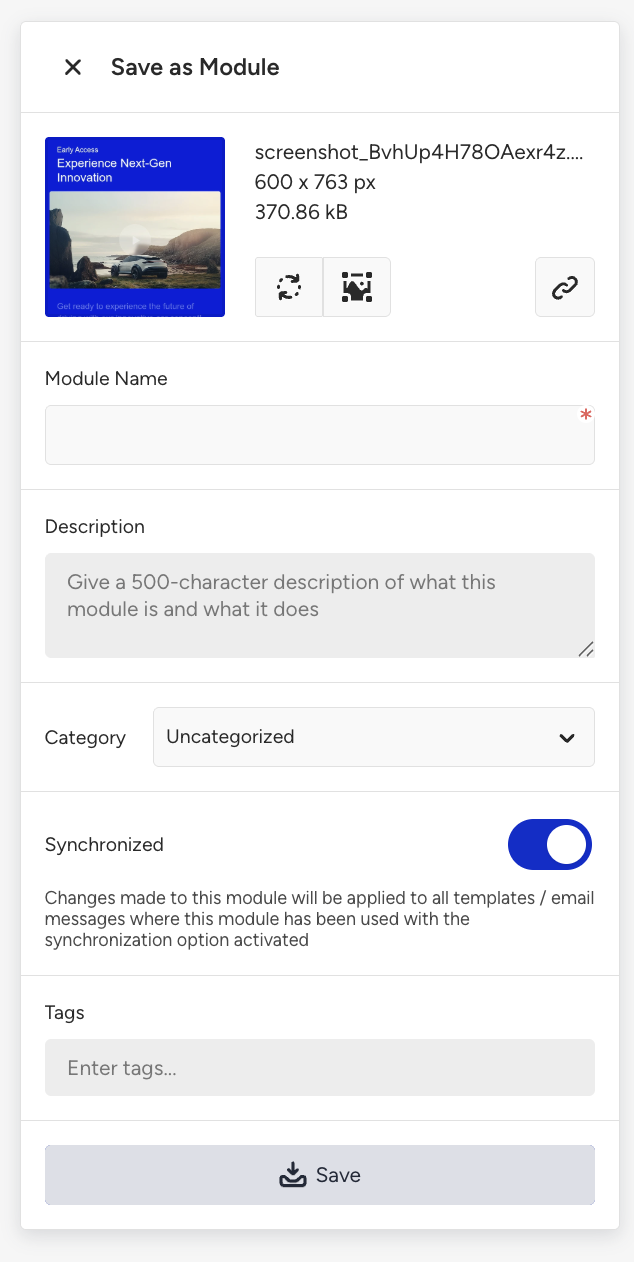
In the Settings panel, enter a name for your module, toggle the Synchronized button, and click the Save button.
Once saved, an OFF symbol appears on the module in the template. This means the module is synchronizable, but synchronization is not yet active for this instance.
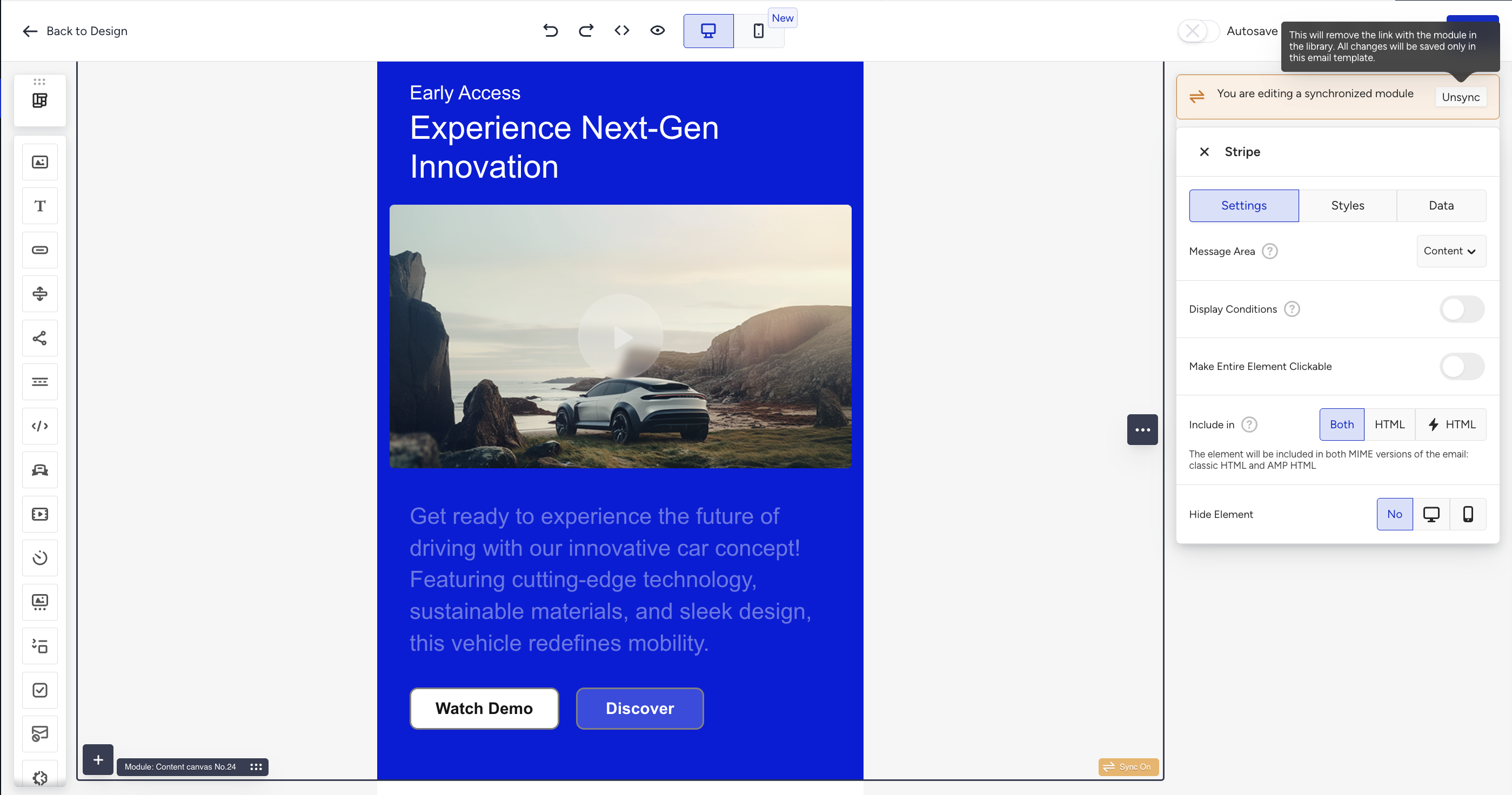
Click the OFF symbol to toggle synchronization on. The symbol updates to ON.
Edit and update your modules
After adding a synchronized module to a template and making changes, you need to propagate those changes to all other templates that use the module.
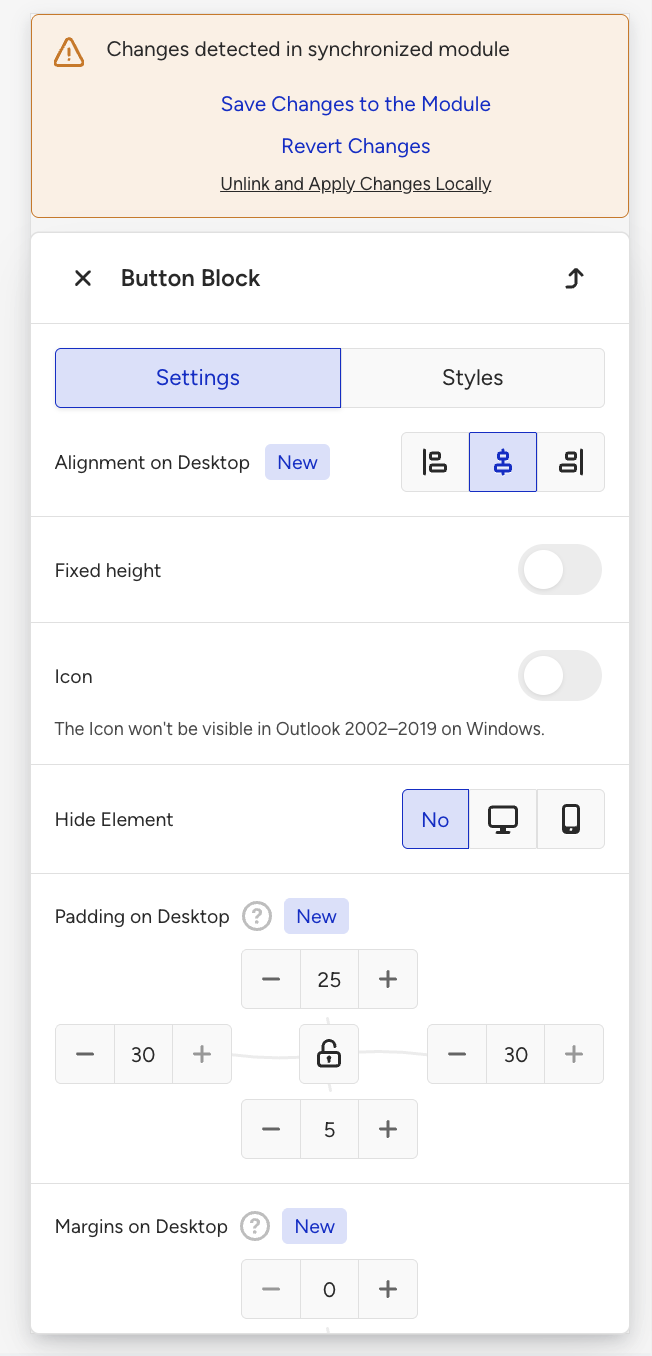
When you edit a synchronized module, a banner appears at the top of the settings panel:
⚠️ Changes detected in synchronized module
You have three options:
Save changes to module
You can save your edits to the module library and apply them to all eligible templates that use this module.
Revert changes
You can discard your edits and restore the module to its last saved state.
Unlink and apply changes locally
You can remove the link between this instance and the module library. Your changes are saved only in this email template and will no longer sync with other templates.
If you close the editor without clicking the Save Changes to the Module button, your changes are saved only in the current template. Other templates that use this module will not be updated.
Synchronization in the new editor
Activation statuses
When you save changes to a synchronized module, the update is applied to Draft, Scheduled, and Paused campaigns.
No design update is reflected in the Completed (already sent) or Running campaigns (actively sending) campaigns.
Synchronized modules with Unsubscribe blocks
If your synchronized module contains an Unsubscribe block, the behavior is slightly different:
The module's design and text content syncs to other templates as usual.
The unsubscribe page link (i.e., which unsubscribe page the block points to) is stored separately and updated independently.
This means that if you change the unsubscribe page the block redirects to, you need to open each affected campaign and trigger a Save to ensure the updated page link takes effect.
Duplicate campaigns and cross-panel behavior
If a campaign is duplicated within the same panel, the duplicated campaign reflects module updates when saved.
If a campaign is duplicated to a different panel, the module update in the source panel does not automatically apply to the target panel. The target panel's campaign needs to be opened and saved independently.
The display conditions feature is not supported when a synchronized module is active.
This feature is available for all promotional email types, including Architect journeys.
Test messages in Architect journeys
When you send a test message from an Architect journey email, the test uses the email design as it was last saved in that journey. It does not pull the latest version of synchronized modules from your content library. If a synchronized module was updated from another template after this journey email was last saved, the test message may show the previous version of the module.
This affects test messages only. Emails delivered by a live journey use the latest version of the synchronized module. Test messages for promotional emails are not affected.