You can create Android channels in addition to your default channel to group your push notifications under one channel.
Click your username > Settings > Mobile App Settings > Channels and Threads to navigate to this page.
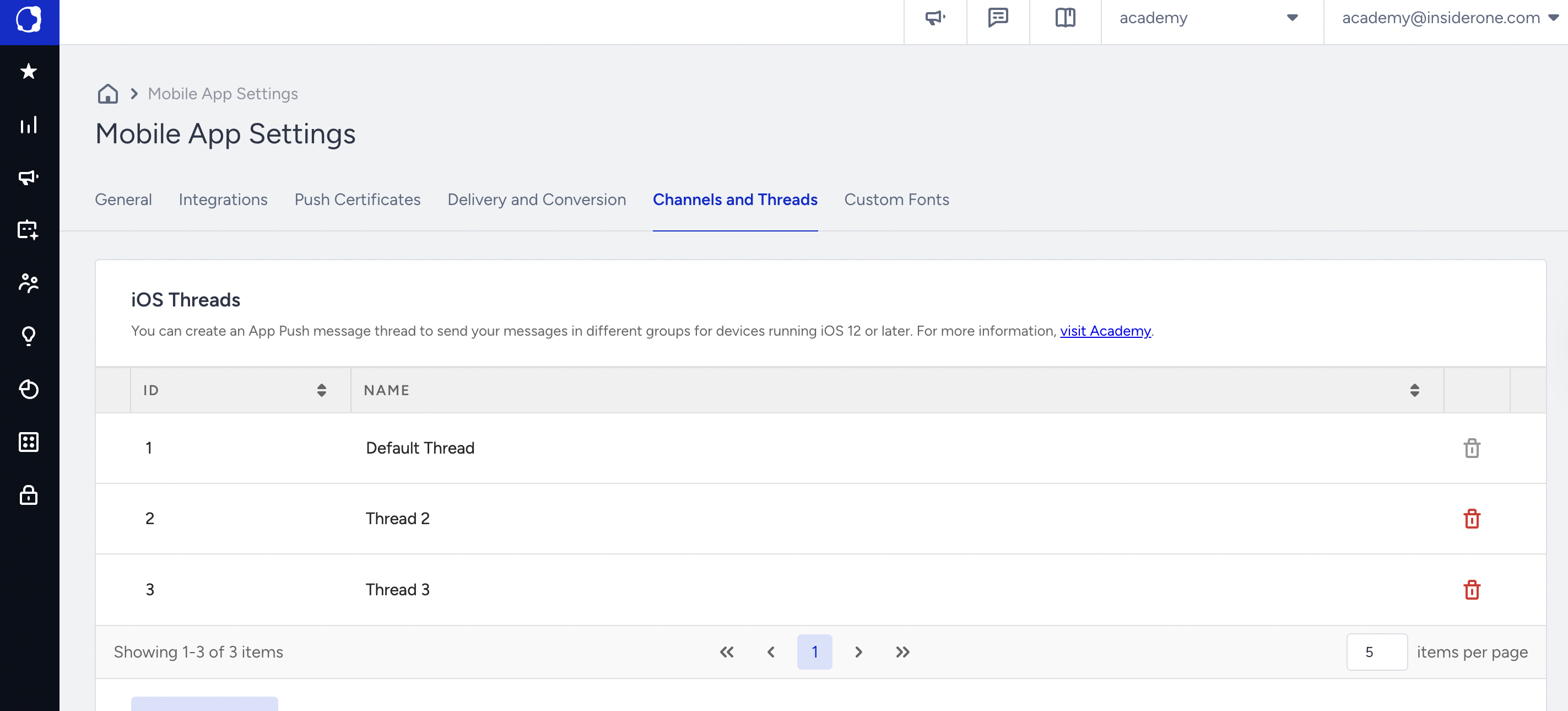
Create a thread
To create an app push thread on iOS, follow these steps:
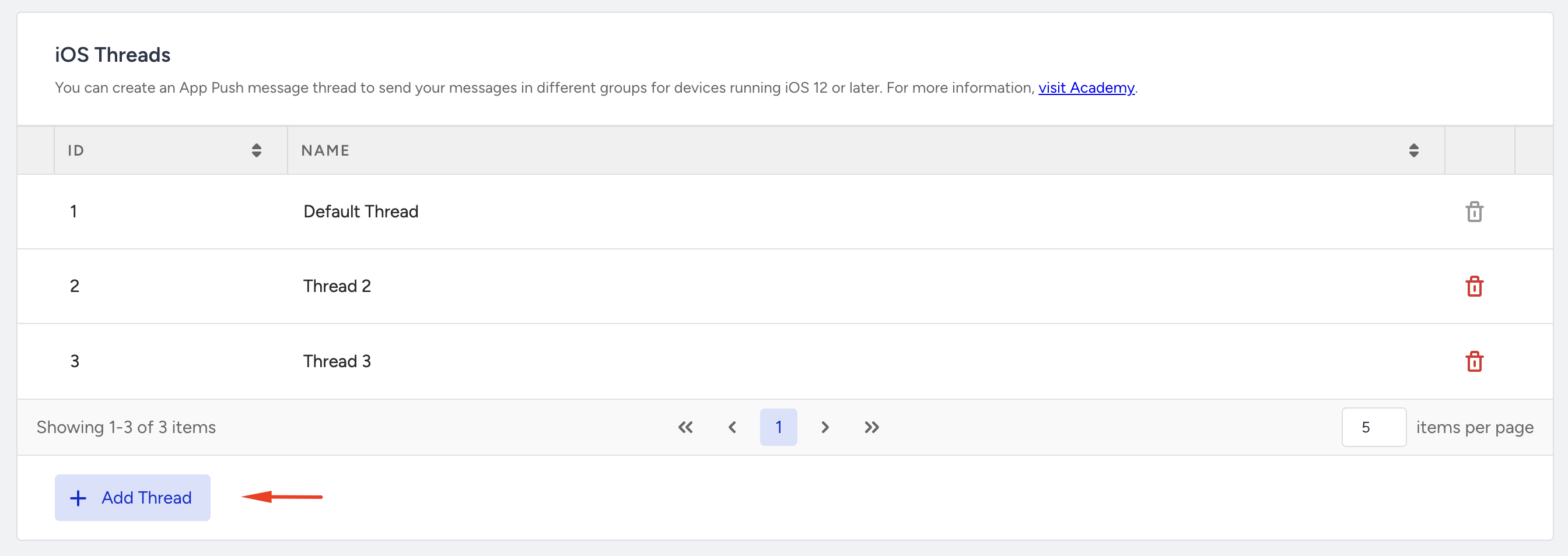
1. Click the Add Thread button.
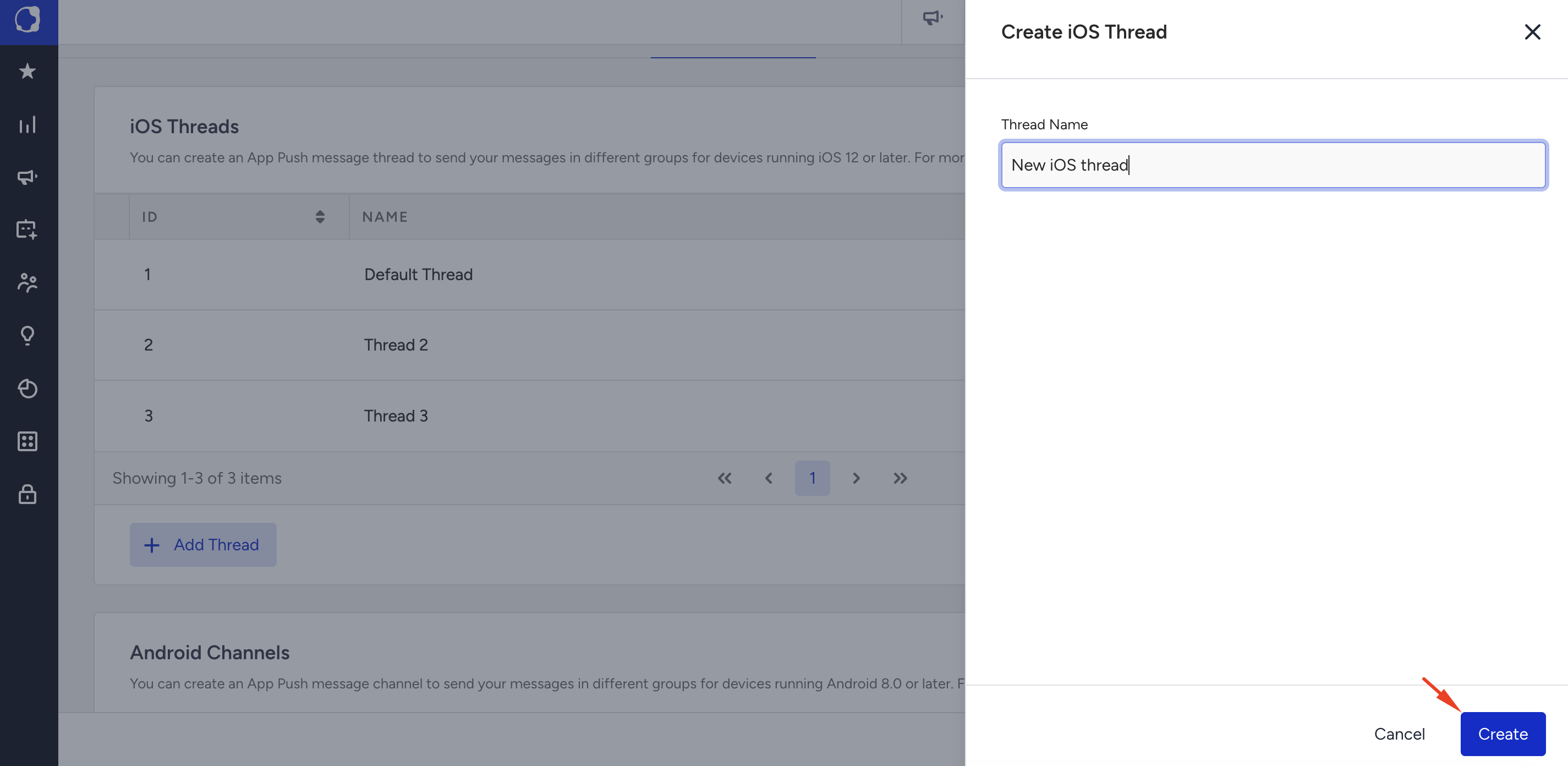
2. Enter a thread name and click the Save button.
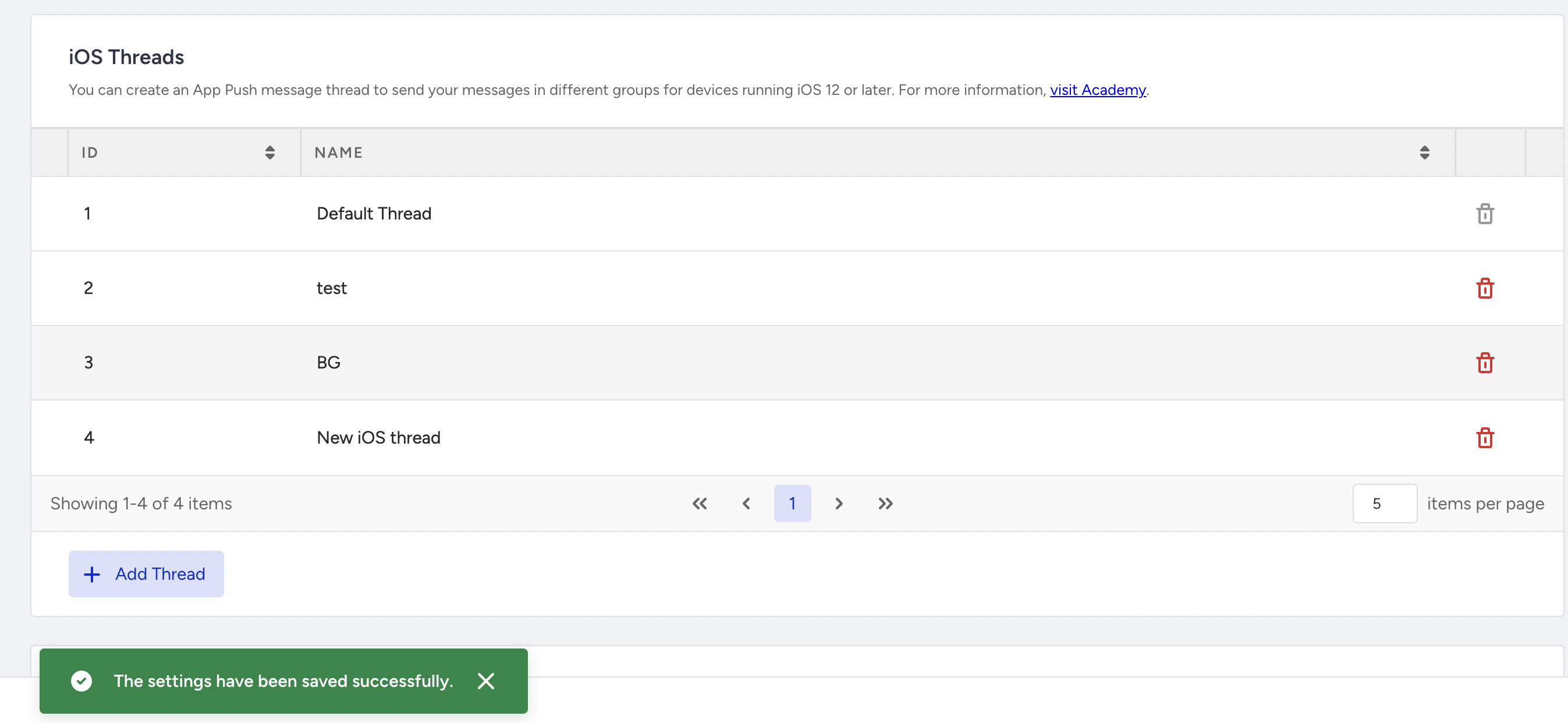
Your changes will be reflected on the page.
Create a channel
To create an app push message channel, follow these steps:
1. Click the Add Channel button and name your channel.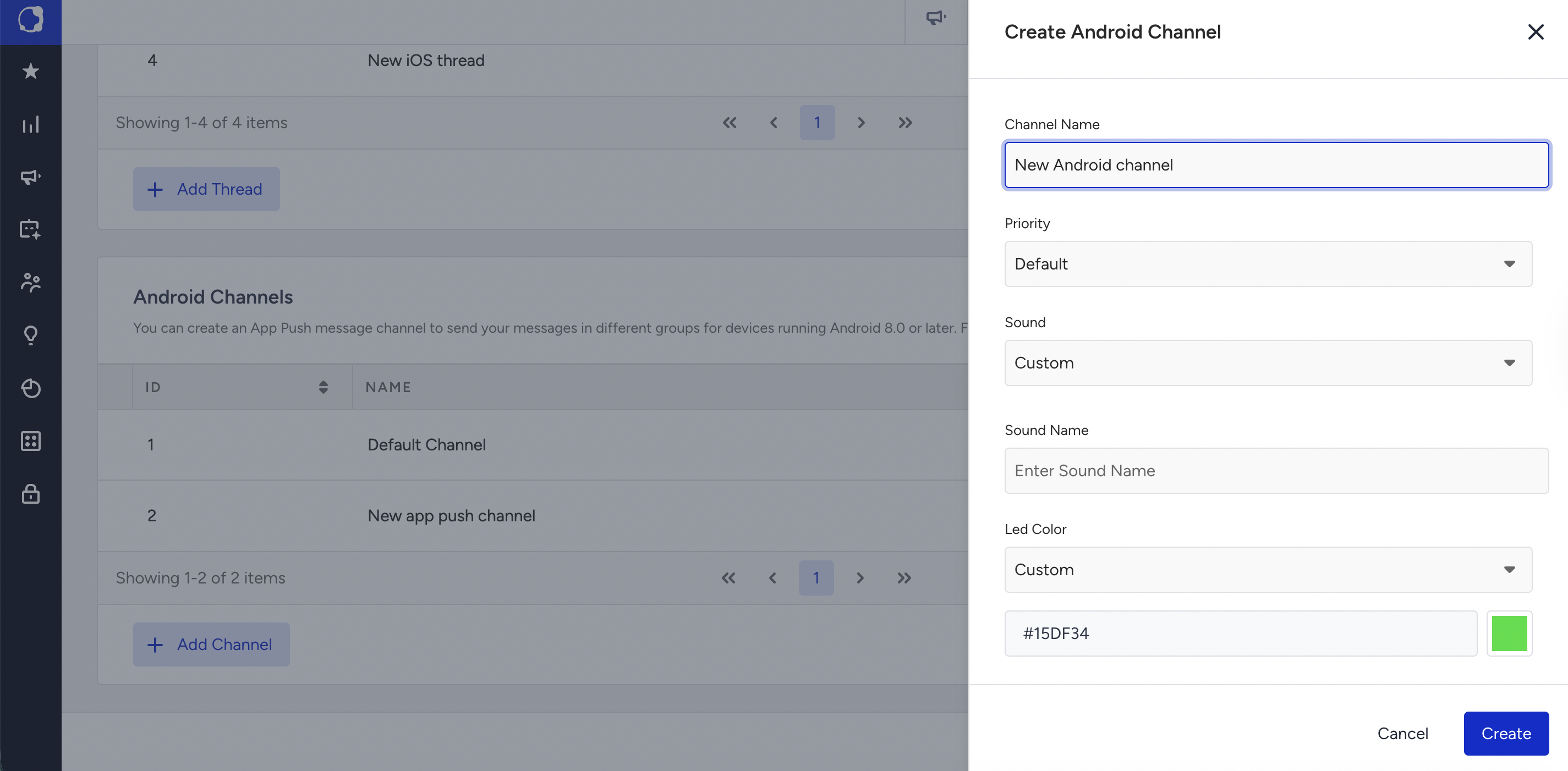
2. Select one of the Priority options. This option indicates the priority of a push notification a user receives. You can select urgent, high, default, low, or min.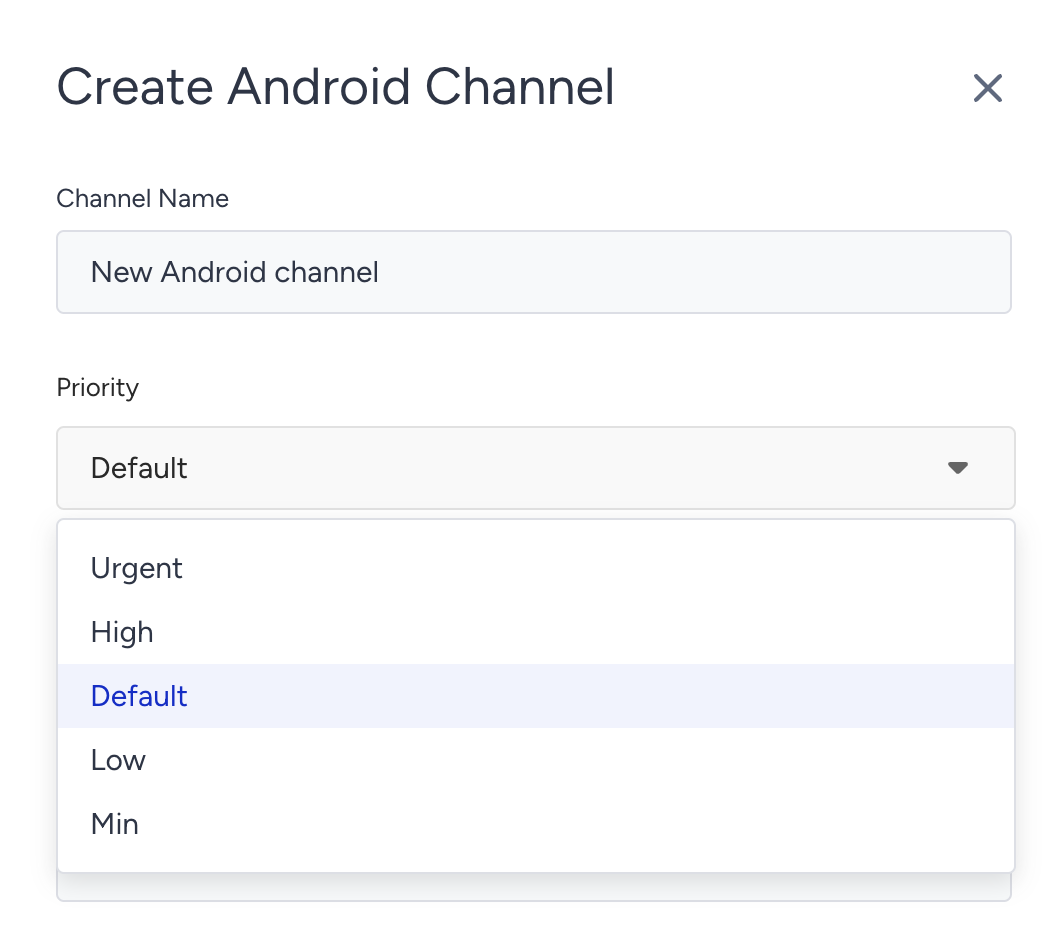 3. Select a sound for the device to play when it receives a notification. You can select Off to disable it, or select Default or Custom. If you choose Custom, add the name of your custom sound.
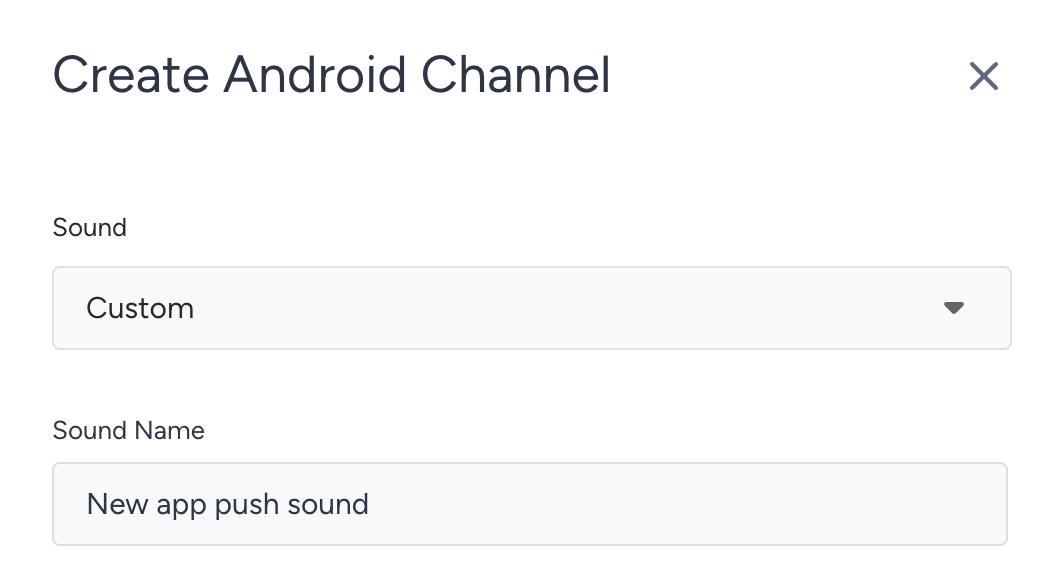
4. Select an LED color to display on the device when it receives a notification. You can disable the color, set it as default, or custom. If you select custom, you should choose a color.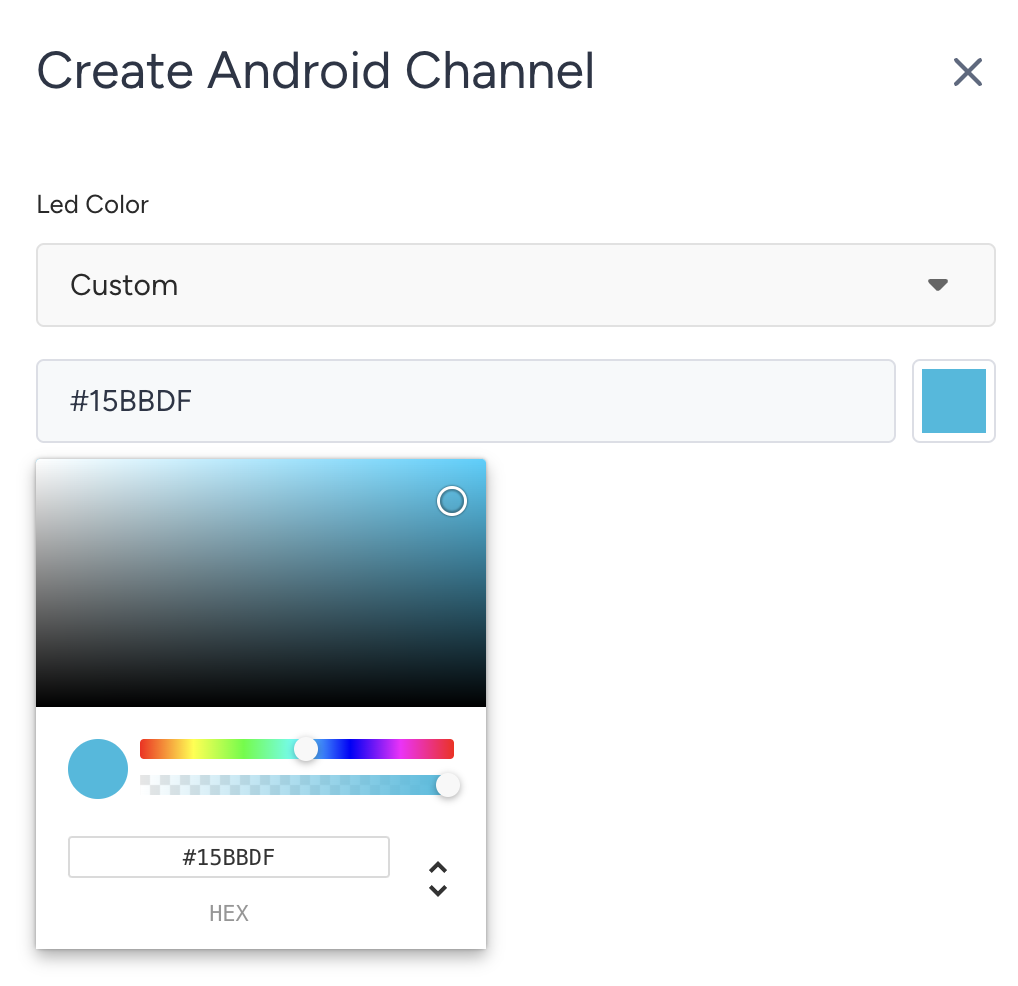
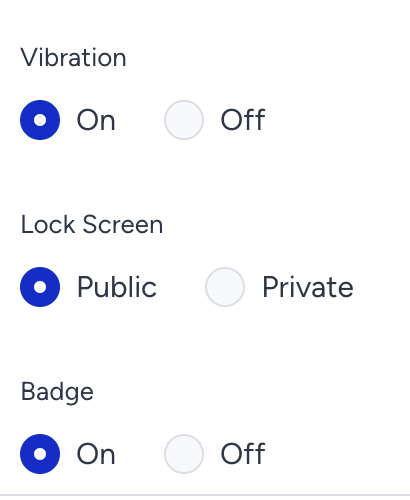
5. Enable/Disable the vibration of the device when a notification is received. Select a lock screen option to display the notification on the user's lock screen. You can make it public or private. Lastly, enable/disable the notification badge.
6. Click the Save button to save your changes.
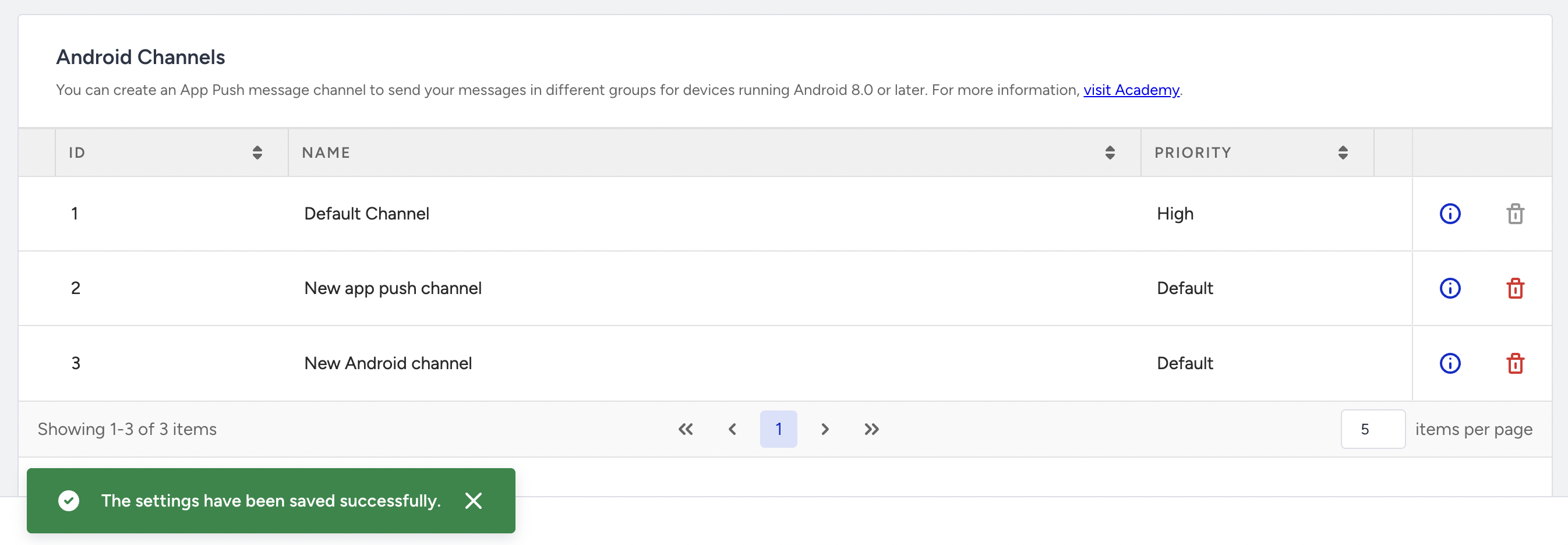
You can see your channel listed on the page. To remove your channel, you can click the Delete button.