This guide walks you through the entire process of using coupon codes in email campaigns, from creating coupon lists to configuring them in your email template and final campaign settings.
1. Create a coupon list
To use coupon codes in your campaigns, you must first upload or generate a coupon list.
1.1. Go to Components > Coupon Lists.
1.2. Click the Create button to upload a list of unique codes or generate a single-code coupon list.
.png)
-> Go to Create a Coupon List for the full instructions. You can also create a coupon list with the coupons you export from Talon.One.
2. Add coupon code to your email design
Once your coupon list is ready, you can add your coupon code to any email design. You can use the Drag & Drop editor or HTML editor to add it.
Drag & Drop Editor
You can use the Drag & Drop Editor to allocate your coupons following these steps:
2.1. Go to the Design step of your email campaign and click the Drag and Drop Editor.

2. Click the Content tab and select the Coupon block to add it anywhere you want in your email.

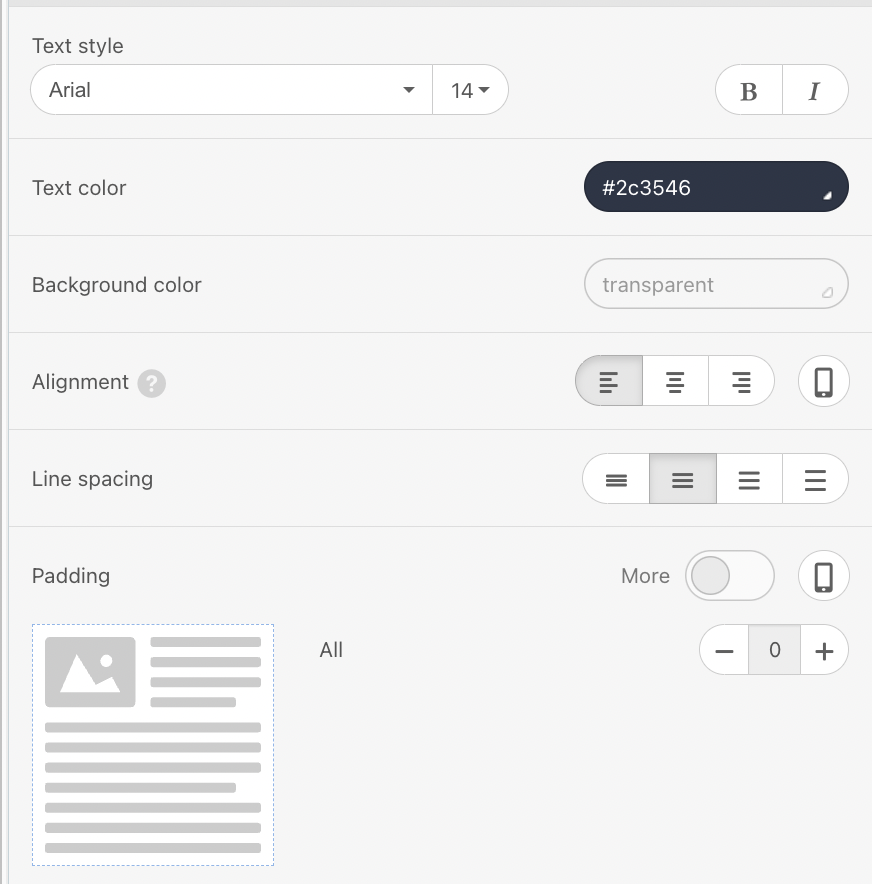
Once you drag and drop the Coupon block into your email design, you can use the right-side modal to customize your coupon tag. You can change its font family, font weight, text color, background color, text alignment, line spacing, and padding.
HTML Editor
If you are using the HTML editor, you need to manually insert the {@COUPON_CODE} tag to add your coupon code. If your email is in an Architect journey, you can directly add it as dynamic content.
Save your design in either editor and proceed to the Launch step to configure the coupon settings.
3. Configure coupon settings
This step ensures your campaign links to your coupon list correctly and shows a fallback code if needed.
3.1. Go to the Launch step of your campaign to scroll to Coupon Settings.
3.2. Choose your coupon list and set a fallback value.
3.3. Continue to launch or schedule your campaign.
.png)
-> Go to Launch email campaigns with coupon codes for full instructions.
Pro tips
Always test your campaign before sending to confirm the coupon appears as expected.
Use fallback codes for a seamless user experience. When coupons run out or expire, you can use a fallback code if the coupon list includes one.
Track coupon usage to understand performance and make adjustments as needed.