When users sign up for your email campaigns on the website or from any other source, it does not guarantee that they will engage with your content or provide a valid email address during registration. We highly recommend using Double Opt-in to keep your list engaged and effective.
The Double Opt-in feature ensures that you’re capturing valid email addresses and prevents bounces. This helps you improve your deliverability rate and sender reputation. It also increases engagement and helps you avoid potential GDPR or other compliance-related complaints and issues.
If your company obtains your users' consent in compliance with the local regulations, make sure to pass the GDPR opt-in field to Insider. If you want to stop collecting and processing the data of an identified user, GDPR opt-in field should have the false value. Insider cannot be held liable if these obligations are not fulfilled and reserves the right to seek compensation from your company.
How does confirmation status affect who receives your campaigns?
Double Opt-in also acts as a send-time confirmation check. Once Double Opt-in is enabled for your account and you select Double Opt-in as the default level under Inone Settings > Email Settings, only Double Opt-in profiles that have completed confirmation will receive your marketing campaigns; Single Opt-in profiles will not.
Contacts you migrate from another system are treated as unconfirmed until you re-upload them with the email_double_optin attribute set to TRUE. Confirm them first to avoid excluding them from your sends.
The Double Opt-in confirmation emails themselves are transactional and still reach users regardless of their opt-in status. Refer to Enable Email Double Opt-In for Your Account for instructions on configuring the default level.
For end users, the Single Opt-in flow looks like this: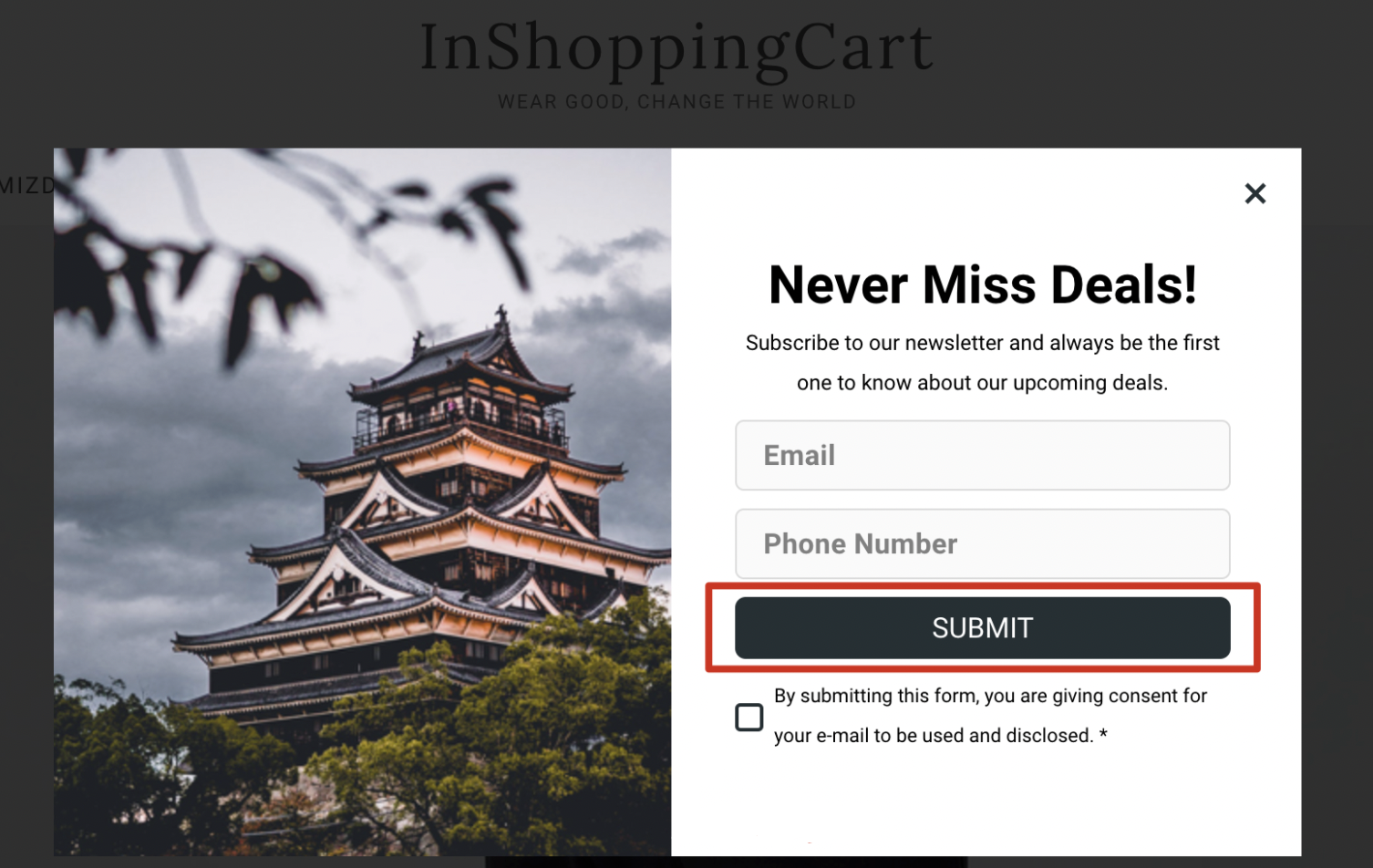
The double opt-in flow, on the other hand, requires confirmation (secondary consent), and it looks like this: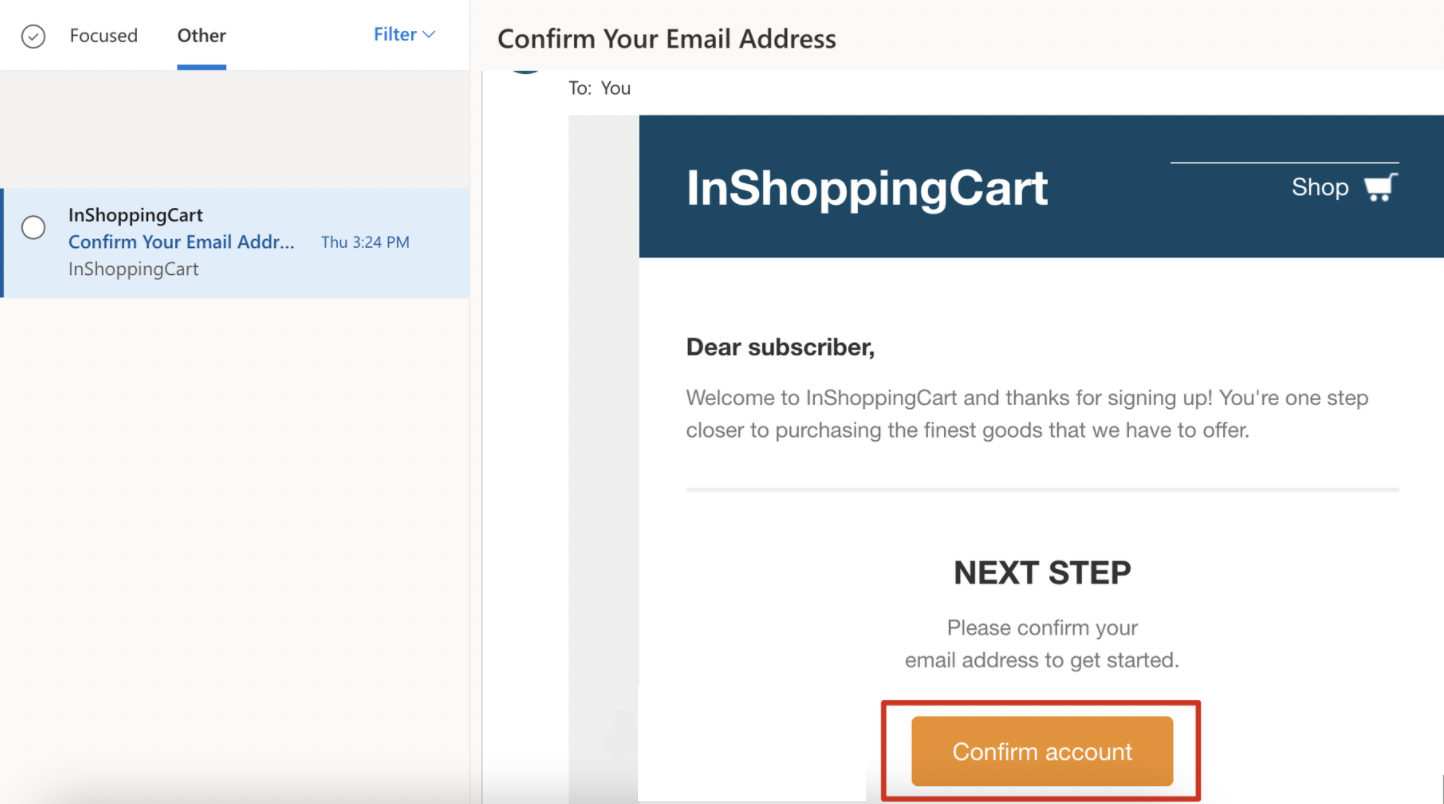
How can I get users' secondary consent?
You can use the double opt-in feature to get your users' secondary consent in various ways, as follows:
Insider Lead Collection campaigns
You can collect users' email via the lead collection pop-ups and then trigger the double opt-in transactional emails for them.
Your website’s native subscription area and your website’s sign-up area
Your website's native subscription area (usually located near or within your website’s footer) can be used to collect users’ email addresses. Sending of the double opt-in confirmation email can be triggered following this.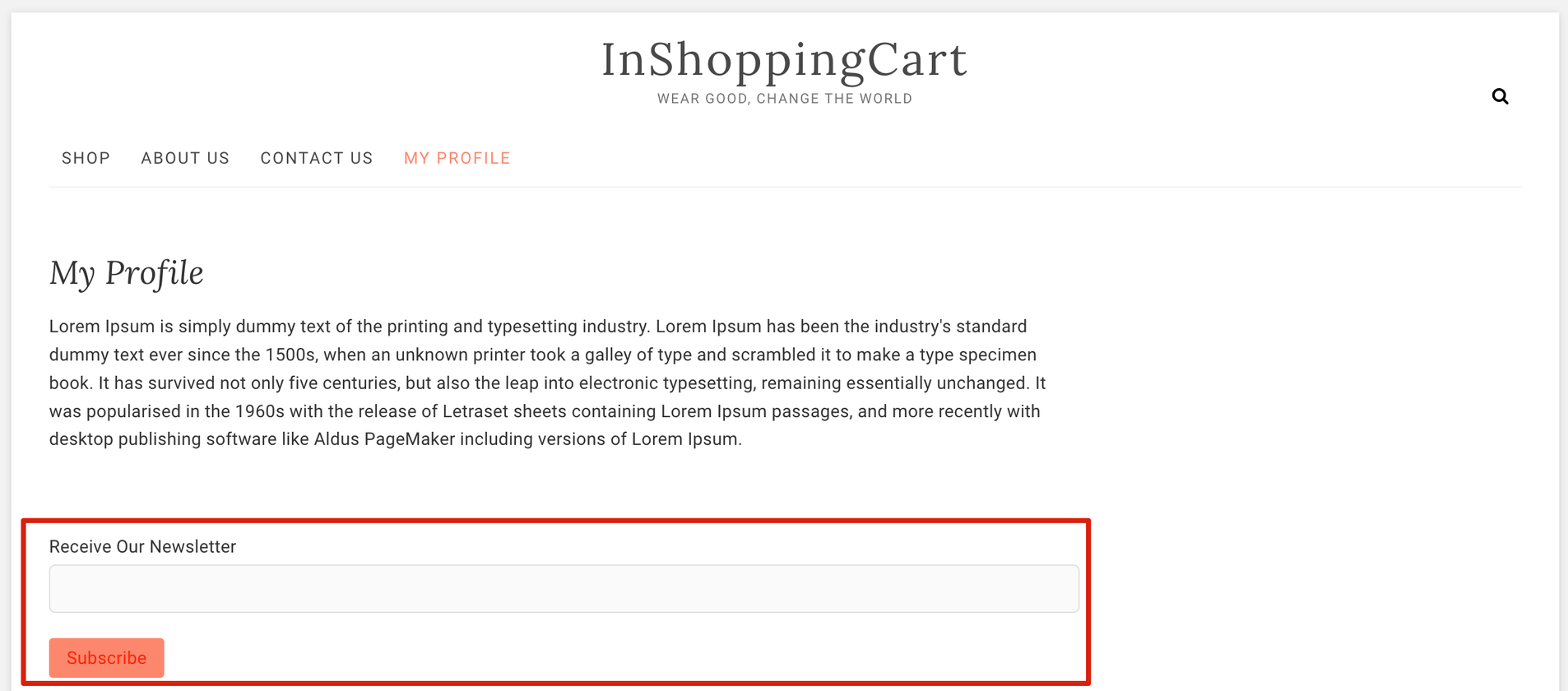
The native sign-up area of your website can be used to collect users’ emails, and the double opt-in email can be triggered following this.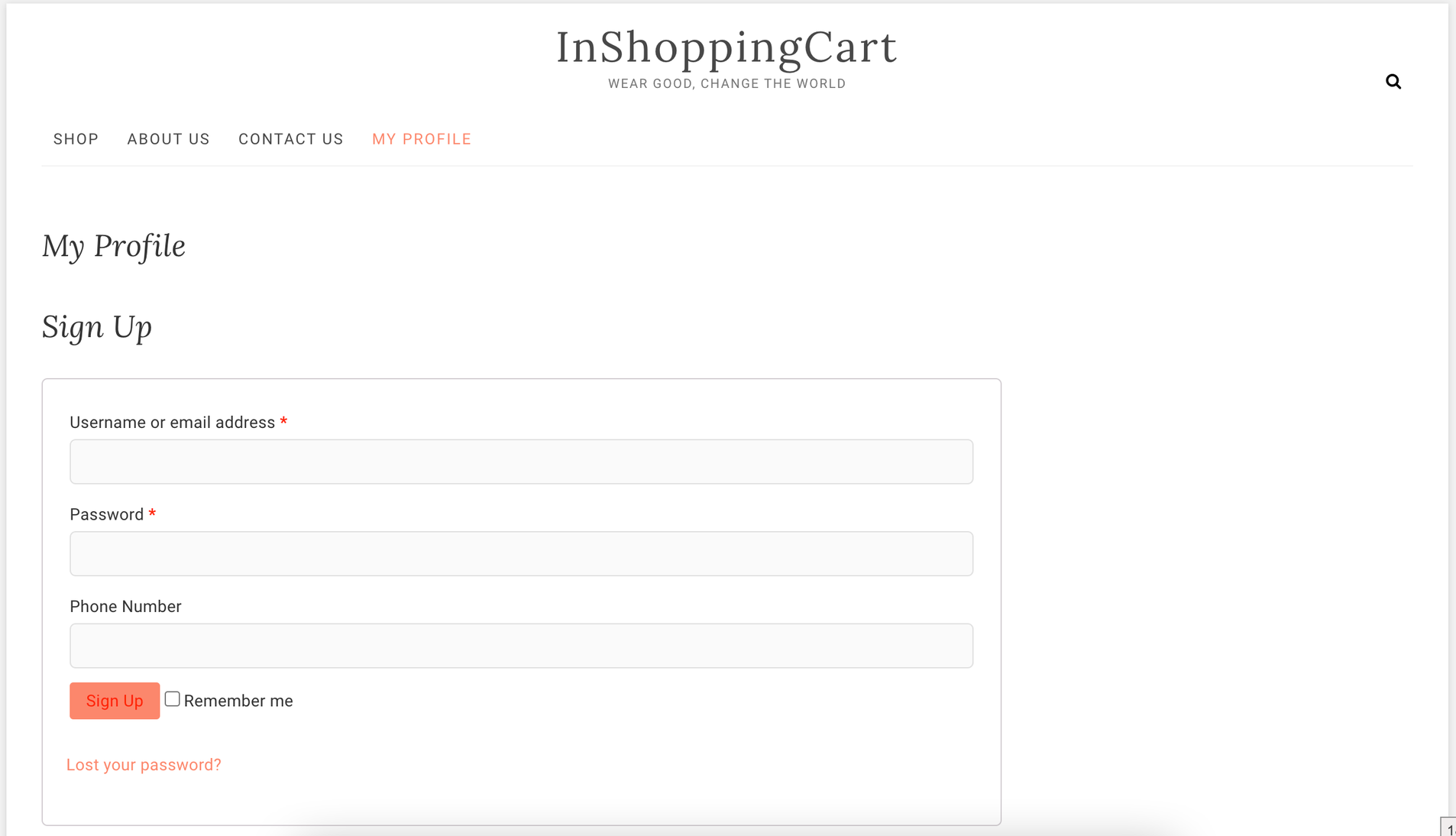
Ingest your offline users into the Insider One's InOne panel
Upsert API
You can update your user base via the Upsert API and make their double opt-in statuses true. For further information, refer to the Upsert user data article.
Data Upload
The email double opt-in attribute can be placed in your upload file, as shown in the example below. This way, you can mark your users as double opt-in users while uploading them to the panel.
If your account has Double Opt-in settings enabled and you want to mark your existing contacts as verified, you should re-upload them with the email_double_optin attribute set to TRUE.
During migration, you can upload the email double optin attribute as TRUE while importing users into Insider One, and if you want to send an API request, you can send email double optin as TRUE.
How can I send Double Opt-In values from Data Ingestion Points?
For each integration, except lead collection, you need to send a double opt-in event so that Insider receives a request to send a double opt-in email through Architect. Accordingly, the Architect also checks this event.
Event Integration from the browser
You should send double optin event using Event Integration.
API
You should send double optin event using Upsert User Data.
Mobile SDK
You should send the double optin event using Mobile App SDK Integration.
Lead Collection
For Insider One's Lead Collection, you just need to enable the Double Opt-in option on the Launch step of your Lead Collection campaign.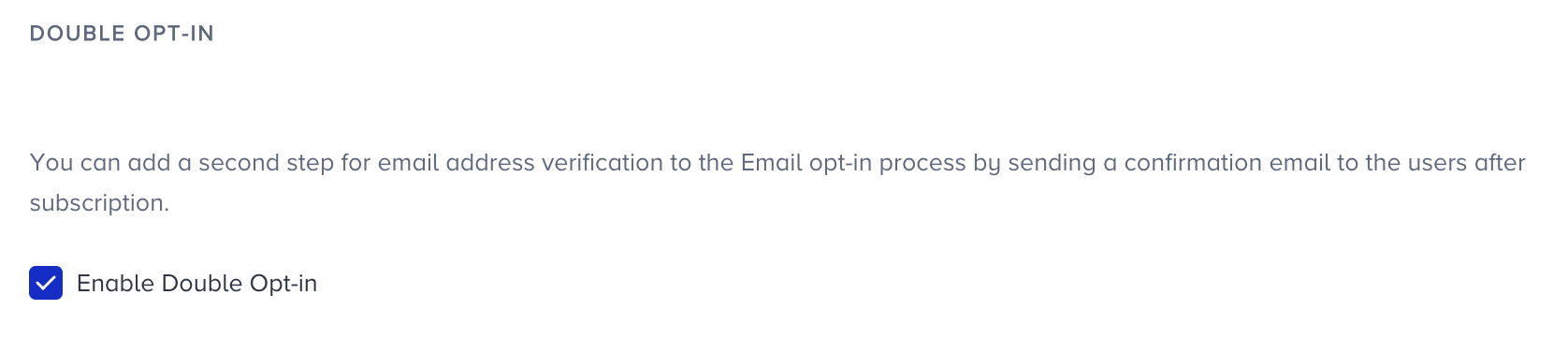
If you are using native lead collection or another third-party lead collection, you can send your double opt-in event using one of the three methods listed above.
Insider One’s Mobile App lead collections do not support a double opt-in scenario.