Insight Agent is the analytics assistant in Insider One AI. Ask a question about your data in your own language, and it answers the way an analyst would. You get the finding first, then the numbers behind it, and what to look at next.
You type what you want to know about your analytics:
“How many emails did we send last week, and what was the average click-through rate, open rate, and total revenue of those campaigns?”
Every answer arrives as a widget. You can view it as a table, line chart, bar chart, pie chart, or metric card. You can also pin it to a Custom Dashboard, so it's there the next time you need it.
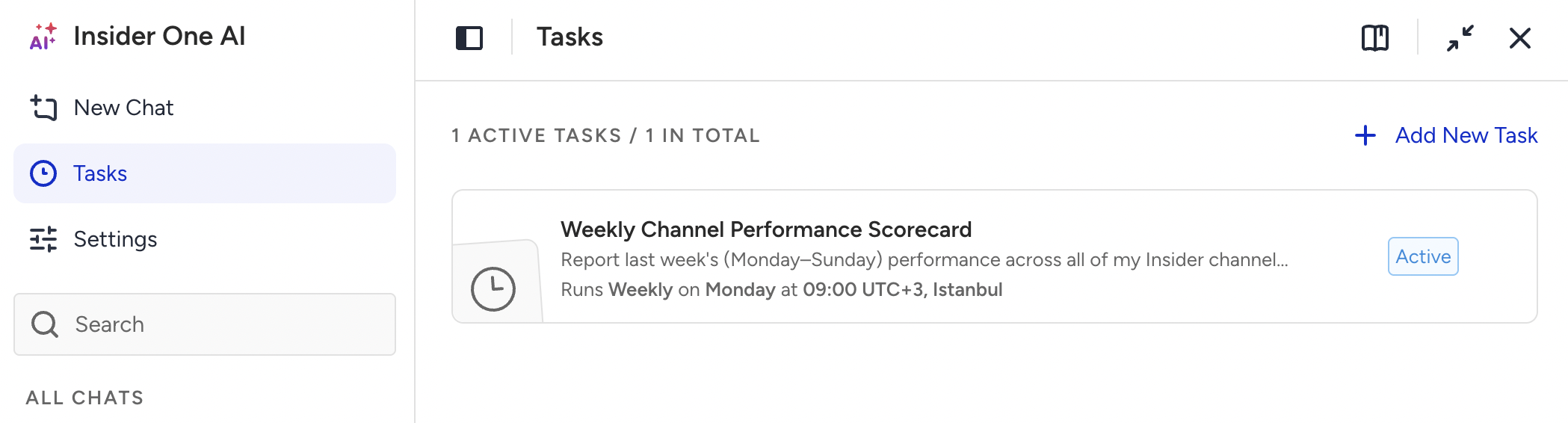
When a question becomes routine, such as the report you pull every Monday morning, you can schedule it as a Task. The answer then arrives in your inbox on the schedule you set, even when you're not logged in to the InOne panel.
Insight Agent also remembers how you work. Say "remember this" in the chat, and every answer from then on follows the preferences saved in Memory. For example, you can ask it to always answer in English, keep the tone formal, and point out what to fix first.
Insight Agent requires no setup. If your Insider One account is collecting data, Insight Agent can already answer questions about it.
Step 1: Ask your first question
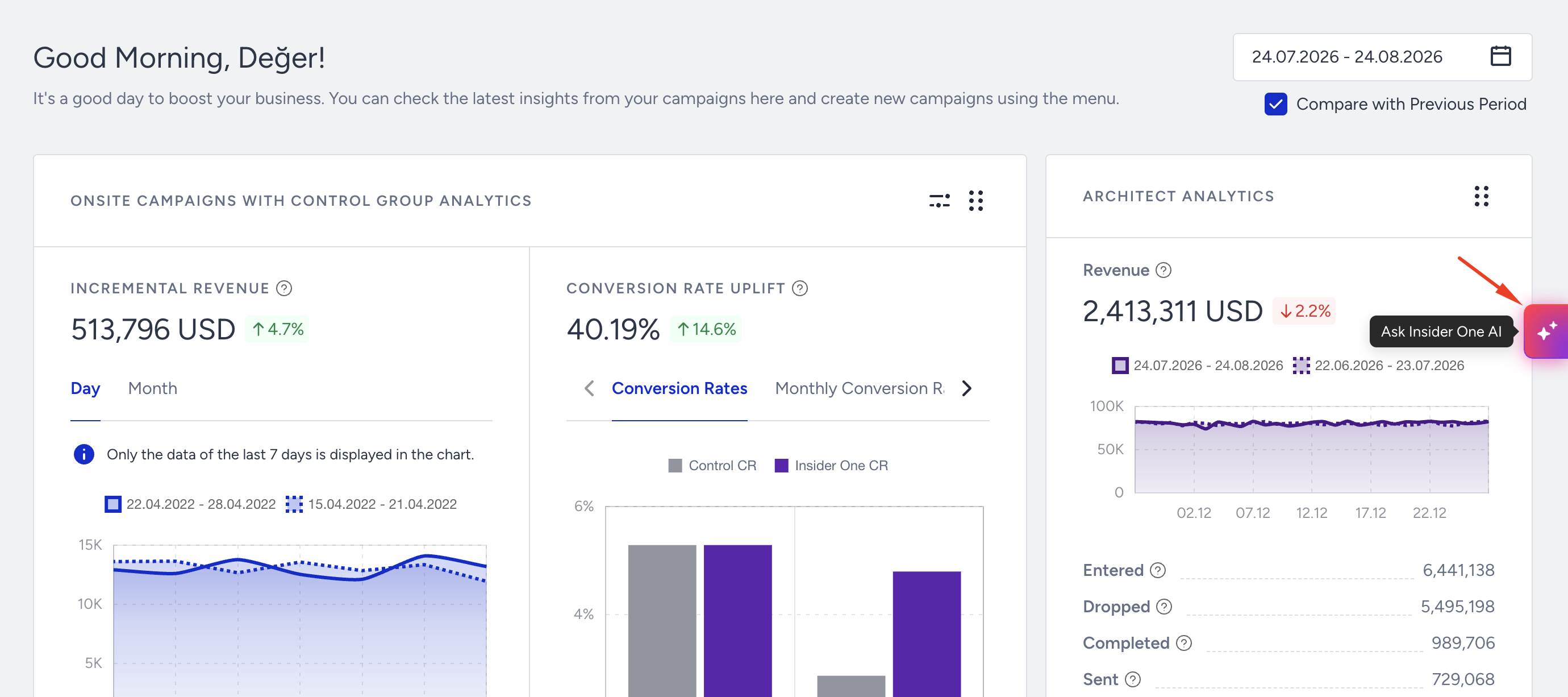
Open Insider One AI from any page in the InOne panel. The Insider One AI button is always available in the middle of the right edge of the screen.
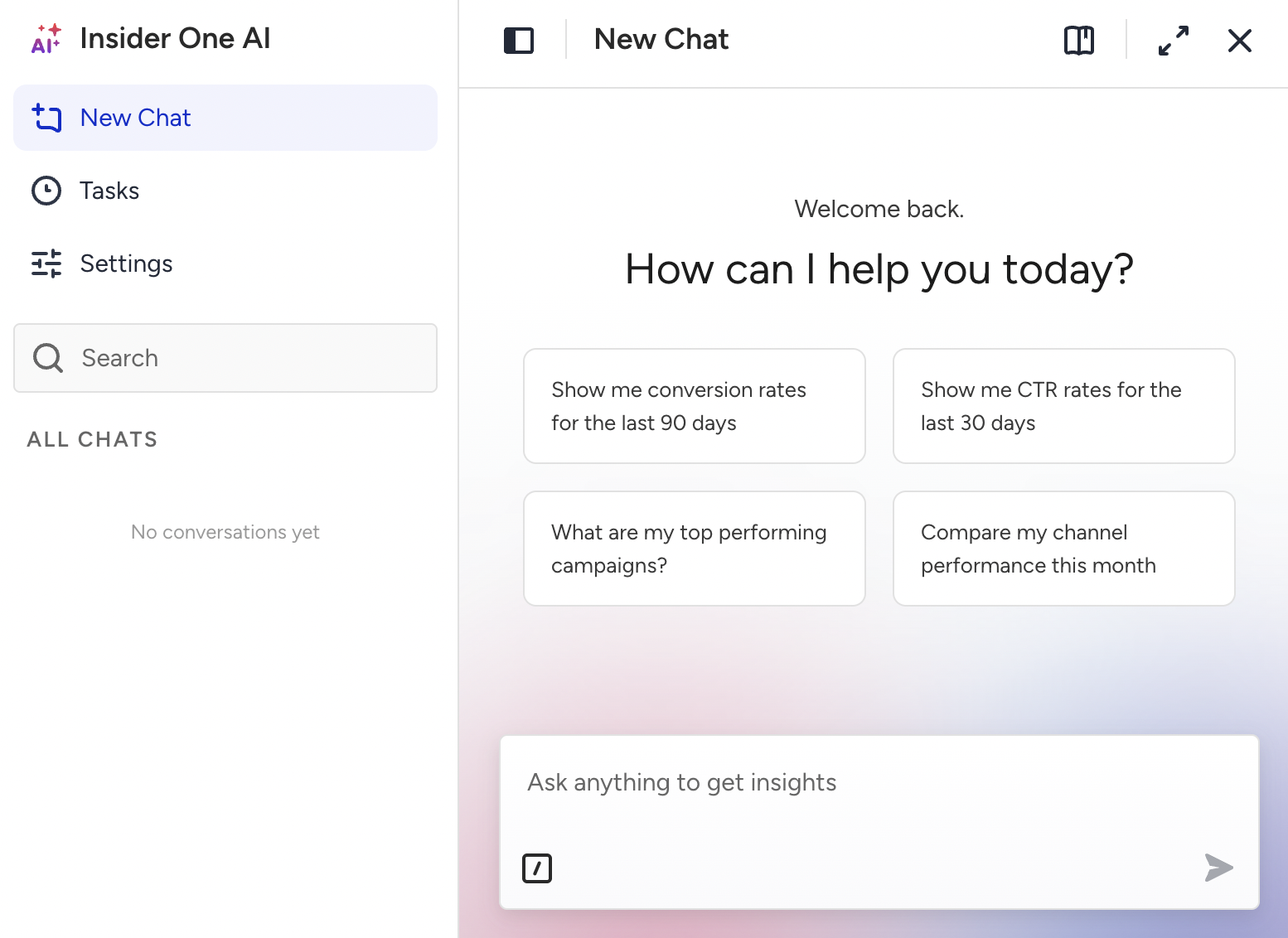
You'll see a greeting and an input box. Type your own question, or select one of the four ready-to-use prompts.
Insight Agent replies with a short written finding first, then shows the data as a widget. Before you act on the numbers, check two things in the widget:
Title: Does it describe what you asked for?
Date range in the footer: Is it the period you meant?
If either one looks off, rephrase your question and ask again.
Step 2: Adjust how the widget looks
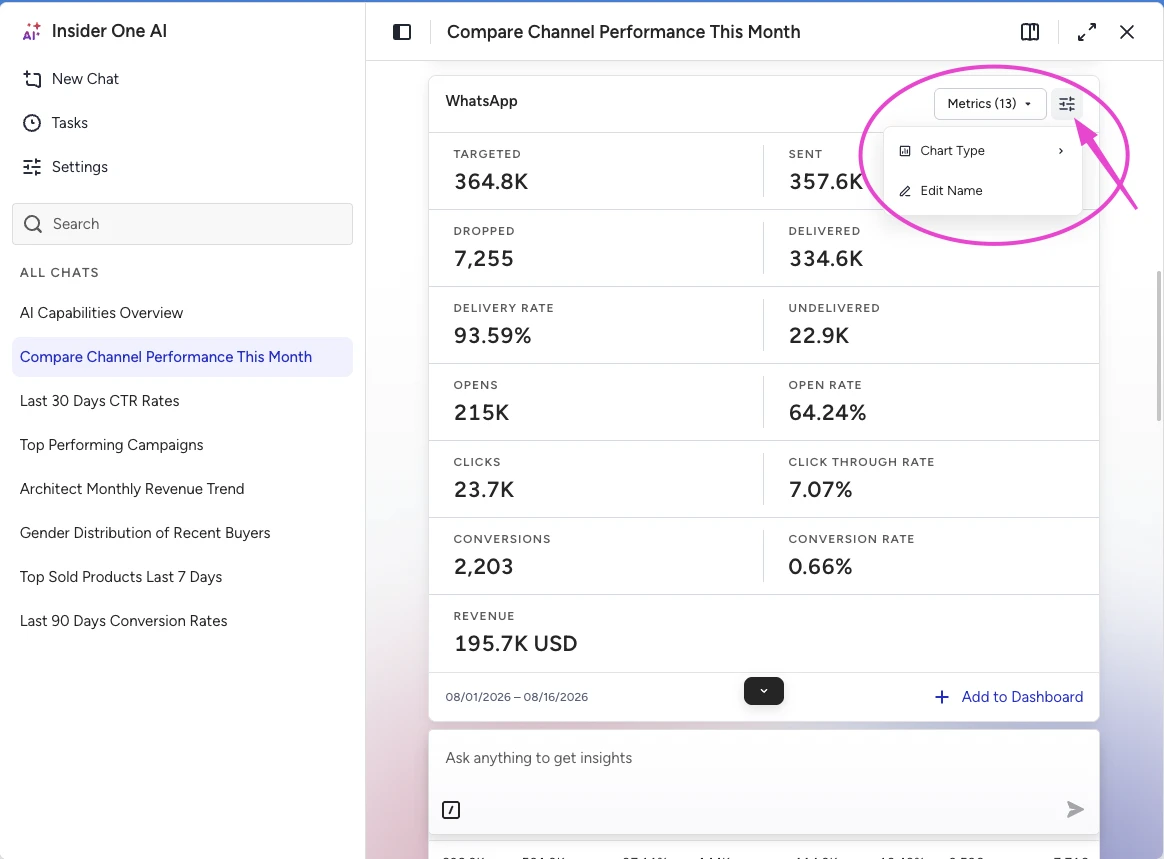
Click the gear icon in the top right corner of the widget to change the Chart Type. You can choose Table, Line Chart, Bar Chart, Pie Chart, or Metric Card. Insight Agent offers only the chart types that suit the result.
Click Metrics (n) to hide the metrics you don't need. To rename the widget, click Edit Name or double-click the title. Choose a name you'll recognize later, such as "Email Weekly Performance."
Step 3: Schedule recurring reports with Tasks
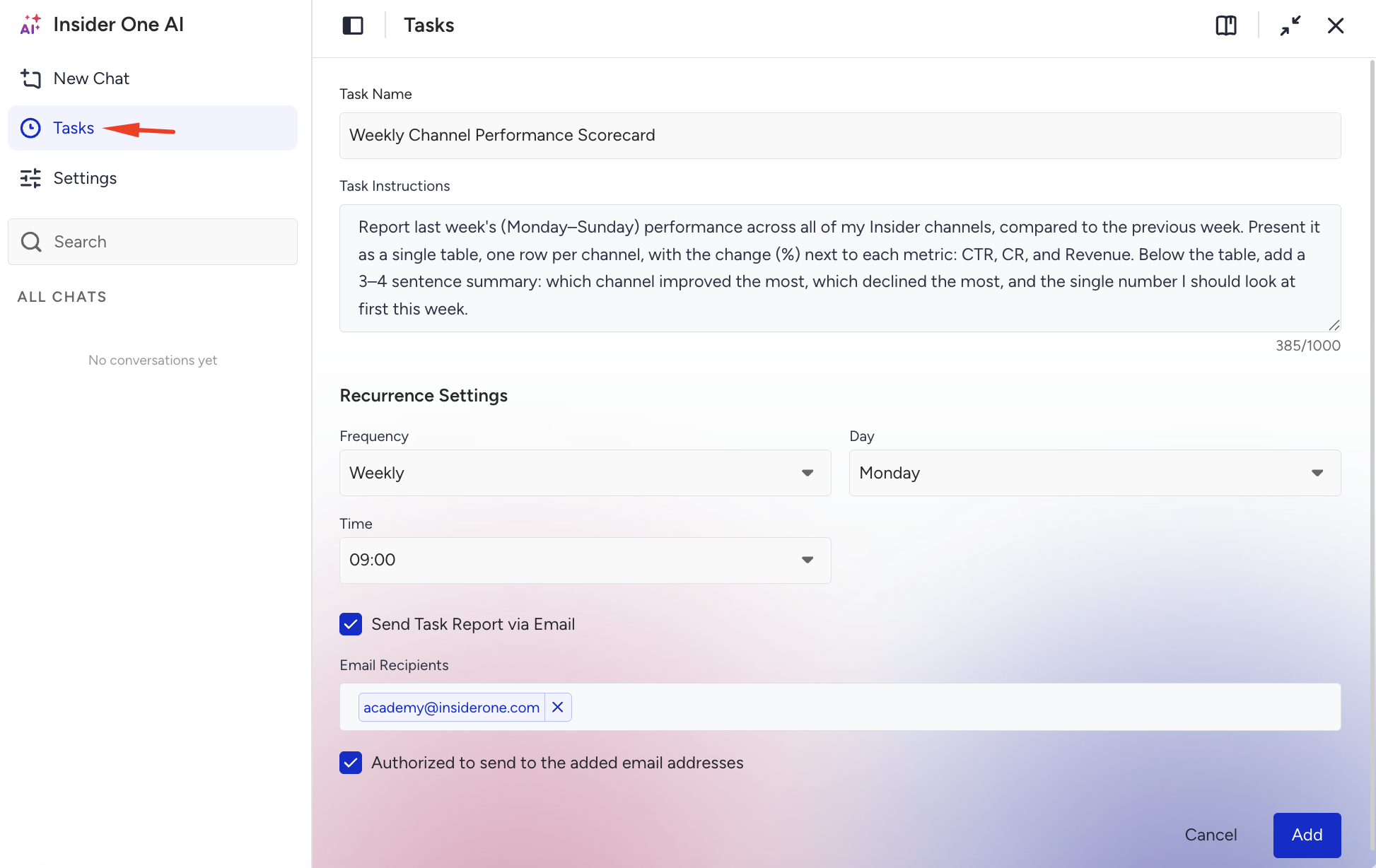
Open Tasks in Insider One AI to schedule a recurring report:
Write a short prompt describing what you want to track.
Choose how often the task should run.
Enter the email address the report should be sent to.
The answer lands in your inbox at the frequency you set, even when you're not logged in to the InOne panel.
Step 4: Pin the widget to a dashboard
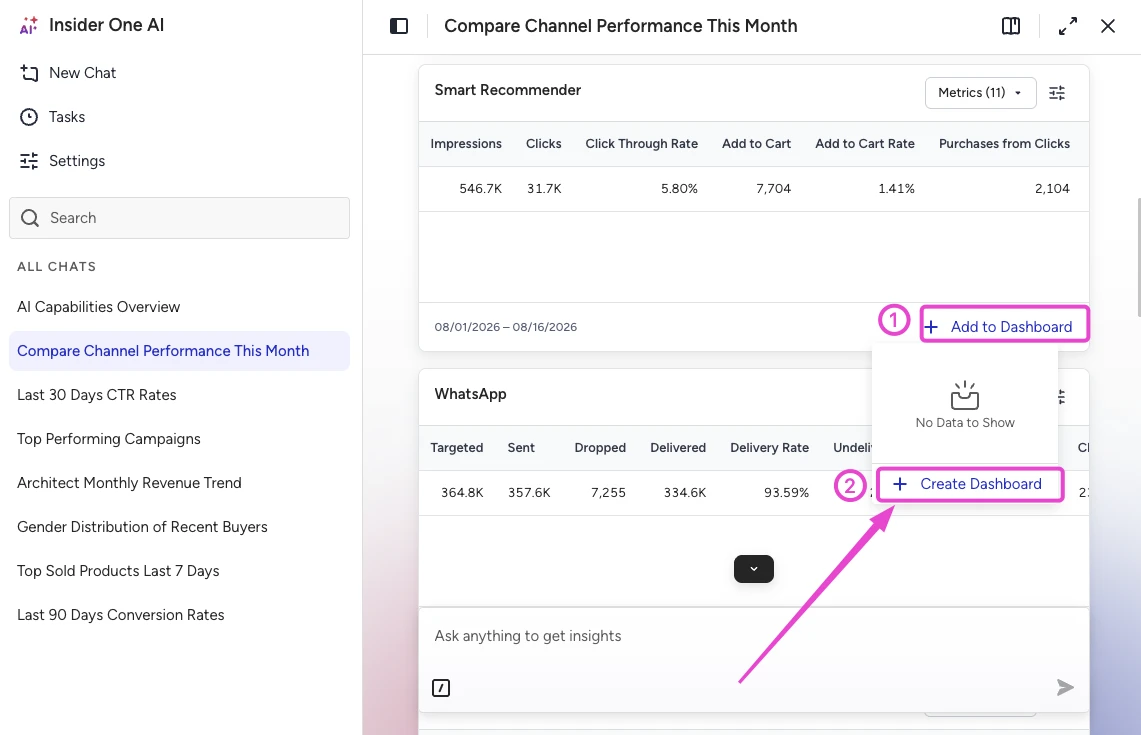
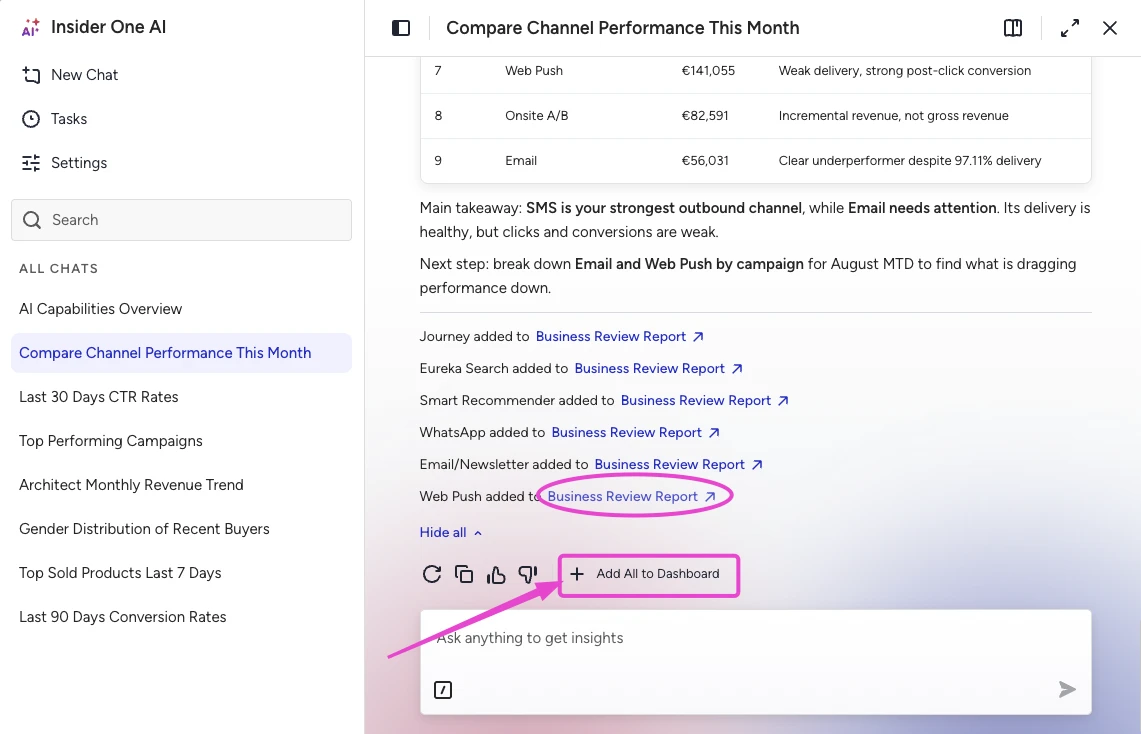
Click Add to Dashboard at the bottom of the widget. If you don't have a dashboard yet, click Create Dashboard, name it something like "Weekly Channel Report," and click Save.
If your prompt created multiple widgets, click Add All to Dashboard to pin them all at once.
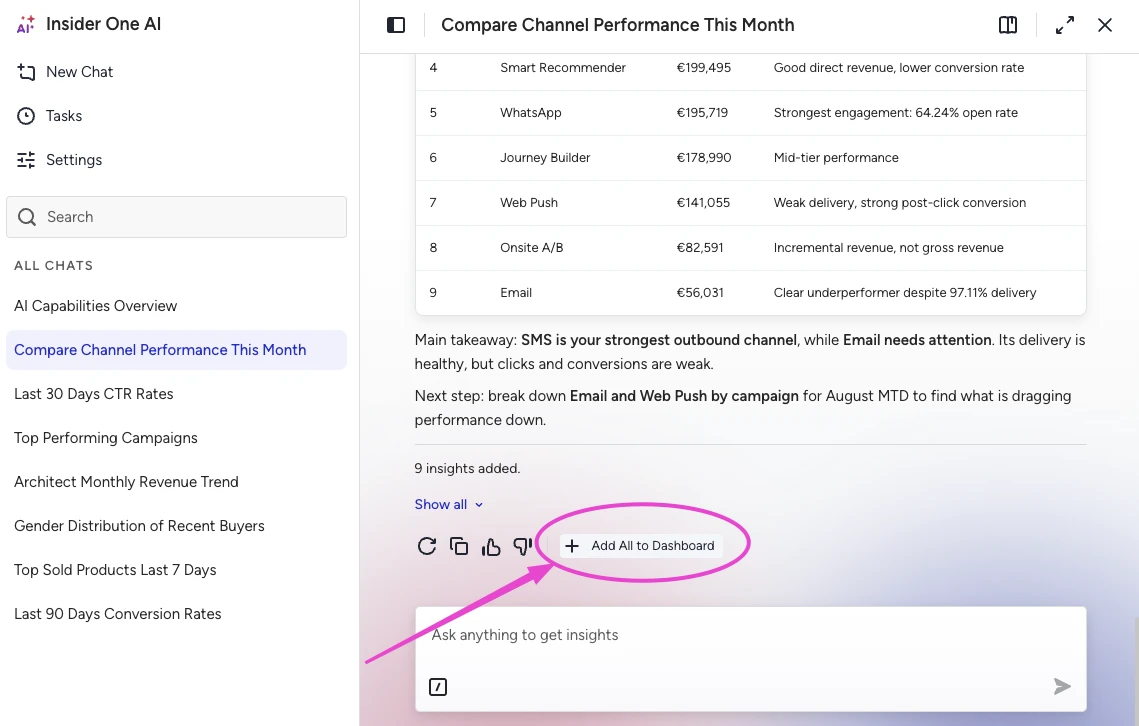
The button briefly changes to Added, and a confirmation appears under the message with the insight name and the dashboard name.
Step 5: Open your dashboard
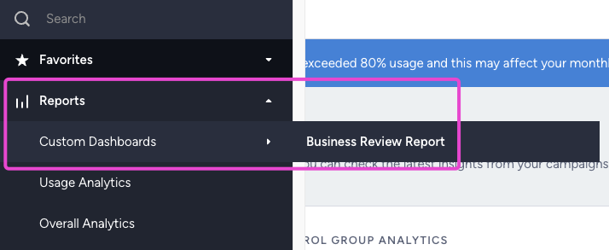
Click the dashboard name in the confirmation message, or navigate to Reports > Custom Dashboards in the InOne panel. Your saved dashboard is listed there.
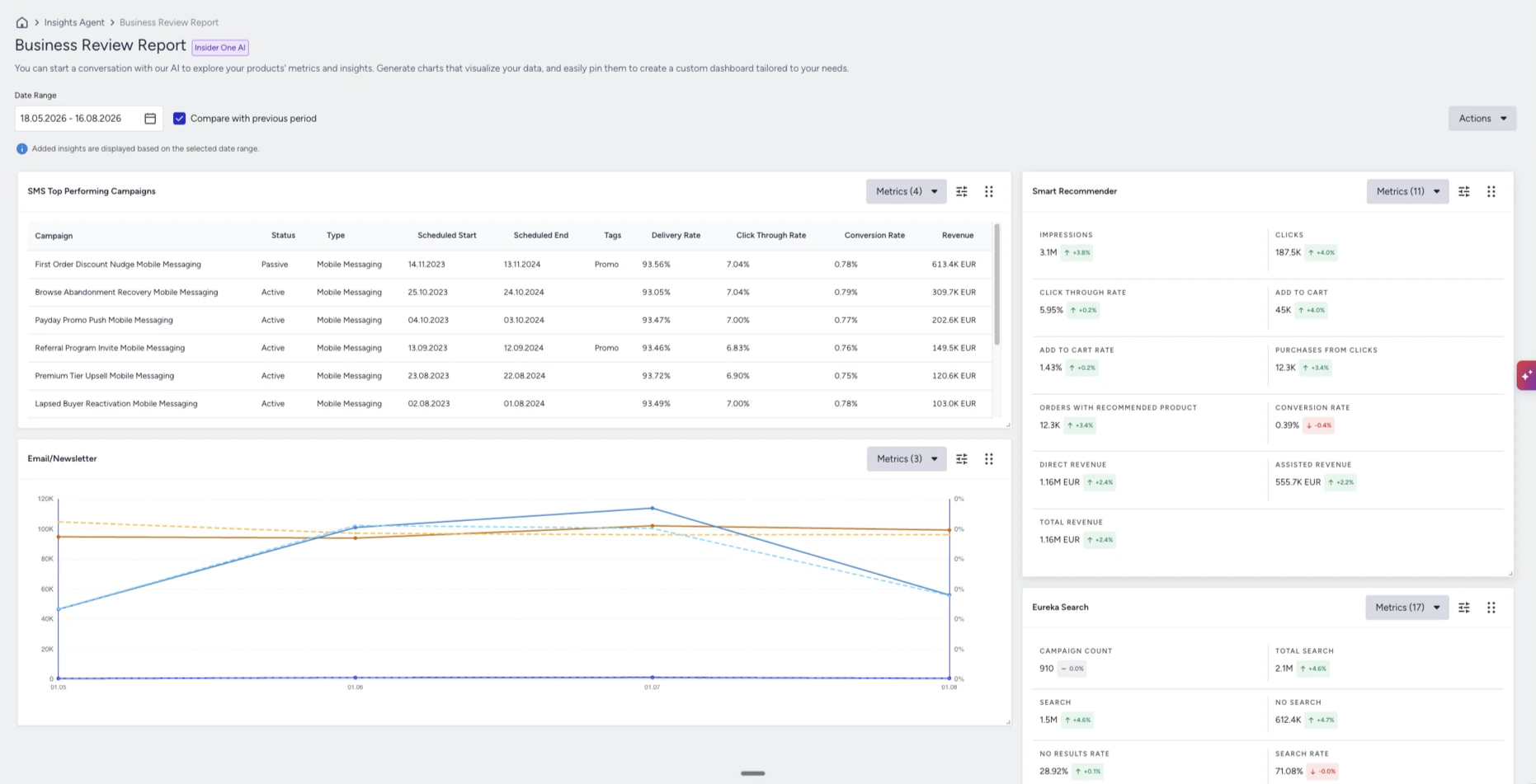
On the dashboard, you can:
Set a Date Range that applies across the dashboard.
Select Compare with Previous Period to see the period-over-period change.
Drag insights to rearrange them.
Edit the widget names and the dashboard name.
The Date Range selection applies to campaign analytics. Insights built from user events and attributes keep the period they were created with, so they stay the same when you change the date range.
Keep asking questions and pinning results until the dashboard covers your needs.
Each dashboard holds up to 16 insights, and each user can create up to five dashboards.
Step 6: Save your preferences with Memory
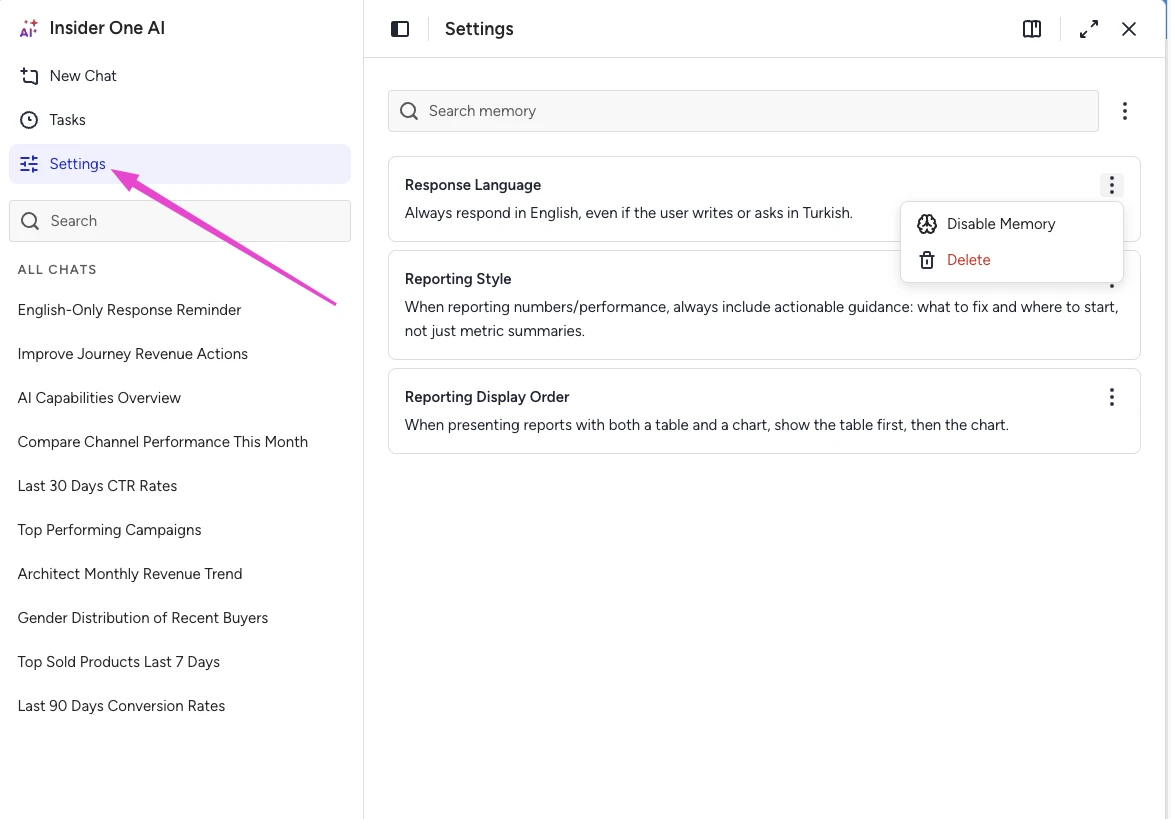
To set a preference, tell Insight Agent how you want something and add "remember this" to your message. Insight Agent saves the preference and applies it to every answer from then on.
To review your saved preferences, navigate to Settings > Memory. You can delete any preference you no longer need.
Tip: Take ten seconds to rate the answer
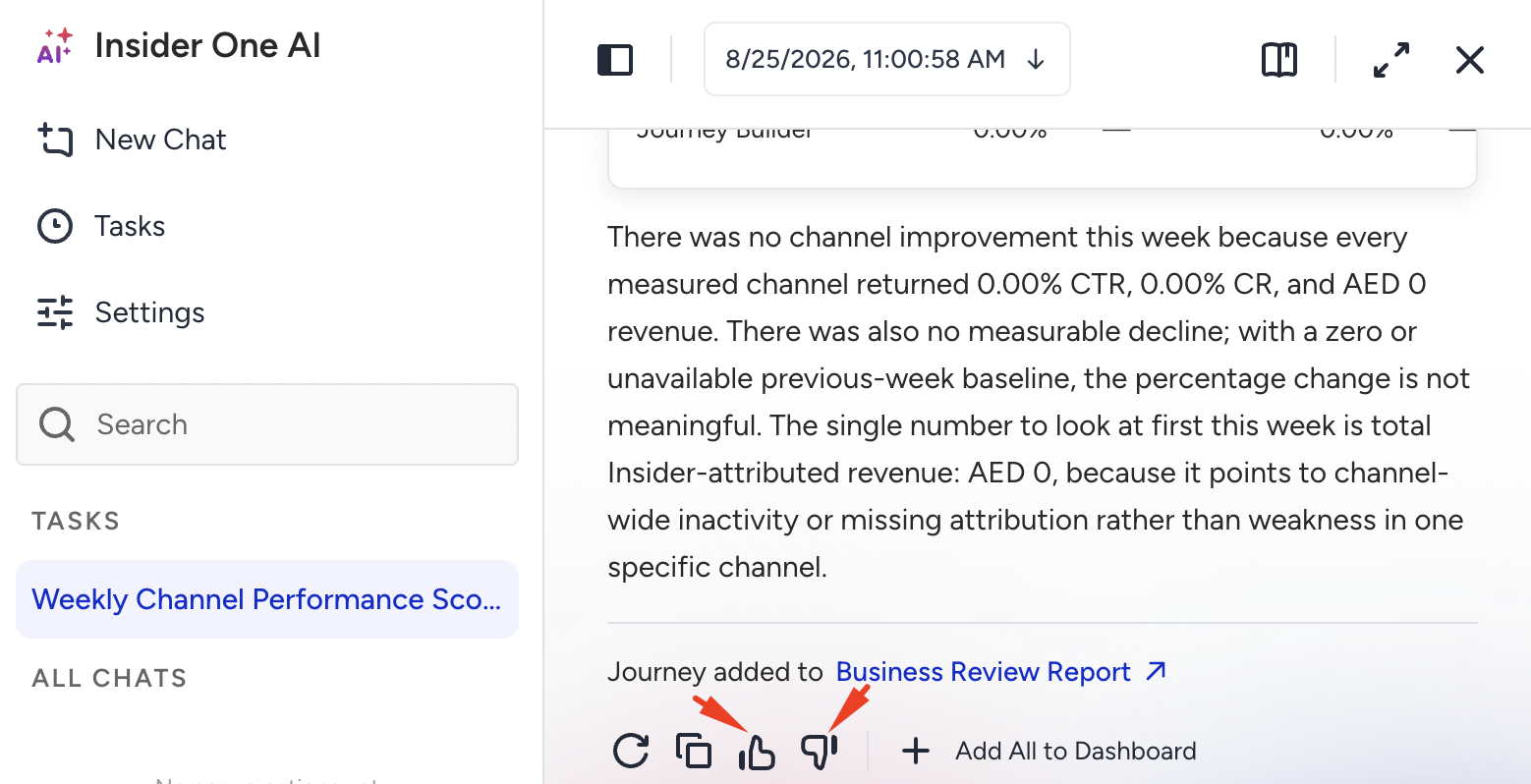
Every answer includes a thumbs up (Helpful) and a thumbs down (Not helpful) button in the action row.
Helpful takes one click.
Not helpful opens a short form: type what went wrong in Enter Additional Feedback, then click Submit.
One specific sentence is worth more than a paragraph. Compare "This shows Email only, but I asked for all channels" or "Campaign analytics in the InOne panel shows 39,303 sends for this campaign" with "Wrong" or "Doesn't work." The first two give the Insider One team something to trace; the last two don't.
The Insider One team reviews your feedback alongside the conversation itself, and it feeds directly into what gets fixed next. Ten seconds of context has a real effect on priority.
What's next
Insight Agent turns your questions into widgets, your widgets into dashboards, and your routine questions into scheduled email reports. As a next step, build a dashboard for the metrics you check most often, and set up a Task for the report you pull every week.