Use OAuth 2.0 credentials to authenticate your requests to the WhatsApp Template Management API through Insider Gateway. This article explains how to generate them in Integration Settings.
Generate OAuth 2.0 Credentials
Navigate to your username > Settings > InOne Settings > Integration Settings.

Scroll down to the OAuth 2.0 Credentials section and click Generate OAuth 2.0 Credential.

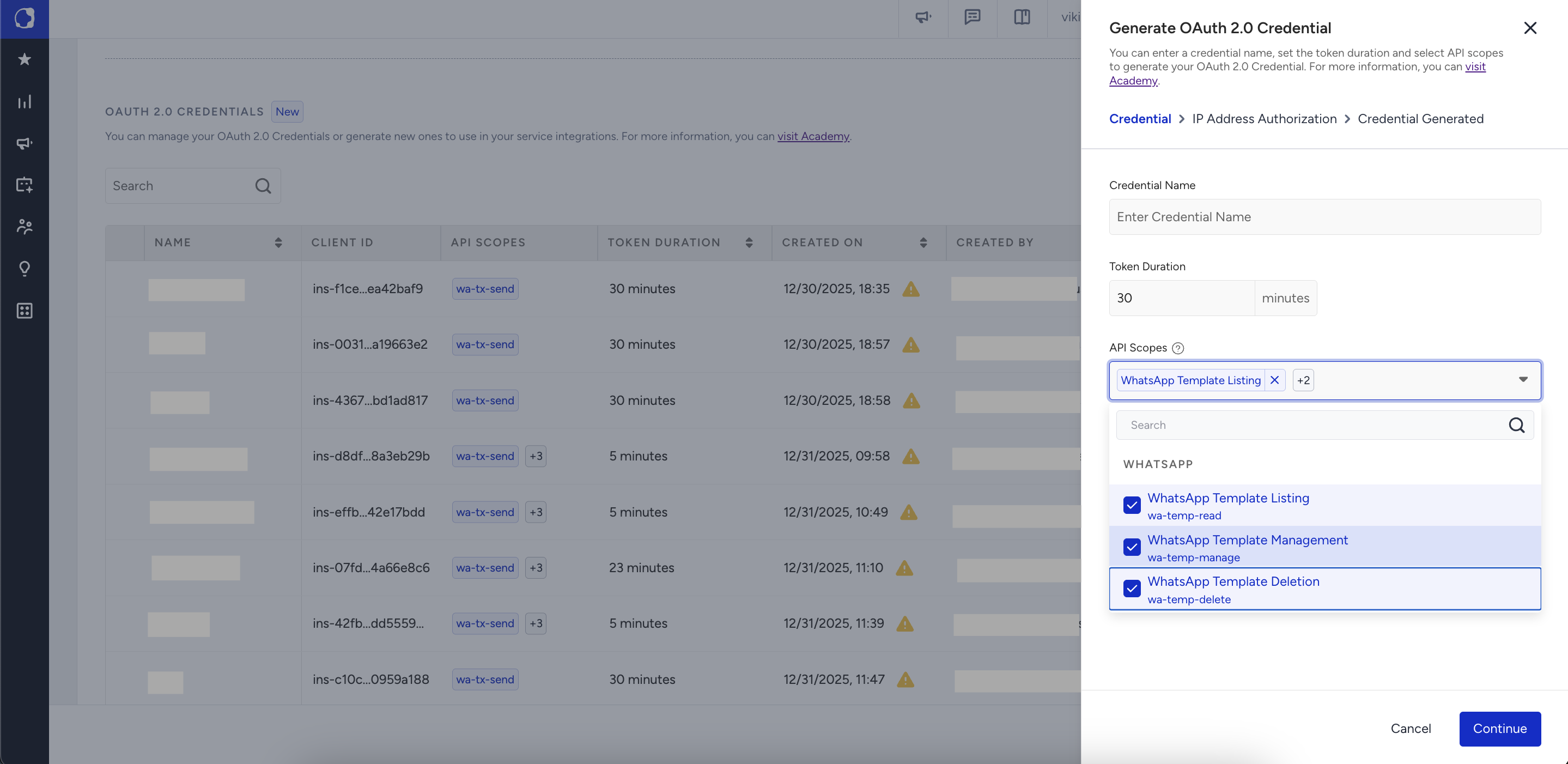
Enter a name for your OAuth 2.0 credential and a token duration.
Select the API scopes for your OAuth 2.0 credential and click Continue. For the description of each scope, see OAuth 2.0 Scopes.
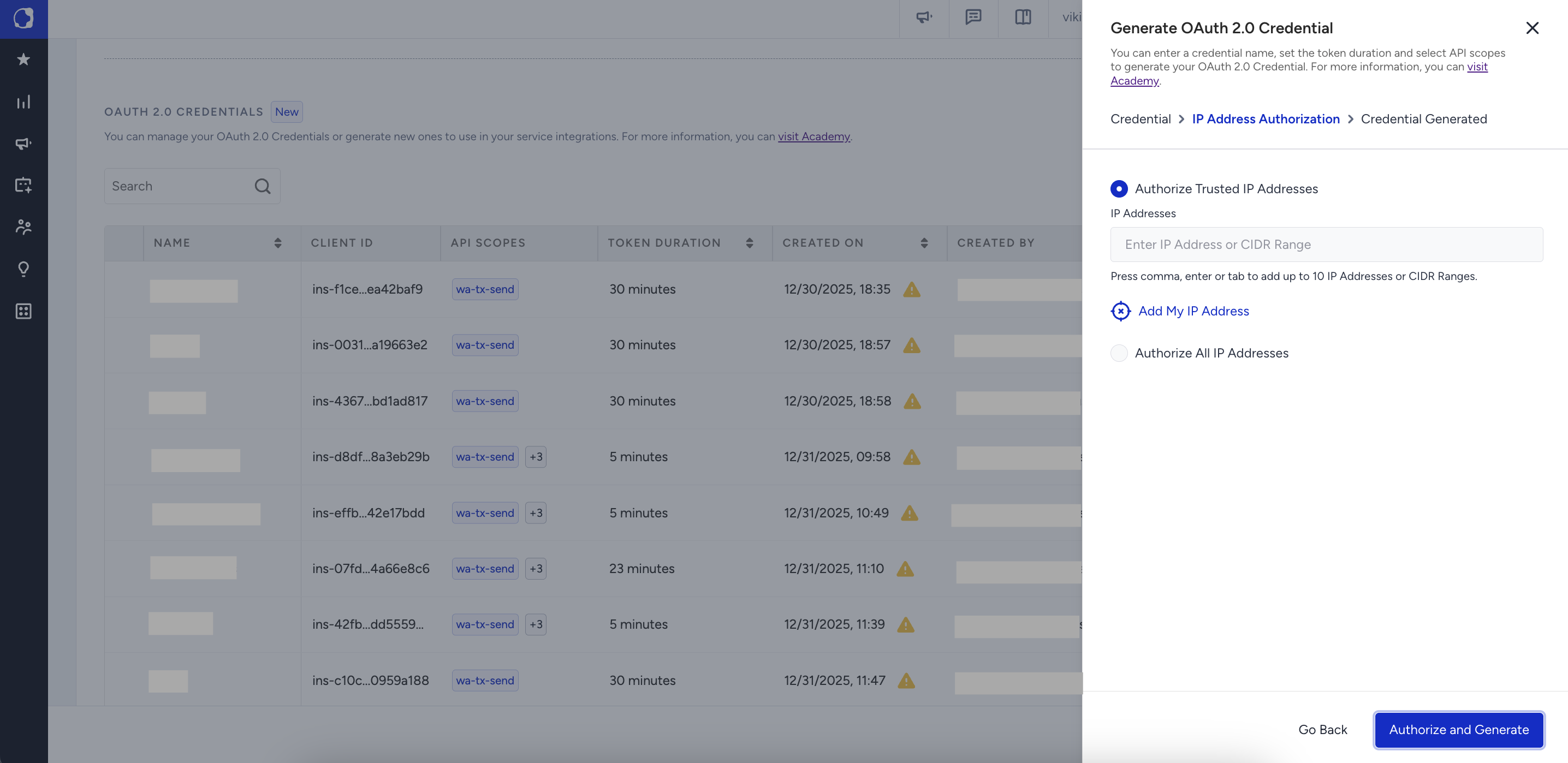
Enter the IP addresses to authorize and click Authorize and Generate.
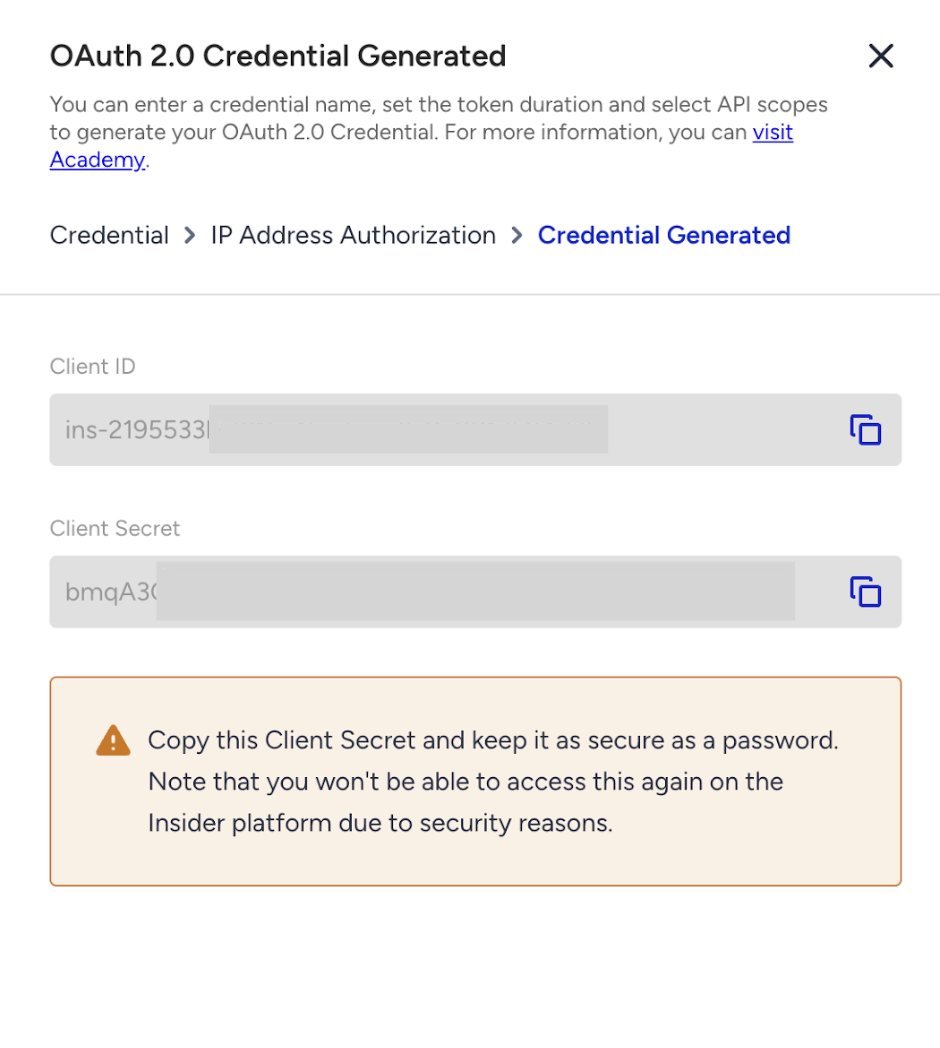
Click Copy to copy the Client ID and Client Secret before you close the prompt.
OAuth 2.0 Scopes
The following scopes control which WhatsApp Template Management API actions your credential can perform.
Scope | Description |
|---|---|
wa-temp-read | Lists and gets templates. |
wa-temp-manage | Creates and restores templates, and uploads template media files. |
wa-temp-update | Edits templates. |
wa-temp-delete | Deletes templates. |
After you generate your credentials, refer to Manage WhatsApp Templates with OAuth 2.0 to start managing your templates.