If you don't use the Eureka Search Pop-up, the Eureka Event Collection API enables you to access analytic reports related to search events.
You can use this API to send data about search, click, add-to-cart, and purchase events occurring in your applications.
By doing so, you will calculate the core metrics that reflect the success of your search engine—search, CTR, Add-to-Cart Rate, and Purchase Rate. This helps you measure the effectiveness of your users' search experience.
Once you’ve integrated the Event Collection API, you can access the Eureka Analytics in the InOne panel to visualize engagement funnel metrics and gain keyword-based search insights.
You can find answers to the following questions below related to the Event Collection API in this article:
Prerequisites
Before integrating and using the Eureka Event Collection API, you must first integrate the product catalog.
Events Collected by the API
The Event Collection API collects the following events:
Search Event
When and how the Search event is triggered depends entirely on your definition of a search.
In general, two different search behaviors exist in the applications:
Search Result Page
Search Pop-up
For a Search Result Page, a search is typically triggered after the search term is entered and finalized, followed by the user clicking the search icon or pressing the Enter key. In such cases, it is recommended that the search event be triggered when the user performs one of these actions.
In contrast, Search Pop-ups often use a “search-as-you-type” method. Each keystroke initiates a new search, and the search results update with every input.
For search-as-you-type pop-ups, two methods are recommended to determine when the search is complete:
Waiting 10 seconds after the user stops typing.
Detecting if the user clicks on a product.
For this behavior, it is preferable to trigger the search event either after 10 seconds of inactivity or when a product is clicked in the search results.
The Eureka Search Pop-up follows this same approach. When calculating Eureka Analytics, if Eureka Search Pop-up is used, both behaviors are accounted for when triggering the search event.
Request for the Search Event
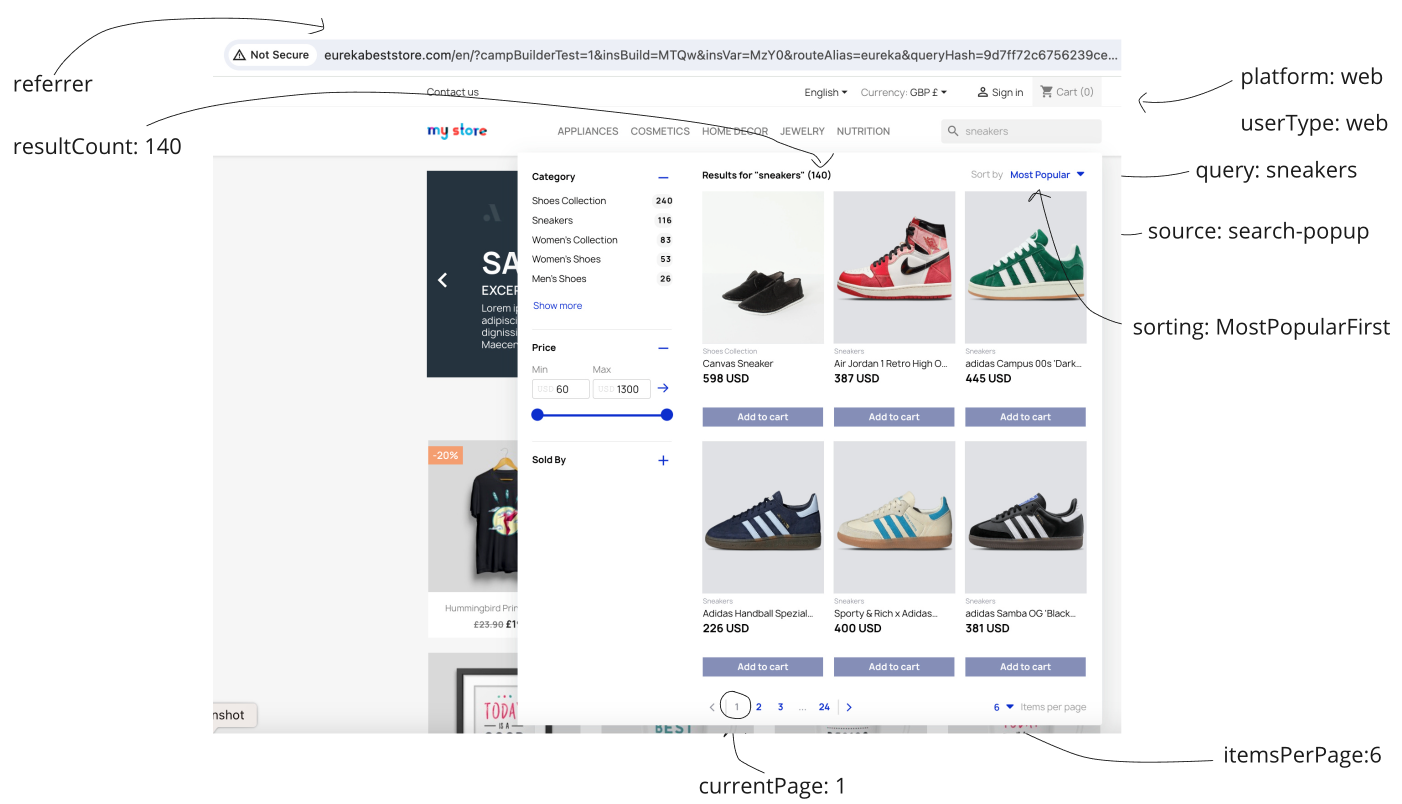
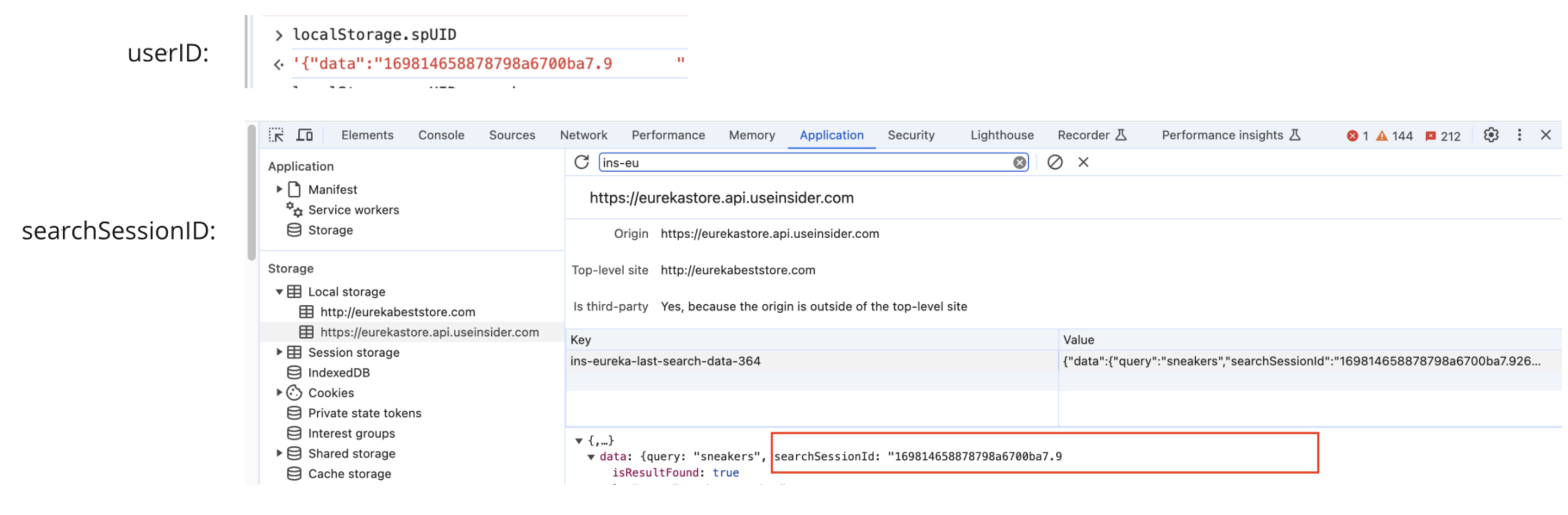
To trigger a successful request to the Search Event API, you need to send the parameters listed on the Search Event and Common Properties pages within the payload.
Please note that changing the sorting type, re-sorting products in the search results, filtering results using facets, or navigating pages via pagination are all tied to the same search session ID. We recommend retaining the same session ID to ensure accurate search metrics if these actions are sent as new events.
Product Click Event
The Product Click event must be triggered when a product is clicked from the search results. To trigger a product click event, you need to send the parameters listed on the Product Click Event page within the payload.
Please note that to calculate the click-through rate accurately, each product click must be matched with the search session ID that corresponds to the search in which the clicked product was displayed in the results.
Add to Cart Event and Purchase Event
The Add-to-Cart event must be triggered when a product clicked from the search results is added to the cart. To trigger an Add to Cart event, you need to send the parameters listed on the Add to Cart Event page within the payload.
The Purchase event must be triggered when a product is clicked and added to the cart from a search result, and is subsequently purchased. To trigger a Purchase event, you need to send the parameters listed on the Purchase Event page within the payload.
Attribution Window
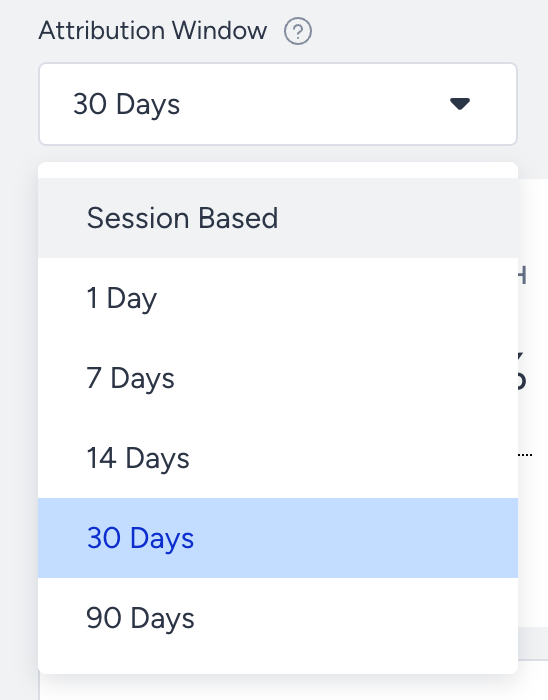
The most critical parameter in these event requests is the attribution window, which defines the time period within which an event must occur after the previous event to be considered a successful conversion.
The most commonly used attribution windows are:
Same Session: The session begins when the user lands on the website and ends after 30 minutes of inactivity or midnight. Campaigns and products with click and purchase logs sharing the same session ID are considered session-based conversions.
1 Day: Add to Cart or Purchase must be completed within the following 24 hours of the click event.
7 Days: Add to Cart or Purchase must be completed within the following 7 days of the click event.
14 Days: Add to Cart or Purchase must be completed within the following 14 days of the click event.
30 Days: Add to Cart or Purchase must be completed within the following 30 days of the click event.
90 Days: Add to Cart or Purchase must be completed within the following 90 days of the click event.
For example, a user searches for sneakers, and 16 different products are displayed in the search results. Two days later, the user clicks one of the products in the search results and adds this product to the cart.
If your attribution window selection is the same session or 1 day, this event does not count as a successful conversion.
if your attribution window selection is, 7, 14, 30, or 90 days, this event counts as a successful conversion.
In conclusion, when sending the attributionWindow parameter as a list of strings, the time interval between the add-to-cart event or purchase event and the previous click event must be considered.
If the add to cart or purchase is happening in the same session, then the values of the attributionWindow parameter should be:
"attributionWindow": [ "session", "1", "7", "14", "30", "90" ]
If the add to cart or purchase is happening on the same day but in a different session, then the values of the attributionWindow parameter should be:
"attributionWindow": [ "1", "7", "14", "30", "90"]
If the add to cart or purchase is happening after 1 day but before 7 days, then the values of the attributionWindow parameter should be:
"attributionWindow": ["7", "14", "30", "90"]
If the add to cart or purchase is happening after 7 days but before 14 days, then the values of the attributionWindow parameter should be:
"attributionWindow": ["14", "30", "90"]
If the add to cart or purchase is happening after 14 days but before 30 days, then the values of the attributionWindow parameter should be:
"attributionWindow": ["30", "90"]
If the add to cart or purchase is happening after 30 days but before 90 days, then the values of the attributionWindow parameter should be:
"attributionWindow": ["90"]
Calculation of the Attribution Window
First, the clicked product ID, group ID (parent of the variant), and click date should be recorded. Then, when the product with that ID or its variant is added to the cart or purchased, the click time should be identified using the product ID and group ID. Finally, the attribution windows that align with the time elapsed between the click and purchase should be added to this parameter, as shown in the examples above.