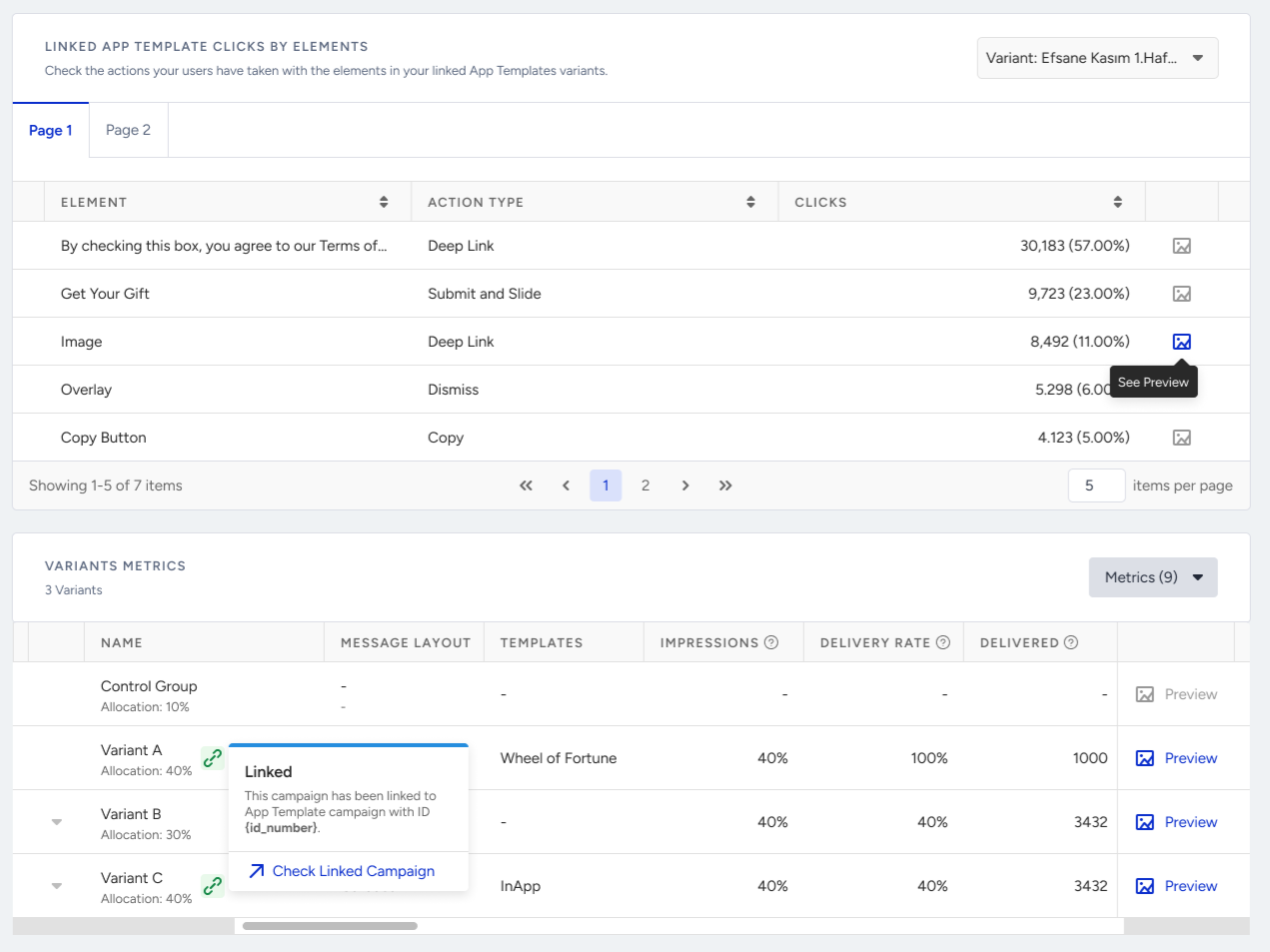
App template from push enables you to link your app templates to your push notifications.
This article explains the following:
Requirements
The mobile SDK should be the following or higher versions for end users to see the Enhanced Mobile Template campaign:
iOS 12.6.1
Android all versions
React Native 5.5.0
Flutter 3.5.0
Cordova 1.5.0
The enhanced app templates are currently not supported on tablet devices.
Create your template
To start creating your App Template From Push campaign:
1. Go to Experience > Optimize > App Templates.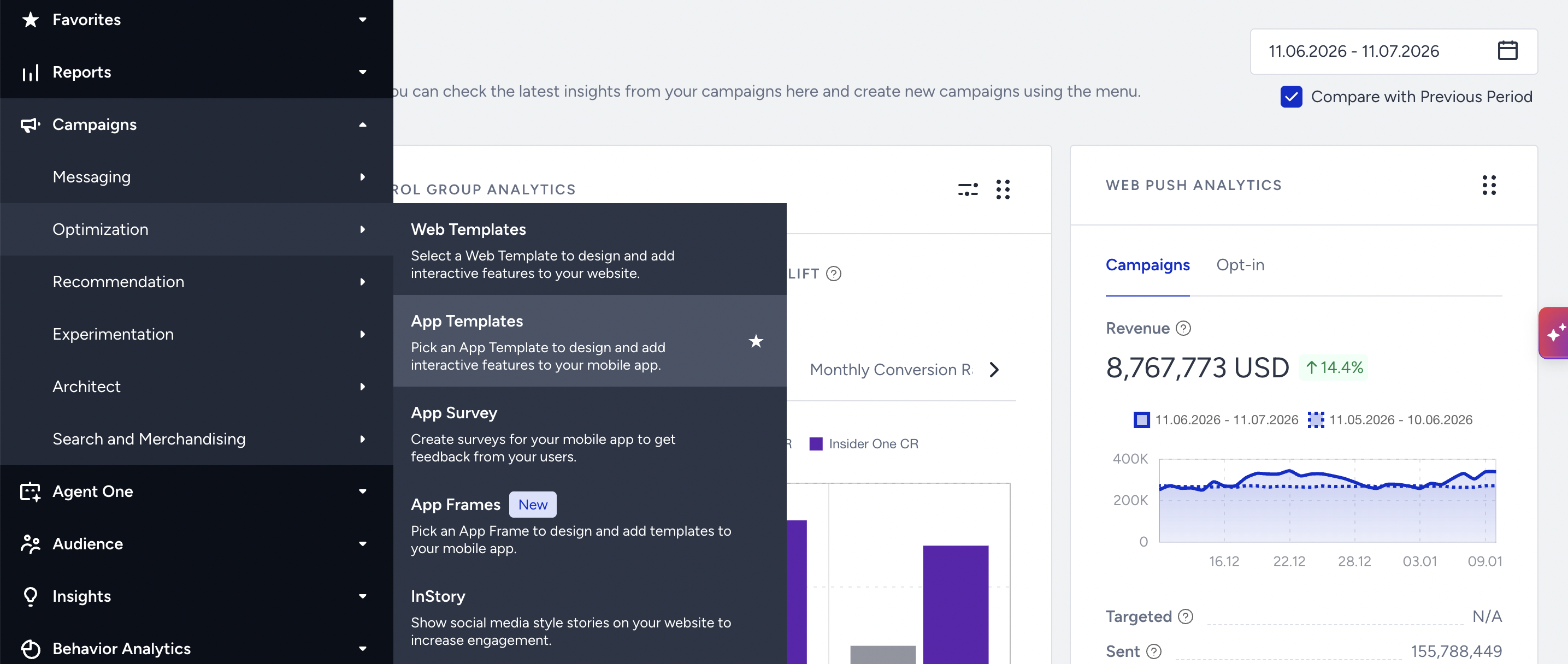
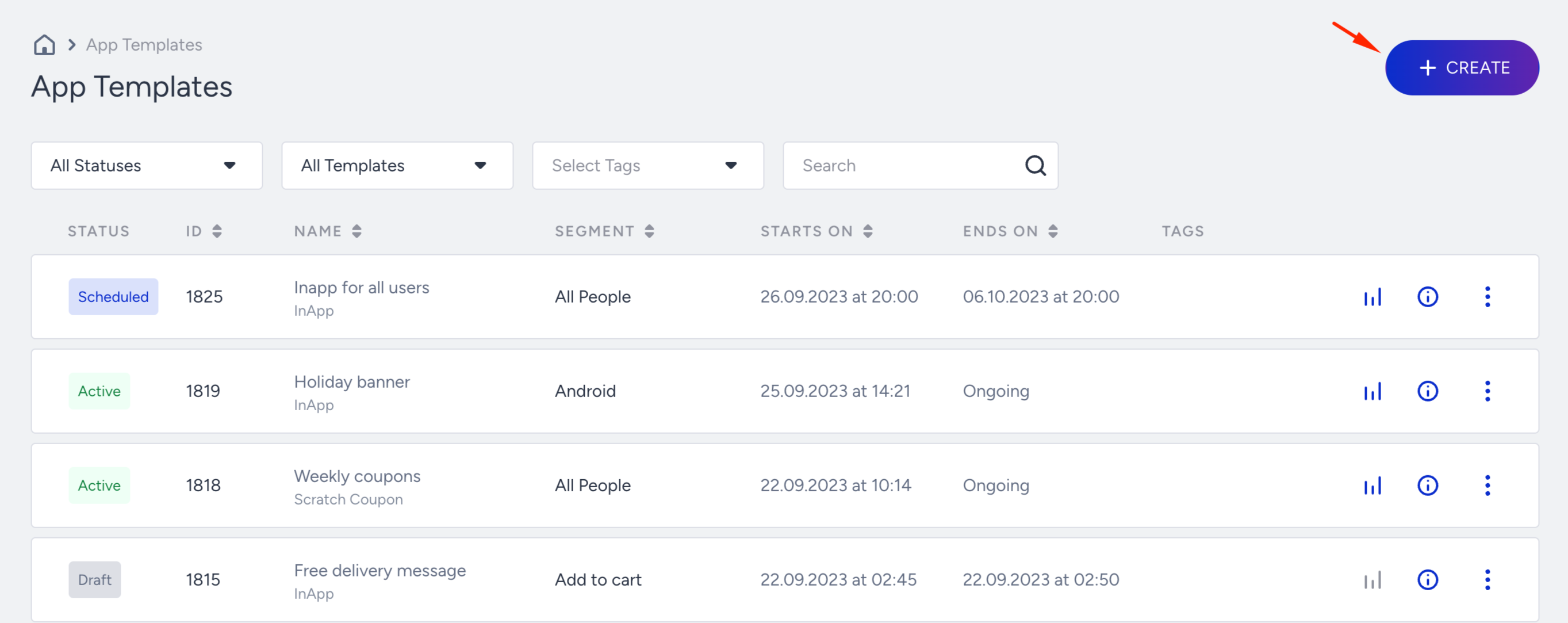
2. Click the Create button.
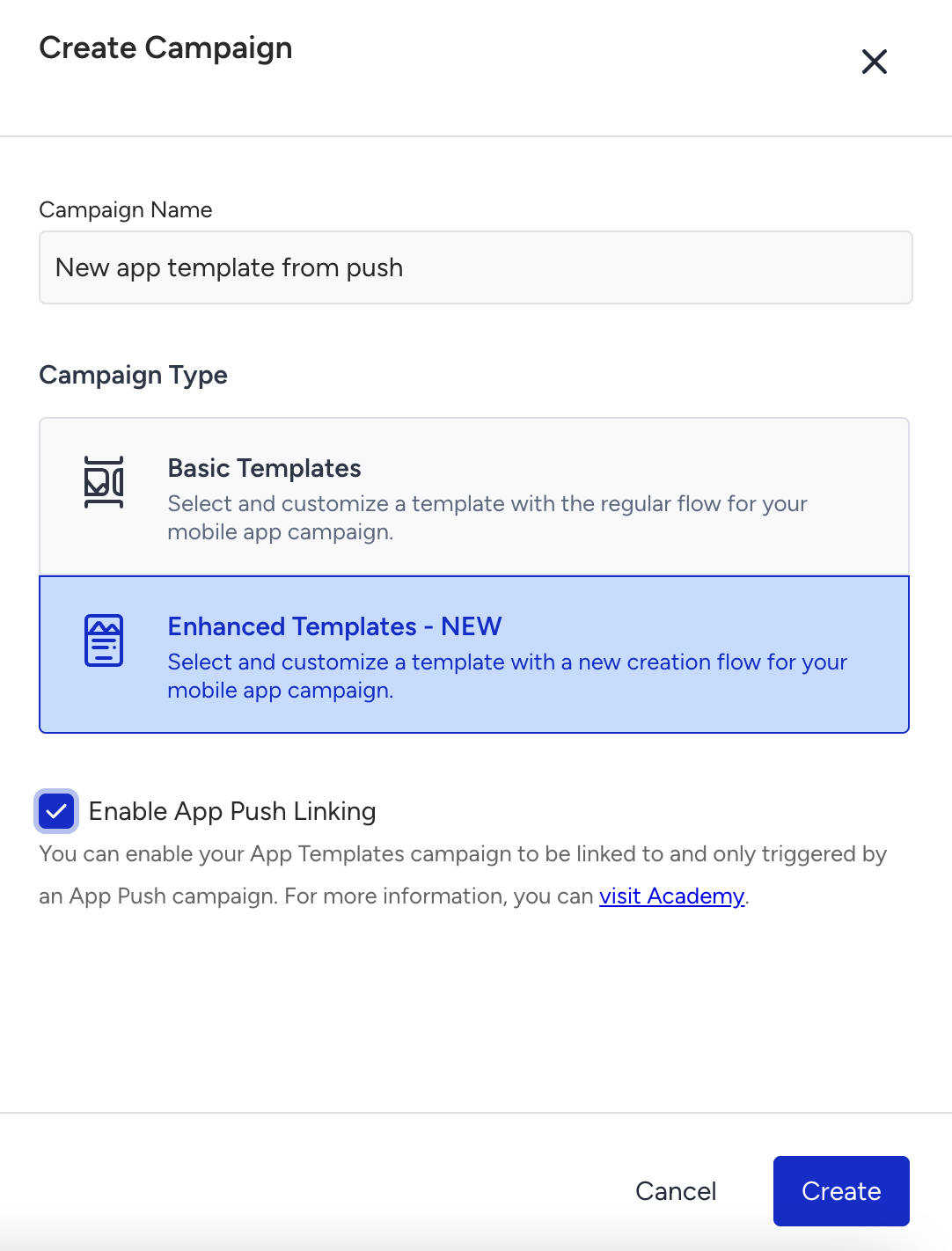
3. Select Enhanced Templates, enter a campaign name, and check the Enable App Push Linking box. Click the Create button.
4. Select the enhanced template you want to link to your app push campaign and start editing it.
.png)
You can design your template as an enhanced template. The App Template From Push campaign have the Design, Rules, and Launch steps.
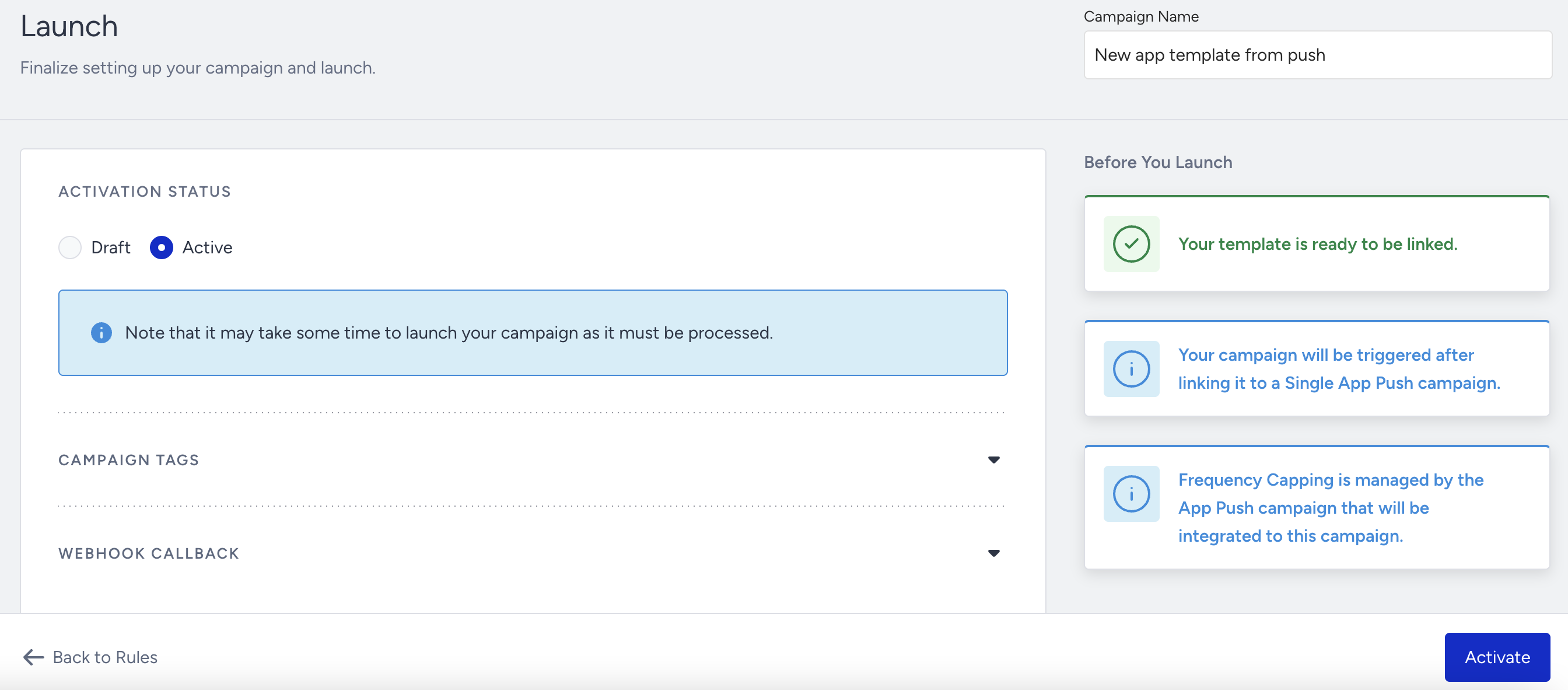
5. Once you complete designing your campaign, save it on the Active status to activate it.
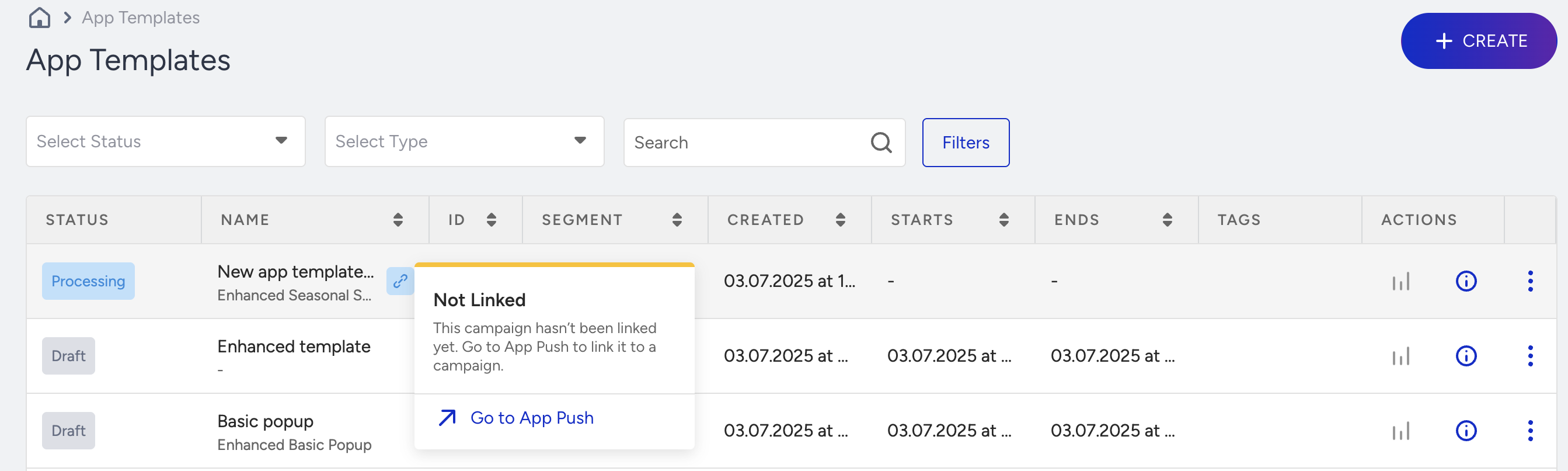
When you activate your campaign, it will show the Not Linked message.
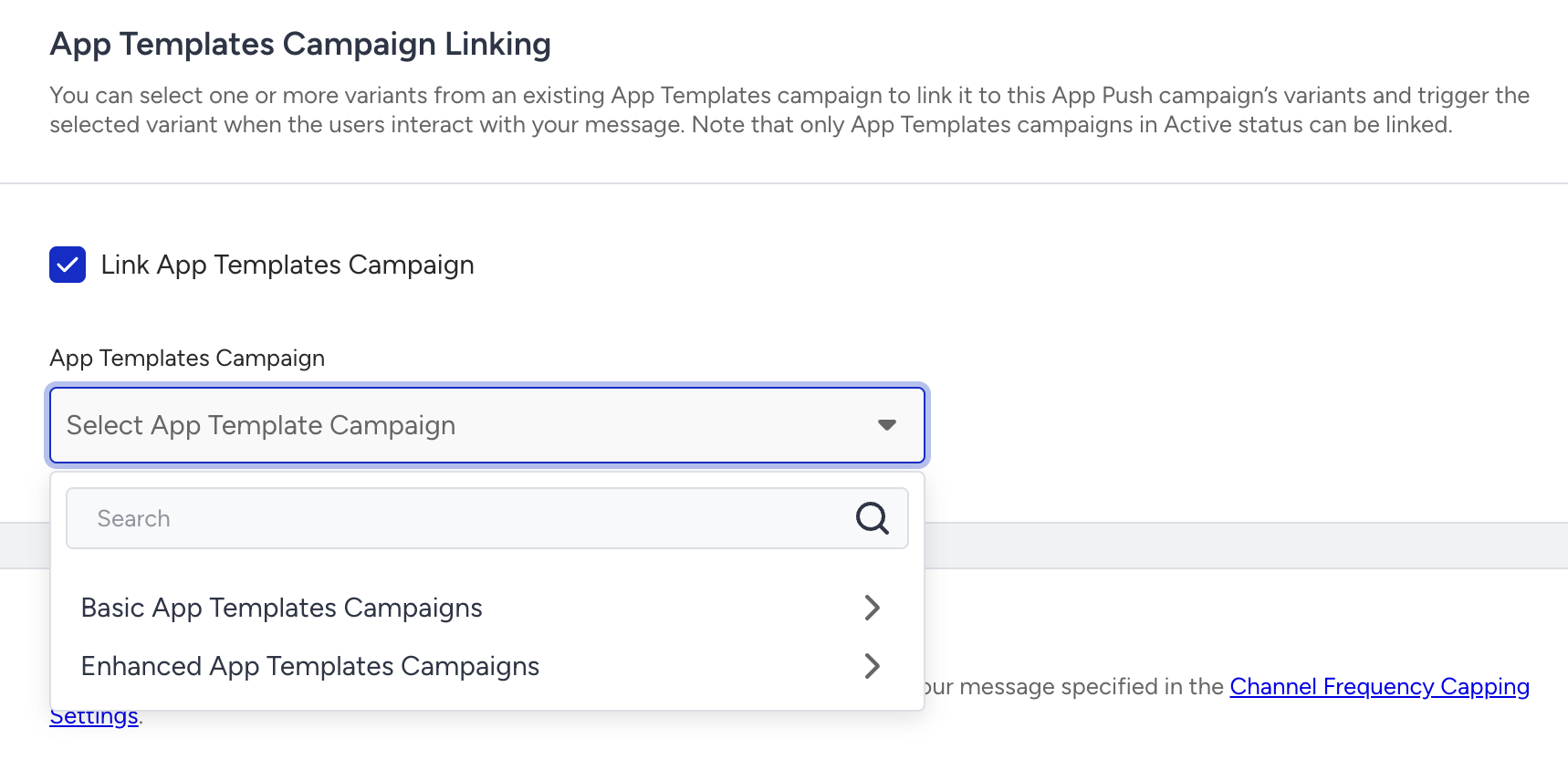
Link your template to app push
On the launch step of your app push campaign, check the Link App Templates Campaign box to select your enhanced app template campaign.
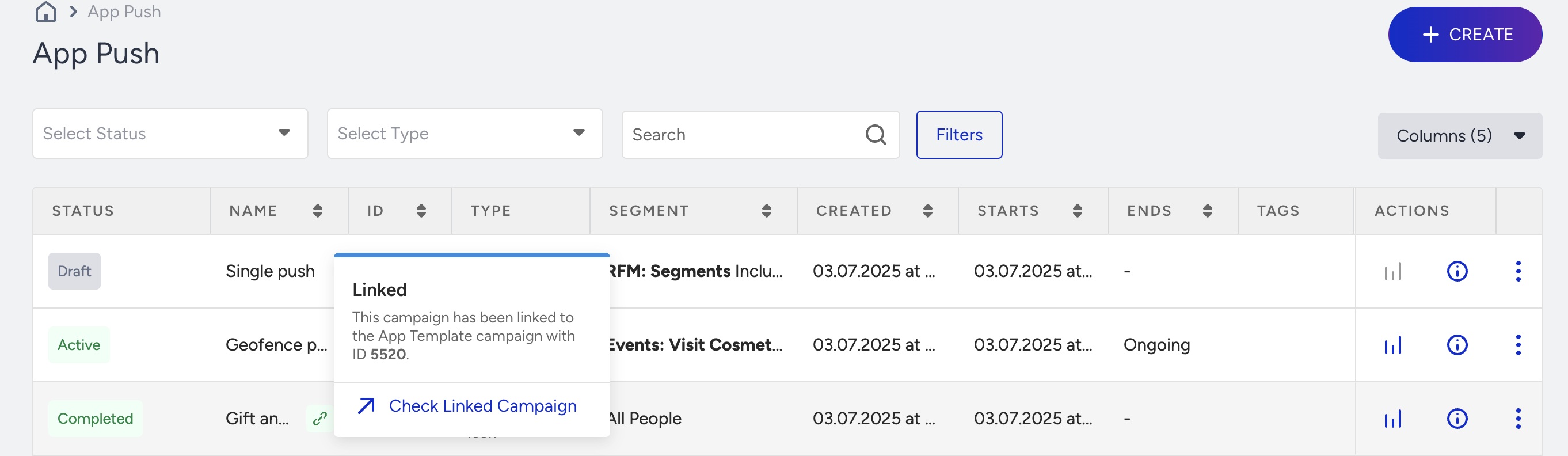
Once you link your template to the app push campaign, it will be listed with the Linked message.
Analytics
The analytics for both the app push and the linked template are listed on the campaign-level analytics of the app push campaign.
At the beginning of the page, you can see the push-related metrics.
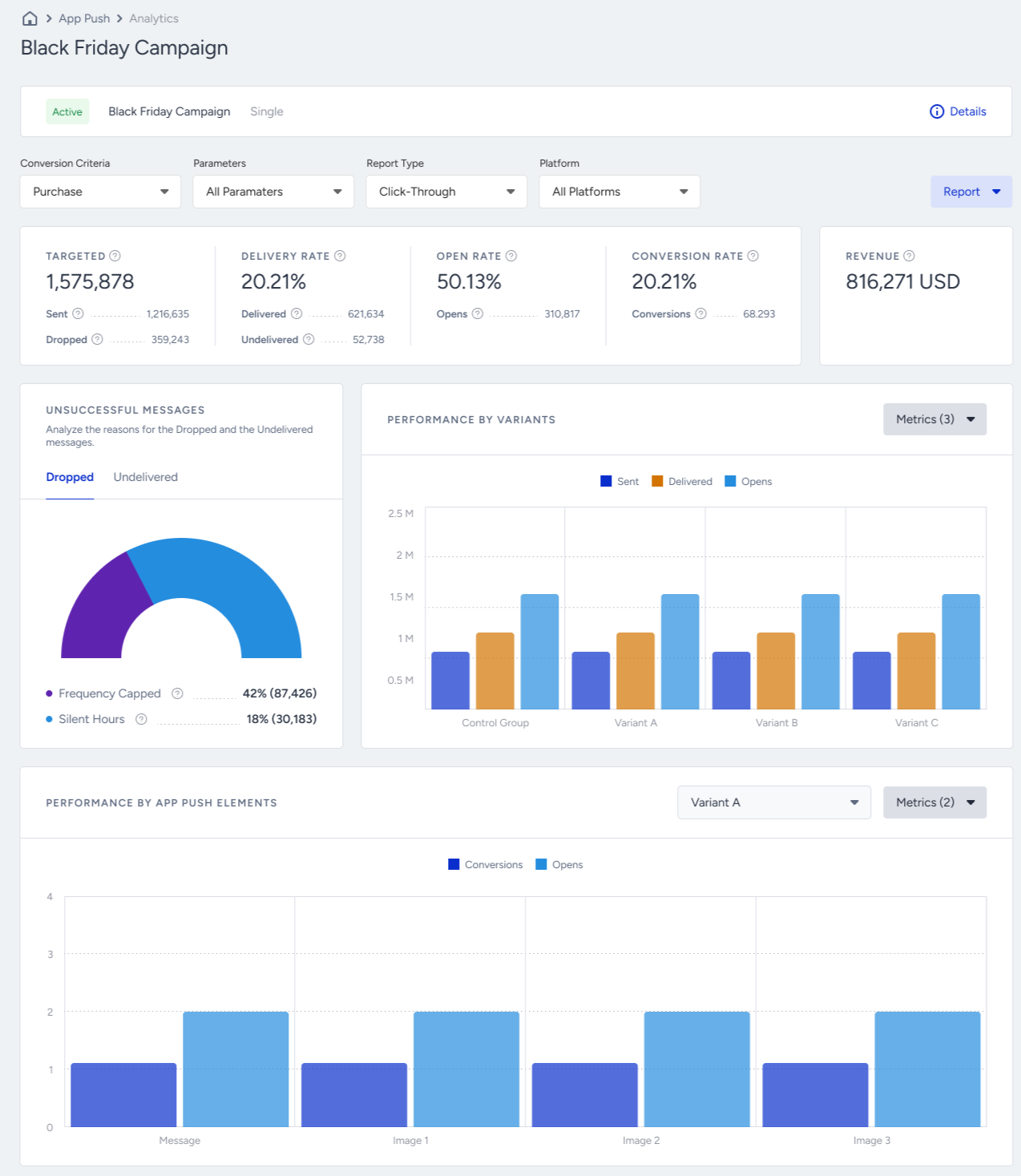
Below the app push section, you can see the template-related analytics.