The Memory Game template lets you deliver a fun, time-based challenge where users must match identical cards within a given time. It's an effective way to increase engagement, gather leads, and deliver a branded interactive experience on websites and mobile apps.
You can use the Memory Game template to:
Boost Engagement: The memory mechanic is familiar and addictive, keeping users actively engaged.
Drive Conversions: Lead collection is built into the experience, with the option to gate access to the game behind form fields.
Customize Freely: You have complete control over game settings, card images, timer, number of attempts, and page designs.
Build Brand Recall: You can incorporate your own visuals on the cards and use brand-themed designs across all pages.
While designing it, you can customize the Memory Game template in the Settings menu:
Content page to collect user data (e.g., email, phone).
Game page to define the number of cards, time, and total attempts
Outcome pages to display final messages or rewards.
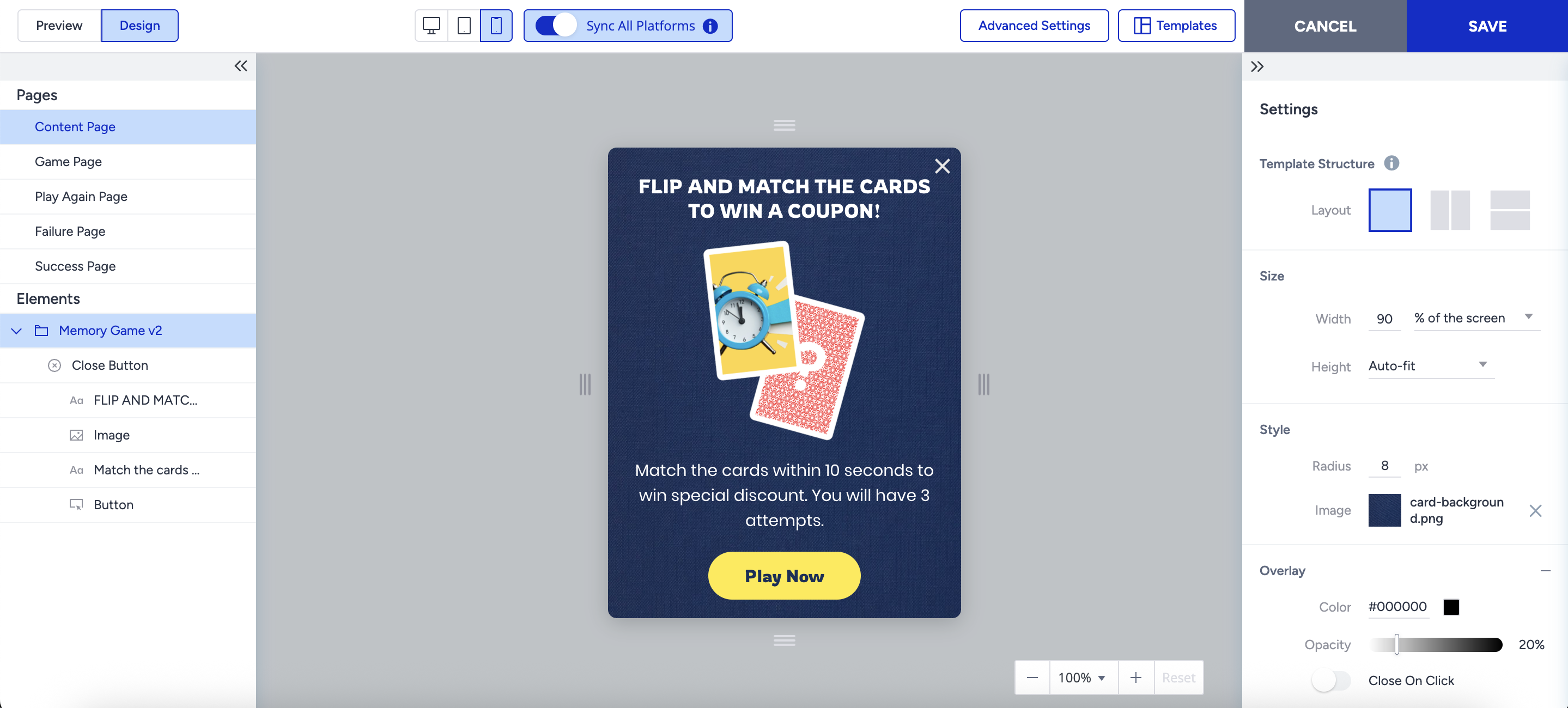
Content Page
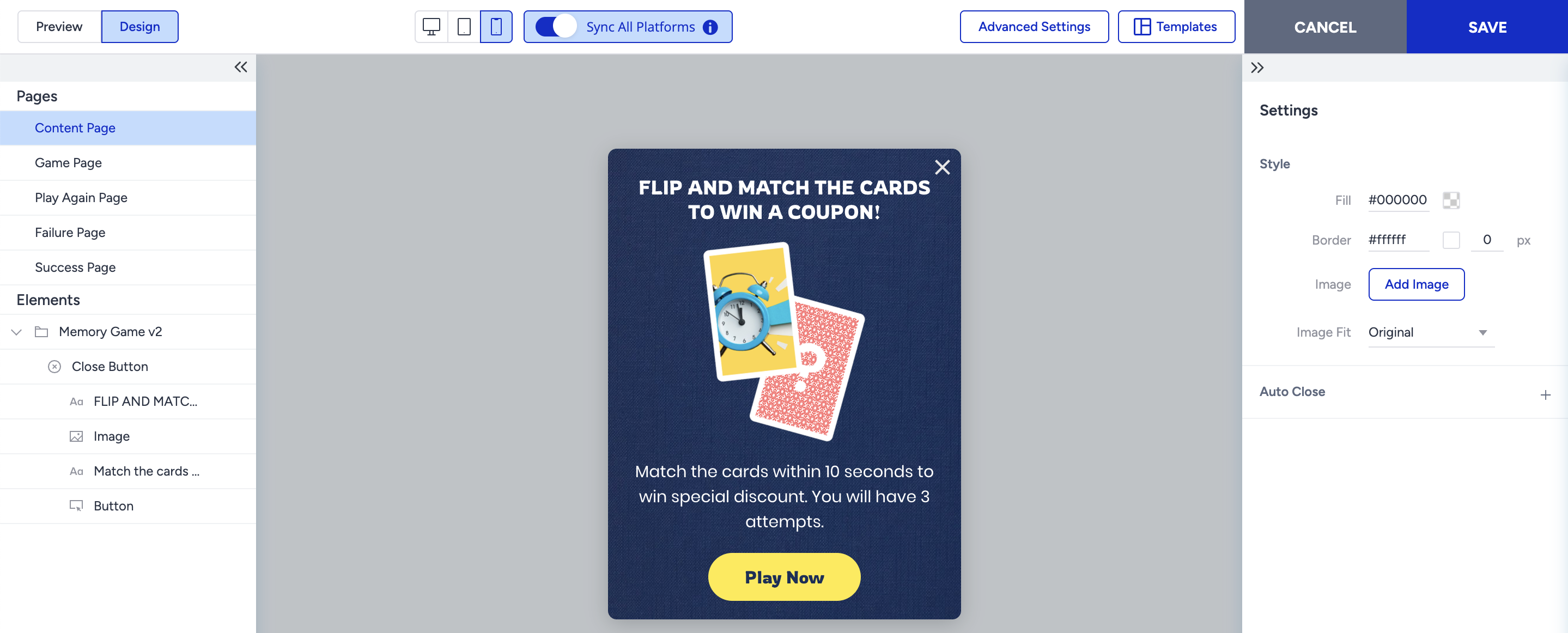
The Content page is the only page where you can collect user data (e.g., email, phone). It works like a regular lead collection page and includes a default and mandatory button that redirects users to the Game page.
All elements of Lead Collection templates (such as email input, text, coupon code, countdown, etc.) are supported on this page.
Game Page
A set of face-down cards appears on the Game page. Users must flip and match cards with identical images within a set time limit.
You define the number of cards, the time, and the total number of attempts when designing it.
.gif)
Game Folder Settings
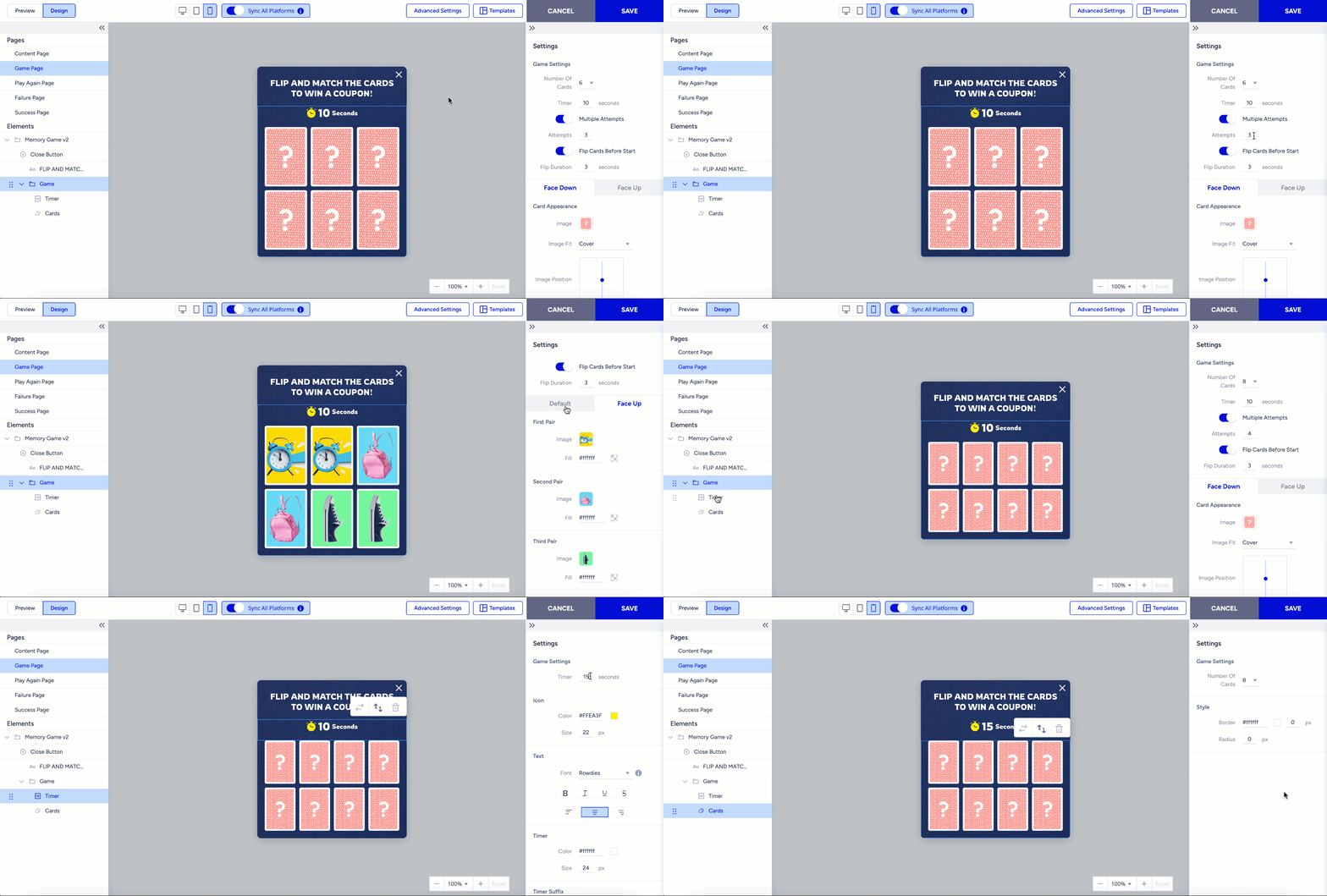
Number of Cards: Choose between 6, 8, or 12 cards to be shown to users
Timer: Set the time limit for users to complete the game.
Multiple Attempts: Define the number of attempts the end user has to win the game. If it’s disabled, the user has one chance to win the game.
You can give a minimum of 2 attempts to users if this feature is enabled
Flip Countdown: Controls the brief animation or countdown before cards are revealed.
Timer and Cards: All settings in the right-hand menu are synced with the corresponding elements in the Game Folder.
Play Again Page
The Play Again page is only shown when you enable Multiple Attempts on the Game Page. No input elements allowed on this page.
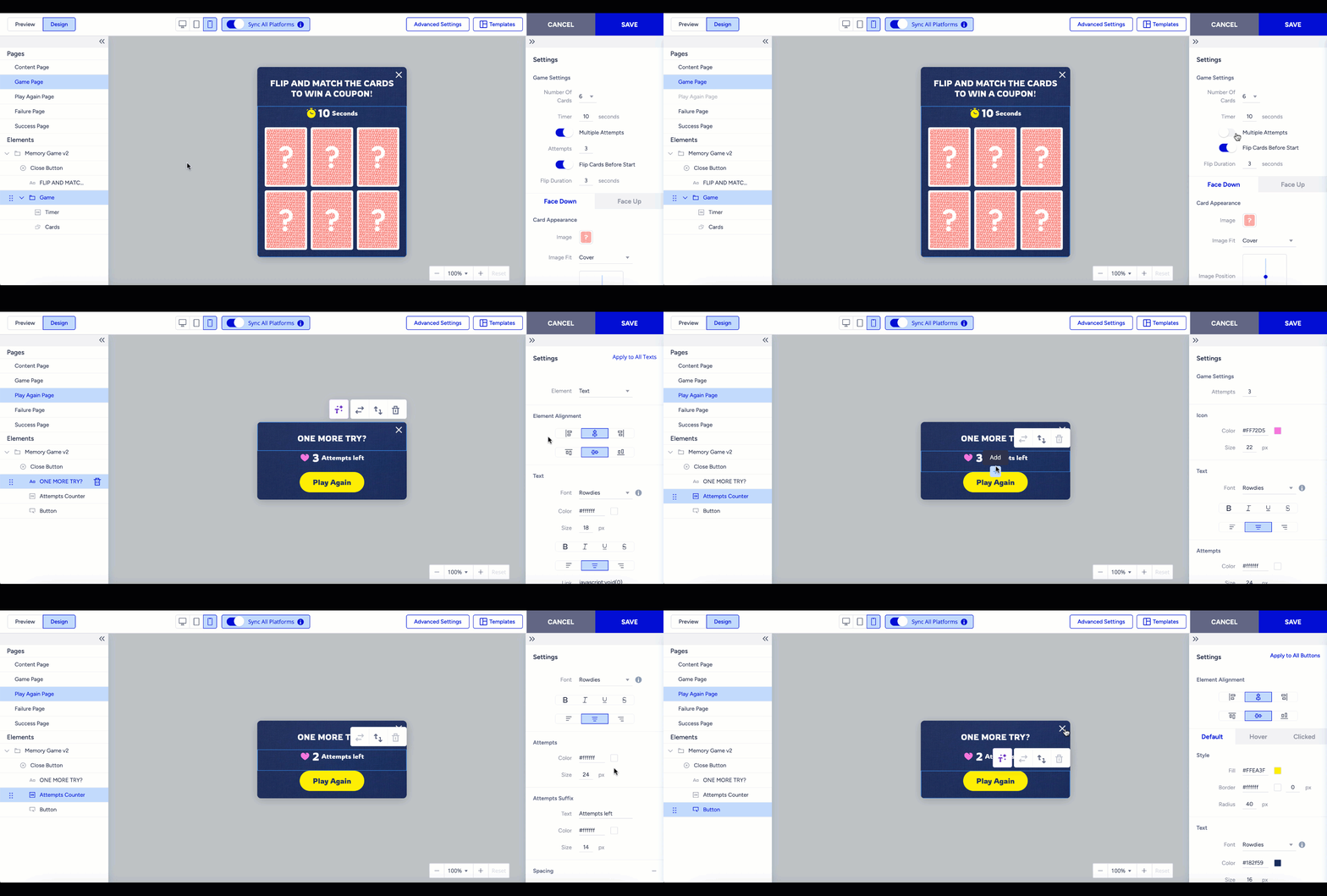
Attempts Counter: Shows how many tries the user has left and is synced with the Attempt value on the Game Page.
Play Again Button: A default and mandatory button to redirect users to the Game Page.
Failure Page
The Failure page is displayed when users fail all their attempts—no input elements allowed on this page.
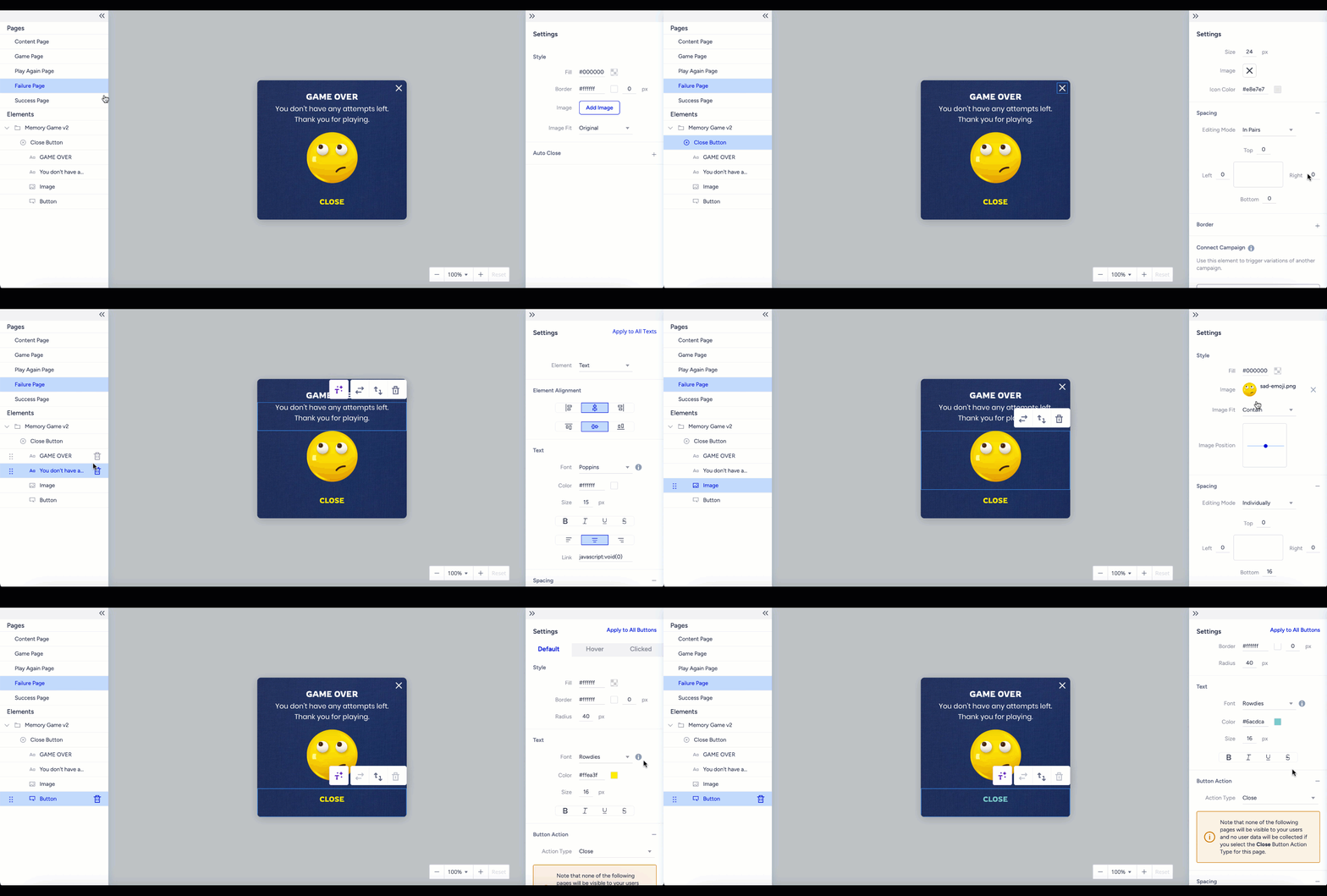
It includes a default close button with the “Close” action.
Success Page
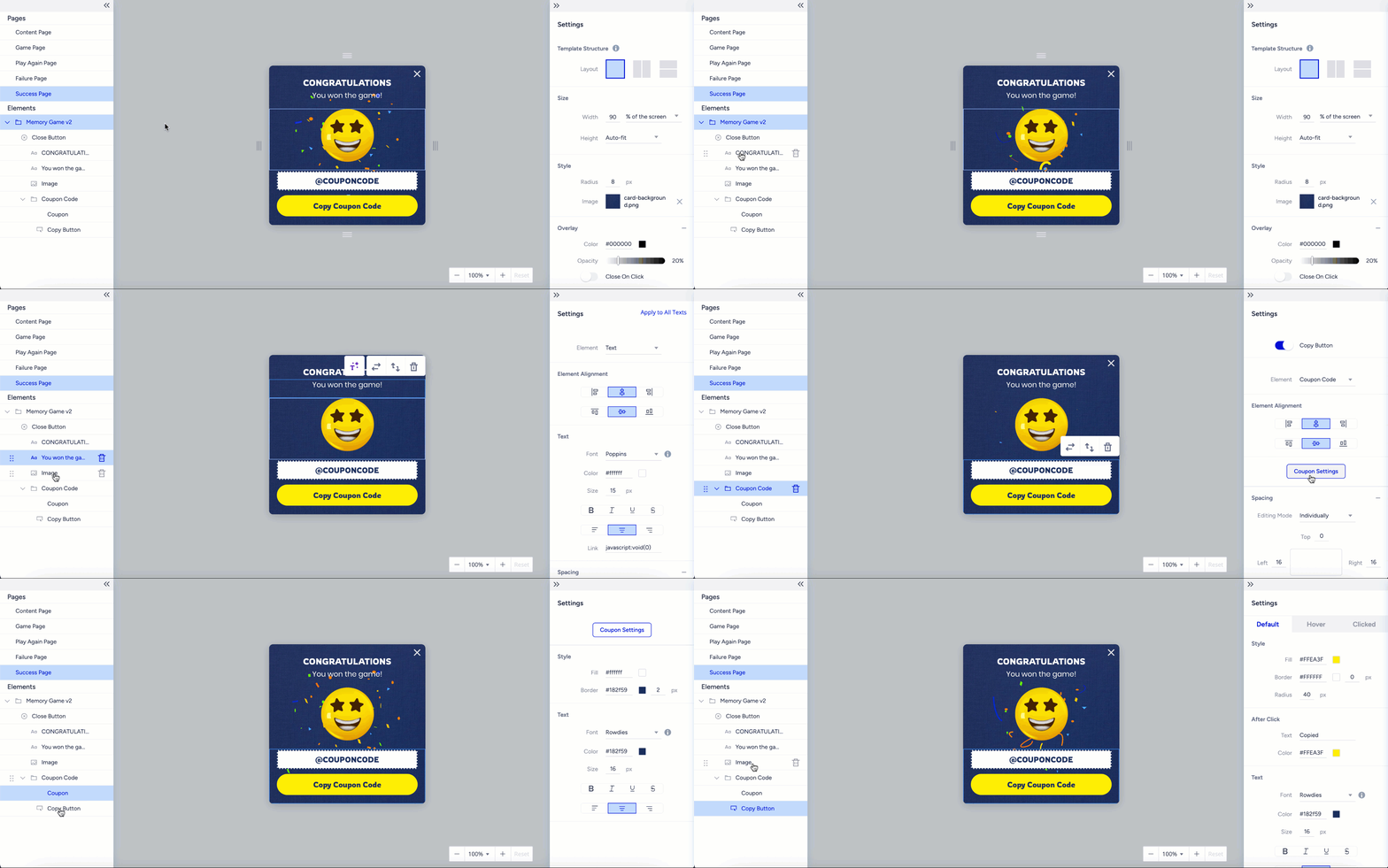
The Success page is displayed when users successfully match all card pairs—no input elements allowed on this page.
It is a fully customizable layout to display a reward message or coupon details.
Tips and Best Practices
Keep card visuals simple and on-brand for faster recognition.
Adjust the timer based on the card count and expected difficulty.
Use retries strategically to balance challenge vs. frustration.
This game is designed solely for entertainment and promotional purposes. It does not involve any form of betting, monetary deposits, or chance-based gambling elements. Participation is entirely free, and all users who take part receive the designated rewards equally.
Rewards are distributed based on user interaction rather than a random betting mechanism. The chance to earn rewards is determined in accordance with the game rules and does not require any payments or wagers. Participation is completely voluntary and carries no risk of loss, ensuring an enjoyable and engaging experience for all users.
Please note that regulations may vary by country or state. We recommend reviewing the applicable laws in your region before launching a campaign.